navigation KIA NIRO EV 2022 Navigation System Quick Reference Guide
[x] Cancel search | Manufacturer: KIA, Model Year: 2022, Model line: NIRO EV, Model: KIA NIRO EV 2022Pages: 332, PDF Size: 11.18 MB
Page 44 of 332
2-6
Using the Android Auto
1 On the All Menus screen, press Android Auto.
2 Perform the desired function.
\225To run the functions for phone, music, or navigation on the smartphone, press the
corresponding app icon.
0000
A
When you are using your smartphone′s navigation via phone projection, sounds
from both the system′s radio/media function and the navigation will be output
through your vehicle′s speakers. When you use the Volume knob while both
sounds are being output, the navigation volume is adjusted first.
\225To use the Google voice recognition, press and hold the Voice Recognition button on
the steering wheel.
0000
A
By pressing the [ MODE] button on the steering wheel, you can run the media App on
your smartphone as well as the Radio/Media mode of the system.
0000
A
To specify which functions to run when the [ MODE] button on the steering wheel is
pressed, press and hold the [ MODE] button to display the settings screen.
0000
A
By pressing the Call button on the steering wheel, you can make a call via Bl\
uetooth
connection.
0000
A
When phone projection is active, you cannot change the phone projection settings. To
change the settings, remove the USB cable from your system.
0000
A
The icons on the screen are subject to change according to the policy of Google
Corporation.
0000
A
Apps or functions used through Android Auto are subject to change according to the
policy of Google Corporation. For supportable functions, visit the Android website at
https://www.android.com/auto.
0000
A
To use the functions on your smartphone with the minimized system settings, update the
smartphone OS to the latest version.
0000
A
The recognition time may differ depending on the device type, firmware, and OS version.
0000
A
Charges may apply for any mobile data used while Android Auto is running.
0000
A
Some functions may not work properly depending on the network signal strength.
0000
A
Avoid interacting with the smartphone while using Android Auto.
0000
A
You cannot use the following functions when Android Auto is in use.
000DUSB mode
000DApple CarPlay
000DSearches using the control panel or the steering wheel remote control
Page 46 of 332
2-8
Using the Apple CarPlay
1 On the All Menus screen, press Apple CarPlay.
2 Perform the desired function.
\225To run any of functions (phone, messaging, navigation, etc.) on your iPhone, press the
corresponding function icon.
0000
A
When you are using your smartphone′s navigation via phone projection, sounds
from both the system′s radio/media function and the navigation will be output
through your vehicle′s speakers. When you use the Volume knob while both
sounds are being output, the navigation volume is adjusted first.
\225To run the Siri voice recognition, press and hold the Voice Recognition button on the
steering wheel.
0000
A
By pressing the [ MODE] button on the steering wheel, you can run the media App on
your smartphone as well as the Radio/Media mode of the system.
0000
A
To specify which functions to run when the [ MODE] button on the steering wheel is
pressed, press and hold the [ MODE] button to display the settings screen.
0000
A
When you receive a call, press the Call button on the steering wheel to answer it.
0000
A
When phone projection is active, you cannot change the phone projection settings. To
change the settings, remove the USB cable from your system.
0000
A
Apps or functions used through Apple CarPlay are subject to change according to the
policy of Apple Corporation. For supportable functions, visit the Apple Corporation
website at http://www.apple.com/ios/carplay .
0000
A
To use the functions on your smartphone with the minimized system settings, update the
smartphone OS to the latest version.
0000
A
The recognition time may differ depending on the device type, firmware, and OS version.
0000
A
Charges may apply for any mobile data used while Apple CarPlay is running.
0000
A
Some functions may not work properly depending on the network signal strength.
0000
A
Avoid interacting with the smartphone while using Apple CarPlay.
0000
A
You cannot use the following functions when Apple CarPlay is in use.
000DBluetooth phone
000DUSB mode
000DAndroid Auto
000DBrowsing using the Search knob on the control panel (if equipped)
Page 64 of 332
2-26
Viewing notifications (if equipped)
You can view UVO notifications including the navigation and map update information.0000
A
Subscribe to UVO to check the function.
> See "Subscribing to the service."
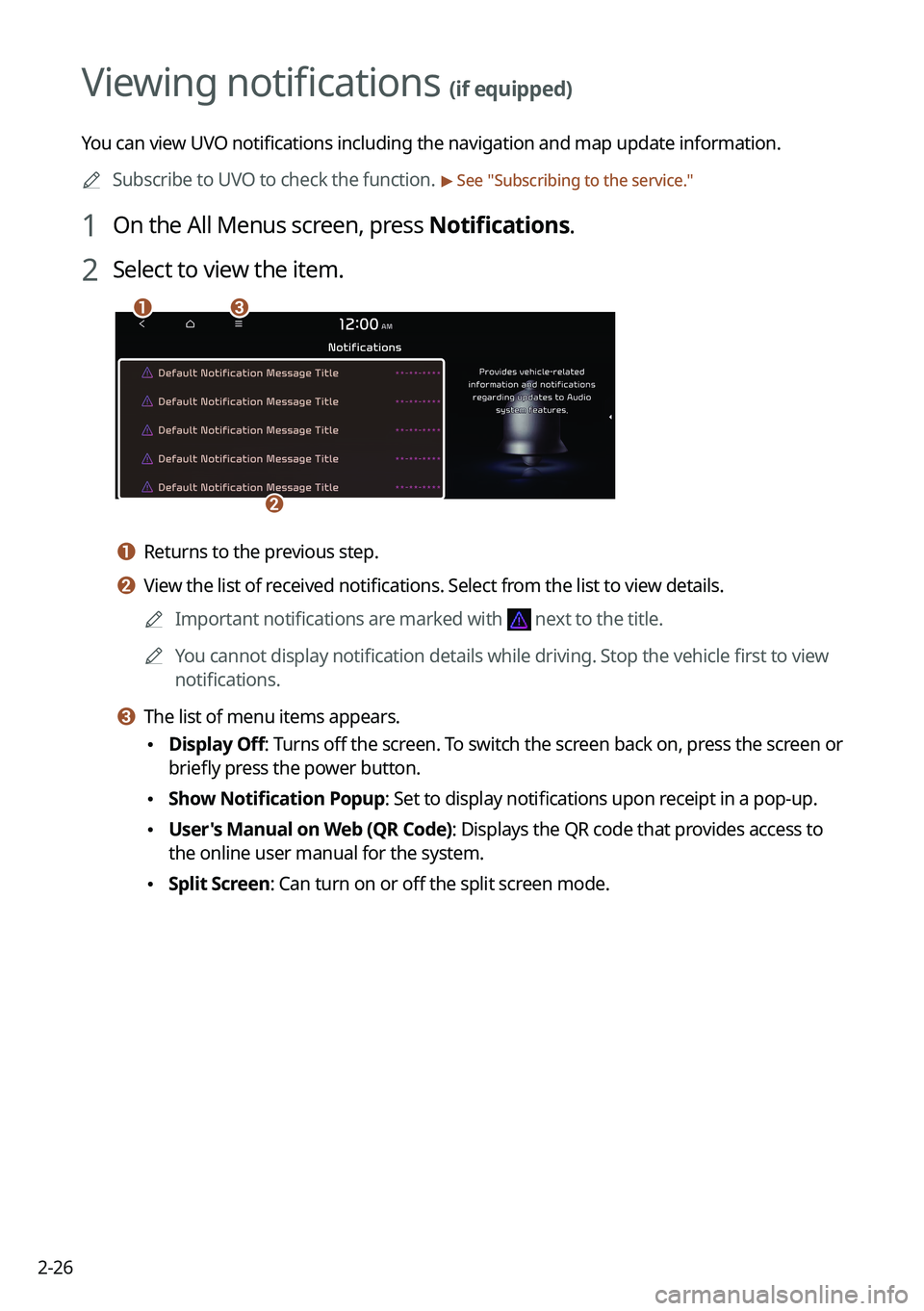
1 On the All Menus screen, press Notifications.
2 Select to view the item.
\037\036
\035
a a Returns to the previous step.
b b View the list of received notifications. Select from the list to view details.
0000
A
Important notifications are marked with
next to the title.
0000
A
You cannot display notification details while driving. Stop the vehicle first to view
notifications.
c c The list of menu items appears.
\225Display Off
: Turns off the screen. To switch the screen back on, press the screen or
briefly press the power button.
\225 Show Notification Popup: Set to display notifications upon receipt in a pop-up.
\225User's Manual on Web (QR Code): Displays the QR code that provides access to
the online user manual for the system.
\225Split Screen: Can turn on or off the split screen mode.
Page 68 of 332
2-30
h h The list of menu items appears.
\225Display Off
: Turns off the screen. To switch the screen back on, press the screen or
briefly press the power button.
\225 User's Manual on Web (QR Code): Displays the QR code that provides access to
the online user manual for the system.
\225Split Screen: Can turn on or off the split screen mode.
Searching for nearby charging stations
When you want to drive beyond the drivable range, you can search for charging stations
within the range and start route guidance to a selected charging station.
1 On the Range screen, press List.
0000
A
On the All Menus screen, press Navigation Menu >
POI Categories >
EV Charging
Stations or to search for nearby charging stations.
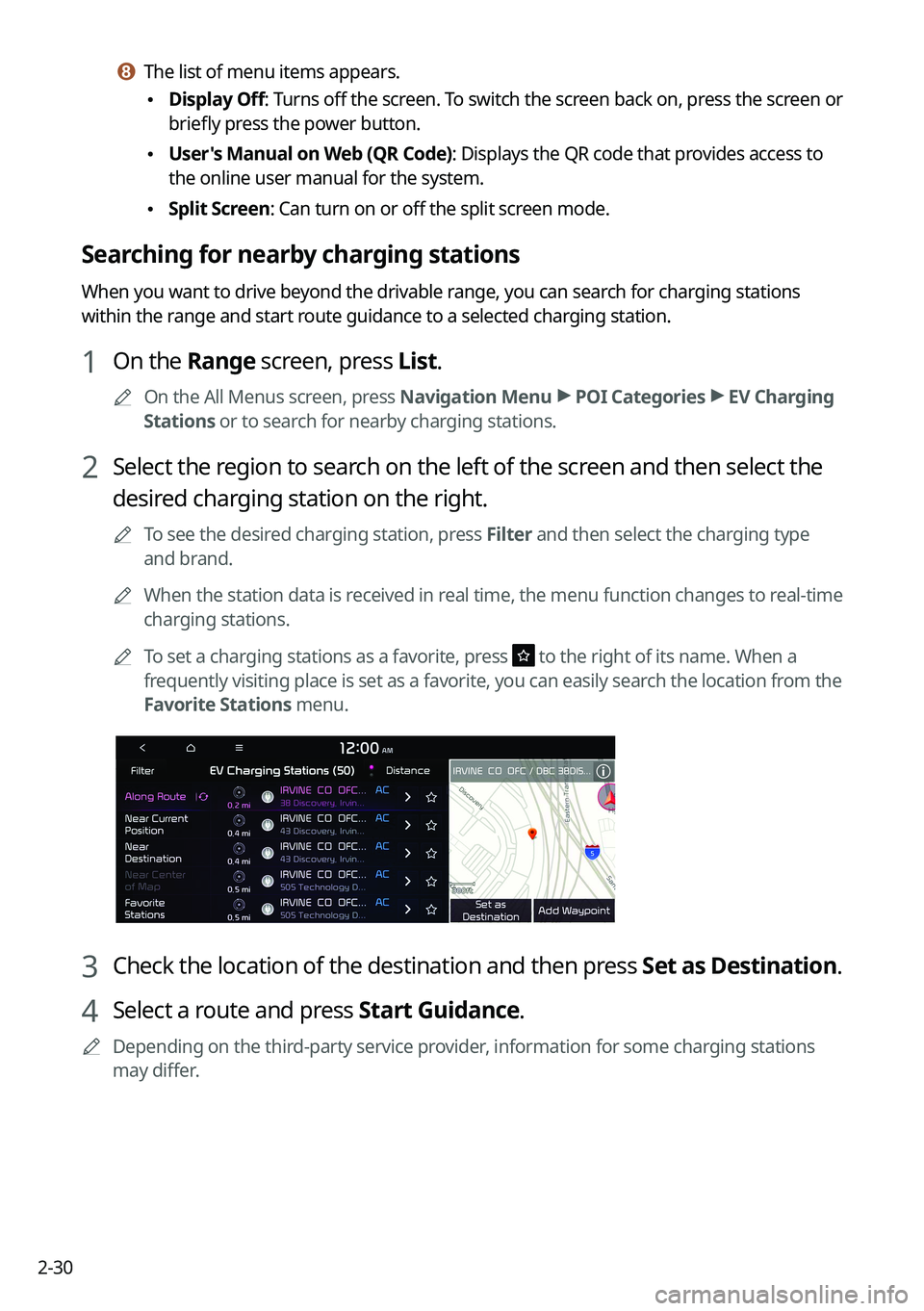
2 Select the region to search on the left of the screen and then select the
desired charging station on the right.
0000
A
To see the desired charging station, press Filter and then select the charging type
and brand.
0000
A
When the station data is received in real time, the menu function changes to real-time
charging stations.
0000
A
To set a charging stations as a favorite, press
to the right of its name. When a
frequently visiting place is set as a favorite, you can easily search the location from the
Favorite Stations menu.
3 Check the location of the destination and then press Set as Destination.
4 Select a route and press Start Guidance.
0000
A
Depending on the third-party service provider, information for some charging stations
may differ.
Page 76 of 332
2-38
Configuring the EV settings (EV only)
You can set to display the warning message when the remaining battery amount is low for
the destination and you can also see the drivable distance. In winter, you can also set to
increase the battery temperature in advance.
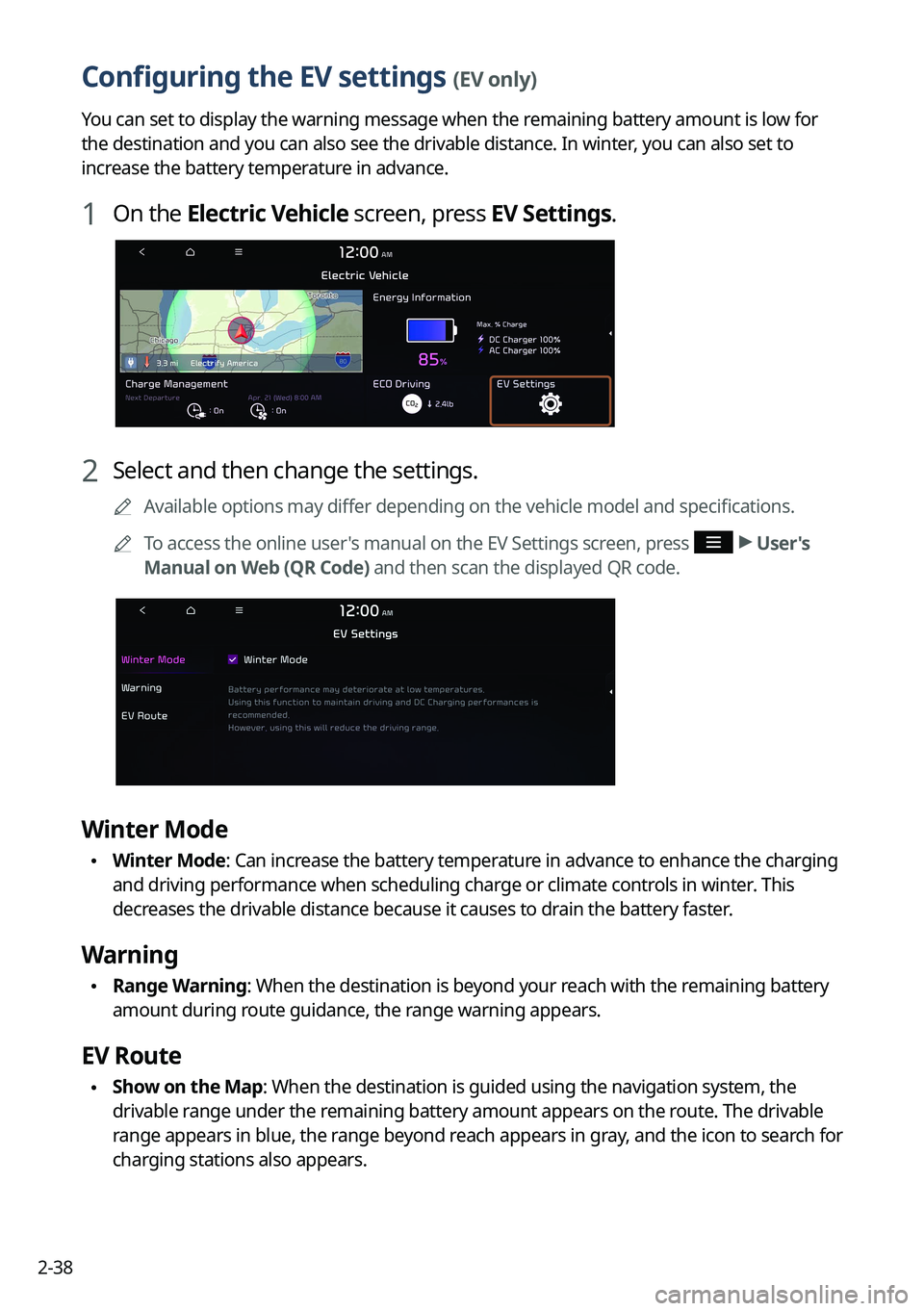
1 On the Electric Vehicle screen, press EV Settings.
2 Select and then change the settings.
0000
A
Available options may differ depending on the vehicle model and specifications.
0000
A
To access the online user's manual on the EV Settings screen, press
>
User's
Manual on Web (QR Code) and then scan the displayed QR code.
Winter Mode
\225 Winter Mode: Can increase the battery temperature in advance to enhance the charging
and driving performance when scheduling charge or climate controls in winter. This
decreases the drivable distance because it causes to drain the battery faster.
Warning
\225Range Warning: When the destination is beyond your reach with the remaining battery
amount during route guidance, the range warning appears.
EV Route
\225Show on the Map: When the destination is guided using the navigation system, the
drivable range under the remaining battery amount appears on the route. The drivable
range appears in blue, the range beyond reach appears in gray, and the icon to search for
charging stations also appears.
Page 107 of 332
Navigation
Navigation functions
Various ways to find routes
Using saved favorite places Searching for gas stations
Searching for EV (Electric Vehicle) charging stations END USER LICENSE AGREEMENT
05
Page 108 of 332

5-2
Navigation functions
Navigation Menu overview
You can use the navigation system conveniently through various functions on the Navigation
Menu screen.
Perform any of the following methods:
\225On the All Menus screen, press Navigation Menu.
\225On the control panel, press the [
NAV] button.
\037\036
\035
\034
\033\032\031\030\027
\026\025\024
\023
a a Returns to the previous step.
b b Customize the navigation settings.
c c Search for a location by entering various types of keywords such as place name and
address.
> See " Searching by keyword."
d d Search for a location by using the point of interest (POI) categories. > See "Searching for
nearby points of interest."
e e Select one of the destinations you entered previously. > See " Searching from previous
destinations."
f f Select one of the locations stored in your address book. > See " Using saved favorite places."
g g Search for Kia Dealerships easily. > See "Searching for Kia Dealerships."
h h Cancel guidance to the destination. > See "Canceling the route guidance."
i i View information on the entire route to the destination.
j j Edit the waypoints on the way to the destination. > See "Editing the route."
k k Reroute by changing the route search option. > See "Changing the route search option."
Page 109 of 332
5-3
l l Register your home, office or other frequently visited places as a favorite location to
making searching easier.
> See "Saving a frequently visited place as a favorite place."
m m The list of menu items appears.
\225 Reorder Icons: Can change the location of an icon on the Navigation Menu screen.
\225Display Off: Turns off the screen. To switch the screen back on, press the screen or
briefly press the power button.
\225User's Manual on Web (QR Code): Displays the QR code that provides access to the
online user manual for the system.
0000
A
Available icons and their arrangement may differ depending on the vehicle model and
specifications.
Finding a route easily
\335Warning
Driving while distracted may cause a loss of vehicle control that may lead to an accident,
severe bodily injury, or death. The driver's primary responsibility is the safe and legal
operation of the vehicle, and the use of any devices or systems that take the driver's attention
away from driving.
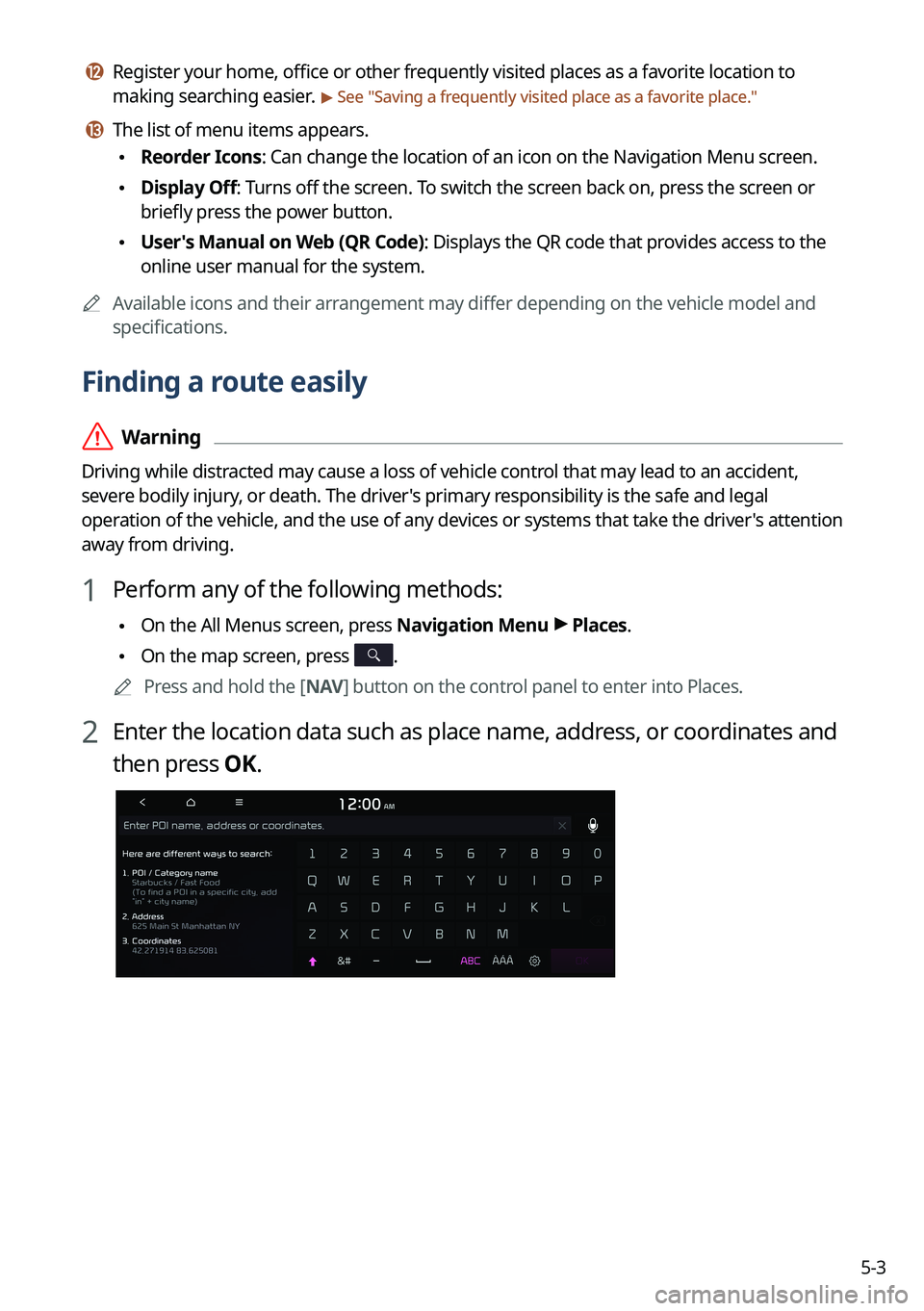
1 Perform any of the following methods:
\225On the All Menus screen, press Navigation Menu >
Places.
\225 On the map screen, press .
0000
A
Press and hold the [ NAV] button on the control panel to enter into Places.
2 Enter the location data such as place name, address, or coordinates and
then press OK.
Page 111 of 332
5-5
0000
A
Vehicle location may not be displayed correctly if:
000DThe vehicle is driving on a Y-shaped or winding road with narrow angles.
000DThe vehicle is driving closely to another road.
000DThe vehicle is driving on a road where there are many tall buildings in the vicinity.
000DThe vehicle is driving on a new road or a road under construction.
000DThe vehicle is transported by a ferry or heavy-duty transport vehicle.
000DThe vehicle is driving in a rugged mountain area or on a steep curve road.
000DThe vehicle is entering a public road after making a turn through the turntable in an
underground parking lot or multi-story parking lot.
000DThe vehicle stops and starts repeatedly or moves slowly in front of an intersection.
000DThe system reboots after the vehicle battery has been recharged or replaced.
000DThe vehicle is driving on a slippery road due to heavy snow, etc.
000DThe tires have been replaced recently or spare tires (or studless tires) are used.
000DImproper-sized tires are used or the pressure of each tire is different.
000DThe replaced tire is worn out or the studless tires have been used for over two seasons.
000DA roof carrier is installed on the vehicle.
000DOn a highway continued driving causes the system to perform map matching or apply
the updated GPS data.
0000
A
Navigation service may not be provided correctly under the following conditions:
000DWhen the vehicle drives on a straight road continuously, the system may guide you to
drive straight. It is not a malfunction.
000DGuidance may not be followed immediately after the vehicle makes a turn at an
intersection or drives through an intersection.
000DThe system may guide you to make a U-turn in a prohibited area.
000DThe system may guide you to a traffic-blocked road (e.g. no-entry road or road under
construction).
000DThe system may guide you to a road away from the destination when there is no road
to the destination or there are only narrow roads on the way.
000DGuidance may not be proper when the vehicle is off the route.
000DGuidance may not match the actual distance on an overpass or underpass due to the
difference of the start point.
000DWhen you are driving at high speeds, route recalculations may take longer.
0000
A
Because the navigation system is used for information purposes only, Kia does not
assume responsibility of the accuracy of the information.
0000
A
When the traffic information is not received, the status icon (
) appears at the top of the
map screen.
Page 112 of 332

5-6
Map screen
The map screen provides various functions and informations, as follows:
\037
\036\035
\034
\033
\032
\031
\030
\027
\026
\025\024\023
\022
Option A
o
\0002\000S\000W\000L\000R\000Q\000\003\000%\000\003\000\013\000\(\0009\000\
\003\000R\000Q\000O\000\\\000\f
a a Displays the Home screen.
b b Used to change the map display mode.
\225 (2D Heading Up): Rotates the map depending on the travel direction.
\225 (2D North Up): Displays the map with the north fixed at the top.
\225 (3D Map): Rotates the map depending on the travel direction for 3D view.
c c Adjust the navigation sound volume.
d d Zooms in the map.
e e Set the map scale change mode to automatic or manual.
f f Zooms out the map.