reset KIA NIRO PHEV 2020 Navigation System Quick Reference Guide
[x] Cancel search | Manufacturer: KIA, Model Year: 2020, Model line: NIRO PHEV, Model: KIA NIRO PHEV 2020Pages: 235, PDF Size: 6.13 MB
Page 72 of 235

3-4
Changing the radio channel
Perform any of the following methods:
000EOn the Radio screen, touch the desired channel from the
presets list.
0000
A
You can also change the channel by using the Move lever/
button on the steering wheel.
000EOn the control panel, press the
[ SEEK ] or [TRACK ] button.
You can move to the previous or next channel with good
reception.
000E When you know an accurate frequency, turn the [TUNE/FILE]
knob on the control panel to change the frequency.
You can listen to the changed radio broadcast.
Changing the channel by using voice
commands
You can change the radio channel by using voice commands.
1 On the Radio screen, touch .
2 When a guiding beep is heard, say the desired
radio station channel.
Changing the radio mode
Perform any of the following methods:
000E On the Radio screen, touch Band repeatedly.
000EOn the control panel, press the [
RADIO] button repeatedly.
The radio mode changes in the order of FM >
AM >
SiriusXM.
Page 73 of 235
3-5
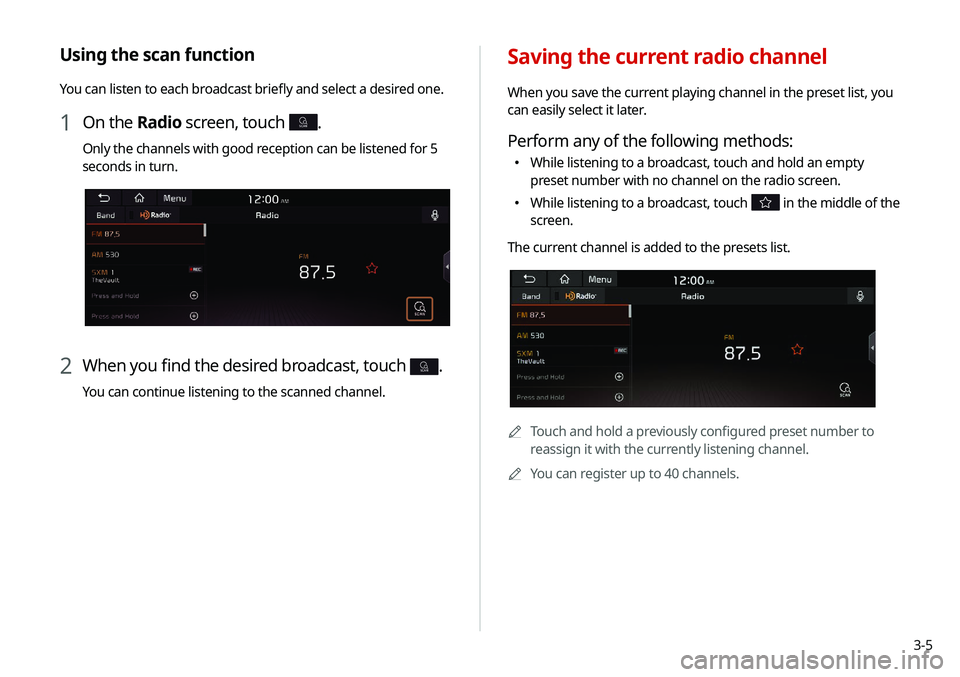
Saving the current radio channel
When you save the current playing channel in the preset list, you
can easily select it later.
Perform any of the following methods:
000EWhile listening to a broadcast, touch and hold an empty
preset number with no channel on the radio screen.
000EWhile listening to a broadcast, touch in the middle of the
screen.
The current channel is added to the presets list.
0000A Touch and hold a previously configured preset number to
reassign it with the currently listening channel.
0000
A
You can register up to 40 channels.
Using the scan function
You can listen to each broadcast briefly and select a desired one.
1 On the Radio screen, touch SCAN.
Only the channels with good reception can be listened for 5
seconds in turn.
2 When you find the desired broadcast, touch SCAN.
You can continue listening to the scanned channel.
Page 74 of 235
3-6
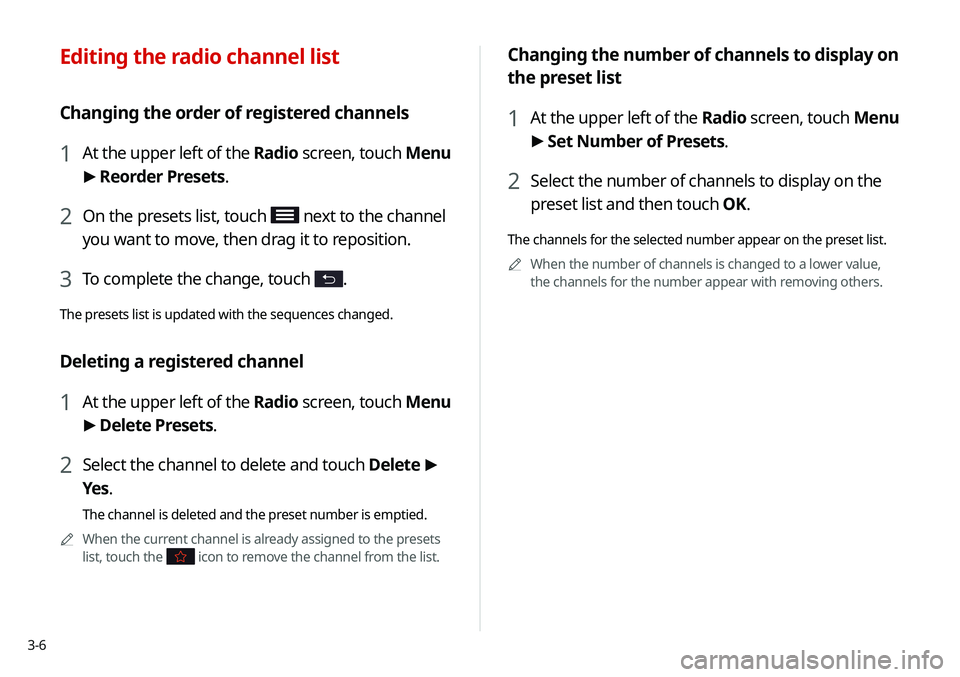
Changing the number of channels to display on
the preset list
1 At the upper left of the Radio screen, touch Menu
> Set Number of Presets.
2 Select the number of channels to display on the
preset list and then touch OK.
The channels for the selected number appear on the preset list.
0000
A
When the number of channels is changed to a lower value,
the channels for the number appear with removing others.
Editing the radio channel list
Changing the order of registered channels
1 At the upper left of the Radio screen, touch Menu
>
Reorder Presets.
2 On the presets list, touch next to the channel
you want to move, then drag it to reposition.
3 To complete the change, touch .
The presets list is updated with the sequences changed.
Deleting a registered channel
1 At the upper left of the Radio screen, touch Menu
> Delete Presets.
2 Select the channel to delete and touch Delete >
Yes .
The channel is deleted and the preset number is emptied.
0000
A
When the current channel is already assigned to the presets
list, touch the
icon to remove the channel from the list.
Page 77 of 235
3-9
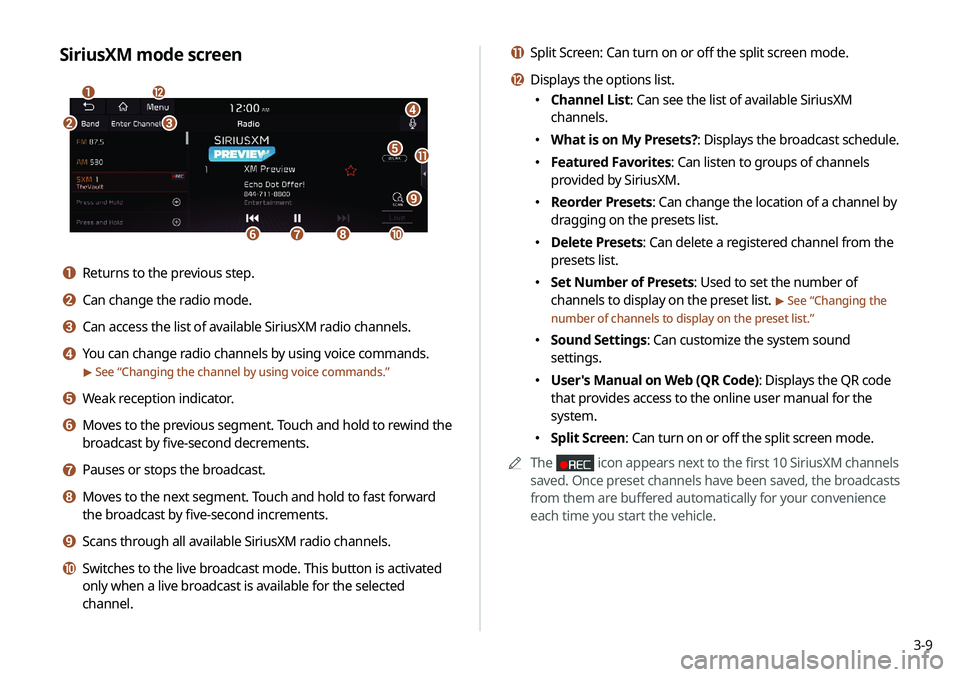
k Split Screen: Can turn on or off the split screen mode.
l Displays the options list.
000EChannel List: Can see the list of available SiriusXM
channels.
000EWhat is on My Presets?: Displays the broadcast schedule.
000EFeatured Favorites: Can listen to groups of channels
provided by SiriusXM.
000EReorder Presets: Can change the location of a channel by
dragging on the presets list.
000EDelete Presets: Can delete a registered channel from the
presets list.
000ESet Number of Presets: Used to set the number of
channels to display on the preset list.
> See “
Changing the
number of channels to display on the preset list.”
000E Sound Settings: Can customize the system sound
settings.
000EUser's Manual on Web (QR Code): Displays the QR code
that provides access to the online user manual for the
system.
000ESplit Screen: Can turn on or off the split screen mode.
0000
A
The
icon appears next to the first 10 SiriusXM channels
saved. Once preset channels have been saved, the broadcasts
from them are buffered automatically for your convenience
each time you start the vehicle.
SiriusXM mode screen
\037
\036
\035
\034\033
\032\031
\030
\027
\026
\025
\024
a Returns to the previous step.
b Can change the radio mode.
c Can access the list of available SiriusXM radio channels.
d You can change radio channels by using voice commands.
> See “Changing the channel by using voice commands.”
e Weak reception indicator.
f Moves to the previous segment. Touch and hold to rewind the
broadcast by five-second decrements.
g Pauses or stops the broadcast.
h Moves to the next segment. Touch and hold to fast forward
the broadcast by five-second increments.
i Scans through all available SiriusXM radio channels.
j Switches to the live broadcast mode. This button is activated
only when a live broadcast is available for the selected
channel.
Page 78 of 235
3-10
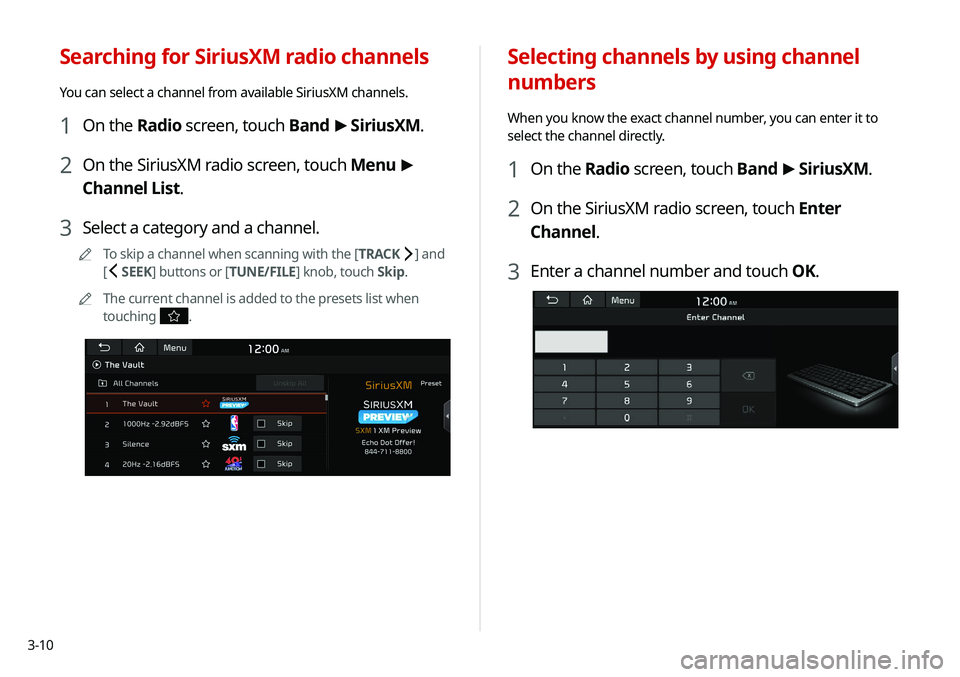
Selecting channels by using channel
numbers
When you know the exact channel number, you can enter it to
select the channel directly.
1 On the Radio screen, touch Band >
SiriusXM.
2 On the SiriusXM radio screen, touch Enter
Channel.
3 Enter a channel number and touch OK.
Searching for SiriusXM radio channels
You can select a channel from available SiriusXM channels.
1 On the Radio screen, touch Band >
SiriusXM.
2 On the SiriusXM radio screen, touch Menu >
Channel List.
3 Select a category and a channel.
0000
A
To skip a channel when scanning with the [ TRACK ] and
[
SEEK] buttons or [TUNE/FILE] knob, touch Skip.
0000
A
The current channel is added to the presets list when
touching
.
Page 79 of 235

3-11
Seeing the program schedule
You can see the program schedule and information for the
channels saved in your preset list.
1 On the Radio screen, touch Band >
SiriusXM.
2 On the SiriusXM radio screen, touch Menu >
What is on My Presets?.
3 Set the date and time on the top line of the
screen.
0000
A
To select a date, touch the date display field at the top left
of the preset list and select the date and time zone.
0000
A
To select a time, touch
or .
4 Select a channel and a program to see its detailed
information.
0000
A
If any hidden information, an arrow appears next to the
program. Touch the arrow to see the hidden information.
Listening to Featured Favorites
channels
You can listen to Featured Favorites channels on the SiriusXM
radio. Multiple sets of channels can be broadcast and can be
changed by SiriusXM.
1 On the Radio screen, touch Band >
SiriusXM.
2 On the SiriusXM radio screen, touch Menu >
Featured Favorites.
3 Select a channel.
Page 129 of 235

6-5
Bluetooth connection screen
\037
\036
\035
\034
\033
a Returns to the previous step.
b Select hands-free or Bluetooth audio to connect or disconnect
Bluetooth devices.0000
A
A device list will appear when a Bluetooth device is added
to the system.
c Add a new device to the system.
d Delete a registered device from the system.
e The list of menu items appears.
000EAuto Connection Priority: Set Bluetooth connection
priority for devices to automatically connect them when
starting the vehicle (if equipped).
000EUser's Manual on Web (QR Code): Displays the QR code
that provides access to the online user manual for the
system.
2 Touch the device name or icons to connect.
3 Select the function to connect and touch OK.
0000
A
If you cannot connect your device, check to make sure its
Bluetooth option is enabled.
0000
A
When the connection is terminated abnormally due to
being out of range or device failures, the connection is
automatically restored as soon as the device returns to
the connection range or normal state.
0000
A
When the connection is unstable due to a Bluetooth
communication error, on the All Menus screen, touch
Setup >
Device Connections >
Bluetooth >
Reset to
initialize the Bluetooth function and connect the device
again.
> See “ Reset.”
Page 174 of 235
8-8
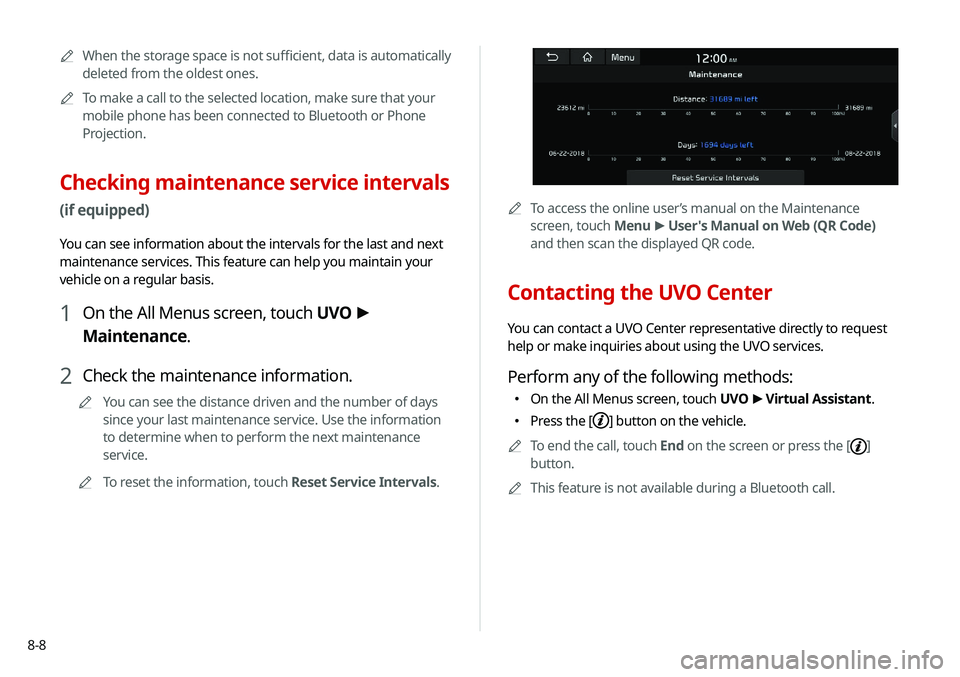
0000ATo access the online user’s manual on the Maintenance
screen, touch Menu >
User's Manual on Web (QR Code)
and then scan the displayed QR code.
Contacting the UVO Center
You can contact a UVO Center representative directly to request
help or make inquiries about using the UVO services.
Perform any of the following methods:
000E On the All Menus screen, touch UVO
>
Virtual Assistant.
000E Press the [] button on the vehicle.
0000
A
To end the call, touch End on the screen or press the [
]
button.
0000
A
This feature is not available during a Bluetooth call.
0000
A
When the storage space is not sufficient, data is automatically
deleted from the oldest ones.
0000
A
To make a call to the selected location, make sure that your
mobile phone has been connected to Bluetooth or Phone
Projection.
Checking maintenance service intervals
(if equipped)
You can see information about the intervals for the last and next
maintenance services. This feature can help you maintain your
vehicle on a regular basis.
1 On the All Menus screen, touch UVO >
Maintenance.
2 Check the maintenance information.
0000
A
You can see the distance driven and the number of days
since your last maintenance service. Use the information
to determine when to perform the next maintenance
service.
0000
A
To reset the information, touch Reset Service Intervals.
Page 179 of 235
9-3
Reset ECO/NORMAL/SPORT (EV only)
You can reset the drive mode settings to the default values.0000
A
The display may differ depending on the vehicle model and
specifications.
0000
A
See how to improve ECO potential by touching the Help
button from an EV(Electric Vehicle). In most cases, a vehicle
can travel a longer distance when its ECO potential score is
higher (EV only).
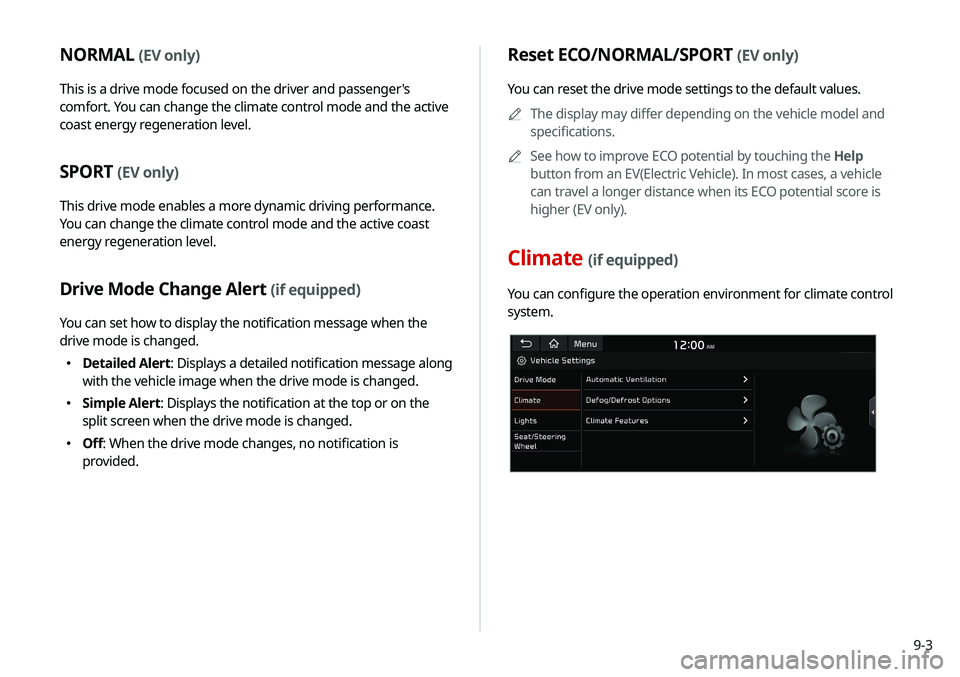
Climate (if equipped)
You can configure the operation environment for climate control
system.
NORMAL (EV only)
This is a drive mode focused on the driver and passenger's
comfort. You can change the climate control mode and the active
coast energy regeneration level.
SPORT (EV only)
This drive mode enables a more dynamic driving performance.
You can change the climate control mode and the active coast
energy regeneration level.
Drive Mode Change Alert (if equipped)
You can set how to display the notification message when the
drive mode is changed.
000EDetailed Alert
: Displays a detailed notification message along
with the vehicle image when the drive mode is changed.
000E Simple Alert: Displays the notification at the top or on the
split screen when the drive mode is changed.
000EOff: When the drive mode changes, no notification is
provided.
Page 183 of 235
9-7
Auto Connection Priority
Set Bluetooth connection priority for devices to automatically
connect them when starting the vehicle.
Bluetooth Voice Prompts
Set whether to hear voice prompts for events related to Bluetooth
connections.
Message Settings
000EMessage Notification: Sets to receive message notifications.
000EPredefined Messages
: Can edit message templates for replies.
0000
A
This option may not be available in some phone models.
Bluetooth System Info
You can see and edit the Bluetooth information of the system.
Privacy Mode
Enable or disable Privacy Mode.
Hide data including contacts and call history from showing up on
the system screen to protect privacy.
Reset
You can delete all registered Bluetooth devices and initialize
Bluetooth settings. All data for Bluetooth devices are also deleted.
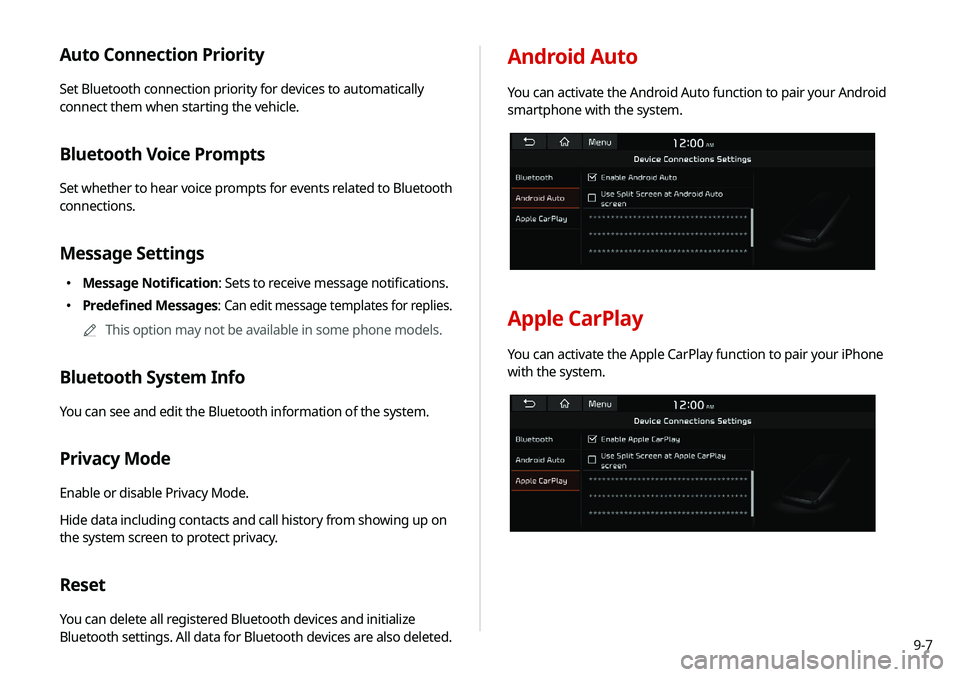
Android Auto
You can activate the Android Auto function to pair your Android
smartphone with the system.
Apple CarPlay
You can activate the Apple CarPlay function to pair your iPhone
with the system.