ad blue KIA NIRO PHEV 2020 Quick Start Guide Base Audio
[x] Cancel search | Manufacturer: KIA, Model Year: 2020, Model line: NIRO PHEV, Model: KIA NIRO PHEV 2020Pages: 134, PDF Size: 4.4 MB
Page 80 of 134
5-10
\333Note
Only contacts in the supported format
can be downloaded and displayed from
the Bluetooth device. Contacts from
some applications will not be included.
Up to 5,000 contacts can be downloaded
from your device.
Some mobile phones may not support
the download function.
Contacts stored both in the phone and
in the SIM card are downloaded. With
some mobile phones, contacts in the
SIM card may not be downloaded.
If you have set up speed dial numbers
on the mobile phone, you can make a
call by pressing and holding a speed
dial number on the keypad. Depending
on the mobile phone type, the speed
dialing function may not be supported.
Permission is required to download
contacts from the mobile phone. When
you attempt to download data, you
may need to permit the download on
the mobile phone. If the download
fails, check the mobile phone screen for
any notification or the mobile phone's
permission setting.
Depending on the mobile phone type or
status, downloading may take longer.
When you download your contacts, any
old data will be deleted.
You cannot edit or delete your contacts
on the system.
When you connect a new mobile phone,
your contacts downloaded from the
previous mobile phone will not be
displayed, but they will remain in your
system until you delete the previous
phone from the devices list.
Dialing from the keypad
You can make a call by entering a phone
number manually on the keypad.
\334 Warning
Never dial a phone number by entering
it manually while driving. This may
distract your attention, making it
difficult to recognize external conditions
and reducing the ability to cope with
unexpected situations, which may lead to
an accident.
1 On the Home screen, press All
Menus > Phone.
Alternatively, press the Call/Answer
button on the steering wheel.
If the Bluetooth Handsfree feature
is deactivated, the device selection
pop-up window appears. Connect
a mobile phone by selecting one
from your list of paired devices or by
pairing a new one.
2 On the Bluetooth phone
screen, press
.
Page 81 of 134
5-11
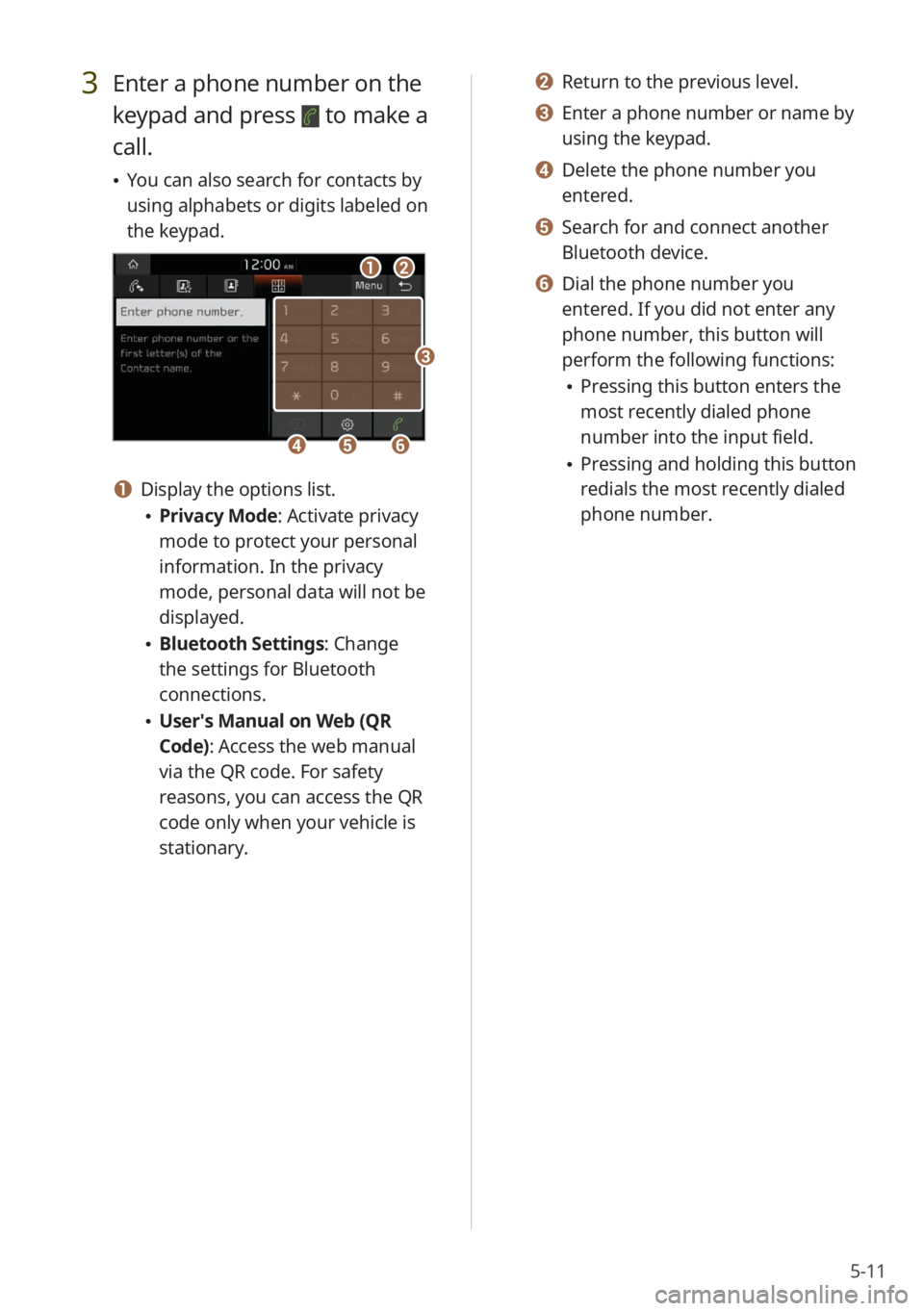
3 Enter a phone number on the
keypad and press
to make a
call.
You can also search for contacts by
using alphabets or digits labeled on
the keypad.
ab
efd
c
a Display the options list.
Privacy Mode : Activate privacy
mode to protect your personal
information. In the privacy
mode, personal data will not be
displayed.
Bluetooth Settings : Change
the settings for Bluetooth
connections.
User′s Manual on Web (QR
Code): Access the web manual
via the QR code. For safety
reasons, you can access the QR
code only when your vehicle is
stationary.
b Return to the previous level.
c Enter a phone number or name by
using the keypad.
d Delete the phone number you
entered.
e Search for and connect another
Bluetooth device.
f Dial the phone number you
entered. If you did not enter any
phone number, this button will
perform the following functions:
Pressing this button enters the
most recently dialed phone
number into the input field.
Pressing and holding this button
redials the most recently dialed
phone number.
Page 82 of 134
5-12
Answering a call via
Bluetooth
You can accept or reject calls and use
convenient functions during a call.
Accepting or rejecting a
call
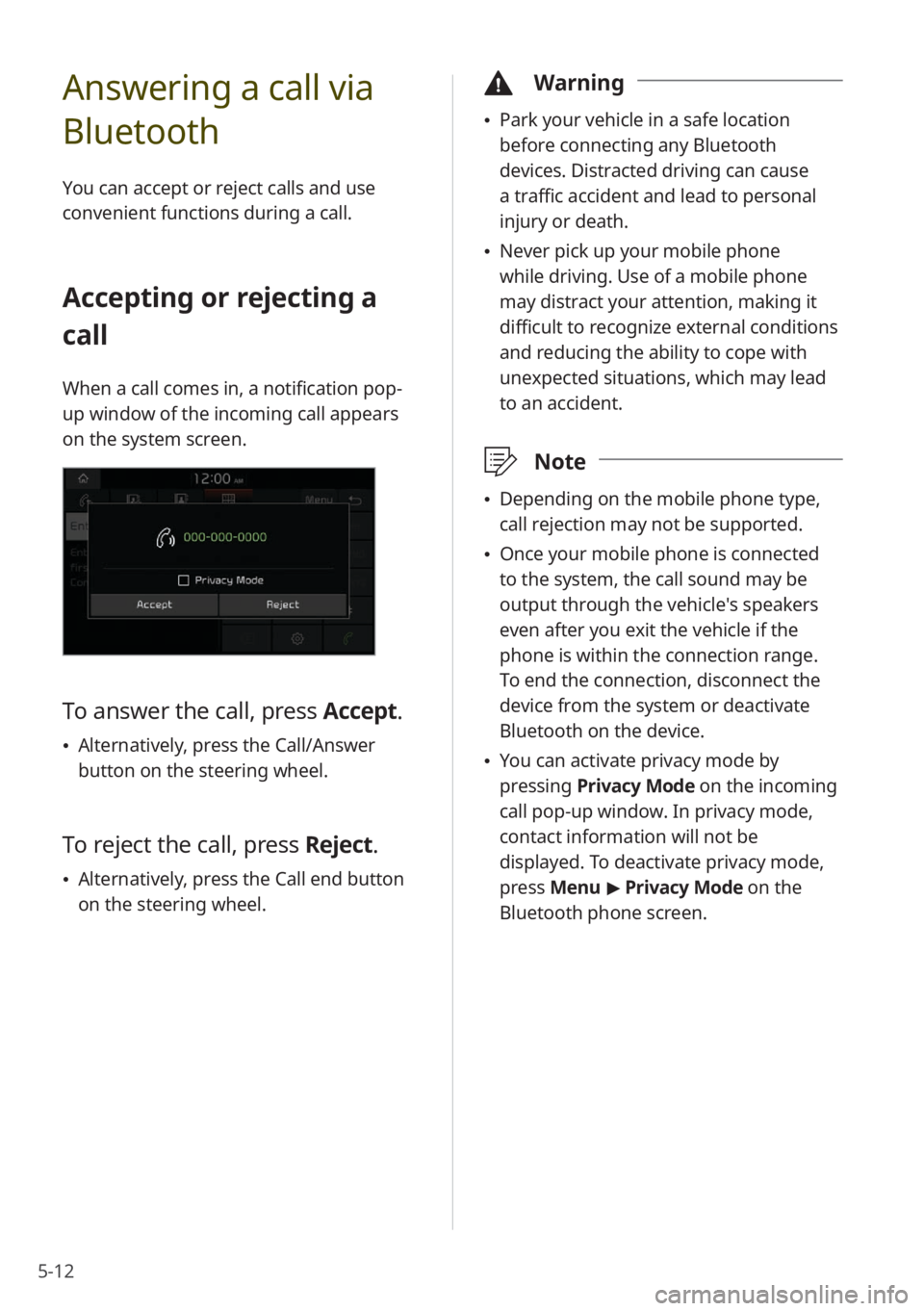
When a call comes in, a notification pop-
up window of the incoming call appears
on the system screen.
To answer the call, press Accept.
Alternatively, press the Call/Answer
button on the steering wheel.
To reject the call, press Reject.
Alternatively, press the Call end button
on the steering wheel.
\334 Warning
Park your vehicle in a safe location
before connecting any Bluetooth
devices. Distracted driving can cause
a traffic accident and lead to personal
injury or death.
Never pick up your mobile phone
while driving. Use of a mobile phone
may distract your attention, making it
difficult to recognize external conditions
and reducing the ability to cope with
unexpected situations, which may lead
to an accident.
\333 Note
Depending on the mobile phone type,
call rejection may not be supported.
Once your mobile phone is connected
to the system, the call sound may be
output through the vehicle′s speakers
even after you exit the vehicle if the
phone is within the connection range.
To end the connection, disconnect the
device from the system or deactivate
Bluetooth on the device.
You can activate privacy mode by
pressing Privacy Mode on the incoming
call pop-up window. In privacy mode,
contact information will not be
displayed. To deactivate privacy mode,
press Menu > Privacy Mode on the
Bluetooth phone screen.
Page 83 of 134
5-13
Using functions during a
call
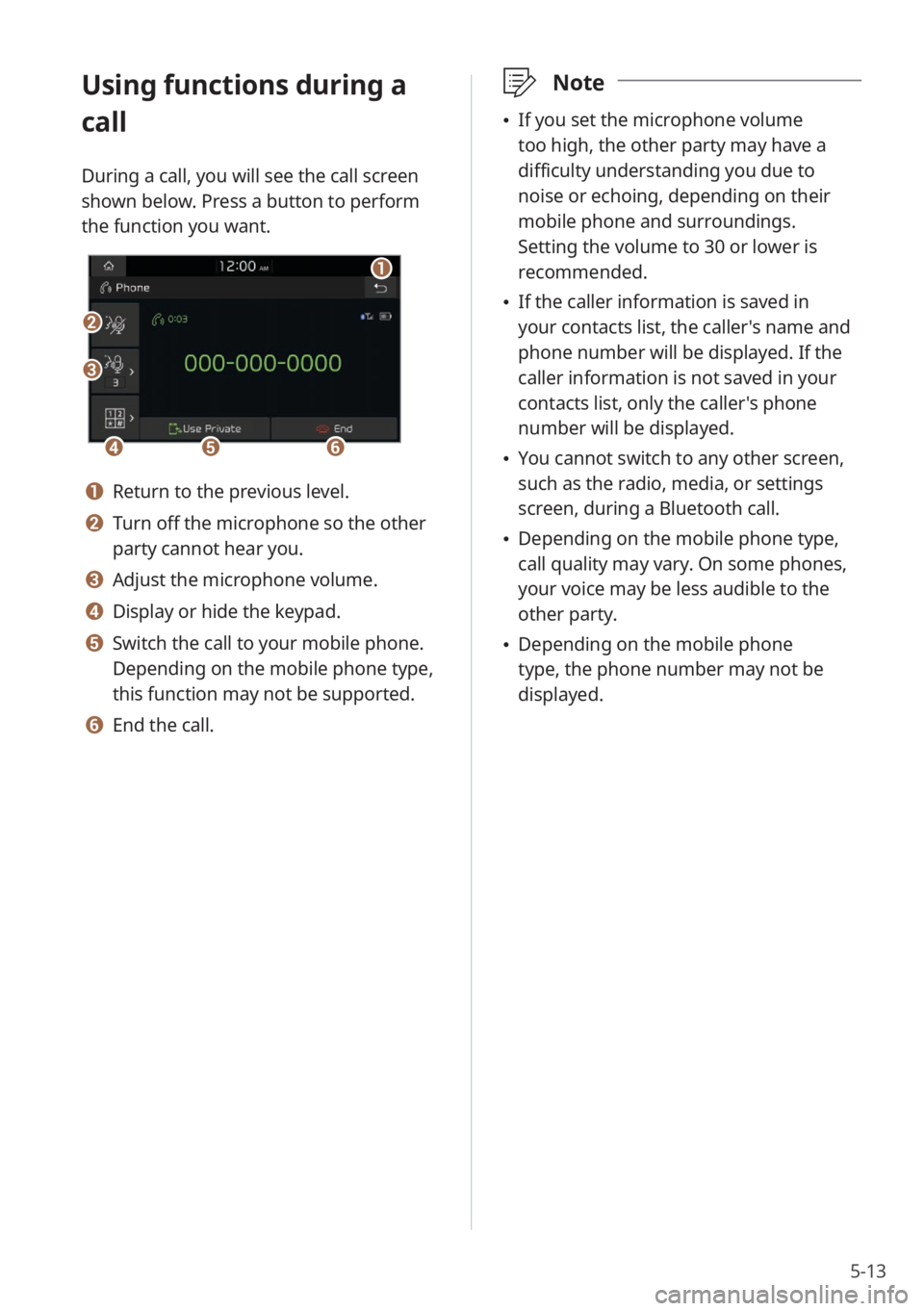
During a call, you will see the call screen
shown below. Press a button to perform
the function you want.
b
a
def
c
a Return to the previous level.
b Turn off the microphone so the other
party cannot hear you.
c Adjust the microphone volume.
d Display or hide the keypad.
e Switch the call to your mobile phone.
Depending on the mobile phone type,
this function may not be supported.
f End the call.
\333Note
If you set the microphone volume
too high, the other party may have a
difficulty understanding you due to
noise or echoing, depending on their
mobile phone and surroundings.
Setting the volume to 30 or lower is
recommended.
If the caller information is saved in
your contacts list, the caller's name and
phone number will be displayed. If the
caller information is not saved in your
contacts list, only the caller's phone
number will be displayed.
You cannot switch to any other screen,
such as the radio, media, or settings
screen, during a Bluetooth call.
Depending on the mobile phone type,
call quality may vary. On some phones,
your voice may be less audible to the
other party.
Depending on the mobile phone
type, the phone number may not be
displayed.
Page 95 of 134
7-7
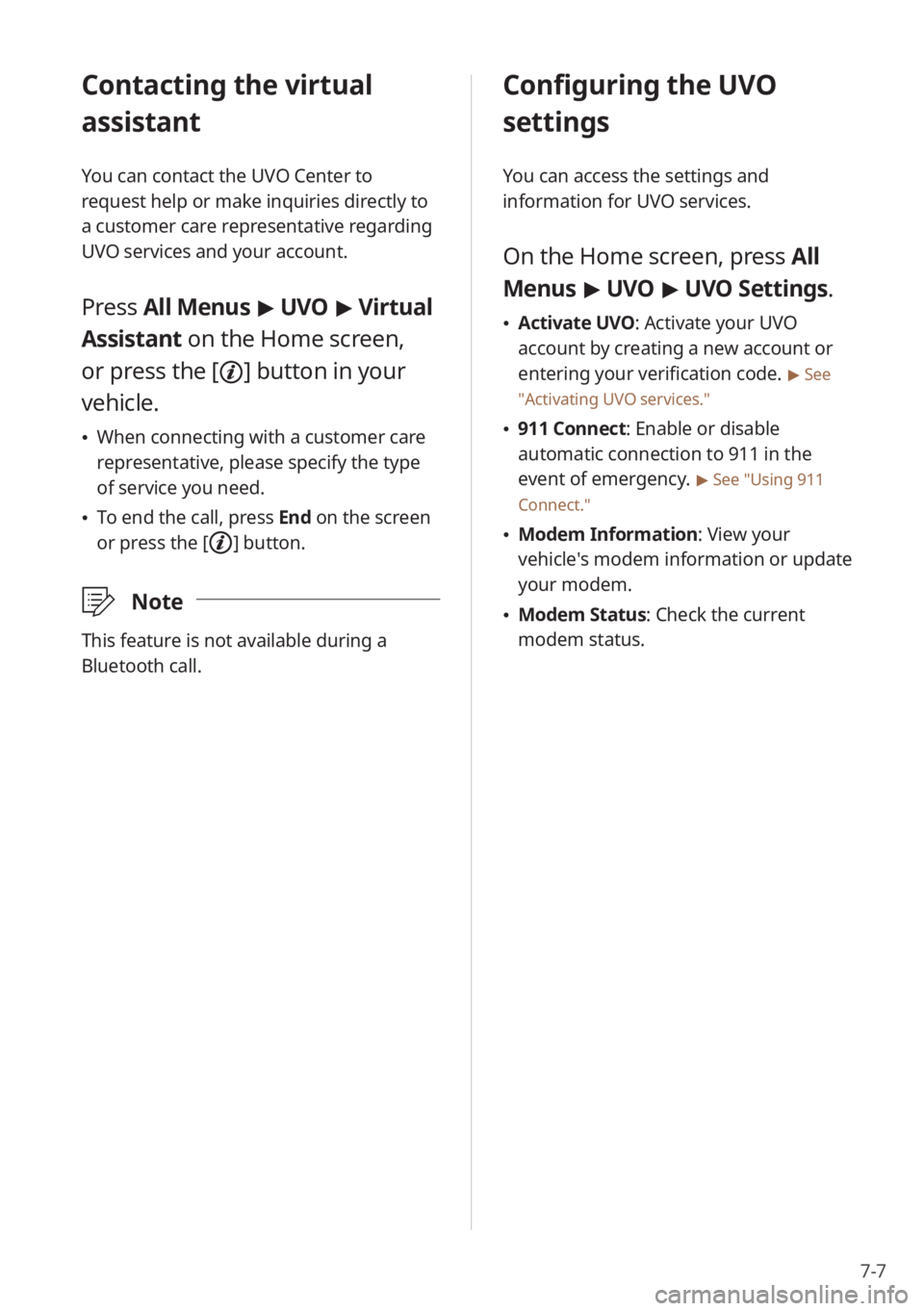
Contacting the virtual
assistant
You can contact the UVO Center to
request help or make inquiries directly to
a customer care representative regarding
UVO services and your account.
Press All Menus > UVO > Virtual
Assistant on the Home screen,
or press the [
] button in your
vehicle.
When connecting with a customer care
representative, please specify the type
of service you need.
To end the call, press End on the screen
or press the [
] button.
\333 Note
This feature is not available during a
Bluetooth call.
Configuring the UVO
settings
You can access the settings and
information for UVO services.
On the Home screen, press All
Menus > UVO > UVO Settings.
Activate UVO: Activate your UVO
account by creating a new account or
entering your verification code.
> See
″ Activating UVO services .″
911 Connect: Enable or disable
automatic connection to 911 in the
event of emergency.
> See ″Using 911
Connect.″
Modem Information : View your
vehicle′s modem information or update
your modem.
Modem Status: Check the current
modem status.
Page 99 of 134
8-3
[Defog/Defrost Options (if
equipped)
You can change the defog/defrost
settings.
Defog/Defrost : Set to activate air
ventilation or operate the air conditioner
automatically to defog or defrost the
windshield.
Auto Defog: Set to operate the climate
control system automatically to
prevent fog from forming on the front
windshield.
[Climate Features (if equipped)
You can change the settings for the
climate control features.
Lock Rear Climate Controls : Set to
prevent operation of the climate control
system from the rear seats.
Rear Climate Controls : Set to check the
current status and control the rear seat
climate control system via the system
screen.
Configuring the device
connection settings
You can manage Bluetooth devices or
customize your Bluetooth settings. You
can also enable phone projection to
control your smartphone applications via
the system screen.
Depending on the vehicle model or
specifications, displayed screens and
available options may vary.
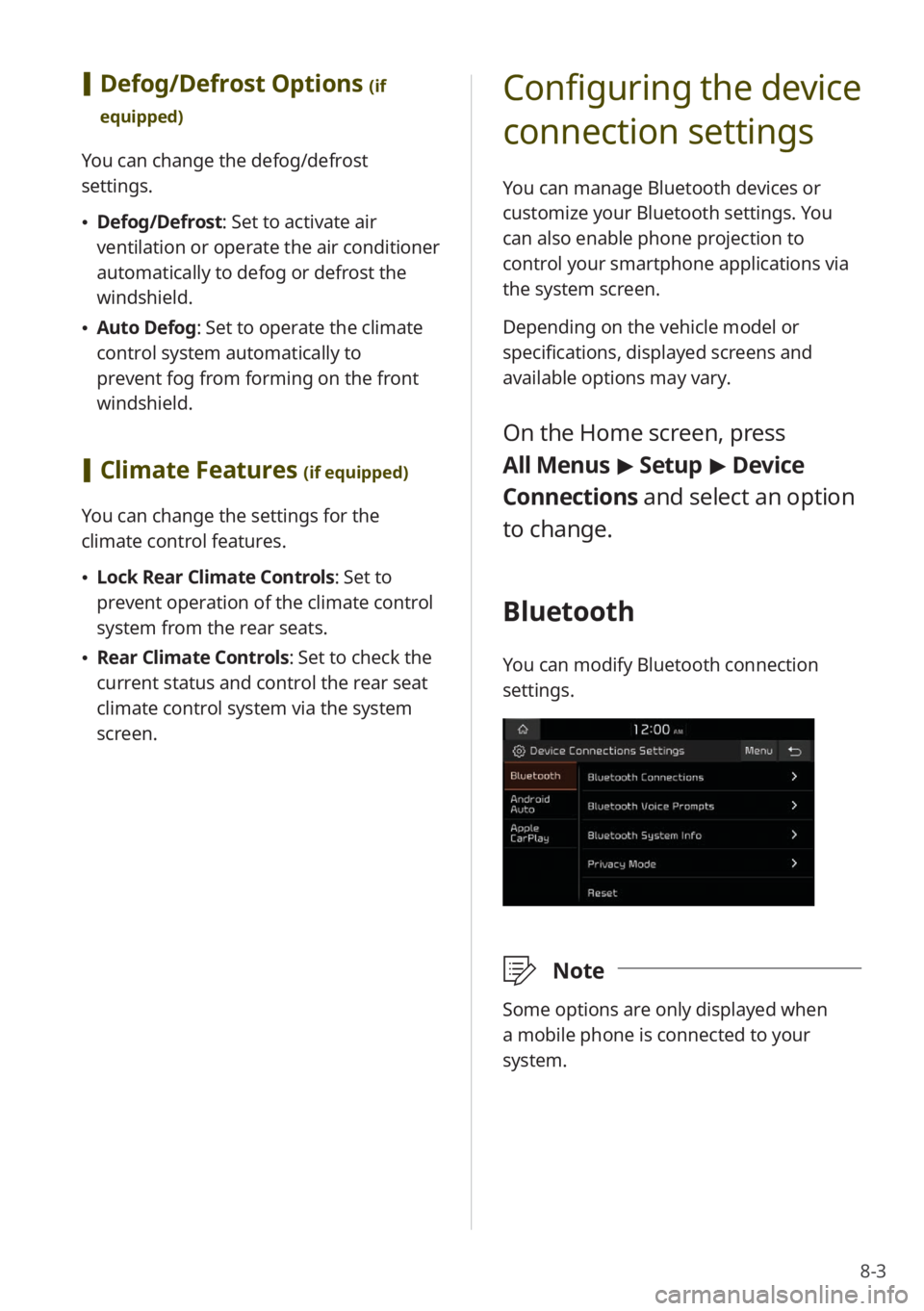
On the Home screen, press
All Menus > Setup > Device
Connections and select an option
to change.
Bluetooth
You can modify Bluetooth connection
settings.
\333 Note
Some options are only displayed when
a mobile phone is connected to your
system.
Page 100 of 134
8-4
[Bluetooth Connections
You can pair new Bluetooth devices to
your system, or connect or disconnect a
paired device. You can also delete paired
devices.
[Bluetooth Voice Prompts
You can set to enable or disable voice
prompts for Bluetooth connections.
[Bluetooth System Info
You can view or edit your system's
Bluetooth information.
[Privacy Mode
You can activate privacy mode to protect
your personal information. In the privacy
mode, personal data will not be displayed.
[Reset
You can delete all paired Bluetooth
devices and reset your Bluetooth settings
to default values. All data related to
Bluetooth devices will also be deleted.
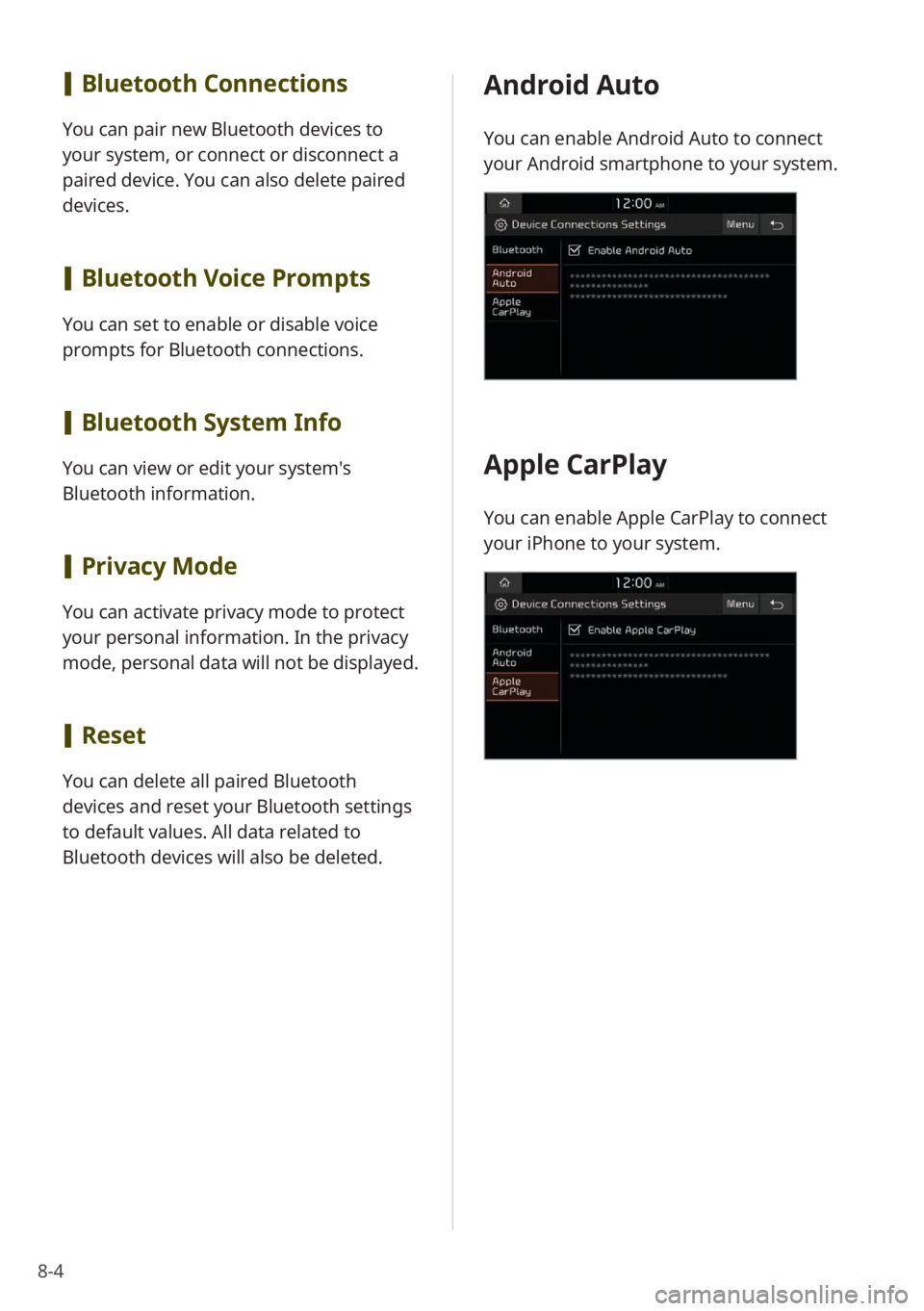
Android Auto
You can enable Android Auto to connect
your Android smartphone to your system.
Apple CarPlay
You can enable Apple CarPlay to connect
your iPhone to your system.
Page 110 of 134
8-14
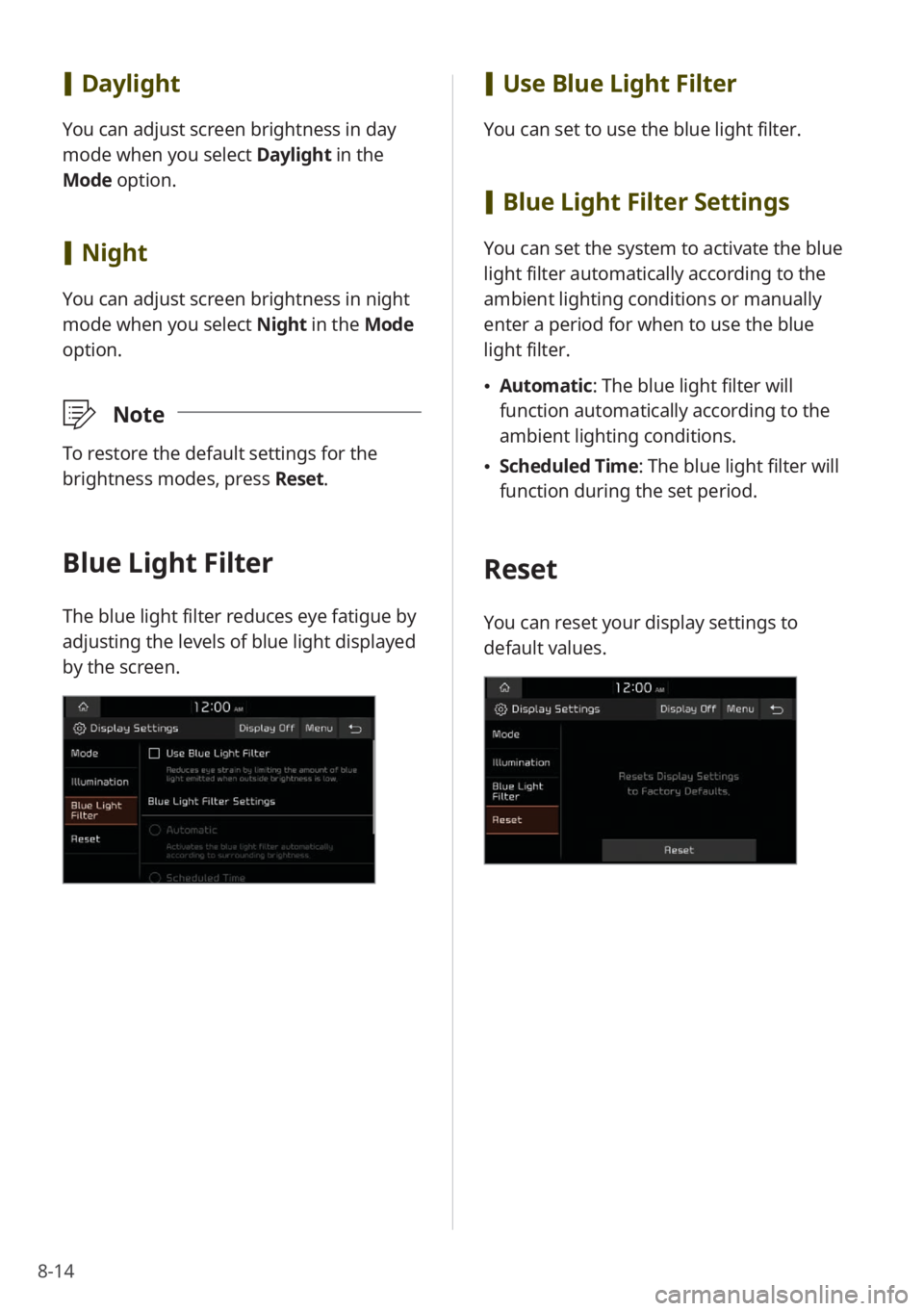
[Use Blue Light Filter
You can set to use the blue light filter.
[Blue Light Filter Settings
You can set the system to activate the blue
light filter automatically according to the
ambient lighting conditions or manually
enter a period for when to use the blue
light filter.
Automatic : The blue light filter will
function automatically according to the
ambient lighting conditions.
Scheduled Time: The blue light filter will
function during the set period.
Reset
You can reset your display settings to
default values.
[Daylight
You can adjust screen brightness in day
mode when you select Daylight in the
Mode option.
[ Night
You can adjust screen brightness in night
mode when you select Night in the Mode
option.
\333 Note
To restore the default settings for the
brightness modes, press Reset.
Blue Light Filter
The blue light filter reduces eye fatigue by
adjusting the levels of blue light displayed
by the screen.
Page 114 of 134
9-2
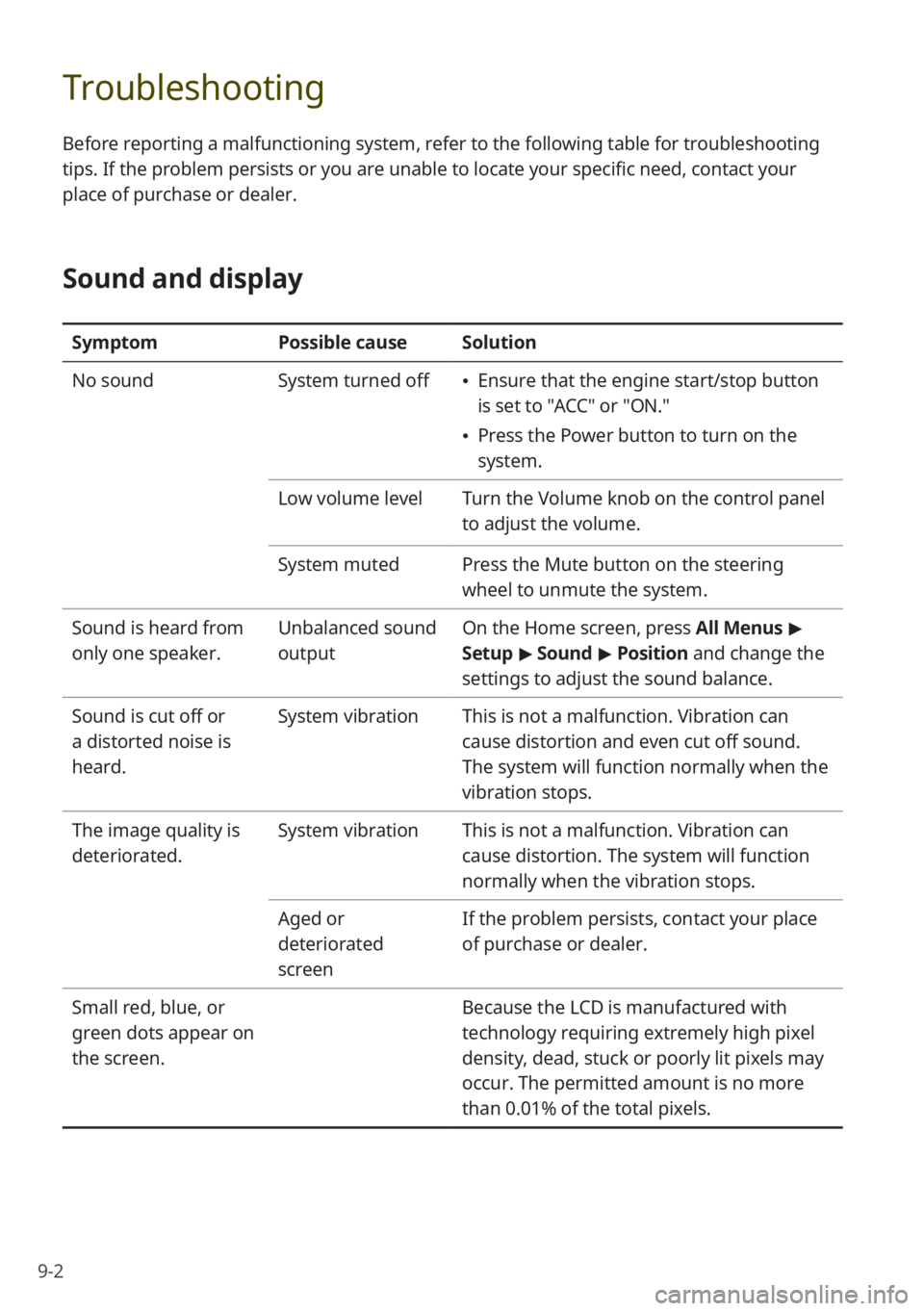
Troubleshooting
Before reporting a malfunctioning system, refer to the following table for troubleshooting
tips. If the problem persists or you are unable to locate your specific need, contact your
place of purchase or dealer.
Sound and display
SymptomPossible causeSolution
No sound System turned off
Ensure that the engine start/stop button
is set to "ACC" or "ON.″
Press the Power button to turn on the
system.
Low volume level Turn the Volume knob on the control panel
to adjust the volume.
System muted Press the Mute button on the steering
wheel to unmute the system.
Sound is heard from
only one speaker. Unbalanced sound
outputOn the Home screen, press All Menus
>
Setup > Sound > Position and change the
settings to adjust the sound balance.
Sound is cut off or
a distorted noise is
heard. System vibration
This is not a malfunction. Vibration can
cause distortion and even cut off sound.
The system will function normally when the
vibration stops.
The image quality is
deteriorated. System vibration
This is not a malfunction. Vibration can
cause distortion. The system will function
normally when the vibration stops.
Aged or
deteriorated
screen If the problem persists, contact your place
of purchase or dealer.
Small red, blue, or
green dots appear on
the screen. Because the LCD is manufactured with
technology requiring extremely high pixel
density, dead, stuck or poorly lit pixels may
occur. The permitted amount is no more
than 0.01% of the total pixels.
Page 116 of 134
9-4
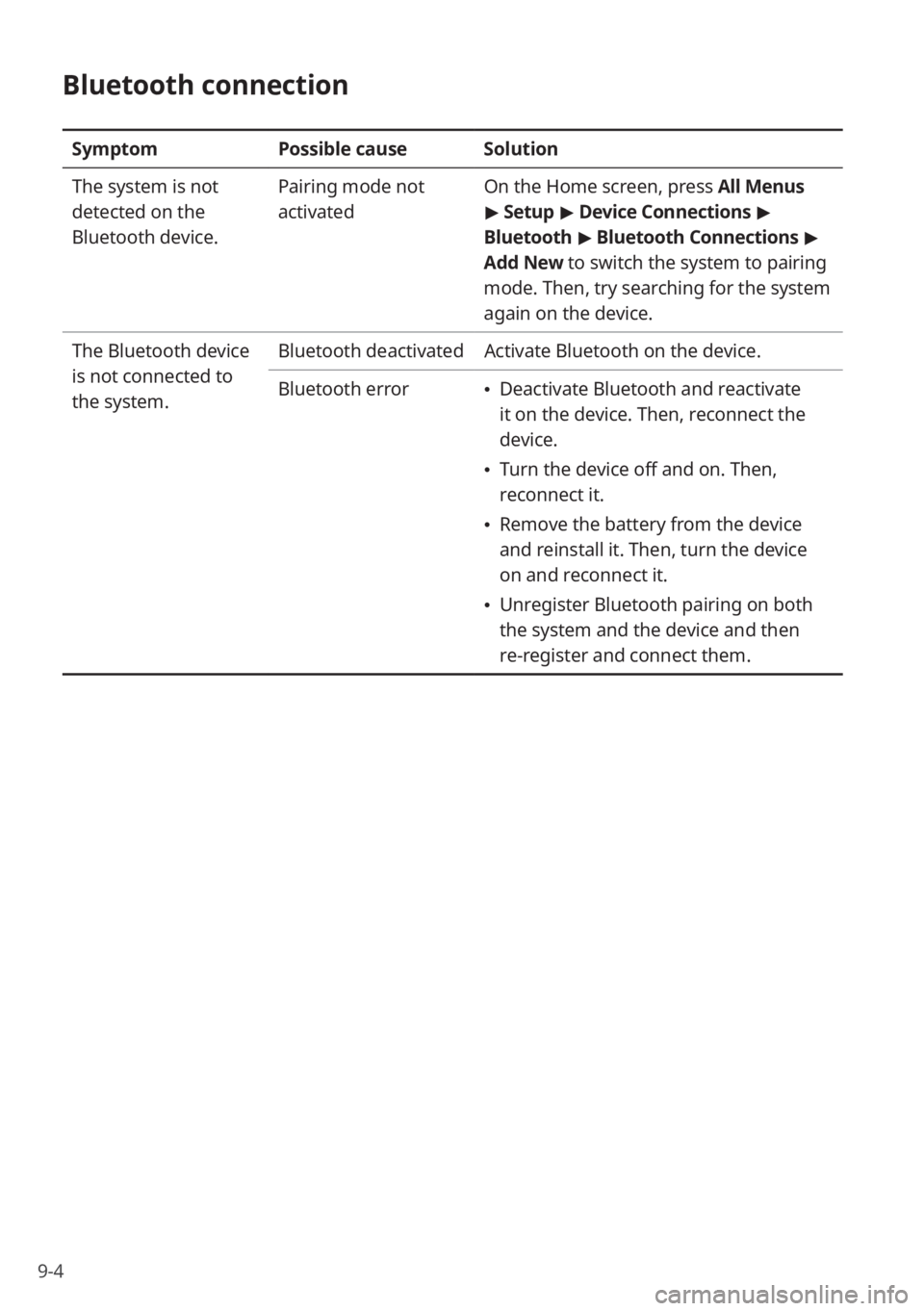
Bluetooth connection
SymptomPossible causeSolution
The system is not
detected on the
Bluetooth device. Pairing mode not
activated
On the Home screen, press All Menus
>
Setup > Device Connections >
Bluetooth > Bluetooth Connections >
Add New to switch the system to pairing
mode. Then, try searching for the system
again on the device.
The Bluetooth device
is not connected to
the system. Bluetooth deactivated
Activate Bluetooth on the device.
Bluetooth error
Deactivate Bluetooth and reactivate
it on the device. Then, reconnect the
device.
Turn the device off and on. Then,
reconnect it.
Remove the battery from the device
and reinstall it. Then, turn the device
on and reconnect it.
Unregister Bluetooth pairing on both
the system and the device and then
re-register and connect them.