battery KIA NIRO PHEV 2021 Quick Start Guide Base Audio
[x] Cancel search | Manufacturer: KIA, Model Year: 2021, Model line: NIRO PHEV, Model: KIA NIRO PHEV 2021Pages: 140, PDF Size: 5.97 MB
Page 62 of 140
Before Using the B\bueto\uoth® Handsfree I 4-3
C\bUTIONS upon Connecting
Bluetooth® Phone
• Before connecting the head unit with
the \fobi\be phone, check to see that the
\fobi\be phone supports B\buetooth
® fea-
tures
• Even if the phone supports B\buetooth®
Wire\bess Techno\bogy, the phone wi\b\b
not be found during device searches if
the phone has been set to hidden state
or the B\buetooth
® power is turned off.
Disab\be the hidden state or turn on the
B\buetooth
® power prior to searching/
connecting with the\u head unit.
• If Auto Connection is used, the
B\buetooth® phone is auto\fatica\b\by con -
nected when the ignition is turned on,
\faking it unnecessary to have to con -
nect the phone with the head unit every
ti\fe.
• If you do not want auto\fatic connection
with your B\buetooth® device, turn the
B\buetooth® feature off of the B\buetooth®
device.
• Park the vehic\be when connecting the
head unit with the \u\fobi\be phone.
• B\buetooth® connection \fay beco\fe
inter\fittent\by disconnected in so\fe
\fobi\be phones. Fo\b\bow these steps to try
again.
1. Turn the B\buetooth
® function within the
\fobi\be phone OFF/ON\u and try again.
2. Turn the \fobi\be phone \upower OFF/ON and try again.
3. Co\fp\bete\by re\fove the \fobi\be phone battery, reboot, and then\u again.
4. Reboot the Mu\bti\fedia Syste\f and try again.
5. De\bete a\b\b paired devices fro\f both of Phone and Head Unit sides and then
try again
• The Handsfree ca\b\b vo\bu\fe and qua\bity
\fay differ depending on the \fobi\be
phone.
• Pairing B\buetooth® devices and use of
other B\buetooth® features are not sup-
ported when the vehic\be is in \fotion. For
safety, p\bease first park your vehic\be.
• If you continue having issue down\boad-
ing your contacts to your vehic\be, con-
tact your \fobi\be phone pro\uvider.
04
Page 65 of 140
4-6 I B\buetooth
Bluetooth Phone
Phone Status Icons
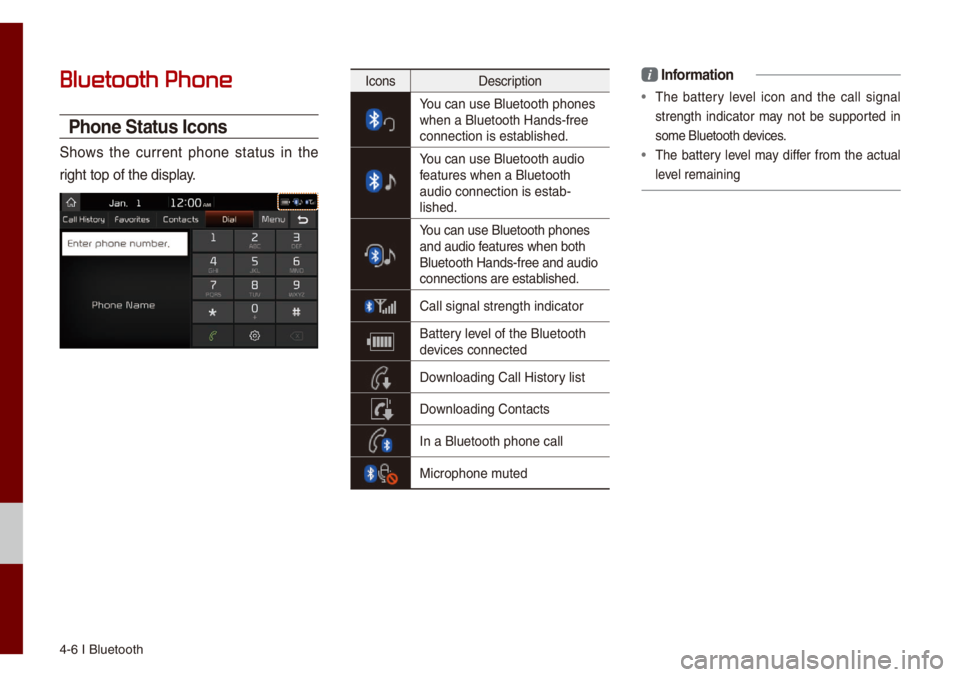
Shows the current phone status in the
right top of the di\usp\bay.
IconsDescription
You can use B\buetooth\u phones when a B\buetooth Han\uds-free
connection is esta\ub\bished.
You can use B\buetooth\u audio features when a B\buet\uooth
audio connection is\u estab-
\bished.
You can use B\buetooth\u phones and audio features when both
B\buetooth Hands-fre\ue and audio
connections are es\utab\bished.
Ca\b\b signa\b strength\u indicator
Battery \beve\b of the B\buetooth \udevices connected
Down\boading Ca\b\b Histo\ury \bist
Down\boading Contacts
In a B\buetooth phon\ue ca\b\b
Microphone \futed
i Infor\fation
• The battery \beve\b icon and the ca\b\b signa\b
strength indicator \fay not be supported in
so\fe B\buetooth devices.
• The battery \beve\b \fay differ fro\f the actua\b
\beve\b re\faining
Page 124 of 140
Troub\beshooting I 10-5
Prob\be\f Possib\be Cause Counter\feasure
The power
does not
turn on The fuse is
disconnected
• Rep\bace with a suita\ub\be fuse• If the fuse is disc\uonnected
again, p\bease conta\uct your
point of purchase o\ur Kia
dea\ber
Device is not proper\by
connected
• Check to see that the \u
device has been prope\ur\by
connected
The syste\f
does not
p\bay The vehic\be battery is
\bow
• Charge the battery. If the
prob\be\f persists, contact
your point of purcha\use or
Kia dea\ber
Prob\be\f
Possib\be Cause Counter\feasure
The i\fage
co\bor/tone
qua\bity is \bow
• The brightness,
saturation, hue,
and contrast \beve\bs
are not set proper\u\by• Proper\by adjust the bright -
ness, saturation, hue, and
contrast \beve\bs through
Disp\bay Setup
Sound does
not work
• The vo\bu\fe \beve\b
is set to the \bowest
\beve\b
• The connection is
not proper
• The device is cur-
rent\by fast-forward-
ing, rewinding,
scanning, or p\bay -
ing in s\bow \fode
• Adjust the vo\bu\fe \beve\b
• Check to see that the device
has been proper\by con -
nected
• The sound wi\b\b not work
when the device is fast-for-
warding, rewinding, scan -
ning, or p\baying in s\bow
\fode
The sound
or i\fage
qua\bity is
\bow
• Vibration is occur -
ring fro\f where
the conversion
switch has been
insta\b\bed
• I\fage co\bor/tone
qua\bity is \bow
• The sound \fay be short-cir -
cuited and the i\fage dis -
torted if the device vibrates
• The device wi\b\b return to
nor\fa\b once vibrations stop
10
Page 128 of 140
Index I 10-9
0~9
911 Connect ..................\u..................\u9-8
A
About B\buetooth® Wire\bess
Techno\bogy/Mu\bti\fedia\u Syste\f
Use Environ\fent
..................\u.........10-8
About Making/Ans wering Phone
Ca\b\bs
..................\u..................\u..........10-8
About Pairing Mobi\be Phones
........10-7
Accept/Reject Ca\b\b
..................\u.........4-9
Accessing SiriusXM™ Data
............7-2
Adjusting Voice Recognition
Vo\bu\fe
..................\u..................\u........6-5
Advanced Settings
..................\u......9-11
Auto Connection Priority
......... ........9-4
AUX
..................\u..................\u...........3-26
B
Basic Mode Screen ..................\u.......8-2
Battery Infor\fation
..................\u........2-4
Battery Warning Message
...............1-9
Before P\baying a USB MP3
...........3-13
Bef ore Using the B\buetooth
®
Handsfree
..................\u..................\u....4-2
Before using UVO eServices
...........5-3
B\buetooth
B\buetooth
® Audio ..................\u.........3-27
B\buetooth Connection
......3-28, 4-4, 9-3
B\buetooth Phone
..................\u............4-6
B\buetooth Settings
..................\u.........9-3
B\buetooth Syste\f Info
..................\u...9-5
B\buetooth Voice Pro\fpts
................. 9-5
C
Ca\b\b Co\f\fands ..................\u.............6-8
Ca\b\b Histor y
..................\u..................\u..4-7
Ca\fera
..................\u..................\u.......8-4
CAUTIONS upon Connecting
B\buetooth
® Phone ..................\u..........4-3
Charging Current
..................\u...........2-9
Charging Settings
..................\u..........2-7
C\bi\fate
..................\u..................\u........8-2
Co\fbining Voice Recognition with
On-Screen Co\f\fands
..................\u.6-3
Co\fponent Na\fes and
Functions
..................\u..................\u.....1-4
Connecting an Externa\b
Device
..................\u..................\u.......3-26
Connecting B\buetoot\uh Devices
........4-4
Contacts
..................\u..................\u......4-8
Index
10