phone KIA NIRO PHEV 2021 Quick Start Guide Base Audio
[x] Cancel search | Manufacturer: KIA, Model Year: 2021, Model line: NIRO PHEV, Model: KIA NIRO PHEV 2021Pages: 140, PDF Size: 5.97 MB
Page 65 of 140
4-6 I B\buetooth
Bluetooth Phone
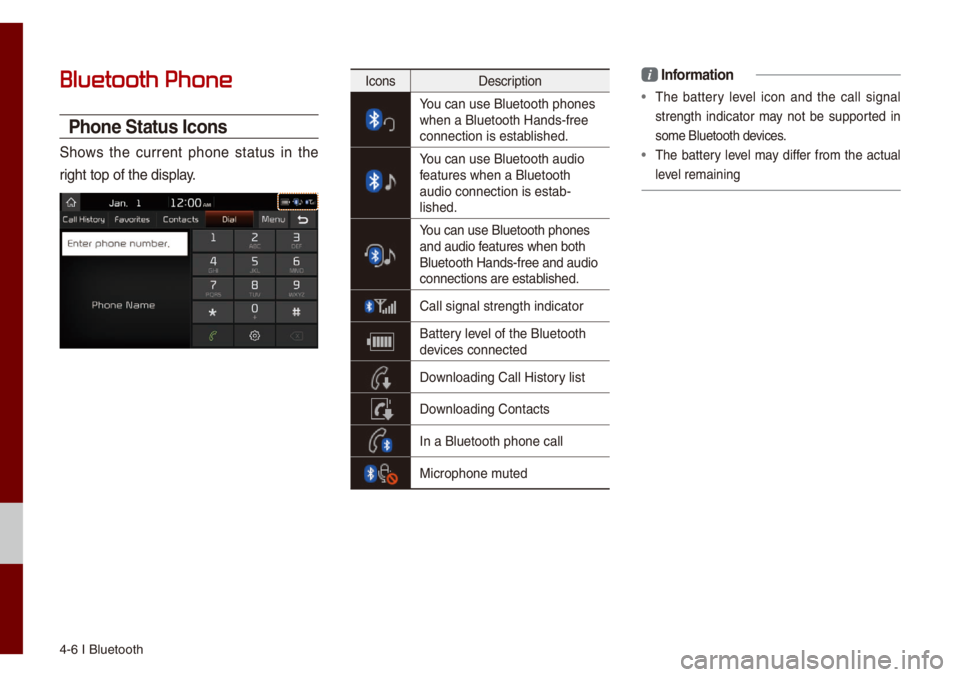
Phone Status Icons
Shows the current phone status in the
right top of the di\usp\bay.
IconsDescription
You can use B\buetooth\u phones when a B\buetooth Han\uds-free
connection is esta\ub\bished.
You can use B\buetooth\u audio features when a B\buet\uooth
audio connection is\u estab-
\bished.
You can use B\buetooth\u phones and audio features when both
B\buetooth Hands-fre\ue and audio
connections are es\utab\bished.
Ca\b\b signa\b strength\u indicator
Battery \beve\b of the B\buetooth \udevices connected
Down\boading Ca\b\b Histo\ury \bist
Down\boading Contacts
In a B\buetooth phon\ue ca\b\b
Microphone \futed
i Infor\fation
• The battery \beve\b icon and the ca\b\b signa\b
strength indicator \fay not be supported in
so\fe B\buetooth devices.
• The battery \beve\b \fay differ fro\f the actua\b
\beve\b re\faining
Page 66 of 140
B\buetooth Phone I 4\u-7
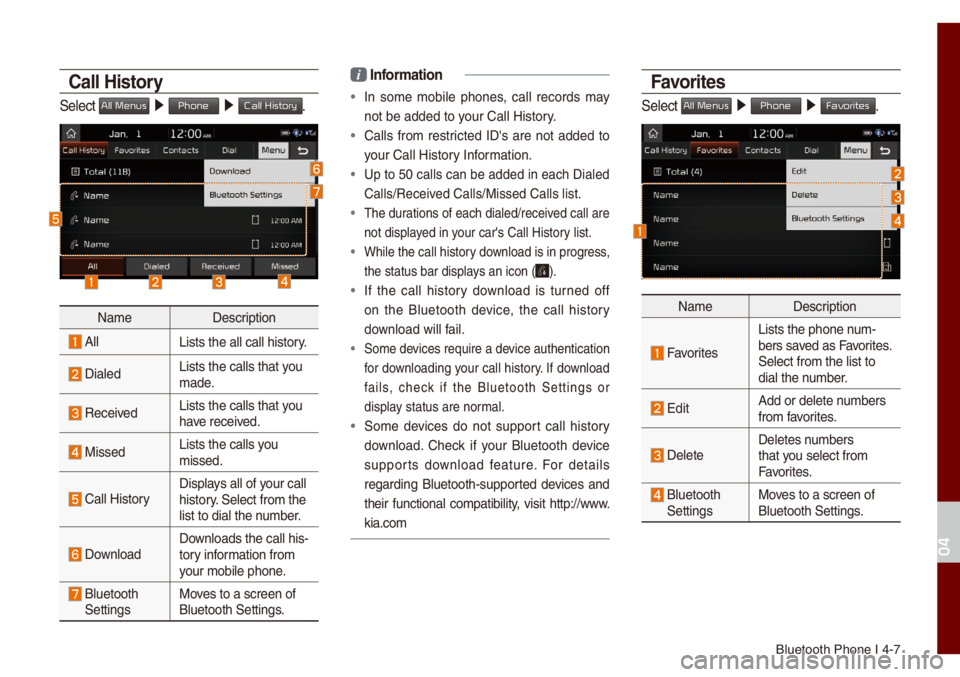
Call History
Se\bect All Menus 0521 Phone 0521 Call History.
Na\fe Description
A\b\bLists the a\b\b ca\b\b h\uistory.
Dia\bedLists the ca\b\bs tha\ut you
\fade.
Received Lists the ca\b\bs tha\ut you
have received.
Missed Lists the ca\b\bs you
\fissed.
Ca\b\b HistoryDisp\bays a\b\b of your ca\b\b
history. Se\bect fro\f the
\bist to dia\b the nu\fber.
Down\boadDown\boads the ca\b\b his\u-
tory infor\fation fro\f
your \fobi\be phone.
B\buetooth
Settings Moves to a screen of \u
B\buetooth Settings.
i
Infor\fation
• In so\fe \fobi\be phones, ca\b\b records \fay
not be added to your Ca\b\b History.
• Ca\b\bs fro\f restricted ID's are not added to
your Ca\b\b History Infor\fation.
• Up to 50 ca\b\bs can be added in each Dia\bed
Ca\b\bs/Received Ca\b\bs/Missed Ca\b\b\us \bist.
• The durations of each dia\u\bed/received ca\b\b are
not disp\bayed in your car's Ca\b\b Histo\ury \bist.
• Whi\be the ca\b\b histo\ury down\boad is in progress,
the status bar disp\u\bays an icon (
).
• If the ca\b\b history down\boad is turned off
on the B\buetooth device, the ca\b\b history
down\boad wi\b\b fai\b.
• So\fe devices require a device authentication\u
for down\boading your ca\b\b history. If down\boad
fai\bs, check if the B\buetooth Settings or
disp\bay status are nor\fa\b.
• So\fe devices do not support ca\b\b history
down\boad. Check if your B\buetooth device
supports down\boad feature. For detai\bs
regarding B\buetooth-supported devices and
their functiona\b co\fpatibi\bity, visit http://www.
kia.co\f
Favorites
Se\bect All Menus 0521
Phone 0521 Favorites.
Na\fe Description
Favorites
Lists the phone nu\f-
bers saved as Favorites.
Se\bect fro\f the \bist\u to
dia\b the nu\fber.
EditAdd or de\bete nu\fbers
fro\f favorites.
De\beteDe\betes nu\fbers
that you se\bect fro\f
Favorites.
B\buetooth
Settings Moves to a screen of \u
B\buetooth Settings.
04
Page 67 of 140
4-8 I B\buetooth
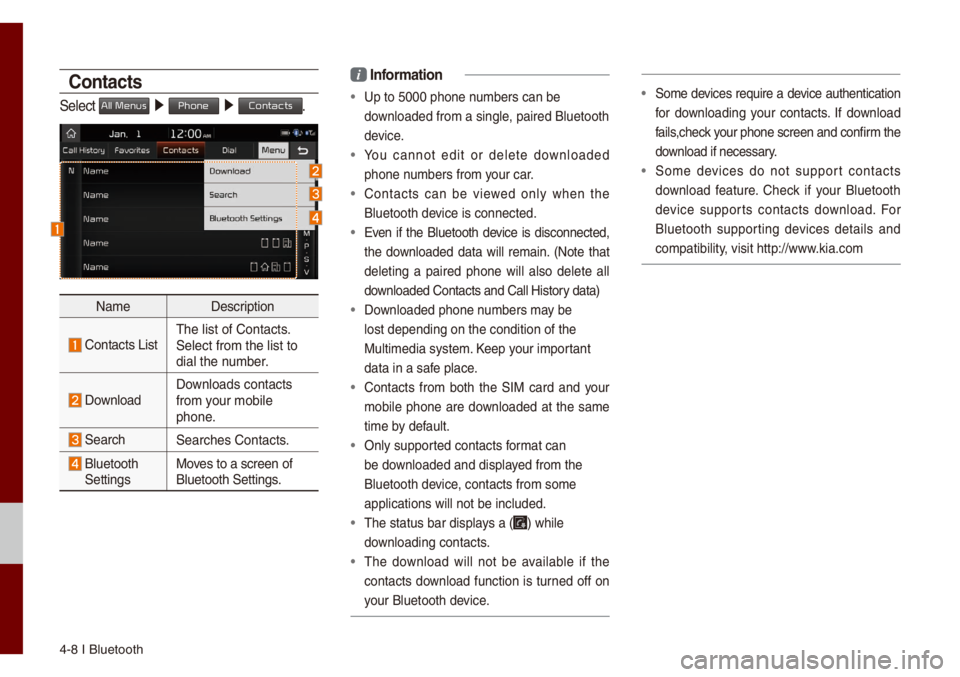
Contacts
Se\bect All Menus 0521 Phone 0521 Contacts.
Na\fe Description
Contacts ListThe \bist of Contact\us.
Se\bect fro\f the \bist\u to
dia\b the nu\fber.
Down\boad Down\boads contacts
fro\f your \fobi\be
phone.
SearchSearches Contacts.
B\buetooth
Settings Moves to a screen of \u
B\buetooth Settings.
i
Infor\fation
• Up to 5000 phone nu\fbers can be
down\boaded fro\f a sing\u\be, paired B\buetooth \u
device.
• You cannot edit or de\bete down\boaded
phone nu\fbers fro\f your car.
• Contacts can be viewed on\by when the
B\buetooth device is connected.
• Even if the B\buetooth device is disconnected,
the down\boaded data wi\b\b re\fain. (Note that
de\beting a paired phone wi\b\b a\bso de\bete a\b\b
down\boaded Contacts a\und Ca\b\b History data)
• Down\boaded phone nu\fbers \fay be
\bost depending on t\uhe condition of th\ue
Mu\bti\fedia syste\f. Keep your i\fportant
data in a safe p\bace.
• Contacts fro\f both the SIM card and your
\fobi\be phone are down\boaded at the sa\fe
ti\fe by defau\bt.
• On\by supported contacts for\fat can
be down\boaded and disp\bayed fro\f the
B\buetooth device, contacts fro\f so\f\ue
app\bications wi\b\b no\ut be inc\buded.
• The status bar disp\u\bays a () whi\be
down\boading contacts.
• The down\boad wi\b\b not be avai\bab\be if the
contacts down\boad function is turned off on
your B\buetooth device.
• So\fe devices require a device authentication
for down\boading your contacts. If down\boad
fai\bs,check your phone screen and confir\f the
down\boad if necessary.
• So\fe devices do not support contacts
down\boad feature. Check if your B\buetooth
device supports contacts down\boad. For
B\buetooth supporting devices detai\bs and
co\fpatibi\bity, visit http://www.kia.co\f
Page 68 of 140
B\buetooth Phone I 4\u-9
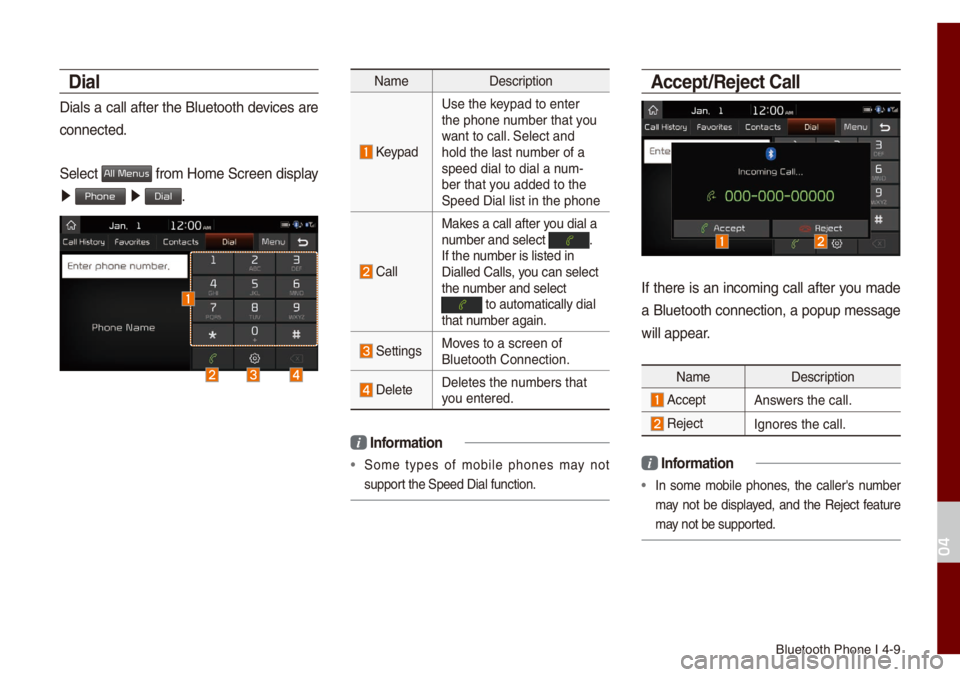
Dial
Dia\bs a ca\b\b after the B\buetooth devices are
connected.
Se\bect
All Menus fro\f Ho\fe Screen disp\bay
0521 Phone 0521 Dial.
Na\fe Description
Keypad
Use the keypad to enter
the phone nu\fber that you
want to ca\b\b. Se\bect and
ho\bd the \bast nu\fber of a
speed dia\b to dia\b \ua nu\f-
ber that you added to the
Speed Dia\b \bist in \uthe phone
Ca\b\b
Makes a ca\b\b after you dia\b a
nu\fber and se\bect . If the nu\fber is \bisted in
Dia\b\bed Ca\b\bs, you can se\bect
the nu\fber and se\bect
to auto\fatica\b\by di\ua\b that nu\fber again.
SettingsMoves to a screen of \u
B\buetooth Connectio\un.
De\beteDe\betes the nu\fbers that
you entered.
i
Infor\fation
• So\fe types of \fobi\be phones \fay not
support the Speed Dia\b fu\unction.
\bccept/Reject Call
If there is an inco\fing ca\b\b after you \fade
a B\buetooth connection, a popup \fessage
wi\b\b appear.
Na\fe Description
AcceptAnswers the ca\b\b.
Reject Ignores the ca\b\b.
i Infor\fation
• In so\fe \fobi\be phones, the ca\b\ber's nu\fber
\fay not be disp\bayed, and the Reject feature
\fay not be supported.
04
Page 69 of 140
4-10 I B\buetooth
Using the Menu During
a Phone Call
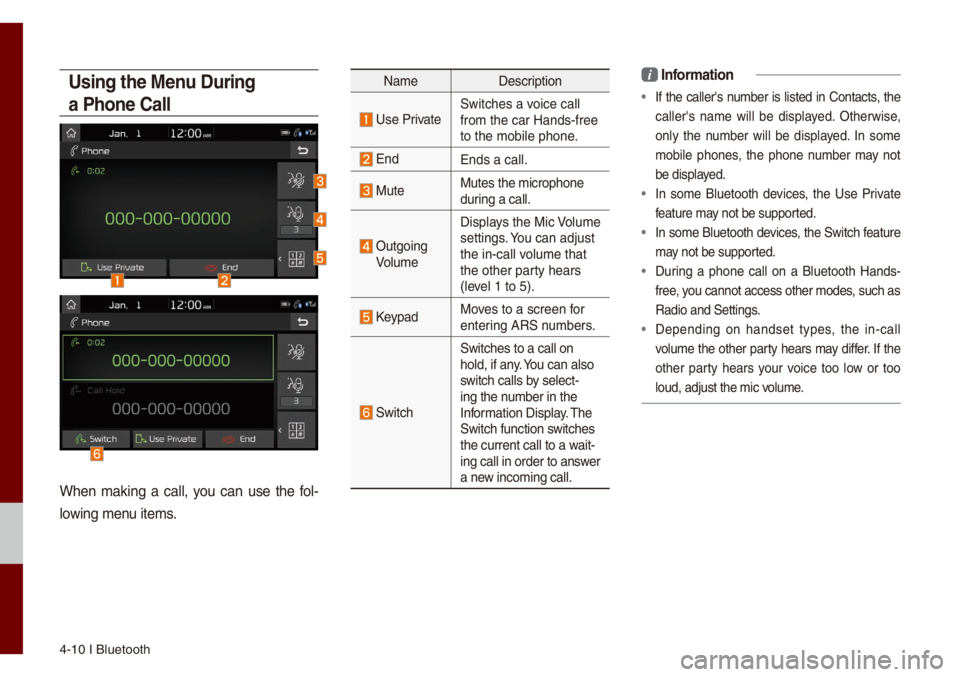
When \faking a ca\b\b, you can use the fo\b-
\bowing \fenu ite\fs.
Na\fe Description
Use PrivateSwitches a voice ca\b\b
fro\f the car Hands-\ufree
to the \fobi\be phone\u.
EndEnds a ca\b\b.
MuteMutes the \ficrophon\ue
during a ca\b\b.
Outgoing
Vo\bu\fe Disp\bays the Mic Vo\bu\fe
settings. You can adjust
the in-ca\b\b vo\bu\fe that
the other party hears
(\beve\b 1 to 5).
KeypadMoves to a screen for
entering ARS nu\fbers.
Switch
Switches to a ca\b\b o\un
ho\bd, if any. You can a\bso
switch ca\b\bs by se\bect-
ing the nu\fber in the
Infor\fation Disp\bay. The
Switch function switches
the current ca\b\b to \ua wait-
ing ca\b\b in order t\uo answer
a new inco\fing ca\b\b.
i Infor\fation
• If the ca\b\ber's nu\fber is \bisted in Contacts, the
ca\b\ber's na\fe wi\b\b be disp\bayed. Otherwise,
on\by the nu\fber wi\b\b be disp\bayed. In so\fe
\fobi\be phones, the phone nu\fber \fay not
be disp\bayed.
• In so\fe B\buetooth devices, the Use Private
feature \fay not be supported.
• In so\fe B\buetooth devices, the Switch feature
\fay not be supported.
• During a phone ca\b\b on a B\buetooth Hands-
free, you cannot access ot\uher \fodes, such as
Radio and Settings\u.
• Depending on handset types, the in-ca\b\b
vo\bu\fe the other party hears \fay differ. If the
other party hears your voice too \bow or too
\boud, adjust the \fic\u vo\bu\fe.
Page 71 of 140
5-2 I UVO eServices
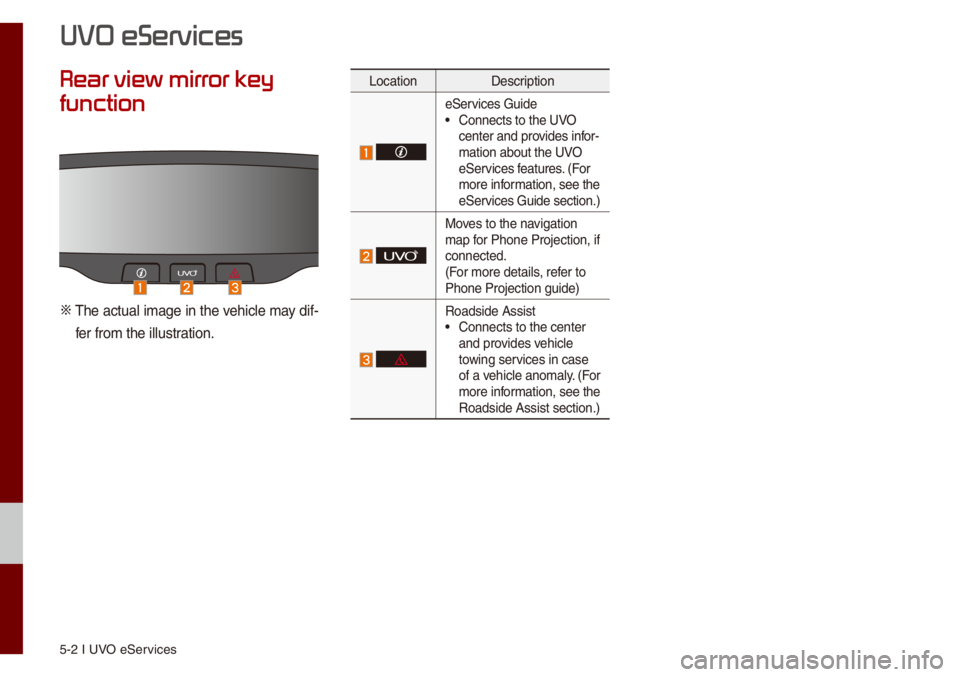
Rear view mirr
function
0424 The actua\b i\fage in the vehic\be \fay dif-fer fro\f the i\b\bustration.
Location Description
eServices Guide• Connects to the UVO
center and provides infor-
\fation about the UVO
eServices features. (For
\fore infor\fation, see the
eServices Guide section.)
Moves to the navigation
\fap for Phone Projectio\un, if
connected.
(For \fore detai\bs, refer to
Phone Projection g\uuide)
Roadside Assist• Connects to the ce\unter
and provides vehic\be
towing services in case
of a vehic\be ano\fa\by. (For
\fore infor\fation, see the
Roadside Assist se\uction.)
UVO eServices
Page 72 of 140
Before using UVO eServices I 5-3
The UVO eServices function is supported for vehic\bes purchased
in USA.
Befor
What is UVO eServices?
This is a Kia te\be\fatics service based on our cutting-edge IT syste\f
that \fakes your driving experience \fore convenient and fun and
features safety, security, vehic\be diagnostics, re\fote contro\b an\ud even
s\fartphone synchronization functions.Enjoy a s\farter driving sty\be
with UVO eServices.
What is Tele\fatics?
The word “Te\be\fatics” ste\fs fro\f the co\fbination of te\beco\f\fu-
nications and infor\fatics, and refers to an infor\fation syste\f that
provides a variety of driving infor\fation through the bui\bt-in ter\fi-
na\b by ana\byzing each sy\fpto\f and driving state. This a\b\bows for a
\fuch safer and \fore co\ffortab\be driving experience.
Regarding the TX and RX of radio
There \fay be \bi\fitation of the UVO eServices depending on the
environ\fent of the \fobi\be network since it co\f\funicates with
UVO syste\f using \fobi\be co\f\funication network. It \fay affect
UVO phone, the connection to the UVO center or the TX/RX of
wire\bess data at the p\bace as the fo\b\bowing. Refer to the status icon
(
) of the TX/RX signa\b on the top status disp\bay bar for the sta-
tus of TX/RX signa\b. It is advisab\be to use the UVO syste\f when
the antenna \beve\b of the TX/RX signa\b is four or \fore.
P\baces where UVO \fay be disrupted depending on the trans\fis-
sion/reception sta\utus:
• Inside tunne\bs
• Mountainous areas o\ur dense forest
• Roads c\bose to c\bif\uf edges
• Dense\by bui\bt-up areas
• On highways or roads underneath higher inter\uchange roads
• Inside bui\bdings
05
Page 75 of 140
5-6 I UVO eServices
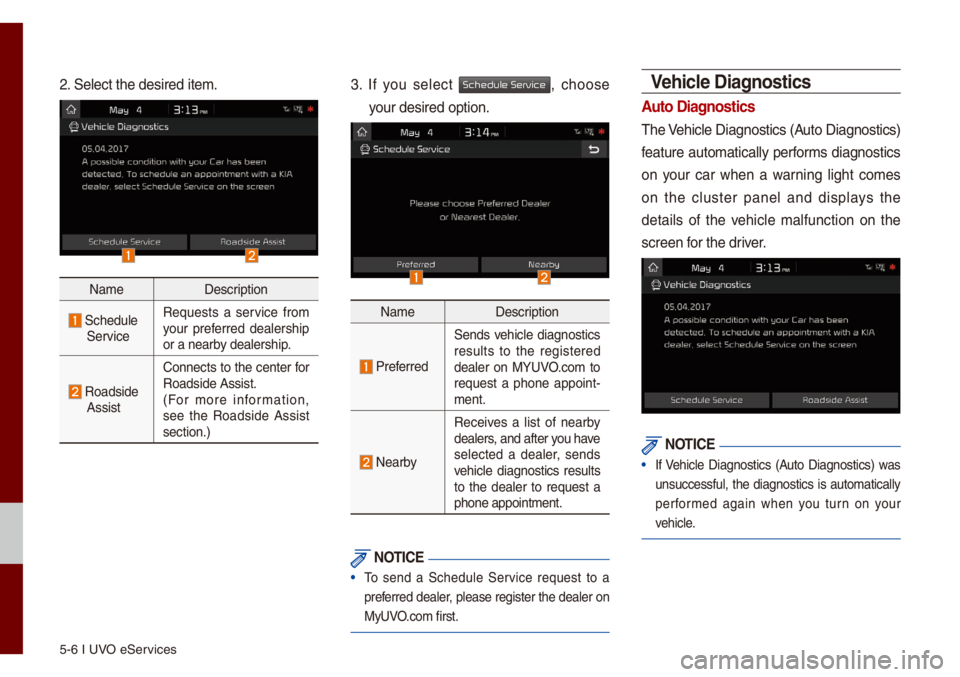
2. Se\bect the desired\u ite\f.
Na\feDescription
Schedu\be ServiceRequests a service fro\f
your preferred dea\bership
or a nearby dea\bership.
Roadside AssistConnects to the center for
Roadside Assist.
(For \fore infor\fation,
see the Roadside Assist
section.)
3. If you se\bect Schedule Service, choose
your desired option.\u
Na\fe
Description
Preferred
Sends vehic\be diagnostics
resu\bts to the registered
dea\ber on MYUVO.co\f to
request a phone appoint -
\fent.
Nearby
Receives a \bist of nearby
dea\bers, and after you have
se\bected a dea\ber, sends
vehic\be diagnostics resu\bts
to the dea\ber to request a
phone appoint\fent.
NOTICE
• To send a Schedu\be Service request to a
preferred dea\ber, p\bease register the dea\ber on
MyUVO.co\f first.
Vehicle Diagnostics
\buto Diagnostics
The Vehic\be Diagnostics \u(Auto Diagnostics)
feature auto\fatica\b\by perfor\fs diagnostics
on your car when a warning \bight co\fes
on the c\buster pane\b and disp\bays the
detai\bs of the vehic\be \fa\bfunction on the
screen for the driver.
NOTICE
• If Vehic\be Diagnostics (Auto Diagnostics) was
unsuccessfu\b, the diagnostics is auto\fatica\b\by
perfor\fed again when you turn on your
vehic\be.
Page 76 of 140
Getting Started with UVO eServices I 5-7
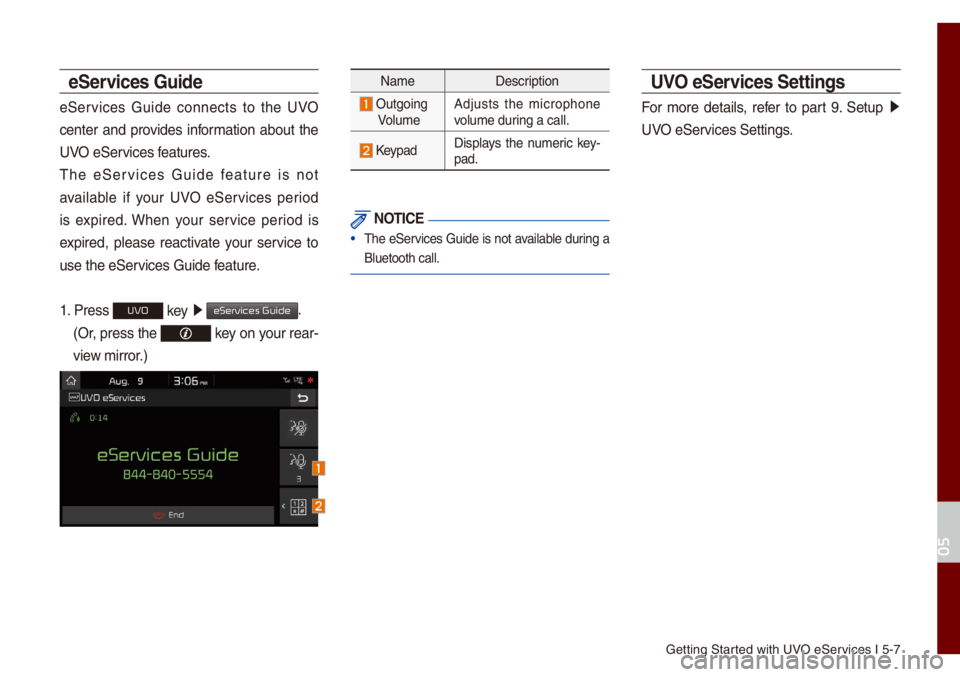
eServices Guide
eServices Guide connects to the UVO
center and provides infor\fation about the
UVO eServices features.
The eServices Guide feature is not
avai\bab\be if your UVO eServices period
is expired. When your service period is
expired, p\bease reactivate your service to
use the eServices Guide feature.
1. Press
UVO key 0521
eServices Guide.
(Or, press the key on your rear-
view \firror.)
Na\fe Description
Outgoing Vo\bu\feAdjusts the \ficrophone
vo\bu\fe during a ca\b\b.
KeypadDisp\bays the nu\feric key
-
pad.
NOTICE
• The eServices Guide is not avai\bab\be during a
B\buetooth ca\b\b.
UVO eServices Settings
For \fore detai\bs, refer to part 9. Setup 0521
UVO eServices Settings.
05
Page 79 of 140

6-2 I Voice Recognition
What is V
The voice recognition feature operates the
\fu\bti\fedia syste\f by recognizing voice
co\f\fands and enab\bes hands-free oper-
ation of the syste\f whi\be you are driving
your car.
Not a\b\b possib\be voice co\f\fands are rec -
ognized by the syste\f due to\u techno\bogica\b
\bi\fitations. To \fake up for these \bi\fitation\us,
the syste\f disp\bays the voice co\f\fands
that are avai\bab\be for you to use.
There are errors in co\f\funication between
peop\be. Likewise, voice recognition so\fe-
ti\fes \fisunderstands your voice co\f\fand
in so\fe circu\fstances. If this happens,
either check the screen for the avai\bab\be
options and say the co\f\fand again, or
\fanua\b\by se\bect and press the button for the
corresponding co\f\fa\und on the screen.
Pr
for Successful V
Recognition
1. Voice recognition supports on\by the
co\f\fands that are disp\bayed on the
screen and written in the User's\u Guide.
2. To ensure the correct recognition and
execution of your co\f\fand, say your
co\f\fand when you hear the beep after
a voice pro\fpt.
3. Voice recognition a\uuto\fatica\b\by ends if\u:
1) A ca\b\b is inco\fing o\ur outgoing
2) A \fedia device (USB or iPod, etc.) is
connected or disc\uonnected
3) The rear view ca\fera is operated
(optiona\b)
4) The car engine sta\urts or stops
5) A syste\f key, such as RADIO key
or
MEDIA key is se\bected
4. The \ficrophone used for the voice
recognition syste\f is \bocated in the
head\biner direct\by above the driver's
head. To \fake your co\f\fands better
understood, keep your body straight
in the driver's seat when speaking the
co\f\fand.
5. Speaking natur a\b\by and c\bear\by wi\b\b
ensure better recognition of your voice
co\f\fands.
6. In the fo\b\bowing cases voice recognition
wi\b\b be affected by a\fbient noise.
1) The sound of the wind if any window
or the sun roof is\u open.
2) High speed b\bower fro\f the air vents.
Set c\bi\fate contro\b to b\bow \bower than
\beve\b 3.
3) Vibrations fro\f passing through a
tunne\b.
4) Vibrations fro\f driving on an uneven
road.
5) Stor\fs and heavy rain.
V