Eco KIA Optima 2012 3.G Owner's Manual
[x] Cancel search | Manufacturer: KIA, Model Year: 2012, Model line: Optima, Model: KIA Optima 2012 3.GPages: 382, PDF Size: 8.75 MB
Page 230 of 382
4143
Features of your vehicle
NOTE:
If you need more information about
Kia’s Bluetooth®wireless technology.
Contact kia website “www.kia.com”
(OWNERS>General Info>BLUETOOTH
wireless technology).
CAUTION IN USING
BLUETOOTH®WIRELESS
TECHNOLOGY CELLU-
LAR PHONE
Do not use a cellular phone or
perform Bluetooth®wireless tech-
nology settings (e.g. pairing a phone) while driving.
Some Bluetooth
®wireless tech-
nology-enabled phones may not be recognized by the system or fully compatible with the system.
Before using Bluetooth
®wireless
technology related features of the audio system, refer your phone’sUser’s Manual for phone-sideBluetooth
®wireless technology
operations.
The phone must be paired to the audio system to use Bluetooth®
wireless technology related fea-
tures.
You will not be able to use the hands-free feature when yourphone (in the car) is outside ofthe cellular service area (e.g. in a tunnel, in a underground, in amountainous area, etc.).
(Continued)
(Continued) If the cellular phone signal is poor or the vehicles interior noise istoo loud, it may be difficult to hearthe other person’s voice during acall.
Do not place the phone near or inside metallic objects, otherwise
communications with Bluetooth
®
wireless technology system orcellular service stations can be disturbed.
While a phone is connected through Bluetooth
®wireless tech-
nology your phone may dis- charge quicker than usual foradditional Bluetooth
®wireless
technology-related operations.
Some cellular phones or other devices may cause interferencenoise or malfunction to audiosystem. In this case, storing thedevice in a different location mayresolve the situation.
Page 231 of 382
Features of your vehicle
144
4
BLUETOOTH®PHONE OPERATION
(if equipped)
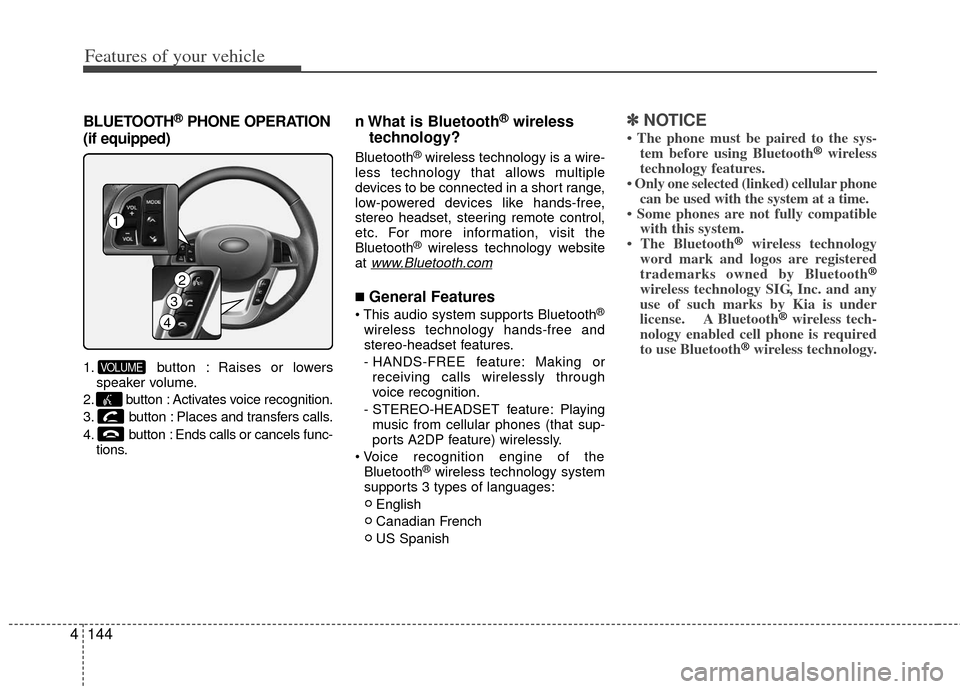
1. button : Raises or lowers speaker volume.
2. button : Activates voice recognition.
3. button : Places and transfers calls.
4. button : Ends calls or cancels func- tions.
n What is Bluetooth®wireless
technology?
Bluetooth®wireless technology is a wire-
less technology that allows multiple
devices to be connected in a short range,
low-powered devices like hands-free,
stereo headset, steering remote control,
etc. For more information, visit the
Bluetooth
®wireless technology website
at www.Bluetooth.com
■General Features
®
wireless technology hands-free and
stereo-headset features.
- HANDS-FREE feature: Making or receiving calls wirelessly through
voice recognition.
- STEREO-HEADSET feature: Playing music from cellular phones (that sup-
ports A2DP feature) wirelessly.
Bluetooth
®wireless technology system
supports 3 types of languages:
English
Canadian French
US Spanish
✽ ✽ NOTICE
• The phone must be paired to the sys-
tem before using Bluetooth®wireless
technology features.
• Only one selected (linked) cellular phone can be used with the system at a time.
• Some phones are not fully compatible with this system.
• The Bluetooth
®wireless technology
word mark and logos are registered
trademarks owned by Bluetooth
®
wireless technology SIG, Inc. and any
use of such marks by Kia is under
license. A Bluetooth
®wireless tech-
nology enabled cell phone is required
to use Bluetooth
®wireless technology.
VOLUME
4
3
1
2
Page 236 of 382
4149
Features of your vehicle
Contacts Sync (Automatic Phonebook
download setting)
While in ADVANCED menu, select
“Contacts” to automatically save the
contacts and call history in your mobile
phone each time you connect a mobile
device, select ON. If you do not wish for
automatic download, select OFF.
It’s not available to make a phone call by
Bluetooth
®wireless technologyaudio sys-
tem while the phonebook is being down-
loaded.
Language of Bluetooth®wireless technol-
ogy voice recognition
While in ADVANCED menu, press
“Language”. To change the language,
select the desired language and press
the button.
Bluetooth
®wireless technology sys-
tem off
While in ADVANCED menu, press “BT Off ”
To turn off the Bluetooth
®wireless tech-
nology System.
■Voice Recognition Activation
in the Bluetooth®wireless technology
System can be activated in the follow-
ing conditions:
- Button Activation
The voice recognition system will be
active when the button is pressed
and after the sound of a Beep.
- Active Listening The voice recognition system will be
active for a period of time when the
Voice Recognition system has asked
for a customer response.
from zero to nine while number greater
than ten will not be recognized.
tion mode in following cases : When
pressing the button and saying
“cancel” following the beep. When not
making a call and pressing the
button. When voice recognition has
failed 3 consecutive times.
will announce what commands are
available.
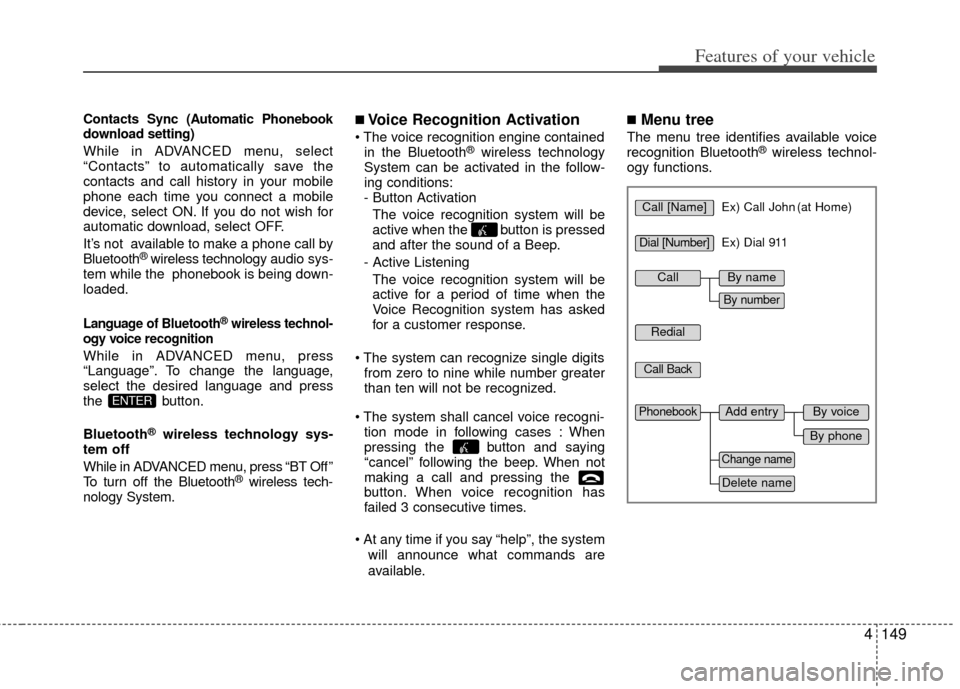
■Menu tree
The menu tree identifies available voice
recognition Bluetooth®wireless technol-
ogy functions.
ENTER
Call [Name]Ex) Call John (at Home)
Ex) Dial 911
Dial [Number]
Redial
Call Back
Add entryPhonebook
Change name
Delete name
By phone
By voice
CallBy name
By number
Page 237 of 382
Features of your vehicle
150
4
■Making a Phone Call
➀Press button.
➁Say the following command.
- Call
- Call
- Call
- Call
Note:
Calls can be immediately connected
to contacts who name or voice tag are
saved in the phonebook(or contacts).
A phone call can be made by speaking
names registered in the audio system.
➀Press button.
➁Say “Call”.
\bSay “By name” when prompted.
➃Say desired name (in Phonebook or
voice tag).
➄Say desired location (phone number
type). Only stored locations can be
selected.
➅ Say “Yes” to confirm and make a call.
✽
✽
Tip
■Voice Operation
To get the best performance out of the
Voice Recognition System, observe the
followings:
- Keep the interior of the vehicle as quiet as possible. Close the window
to eliminate surrounding noise
(traffic noise, vibration sounds,
etc), which may disturb recogniz-
ing the voice command correctly.
- Speak a command after a beep sound within 5 seconds. Otherwise
the command will not be received
properly.
- Speak in a natural voice without pausing between words.
- While receiving voice commands, press the button on the steer-
ing wheel remote controller to ter-
minate guidance. Voice command
will convert back to waiting mode
to allow the user to say a new voice
command.
Page 238 of 382
4151
Features of your vehicle
✽
✽Tip
A shortcut to each of the following func-
tions is available:
1. Say “Call Name”
A phone call can be made by dialing the
spoken numbers. The system can recog-
nize single digits from zero to nine.
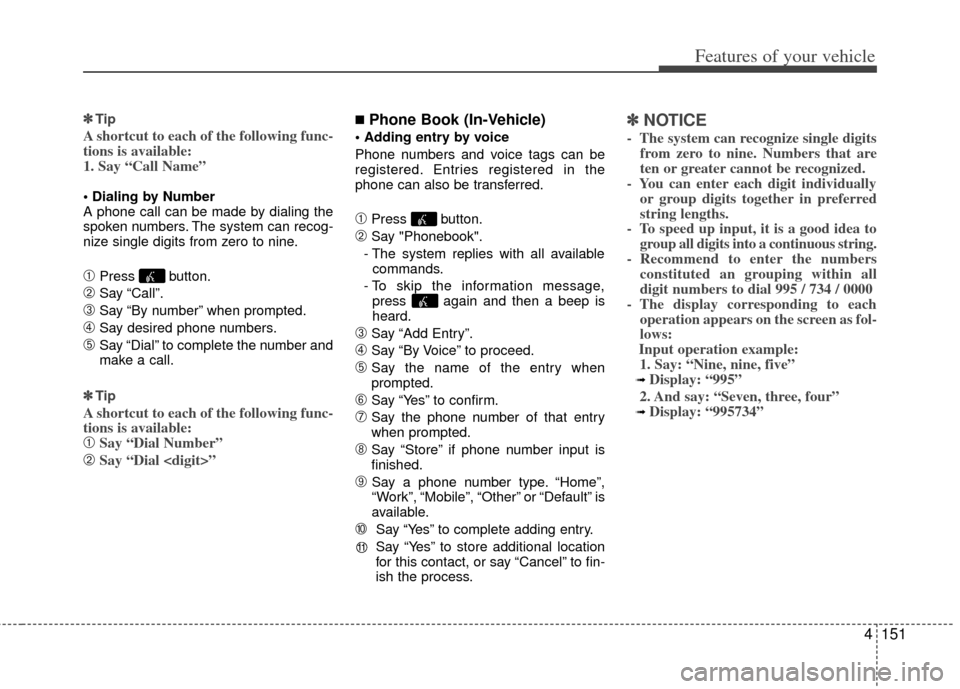
➀Press button.
➁Say “Call”.
\bSay “By number” when prompted.
➃Say desired phone numbers.
➄Say “Dial” to complete the number and
make a call.
✽ ✽ Tip
A shortcut to each of the following func-
tions is available:
➀Say “Dial Number”
➁Say “Dial
■Phone Book (In-Vehicle)
Phone numbers and voice tags can be
registered. Entries registered in the
phone can also be transferred.
➀Press button.
➁Say "Phonebook".
- The system replies with all available commands.
- To skip the information message, press again and then a beep is
heard.
\bSay “Add Entry”.
➃Say “By Voice” to proceed.
➄Say the name of the entry when
prompted.
➅Say “Yes” to confirm.
\fSay the phone number of that entry
when prompted.
➇Say “Store” if phone number input is
finished.
➈ Say a phone number type. “Home”,
“Work”, “Mobile”, “Other” or “Default” is
available.
➉ Say “Yes” to complete adding entry.
Say “Yes” to store additional location
for this contact, or say “Cancel” to fin-
ish the process.
✽ ✽ NOTICE
- The system can recognize single digits
from zero to nine. Numbers that are
ten or greater cannot be recognized.
- You can enter each digit individually or group digits together in preferred
string lengths.
- To speed up input, it is a good idea to group all digits into a continuous string.
- Recommend to enter the numbers constituted an grouping within all
digit numbers to dial 995 / 734 / 0000
- The display corresponding to each operation appears on the screen as fol-
lows:
Input operation example: 1. Say: “Nine, nine, five”
➟ Display: “995”
2. And say: “Seven, three, four”
➟ Display: “995734”
11
Page 239 of 382
Features of your vehicle
152
4
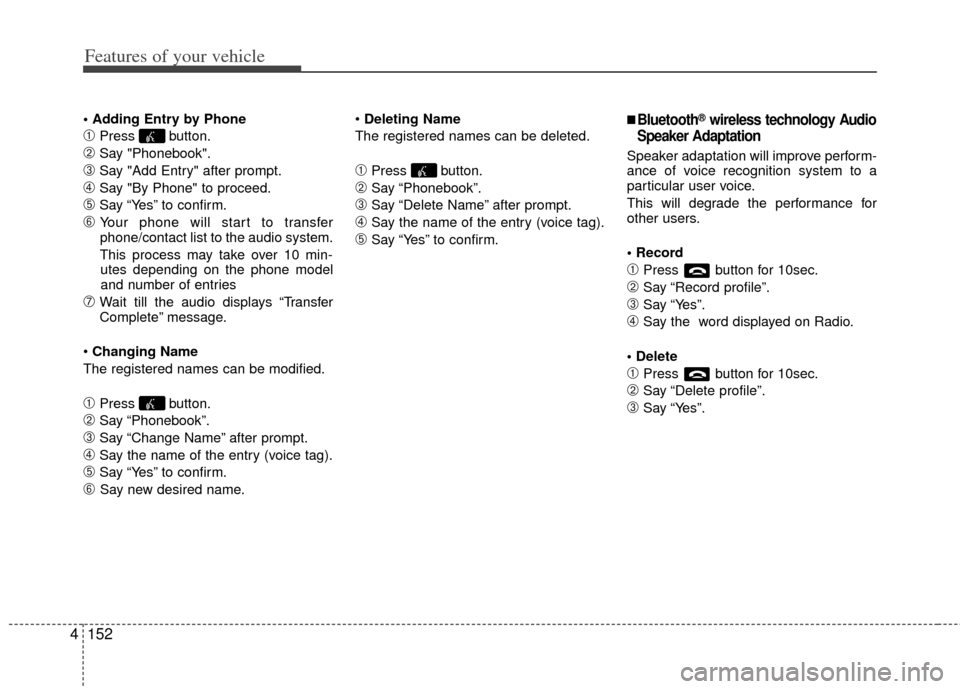
➀Press button.
➁Say "Phonebook".
\bSay "Add Entry" after prompt.
➃Say "By Phone" to proceed.
➄Say “Yes” to confirm.
➅ Your phone will start to transfer
phone/contact list to the audio system.
This process may take over 10 min- utes depending on the phone model
and number of entries
\fWait till the audio displays “Transfer
Complete” message.
Changing Name
The registered names can be modified.
➀Press button.
➁Say “Phonebook”.
\bSay “Change Name” after prompt.
➃Say the name of the entry (voice tag).
➄Say “Yes” to confirm.
➅ Say new desired name.
Deleting Name
The registered names can be deleted.
➀Press button.
➁Say “Phonebook”.
\bSay “Delete Name” after prompt.
➃Say the name of the entry (voice tag).
➄Say “Yes” to confirm.
■Bluetooth®wireless technology Audio
Speaker Adaptation
Speaker adaptation will improve perform-
ance of voice recognition system to a
particular user voice.
This will degrade the performance for
other users.
➀Press button for 10sec.
➁Say “Record profile”.
\bSay “Yes”.
➃Say the word displayed on Radio.
➀Press button for 10sec.
➁Say “Delete profile”.
\bSay “Yes”.
Page 241 of 382
5
Before driving / 5-3
Key positions / 5-4
Engine start/stop button / 5-6
Starting the engine / 5-9
Manual transaxle / 5-12
Automatic transaxle / 5-15
Brake system / 5-23
ESC (Electronic stability control) / 5-28
HAC (Hill-start assist control) / 5-32
VSM (Vehicle stability management) / 5-33
Active eco system / 5-36
Cruise control system / 5-37
Economical operation / 5-41
Special driving conditions / 5-43
Winter driving / 5-47
Vehicle load limit / 5-50
Vehicle weight / 5-55
Trailer towing / 5-55
Driving your vehicle
Page 244 of 382
Driving your vehicle
45
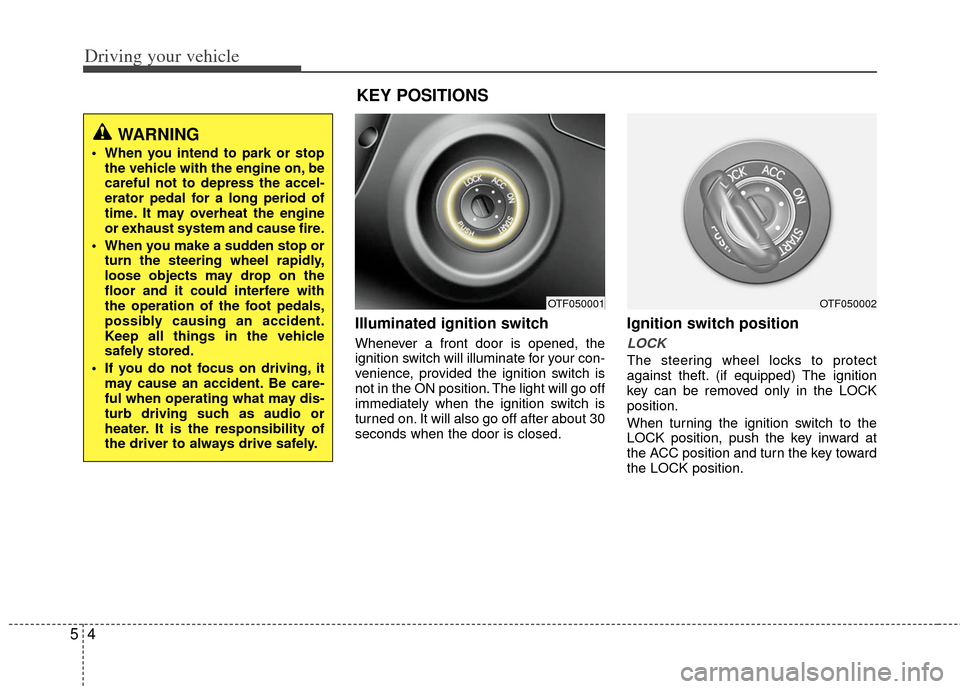
Illuminated ignition switch
Whenever a front door is opened, the
ignition switch will illuminate for your con-
venience, provided the ignition switch is
not in the ON position. The light will go off
immediately when the ignition switch is
turned on. It will also go off after about 30
seconds when the door is closed.
Ignition switch position
LOCK
The steering wheel locks to protect
against theft. (if equipped) The ignition
key can be removed only in the LOCK
position.
When turning the ignition switch to the
LOCK position, push the key inward at
the ACC position and turn the key toward
the LOCK position.
OTF050001
WARNING
When you intend to park or stopthe vehicle with the engine on, be
careful not to depress the accel-
erator pedal for a long period of
time. It may overheat the engine
or exhaust system and cause fire.
When you make a sudden stop or turn the steering wheel rapidly,
loose objects may drop on the
floor and it could interfere with
the operation of the foot pedals,
possibly causing an accident.
Keep all things in the vehicle
safely stored.
If you do not focus on driving, it may cause an accident. Be care-
ful when operating what may dis-
turb driving such as audio or
heater. It is the responsibility of
the driver to always drive safely.
KEY POSITIONS
OTF050002
Page 246 of 382
Driving your vehicle
65
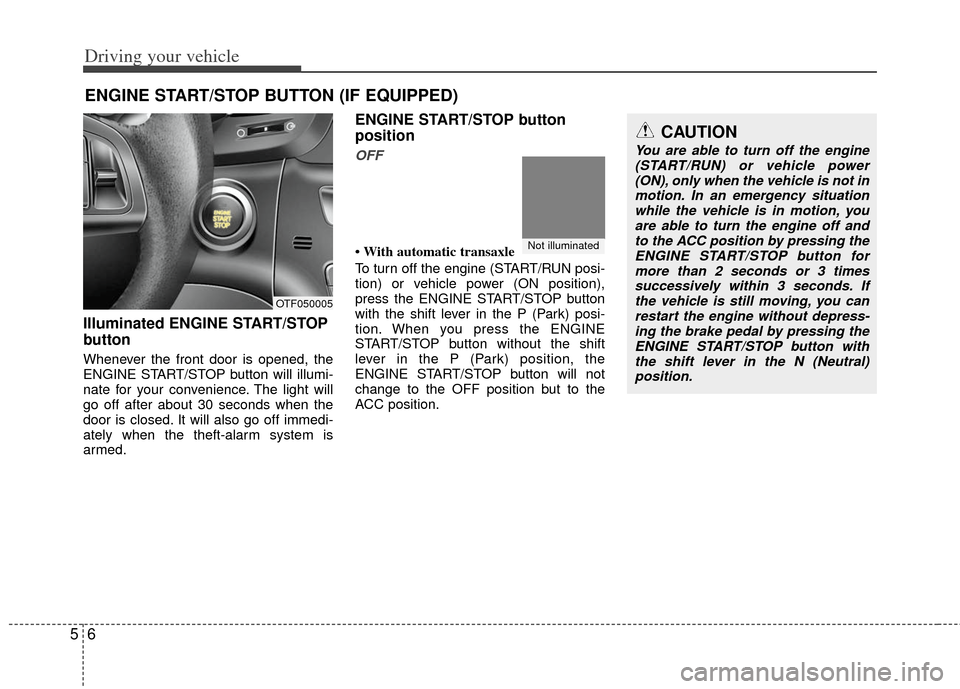
Illuminated ENGINE START/STOP
button
Whenever the front door is opened, the
ENGINE START/STOP button will illumi-
nate for your convenience. The light will
go off after about 30 seconds when the
door is closed. It will also go off immedi-
ately when the theft-alarm system is
armed.
ENGINE START/STOP button
position
OFF
• With automatic transaxle
To turn off the engine (START/RUN posi-
tion) or vehicle power (ON position),
press the ENGINE START/STOP button
with the shift lever in the P (Park) posi-
tion. When you press the ENGINE
START/STOP button without the shift
lever in the P (Park) position, the
ENGINE START/STOP button will not
change to the OFF position but to the
ACC position.
ENGINE START/STOP BUTTON (IF EQUIPPED)
OTF050005
Not illuminated
CAUTION
You are able to turn off the engine(START/RUN) or vehicle power(ON), only when the vehicle is not in motion. In an emergency situationwhile the vehicle is in motion, youare able to turn the engine off and to the ACC position by pressing theENGINE START/STOP button for more than 2 seconds or 3 timessuccessively within 3 seconds. If the vehicle is still moving, you canrestart the engine without depress-ing the brake pedal by pressing theENGINE START/STOP button with the shift lever in the N (Neutral)position.
Page 249 of 382
59
Driving your vehicle
Starting the engine with an igni-
tion key (if equipped)
1. Make sure the parking brake isapplied.
2. Manual Transaxle - Depress the
clutch pedal fully and shift the
transaxle into Neutral. Keep the clutch
pedal and brake pedal depressed
while turning the ignition switch to the
start position.
Automatic Transaxle - Place the
transaxle shift lever in P (Park).
Depress the brake pedal fully.
You can also start the engine when the shift lever is in the N (Neutral)position.
3. Turn the ignition switch to START and
hold it there until the engine starts (a
maximum of 10 seconds), then
release the key.
4. In extremely cold weather (below 0°F / -18°C) or after the vehicle has
not been operated for several days, let
the engine warm up without depress-
ing the accelerator.
Whether the engine is cold or warm, itshould be started without depressingthe accelerator.
STARTING THE ENGINE
WARNING
Always wear appropriate shoes
when operating your vehicle.
Unsuitable shoes (high heels, ski
boots,etc.) may interfere with your
ability to use the brake, accelerator
pedal, and clutch (if equipped).
CAUTION
If the engine stalls while the vehicleis in motion, do not attempt to move the shift lever to the P (Park) posi-tion. If traffic and road conditionspermit, you may put the shift leverin the N (Neutral) position while thevehicle is still moving and turn theignition switch to the START posi- tion in an attempt to restart theengine.
CAUTION
Do not engage the starter for more than 10 seconds. If the engine stallsor fails to start, wait 5 to 10 seconds before re-engaging the starter.Improper use of the starter maydamage it.