steering wheel KIA Optima 2014 3.G Owner's Guide
[x] Cancel search | Manufacturer: KIA, Model Year: 2014, Model line: Optima, Model: KIA Optima 2014 3.GPages: 479, PDF Size: 13.21 MB
Page 148 of 479
Features of your vehicle
78
4
Average Fuel Economy (2)
The average fuel economy is calcu-
lated by the total driving distance
and fuel consumption since the last
average fuel economy reset.
- Fuel economy range: 0.0 ~ 99.9MPG or L/100km
The average fuel economy can be reset both manually and automati-
cally. Manual reset
To clear the average fuel economy
manually, press the SELECT/RESET
button OK on the steering wheel for
more than 1 second when the aver-
age fuel economy is displayed.
Automatic reset
To make the average fuel economy
be reset automatically whenever refu-
eling, select the "Auto Reset" mode in
User Setting menu of the LCD display
(Refer to "LCD Display").
Under "Auto Reset" mode, the aver-
age fuel economy will be cleared to
zero (---) when the vehicle speed
exceeds 1 km/h after refueling more
than 6 liters (1.6 gallons).
✽ ✽
NOTICE
The average fuel economy is not dis-
played for more accurate calculation
if the vehicle does not drive more than
10 seconds or 50 meters (0.03 miles)
since the ignition switch or Engine
Start/Stop button is turned to ON.
Instant Fuel Economy (3)
This mode displays the instant fuel
economy during the last few sec-
onds when the vehicle speed is
more than 10 km/h (6.2 MPH).
- Fuel economy range: 0 ~ 50 MPGor 0 ~ 30 L/100km
Page 149 of 479
479
Features of your vehicle
Trip A/B
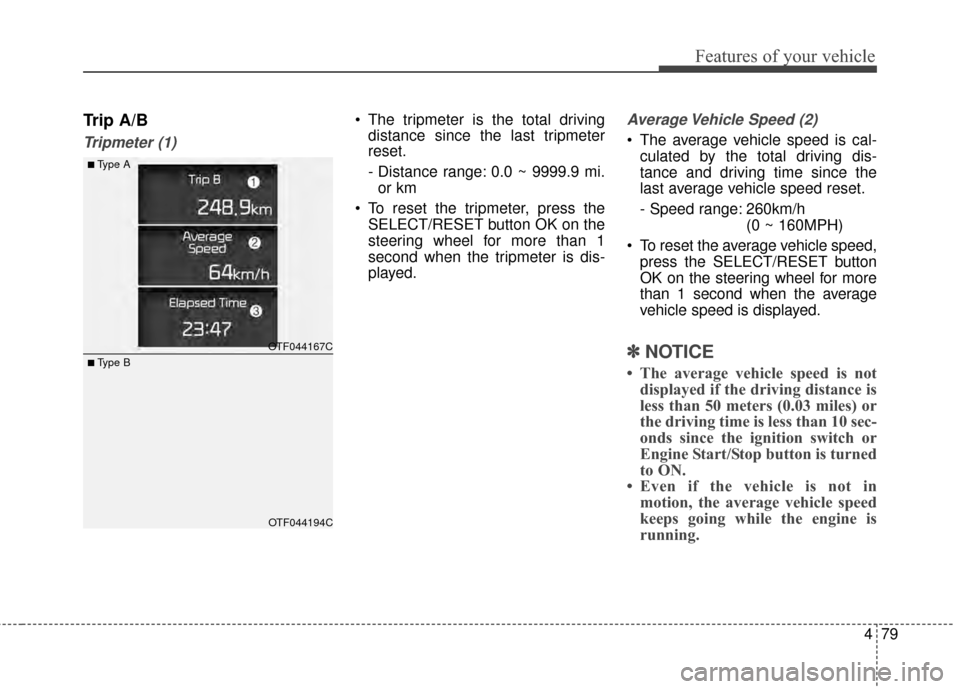
Tripmeter (1)
The tripmeter is the total drivingdistance since the last tripmeter
reset.
- Distance range: 0.0 ~ 9999.9 mi.
or km
To reset the tripmeter, press the SELECT/RESET button OK on the
steering wheel for more than 1
second when the tripmeter is dis-
played.Average Vehicle Speed (2)
The average vehicle speed is cal-culated by the total driving dis-
tance and driving time since the
last average vehicle speed reset.
- Speed range: 260km/h (0 ~ 160MPH)
To reset the average vehicle speed, press the SELECT/RESET button
OK on the steering wheel for more
than 1 second when the average
vehicle speed is displayed.
✽ ✽ NOTICE
• The average vehicle speed is not
displayed if the driving distance is
less than 50 meters (0.03 miles) or
the driving time is less than 10 sec-
onds since the ignition switch or
Engine Start/Stop button is turned
to ON.
• Even if the vehicle is not in motion, the average vehicle speed
keeps going while the engine is
running.
OTF044167C
OTF044194C
■Type A
■ Type B
Page 150 of 479
Features of your vehicle
80
4
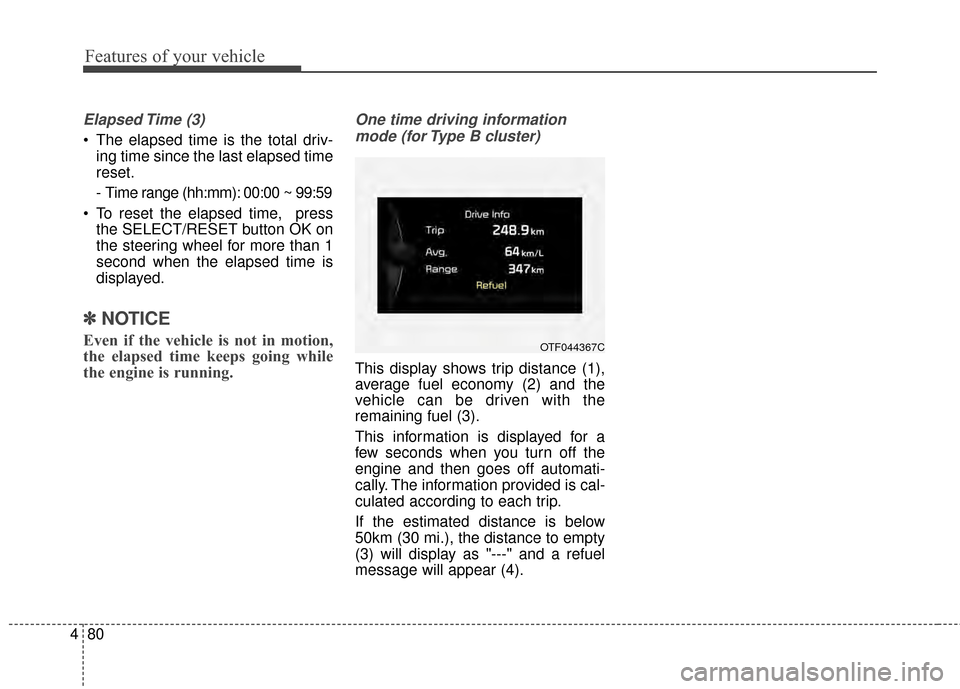
Elapsed Time (3)
The elapsed time is the total driv-
ing time since the last elapsed time
reset.
- Time range (hh:mm): 00:00 ~ 99:59
To reset the elapsed time, press the SELECT/RESET button OK on
the steering wheel for more than 1
second when the elapsed time is
displayed.
✽ ✽ NOTICE
Even if the vehicle is not in motion,
the elapsed time keeps going while
the engine is running.
One time driving information
mode (for Type B cluster)
This display shows trip distance (1),
average fuel economy (2) and the
vehicle can be driven with the
remaining fuel (3).
This information is displayed for a
few seconds when you turn off the
engine and then goes off automati-
cally. The information provided is cal-
culated according to each trip.
If the estimated distance is below
50km (30 mi.), the distance to empty
(3) will display as "---" and a refuel
message will appear (4).
OTF044367C
Page 216 of 479
Features of your vehicle
146
4
Steering wheel audio controls
(if equipped)
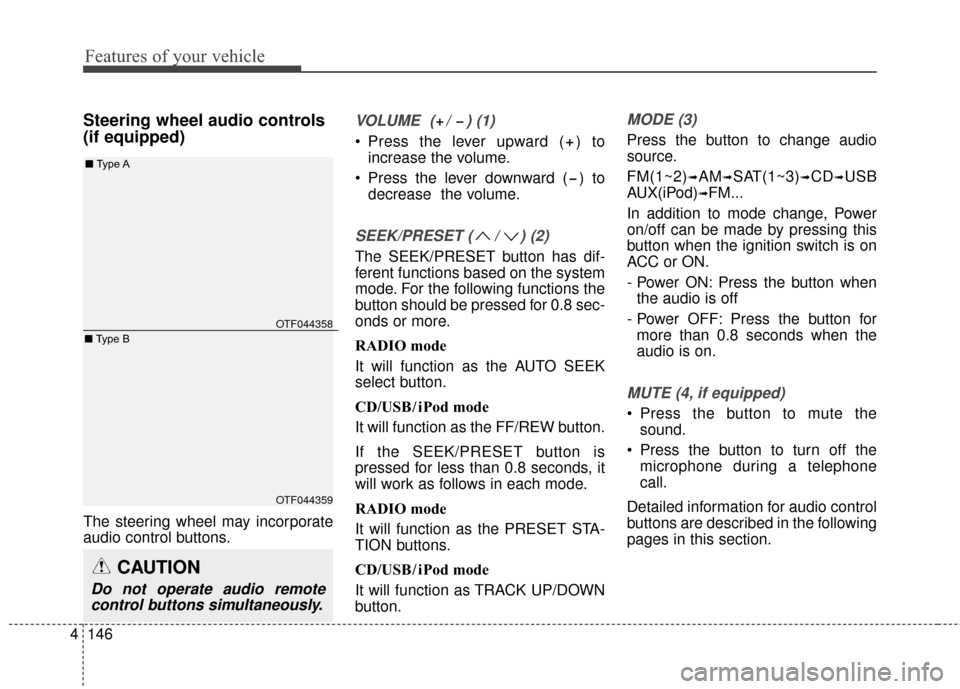
The steering wheel may incorporate
audio control buttons.
VOLUME ( / ) (1)
Press the lever upward ( ) to
increase the volume.
Press the lever downward ( ) to decrease the volume.
SEEK/PRESET ( / ) (2)
The SEEK/PRESET button has dif-
ferent functions based on the system
mode. For the following functions the
button should be pressed for 0.8 sec-
onds or more.
RADIO mode
It will function as the AUTO SEEK
select button.
CD/USB/ iPod mode
It will function as the FF/REW button.
If the SEEK/PRESET button is
pressed for less than 0.8 seconds, it
will work as follows in each mode.
RADIO mode
It will function as the PRESET STA-
TION buttons.
CD/USB/ iPod mode
It will function as TRACK UP/DOWN
button.
MODE (3)
Press the button to change audio
source.
FM(1~2)
➟AM➟SAT(1~3)➟CD➟USB
AUX(iPod)
➟FM...
In addition to mode change, Power
on/off can be made by pressing this
button when the ignition switch is on
ACC or ON.
- Power ON: Press the button when the audio is off
- Power OFF: Press the button for more than 0.8 seconds when the
audio is on.
MUTE (4, if equipped)
Press the button to mute the sound.
Press the button to turn off the microphone during a telephone
call.
Detailed information for audio control
buttons are described in the following
pages in this section.
CAUTION
Do not operate audio remote control buttons simultaneously.
OTF044358
OTF044359
■ Type A
■ Type B
Page 250 of 479
Features of your vehicle
180
4
PHONE
Before using the Bluetooth®Wireless
Technology phone features
Bluetooth®Wireless
Technology phone, you must first
pair and connect the
Bluetooth®
Wireless Technology mobile phone.
connected, it is not possible to
enter Phone mode. Once a phone
is paired or connected, the guid-
ance screen will be displayed.
tion (IGN/ACC ON), the
Bluetooth®
Wireless Technology phone will be
automatically connected. Even if
you are outside, the
Bluetooth®
Wireless Technology phone will be
automatically connected once you
are in the vicinity of the vehicle. If
you do not want automatic
Bluetooth®Wireless Technology
phone connection, set the
Bluetooth®Wireless Technology
power to OFF
Making a call using the
Steering-wheel mounted con-
trols
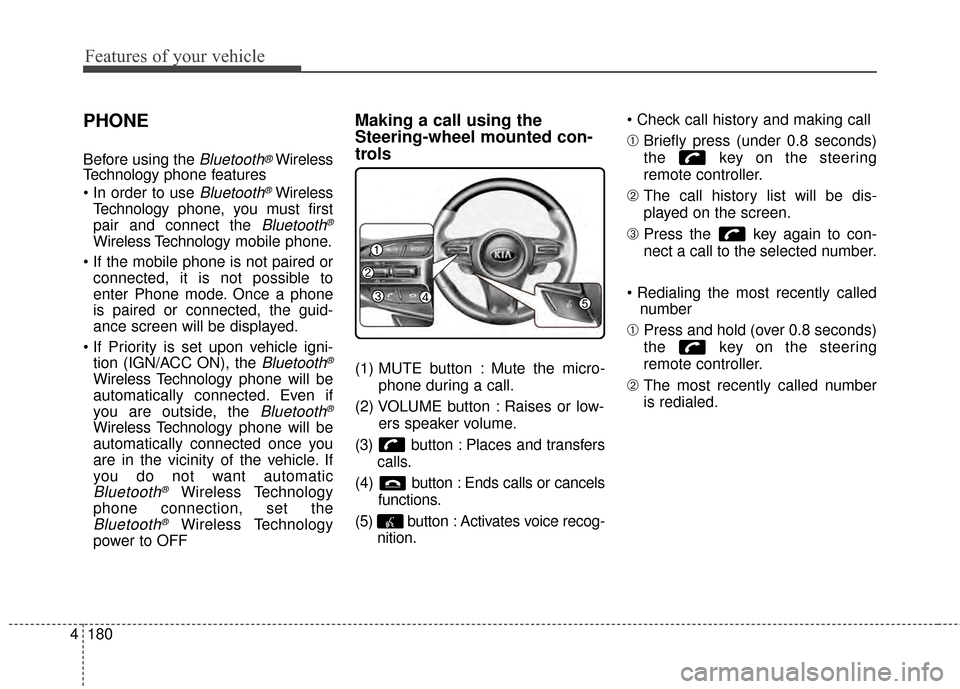
(1) MUTE button : Mute the micro-
phone during a call.
(2) VOLUME button : Raises or low- ers speaker volume.
(3) b utton : Places and transfers
calls.
(4) b utton : Ends calls or cancels
functions.
(5) button : Activates voice recog- nition.
➀
Briefly press (under 0.8 seconds)
the key on the steering
remote controller.
\b The call history list will be dis-
played on the screen.
➂ Press the key again to con-
nect a call to the selected number.
number
➀ Press and hold (over 0.8 seconds)
the key on the steering
remote controller.
\b The most recently called number
is redialed.
Page 253 of 479
4183
Features of your vehicle
During the pairing process, make
sure that all connection requests on
the phone are accepted for phone-
book download and to allow accept-
ance of all future connection requests.
and Visit http://www.kia.com/#/blue-
tooth for additional information on
pairing your Bluetooth-enabled
mobile phone, and to view a phone
compatibility list.
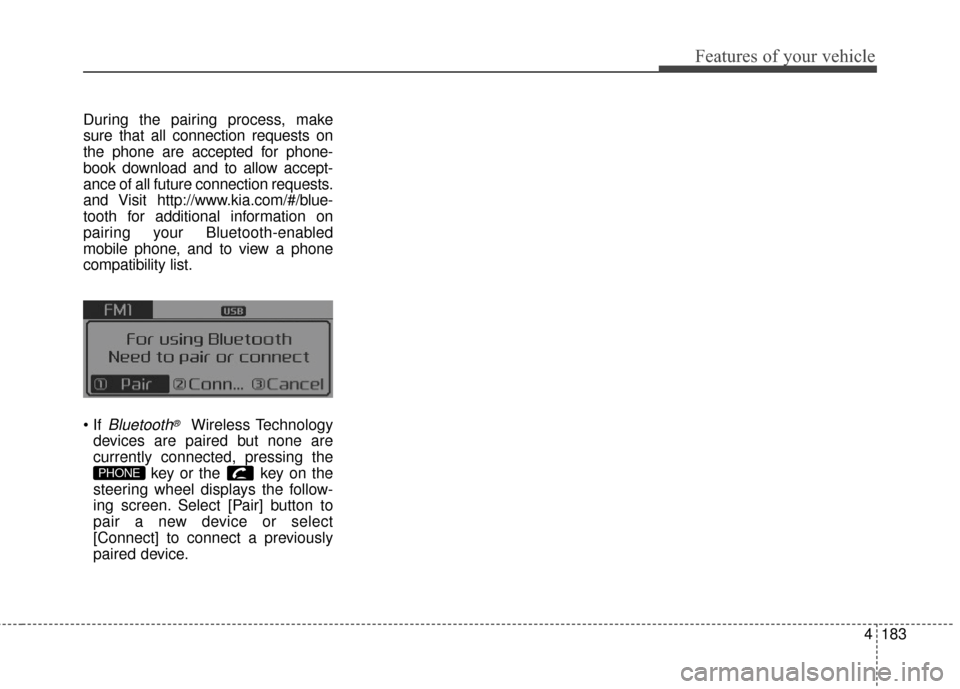
Bluetooth®Wireless Technology
devices are paired but none are
currently connected, pressing the key or the key on the
steering wheel displays the follow-
ing screen. Select [Pair] button to
pair a new device or select
[Connect] to connect a previously
paired device.
PHONE
Page 258 of 479
Features of your vehicle
188
4
USING Bluetooth®Wireless
Technology
Phone Menu Screen
Phone Menus
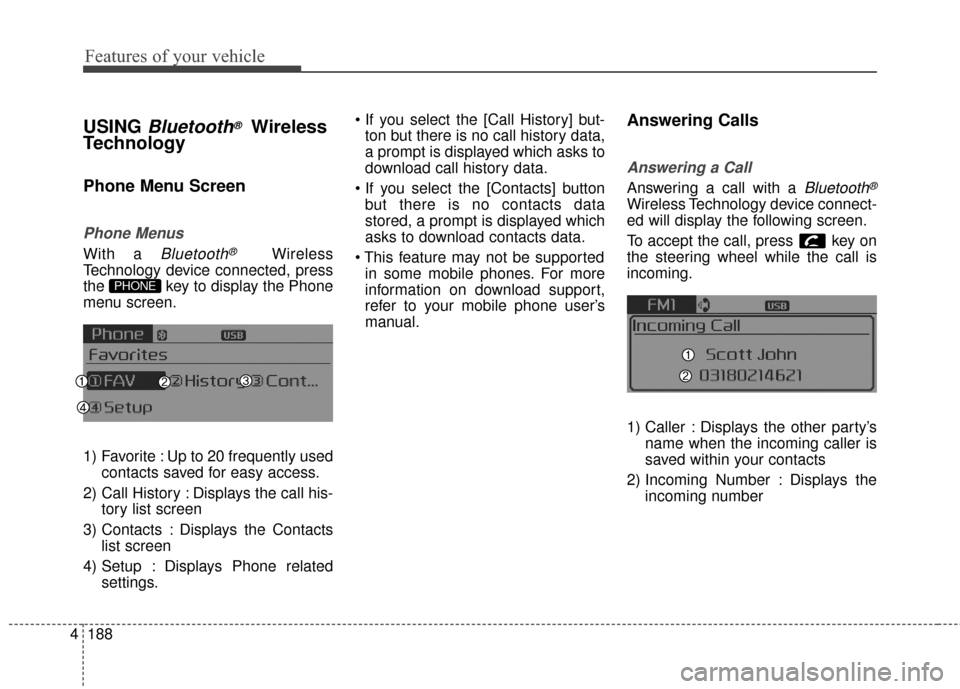
With a Bluetooth®Wireless
Technology device connected, press
the key to display the Phone
menu screen.
1) Favorite : Up to 20 frequently used contacts saved for easy access.
2) Call History : Displays the call his- tory list screen
3) Contacts : Displays the Contacts list screen
4) Setup : Displays Phone related settings.
ton but there is no call history data,
a prompt is displayed which asks to
download call history data.
but there is no contacts data
stored, a prompt is displayed which
asks to download contacts data.
in some mobile phones. For more
information on download support,
refer to your mobile phone user’s
manual.
Answering Calls
Answering a Call
Answering a call with a Bluetooth®
Wireless Technology device connect-
ed will display the following screen.
To accept the call, press key on
the steering wheel while the call is
incoming.
1) Caller : Displays the other party’s name when the incoming caller is
saved within your contacts
2) Incoming Number : Displays the incoming number
PHONE
Page 264 of 479
![KIA Optima 2014 3.G Owners Guide Features of your vehicle
194
4
VOICE RECOGNITION
Using Voice Recognition
Starting Voice Recognition
Shortly press the key on the
steering wheel. Say a command If prompt feedback is in [ON], then
th](/img/2/2952/w960_2952-263.png "KIA Optima 2014 3.G Owners Guide Features of your vehicle
194
4
VOICE RECOGNITION
Using Voice Recognition
Starting Voice Recognition
Shortly press the key on the
steering wheel. Say a command If prompt feedback is in [ON], then
th")
Features of your vehicle
194
4
VOICE RECOGNITION
Using Voice Recognition
Starting Voice Recognition
Shortly press the key on the
steering wheel. Say a command If prompt feedback is in [ON], then
the system will say “Please say a
command after the beep (BEEP)”
mode, then the system will only say
“(BEEP)”
[On]/[Off], go to [System] [Prompt Feedback]
command after the voice instruc-
tion and beep tone.
Skipping Prompt Messages
While prompt message is being stat-
ed Shortly press the key on the
steering remote controller
The prompt message is immediately
ended and the beep tone will sound.
After the “beep”, say the voice com-
mand.
Re-starting Voice Recognition
While system waits for a command
Shortly press the key on the
steering remote controller
The command wait state is immedi-
ately ended and the beep ton will
sound. After the “beep”, say the voice
command.
SETUP
Page 265 of 479
4195
Features of your vehicle
ENDING VOICE
RECOGNITION
While Voice Recognition is operatingPress and hold the key on the
steering remote controller
While using voice command, pressing any steering wheel con-
trol or a different key will end voice
command.
When the system is waiting for a voice command, say “cancel” or
“end” to end voice command.
When the system is waiting for a voice command, press and hold
the key on the steering wheel
to end voice command.
Voice Recognition and Phone
Contact Tips:
The Kia Voice Recognition System
may have difficulty understanding
some accents or uncommon
names. When using Voice
Recognition to place a call, speak in
a moderate tone, with clear pronun-
ciation
To maximize the use of Voice
Recognition, consider these guide-
lines when storing contacts:
Do not store single-name entries(e.g., “Bob”, “Mom”, etc.). Instead,
always use full names (including
first and last names) for these con-
tacts
Do not use special characters (e.g., '@', '-', '*', '&', etc.)
Do not use abbreviations (i.e., use "Lieutenant" instead of "Lt.") or
acronyms (i.e., use "County
Finance Department" instead of
"C. F. D."; Be sure to say the name
exactly as it is entered in the con-
tacts list
Contact List Best Practices
1)Do not use acronyms (i.e., use“County Finance Department”
instead of “CFD”).
2)If a name is not recognized from the contact list, change it to a more
descriptive name (e.g., use
“Grandpa Joseph” instead of “Pa
Joe”).
Page 277 of 479
55
Driving your vehicle
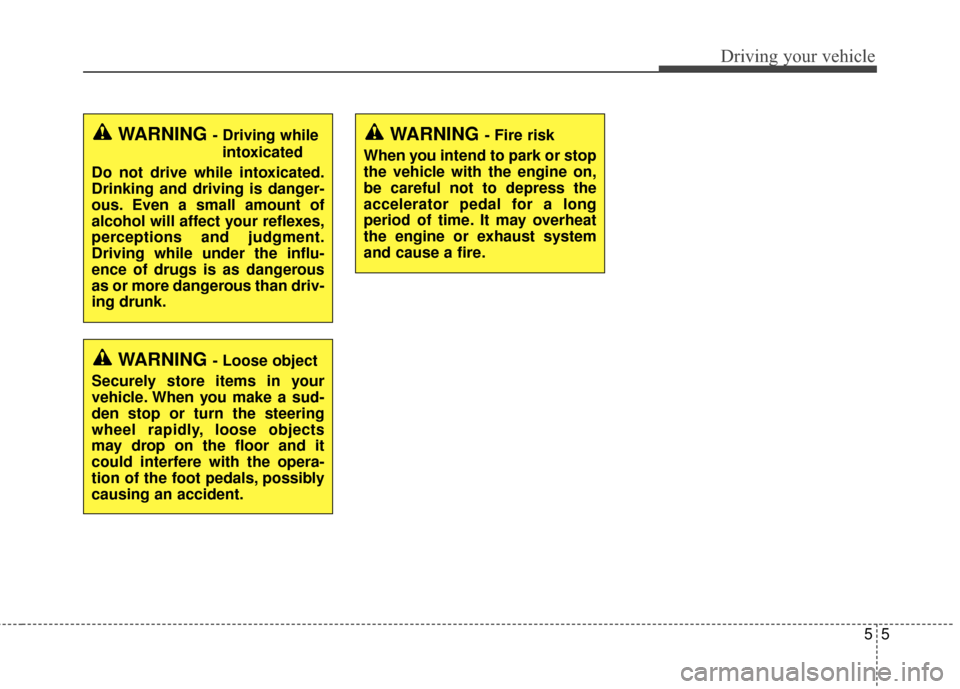
WARNING - Fire risk
When you intend to park or stop
the vehicle with the engine on,
be careful not to depress the
accelerator pedal for a long
period of time. It may overheat
the engine or exhaust system
and cause a fire.WARNING - Driving while intoxicated
Do not drive while intoxicated.
Drinking and driving is danger-
ous. Even a small amount of
alcohol will affect your reflexes,
perceptions and judgment.
Driving while under the influ-
ence of drugs is as dangerous
as or more dangerous than driv-
ing drunk.
WARNING - Loose object
Securely store items in your
vehicle. When you make a sud-
den stop or turn the steering
wheel rapidly, loose objects
may drop on the floor and it
could interfere with the opera-
tion of the foot pedals, possibly
causing an accident.