ignition KIA OPTIMA 2017 Manual PDF
[x] Cancel search | Manufacturer: KIA, Model Year: 2017, Model line: OPTIMA, Model: KIA OPTIMA 2017Pages: 629, PDF Size: 15.24 MB
Page 235 of 629
Features of your vehicle
148
4
Seat warmer (if equipped)
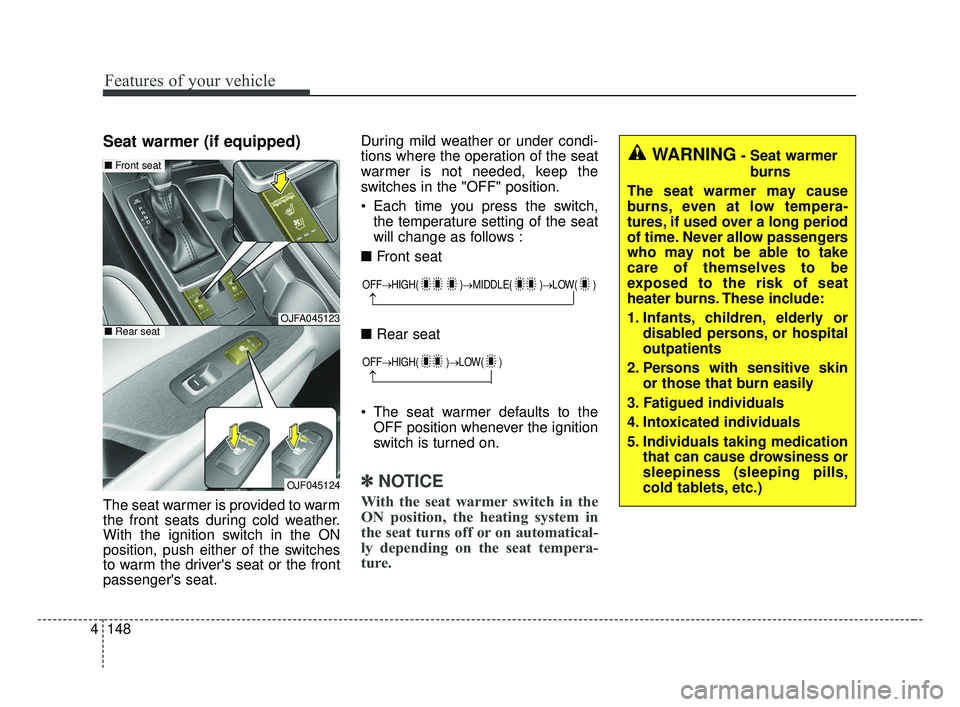
The seat warmer is provided to warm
the front seats during cold weather.
With the ignition switch in the ON
position, push either of the switches
to warm the driver's seat or the front
passenger's seat. During mild weather or under condi-
tions where the operation of the seat
warmer is not needed, keep the
switches in the "OFF" position.
Each time you press the switch,
the temperature setting of the seat
will change as follows :
■ Front seat
■ Rear seat
The seat warmer defaults to the OFF position whenever the ignition
switch is turned on.
✽ ✽ NOTICE
With the seat warmer switch in the
ON position, the heating system in
the seat turns off or on automatical-
ly depending on the seat tempera-
ture.
OJFA045123
OJF045124
■ Front seat
■Rear seat
OFF→ HIGH( )→ MIDDLE( )→LOW( )
→
OFF→HIGH( )→ LOW( )
→
WARNING- Seat warmer
burns
The seat warmer may cause
burns, even at low tempera-
tures, if used over a long period
of time. Never allow passengers
who may not be able to take
care of themselves to be
exposed to the risk of seat
heater burns. These include:
1. Infants, children, elderly or disabled persons, or hospital
outpatients
2. Persons with sensitive skin or those that burn easily
3. Fatigued individuals
4. Intoxicated individuals
5. Individuals taking medication that can cause drowsiness or
sleepiness (sleeping pills,
cold tablets, etc.)
JF CAN (ENG) 4.qxp 2016-09-21 11:19 Page 148
Page 236 of 629
4149
Features of your vehicle
Air ventilation seat (if equipped)
The temperature setting of the seat
changes according to the switch
position.
If you want to ventilate your seatcushion, press the switch (blue
color).
Each time you press the button, the airflow will change as follows: The seat warmer (with air ventila-
tion) defaults to the OFF position
whenever the ignition switch is
turned on.
Sunvisor
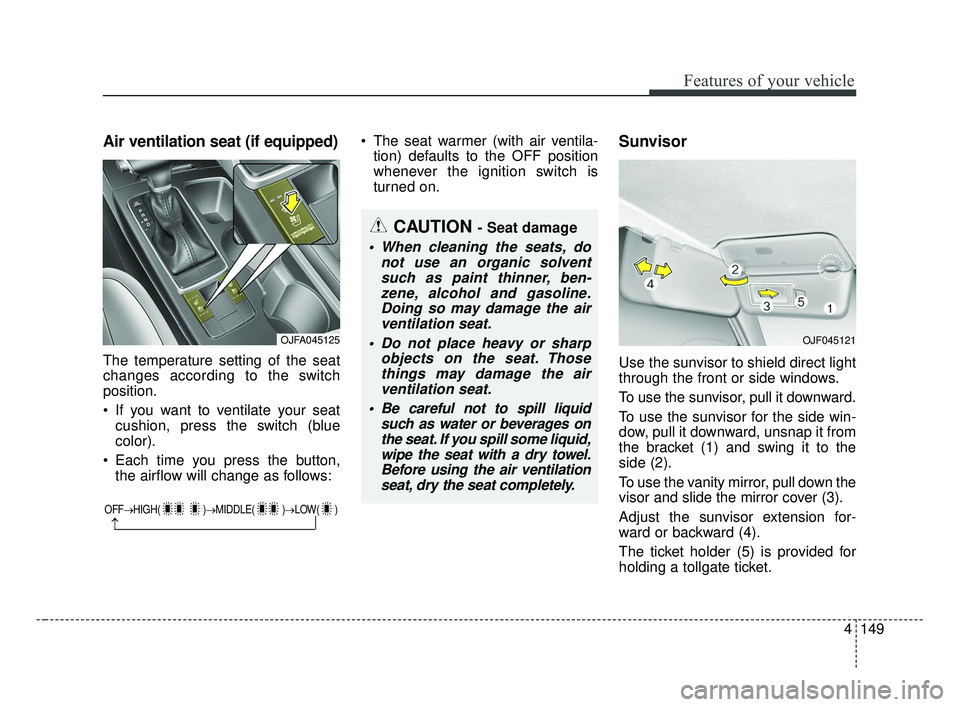
Use the sunvisor to shield direct light
through the front or side windows.
To use the sunvisor, pull it downward.
To use the sunvisor for the side win-
dow, pull it downward, unsnap it from
the bracket (1) and swing it to the
side (2).
To use the vanity mirror, pull down the
visor and slide the mirror cover (3).
Adjust the sunvisor extension for-
ward or backward (4).
The ticket holder (5) is provided for
holding a tollgate ticket.
OFF→ HIGH( )→ MIDDLE( )→LOW( )
→
CAUTION - Seat damage
When cleaning the seats, do
not use an organic solventsuch as paint thinner, ben-zene, alcohol and gasoline.Doing so may damage the airventilation seat.
Do not place heavy or sharp objects on the seat. Thosethings may damage the airventilation seat.
Be careful not to spill liquid such as water or beverages onthe seat. If you spill some liquid,wipe the seat with a dry towel.Before using the air ventilationseat, dry the seat completely.
OJFA045125OJF045121
JF CAN (ENG) 4.qxp 2016-09-21 11:19 Page 149
Page 239 of 629
Features of your vehicle
152
4
Wireless smart phone charg-
ing system (if equipped)
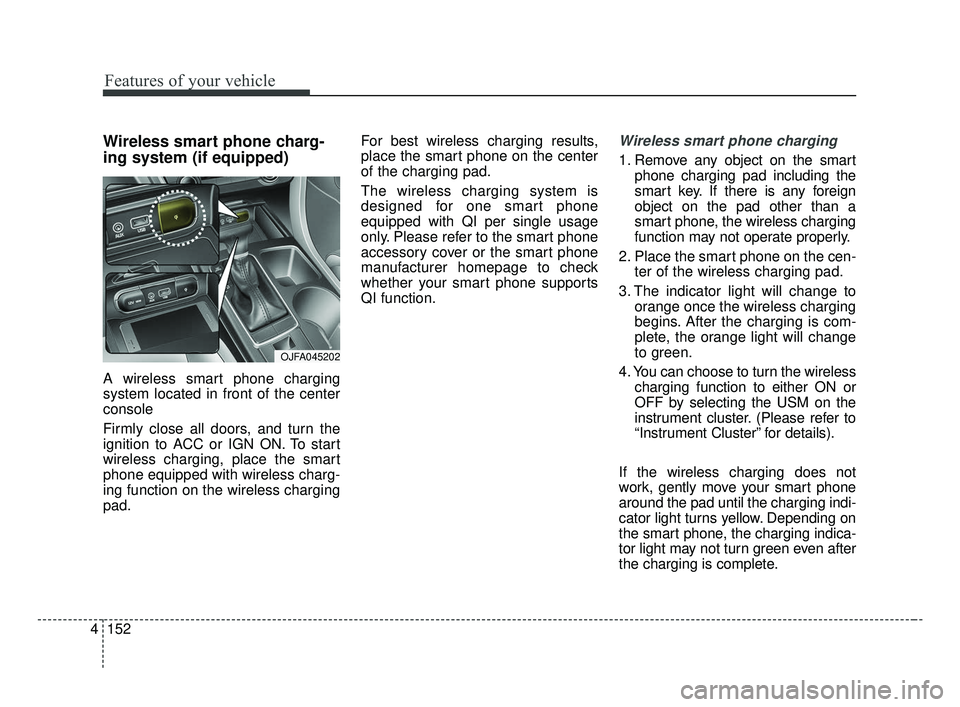
A wireless smart phone charging
system located in front of the center
console
Firmly close all doors, and turn the
ignition to ACC or IGN ON. To start
wireless charging, place the smart
phone equipped with wireless charg-
ing function on the wireless charging
pad. For best wireless charging results,
place the smart phone on the center
of the charging pad.
The wireless charging system is
designed for one smart phone
equipped with QI per single usage
only. Please refer to the smart phone
accessory cover or the smart phone
manufacturer homepage to check
whether your smart phone supports
QI function.
Wireless smart phone charging
1. Remove any object on the smart
phone charging pad including the
smart key. If there is any foreign
object on the pad other than a
smart phone, the wireless charging
function may not operate properly.
2. Place the smart phone on the cen- ter of the wireless charging pad.
3. The indicator light will change to orange once the wireless charging
begins. After the charging is com-
plete, the orange light will change
to green.
4. You can choose to turn the wireless charging function to either ON or
OFF by selecting the USM on the
instrument cluster. (Please refer to
“Instrument Cluster” for details).
If the wireless charging does not
work, gently move your smart phone
around the pad until the charging indi-
cator light turns yellow. Depending on
the smart phone, the charging indica-
tor light may not turn green even after
the charging is complete.
OJFA045202
JF CAN (ENG) 4.qxp 2016-09-21 11:19 Page 152
Page 241 of 629
Features of your vehicle
154
4
✽ ✽
NOTICE
• If it is not possible to close the tray
cover due to the size of your smart
phone or because the tray cover
has been broken, do not use the
wireless smart phone charging
function.
• When the interior temperature of the wireless charging system rises
above a set temperature, the wire-
less charging will cease to func-
tion. After the interior tempera-
ture drops below the threshold,
the wireless charging function will
resume.
• The wireless charging may not function properly when there is a
heavy accessory cover on the
smart phone.
• The wireless charging will stop when using the wireless smart key
search function to prevent radio
wave disruption.
• The wireless charging will stop when the smart key is moved out
of the vehicle with the ignition in
ON. (Continued)(Continued)
• The wireless charging will stop
when any of the doors is opened
(applicable for vehicles equipped
with smart keys).
• The wireless charging will stop when the vehicle is turned OFF.
• The wireless charging will stop when the smart phone is not in
complete contact with the wireless
charging pad.
• Items equipped with magnetic components such as credit card,
telephone card, bankbook, any
transportation ticket and such
may become damaged during
wireless charging.
• Place the smart phone on the cen- ter of the charge pad for best
results. The smart phone may not
charge when placed near the rim
of the charging pad. When the
smart phone does get charged, it
may heat up excessively.
• For smart phones without built-in wireless charging system, an
appropriate accessory has to be
equipped. (Continued)(Continued)
• Smart phones of some manufac-
turers may display messages on
weak current. This is due to the
particular characteristic of the
smart phone and does not imply a
malfunction on wireless charging
function.
• The indicator light of some manu- facturers’ smart phones may still
be yellow after the smart phone is
fully charged. This is due to the
particular characteristic of the
smart phone and not a malfunc-
tion of the wireless charging.
• When any smart phone without a wireless charging function or a
metallic object is placed on the
charging pad, a small noise may
sound. This small sound is due to
the vehicle discerning compatibili-
ty of the object placed on the
charging pad. It does not affect
your vehicle or the smart phone in
any way.
JF CAN (ENG) 4.qxp 2016-09-21 11:19 Page 154
Page 245 of 629
Audio system
25
✽ ✽NOTICE
If you install an after market HID
head lamp, your vehicle’s audio and
electronic device may malfunction.
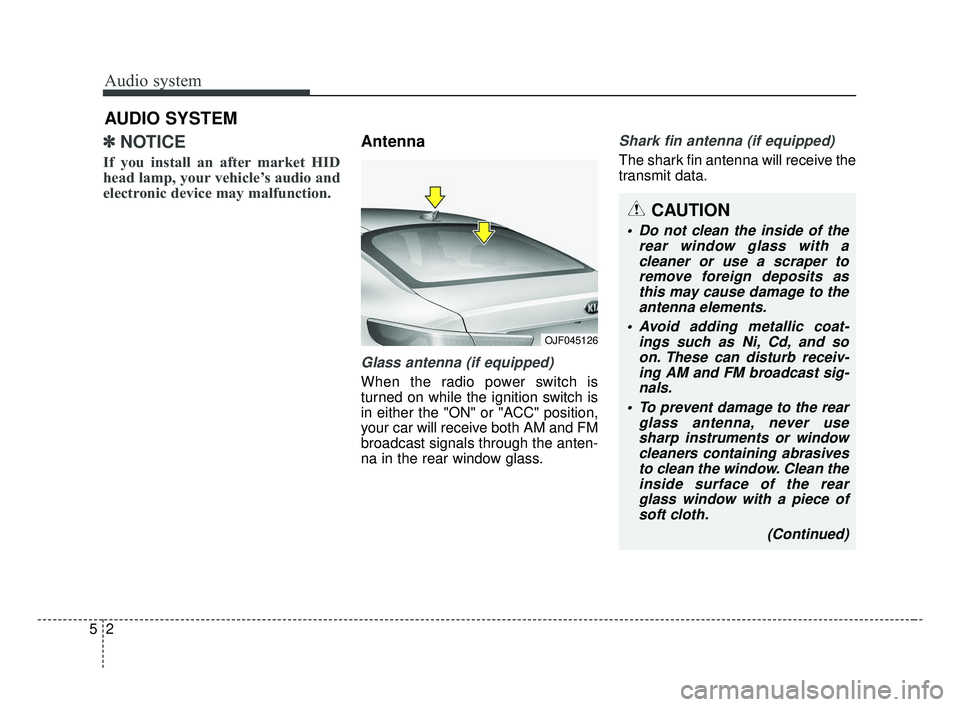
Antenna
Glass antenna (if equipped)
When the radio power switch is
turned on while the ignition switch is
in either the "ON" or "ACC" position,
your car will receive both AM and FM
broadcast signals through the anten-
na in the rear window glass.
Shark fin antenna (if equipped)
The shark fin antenna will receive the
transmit data.
AUDIO SYSTEM
OJF045126
CAUTION
• Do not clean the inside of the
rear window glass with acleaner or use a scraper toremove foreign deposits asthis may cause damage to theantenna elements.
Avoid adding metallic coat- ings such as Ni, Cd, and soon. These can disturb receiv-ing AM and FM broadcast sig-nals.
To prevent damage to the rear glass antenna, never usesharp instruments or windowcleaners containing abrasivesto clean the window. Clean theinside surface of the rearglass window with a piece ofsoft cloth.
(Continued)
JF CAN (ENG) 5 (Audio).qxp 2016-09-21 11:21 Page 2
Page 247 of 629
Audio system
45
RADIO mode
It will function as the PRESET STA-
TION buttons.
CD/USB/ iPod
®mode
It will function as TRACK UP/DOWN
button.
MODE (3)
Press the button to change audio
source.
FM(1~2)
➟ AM ➟ SAT(1~3) ➟ CD ➟
USB (iPod®) ➟AUX ➟ MY MUSIC ➟
BT Audio ➟ FM...
In addition to mode change, Power
on/off can be made by pressing this
button when the ignition switch is on
ACC or ON.
- Power ON: Press the button when the audio is off
- Power OFF: Press the button for more than 0.8 seconds when the
audio is on.
MUTE (4, if equipped)
Press the button to mute the sound.
Press the button to turn off the microphone during a telephone
call.
Detailed information for audio control
buttons are described in the following
pages in this section.
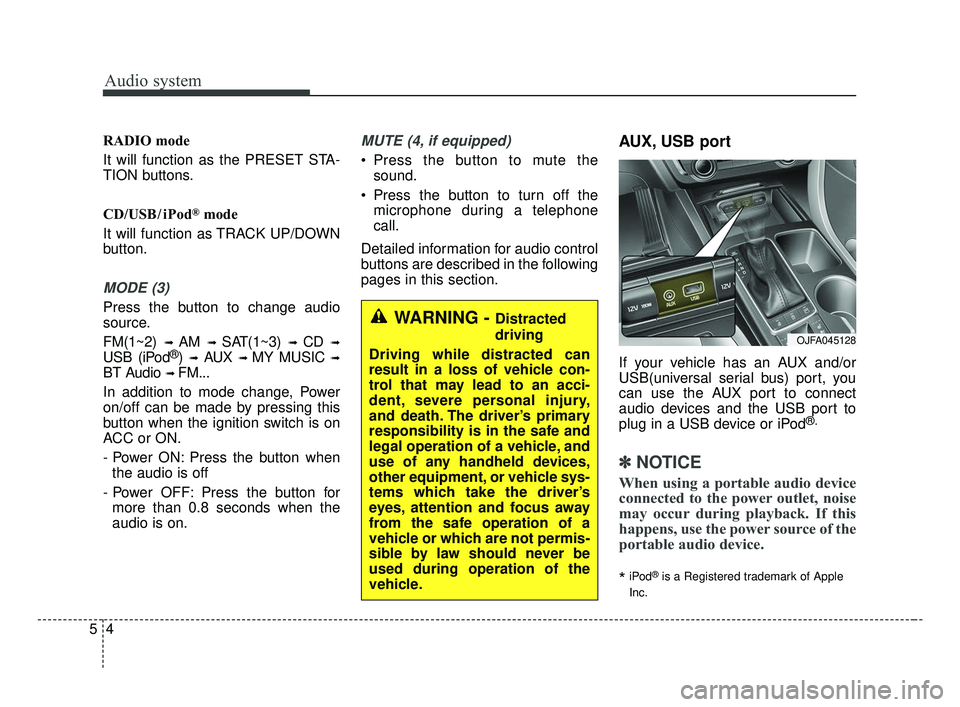
AUX, USB port
If your vehicle has an AUX and/or
USB(universal serial bus) port, you
can use the AUX port to connect
audio devices and the USB port to
plug in a USB device or iPod
®.
✽ ✽ NOTICE
When using a portable audio device
connected to the power outlet, noise
may occur during playback. If this
happens, use the power source of the
portable audio device.
*iPod®is a Registered trademark of Apple
Inc.
OJFA045128
WARNING - Distracted
driving
Driving while distracted can
result in a loss of vehicle con-
trol that may lead to an acci-
dent, severe personal injury,
and death. The driver’s primary
responsibility is in the safe and
legal operation of a vehicle, and
use of any handheld devices,
other equipment, or vehicle sys-
tems which take the driver’s
eyes, attention and focus away
from the safe operation of a
vehicle or which are not permis-
sible by law should never be
used during operation of the
vehicle.
JF CAN (ENG) 5 (Audio).qxp 2016-09-21 11:21 Page 4
Page 257 of 629
Audio system
14
5
✽ ✽
NOTICE
• If you want to change the position
of device installation, please
inquire with your place of pur-
chase or service maintenance cen-
ter. Technical expertise is required
to install or disassemble the
device.
• Turn on the car ignition before using this device. Do not operate
the audio system for long periods
of time with the ignition turned off
as such operations may lead to
battery discharge.
✽ ✽ NOTICE
In case of product malfunction,
please contact your dealer or vehicle
service center.CAUTION
Do not subject the device to
severe shock or impact. Directpressure onto the front side ofthe monitor may cause damageto the LCD or touch screen.
When cleaning the device, make sure to turn off thedevice and use a dry andsmooth cloth. Never usetough materials, chemicalcloths, or solvents (alcohol,benzene, thinners, etc.) assuch materials may damagethe device panel or causecolor/quality deterioration
Do not place beverages close to the audio system. Spillingbeverages may lead to systemmalfunction.
Placing the audio system with- in an electromagnetic environ-ment may result in noise inter-ference.
JF CAN (ENG) 5 (Audio).qxp 2016-09-21 11:22 Page 14
Page 263 of 629
Audio system
20
5
(Continued)
• Phone contact names should be
saved in English or they may not
be displayed correctly.
• The Handsfree call volume and quality may differ depending on
the mobile phone.
• Only one Bluetooth
®Wireless
Technology device can be connect-
ed at a time.
• In some mobile phones, starting the ignition while talking through
Bluetooth
®Wireless Technology
enabled handsfree call will result
in the call becoming disconnected.
(Switch the call back to your
mobile phone when starting the
ignition.)
• If the mobile phone is not paired or connected, it is not possible to
enter Phone mode. Once a phone
is paired or connected, the guid-
ance screen will be displayed.
• Bluetooth
®Handsfree may not be
supported in some mobile phones.
✽ ✽ NOTICE
•Bluetooth®Wireless Technology
Handsfree is a feature that enables
drivers to practice safe driving.
Connecting the car audio system
with a Bluetooth
®Wireless
Technology phone allows the user
to conveniently make calls, receive
calls, and manage the phone book.
Before using the Bluetooth
®
Wireless Technology, carefully
read the contents of this user’s
manual.
WARNING
Excessive use or operations
while driving may lead to neg-
ligent driving practices and be
the cause of accidents.
Do not operate the device excessively while driving.
Viewing the screen for pro- longed periods of time while
driving is dangerous and may
lead to accidents.
JF CAN (ENG) 5 (Audio).qxp 2016-09-21 11:22 Page 20
Page 304 of 629
Audio system
561
✽ ✽NOTICE - Using USB Devices
• Connect the USB device after
turning on the engine. The USB
device may become damaged if it
is already connected when the
ignition is turned on. The USB
device may not operate properly if
the car ignition is turned on or off
with the USB device connected.
• Be careful for static electricity when connecting/disconnecting
USB devices.
• Encoded MP3 Players will not be recognized when connected as an
external device.
• When connecting an external USB device, the vehicle's audio system
may not recognize the USB
depending on what firmware is
used by USB device or what files
are on the USB.
• Only products formatted with byte/sectors under 64Kbyte will be
recognized.
• This device recognizes USB devices formatted in FAT 12/16/32
file formats. This device does not
recognize files in NTFS file for-
mat. (Continued)(Continued)
• Some USB devices may not be sup-
ported due to compatibility issues.
• Avoid contact between the USB connector and bodily parts or for-
eign objects.
• Repeated connecting/disconnect- ing of USB devices within short
periods of time may result in prod-
uct malfunction.
• A strange noise may occur when disconnecting the USB.
• Make sure to connect/disconnect external USB devices with the
audio power turned off.
• The amount of time required to recognize the USB device may dif-
fer depending on the type, size or
file formats stored on the USB.
Such differences in time are not
indications of malfunctions.
• The vehicle audio system only sup- ports USB devices designed to
play music files.
• USB images and videos are not supported. (Continued)(Continued)
• Do not use the USB I/F to charge
batteries or USB accessories that
generate heat. Doing so may lead
to worsened performance or dam-
age to the audio system.
• The audio system may not recog- nize the USB device if separately
purchased USB hubs and exten-
sion cables are being used.
Connect the USB device directly
with the USB port of the vehicle.
• When using mass storage USB devices with separate logical
drives, only files saved to the root
drive can be played.
• Files may not properly operate if application programs are installed
on the USBs.
• The audio system may not operate normally if MP3 Players, cellular
phones, digital cameras, or other
electronic devices (USB devices
not recognized as portable disk
drives) are connected with the
audio system. (Continued)
JF CAN (ENG) 5 (Audio).qxp 2016-09-21 11:22 Page 61
Page 306 of 629
Audio system
563
✽ ✽NOTICE - Using an iPod®
• iPod®is a registered trademark of
Apple Inc.
• In order to use the iPod
®with
your vehicle's audio system, you
must use a dedicated iPod
®cable.
(the cable that is supplied when
purchasing iPod
®/iPhone®prod-
ucts)
• If the iPod
®is connected to the
vehicle while it is playing, a high
pitch sound could occur for
approximately 1-2 seconds imme-
diately after connecting. If possi-
ble, connect the iPod
®to the vehi-
cle with the iPod®stopped/paused.
• When the vehicle ignition is set to ACC or ON, connecting the iPod
®
through the iPod®cable will
charge the iPod®through the car
audio system.
• When connecting with the iPod
®
cable, make sure to fully insert the
jack to prevent communication
interference. (Continued)(Continued)
• When the EQ features of an exter-
nal device, such as the iPod
®, and
the audio system are both active,
EQ effects could overlap and
cause sound deterioration and dis-
tortion. Whenever possible, turn
off the EQ feature within the
external device when it is connect-
ed to the audio system.
• Noise may occur when an iPod
®or
AUX device is connected. When
such devices are not being used,
disconnect the device for storage.
• When the iPod
®or AUX device
power is connected to the power
jack, playing the external device
may result in noise. In such cases,
disconnect the power connection
before use.
• Skipping or improper operation may occur depending on the char-
acteristics of your iPod
®/iPhone®
device. (Continued)(Continued)
• If your iPhone
®is connected to
both the Bluetooth®Wireless
Technology and USB, the sound
may not be properly played. In
your iPhone
®, select the Dock con-
nector or Bluetooth®Wireless
Technology to change the sound
output (source).
• iPod
®mode cannot be operated
when the iPod®cannot be recog-
nized due to versions that do not
support communication protocols.
• For fifth generation iPod
®Nano
devices, the iPod®may not be rec-
ognized when the battery level is
low. Please charge the iPod
®for
use.
• The search/play order shown within the iPod
®device may differ
from the orders shown within the
audio system.
• If the iPod
®malfunctions due to
an iPod®device defect, reset the
iPod®and try again. (To learn
more, refer to your iPod®manual)
(Continued)
JF CAN (ENG) 5 (Audio).qxp 2016-09-21 11:22 Page 63