lock KIA PICANTO 2008 Service Manual
[x] Cancel search | Manufacturer: KIA, Model Year: 2008, Model line: PICANTO, Model: KIA PICANTO 2008Pages: 335, PDF Size: 12.98 MB
Page 158 of 335
487
Features of your vehicle
10. TUNE/ENTER Button
Turn this button clockwise by one notch
to increase frequency by 100Khz from
current frequency.
Turn this button counterclockwise by one
notch to decrease frequency by 100Khz
from current frequency.
Press this button while holding SET UP
button to activate / inactivate the item.
Select SET UP item using left and right
function of the Tune button.
11. Pre-set Button
Push [1]~[6] buttons less than 0.8 seconds
to play the channel saved in each button.
Push the pre-set button for 0.8 seconds or
longer to save the current channel to the
respective button with a beep.
CAUTION
Do not place beverages close tothe audio system. It may damage
the audio system mechanism ifyou spill them.
Do not strike or allow anything to impact the audio system, damageto the system mechanisms could
occur.
Page 160 of 335
489
Features of your vehicle
1. CD loading slot
Insert the CD with the label facing
upward.
When the ignition switch is on ACC or
ON and the power is off, the power is
automatically turned on if the CD isloaded.
This CDP supports 12 cm CDs. But if
VCD, Data CD, MP3 CD are loaded, "Er-6" message will appear and the CD willbe ejected.
2. CD eject Button
Push button to eject the CD during
CD playback. This button is enabled
when ignition switch is off.
3. CD Selection Button
If there is a CD in the CDP deck, it turns
to the CD mode when the button is
pressed each time.
4. Automatic Track Selection Button
Push [SEEK ] button for less than0.8 seconds to play from the beginning of the current song.
Push [SEEK ] button for less than 0.8 seconds and press again within 1
seconds to play the previous song. Push [SEEK ] button for 0.8 or
longer to rewind the current song.
Push [SEEK ] button for less than 0.8 seconds to play the next song.
Push [SEEK ] button for less than 0.8 or longer to fast-foward the currentsong.
5. INFO Button
Displays the information of the current
CD TRACK in the order of DISCTITLE ➟DISC ARTIST ➟TRACK TITLE ➟
TRACK ARTIST ➟TOTAL TRACK ➟Play
Screen ➟DISC TITLE ➟···.(It is not dis-
played if the information is not availableon the disc.)
6. ENTER/TUNE Button
Turn this button clockwise to display songs after the current song.
Also, turn this button counterclockwise to
display songs before the current song.
To listen to the displayed song, press the
button to skip to the song and play.
7. REPEAT Button
Repeats current song when the button is
pressed for less than 0.8 seconds.
Repeats the entire disc when the button
is pressed for 0.8 seconds or longer.
8. RANDOM (RDM) Button
You can listen to the tracks in random,
rather than sequential order.
To use random, do the following:
Press the RDM button to listen to record-
ed tracks in random sequence. PressRDM again to cancel.
9. AST(CD SCAN) Button
Plays the first 10 seconds of each song in the disc.
To cancel the mode, press the key once again.
10. MARK Play Button
Press the button for 0.8 seconds or
longer to mark or unmark the currentsong.
Press the button for less than 0.8 to play
currently marked song.
Page 164 of 335
493
Features of your vehicle
The USB is connected to the multiple ter-
minal inside the consol. When the USB is
connected, the ‘USB’ icon will be dis-
played on the top right corner of the dis-
play screen.
1. AUX(USB) Selection Button
If the USB is connected, it switches to the
USB mode from the CD mode to play the
song files stored in the USB. If there are no CD and USB in the RADIO
mode, it displays "NO MEDIA".
If there are no AUX(USB) in the RADIO
or CD mode, it displays "NO MEDIA".
2. Track Moving Button
Press the [SEEK ] button for lessthan 0.8 seconds to play from the
beginning of the song currently played.
Press the button for less than 0.8 sec- onds and press it again within 1 second
to play the previous track.
Press the button for 0.8 seconds or
longer to play the song in reverse
direction in fast speed. Press the [SEEK ] button for
less
than 0.8 seconds to move to the next
track. Press the button for 0.8 seconds
or longer to play the song in forward
direction in fast speed.
3. INFO Button
Displays the information of the file cur-
rently played in the order of FILE NAME➟ TITLE ➟ARTIST ➟ALBUM ➟FOLDER ➟
TOTAL FILE ➟FILE NAME ➟… (Displays
no information if the file has no song
information.)
4. Folder moving Button
If [FLDR ] button is pressed, it
moves to the child folder of the current
folder and displays the first song in the
folder. Press ENTER/TUNE button to
move to the folder displayed. It will play
the first song in the folder.
If [FLDR ] is button pressed, it moves to the parent folder and displays
the first song in the folder. Press
ENTER/TUNE button to move to the
folder displayed. It will play the first
song in the folder.
5. ENTER/TUNE Button
Turn this button clockwise to display the
songs next to the currently played song.
Turn the button counterclockwise to dis-
play the songs before the currently
played song.
Press the button to skip to the selected song.
6. RANDOM Button
Press the button for less than 0.8 sec-
onds to start or stop the random play-
back of the songs in the current folder.
Press the button for more than 0.8 sec-
onds to randomly play the entire songs in
the USB device.
Press the button again to cancel the mode.
7. REPEAT Button
Press the button for less than 0.8 sec-
onds to repeat the song currently played.
Press the button for more than 0.8 sec- onds to repeat the entire songs in the
USB device.
Page 167 of 335
Features of your vehicle
96
4
The i-Pod exclusive cable is connected to
the multiple terminal inside the consol.
When the i-Pod is connected, the ‘i-Pod’
icon will be displayed on the top right cor-
ner of the display screen.
1. AUX(USB) Selection Button
If the USB is connected, it switches to the
USB mode from the CD mode to play the
song files stored in the USB. If there are no CD and USB in the RADIO
mode, it displays "NO MEDIA".
If there are no AUX(USB) in the RADIO
or CD mode, it displays "NO MEDIA".
2. Track Moving Button
Press the [SEEK ] button for less
than 0.8 seconds to play from the
beginning of the song currently played.
Press the button for less than 0.8 sec- onds and press it again within 1 second
to play the previous track.
Press the button for 0.8 seconds or
longer to play the song in reverse
direction in fast speed. Press the [SEEK ] button for
less
than 0.8 seconds to move to the next
track. Press the button for 0.8 seconds
or longer to play the song in forward
direction in fast speed.
3. INFO Button
Displays the information of the file cur-
rently played in the order of FILE NAME➟ TITLE ➟ARTIST ➟ALBUM ➟FOLDER ➟
TOTAL FILE ➟FILE NAME ➟… (Displays
no information if the file has no song
information.)
4. Category Selection Button
Moves to the upper category from cur-
rently played category of the i-Pod.
To move to (play) the category (song)
displayed, press ENTER/TUNE button.
You will be able to search through the
lower category of the selected category.
The order of the i-Pod’s category is
SONG, ALBUMS, ARTISTS, GENRES,
and i-Pod.
5. ENTER/TUNE Button
Turn this button clockwise to display the
songs next to the currently played song.
Turn the button counterclockwise to dis-
play the songs before the currently
played song.
Press the button to skip to the selected song.
6. RANDOM Button
Press the button for less than 0.8 sec-
onds to start or stop the random play-
back of the songs in the current folder.
Press the button for more than 0.8 sec-
onds to randomly play the entire songs in
the USB device.
Press the button again to cancel the mode.
7. REPEAT Button
Repeats the song currently played.
Page 170 of 335
499
Features of your vehicle
10. ENTER/TUNE Button
Turn this button clockwise by one notch
to increase frequency by 0.05Mhz from
current frequency.
Turn this button counterclockwise by one
notch to decrease frequency by 0.05Mhz
from current frequency.
Press this button while holding the SET
UP button to activate/inactivate the item. Select a SET UP item using the left and
right function of the Tune button.
11. Pre-set Button
Push [1]~[6] buttons less than 0.8 seconds
to play the channel saved in each button.
Push the Pre-set button for 0.8 seconds or
longer to save the current channel to the
respective button with a beep.
CAUTION
Do not place beverages close tothe audio system. It may damage
the playback mechanism if youspill them.
Do not strike or allow anything to impact the audio system, damageto the system mechanisms could
occur.
Page 172 of 335
4101
Features of your vehicle
1. CD loading slot
Insert the CD with the label facing
upward.
When the ignition switch is on ACC or
ON and the power is off, the power is
automatically turned on if the CD isloaded.
This CDP supports 12 cm CDs. But if
VCD, Data CD, MP3 CD are loaded, "Er-6" message will appear and the CD willbe ejected.
2. CD eject Button
Push button to eject the CD during
CD playback. This button is enabled
when ignition switch is off.
3. CD Selection Button
If there is a CD in the CDP deck, it turns
to the CD mode when the button is
pressed each time.
4. Automatic Track Selection Button
Push [SEEK ] button for less than0.8 seconds to play from the beginning of the current song.
Push [SEEK ] button for less than 0.8 seconds and press again within 1
seconds to play the previous song. Push [SEEK ] button for 0.8 or
longer to rewind the current song.
Push [SEEK ] button for less than 0.8 seconds to play the next song.
Push [SEEK ] button for less than 0.8 or longer to fast-foward the currentsong.
5. INFO Button
Displays the information of the current
CD TRACK in the order of DISCTITLE ➟DISC ARTIST ➟TRACK TITLE ➟
TRACK ARTIST ➟TOTAL TRACK ➟Play
Screen ➟DISC TITLE ➟···.(It is not dis-
played if the information is not availableon the disc.)
6. ENTER/TUNE Button
Turn this button clockwise to display songs after the current song.
Also, turn this button counterclockwise to
display songs before the current song.
To listen to the displayed song, press the
button to skip to the song and play.
7.REPEAT Button
Repeats current song when the button is
pressed for less than 0.8 seconds.
Repeats the entire disc when the button
is pressed for 0.8 seconds or longer.
8. RANDOM (RDM) Button
You can listen to the tracks in random,
rather than sequential order.
To use random, do the following:
Press the RDM button to listen to record-
ed tracks in random sequence. PressRDM again to cancel.
9. AST(CD SCAN) Play Button
Plays the first 10 seconds of each song in the disc.
To cancel the mode, press the key once again.
10. MARK Play Button
Press the button for 0.8 seconds or
longer to mark or unmark the currentsong.
Press the button for less than 0.8 to play
currently marked song.
Page 176 of 335
4105
Features of your vehicle
The USB is connected to the multiple ter-
minal inside the consol. When the USB is
connected, the ‘USB’ icon will be dis-
played on the top right corner of the dis-
play screen.
1. AUX(USB) Selection Button
If the USB is connected, it switches to the
USB mode from the CD mode to play the
song files stored in the USB. If there are no CD and USB in the RADIO
mode, it displays "NO MEDIA".
If there are no AUX(USB) in the RADIO
or CD mode, it displays "NO MEDIA".
2. Track Moving Button
Press the [SEEK ] button for lessthan 0.8 seconds to play from the
beginning of the song currently played.
Press the button for less than 0.8 sec- onds and press it again within 1 second
to play the previous track.
Press the button for 0.8 seconds or
longer to play the song in reverse
direction in fast speed. Press the [SEEK ] button for
less
than 0.8 seconds to move to the next
track. Press the button for 0.8 seconds
or longer to play the song in forward
direction in fast speed.
3. INFO Button
Displays the information of the file cur-
rently played in the order of FILE NAME➟ TITLE ➟ARTIST ➟ALBUM ➟FOLDER ➟
TOTAL FILE ➟FILE NAME ➟… (Displays
no information if the file has no song
information.)
4. Folder moving Button
If [FLDR ] button is pressed, it
moves to the child folder of the current
folder and displays the first song in the
folder. Press ENTER/TUNE button to
move to the folder displayed. It will play
the first song in the folder.
If [FLDR ] is button pressed, it moves to the parent folder and displays
the first song in the folder. Press
ENTER/TUNE button to move to the
folder displayed. It will play the first
song in the folder.
5. ENTER/TUNE Button
Turn this button clockwise to display the
songs next to the currently played song.
Turn the button counterclockwise to dis-
play the songs before the currently
played song.
Press the button to skip to the selected song.
6. RANDOM Button
Press the button for less than 0.8 sec-
onds to start or stop the random play-
back of the songs in the current folder.
Press the button for more than 0.8 sec-
onds to randomly play the entire songs in
the USB device.
Press the button again to cancel the mode.
7. REPEAT Button
Press the button for less than 0.8 sec-
onds to repeat the song currently played.
Press the button for more than 0.8 sec- onds to repeat the entire songs in the
USB device.
Page 179 of 335
Features of your vehicle
108
4
The i-Pod exclusive cable is connected to
the multiple terminal inside the consol.
When the i-Pod is connected, the ‘i-Pod’
icon will be displayed on the top right cor-
ner of the display screen.
1. AUX(USB) Selection Button
If the USB is connected, it switches to the
USB mode from the CD mode to play the
song files stored in the USB. If there are no CD and USB in the RADIO
mode, it displays "NO MEDIA".
If there are no AUX(USB) in the RADIO
or CD mode, it displays "NO MEDIA".
2. Track Moving Button
Press the [SEEK ] button for less
than 0.8 seconds to play from the
beginning of the song currently played.
Press the button for less than 0.8 sec- onds and press it again within 1 second
to play the previous track.
Press the button for 0.8 seconds or
longer to play the song in reverse
direction in fast speed. Press the [SEEK ] button for
less
than 0.8 seconds to move to the next
track. Press the button for 0.8 seconds
or longer to play the song in forward
direction in fast speed.
3. INFO Button
Displays the information of the file cur-
rently played in the order of FILE NAME➟ TITLE ➟ARTIST ➟ALBUM ➟FOLDER ➟
TOTAL FILE ➟FILE NAME ➟… (Displays
no information if the file has no song
information.)
4. Category Selection Button
Moves to the upper category from cur-
rently played category of the i-Pod.
To move to (play) the category (song)
displayed, press ENTER/TUNE button.
You will be able to search through the
lower category of the selected category.
The order of the i-Pod’s category is
SONG, ALBUMS, ARTISTS, GENRES,
and i-Pod.
5. ENTER/TUNE Button
Turn this button clockwise to display the
songs next to the currently played song.
Turn the button counterclockwise to dis-
play the songs before the currently
played song.
Press the button to skip to the selected song.
6. RANDOM Button
Press the button for less than 0.8 sec-
onds to start or stop the random play-
back of the songs in the current folder.
Press the button for more than 0.8 sec-
onds to randomly play the entire songs in
the USB device.
Press the button again to cancel the mode.
7. REPEAT Button
Repeats the song currently played.
Page 182 of 335
53
Driving your vehicle
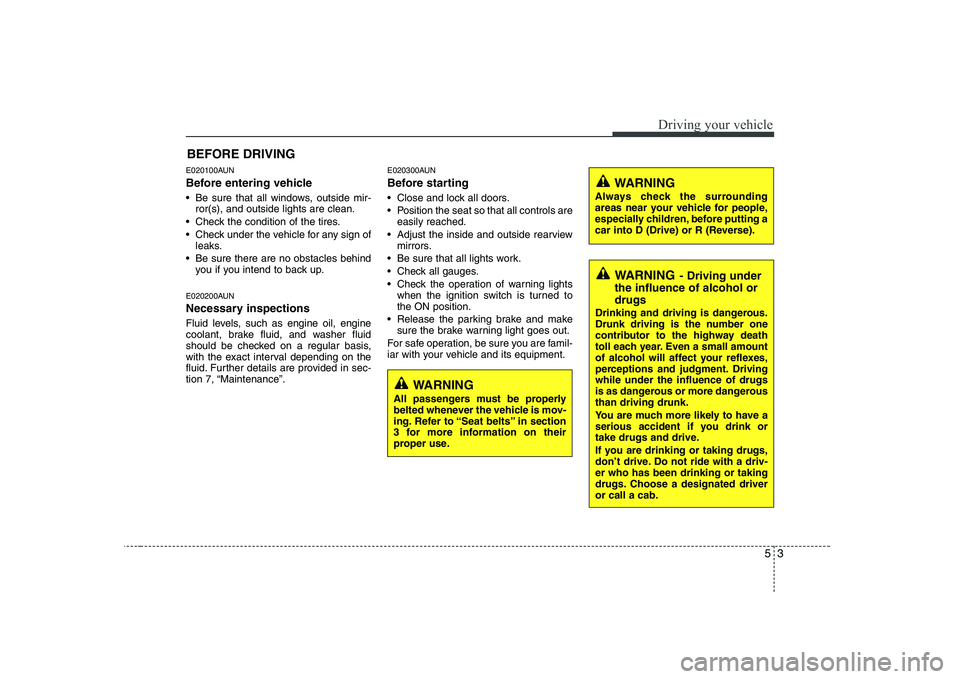
E020100AUN
Before entering vehicle
• Be sure that all windows, outside mir-ror(s), and outside lights are clean.
Check the condition of the tires.
Check under the vehicle for any sign of leaks.
Be sure there are no obstacles behind you if you intend to back up.
E020200AUN
Necessary inspections
Fluid levels, such as engine oil, engine
coolant, brake fluid, and washer fluid
should be checked on a regular basis,
with the exact interval depending on the
fluid. Further details are provided in sec-
tion 7, “Maintenance”. E020300AUN
Before starting
Close and lock all doors.
Position the seat so that all controls are
easily reached.
Adjust the inside and outside rearview mirrors.
Be sure that all lights work.
Check all gauges.
Check the operation of warning lights when the ignition switch is turned to the ON position.
Release the parking brake and make sure the brake warning light goes out.
For safe operation, be sure you are famil-
iar with your vehicle and its equipment.
BEFORE DRIVING
WARNING
All passengers must be properly
belted whenever the vehicle is mov-
ing. Refer to “Seat belts” in section
3 for more information on their
proper use.
WARNING
Always check the surrounding
areas near your vehicle for people,
especially children, before putting a
car into D (Drive) or R (Reverse).
WARNING - Driving under
the influence of alcohol or drugs
Drinking and driving is dangerous.
Drunk driving is the number one
contributor to the highway death
toll each year. Even a small amount
of alcohol will affect your reflexes,
perceptions and judgment. Drivingwhile under the influence of drugs
is as dangerous or more dangerousthan driving drunk.
You are much more likely to have a
serious accident if you drink or
take drugs and drive.
If you are drinking or taking drugs,
don’t drive. Do not ride with a driv-er who has been drinking or taking
drugs. Choose a designated driveror call a cab.
Page 183 of 335
Driving your vehicle
4
5
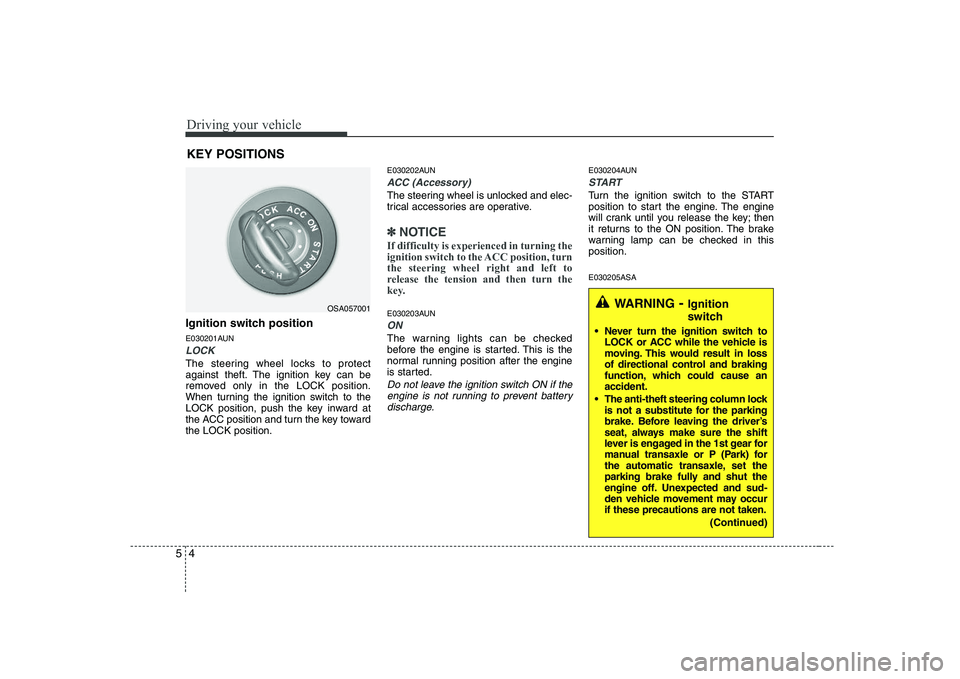
Ignition switch position
E030201AUN
LOCK
The steering wheel locks to protect
against theft. The ignition key can be
removed only in the LOCK position.
When turning the ignition switch to the
LOCK position, push the key inward at
the ACC position and turn the key towardthe LOCK position. E030202AUN
ACC (Accessory)
The steering wheel is unlocked and elec-
trical accessories are operative.
✽✽
NOTICE
If difficulty is experienced in turning the
ignition switch to the ACC position, turnthe steering wheel right and left to
release the tension and then turn the
key.
E030203AUN
ON
The warning lights can be checked
before the engine is started. This is the
normal running position after the engine
is started.
Do not leave the ignition switch ON if the engine is not running to prevent batterydischarge.
E030204AUN
START
Turn the ignition switch to the START
position to start the engine. The engine
will crank until you release the key; then
it returns to the ON position. The brake
warning lamp can be checked in thisposition. E030205ASA
KEY POSITIONS
OSA057001WARNING
- Ignition
switch
Never turn the ignition switch to LOCK or ACC while the vehicle is
moving. This would result in loss
of directional control and braking
function, which could cause anaccident.
The anti-theft steering column lock is not a substitute for the parking
brake. Before leaving the driver’s
seat, always make sure the shift
lever is engaged in the 1st gear for
manual transaxle or P (Park) for
the automatic transaxle, set the
parking brake fully and shut the
engine off. Unexpected and sud-
den vehicle movement may occurif these precautions are not taken.
(Continued)