buttons KIA PICANTO 2012 User Guide
[x] Cancel search | Manufacturer: KIA, Model Year: 2012, Model line: PICANTO, Model: KIA PICANTO 2012Pages: 840, PDF Size: 41.16 MB
Page 210 of 840
4137
Features of your vehicle
✽✽NOTICE FOR USING THE
iPod DEVICE
Some iPod models might not sup- port the communication protocol
and the files will not be played.
Supported iPod models:
- iPod Mini
- iPod 4th(Photo) ~ 6th(Classic)
generation
- iPod Nano 1st~4th generation
- iPod Touch 1st~2nd generation
The order of search or playback of songs in the iPod can be different
from the order searched in the
audio system.
If the iPod disabled due to its own malfunction, reset the iPod. (Reset:
Refer to iPod manual)
An iPod may not operate normally
on low battery.
Some iPod devices, such as the
iPhone, can be connected through the
Bluetooth
®interface. The device
must have audio Bluetooth®capabili-
ty (such as for stereo headphone
Bluetooth
®). The device can play, but
it will not be controlled by the audio
system.
CAUTION IN USING THE
iPod DEVICE
The Kia iPod Power Cable is needed in order to operate iPodwith the audio buttons on the audio system. The USB cable pro-
vided by Apple may cause mal-function and should not be usedfor Kia vehicles.
❋ The Kia iPod Power Cable maybe purchased through your KiaDealership.
When connecting iPod with the iPod Power Cable, insert the con-
nector to the multimedia socket completely. If not inserted com-pletely, communications betweeniPod and audio may be interrupted.
When adjusting the sound effects of the iPod and the audio system, thesound effects of both devices willoverlap and might reduce or distort the quality of the sound.
Deactivate (turn off) the equalizer function of an iPod when adjust-ing the audio system’s volume,and turn off the equalizer of the
audio system when using theequalizer of an iPod.
(Continued)
(Continued) When the iPod cable is connected, the system can be switched to AUXmode even without iPod deviceand may cause noise. Disconnect
the iPod cable when you are not using the iPod device.
When not using iPod with car audio, detach the iPod cable from
iPod. Otherwise, iPod may remainin accessory mode, and may not work properly.
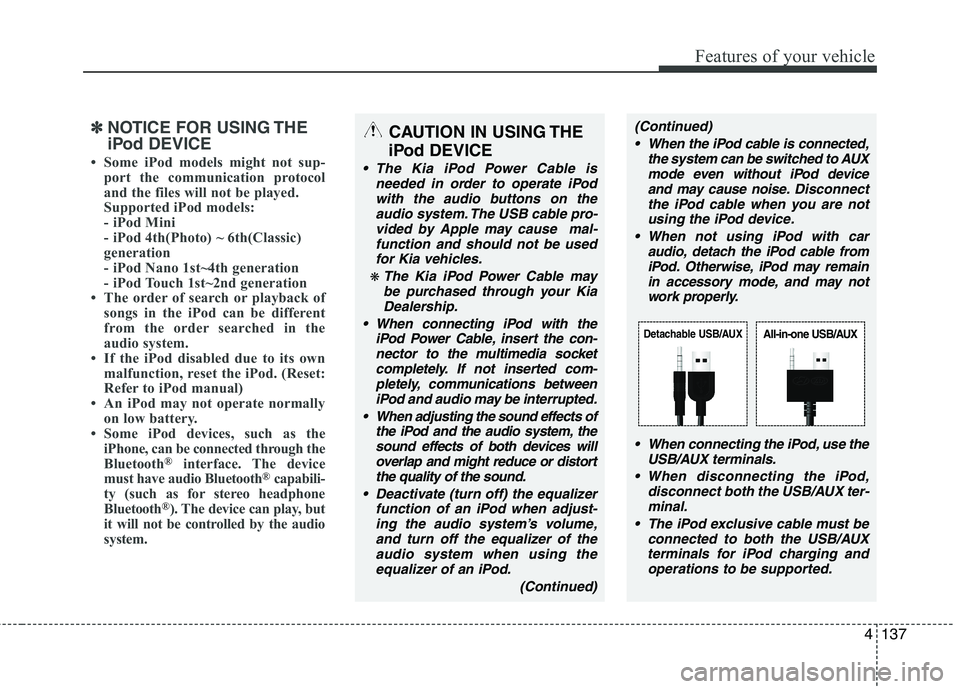
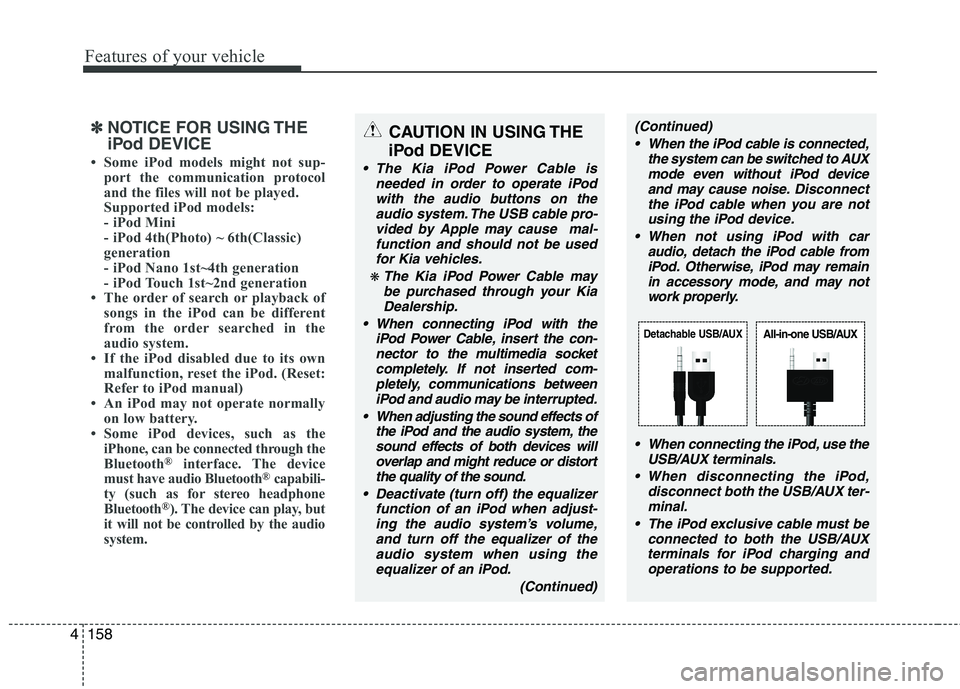
When connecting the iPod, use theUSB/AUX terminals.
When disconnecting the iPod, disconnect both the USB/AUX ter-minal.
The iPod exclusive cable must be connected to both the USB/AUXterminals for iPod charging and
operations to be supported.
Detachable USB/AUXAll-in-one USB/AUX
Page 216 of 840
4143
Features of your vehicle
2. Select “PHONE”, then “PRIORITY” inPHONE menu.
3. Select desired phone name from the list shown.
®
Volume
Bluetooth ®
system volume can be adjust-
ed separately from main volume of the audio system.
1.Press button to enter SETUP
mode.
2. Select “PHONE”, then “BT VOL” in PHONE menu.
3. Adjust volume to desired level by turn-
ing the TUNE knob, then press the
knob to confirm.
Bluetooth ®
ON/OFF
Bluetooth ®
system can be enabled (ON)
or disabled (OFF) by this menu.
- If Bluetooth ®
is disabled, all the com-
mands related to Bluetooth ®
system
prompts whether you wish to turn Bluetooth ®
ON or not.
1. Press button to enter SETUP mode.
2. Select “PHONE”, then “BT OFF” in PHONE menu. ■
Receiving a Phone Call
When receiving a phone call, a ringtone
is audible from speakers and the audio
system changes into telephone mode.
When receiving a phone call, “Incoming”
message and incoming phone number
(if available) are displayed on the audio.
- Press bu t t o n on the steering wheel.
- Press button on the steering wheel.
- Use VOLUME buttons on the steering wheel.
Call):
- Press and hold button on the steering wheel until the audio system
transfers a call to the phone.
■ Talking on the Phone
When talking on the phone, “Active Calls”
message and the other party’s phone
number (if available) are displayed on the
audio.
(if equipped)
- Press button on the audio.
- Press button on the steering wheel.
■ Making a Phone Call
A Call Back can be made by pressing button on the steering wheel.
- This is the same function as using the button solely on the cellular phone.
NOTE: Some phone models require pressing button twice to make a call.
✽✽NOTICE
In the following situations, you or the
other party may have difficulty hearing
each other:
1. Speaking at the same time, your voice may not reach each other parties. (This
is not a malfunction.) Speak alternate-
ly with the other party on the phone.
2. Keep the Bluetooth
®volume to a low
level. High-level volume may result in
distortion and echo.
3. When driving on a rough road.
4. When driving at high speeds.
5. When the window is open.
6. When the air conditioning vents are facing the microphone.
7. When the sound of the air condition- ing fan is loud.
MUTE
SETUP
SETUP
Page 219 of 840
Features of your vehicle
146
4
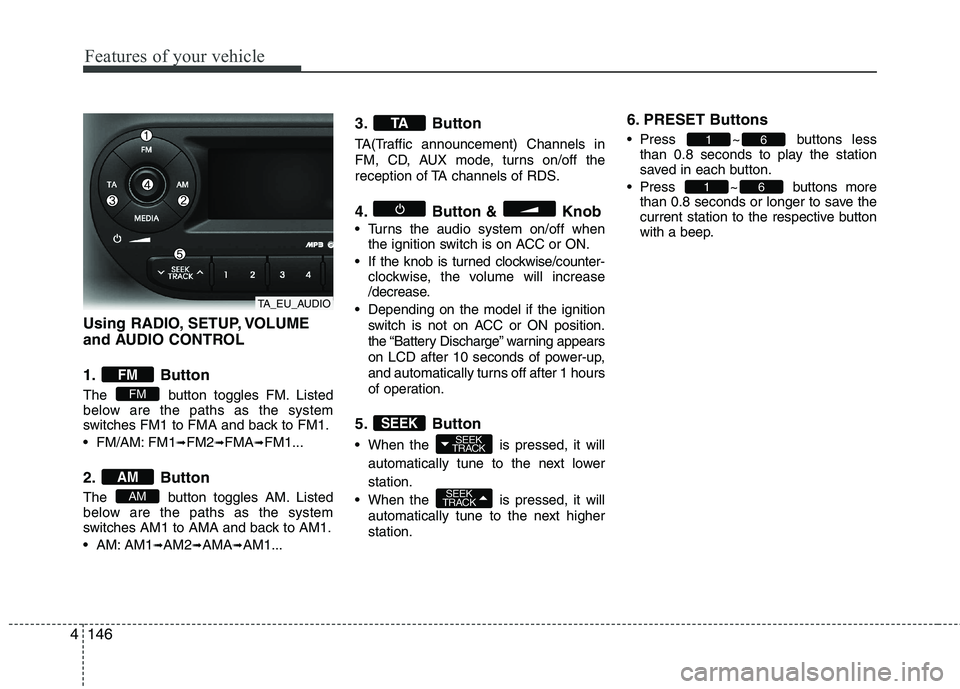
Using RADIO, SETUP, VOLUME
and AUDIO CONTROL
1. Button
The button toggles FM. Listed
below are the paths as the system
switches FM1 to FMA and back to FM1.
FM/AM: FM1 ➟FM2 ➟FMA ➟FM1...
2. Button
The button toggles AM. Listed
below are the paths as the system
switches AM1 to AMA and back to AM1.
AM: AM1 ➟AM2 ➟AMA ➟AM1... 3. Button
TA(Traffic announcement) Channels in
FM, CD, AUX mode, turns on/off the
reception of TA channels of RDS.
4. Button & Knob
Turns the audio system on/off when
the ignition switch is on ACC or ON.
If the knob is turned clockwise/counter- clockwise, the volume will increase
/decrease.
Depending on the model if the ignition switch is not on ACC or ON position.
the “Battery Discharge” warning appears
on LCD after 10 seconds of power-up,
and automatically turns off after 1 hours
of operation.
5. Button
When the is pressed, it will automatically tune to the next lower station.
When the is pressed, it will automatically tune to the next higher station. 6. PRESET Buttons
Press ~ buttons
less
than 0.8 seconds to play the station
saved in each button.
Press ~ buttons more than 0.8 seconds or longer to save the
current station to the respective button
with a beep.
61
61
SEEK
TRACK
SEEK
TRACKSEEK
TA
AM
AM
FM
FM
TA_EU_AUDIO
Page 220 of 840
4147
Features of your vehicle
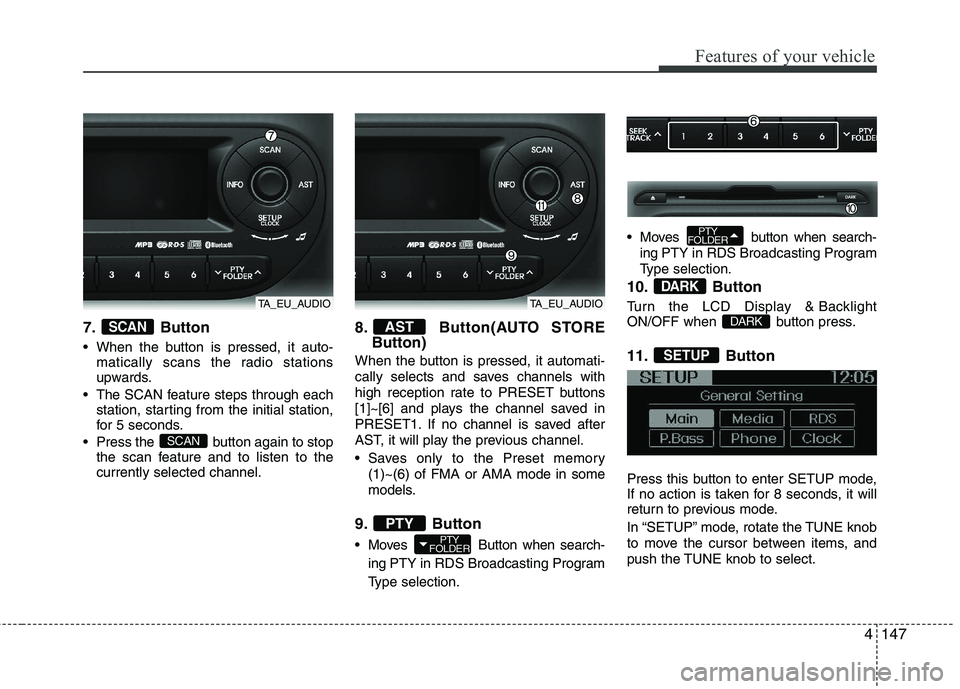
7. Button
When the button is pressed, it auto-matically scans the radio stations
upwards.
The SCAN feature steps through each station, starting from the initial station,
for 5 seconds.
Press the button again to stop the scan feature and to listen to thecurrently selected channel. 8. Button(AUTO STORE
Button)
When the button is pressed, it automati-
cally selects and saves channels with
high reception rate to PRESET buttons
[1]~[6] and plays the channel saved in
PRESET1. If no channel is saved after
AST, it will play the previous channel.
Saves only to the Preset memory (1)~(6) of FMA or AMA mode in some
models.
9. Button
Moves Button when search- ing PTY in RDS Broadcasting Program
Type selection. Moves button when search-
ing PTY in RDS Broadcasting Program
Type selection.
10. Button
Turn the LCD Display & Backlight
ON/OFF when button press.
11. Button
Press this button to enter SETUP mode,
If no action is taken for 8 seconds, it will
return to previous mode.
In “SETUP” mode, rotate the TUNE knob
to move the cursor between items, and
push the TUNE knob to select.
SETUP
DARK
DARK
PTY
FOLDER
PTY
FOLDERPTY
AST
SCAN
SCAN
TA_EU_AUDIOTA_EU_AUDIO
Page 231 of 840
Features of your vehicle
158
4
✽✽
NOTICE FOR USING THE
iPod DEVICE
Some iPod models might not sup- port the communication protocol
and the files will not be played.
Supported iPod models:
- iPod Mini
- iPod 4th(Photo) ~ 6th(Classic)
generation
- iPod Nano 1st~4th generation
- iPod Touch 1st~2nd generation
The order of search or playback of songs in the iPod can be different
from the order searched in the
audio system.
If the iPod disabled due to its own malfunction, reset the iPod. (Reset:
Refer to iPod manual)
An iPod may not operate normally
on low battery.
Some iPod devices, such as the
iPhone, can be connected through the
Bluetooth
®interface. The device
must have audio Bluetooth®capabili-
ty (such as for stereo headphone
Bluetooth
®). The device can play, but
it will not be controlled by the audio
system.
CAUTION IN USING THE
iPod DEVICE
The Kia iPod Power Cable is needed in order to operate iPodwith the audio buttons on the audio system. The USB cable pro-
vided by Apple may cause mal-function and should not be usedfor Kia vehicles.
❋ The Kia iPod Power Cable maybe purchased through your KiaDealership.
When connecting iPod with the iPod Power Cable, insert the con-
nector to the multimedia socket completely. If not inserted com-pletely, communications betweeniPod and audio may be interrupted.
When adjusting the sound effects of the iPod and the audio system, thesound effects of both devices willoverlap and might reduce or distort the quality of the sound.
Deactivate (turn off) the equalizer function of an iPod when adjust-ing the audio system’s volume,and turn off the equalizer of the
audio system when using theequalizer of an iPod.
(Continued)
(Continued) When the iPod cable is connected, the system can be switched to AUXmode even without iPod deviceand may cause noise. Disconnect
the iPod cable when you are not using the iPod device.
When not using iPod with car audio, detach the iPod cable from
iPod. Otherwise, iPod may remainin accessory mode, and may not work properly.
When connecting the iPod, use theUSB/AUX terminals.
When disconnecting the iPod, disconnect both the USB/AUX ter-minal.
The iPod exclusive cable must be connected to both the USB/AUXterminals for iPod charging and
operations to be supported.
Detachable USB/AUXAll-in-one USB/AUX
Page 242 of 840
4169
Features of your vehicle
A phone call can be made by dialing the
spoken numbers. The system can recog-
nize single digits from zero to nine.
1. Press button.
2. Say “Call”.
3. Say “Number” when prompted.
4. Say desired phone numbers.
5. Say “Dial” to complete the number andmake a call.
✽✽Tip
A shortcut to each of the following func-
tions is available:
1. Say “Dial Number”
2. Say “Dial
■ Receiving a Phone Call
When receiving a phone call, a ringtone
is audible from speakers and the audio
system changes into telephone mode.
When receiving a phone call, “Incoming
call” message and incoming phone num-
ber (if available) are displayed on the
audio.
- Press button on the steering wheel.
- Press button on the steering wheel.
- Use VOLUME buttons on the steering wheel.
Call):
- Press button on the steering wheel until the audio system transfers a
call to the phone. ■
Talking on the Phone
When talking on the phone, “Active Call”
message and the other party’s phone
number (if available) are displayed on the
audio.
- Press button on the steering wheel.
✽✽ NOTICE
In the following situations, you or the
other party may have difficulty hearing
each other:
1. Speaking at the same time, your voice may not reach each other parties. (This
is not a malfunction.) Speak alternate-
ly with the other party on the phone.
2. Keep the Bluetooth ®
volume to a low
level. High-level volume may result in
distortion and echo.
3. When driving on a rough road.
4. When driving at high speeds.
5. When the window is open.
6. When the air conditioning vents are
facing the microphone.
7. When the sound of the air condition-
ing fan is loud.
Page 508 of 840
49
Features of your vehicle
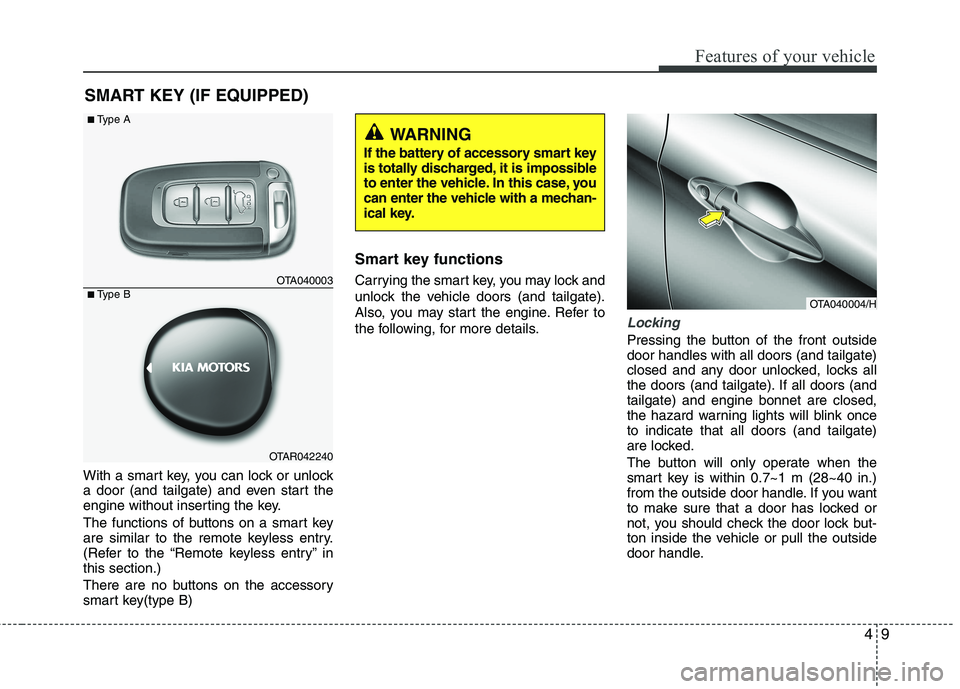
With a smart key, you can lock or unlock
a door (and tailgate) and even start the
engine without inserting the key.
The functions of buttons on a smart key
are similar to the remote keyless entry.
(Refer to the “Remote keyless entry” inthis section.)
There are no buttons on the accessory
smart key(type B)Smart key functions
Carrying the smart key, you may lock and
unlock the vehicle doors (and tailgate).
Also, you may start the engine. Refer to
the following, for more details.
Locking
Pressing the button of the front outside door handles with all doors (and tailgate)
closed and any door unlocked, locks all
the doors (and tailgate). If all doors (andtailgate) and engine bonnet are closed,
the hazard warning lights will blink onceto indicate that all doors (and tailgate)
are locked.
The button will only operate when the
smart key is within 0.7~1 m (28~40 in.)
from the outside door handle. If you want
to make sure that a door has locked or
not, you should check the door lock but-
ton inside the vehicle or pull the outside
door handle.
SMART KEY (IF EQUIPPED)
OTA040004/H
OTA040003
OTAR042240
■
Type A
■ Type B
WARNING
If the battery of accessory smart key
is totally discharged, it is impossible
to enter the vehicle. In this case, you
can enter the vehicle with a mechan-
ical key.
Page 509 of 840
Features of your vehicle
10
4
Even though you press the outside door
handle buttons, the doors will not lock
and the chime will sound for 3 seconds if
any of following occur:
The smart key is in the vehicle.
The ENGINE START/STOP button is in
the ACC or ON position.
Any door except the tailgate is open.
Unlocking
Pressing the button of the front outside door handles with all doors (and tailgate)
closed and locked, unlocks all the doors
(and tailgate). The hazard warning lights
blink twice to indicate that all doors (and
tailgate) are unlocked.
The button will only operate when the
smart key is within 0.7~1 m (28~40 in.)
from the outside door handle.
When the smart key is recognized in the area of 0.7~1 m (28~40 in.) from the front
outside door handle, other people canalso open the door without possession of
the smart key.
After pressing the button, the doors will
lock automatically unless you open any
door within 30 seconds.
Tailgate unlocking
If you are within 0.7 m ~ 1 m (28 ~ 40 in.)
from the outside tailgate handle, with
your smart key in possession, the tail-
gate will unlock and open when you
press the tailgate handle switch.
The hazard warning lights will blink twice
to indicate that the tailgate is unlocked.
Also, once the tailgate is opened and
then closed, the tailgate will lock auto-
matically. ❈ The word “HOLD” is written on the but-
ton to inform you that you must press
and hold the button for 1 second.
Start-up
You can start the engine without inserting
the key. For detailed information refer to
“Starting the engine with a smart key” insection 5. Smart key precautions
✽✽
NOTICE
If, for some reason, you happen to lose your smart key, you will not be able to
start the engine. Tow the vehicle, if
necessary, and contact an authorised
KIA dealer.
A maximum of 2 smart keys can be
registered to a single vehicle. If you
lose a smart key, you should immedi-
ately take the vehicle and key to your
authorised KIA dealer to protect it
from potential theft.
The smart key will not work if any of
following occur:
- The smart key is close to a radiotransmitter such as a radio station or
an airport which can interfere with
normal operation of the smart key.
- You keep the smart key near a
mobile two-way radio system or a
mobile phone.
- Another vehicle’s smart key is being operated close to your vehicle.
When the smart key does not work
correctly, open and close the door with
the mechanical key. If you have a
problem with the smart key, contact
an authorised KIA dealer.
Page 591 of 840
Features of your vehicle
92
4
Manual heating and air condition- ing The heating and cooling system can be
controlled manually by pushing buttons
other than the AUTO button. In this case,
the system works sequentially according
to the order of buttons selected.
When pressing any button (or turning
any knob) except the AUTO button whilst
using automatic operation, the functionsnot selected will be controlled automati-
cally.
1. Start the engine.
2. Set the mode to the desired position.
To improve the effectiveness of heat-ing and cooling:
- Heating:- Cooling:
3. Set the temperature control to the desired position.
4. Set the air intake control to the outside (fresh) air position.
5. Set the fan speed control to the desired speed.
6. If air conditioning is desired, turn the air conditioning system on.
Press the AUTO button in order to con-
vert to full automatic control of the sys-tem.
Mode selection
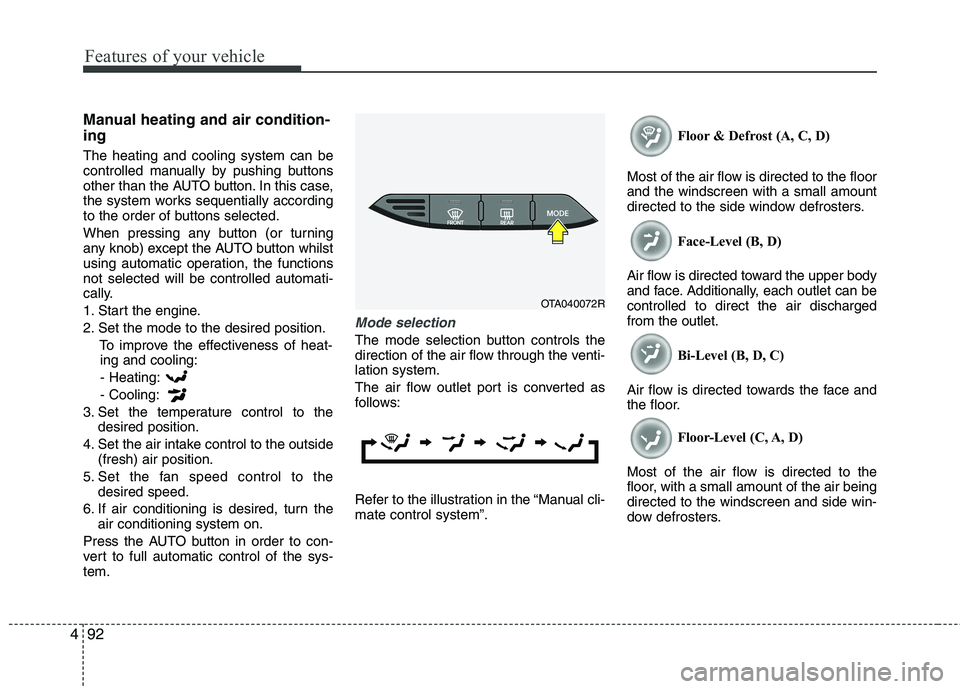
The mode selection button controls the
direction of the air flow through the venti-lation system.
The air flow outlet port is converted as
follows:
Refer to the illustration in the “Manual cli- mate control system”. Floor & Defrost (A, C, D)
Most of the air flow is directed to the floorand the windscreen with a small amount
directed to the side window defrosters. Face-Level (B, D)
Air flow is directed toward the upper body
and face. Additionally, each outlet can becontrolled to direct the air dischargedfrom the outlet. Bi-Level (B, D, C)
Air flow is directed towards the face and
the floor. Floor-Level (C, A, D)
Most of the air flow is directed to the
floor, with a small amount of the air beingdirected to the windscreen and side win-
dow defrosters.
OTA040072R
Page 603 of 840
Features of your vehicle
104
4
Digital clock
Whenever the battery terminals or relat-
ed fuses are disconnected, you must
reset the time.
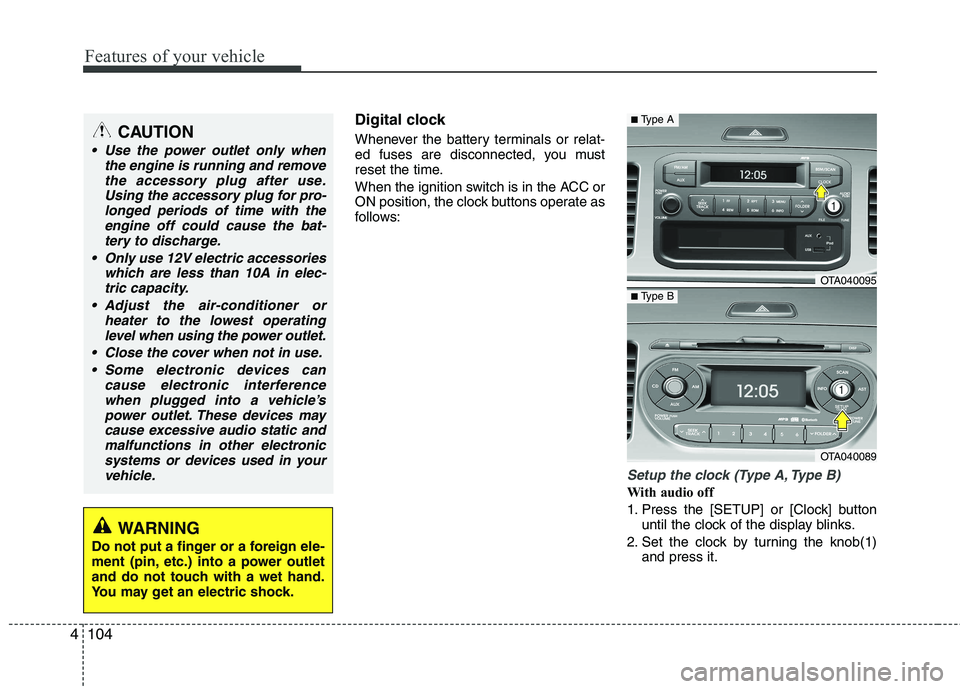
When the ignition switch is in the ACC or
ON position, the clock buttons operate as
follows:
Setup the clock (Type A, Type B)
With audio off
1. Press the [SETUP] or [Clock] button
until the clock of the display blinks.
2. Set the clock by turning the knob(1) and press it.
CAUTION
Use the power outlet only when
the engine is running and remove
the accessory plug after use.Using the accessory plug for pro-longed periods of time with the engine off could cause the bat-
tery to discharge.
Only use 12V electric accessories which are less than 10A in elec-tric capacity.
Adjust the air-conditioner or heater to the lowest operatinglevel when using the power outlet.
Close the cover when not in use. Some electronic devices can cause electronic interference
when plugged into a vehicle’spower outlet. These devices maycause excessive audio static andmalfunctions in other electronic
systems or devices used in yourvehicle.
WARNING
Do not put a finger or a foreign ele-
ment (pin, etc.) into a power outlet
and do not touch with a wet hand.
You may get an electric shock.
OTA040095
OTA040089
■ Type A
■Type B