phone KIA PICANTO 2014 Workshop Manual
[x] Cancel search | Manufacturer: KIA, Model Year: 2014, Model line: PICANTO, Model: KIA PICANTO 2014Pages: 1003, PDF Size: 44.67 MB
Page 647 of 1003
4155
Features of your vehicle
✽✽NOTICE FOR USING THE
iPod DEVICE
Some iPod models might not sup- port the communication protocol
and the files will not be played.
Supported iPod models:
- iPod Mini
- iPod 4th(Photo) ~ 6th(Classic)
generation
- iPod Nano 1st~4th generation
- iPod Touch 1st~2nd generation
The order of search or playback of songs in the iPod can be different
from the order searched in the
audio system.
If the iPod disabled due to its own malfunction, reset the iPod. (Reset:
Refer to iPod manual)
An iPod may not operate normally
on low battery.
Some iPod devices, such as the iPhone,
can be connected through the
Bluetooth ®
Wireless Technology
interface. The device must have audio
Bluetooth ®
Wireless Technology
capability (such as for stereo head-
phone Bluetooth®
Wireless
Technology). The device can play, but
it will not be controlled by the audio
system.CAUTION IN USING THE
iPod DEVICE
The Kia iPod Power Cable is needed in order to operate iPodwith the audio buttons on the audio system. The USB cable pro-
vided by Apple may cause mal-function and should not be usedfor Kia vehicles.
❋ The Kia iPod Power Cable maybe purchased through your KiaDealership.
When connecting iPod with the iPod Power Cable, insert the con-
nector to the multimedia socket completely. If not inserted com-pletely, communications betweeniPod and audio may be interrupted.
When adjusting the sound effects of the iPod and the audio system, thesound effects of both devices willoverlap and might reduce or distort the quality of the sound.
Deactivate (turn off) the equalizer function of an iPod when adjust-ing the audio system’s volume,and turn off the equalizer of the
audio system when using theequalizer of an iPod.
(Continued)
(Continued) When the iPod cable is connected, the system can be switched to AUXmode even without iPod deviceand may cause noise. Disconnect
the iPod cable when you are not using the iPod device.
When not using iPod with car audio, detach the iPod cable from
iPod. Otherwise, iPod may remainin accessory mode, and may not work properly.
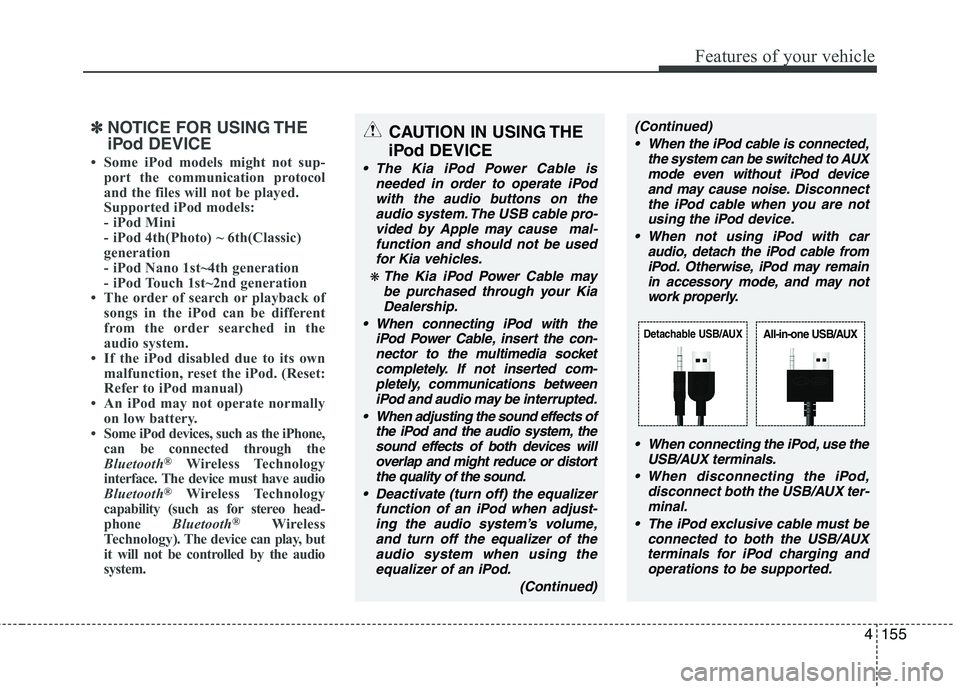
When connecting the iPod, use theUSB/AUX terminals.
When disconnecting the iPod, disconnect both the USB/AUX ter-minal.
The iPod exclusive cable must be connected to both the USB/AUXterminals for iPod charging and
operations to be supported.
Detachable USB/AUXAll-in-one USB/AUX
Page 650 of 1003
Features of your vehicle
158
4
CAUTION IN USING
BLUETOOTH®WIRELESS
TECHNOLOGY MOBILE
PHONE
Do not use a mobile phone or per- form Bluetooth®Wireless
Technology settings (e.g. pairing
a phone) whilst driving.
Some Bluetooth
®Wireless
Technology-enab led phones may
not be recognized by the system or fully compatible with the sys-tem.
Before using Bluetooth
®Wireless
Technology related features of the audio system, refer yourphone’s User’s Manual for phone-side Bluetooth
®Wireless
Technology operations.
The phone must be paired to the audio system to use Bluetooth®
Wireless Technologyrelated fea-
tures.
You will not be able to use the
hands-free feature when yourphone (in the car) is outside of
the mobile service area (e.g. in atunnel, in a underground, in amountainous area, etc.).
(Continued)
(continued) If the mobile phone signal is poor or the vehicles interior noise istoo loud, it may be difficult to hearthe other person’s voice during a
call.
Do not place the phone near or inside metallic objects, otherwise
communications with Bluetooth
®
Wireless Technology system ormobile service stations can be disturbed.
While a phone is connected through Bluetooth
®Wireless
Technology your phone may dis- charge quicker than usual for
additional Bluetooth
®Wireless
Technology-related operations.
Some mobile phones or other devices may cause interferencenoise or malfunction to audio
system. In this case, store thedevice in a different location mayresolve the situation.
Please save your phone name in English, or your phone name may
not be displayed correctly.
Page 651 of 1003
4159
Features of your vehicle
BLUETOOTH®WIRELESS
TECHNOLOGYPHONE OPERA-
TION (if equipped)
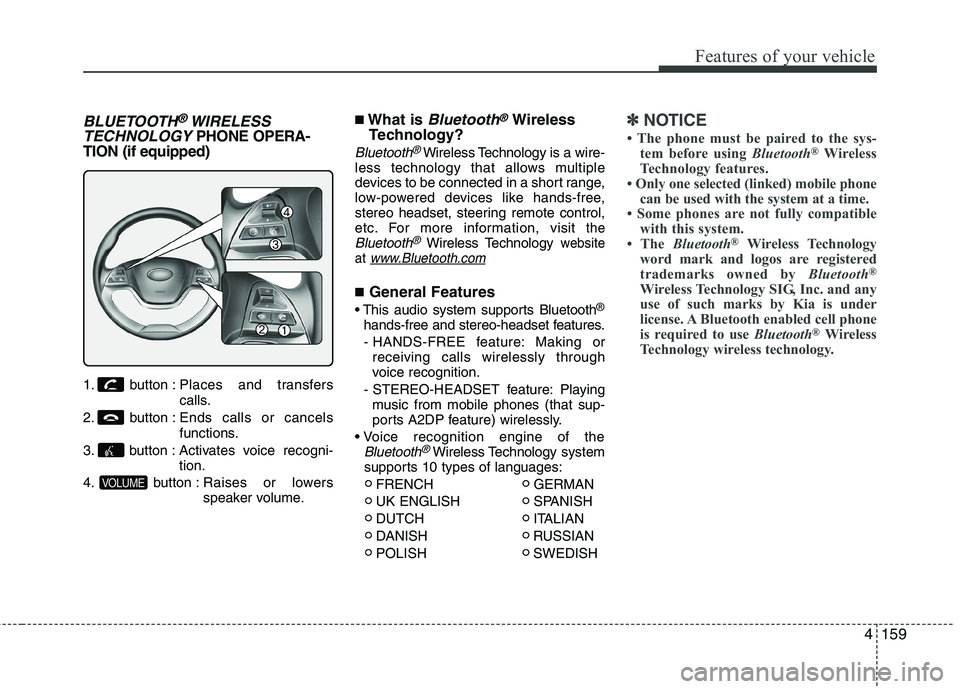
1. button : Places and transfers
calls.
2. button : Ends calls or cancels functions.
3. button : Activates voice recogni- tion.
4. button : Raises or lowers speaker volume. ■
What is
Bluetooth®Wireless
Technology?
Bluetooth®Wireless Technology is a wire-
less technology that allows multiple
devices to be connected in a short range,
low-powered devices like hands-free,
stereo headset, steering remote control,
etc. For more information, visit
theBluetooth®Wireless Technologywebsite
at www.Bluetooth.com
■ General Features
®
hands-free and stereo-headset features. - HANDS-FREE feature: Making or receiving calls wirelessly through
voice recognition.
- STEREO-HEADSET feature: Playing music from mobile phones (that sup-
ports A2DP feature) wirelessly.
Bluetooth®Wireless Technology system
supports 10 types of languages:
FRENCH GERMAN
UK ENGLISH SPANISH
DUTCH ITALIAN
DANISH RUSSIAN
POLISH SWEDISH
✽✽ NOTICE
The phone must be paired to the sys- tem before using Bluetooth®
Wireless
Technology features.
Only one selected (linked) mobile phone
can be used with the system at a time.
Some phones are not fully compatible
with this system.
The Bluetooth ®
Wireless Technology
word mark and logos are registered
trademarks owned by Bluetooth®
Wireless Technology SIG, Inc. and any
use of such marks by Kia is under
license. A Bluetooth enabled cell phone
is required to use Bluetooth®
Wireless
Technology wireless technology.
VOLUME
Page 652 of 1003
Features of your vehicle
160
4
■Bluetooth®Wireless Technology
Language Setting
The system language can be changed by
the following steps:
1. Power on the audio system with the volume set to an audible level.
2. Press and hold button on the steering wheel until the audio displays
“Please Wait”.
- The
Bluetooth®Wireless Technology
system will reply in currently selected
language that it is changing to the next
language.
- System language cycles between
FRENCH/GERMAN/UK ENGLISH
SPANISH /DUTCH/ITALIAN/DANISH/
RUSSIAN/POLISH/SWEDISH.
3. When completed, the audio display returns to normal.
4. Repeat steps 2 and 3 for the next lan- guage selection.
NOTE:
The phone needs to be paired again
after changing system language.
- Avoid resting your thumb or finger on the button as the language
could unintentionally change. ■
Voice Recognition Activation
in the
Bluetooth®Wireless Technology
System can be activated in the follow-ing conditions:
- Button Activation
The voice recognition system will be
active when the button is pressed
and after the sound of a Beep.
- Active Listening The voice recognition system will be
active for a period of time when the
Voice Recognition system has asked
for a customer response.
from zero to nine whilst number greater
than ten will not be recognized.
system will announce "Pardon" or No
input voice signal from microphone. (Noresponse)
tion mode in following cases : When
pressing the button and saying
cancel following the beep. When notmaking a call and pressing the
button. When voice recognition has
failed 3 consecutive times. At any time if you say “help”, the sys-
tem will announce what commands are
available.
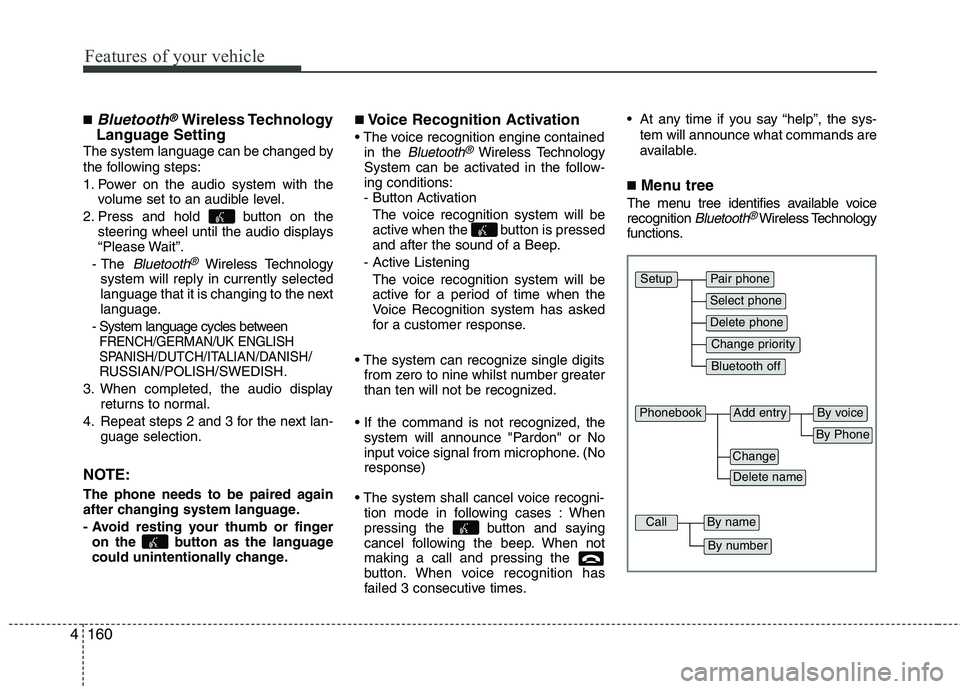
■ Menu tree
The menu tree identifies available voice recognition
Bluetooth®Wireless Technology
functions.
Pair phone
Select phone
Change priority
Delete phone
Bluetooth off
Setup
Add entryPhonebook
Change
Delete name
By Phone
By voice
CallBy name
By number
Page 653 of 1003
4161
Features of your vehicle
■Voice Operation Tip
To get the best performance out of the
Voice Recognition System, observe the
followings:
- Keep the interior of the vehicle as quiet as possible. Close the window to elim-
inate surrounding noise (traffic noise,
vibration sounds, etc), which may dis-
turb recognizing the voice command
correctly.
- Speak a command after a beep sound within 5 seconds. Otherwise the com-
mand will not be received properly.
- Speak in a natural voice without paus- ing between words.
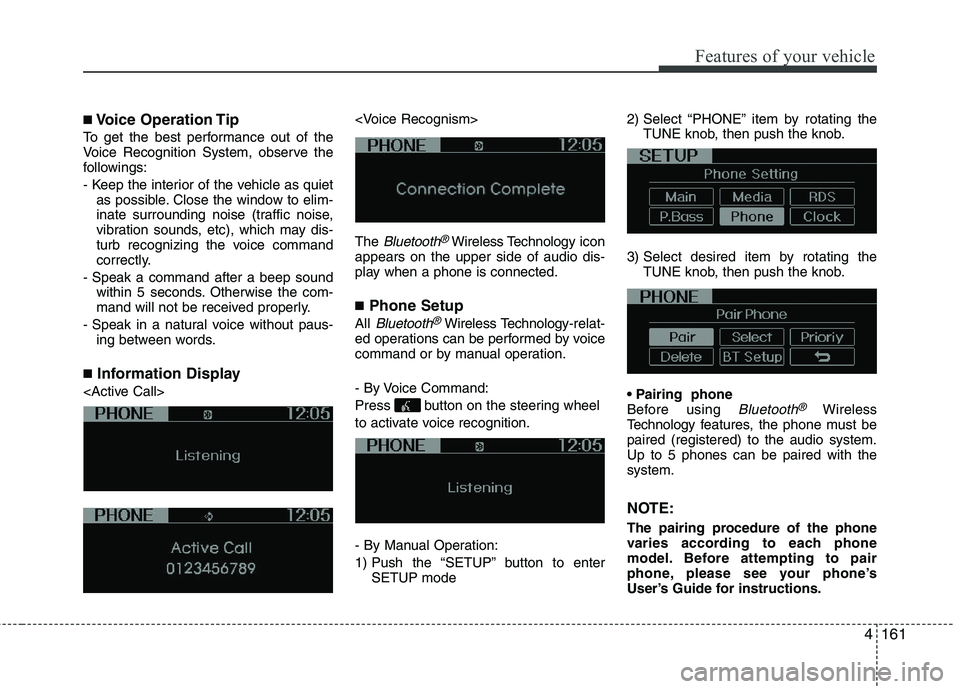
■ Information Display
Bluetooth®Wireless Technology
icon
appears on the upper side of audio dis-
play when a phone is connected. ■ Phone Setup
All
Bluetooth®Wireless Technology -relat-
ed operations can be performed by voice
command or by manual operation.
- By Voice Command:
Press button on the steering wheel
to activate voice recognition.
- By Manual Operation:
1) Push the “SETUP” button to enter SETUP mode 2) Select “PHONE” item by rotating the
TUNE knob, then push the knob.
3) Select desired item by rotating the TUNE knob, then push the knob.
Before using
Bluetooth®Wireless
Technology f eatures, the phone must be
paired (registered) to the audio system.Up to 5 phones can be paired with thesystem.
NOTE:
The pairing procedure of the phone
varies according to each phone
model. Before attempting to pair
phone, please see your phone’s
User’s Guide for instructions.
Page 654 of 1003
Features of your vehicle
162
4
NOTE: Once pairing with the phone is com-
pleted, there is no need to pair with
that phone again unless the phone is
deleted manually from the audio sys-
tem (refer “Deleting Phone” section)
or the vehicle’s information is
removed from the phone.
1. Press button.
2. Say “Set Up”.
- The system replies with availablecommands.
- To skip the information message, press again and then a beep is heard.
3. Say “Pair Phone”
4. Proceed at next step.
5. Say the name of your phone when prompted.
- Use any name to uniquely describe your phone.
- Use Full name to voice tag.
- Not use to short name or similar to voice command.
6.
Bluetooth®Wireless Technology sys-
tem will repeat the name you stated.
7. Say “Yes” to confirm.
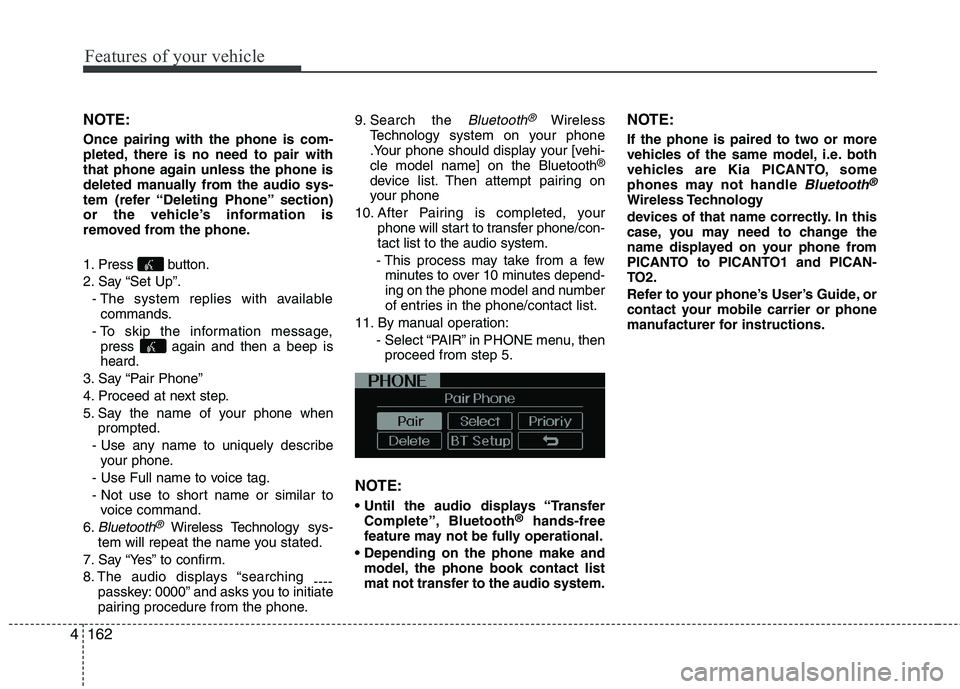
8. The audio displays “searching ----
passkey: 0000” and asks you to initiate
pairing procedure from the phone. 9. Search the
Bluetooth®Wireless
Technology system on your phone
.Your phone should display your [vehi-cle model name] on the Bluetooth ®
device list. Then attempt pairing on
your phone
10. After Pairing is completed, your phone will start to transfer phone/con-tact list to the audio system.
- This process may take from a few minutes to over 10 minutes depend-
ing on the phone model and number
of entries in the phone/contact list.
11. By manual operation: - Select “PAIR” in PHONE menu, thenproceed from step 5.
NOTE:
Complete”, Bluetooth ®
hands-free
feature may not be fully operational.
model, the phone book contact list
mat not transfer to the audio system. NOTE:
If the phone is paired to two or more
vehicles of the same model, i.e. both
vehicles are Kia PICANTO, some
phones may not handle
Bluetooth®
Wireless Technology
devices of that name correctly. In this
case, you may need to change the
name displayed on your phone from
PICANTO to PICANTO1 and PICAN-
TO2.
Refer to your phone’s User’s Guide, or
contact your mobile carrier or phone
manufacturer for instructions.
Page 655 of 1003
4163
Features of your vehicle
When the
Bluetooth®Wireless
Technology system is enabled, the phone
previously used is automatically selected
and re-connected. If you want to select
different phone previously paired, the
phone can be selected through “Select
Phone” menu. Only a selected phone can be used with
the hands-free system at a time.
1. Press button.
2. Say “Set Up”.
3. Say “Select Phone” after prompt
- The system lists all the registeredphone names.
4. Say the name or number of desired phone from the list.
5. Say “Yes” to confirm.
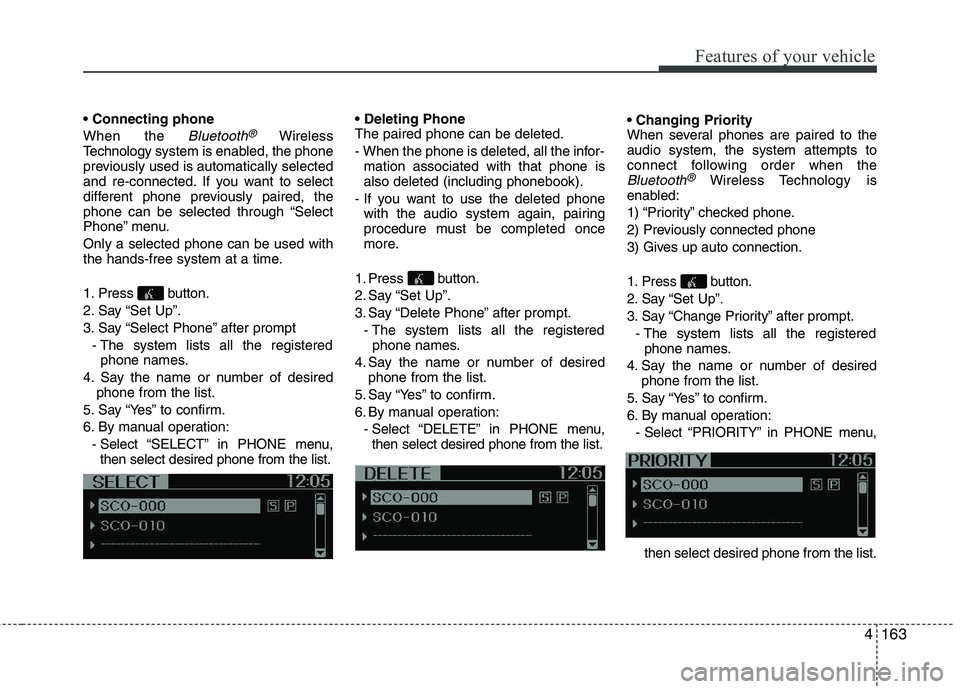
6. By manual operation: - Select “SELECT” in PHONE menu,then select desired phone from the list. The paired phone can be deleted.
- When the phone is deleted, all the infor-
mation associated with that phone is also deleted (including phonebook).
- If you want to use the deleted phone with the audio system again, pairing
procedure must be completed once
more.
1. Press button.
2. Say “Set Up”.
3. Say “Delete Phone” after prompt. - The system lists all the registeredphone names.
4. Say the name or number of desired phone from the list.
5. Say “Yes” to confirm.
6. By manual operation: - Select “DELETE” in PHONE menu,then select desired phone from the list.
When several phones are paired to theaudio system, the system attempts to
connect following order when the
Bluetooth®Wireless Technology is
enabled:
1) “Priority” checked phone.
2) Previously connected phone
3) Gives up auto connection.
1. Press button.
2. Say “Set Up”.
3. Say “Change Priority” after prompt.
- The system lists all the registeredphone names.
4. Say the name or number of desired phone from the list.
5. Say “Yes” to confirm.
6. By manual operation: - Select “PRIORITY” in PHONE menu,
then select desired phone from the list.
Page 656 of 1003
Features of your vehicle
164
4
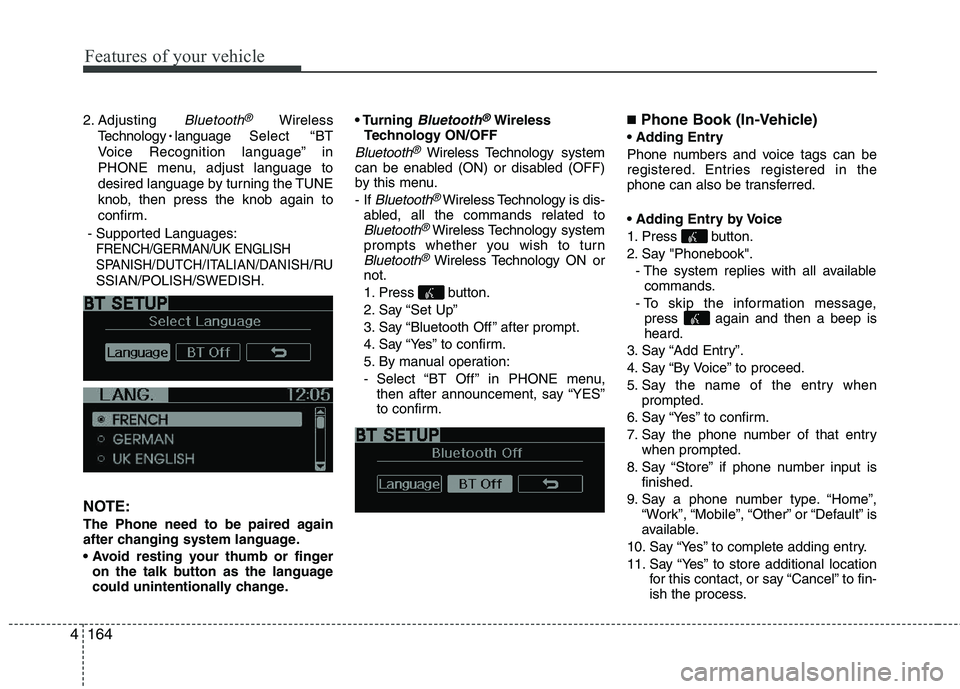
2. Adjusting Bluetooth®Wireless
Technology
language Select “BT
Voice Recognition language” in
PHONE menu, adjust language to
desired language by turning the TUNE
knob, then press the knob again to
confirm.
- Supported Languages:
FRENCH/GERMAN/UK ENGLISH
SPANISH /DUTCH/ITALIAN/DANISH
/RU
SSIAN/POLISH/SWEDISH.
NOTE:
The Phone need to be paired again
after changing system language.
on the talk button as the language
could unintentionally change.
Bluetooth®Wireless
Technology ON/OFF
Bluetooth®Wireless Technology system
can be enabled (ON) or disabled (OFF)
by this menu. - If
Bluetooth®Wireless Technology is dis-
abled, all the commands related to
Bluetooth®Wireless Technology system
prompts whether you wish to turn
Bluetooth®Wireless Technology ON or
not.
1. Press button.
2. Say “Set Up”
3. Say “Bluetooth Off ” after prompt.
4. Say “Yes” to confirm.
5. By manual operation:
- Select “BT Off ” in PHONE menu, then after announcement, say “YES”
to confirm. ■
Phone Book (In-Vehicle)
Phone numbers and voice tags can be
registered. Entries registered in the
phone can also be transferred.
1. Press button.
2. Say "Phonebook". - The system replies with all availablecommands.
- To skip the information message, press again and then a beep is heard.
3. Say “Add Entry”.
4. Say “By Voice” to proceed.
5. Say the name of the entry when prompted.
6. Say “Yes” to confirm.
7. Say the phone number of that entry when prompted.
8. Say “Store” if phone number input is finished.
9. Say a phone number type. “Home”, “Work”, “Mobile”, “Other” or “Default” is
available.
10. Say “Yes” to complete adding entry.
11. Say “Yes” to store additional location for this contact, or say “Cancel” to fin-
ish the process.
Page 657 of 1003

4165
Features of your vehicle
✽✽NOTICE
- The system can recognize single digits from zero to nine. Numbers that are
ten or greater cannot be recognized.
- You can enter each digit individually or group digits together in preferred
string lengths.
- To speed up input, it is a good idea to
group all digits into a continuous
string.
- Recommend to enter the numbers con- stituted an grouping within all digit
numbers to dial 995 / 734 / 0000
- The display corresponding to each
operation appears on the screen as fol-
lows:
Input operation example: 1. Say: “Nine, nine, five”
➟ Display: “995”
2. And say: “Seven, three, four”
➟ Display: “995734”
1. Press button.
2. Say “Phonebook”.
3. Say “Add Entry” after prompt.
4. Say “By Phone” to proceed.
5. Say “Yes” to confirm.
6. Your phone will start to transfer phone/contact list to the audio system.
This process may take over 10 minutes depending on the phone model and
number of entries
7. Wait till the audio displays “Transfer Complete” message.
Changing Name
The registered names can be modified.
1. Press button.
2. Say “Phonebook”.
3. Say “Change Name” after prompt.
4. Say the name of the entry (voice tag).
5. Say “Yes” to confirm.
6. Say new desired name.
Deleting Name
The registered names can be deleted.
1. Press button.
2. Say “Phonebook”.
3. Say “Delete Name” after prompt.
4. Say the name of the entry (voice tag).
5. Say “Yes” to confirm.
■ Making a Phone Call
A phone call can be made by speaking names registered in the audio system.
1. Press button.
2. Say “Call”.
3. Say “Name” when prompted.
4. Say desired name (voice tag).
5. Say desired location (phone number type). Only stored locations can be selected.
6. Say “Yes” to confirm and make a call.
✽✽ Tip
A shortcut to each of the following func-
tions is available:
1. Say “Call Name”
2. Say “Call
3. Say “Call
Page 658 of 1003
Features of your vehicle
166
4
A phone call can be made by dialing the
spoken numbers. The system can recog-
nize single digits from zero to nine.
1. Press button.
2. Say “Call”.
3. Say “Number” when prompted.
4. Say desired phone numbers.
5. Say “Dial” to complete the number and
make a call.
✽✽Tip
A shortcut to each of the following func-
tions is available:
1. Say “Dial Number”
2. Say “Dial
■ Receiving a Phone Call
When receiving a phone call, a ringtone
is audible from speakers and the audio
system changes into telephone mode.
When receiving a phone call, “Incoming
call” message and incoming phone num-
ber (if available) are displayed on the
audio.
- Press button on the steering wheel.
- Press button on the steering wheel.
- Use VOLUME buttons on the steering wheel.
Call):
- Press button on the steering wheel until the audio system transfers a
call to the phone. ■
Talking on the Phone
When talking on the phone, “Active Call”
message and the other party’s phone
number (if available) are displayed on the
audio.
- Press button on the steering wheel.
✽✽ NOTICE
In the following situations, you or the
other party may have difficulty hearing
each other:
1. Speaking at the same time, your voice may not reach each other parties. (This
is not a malfunction.) Speak alternate-
ly with the other party on the phone.
2. Keep the Bluetooth®
Wireless
Technology volume to a low level.
High-level volume may result in dis-
tortion and echo.
3. When driving on a rough road.
4. When driving at high speeds.
5. When the window is open.
6. When the air conditioning vents are facing the microphone.
7. When the sound of the air condition- ing fan is loud.