battery KIA PICANTO 2017 Owner's Manual
[x] Cancel search | Manufacturer: KIA, Model Year: 2017, Model line: PICANTO, Model: KIA PICANTO 2017Pages: 488, PDF Size: 31.26 MB
Page 179 of 488

Features of your vehicle
104
4
Temperature control
The temperature control knob allows you
to control the temperature of the air flow-
ing from the ventilation system. To
change the air temperature in the pas-
senger compartment, turn the knob to
the right for warm air or left for cooler air. Temperature conversion
You can switch the temperature mode
between Centigrade to Fahrenheit as fol-
lows:
While pressing the OFF button, press the
AUTO button for 4 seconds or more.
The display will change from Centigrade
to Fahrenheit, or from Fahrenheit to
Centigrade.
If the battery has been discharged or dis-
connected, the temperature mode dis-
play will reset to Centigrade.
Air intake control
This is used to select the outside (fresh) air position or recirculated air position.
To change the air intake control position,
press the control button.
OTA040075OTA040074
Page 184 of 488
4109
Features of your vehicle
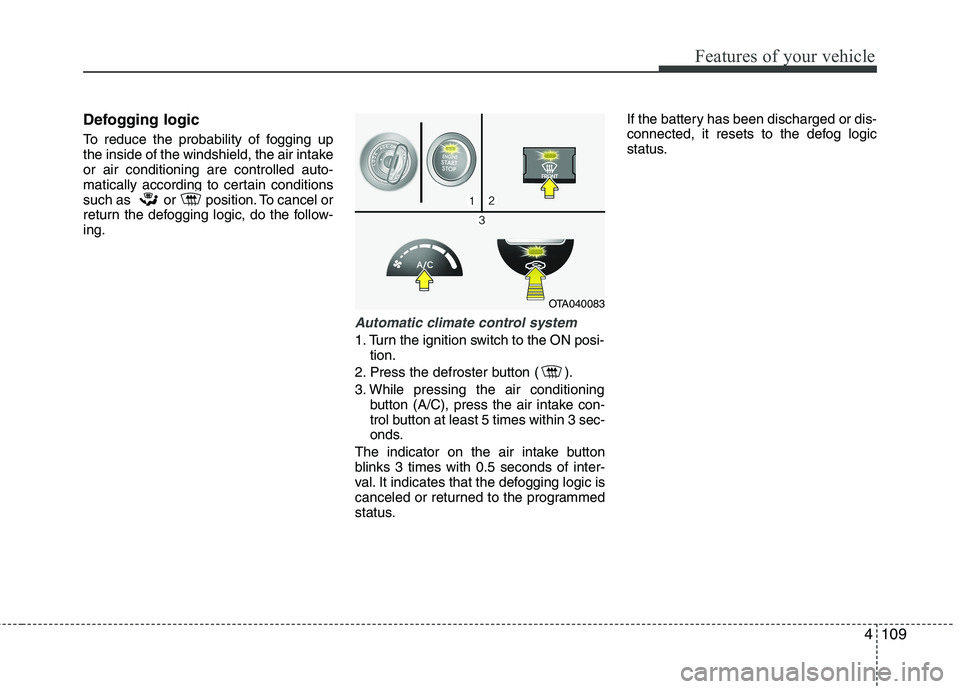
Defogging logic
To reduce the probability of fogging up
the inside of the windshield, the air intakeor air conditioning are controlled auto-
matically according to certain conditions
such as or position. To cancel or
return the defogging logic, do the follow-ing.
Automatic climate control system
1. Turn the ignition switch to the ON posi-tion.
2. Press the defroster button ( ).
3. While pressing the air conditioning button (A/C), press the air intake con-
trol button at least 5 times within 3 sec-
onds.
The indicator on the air intake button
blinks 3 times with 0.5 seconds of inter-
val. It indicates that the defogging logic is
canceled or returned to the programmed
status. If the battery has been discharged or dis-
connected, it resets to the defog logic
status.
OTA040083
Page 190 of 488
4115
Features of your vehicle
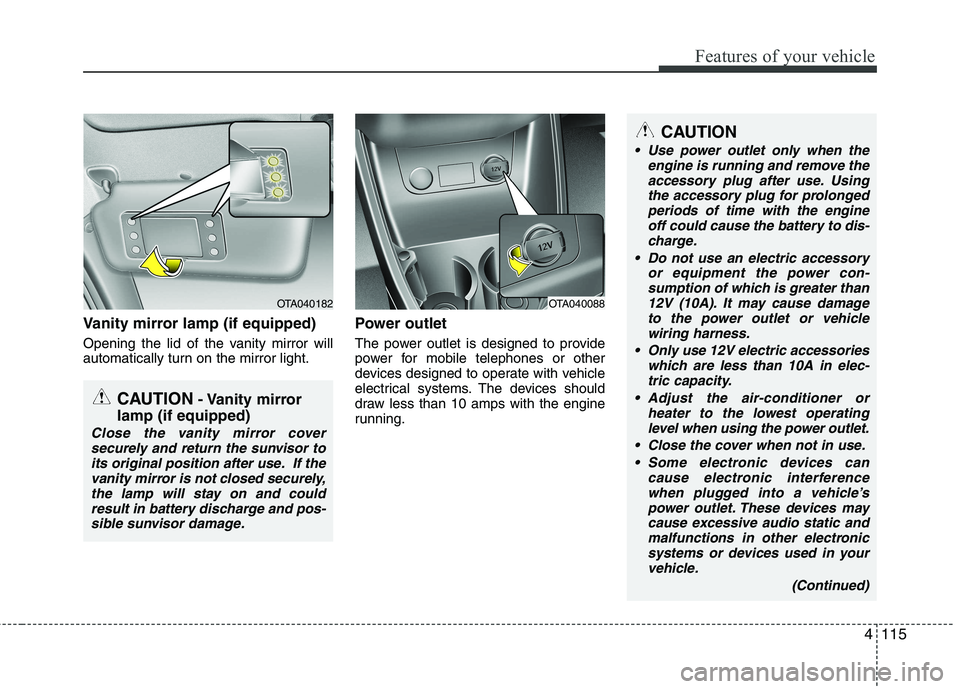
Vanity mirror lamp (if equipped)
Opening the lid of the vanity mirror will
automatically turn on the mirror light.Power outlet
The power outlet is designed to provide
power for mobile telephones or other
devices designed to operate with vehicle
electrical systems. The devices should
draw less than 10 amps with the engine
running.
OTA040182
CAUTION
- Vanity mirror
lamp (if equipped)
Close the vanity mirror cover securely and return the sunvisor to
its original position after use. If the vanity mirror is not closed securely,the lamp will stay on and couldresult in battery discharge and pos-
sible sunvisor damage.
OTA040088
CAUTION
Use power outlet only when the engine is running and remove the
accessory plug after use. Using the accessory plug for prolongedperiods of time with the engineoff could cause the battery to dis-
charge.
Do not use an electric accessory or equipment the power con-sumption of which is greater than
12V (10A). It may cause damage to the power outlet or vehiclewiring harness.
Only use 12V electric accessories which are less than 10A in elec-
tric capacity.
Adjust the air-conditioner or heater to the lowest operatinglevel when using the power outlet.
Close the cover when not in use. Some electronic devices can cause electronic interferencewhen plugged into a vehicle’spower outlet. These devices maycause excessive audio static and
malfunctions in other electronicsystems or devices used in your vehicle.
(Continued)
Page 191 of 488

Features of your vehicle
116
4
Digital clock
Whenever the battery terminals or relat-
ed fuses are disconnected, you must
reset the time.
When the ignition switch is in the ACC or
ON position, the clock buttons operate as
follows:
Setup the clock (Type A, Type B)
With audio off
1. Press the [SETUP] / [CLOCK] button
until the clock of the display blinks.
2. Set the clock by turning the knob(1) and press it.
WARNING
Do not put a finger or a foreign ele-
ment (pin, etc.) into a power outlet
and do not touch with a wet hand.
You may get electrocuted or fire
may occur.
(Continued)
Make sure that the electric devices are plugged in securely. Ifnot, it could cause a malfunctionof electric systems.
If you use an electric device with a battery, electric current mayflow from the electric device intothe vehicle and may cause a mal-
function of electric systems. Onlyuse electric devices which couldprevent flowing of current into the vehicle.
OTA045545K
OTA045089K
■ Type A
■Type B
Page 201 of 488
Features of your vehicle
1264
WARNING
Do not stare at the screen while driving. Staring at the screen for
prolonged periods of time couldlead to traffic accidents.
Do not disassemble, assemble, or modify the audio system. Such
acts could result in accidents, fire,
or electric shock.
Using the phone while driving may lead to a lack of attention oftraffic conditions and increase
the likelihood of accidents. Use
the phone feature after parking
the vehicle.
Heed caution not to spill water or introduce foreign objects into the
device. Such acts could lead to
smoke, fire, or product malfunc-tion.
Please refrain from use if the screen is blank or no sound can be
heard as these signs may indicate
product malfunction. Continued
use in such conditions could lead
to accidents (fires, electric shock)
or product malfunctions.
(Continued)(Continued)
Do not touch the antenna duringthunder or lightening as such
acts may lead to lightning
induced electric shock.
Do not stop or park in parking- restricted areas to operate the
product. Such acts could lead totraffic accidents.
Use the system with the vehicle ignition turned on. Prolonged usewith the ignition turned off could
result in battery discharge.
Page 202 of 488
127
Features of your vehicle
4
(Continued) Turn on the car ignition before using this device. Do not operatethe audio system for long periodsof time with the ignition turned off
as such operations may lead tobattery discharge.
Do not subject the device to severe shock or impact. Direct
pressure onto the front side ofthe monitor may cause damage tothe LCD or touch screen.
When cleaning the device, make sure to turn off the device and
use a dry and smooth cloth.Never use tough materials, chem- ical cloths, or solvents (alcohol,benzene, thinners, etc.) as such
materials may damage the devicepanel or cause color/quality dete-rioration
(Continued)(Continued) Do not place beverages close to the audio system. Spilling bever-ages may lead to system mal-function.
In case of product malfunction, please contact your place of pur-chase or After Service center.
Placing the audio system within an electromagnetic environment
may result in noise interference.CAUTION
Operating the device while driv- ing could lead to accidents due to
a lack of attention to external sur-roundings. First park the vehiclebefore operating the device.
Adjust the volume to levels that allow the driver to hear soundsfrom outside of the vehicle.Driving in a state where external sounds cannot be heard may lead
to accidents.
Pay attention to the volume set- ting when turning the device on.A sudden output of extreme vol-ume upon turning the device on
could lead to hearing impairment.(Adjust the volume to a suitablelevels before turning off the device.)
If you want to change the position of device installation, pleaseinquire with your place of pur-chase or service maintenancecenter. Technical expertise is
required to install or disassemblethe device.
(Continued)
Page 205 of 488
Features of your vehicle
1304
✽✽NOTICE - USING THE iPod ®
DEVICE
Some iPod ®
models may not support
communication protocol and files may
not properly play.
Supported iPod ®
models:
- iPhone 3GS/4
- iPod ®
touch 1st~4th generation
- iPod ®
nano 1st~6th generation
- iPod ®
classic
The order of search or playback of
songs in the iPod ®
can be different
from the order searched in the audio
system.
If the iPod ®
disabled due to its own
malfunction, reset the iPod ®
. (Reset:
Refer to iPod ®
manual)
An iPod ®
may not operate normally
on low battery.
(Continued)(Continued)
Some iPod
®
devices, such as the
iPhone, can be connected through the
Bluetooth ®
Wireless Technology inter-
face. The device must have audio
Bluetooth ®
Wireless Technology capa-
bility (such as for stereo headphone
Bluetooth ®
Wireless Technology ). The
device can play, but it will not be con-
trolled by the audio system.
To use iPod ®
features within the
audio, use the cable provided upon
purchasing an iPod ®
device.
Skipping or improper operation may occur depending on the characteris-
tics of your iPod ®
/iPhone ®
device.
If your iPhone ®
is connected to both
the Bluetooth ®
Wireless Technology
and USB, the sound may not be prop-
erly played. In your iPhone ®
, select
the Dock connector or Bluetooth®
Wireless Technology to change the
sound output (source). (Continued)(Continued)
When connecting iPod
®
with the
iPod ®
Power Cable, insert the connec-
tor to the multimedia socket complete-
ly. If not inserted completely, commu-
nications between iPod ®
and audio
may be interrupted.
When adjusting the sound effects of
the iPod ®
and the audio system, the
sound effects of both devices will over-
lap and might reduce or distort the
quality of the sound.
Deactivate (turn off) the equalizer function of an iPod ®
when adjusting
the audio system’s volume, and turn
off the equalizer of the audio system
when using the equalizer of an iPod ®
.
When not using iPod ®
with car audio,
detach the iPod ®
cable from iPod ®
.
Otherwise, iPod ®
may remain in acces-
sory mode, and may not work properly.
Page 213 of 488

Features of your vehicle
138
✽✽NOTICE - USING THE iPod ®
DEVICE
Some iPod ®
models may not sup-
port communication protocol and
files may not properly play.
Supported iPod ®
models:
- iPod ®
Mini
- iPod ®
4th (Photo) ~ 6th (Classic)
generation
- iPod ®
Nano 1st~4th generation
- iPod ®
Touch 1st~2nd generation
The order of search or playback of songs in the iPod ®
can be different
from the order searched in the
audio system.
If the iPod ®
disabled due to its
own malfunction, reset the iPod ®
.
(Reset: Refer to iPod ®
manual)
An iPod ®
may not operate nor-
mally on low battery.
To use iPod®
features within the
audio, use the cable provided upon
purchasing an iPod®
device.
Skipping or improper operation may occur depending on the characteris-
tics of your iPod®
/iPhone ®
device.
(Continued) (Continued)
When connecting
iPod®
with the
iPod ®
Power Cable, insert the connec-
tor to the multimedia socket complete-
ly. If not inserted completely, communi-
cations between iPod®
and audio may
be interrupted.
When adjusting the sound effects of the iPod ®
and the audio system, the
sound effects of both devices will over-
lap and might decrease or distort the
quality of the sound.
Deactivate (turn off) the equalizer
function of an iPod®
when adjusting
the audio system’s volume, and turn
off the equalizer of the audio system
when using the equalizer of an iPod®
.
When not using iPod®
with car audio,
detach the iPod®
cable from iPod®
.
Otherwise, iPod®
may remain in
accessory mode, and may not work
properly.
4
Page 233 of 488
Features of your vehicle
1584Using the
Bluetooth®Wireless
Technology System
To use
Bluetooth®Wireless Technology
when the system is currently off, follow
these next steps.
Turning On
Bluetooth®Wireless
Technology through the Key
Press the key Screen Guidance ❈ Moves to the screen where
Bluetooth®
Wireless Technology functions can be
used and displays guidance. Turning On
Bluetooth®Wireless
Technology through the Key
Press the key Select [Phone] ➀ A screen asking whether to turn on
Bluetooth®Wireless Technology will be
displayed.
➁ On the screen, select to turn on
Bluetooth®Wireless Technology and
display guidance.
❈ If the
Bluetooth®Wireless Technology
system is turned on, the system will
automatically try to connect the mostrecently connected Bluetooth®
Wireless Technology mobile phone. YES
CAUTION
Bluetooth
®
Wireless Technology
connection may become intermit-
tently disconnected in some mobile phones. Follow these nextsteps to try again.
1) Turn the Bluetooth ®
Wireless
Technology function within the mobile phone ON/OFF and try toconnect again.
2) Turn the mobile phone power ON/OFF and try to connect again.
3) Completely remove the mobile phone battery, reboot, and thentry to connect again.
4) Reboot the audio system and try to connect again
5) Delete all paired devices in your mobile phone and the audio sys-tem and pair again for use.
Page 242 of 488
![KIA PICANTO 2017 Owners Manual 167
Features of your vehicle
4
Bluetooth®Wireless Technology
System Off
This feature is used when you do not wish to use the
Bluetooth®Wireless
Technology system.
Select [Bluetooth System Off] Se](/img/2/57964/w960_57964-241.png "KIA PICANTO 2017 Owners Manual 167
Features of your vehicle
4
Bluetooth®Wireless Technology
System Off
This feature is used when you do not wish to use the
Bluetooth®Wireless
Technology system.
Select [Bluetooth System Off] Se")
167
Features of your vehicle
4
Bluetooth®Wireless Technology
System Off
This feature is used when you do not wish to use the
Bluetooth®Wireless
Technology system.
Select [Bluetooth System Off] Set
through TUNE knob ❈ If a phone is already connected, dis-
connect the currently connected phone
and turn the
Bluetooth®Wireless
Technology system off.
Using the
Bluetooth®Wireless
Technology System
To use
Bluetooth®Wireless Technology
when the system is currently off, follow
these next steps.
Turning On
Bluetooth®Wireless
Technology through the Key
Press the key Screen Guidance ❈ Moves to the screen where
Bluetooth®
Wireless Technology functions can be
used and displays guidance. Turning On
Bluetooth®Wireless
Technology through the Key
Press the key Select [Phone] ➀ A screen asking whether to turn on
Bluetooth®Wireless Technology will be
displayed.
➁ On the screen, select to turn on
Bluetooth®Wireless Technology and
display guidance.
❈ If the
Bluetooth®Wireless Technology
system is turned on, the system will
automatically try to connect the mostrecently connected
Bluetooth®
Wireless Technology mobile phone. YES
SETUP
CLOCK
SETUP
CLOCK
PHONE
PHONE
CAUTION
Bluetooth®Wireless Technology
connection may become intermit-
tently disconnected in some mobile phones. Follow these nextsteps to try again.
1) Turn the Bluetooth
®Wireless
Technology function within the mobile phone ON/OFF and try toconnect again.
2) Turn the mobile phone power ON/OFF and try to connect again.
3) Completely remove the mobile phone battery, reboot, and thentry to connect again.
4) Reboot the audio system and try to connect again
5) Delete all paired devices in your mobile phone and the audio sys-tem and pair again for use.