radio KIA PICANTO 2017 Owner's Manual
[x] Cancel search | Manufacturer: KIA, Model Year: 2017, Model line: PICANTO, Model: KIA PICANTO 2017Pages: 488, PDF Size: 31.26 MB
Page 244 of 488
![KIA PICANTO 2017 Owners Manual 169
Features of your vehicle
4
SETUP
TYPE A-3, TYPE A-4
Display Settings
Press the key Select [Display]
through TUNE knob or
key
Select menu through TUNE knobMode Pop up
[Mode Pop up] Changes](/img/2/57964/w960_57964-243.png "KIA PICANTO 2017 Owners Manual 169
Features of your vehicle
4
SETUP
TYPE A-3, TYPE A-4
Display Settings
Press the key Select [Display]
through TUNE knob or
key
Select menu through TUNE knobMode Pop up
[Mode Pop up] Changes")
169
Features of your vehicle
4
SETUP
TYPE A-3, TYPE A-4
Display Settings
Press the key Select [Display]
through TUNE knob or
key
Select menu through TUNE knobMode Pop up
[Mode Pop up] Changes . selec- tion mode
or
key to display the mode
change pop up screen.
Text Scroll
[Text Scroll] Set /
Maintains scroll
: Scrolls only one (1) time. Media Display
When playing an MP3 file, select the
desired display info from ‘Folder/File’ or
‘Album/Artist/Song’.
OFF
ON
OFFON
MEDIARADIO
ON
1
RPT
SETUP
CLOCK
Page 252 of 488
![KIA PICANTO 2017 Owners Manual 177
Features of your vehicle
4
SYSTEM SETTINGS
Press the key Select [System]
Memory Information
Displays currently used memory and
total system memory.
Select [Memory Information] OK
The curren](/img/2/57964/w960_57964-251.png "KIA PICANTO 2017 Owners Manual 177
Features of your vehicle
4
SYSTEM SETTINGS
Press the key Select [System]
Memory Information
Displays currently used memory and
total system memory.
Select [Memory Information] OK
The curren")
177
Features of your vehicle
4
SYSTEM SETTINGS
Press the key Select [System]
Memory Information
Displays currently used memory and
total system memory.
Select [Memory Information] OK
The currently used memory is displayed on the left side while the total system
memory is displayed on the right side.
RADIO (for RDS model) ❈
RADIO may differ depending on the
selected audio.
Changing RADIO mode SEEK
Press the key
Shortly pressing the key (under 0.8 seconds): Changes the frequency.
Pressing and holding the key (over 0.8 seconds): Automatically searches for
the next frequency. Preset SEEK Press
the ~ key
seconds): Plays the frequency saved in
the corresponding key.
seconds): Pressing and holding thedesired key from ~ will
save the currently playing broadcast to
the selected key and sound a BEEP.
SCAN
Press the key
seconds): The broadcast frequency
increases and previews each broadcast
for 5 seconds each. After scanning all
frequencies, returns and plays the cur-
rent broadcast frequency.
TA
SCAN
61
61
SEEK
TRACK
SETUP
CLOCK
Page 253 of 488
Features of your vehicle
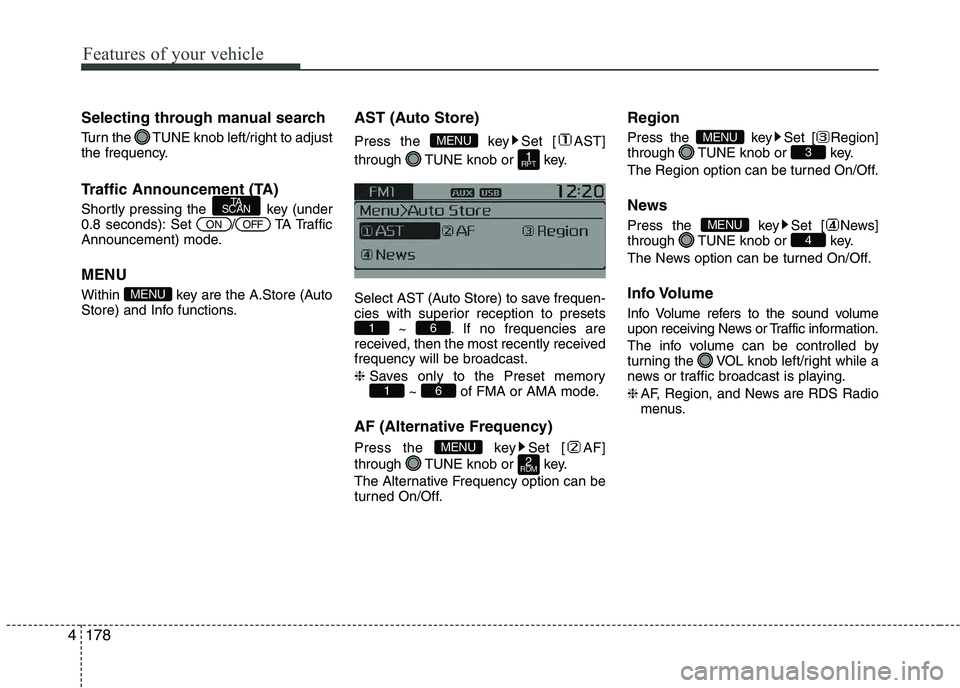
1784Selecting through manual search
Turn the TUNE knob left/right to adjust
the frequency.
Traffic Announcement (TA)
Shortly pressing the key (under
0.8 seconds): Set / TA Traffic
Announcement) mode. MENU
Within key are the A.Store (Auto
Store) and Info functions.
AST (Auto Store)
Press the key Set [ AST]
through TUNE knob or key.
Select AST (Auto Store) to save frequen-
cies with superior reception to presets
~ . If no frequencies are
received, then the most recently receivedfrequency will be broadcast. ❈ Saves only to the Preset memory
~ of FMA or AMA mode.
AF (Alternative Frequency)
Press the key Set [ AF]
through TUNE knob or key.
The Alternative Frequency option can be
turned On/Off. Region
Press the key Set [ Region]
through TUNE knob or key.
The Region option can be turned On/Off.
News
Press the key Set [ News]
through TUNE knob or key.
The News option can be turned On/Off.
Info Volume
Info Volume refers to the sound volume
upon receiving News or Traffic information.
The info volume can be controlled by
turning the VOL knob left/right while a
news or traffic broadcast is playing. ❈
AF, Region, and News are RDS Radio
menus.
4MENU
3MENU
2
RDMMENU
61
61
1
RPT
MENU
MENU
OFFON
TA
SCAN
Page 254 of 488
179
Features of your vehicle
4
RADIO ❈
RADIO may differ depending on the
selected audio.
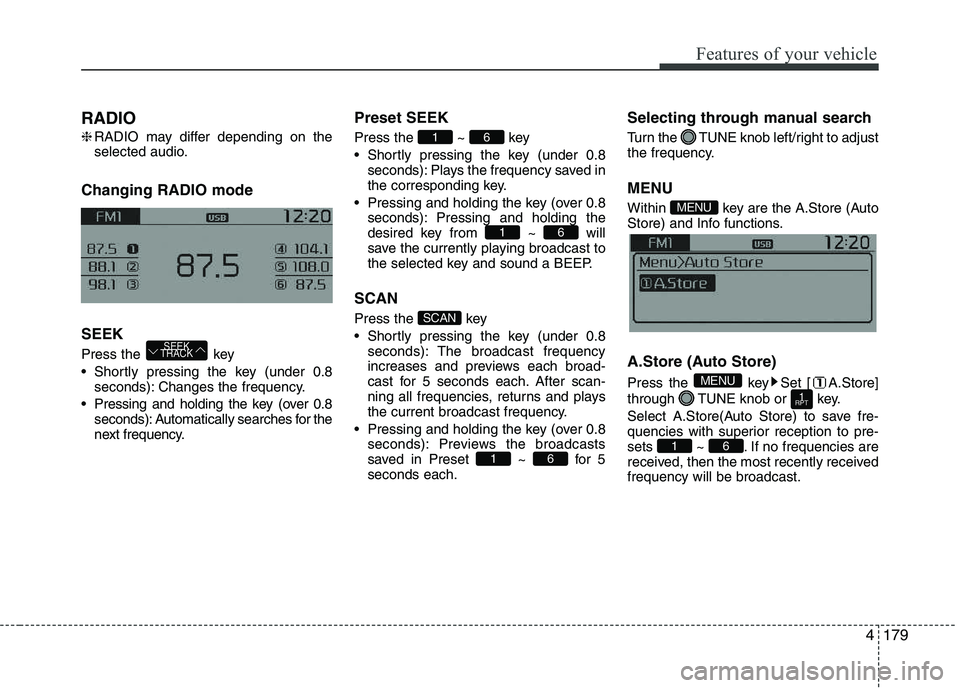
Changing RADIO mode SEEK
Press the key
Shortly pressing the key (under 0.8 seconds): Changes the frequency.
Pressing and holding the key (over 0.8 seconds): Automatically searches for the
next frequency. Preset SEEK Press
the ~ key
Shortly pressing the key (under 0.8 seconds): Plays the frequency saved in
the corresponding key.
Pressing and holding the key (over 0.8 seconds): Pressing and holding thedesired key from ~ will
save the currently playing broadcast to
the selected key and sound a BEEP.
SCAN
Press the key
Shortly pressing the key (under 0.8 seconds): The broadcast frequency
increases and previews each broad-
cast for 5 seconds each. After scan-
ning all frequencies, returns and plays
the current broadcast frequency.
Pressing and holding the key (over 0.8 seconds): Previews the broadcasts
saved in Preset ~ for 5seconds each. Selecting through manual search
Turn the TUNE knob left/right to adjust
the frequency. MENU
Within key are the A.Store (Auto
Store) and Info functions.
A.Store (Auto Store)
Press the key Set [ A.Store]
through TUNE knob or key.
Select A.Store(Auto Store) to save fre-
quencies with superior reception to pre-
sets ~ . If no frequencies are
received, then the most recently receivedfrequency will be broadcast.
61
1
RPT
MENU
MENU
61
SCAN
61
61
SEEK
TRACK
Page 273 of 488
Features of your vehicle
1984❈
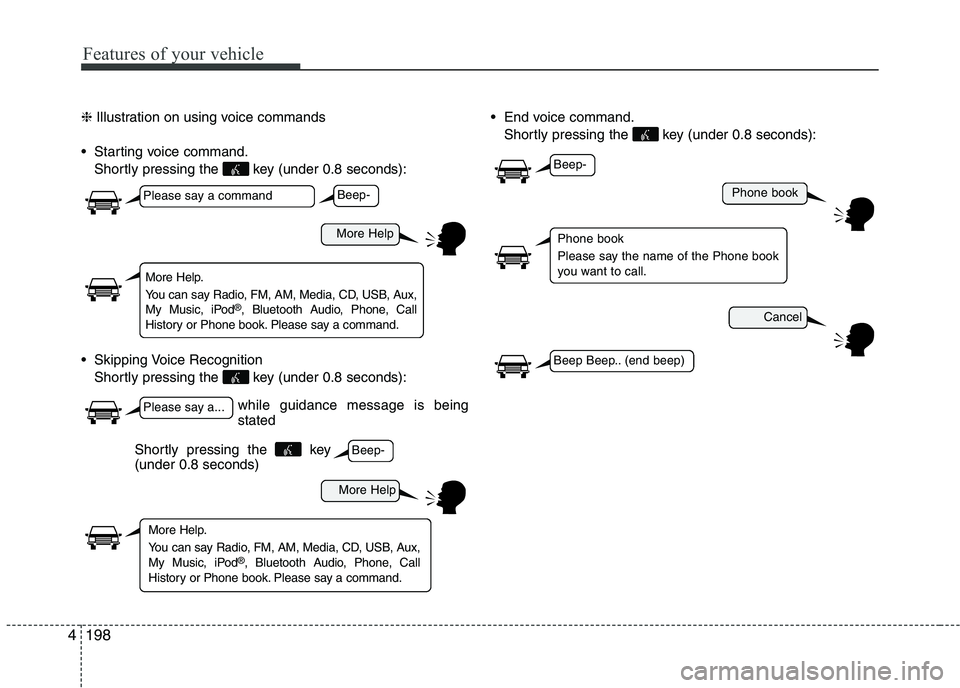
Illustration on using voice commands
Starting voice command. Shortly pressing the key (under 0.8 seconds):
Skipping Voice Recognition Shortly pressing the key (under 0.8 seconds): End voice command.
Shortly pressing the key (under 0.8 seconds):
while guidance message is being stated
More Help
Phone book
Cancel
More Help
Please say a command
Please say a...
More Help.
You can say Radio, FM, AM, Media, CD, USB, Aux,
My Music, iPod ®
, Bluetooth Audio, Phone, Call
History or Phone book. Please say a command.
Phone book
Please say the name of the Phone book
you want to call.
More Help.
You can say Radio, FM, AM, Media, CD, USB, Aux,
My Music, iPod ®
, Bluetooth Audio, Phone, Call
History or Phone book. Please say a command.
Beep-
Beep-
Beep-
Beep Beep.. (end beep)
Shortly pressing the key (under 0.8 seconds)
Page 274 of 488
199
Features of your vehicle
4
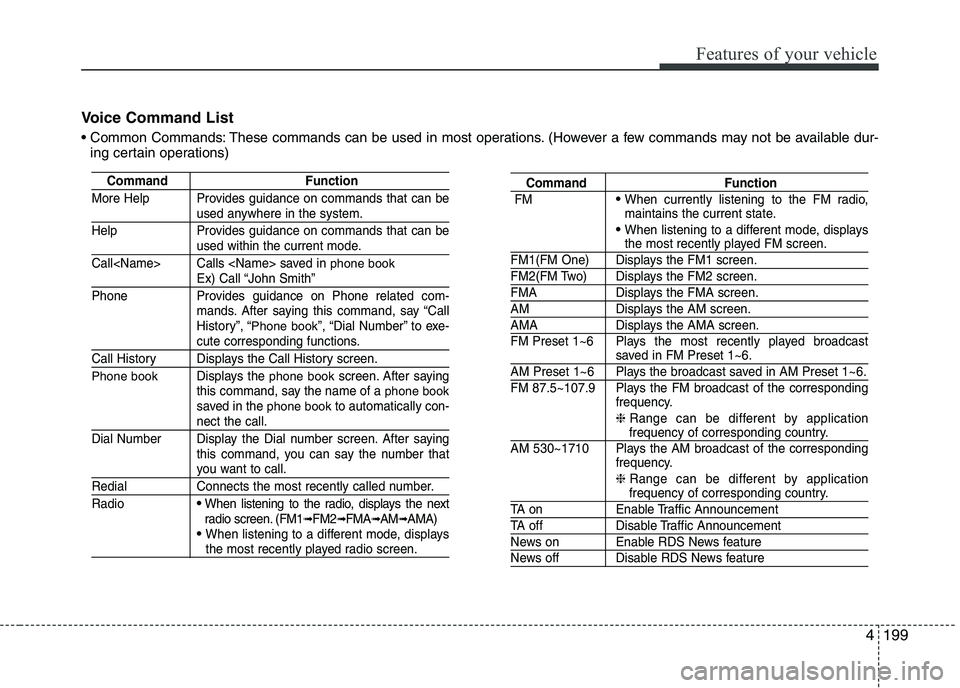
Voice Command List
These commands can be used in most operations. (However a few commands may not be available dur-
ing certain operations)
Command Function
More Help Provides guidance on commands that can be
used anywhere in the system.
Help Provides guidance on commands that can be
used within the current mode.
Call
phone bookEx) Call “John Smith”
Phone Provides guidance on Phone related com- mands. After saying this command, say “Call
History”, “
Phone book”, “Dial Number” to exe-cute corresponding functions.
Call History Displays the Call History screen.
Phone bookDisplays the phone bookscreen. After saying
this command, say the name of a phone booksaved in the phone bookto automatically con-nect the call.
Dial Number Display the Dial number screen. After saying this command, you can say the number that
you want to call.
Redial Connects the most recently called number. Radio
When listening to the radio, displays the next
radio screen. (FM1➟FM2 ➟FMA ➟AM ➟AMA)
When listening to a different mode, displaysthe most recently played radio screen.
Command Function
FM
When currently listening to the FM radio,
maintains the current state.
When listening to a different mode, displaysthe most recently played FM screen.
FM1(FM One) Displays the FM1 screen.
FM2(FM Two) Displays the FM2 screen.
FMA Displays the FMA screen.
AM Displays the AM screen.
AMA Displays the AMA screen.
FM Preset 1~6 Plays the most recently played broadcast
saved in FM Preset 1~6.
AM Preset 1~6 Plays the broadcast saved in AM Preset 1~6.
FM 87.5~107.9 Plays the FM broadcast of the corresponding frequency.
❈ Range can be different by application
frequency of corresponding country.
AM 530~1710 Plays the AM broadcast of the corresponding frequency.
❈ Range can be different by application
frequency of corresponding country.
TA on Enable Traffic Announcement
TA off Disable Traffic Announcement
News on Enable RDS News feature
News off Disable RDS News feature
Page 275 of 488
Features of your vehicle
2004
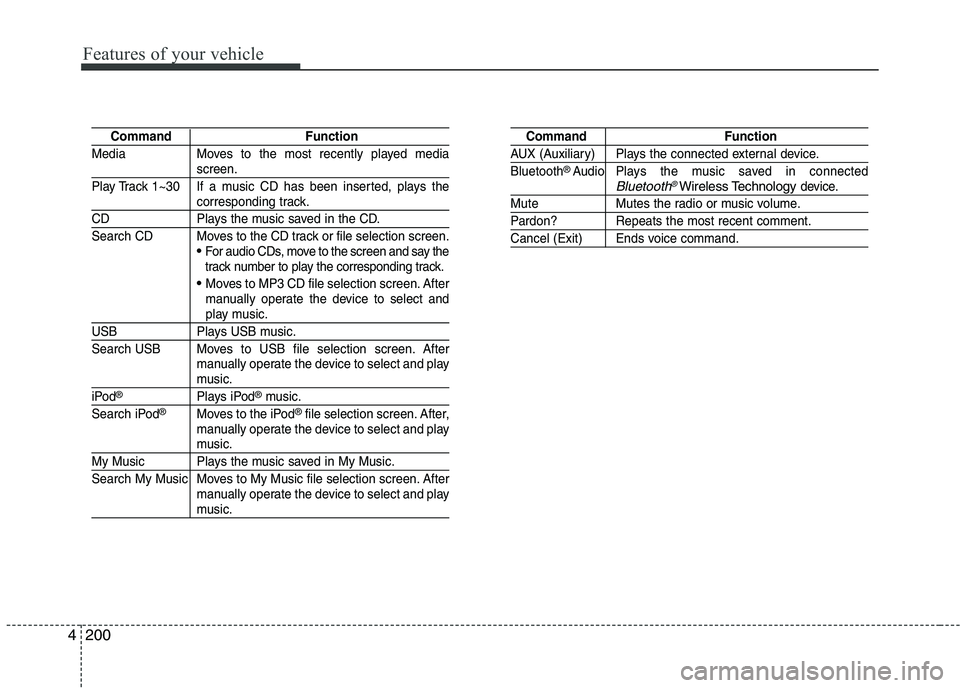
Command Function
Media Moves to the most recently played media
screen.
Play Track 1~30 If a music CD has been inserted, plays the
corresponding track.
CD Plays the music saved in the CD.
Search CD Moves to the CD track or file selection screen.
For audio CDs, move to the screen and say the
track number to play the corresponding track.
Moves to MP3 CD file selection screen. After
manually operate the device to select and
play music.
USB Plays USB music.
Search USB Moves to USB file selection screen. After manually operate the device to select and play
music.
iPod®Plays iPod®music.
Search iPod®Moves to the iPod®file selection screen. After,
manually operate the device to select and play
music.
My Music Plays the music saved in My Music.
Search My Music Moves to My Music file selection screen. After manually operate the device to select and play
music.
Command Function
AUX (Auxiliary) Plays the connected external device. Bluetooth®Audio Plays the music saved in connectedBluetooth®Wireless Technologydevice.
Mute Mutes the radio or music volume.
Pardon? Repeats the most recent comment.
Cancel (Exit) Ends voice command.
Page 276 of 488
201
Features of your vehicle
4
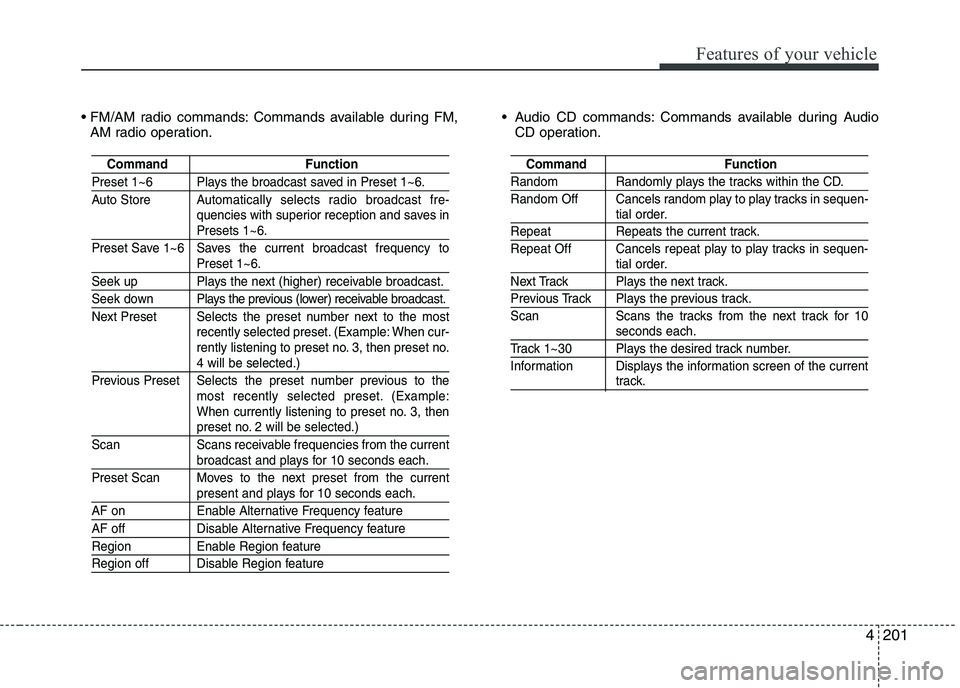
Commands available during FM,
AM radio operation. Audio CD commands: Commands available during Audio
CD operation.
Command Function
Preset 1~6 Plays the broadcast saved in Preset 1~6.
Auto Store A utomatically selects radio broadcast fre-
quencies with superior reception and saves in
Presets 1~6.
Preset Save 1~6 Saves the current broadcast frequency to
Preset 1~6.
Seek up Plays the next (higher) receivable broadcast.
Seek down Plays the previous (lower) receivable broadcast.
Next Preset Selects the preset number next to the most recently selected preset. (Example: When cur-
rently listening to preset no. 3, then preset no.
4 will be selected.)
Previous Preset Selects the preset number previous to the most recently selected preset. (Example:
When currently listening to preset no. 3, then
preset no. 2 will be selected.)
Scan Scans receivable frequencies from the current
broadcast and plays for 10 seconds each.
Preset Scan Moves to the next preset from the current
present and plays for 10 seconds each.
AF on Enable Alternative Frequency feature
AF off Disable Alternative Frequency feature
Region Enable Region feature
Region off Disable Region feature
Command Function
Random Randomly plays the tracks within the CD.
Random Off Cancels random play to play tracks in sequen-
tial order.
Repeat Repeats the current track.
Repeat Off Cancels repeat play to play tracks in sequen-
tial order.
Next Track Plays the next track.
Previous Track Plays the previous track.
Scan Scans the tracks from the next track for 10
seconds each.
Track 1~30 Plays the desired track number.
Information Displays the information screen of the current
track.
Page 279 of 488
Features of your vehicle
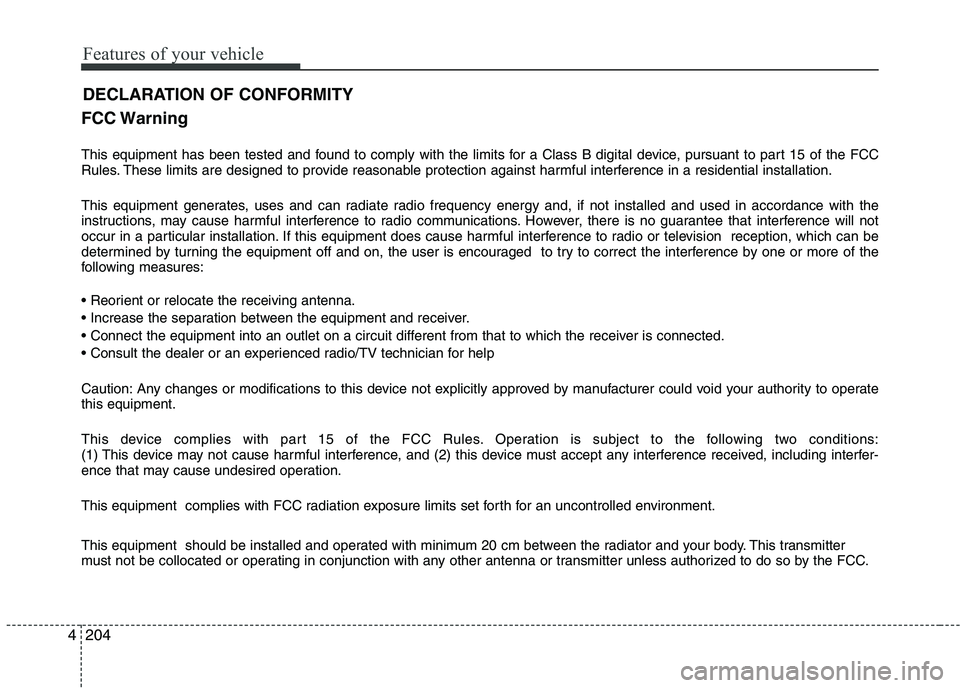
2044FCC Warning
This equipment has been tested and found to comply with the limits for a Class B digital device, pursuant to part 15 of the FCC
Rules. These limits are designed to provide reasonable protection against harmful interference in a residential installation.
This equipment generates, uses and can radiate radio frequency energy and, if not installed and used in accordance with the
instructions, may cause harmful interference to radio communications. However, there is no guarantee that interference will not
occur in a particular installation. If this equipment does cause harmful interference to radio or television reception, which c
an be
determined by turning the equipment off and on, the user is encouraged to try to correct the interference by one or more of th e
following measures:
Caution: Any changes or modifications to this device not explicitly approved by manufacturer could void your authority to operat e
this equipment.
This device complies with part 15 of the FCC Rules. Operation is subject to the following two conditions:
(1) This device may not cause harmful interference, and (2) this device must accept any interference received, including interf er-
ence that may cause undesired operation.
This equipment complies with FCC radiation exposure limits set forth for an uncontrolled environment.
This equipment should be installed and operated with minimum 20 cm between the radiator and your body. This transmitter
must not be collocated or operating in conjunction with any other antenna or transmitter unless authorized to do so by the FCC. DECLARATION OF CONFORMITY
Page 371 of 488
627
What to do in an emergency
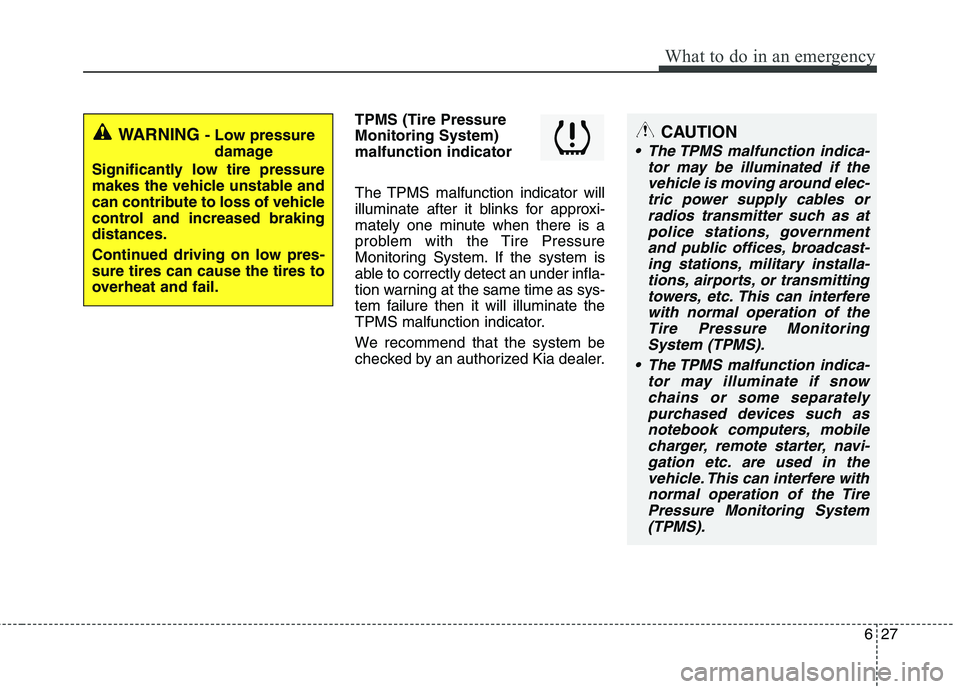
TPMS (Tire Pressure Monitoring System)malfunction indicator
The TPMS malfunction indicator will
illuminate after it blinks for approxi-
mately one minute when there is a
problem with the Tire Pressure
Monitoring System. If the system is
able to correctly detect an under infla-
tion warning at the same time as sys-
tem failure then it will illuminate the
TPMS malfunction indicator.
We recommend that the system be
checked by an authorized Kia dealer.
WARNING - Low pressure
damage
Significantly low tire pressure
makes the vehicle unstable and
can contribute to loss of vehicle
control and increased brakingdistances.
Continued driving on low pres- sure tires can cause the tires to
overheat and fail.CAUTION
The TPMS malfunction indica- tor may be illuminated if thevehicle is moving around elec- tric power supply cables orradios transmitter such as atpolice stations, government and public offices, broadcast-ing stations, military installa-tions, airports, or transmitting towers, etc. This can interferewith normal operation of theTire Pressure MonitoringSystem (TPMS).
The TPMS malfunction indica- tor may illuminate if snowchains or some separatelypurchased devices such asnotebook computers, mobile charger, remote starter, navi-gation etc. are used in thevehicle. This can interfere with normal operation of the TirePressure Monitoring System(TPMS).