clock KIA RIO 2017 User Guide
[x] Cancel search | Manufacturer: KIA, Model Year: 2017, Model line: RIO, Model: KIA RIO 2017Pages: 449, PDF Size: 14.88 MB
Page 228 of 449
![KIA RIO 2017 User Guide Features of your vehicle
4157
Pairing through [PHONE] Setup
Press the key Select
[Phone] Select [Pair Phone] Select TUNE knob
1. The following steps are the same as those described in the section "W](/img/2/40419/w960_40419-227.png "KIA RIO 2017 User Guide Features of your vehicle
4157
Pairing through [PHONE] Setup
Press the key Select
[Phone] Select [Pair Phone] Select TUNE knob
1. The following steps are the same as those described in the section \"W")
Features of your vehicle
4157
Pairing through [PHONE] Setup
Press the key Select
[Phone] Select [Pair Phone] Select TUNE knob
1. The following steps are the same as those described in the section "When
No Devices have been Paired" on the
previous page.
Bluetooth®Wireless Technology fea-
tures supported within the vehicle are
as follows. Some features may not be
supported depending on your
Bluetooth®Wireless Technology
device.
- Outgoing/Incoming Handsfree calls
- Operations during a call (Switch to Private, Switch to call waiting, MIC
on/off)
- Downloading Call History
- Downloading Mobile Contacts
-
Bluetooth®Wireless Technology
device auto connection
- Bluetooth Audio Streaming
Up to five
Bluetooth®Wireless
Technology devices can be paired to
the Car Handsfree system.
Only one
Bluetooth®device can be
connected at a time.
Only one
Bluetooth®Wireless
Technology device can be connected
at a time.
Other devices cannot be paired while a
Bluetooth®Wireless Technology device
is connected. Only
Bluetooth®Wireless Technology
Handsfree and Bluetooth audio related
features are supported.
Bluetooth related operations are possi- ble only within devices that support
Handsfree or audio features, such as a
Bluetooth®Wireless Technology mobile
phone or a Bluetooth audio device.
If a connected
Bluetooth®Wireless
Technology device becomes discon-
nected due to being out of communica-
tion range, turning the device OFF, or a
Bluetooth®Wireless Technology com-
munication error, corresponding
Bluetooth®Wireless Technology
devices are automatically searched
and reconnected.
If the system becomes unstable due to communication errors between the car
Handsfree and the
Bluetooth®Wireless
Technology device, reset the device by
turning off and back on again. Upon
resetting
Bluetooth®Wireless
Technology device, the system will be
restored.
SETUP/CLOCK
Page 229 of 449
Features of your vehicle
158
4
After pairing is complete, a contacts
download request is sent once to the
mobile phone. Some mobile phones
may require confirmation upon receiv-
ing a download request, ensure your
mobile phone accepts the connection.
Refer to your phones user’s manual for
additional information regarding phone
pairing and connections.Connecting a Device
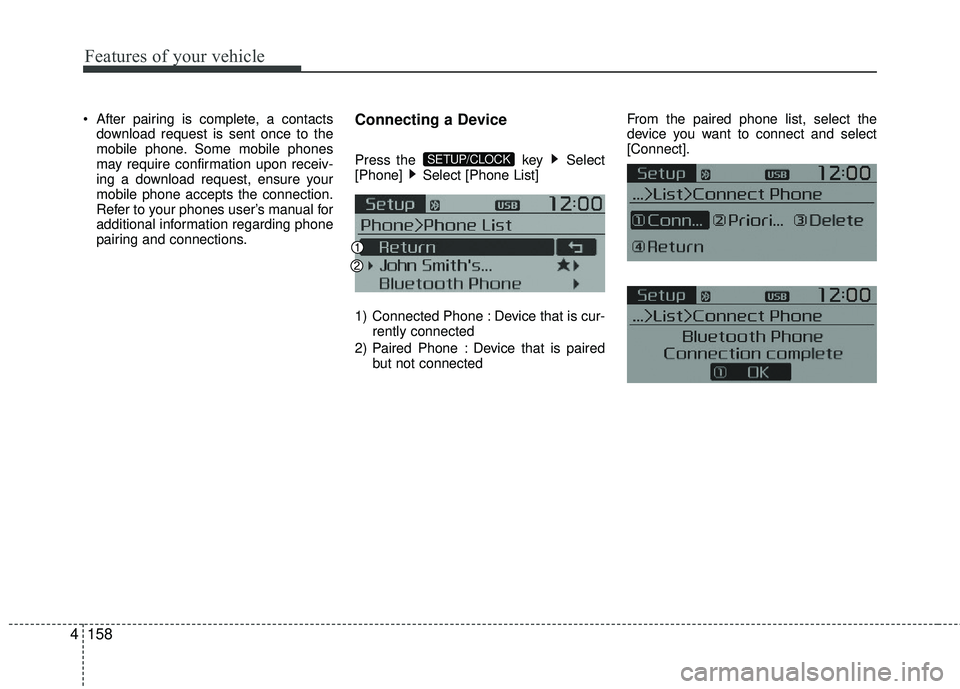
Press the key Select
[Phone] Select [Phone List]
1) Connected Phone : Device that is cur- rently connected
2) Paired Phone : Device that is paired but not connected From the paired phone list, select the
device you want to connect and select
[Connect].SETUP/CLOCK
Page 230 of 449
Features of your vehicle
4159
Changing Priority
What is Priority?
It is possible to pair up to five Bluetooth®
Wireless Technology deviceswith the car
audio system. The "Change Priority" fea-
ture is used to set the connection priority
of paired phones.
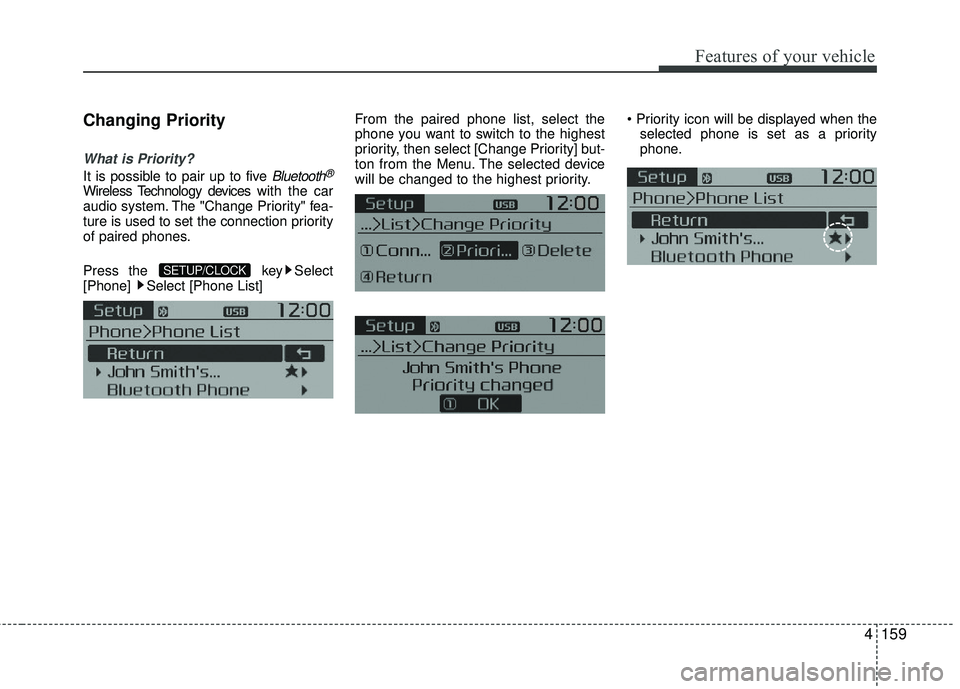
Press the key Select
[Phone] Select [Phone List] From the paired phone list, select the
phone you want to switch to the highest
priority, then select [Change Priority] but-
ton from the Menu. The selected device
will be changed to the highest priority.
selected phone is set as a priority
phone.
SETUP/CLOCK
Page 231 of 449
![KIA RIO 2017 User Guide Features of your vehicle
160
4 Disconnecting a Device
Press the
key Select
[Phone] Select [Phone List]
From the paired phone list, select the
currently connected device and select
[Disconnect] button](/img/2/40419/w960_40419-230.png "KIA RIO 2017 User Guide Features of your vehicle
160
4 Disconnecting a Device
Press the
key Select
[Phone] Select [Phone List]
From the paired phone list, select the
currently connected device and select
[Disconnect] button")
Features of your vehicle
160
4 Disconnecting a Device
Press the
key Select
[Phone] Select [Phone List]
From the paired phone list, select the
currently connected device and select
[Disconnect] button.
Deleting a Device
Press the key Select
[Phone] Select [Phone List]
From the paired phone list, select the
device you want to delete and select
[Delete] button. When deleting the currently connected
device, the device will automatically be
disconnected to proceed with the
deleting process.
If a paired
Bluetooth®Wireless
Technology device is deleted, the
device’s call history and contacts data
will also be deleted.
To re-use a deleted device, you must pair the device again.
SETUP/CLOCKSETUP/CLOCK
Page 235 of 449
Features of your vehicle
164
4
Bluetooth®Wireless Technology
Setting
The Bluetooth®word mark and logos are
registered trademarks owned by
Bluetooth SIG, Inc. and any use of such
marks by Kia is under license. Other
trademarks and trade names are those
of their respective owners. A Bluetooth
®
enabled cell phone is required to useBluetooth®Wireless Technology.
Pairing a New Device
Press the key Select
[Phone] Select [Pair Phone]
Bluetooth®Wireless Technology devices
can be paired with the audio system.
For more information, refer to the “Pairing
through Phone Setup” section within
Bluetooth®Wireless Technology.
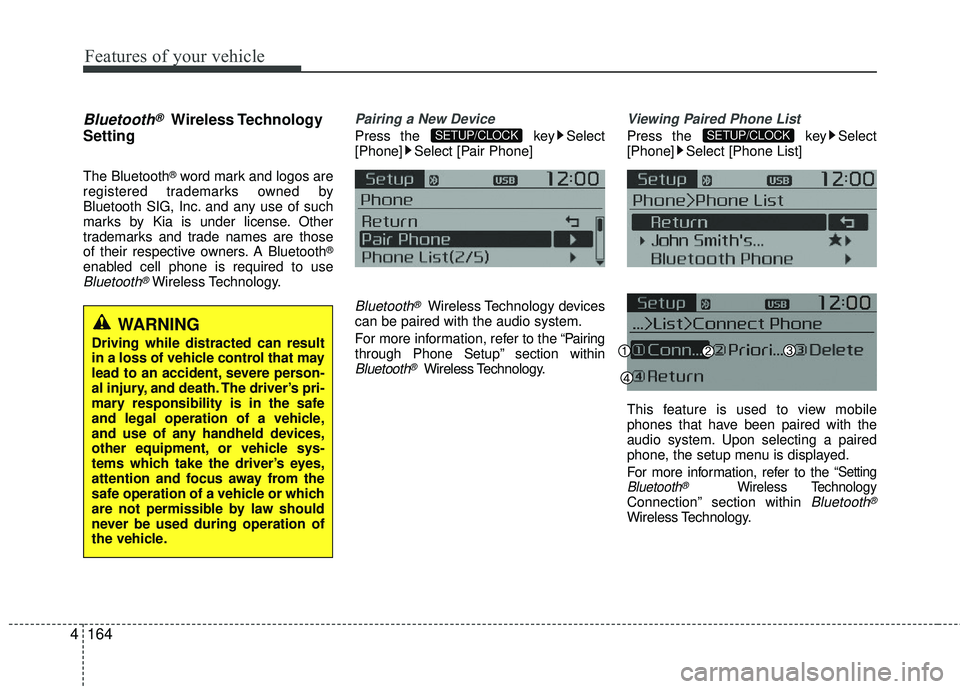
Viewing Paired Phone List
Press the key Select
[Phone] Select [Phone List]
This feature is used to view mobile
phones that have been paired with the
audio system. Upon selecting a paired
phone, the setup menu is displayed.
For more information, refer to the
“SettingBluetooth®Wireless TechnologyConnection” section within Bluetooth®
Wireless Technology.
SETUP/CLOCKSETUP/CLOCK
WARNING
Driving while distracted can result
in a loss of vehicle control that may
lead to an accident, severe person-
al injury, and death. The driver’s pri-
mary responsibility is in the safe
and legal operation of a vehicle,
and use of any handheld devices,
other equipment, or vehicle sys-
tems which take the driver’s eyes,
attention and focus away from the
safe operation of a vehicle or which
are not permissible by law should
never be used during operation of
the vehicle.
Page 236 of 449
Features of your vehicle
4165
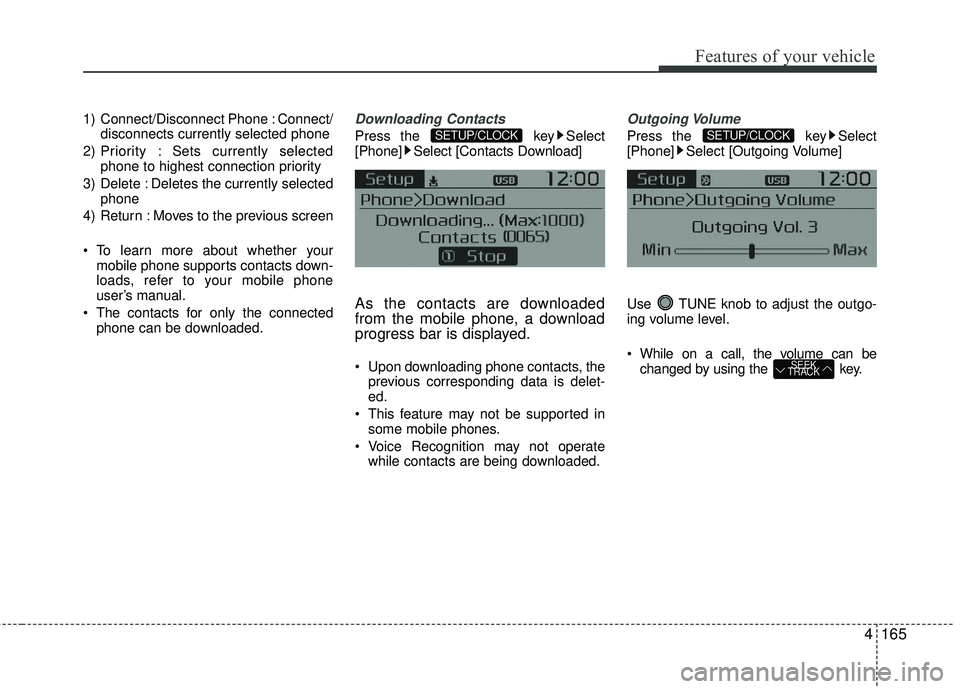
1) Connect/Disconnect Phone : Connect/disconnects currently selected phone
2) Priority : Sets currently selected phone to highest connection priority
3) Delete : Deletes the currently selected phone
4) Return : Moves to the previous screen
To learn more about whether your mobile phone supports contacts down-
loads, refer to your mobile phone
user’s manual.
The contacts for only the connected phone can be downloaded.Downloading Contacts
Press the key Select
[Phone] Select [Contacts Download]
As the contacts are downloaded
from the mobile phone, a download
progress bar is displayed.
Upon downloading phone contacts, the previous corresponding data is delet-
ed.
This feature may not be supported in some mobile phones.
Voice Recognition may not operate while contacts are being downloaded.
Outgoing Volume
Press the key Select
[Phone] Select [Outgoing Volume]
Use TUNE knob to adjust the outgo-
ing volume level.
While on a call, the volume can be changed by using the key.
SEEK
TRACK
SETUP/CLOCKSETUP/CLOCK
Page 237 of 449
![KIA RIO 2017 User Guide Features of your vehicle
166
4
Turning Bluetooth System Off
Press the key Select
[Phone] Select [Bluetooth System Off]
Once
Bluetooth®Wireless Technology is
turned off, Bluetooth®Wireless
Technolo](/img/2/40419/w960_40419-236.png "KIA RIO 2017 User Guide Features of your vehicle
166
4
Turning Bluetooth System Off
Press the key Select
[Phone] Select [Bluetooth System Off]
Once
Bluetooth®Wireless Technology is
turned off, Bluetooth®Wireless
Technolo")
Features of your vehicle
166
4
Turning Bluetooth System Off
Press the key Select
[Phone] Select [Bluetooth System Off]
Once
Bluetooth®Wireless Technology is
turned off, Bluetooth®Wireless
Technology related features will not be
supported within the audio system.
To turn
Bluetooth®Wireless Technology
back on, go to
[Phone] and select “Yes”.SETUP/CLOCK
SETUP/CLOCK
Page 238 of 449
![KIA RIO 2017 User Guide Features of your vehicle
4167
VOICE RECOGNITION
Using Voice Recognition
Starting Voice Recognition
Shortly press the key on the steer-
ing wheel. Say a command.
If prompt feedback is in [ON], then](/img/2/40419/w960_40419-237.png "KIA RIO 2017 User Guide Features of your vehicle
4167
VOICE RECOGNITION
Using Voice Recognition
Starting Voice Recognition
Shortly press the key on the steer-
ing wheel. Say a command.
If prompt feedback is in [ON], then")
Features of your vehicle
4167
VOICE RECOGNITION
Using Voice Recognition
Starting Voice Recognition
Shortly press the key on the steer-
ing wheel. Say a command.
If prompt feedback is in [ON], then the
system will say “Please say a command
after the beep (BEEP)”
If prompt feedback is in [OFF] mode,then the system will only say “(BEEP)”
To change Prompt Feedback [On]/[Off], go to
[System] [Prompt Feedback]
For proper recognition, say the com- mand after the voice instruction and
beep tone.
Contact List Best Practices
1) Use full names vs. short or singlesylla- ble names (“John Smith” vs. “Dad”,
“Smith Residence” vs. “Home”)
2) Avoid using special characters or hyphens (@, &, #, /, -, *, +, etc.)
3) Avoid using acronyms (“In Case Emergency” vs. “ICE”)
4) Spell words completely, no abbrevia- tions (“Doctor Goodman” vs. “Dr.
Goodman”)
Skipping Prompt Messages
While prompt message is being stated
Shortly press the key on the steer-
ing remote controller
The prompt message is immediately
ended and the beep tone will sound.
After the “beep”, say the voice command.
Re-starting Voice Recognition
While system waits for a command
Shortly press the key on the steer-
ing remote controller
The command wait state is immediately
ended and the beep tone will sound.
After the “beep”, say the voice command.
SETUP/CLOCK
Page 320 of 449
615
What to do in an emergency
Do not allow anyone to remain in the
vehicle while it is on the jack.
Make sure any children present are
in a secure place away from the road
and from the vehicle to be raised with
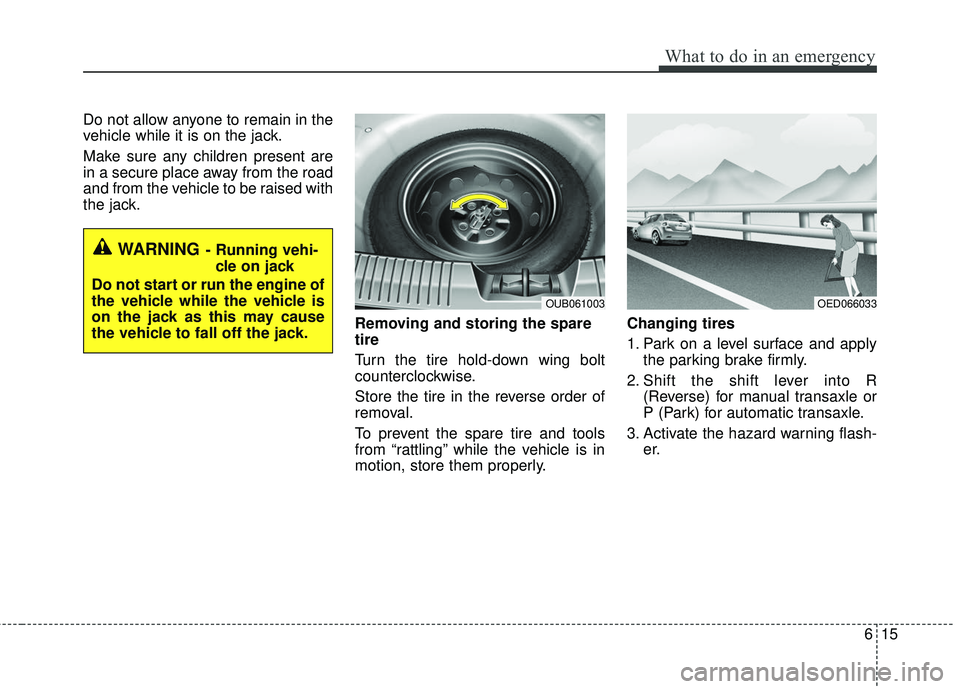
the jack.Removing and storing the spare
tire
Turn the tire hold-down wing bolt
counterclockwise.
Store the tire in the reverse order of
removal.
To prevent the spare tire and tools
from “rattling” while the vehicle is in
motion, store them properly.Changing tires
1. Park on a level surface and apply
the parking brake firmly.
2. Shift the shift lever into R (Reverse) for manual transaxle or
P (Park) for automatic transaxle.
3. Activate the hazard warning flash- er.
OED066033
WARNING- Running vehi-
cle on jack
Do not start or run the engine of
the vehicle while the vehicle is
on the jack as this may cause
the vehicle to fall off the jack.
OUB061003
Page 321 of 449
What to do in an emergency
16
6
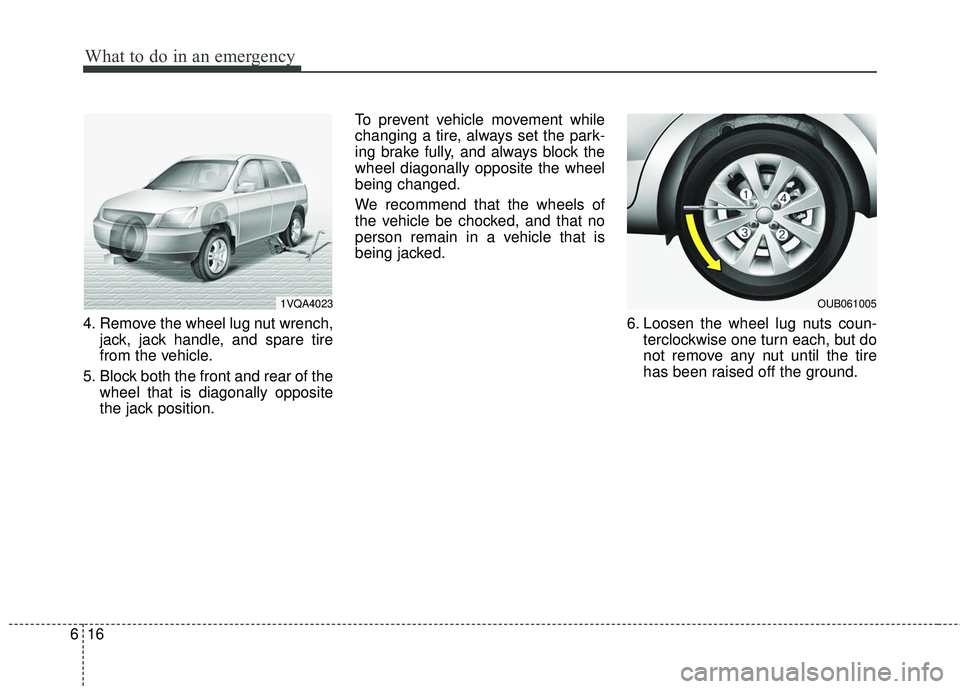
4. Remove the wheel lug nut wrench,
jack, jack handle, and spare tire
from the vehicle.
5. Block both the front and rear of the wheel that is diagonally opposite
the jack position. To prevent vehicle movement while
changing a tire, always set the park-
ing brake fully, and always block the
wheel diagonally opposite the wheel
being changed.
We recommend that the wheels of
the vehicle be chocked, and that no
person remain in a vehicle that is
being jacked.
6. Loosen the wheel lug nuts coun-terclockwise one turn each, but do
not remove any nut until the tire
has been raised off the ground.
1VQA4023OUB061005