steering KIA RIO 2017 Owner's Manual
[x] Cancel search | Manufacturer: KIA, Model Year: 2017, Model line: RIO, Model: KIA RIO 2017Pages: 449, PDF Size: 14.88 MB
Page 144 of 449
473
Features of your vehicle
Battery saver function
The purpose of this feature is to pre-vent the battery from being dis-
charged. The system automatically
turns off the parking lights when the
driver removes the ignition key and
opens the driver- side door.
With this feature, the parking lights will turn off automatically if the driver parks
on the side of the road at night.
If necessary, to keep the lights on
when the ignition key is removed, per-
form the following :
1) Open the driver-side door.
2) Turn the parking lights OFF and ON again using the light switch on the
steering column.
Daytime running light
Daytime Running Lights (DRL) may help
make it easier for others to see the front
of your vehicle during the day. DRL can
be helpful in many different driving condi-
tions, and it is especially helpful after
dawn and before sunset.
The DRL system turns OFF when:
1. The front fog light or headlight (lowbeam) switch is ON.
2. The engine is OFF.
3. The parking brake is applied.
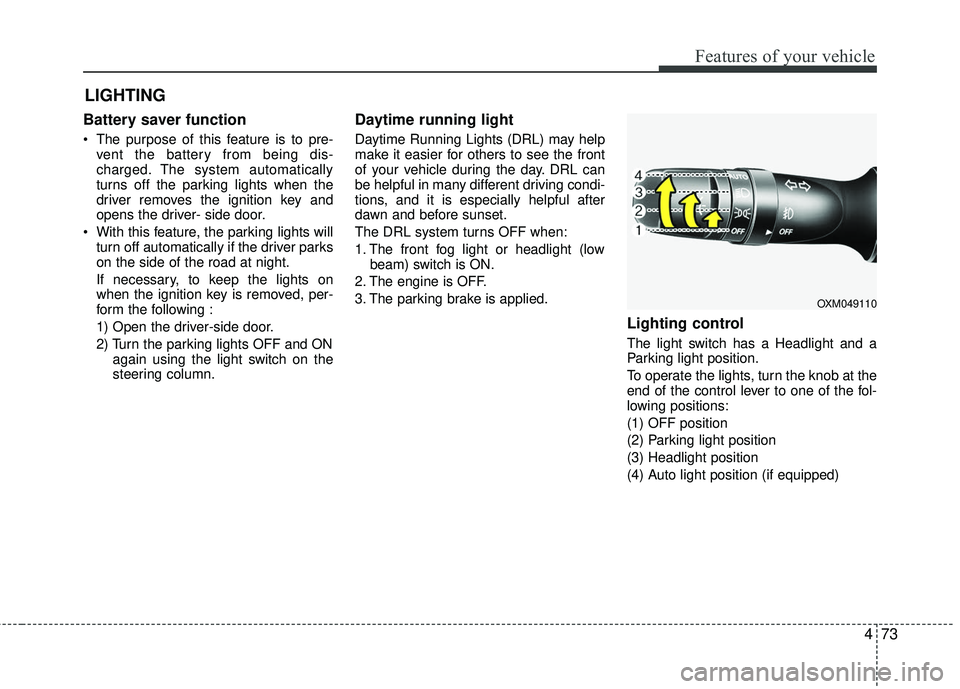
Lighting control
The light switch has a Headlight and a
Parking light position.
To operate the lights, turn the knob at the
end of the control lever to one of the fol-
lowing positions:
(1) OFF position
(2) Parking light position
(3) Headlight position
(4) Auto light position (if equipped)
LIGHTING
OXM049110
Page 193 of 449
Features of your vehicle
122
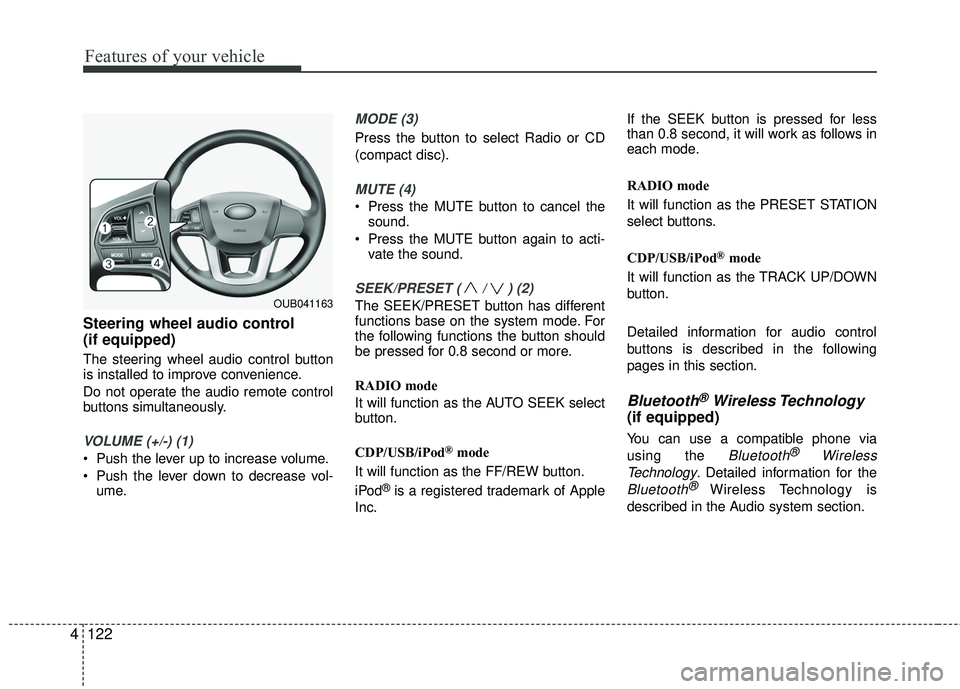
4 Steering wheel audio control
(if equipped)
The steering wheel audio control button
is installed to improve convenience.
Do not operate the audio remote control
buttons simultaneously.
VOLUME (+/-) (1)
Push the lever up to increase volume.
Push the lever down to decrease vol-
ume.
MODE (3)
Press the button to select Radio or CD
(compact disc).
MUTE (4)
Press the MUTE button to cancel thesound.
Press the MUTE button again to acti- vate the sound.
SEEK/PRESET ( / ) (2)
The SEEK/PRESET button has different
functions base on the system mode. For
the following functions the button should
be pressed for 0.8 second or more.
RADIO mode
It will function as the AUTO SEEK select
button.
CDP/USB/iPod
®mode
It will function as the FF/REW button.
iPod
®is a registered trademark of Apple
Inc. If the SEEK button is pressed for less
than 0.8 second, it will work as follows in
each mode.
RADIO mode
It will function as the PRESET STATION
select buttons.
CDP/USB/iPod
®mode
It will function as the TRACK UP/DOWN
button.
Detailed information for audio control
buttons is described in the following
pages in this section.
Bluetooth®Wireless Technology
(if equipped)
You can use a compatible phone via
using the
Bluetooth®Wireless
Technology
. Detailed information for the
Bluetooth® Wireless Technology is
described in the Audio system section.
OUB041163
Page 212 of 449
![KIA RIO 2017 Owners Manual Features of your vehicle
4141
CLOCK SETTINGS
Press the key Select
[Clock] through TUNE knob or
key Select menu through TUNE knob
Clock Settings
This menu is used to set the time.
Select [Clock Sett](/img/2/40419/w960_40419-211.png "KIA RIO 2017 Owners Manual Features of your vehicle
4141
CLOCK SETTINGS
Press the key Select
[Clock] through TUNE knob or
key Select menu through TUNE knob
Clock Settings
This menu is used to set the time.
Select [Clock Sett")
Features of your vehicle
4141
CLOCK SETTINGS
Press the key Select
[Clock] through TUNE knob or
key Select menu through TUNE knob
Clock Settings
This menu is used to set the time.
Select [Clock Settings] Set through
TUNE knob Press TUNE knob
❈ Adjust the number currently in focus to
set the [hour] and press the tune knob
to set the [minute] and [AM/PM].
Calendar Settings
This menu is used to set the date.
Select [Calendar Settings] Set through
TUNE knob Press TUNE knob
❈ Adjust the number currently in focus to
make the settings and press the tune
knob to move to the next setting.
Time Format
This function is used to set the 12/24
hour time format of the audio system.
Select [Time Format] Set 12Hr / 24Hr
through TUNE knob.
Clock Display when Power is OFF
Select [Clock Disp.(Pwr Off)] Set /through TUNEknob
: Displays time/date on screen
: Turn off.
Off
On
OffOn
3
SETUP/CLOCK
WARNING- Clock Setting Distraction
Do not adjust the clock while driv-
ing. You may lose your steering
control and cause severe personal
injury or accidents.
Page 225 of 449
Features of your vehicle
154
4
PHONE
Before using the Bluetooth®Wireless
Technology phone features
Bluetooth®Wireless
Technology phone, you must first pair
and connect the
Bluetooth®Wireless
Technology mobile phone.
If the mobile phone is not paired or connected, it is not possible to enter
Phone mode. Once a phone is paired
or connected, the guidance screen will
be displayed.
If Priority is set upon vehicle ignition (IGN/ACC ON), the
Bluetooth®
Wireless Technology phone will be
automatically connected. Even if you
are outside, the
Bluetooth®Wireless
Technology phone will be automatically
connected once you are in the vicinity
of the vehicle. If you do not want auto-
matic
Bluetooth®Wireless Technology
phone connection, set the Bluetooth®
Wireless Technology power to OFF.
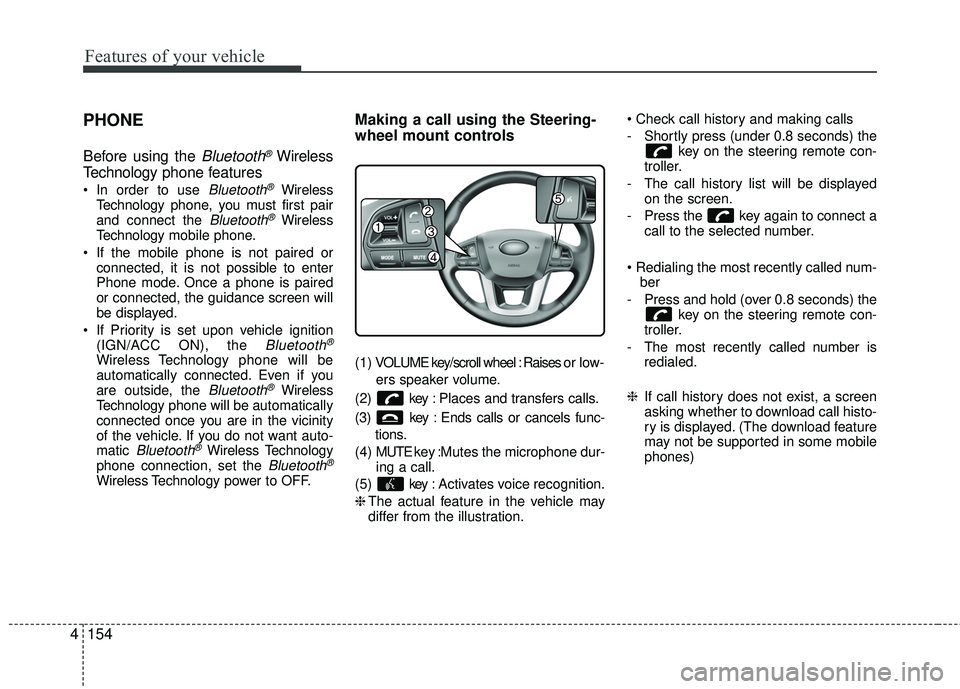
Making a call using the Steering-
wheel mount controls
( 1 ) VOLUME key/scroll wheel : Raises o r l ow -
ers speaker volume.
(2) key : Places and transfers calls.
(3) key : Ends calls or cancels func- tions.
(4) MUTE key : Mutes the microphone dur-
ing a call.
(5) key : Activates voice recognition.
❈ The actual feature in the vehicle may
differ from the illustration.
- Shortly press (under 0.8 seconds) the
key on the steering remote con-
troller.
- The call history list will be displayed on the screen.
- Press the key again to connect a call to the selected number.
ber
- Press and hold (over 0.8 seconds) the key on the steering remote con-
troller.
- The most recently called number is redialed.
❈ If call history does not exist, a screen
asking whether to download call histo-
ry is displayed. (The download feature
may not be supported in some mobile
phones)
Page 226 of 449
Features of your vehicle
4155
Bluetooth®Wireless Technology
Pairing a
Bluetooth®Wireless
Technology Device
What is Bluetooth®Wireless
Technology Pairing?
Pairing refers to the process of synchro-
nizing your Bluetooth®Wireless
Technology phone or device with the car
audio system for connection. Pairing is
necessary to connect and use the
Bluetooth®Wireless Technology feature.
The Bluetooth®word mark and logos are
registered trademarks owned by
Bluetooth SIG, Inc. and any use of such
marks by Kia is under license. Other
trademarks and trade names are those
of their respective owners. A Bluetooth
®
enabled cell phone is required to useBluetooth®Wireless Technology
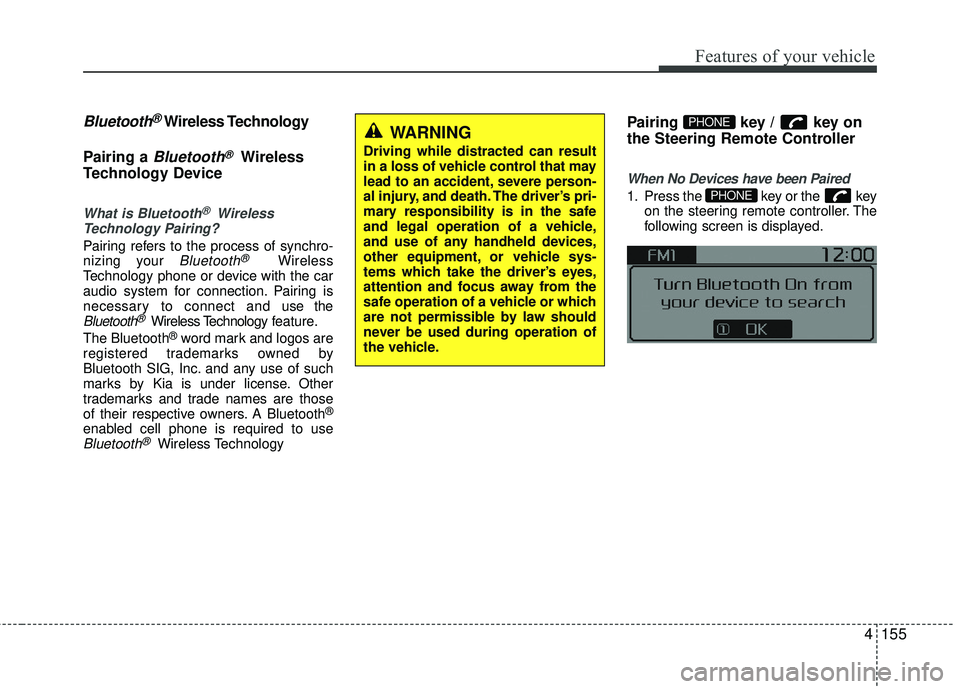
Pairing key / key on
the Steering Remote Controller
When No Devices have been Paired
1. Press the key or the key on the steering remote controller. The
following screen is displayed.PHONE
PHONEWARNING
Driving while distracted can result
in a loss of vehicle control that may
lead to an accident, severe person-
al injury, and death. The driver’s pri-
mary responsibility is in the safe
and legal operation of a vehicle,
and use of any handheld devices,
other equipment, or vehicle sys-
tems which take the driver’s eyes,
attention and focus away from the
safe operation of a vehicle or which
are not permissible by law should
never be used during operation of
the vehicle.
Page 227 of 449
![KIA RIO 2017 Owners Manual Features of your vehicle
156
4
2. Select [OK] button to enter the Pair
Phone screen.
1) Vehicle Name : Name of device as shown when searching from your
Bluetooth®Wireless Technology
device
2) Passkey](/img/2/40419/w960_40419-226.png "KIA RIO 2017 Owners Manual Features of your vehicle
156
4
2. Select [OK] button to enter the Pair
Phone screen.
1) Vehicle Name : Name of device as shown when searching from your
Bluetooth®Wireless Technology
device
2) Passkey")
Features of your vehicle
156
4
2. Select [OK] button to enter the Pair
Phone screen.
1) Vehicle Name : Name of device as shown when searching from your
Bluetooth®Wireless Technology
device
2) Passkey : Passkey used to pair the device
3. From your
Bluetooth®Wireless
Technology device (i.e. Mobile
Phone), search and select your car
audio system.
[Non SSP supported device]
(SSP: Secure Simple Pairing)
4. After a few moments, a screen is dis- played where the passkey is entered.
Hear, enter the passkey "0000" to pair
your
Bluetooth®Wireless Technology
device with the car audio system. [SSP supported device]
4. After a few moments, a screen is dis-
played 6 digits passkey. Hear, check
the passkey on your
Bluetooth®
Wireless Technology device and con-
firm.
5. Once pairing is complete, the follow- ing screen is displayed.
Some phones (i.e., iPhone
®, Android TMand
Blackberry®phones) may offer an option
to allow acceptance of all future Bluetooth connection requests
by default." and "Visit http://www.kia.com/us/en/content/owners/bluetoothfor
additional information on pairing your
Bluetooth-enabled mobile phone, and to
view a phone compatibility list. If
Bluetooth®Wireless Technology
devices are paired but none are cur-
rently connected, pressing the key or the key on the
steering wheel displays the following
screen. Select [Pair] button to pair a
new device or select [Connect] to connect
a previously paired device.
PHONE
Page 232 of 449
Features of your vehicle
4161
USING Bluetooth®Wireless
Technology
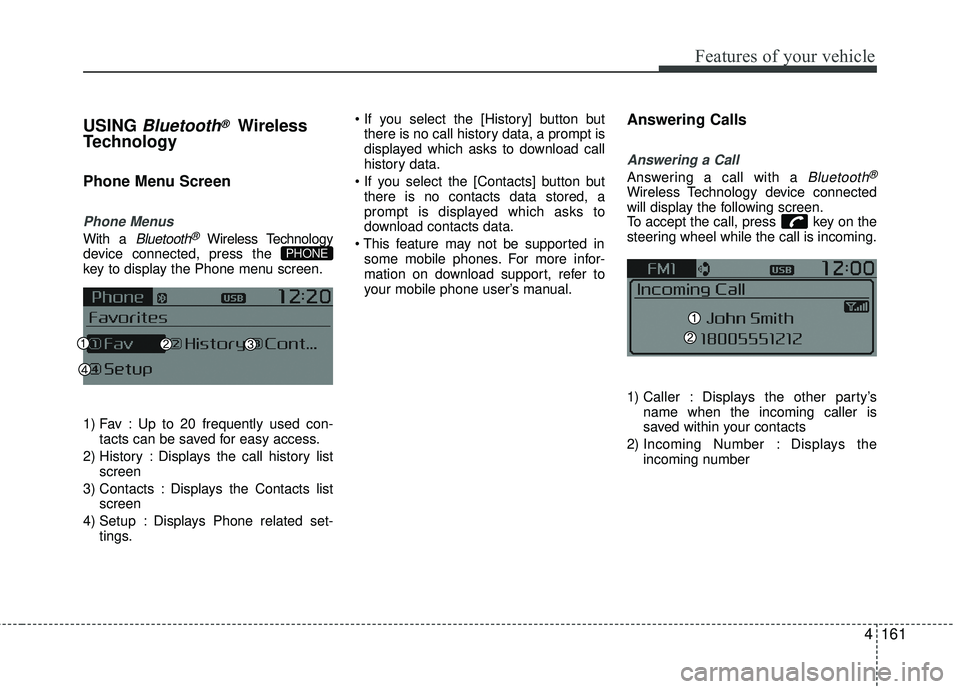
Phone Menu Screen
Phone Menus
With a Bluetooth®Wireless Technology
device connected, press the
key to display the Phone menu screen.
1) Fav : Up to 20 frequently used con- tacts can be saved for easy access.
2) History : Displays the call history list screen
3) Contacts : Displays the Contacts list screen
4) Setup : Displays Phone related set- tings.
there is no call history data, a prompt is
displayed which asks to download call
history data.
there is no contacts data stored, a
prompt is displayed which asks to
download contacts data.
some mobile phones. For more infor-
mation on download support, refer to
your mobile phone user’s manual.
Answering Calls
Answering a Call
Answering a call with a Bluetooth®
Wireless Technology device connected
will display the following screen.
To accept the call, press key on the
steering wheel while the call is incoming.
1) Caller : Displays the other party’s name when the incoming caller is
saved within your contacts
2) Incoming Number : Displays the incoming number
PHONE
Page 239 of 449
Features of your vehicle
168
4
ENDING VOICE RECOGNITION
While Voice Recognition is operating
Press and hold the key on the steer-
ing remote controller
any steering wheel control or a different
key will end voice command.
command, say “cancel” or “end” to end
voice command.
command, press and hold the key
on the steering wheel to end voice com-
mand.
Voice Recognition and Phone
Contact Tips:
The Kia Voice Recognition System may
have difficulty understanding some
accents or uncommon names. When
using Voice Recognition to place a call,
speak in a moderate tone, with clear pro-
nunciation.
To maximize the use of Voice
Recognition, consider these guidelines
when storing contacts :
Use full names vs. short or single syl- lable names (“John Smith” vs. “Dad”,
“Smith Residence” vs. “Home”)
Avoid using special characters or hyphens (@, &, #, /, -, *, +, etc.)
Avoid using acronyms (“In Case Emergency” vs. “ICE”)
Spell words completely, no abbrevia- tions (“Doctor Goodman” vs. “Dr.
Goodman”)
Page 251 of 449
Driving your vehicle
45
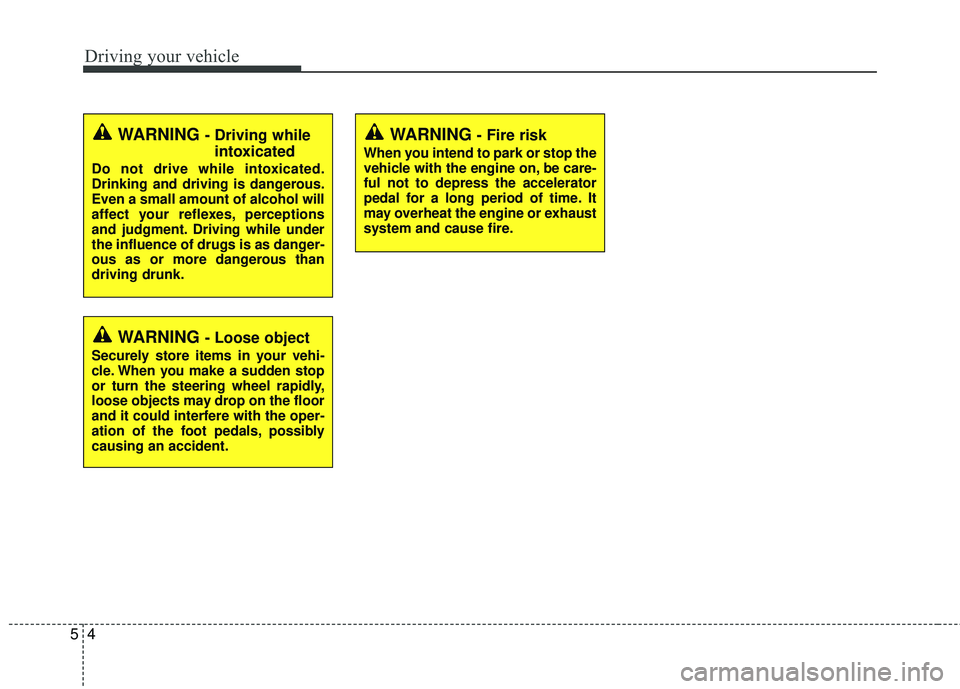
WARNING - Fire risk
When you intend to park or stop the
vehicle with the engine on, be care-
ful not to depress the accelerator
pedal for a long period of time. It
may overheat the engine or exhaust
system and cause fire.
WARNING - Driving whileintoxicated
Do not drive while intoxicated.
Drinking and driving is dangerous.
Even a small amount of alcohol will
affect your reflexes, perceptions
and judgment. Driving while under
the influence of drugs is as danger-
ous as or more dangerous than
driving drunk.
WARNING - Loose object
Securely store items in your vehi-
cle. When you make a sudden stop
or turn the steering wheel rapidly,
loose objects may drop on the floor
and it could interfere with the oper-
ation of the foot pedals, possibly
causing an accident.
Page 253 of 449
Driving your vehicle
65
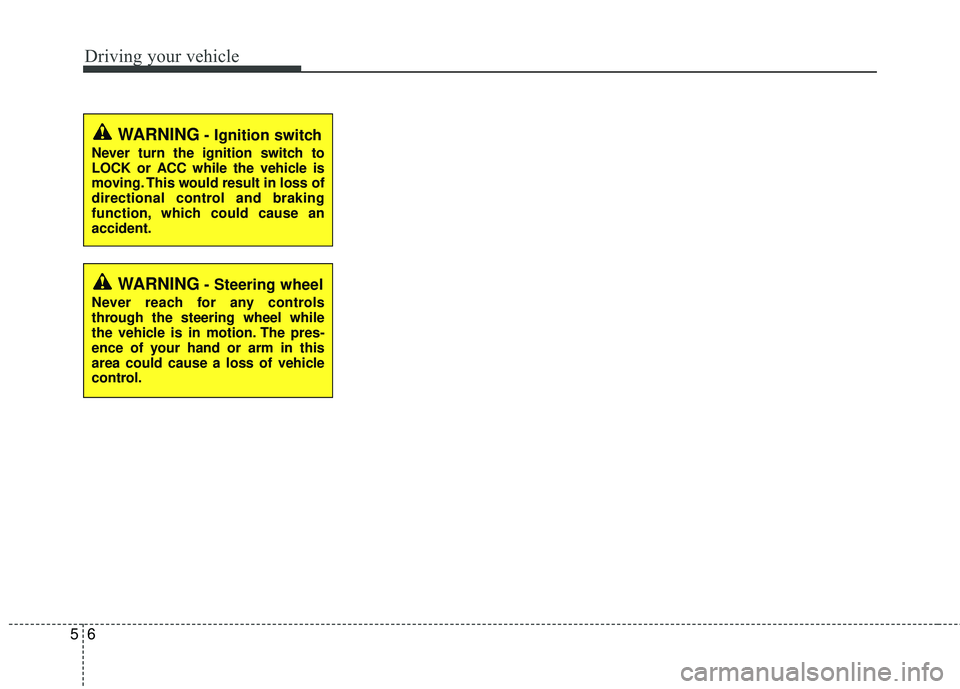
WARNING- Ignition switch
Never turn the ignition switch to
LOCK or ACC while the vehicle is
moving. This would result in loss of
directional control and braking
function, which could cause an
accident.
WARNING- Steering wheel
Never reach for any controls
through the steering wheel while
the vehicle is in motion. The pres-
ence of your hand or arm in this
area could cause a loss of vehicle
control.