ECO mode KIA RIO HATCHBACK 2012 User Guide
[x] Cancel search | Manufacturer: KIA, Model Year: 2012, Model line: RIO HATCHBACK, Model: KIA RIO HATCHBACK 2012Pages: 385, PDF Size: 9.68 MB
Page 135 of 385
Features of your vehicle
60
4
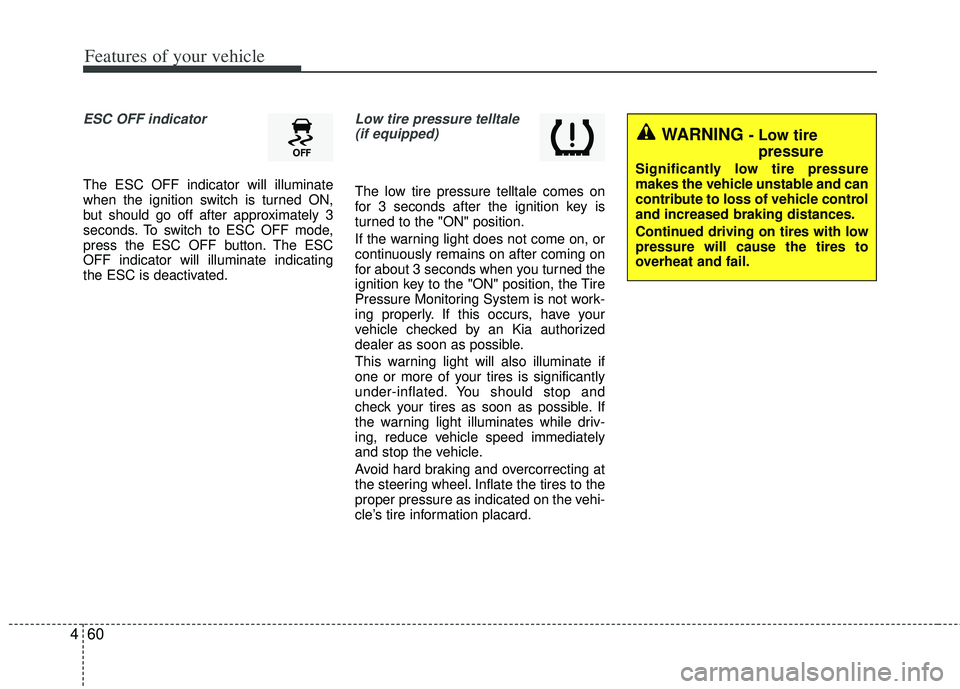
ESC OFF indicator
The ESC OFF indicator will illuminate
when the ignition switch is turned ON,
but should go off after approximately 3
seconds. To switch to ESC OFF mode,
press the ESC OFF button. The ESC
OFF indicator will illuminate indicating
the ESC is deactivated.
Low tire pressure telltale
(if equipped)
The low tire pressure telltale comes on
for 3 seconds after the ignition key is
turned to the "ON" position.
If the warning light does not come on, or
continuously remains on after coming on
for about 3 seconds when you turned the
ignition key to the "ON" position, the Tire
Pressure Monitoring System is not work-
ing properly. If this occurs, have your
vehicle checked by an Kia authorized
dealer as soon as possible.
This warning light will also illuminate if
one or more of your tires is significantly
under-inflated. You should stop and
check your tires as soon as possible. If
the warning light illuminates while driv-
ing, reduce vehicle speed immediately
and stop the vehicle.
Avoid hard braking and overcorrecting at
the steering wheel. Inflate the tires to the
proper pressure as indicated on the vehi-
cle’s tire information placard.
WARNING - Low tire pressure
Significantly low tire pressure
makes the vehicle unstable and can
contribute to loss of vehicle control
and increased braking distances.
Continued driving on tires with low
pressure will cause the tires to
overheat and fail.
Page 137 of 385
Features of your vehicle
62
4
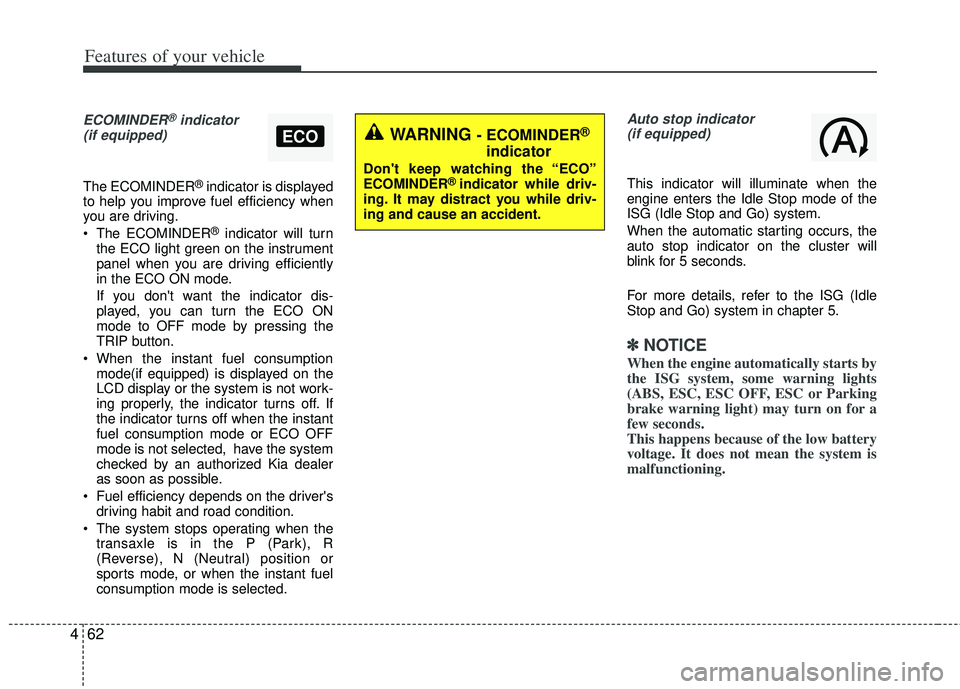
ECOMINDER®indicator
(if equipped)
The ECOMINDER®indicator is displayed
to help you improve fuel efficiency when
you are driving.
The ECOMINDER
®indicator will turn
the ECO light green on the instrument
panel when you are driving efficiently
in the ECO ON mode.
If you don't want the indicator dis-
played, you can turn the ECO ON
mode to OFF mode by pressing the
TRIP button.
When the instant fuel consumption mode(if equipped) is displayed on the
LCD display or the system is not work-
ing properly, the indicator turns off. If
the indicator turns off when the instant
fuel consumption mode or ECO OFF
mode is not selected, have the system
checked by an authorized Kia dealer
as soon as possible.
Fuel efficiency depends on the driver's driving habit and road condition.
The system stops operating when the transaxle is in the P (Park), R
(Reverse), N (Neutral) position or
sports mode, or when the instant fuel
consumption mode is selected.
Auto stop indicator(if equipped)
This indicator will illuminate when the
engine enters the Idle Stop mode of the
ISG (Idle Stop and Go) system.
When the automatic starting occurs, the
auto stop indicator on the cluster will
blink for 5 seconds.
For more details, refer to the ISG (Idle
Stop and Go) system in chapter 5.
✽ ✽ NOTICE
When the engine automatically starts by
the ISG system, some warning lights
(ABS, ESC, ESC OFF, ESC or Parking
brake warning light) may turn on for a
few seconds.
This happens because of the low battery
voltage. It does not mean the system is
malfunctioning.
WARNING - ECOMINDER®
indicator
Don't keep watching the “ECO”
ECOMINDER®indicator while driv-
ing. It may distract you while driv-
ing and cause an accident.
ECO
Page 163 of 385
Features of your vehicle
88
4
Air conditioning system operation tips
If the vehicle has been parked in direct
sunlight during hot weather, open the
windows for a short time to let the hot
air inside the vehicle escape.
To help reduce moisture inside of the windows on rainy or humid days,
decrease the humidity inside the vehi-
cle by operating the air conditioning
system.
During air conditioning system opera- tion, you may occasionally notice a
slight change in engine speed as the
air conditioning compressor cycles.
This is a normal system operation
characteristic.
Use the air conditioning system every month only for a few minutes to ensure
maximum system performance.
When using the air conditioning sys- tem, you may notice clear water drip-
ping (or even puddling) on the ground
under the passenger side of the vehi-
cle. This is a normal system operation
characteristic. Operating the air conditioning system
in the recirculated air position provides
maximum cooling, however, continual
operation in this mode may cause the
air inside the vehicle to become stale.
During cooling operation, you may occasionally notice a misty air flow
because of rapid cooling and humid air
intake. This is a normal system opera-
tion characteristic.CAUTION - Excessive AC
While using the air conditioningsystem, monitor the temperaturegauge closely while driving up hillsor in heavy traffic when outsidetemperatures are high. Air condi- tioning system operation maycause engine overheating andpotential engine damage. Continueto use the blower fan but turn theair conditioning system off if thetemperature gauge indicatesengine overheating.
Page 166 of 385
491
Features of your vehicle
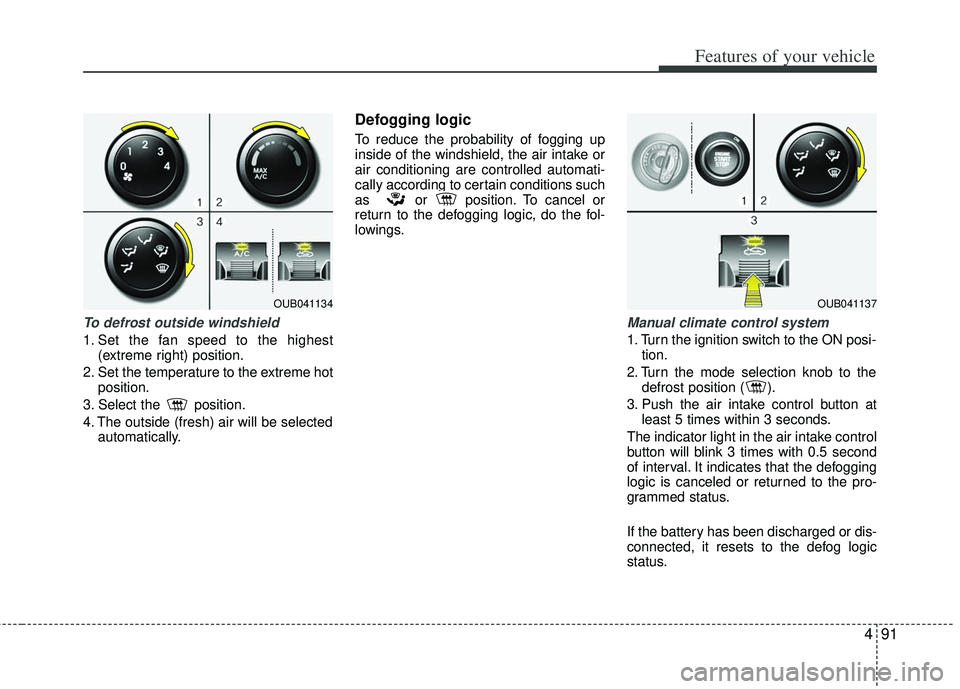
To defrost outside windshield
1. Set the fan speed to the highest(extreme right) position.
2. Set the temperature to the extreme hot position.
3. Select the position.
4. The outside (fresh) air will be selected automatically.
Defogging logic
To reduce the probability of fogging up
inside of the windshield, the air intake or
air conditioning are controlled automati-
cally according to certain conditions such
as or position. To cancel or
return to the defogging logic, do the fol-
lowings.
Manual climate control system
1. Turn the ignition switch to the ON posi-tion.
2. Turn the mode selection knob to the defrost position ( ).
3. Push the air intake control button at least 5 times within 3 seconds.
The indicator light in the air intake control
button will blink 3 times with 0.5 second
of interval. It indicates that the defogging
logic is canceled or returned to the pro-
grammed status.
If the battery has been discharged or dis-
connected, it resets to the defog logic
status.
OUB041134OUB041137
Page 178 of 385
4103
Features of your vehicle
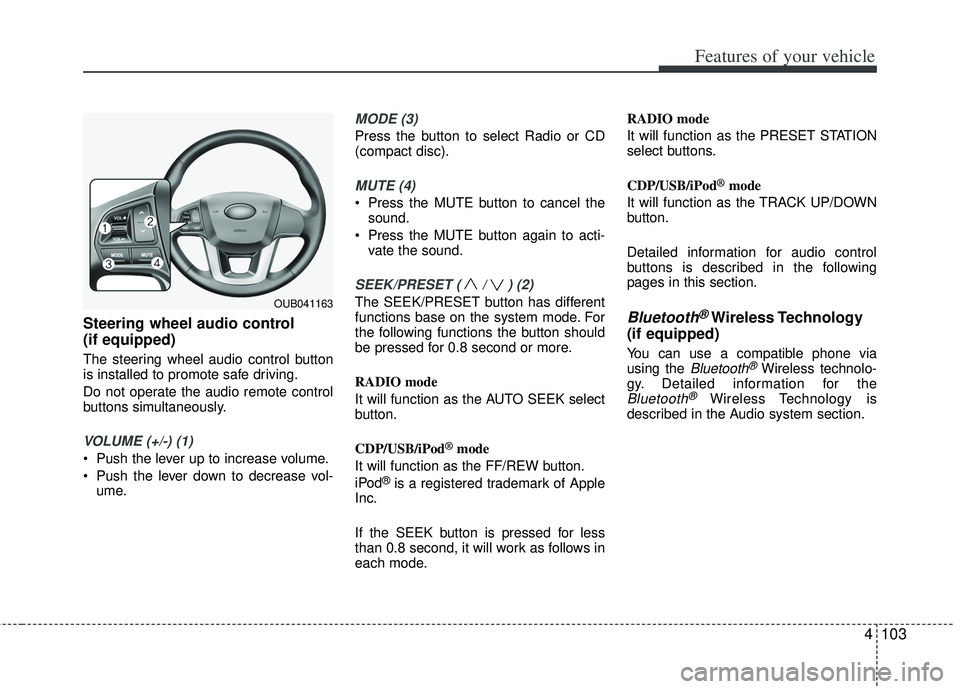
Steering wheel audio control
(if equipped)
The steering wheel audio control button
is installed to promote safe driving.
Do not operate the audio remote control
buttons simultaneously.
VOLUME (+/-) (1)
Push the lever up to increase volume.
Push the lever down to decrease vol-ume.
MODE (3)
Press the button to select Radio or CD
(compact disc).
MUTE (4)
Press the MUTE button to cancel thesound.
Press the MUTE button again to acti- vate the sound.
SEEK/PRESET ( / ) (2)
The SEEK/PRESET button has different
functions base on the system mode. For
the following functions the button should
be pressed for 0.8 second or more.
RADIO mode
It will function as the AUTO SEEK select
button.
CDP/USB/iPod
®mode
It will function as the FF/REW button.
iPod
®is a registered trademark of Apple
Inc.
If the SEEK button is pressed for less
than 0.8 second, it will work as follows in
each mode. RADIO mode
It will function as the PRESET STATION
select buttons.
CDP/USB/iPod
®mode
It will function as the TRACK UP/DOWN
button.
Detailed information for audio control
buttons is described in the following
pages in this section.
Bluetooth®Wireless Technology
(if equipped)
You can use a compatible phone via
using the Bluetooth®Wireless technolo-
gy. Detailed information for the
Bluetooth®Wireless Technology is
described in the Audio system section.
OUB041163
Page 185 of 385
Features of your vehicle
110
4
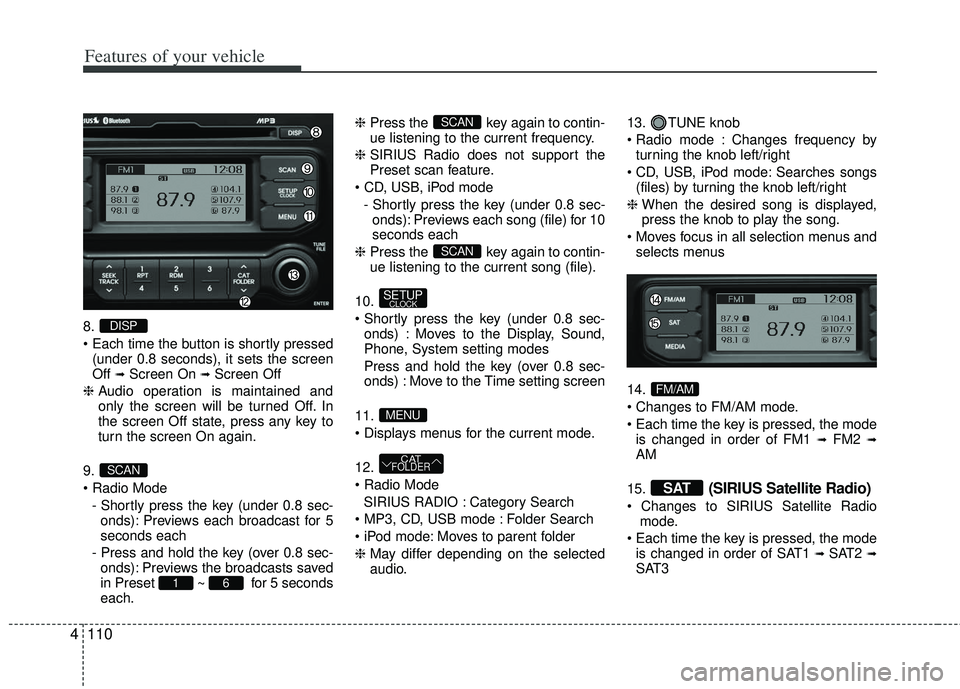
8.
(under 0.8 seconds), it sets the screen
Off
➟Screen On ➟Screen Off
❈ Audio operation is maintained and
only the screen will be turned Off. In
the screen Off state, press any key to
turn the screen On again.
9.
- Shortly press the key (under 0.8 sec-onds): Previews each broadcast for 5
seconds each
- Press and hold the key (over 0.8 sec- onds): Previews the broadcasts saved
in Preset ~ for 5 seconds
each. ❈
Press the key again to contin-
ue listening to the current frequency.
❈ SIRIUS Radio does not support the
Preset scan feature.
- Shortly press the key (under 0.8 sec-onds): Previews each song (file) for 10
seconds each
❈ Press the key again to contin-
ue listening to the current song (file).
10.
onds) : Moves to the Display, Sound,
Phone, System setting modes
Press and hold the key (over 0.8 sec- onds) : Move to the Time setting screen
11.
12.
SIRIUS RADIO : Category Search
Folder Search
Moves to parent folder
❈ May differ depending on the selected
audio. 13. TUNE knob
Changes frequency by
turning the knob left/right
Searches songs (files) by turning the knob left/right
❈ When the desired song is displayed,
press the knob to play the song.
selects menus
14.
is changed in order of FM1
➟FM2 ➟AM
15.
(SIRIUS Satellite Radio)
mode.
is changed in order of SAT1
➟ SAT2 ➟SAT3
SAT
FM/AM
CATFOLDER
MENU
SETUPCLOCK
SCAN
SCAN
61
SCAN
DISP
Page 193 of 385
![KIA RIO HATCHBACK 2012 User Guide Features of your vehicle
118
4
SYSTEM SETTINGS
Press the key Select [System]
through tune knob or key Select
menu through TUNE knob
Memory Information
Displays currently used memory and
total syste](/img/2/57982/w960_57982-192.png "KIA RIO HATCHBACK 2012 User Guide Features of your vehicle
118
4
SYSTEM SETTINGS
Press the key Select [System]
through tune knob or key Select
menu through TUNE knob
Memory Information
Displays currently used memory and
total syste")
Features of your vehicle
118
4
SYSTEM SETTINGS
Press the key Select [System]
through tune knob or key Select
menu through TUNE knob
Memory Information
Displays currently used memory and
total system memory.
Select [Memory Information] OK
The currently used memory is displayed
on the left side while the total system
memory is displayed on the right side.
Prompt Feedback
This feature is used to change voice
command feedback between Normal and
Expert modes.
Select [Prompt Feedback] Set
through
TUNEknob
This mode is for beginner
users and provides detailed instructions
during voice command operation.
This mode is for expert users and omits some information during
voice command operation. (When using
Expert mode, guidance instructions can
be heard through the [Help] or [Menu]
commands.
Language
This menu is used to set the display and
voice recognition language.
Select [Language] Set through TUNE
knob
❈ The system will reboot after the lan-
guage is changed.
❈ Language support by region
5
SETUP
Page 194 of 385
4119
Features of your vehicle
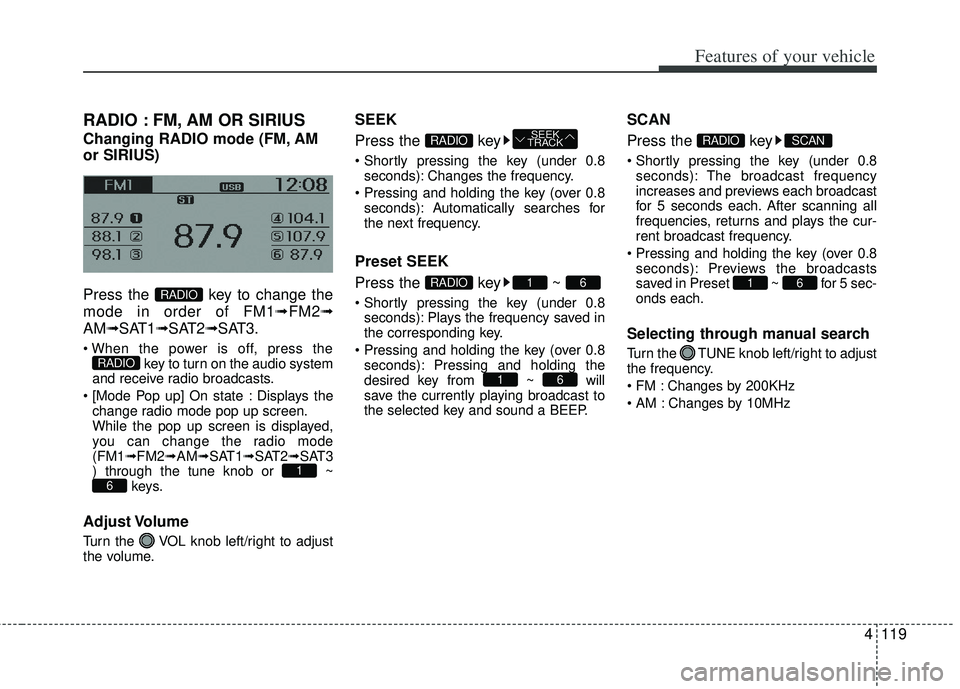
RADIO : FM, AM OR SIRIUS
Changing RADIO mode (FM, AM
or SIRIUS)
Press the key to change the
mode in order of FM1➟FM2➟
AM➟SAT1➟SAT2➟SAT3.
key to turn on the audio system
and receive radio broadcasts.
Displays the change radio mode pop up screen.
While the pop up screen is displayed,
you can change the radio mode
(FM1➟ FM2➟AM➟SAT1➟ SAT2➟SAT3
) through the tune knob or ~ keys.
Adjust Volume
Turn the VOL knob left/right to adjust
the volume.
SEEK
Press the key
seconds): Changes the frequency.
seconds): Automatically searches for
the next frequency.
Preset SEEK
Press the key ~
seconds): Plays the frequency saved in
the corresponding key.
seconds): Pressing and holding the
desired key from ~ will
save the currently playing broadcast to
the selected key and sound a BEEP.
SCAN
Press the key
seconds): The broadcast frequency
increases and previews each broadcast
for 5 seconds each. After scanning all
frequencies, returns and plays the cur-
rent broadcast frequency.
seconds): Previews the broadcasts
saved in Preset ~ for 5 sec-
onds each.
Selecting through manual search
Turn the TUNE knob left/right to adjust
the frequency.
Changes by 200KHz
Changes by 10MHz
61
SCANRADIO
61
61RADIO
SEEK
TRACKRADIO
61
RADIO
RADIO
Page 197 of 385
Features of your vehicle
122
4
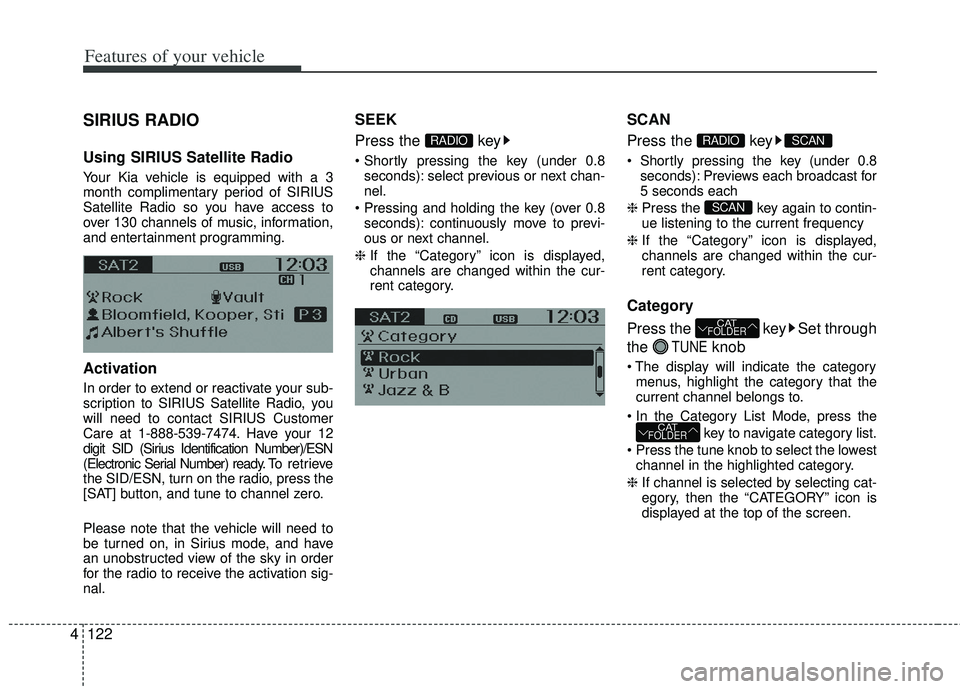
SIRIUS RADIO
Using SIRIUS Satellite Radio
Your Kia vehicle is equipped with a 3
month complimentary period of SIRIUS
Satellite Radio so you have access to
over 130 channels of music, information,
and entertainment programming.
Activation
In order to extend or reactivate your sub-
scription to SIRIUS Satellite Radio, you
will need to contact SIRIUS Customer
Care at 1-888-539-7474. Have your 12
digit SID (Sirius Identification Number)/ESN
(Electronic Serial Number) ready. To retrieve
the SID/ESN, turn on the radio, press the
[SAT] button, and tune to channel zero.
Please note that the vehicle will need to
be turned on, in Sirius mode, and have
an unobstructed view of the sky in order
for the radio to receive the activation sig-
nal.
SEEK
Press the key
seconds): select previous or next chan-
nel.
seconds): continuously move to previ-
ous or next channel.
❈ If the “Category” icon is displayed,
channels are changed within the cur-
rent category.
SCAN
Press the key
seconds): Previews each broadcast for
5 seconds each
❈ Press the key again to contin-
ue listening to the current frequency
❈ If the “Category” icon is displayed,
channels are changed within the cur-
rent category.
Category
Press the key Set through
the
TUNEknob
menus, highlight the category that the
current channel belongs to.
key to navigate category list.
Press the tune knob to select the lowest channel in the highlighted category.
❈ If channel is selected by selecting cat-
egory, then the “CATEGORY” icon is
displayed at the top of the screen.
CATFOLDER
CATFOLDER
SCAN
SCANRADIORADIO
Page 200 of 385
4125
Features of your vehicle
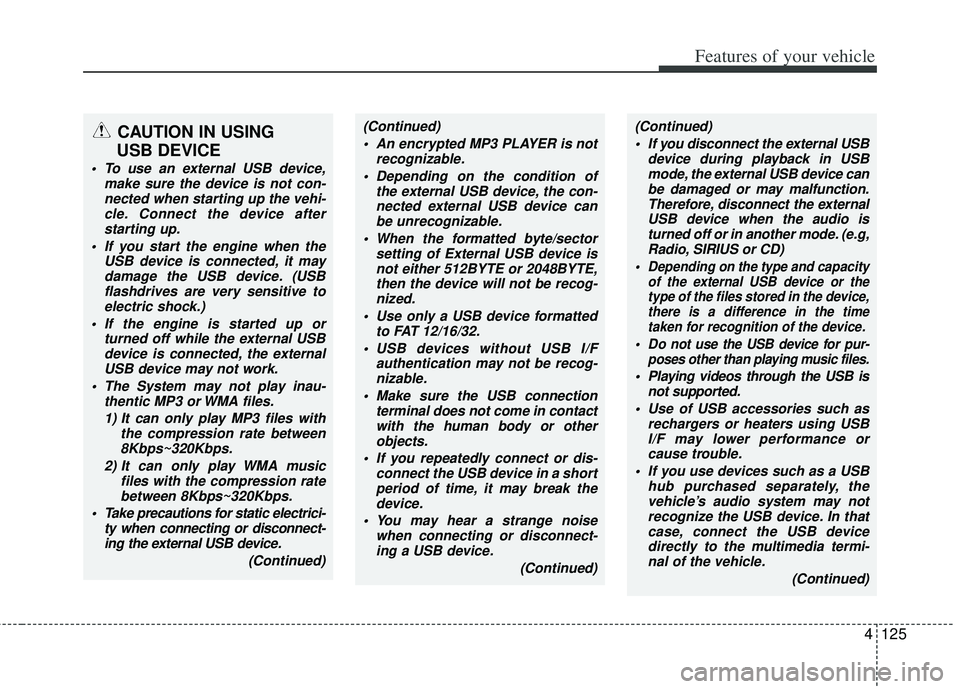
CAUTION IN USING
USB DEVICE
To use an external USB device,
make sure the device is not con-nected when starting up the vehi-cle. Connect the device afterstarting up.
If you start the engine when the USB device is connected, it maydamage the USB device. (USBflashdrives are very sensitive toelectric shock.)
If the engine is started up or turned off while the external USBdevice is connected, the externalUSB device may not work.
The System may not play inau- thentic MP3 or WMA files.
1) It can only play MP3 files with the compression rate between8Kbps~320Kbps.
2) It can only play WMA music files with the compression ratebetween 8Kbps~320Kbps.
Take precautions for static electrici- ty when connecting or disconnect-ing the external USB device.
(Continued)
(Continued) An encrypted MP3 PLAYER is not recognizable.
Depending on the condition of the external USB device, the con-nected external USB device canbe unrecognizable.
When the formatted byte/sector setting of External USB device isnot either 512BYTE or 2048BYTE,then the device will not be recog- nized.
Use only a USB device formatted to FAT 12/16/32.
USB devices without USB I/F authentication may not be recog-nizable.
Make sure the USB connection terminal does not come in contactwith the human body or otherobjects.
If you repeatedly connect or dis- connect the USB device in a shortperiod of time, it may break thedevice.
You may hear a strange noise when connecting or disconnect-ing a USB device.
(Continued)(Continued) If you disconnect the external USB device during playback in USBmode, the external USB device canbe damaged or may malfunction. Therefore, disconnect the externalUSB device when the audio is turned off or in another mode. (e.g,Radio, SIRIUS or CD)
Depending on the type and capacity of the external USB device or thetype of the files stored in the device, there is a difference in the timetaken for recognition of the device.
Do not use the USB device for pur- poses other than playing music files.
Playing videos through the USB isnot supported.
Use of USB accessories such as rechargers or heaters using USBI/F may lower performance or cause trouble.
If you use devices such as a USB hub purchased separately, thevehicle’s audio system may notrecognize the USB device. In that case, connect the USB devicedirectly to the multimedia termi-nal of the vehicle.
(Continued)