USB KIA RIO HATCHBACK 2012 User Guide
[x] Cancel search | Manufacturer: KIA, Model Year: 2012, Model line: RIO HATCHBACK, Model: KIA RIO HATCHBACK 2012Pages: 385, PDF Size: 9.68 MB
Page 207 of 385
Features of your vehicle
132
4
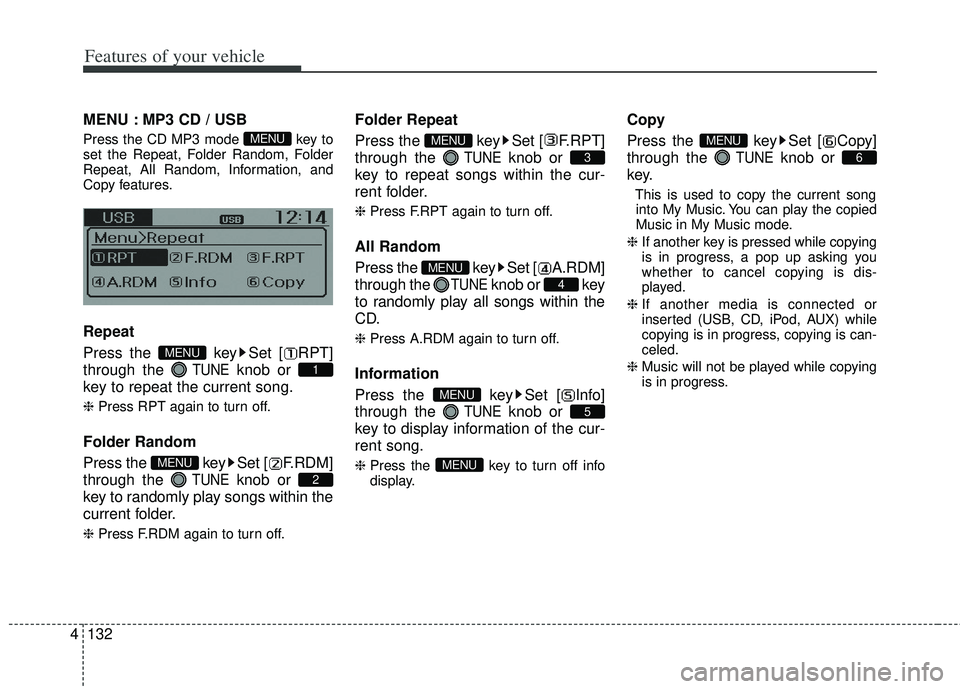
MENU : MP3 CD / USB
Press the CD MP3 mode key to
set the Repeat, Folder Random, Folder
Repeat, All Random, Information, and
Copy features.
Repeat
Press the key Set [ RPT]
through the
TUNEknob or
key to repeat the current song.
❈ Press RPT again to turn off.
Folder Random
Press the key Set [ F.RDM]
through the
TUNEknob or
key to randomly play songs within the
current folder.
❈ Press F.RDM again to turn off.
Folder Repeat
Press the key Set [ F.RPT]
through the
TUNEknob or
key to repeat songs within the cur-
rent folder.
❈ Press F.RPT again to turn off.
All Random
Press the key Set [ A.RDM]
through the
TUNEknob or key
to randomly play all songs within the
CD.
❈ Press A.RDM again to turn off.
Information
Press the key Set [ Info]
through the
TUNEknob or
key to display information of the cur-
rent song.
❈ Press the key to turn off info
display.
Copy
Press the key Set [ Copy]
through the
TUNEknob or
key.
This is used to copy the current song into My Music. You can play the copied
Music in My Music mode.
❈ If another key is pressed while copying
is in progress, a pop up asking you
whether to cancel copying is dis-
played.
❈ If another media is connected or
inserted (USB, CD, iPod, AUX) while
copying is in progress, copying is can-
celed.
❈ Music will not be played while copying
is in progress.
6
MENU
MENU
5
MENU
4
MENU
3
MENU
2
MENU
1
MENU
MENU
Page 213 of 385
Features of your vehicle
138
4
Bluetooth®wireless technolo-
gy Audio
Before using Bluetooth®wireless
technology audio features
Bluetooth®wireless technologyaudio may not be supported depending
on the compatibility of your Bluetooth®
wireless technology mobile phone.
Bluetooth®wireless
technologyaudio, you must first pair
and connect the Bluetooth®wireless
technology mobile phone.
Bluetooth®wireless technologyaudio can be used only when the
[Audio Streaming] of Phone is turned .
❈ Setting
Bluetooth®wireless tech-
nology Audio Streaming : Press the
key Select [Phone] through
the tune knob or key Select
[Audio Streaming] through the
TUNE knob Set
/
Starting Bluetooth®wireless
technology
Audio
key to change the
mode in order of CD➟USB➟AUX➟My
Music➟BT Audio.
Bluetooth®
wireless technology audio will start
playing.
❈ Audio may not automatically start play-
ing in some mobile phones.
Using the Bluetooth®wireless
technology
audio features
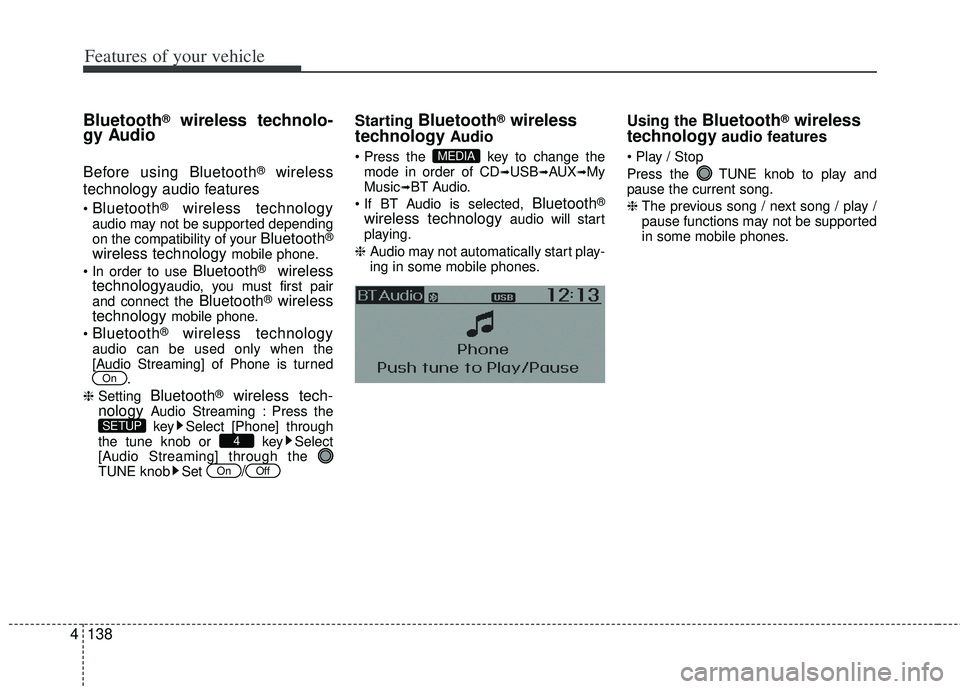
Press the TUNE knob to play and
pause the current song.
❈ The previous song / next song / play /
pause functions may not be supported
in some mobile phones.MEDIA
OffOn
4SETUP
On
Page 218 of 385
4143
Features of your vehicle
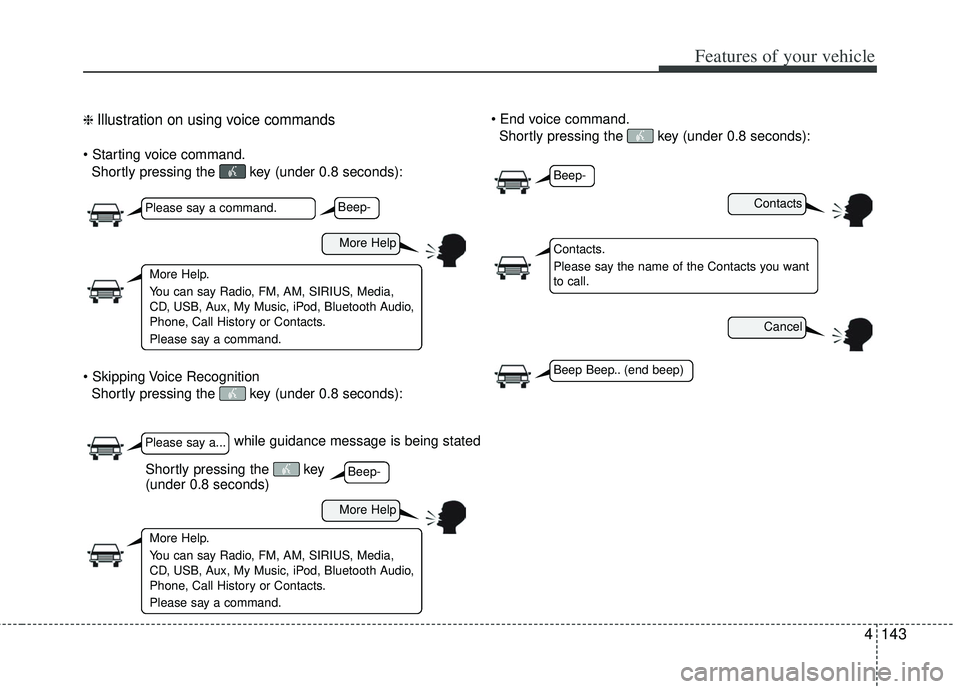
❈ Illustration on using voice commands
Shortly pressing the key (under 0.8 seconds):
Shortly pressing the key (under 0.8 seconds):
Shortly pressing the key (under 0.8 seconds):
while guidance message is being stated
Contacts
Cancel
More Help
More Help
Please say a command.
Please say a...
More Help.
You can say Radio, FM, AM, SIRIUS, Media,
CD, USB, Aux, My Music, iPod, Bluetooth Audio,
Phone, Call History or Contacts.
Please say a command.
More Help.
You can say Radio, FM, AM, SIRIUS, Media,
CD, USB, Aux, My Music, iPod, Bluetooth Audio,
Phone, Call History or Contacts.
Please say a command.
Contacts.
Please say the name of the Contacts you want
to call.
Beep-
Beep-
Beep-
Beep Beep.. (end beep)
Shortly pressing the key
(under 0.8 seconds)
Page 220 of 385
4145
Features of your vehicle
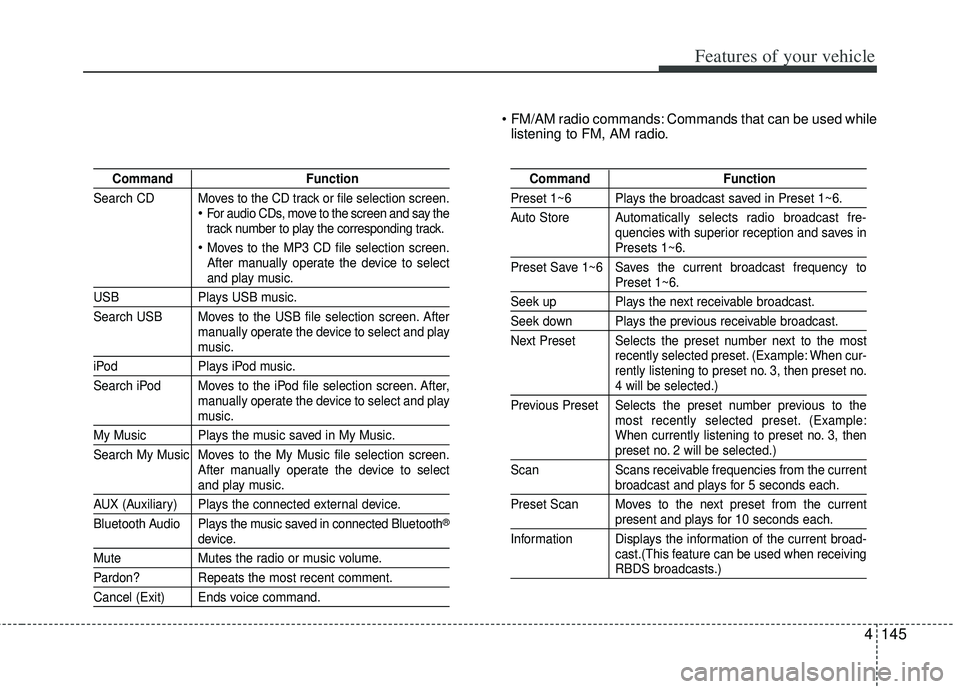
FM/AM radio commands: Commands that can be used whilelistening to FM, AM radio.
Command Function
Search CD Moves to the CD track or file selection screen.
For audio CDs, move to the screen and say the
track number to play the corresponding track.
Moves to the MP3 CD file selection screen.
After manually operate the device to select
and play music.
USB Plays USB music.
Search USB Moves to the USB file selection screen. After manually operate the device to select and play
music.
iPodPlays iPod music.
Search iPod Moves to the iPod file selection screen. After, manually operate the device to select and play
music.
My Music Plays the music saved in My Music.
Search My Music Moves to the My Music file selection screen.After manually operate the device to select
and play music.
AUX (Auxiliary) Plays the connected external device.
Bluetooth Audio Plays the music saved in connected Bluetooth
®
device.
MuteMutes the radio or music volume.
Pardon? Repeats the most recent comment.
Cancel (Exit) Ends voice command.
Command Function
Preset 1~6 Plays the broadcast saved in Preset 1~6.
Auto Store Automatically selects radio broadcast fre-
quencies with superior reception and saves in
Presets 1~6.
Preset Save 1~6 Saves the current broadcast frequency to
Preset 1~6.
Seek up Plays the next receivable broadcast.
Seek down Plays the previous receivable broadcast.
Next Preset Selects the preset number next to the most recently selected preset. (Example: When cur-
rently listening to preset no. 3, then preset no.
4 will be selected.)
Previous Preset Selects the preset number previous to the most recently selected preset. (Example:
When currently listening to preset no. 3, then
preset no. 2 will be selected.)
Scan Scans receivable frequencies from the current
broadcast and plays for 5 seconds each.
Preset Scan Moves to the next preset from the current
present and plays for 10 seconds each.
Information Displays the information of the current broad- cast.(This feature can be used when receiving
RBDS broadcasts.)
Page 222 of 385
4147
Features of your vehicle
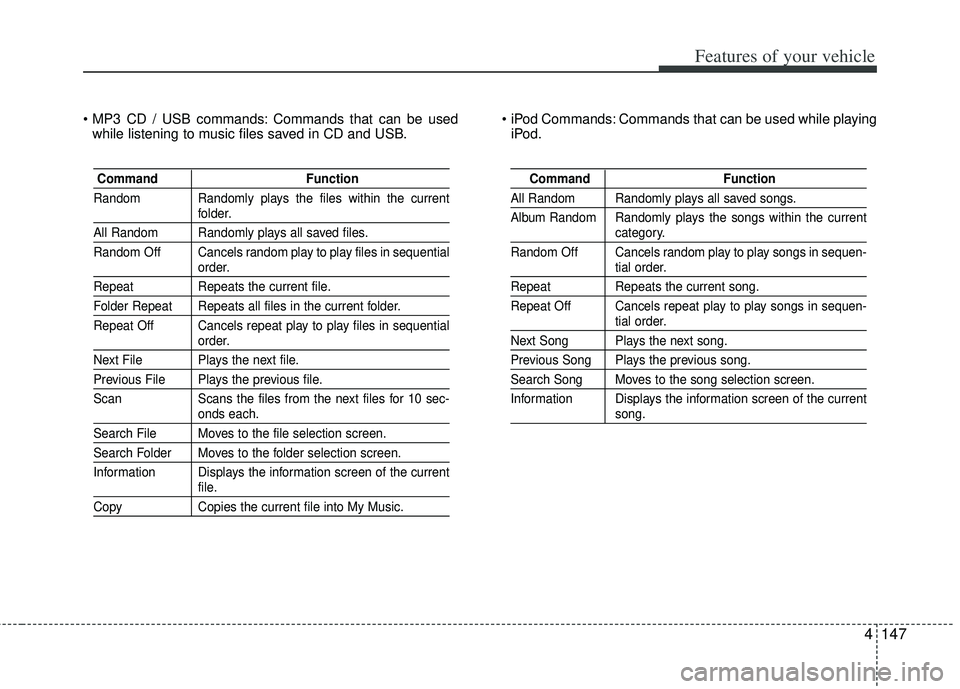
Commands that can be usedwhile listening to music files saved in CD and USB. Commands that can be used while playing
iPod.
Command Function
Random Randomly plays the files within the current
folder.
All Random Randomly plays all saved files.
Random Off Cancels random play to play files in sequential
order.
Repeat Repeats the current file.
Folder Repeat Repeats all files in the current folder.
Repeat Off Cancels repeat play to play files in sequential
order.
Next File Plays the next file.
Previous File Plays the previous file.
Scan Scans the files from the next files for 10 sec-
onds each.
Search File Moves to the file selection screen.
Search Folder Moves to the folder selection screen.
Information Displays the information screen of the current
file.
CopyCopies the current file into My Music.
Command Function
All Random Randomly plays all saved songs.
Album Random Randomly plays the songs within the current
category.
Random Off Cancels random play to play songs in sequen-
tial order.
Repeat Repeats the current song.
Repeat Off Cancels repeat play to play songs in sequen-
tial order.
Next Song Plays the next song.
Previous Song Plays the previous song.
Search Song Moves to the song selection screen.
Information Displays the information screen of the current
song.