radio KIA RIO HATCHBACK 2014 User Guide
[x] Cancel search | Manufacturer: KIA, Model Year: 2014, Model line: RIO HATCHBACK, Model: KIA RIO HATCHBACK 2014Pages: 446, PDF Size: 12.98 MB
Page 191 of 446
![KIA RIO HATCHBACK 2014 User Guide Features of your vehicle
120
4
DISPLAY SETTINGS
Press the key Select
[Display] through TUNE knob or
key Select menu through
TUNE knob
Mode Pop up
[Mode Pop up] Changes /
selection mode
During On](/img/2/57980/w960_57980-190.png "KIA RIO HATCHBACK 2014 User Guide Features of your vehicle
120
4
DISPLAY SETTINGS
Press the key Select
[Display] through TUNE knob or
key Select menu through
TUNE knob
Mode Pop up
[Mode Pop up] Changes /
selection mode
During On")
Features of your vehicle
120
4
DISPLAY SETTINGS
Press the key Select
[Display] through TUNE knob or
key Select menu through
TUNE knob
Mode Pop up
[Mode Pop up] Changes /
selection mode
During On state, press the or key to display the mode
change pop up screen.
Text Scroll
[Text Scroll] Set /
: Maintains scroll
: Scrolls only one (1) time.
Media Display
When playing an MP3 file, select the
desired display info from ‘Folder/File’
or ‘Album/Artist/Song’.
Off
On
OffOn
MEDIA
RADIO
OffOn
1
SETUP
Page 196 of 446
4125
Features of your vehicle
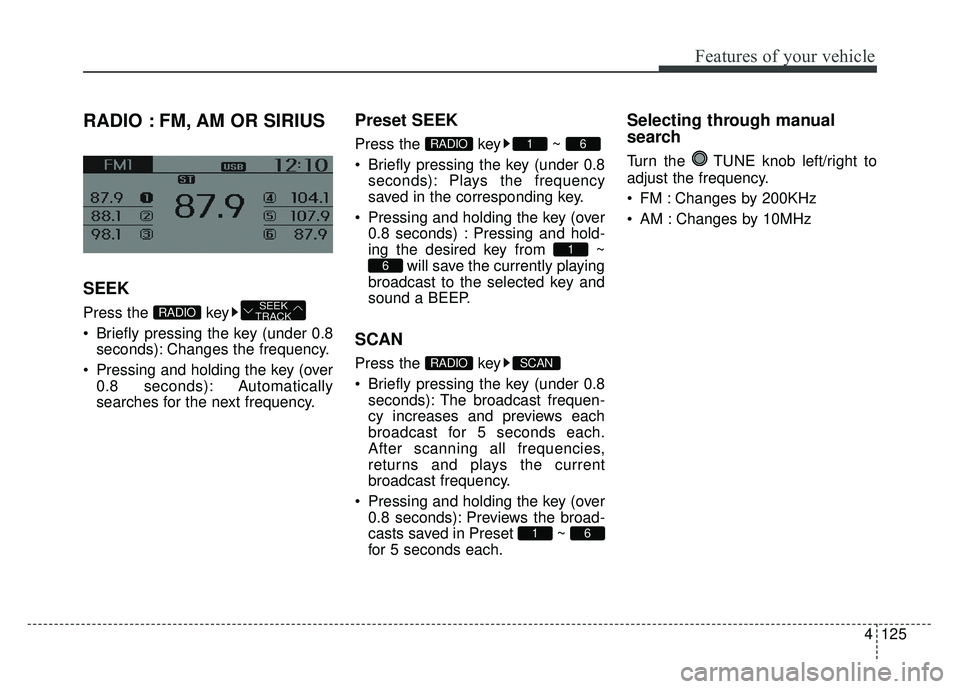
RADIO : FM, AM OR SIRIUS
SEEK
Press the key
Briefly pressing the key (under 0.8seconds): Changes the frequency.
Pressing and holding the key (over 0.8 seconds): Automatically
searches for the next frequency.
Preset SEEK
Press the key ~
Briefly pressing the key (under 0.8seconds): Plays the frequency
saved in the corresponding key.
Pressing and holding the key (over 0.8 seconds) : Pressing and hold-
ing the desired key from ~ will save the currently playing
broadcast to the selected key and
sound a BEEP.
SCAN
Press the key
Briefly pressing the key (under 0.8 seconds): The broadcast frequen-
cy increases and previews each
broadcast for 5 seconds each.
After scanning all frequencies,
returns and plays the current
broadcast frequency.
Pressing and holding the key (over 0.8 seconds): Previews the broad-
casts saved in Preset ~
for 5 seconds each.
Selecting through manual
search
Turn the TUNE knob left/right to
adjust the frequency.
FM : Changes by 200KHz
AM : Changes by 10MHz
61
SCANRADIO
6
1
61RADIO
SEEK
TRACKRADIO
Page 198 of 446
4127
Features of your vehicle
SIRIUS Satellite Radio information (if equipped)
Satellite Radio channels:
SIRIUS Satellite Radio has over 130
channels, including 69 channels of
100% commercial-free music, plus
sports, news, talk and entertainment
available nationwide in your vehicle.
For more information and a complete
list of SIRIUS Satellite Radio chan-
nels, visit siriusxm.com in the United
States, sirius-canada.ca in Canada,
or call SIRIUS at 1-888-539-7474.
Satellite Radio reception factors:
To receive the satellite signal, your
vehicle has been equipped with a
satellite radio antenna located on the
roof of your vehicle. The vehicle roof
provides the best location for an
unobstructed, open view of the sky, a
requirement of a satellite radio sys-
tem. Like AM/FM, there are several
factors that can affect satellite radio
reception performance:
Antenna obstructions: For optimalreception performance, keep the
antenna clear of snow and ice
build-up and keep luggage and
other material as far away from the
antenna as possible. Terrain: Hills, mountains, tall build-
ings, bridges, tunnels, freeway over-
passes, parking garages, dense
tree foliage and thunderstorms can
interfere with your reception.
SIRIUS Satellite Radio service:
SIRIUS Satellite Radio is a subscrip-
tion based satellite radio service that
broadcasts music, sports, news and
entertainment programming to radio
receivers, which are available for
installation in motor vehicles or facto-
ry installed, as well as for the home,
portable and wireless devices, and
through an Internet connection on
personal computer.
Vehicles that are equipped with a
factory installed SIRIUS Satellite
Radio system include:
Hardware and an introductory trial subscription term, which begins on
the date of sale or lease of the
vehicle.
For a small upgrade fee, access to SIRIUS music channels, and other
select channels over the Internet
using any computer connected to
the Internet (U.S. customers only). For information on extended sub-
scription terms, contact SIRIUS at
1-888-539-7474.
NOTE:
Satellite Radio requires SIRIUS®
compatible receiver and a subscrip-
tion service fee after trial period.
Vehicles without a factory-installed
radio receiver require hardware pur-
chase and installation. Please see
your dealer for further details. All
fees and programming subject to
change.
Subscriptions governed by the SIR-
IUS Terms & Conditions available at
www.siriusxm.com / service terms.
Available only in the 48 contiguous
United States and the District of
Columbia. Service available in
Canada; see www
.siriuscanada.caKia shall not be responsible for
any such programming changes.
Satellite Radio Electronic Serial
Number (ESN) :
This 12-digit
Satellite Serial Number is needed to
re-activate, modify or track your
satellite radio account. You will need
this number when communicating
with SIRIUS.
Page 199 of 446
Features of your vehicle
128
4
SIRIUS RADIO
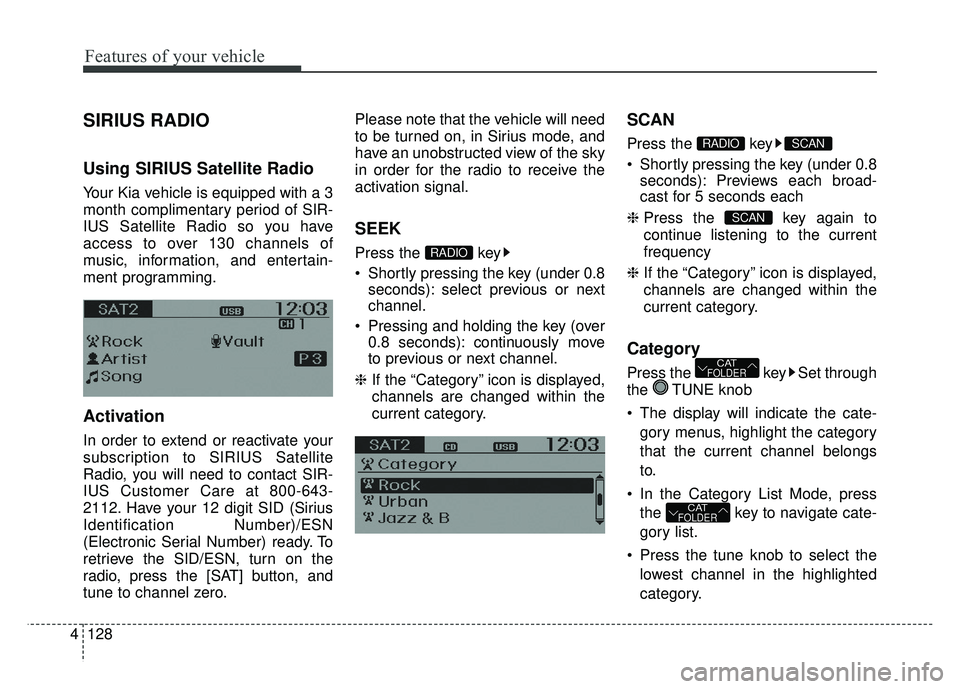
Using SIRIUS Satellite Radio
Your Kia vehicle is equipped with a 3
month complimentary period of SIR-
IUS Satellite Radio so you have
access to over 130 channels of
music, information, and entertain-
ment programming.
Activation
In order to extend or reactivate your
subscription to SIRIUS Satellite
Radio, you will need to contact SIR-
IUS Customer Care at 800-643-
2112. Have your 12 digit SID (Sirius
Identification Number)/ESN
(Electronic Serial Number) ready. To
retrieve the SID/ESN, turn on the
radio, press the [SAT] button, and
tune to channel zero. Please note that the vehicle will need
to be turned on, in Sirius mode, and
have an unobstructed view of the sky
in order for the radio to receive the
activation signal.
SEEK
Press the key
Shortly pressing the key (under 0.8
seconds): select previous or next
channel.
Pressing and holding the key (over 0.8 seconds): continuously move
to previous or next channel.
❈ If the “Category” icon is displayed,
channels are changed within the
current category.
SCAN
Press the key
Shortly pressing the key (under 0.8
seconds): Previews each broad-
cast for 5 seconds each
❈ Press the key again to
continue listening to the current
frequency
❈ If the “Category” icon is displayed,
channels are changed within the
current category.
Category
Press the key Set through
the TUNE knob
The display will indicate the cate-
gory menus, highlight the category
that the current channel belongs
to.
In the Category List Mode, press the key to navigate cate-
gory list.
Press the tune knob to select the lowest channel in the highlighted
category.
CATFOLDER
CATFOLDER
SCAN
SCANRADIO
RADIO
Page 200 of 446
4129
Features of your vehicle
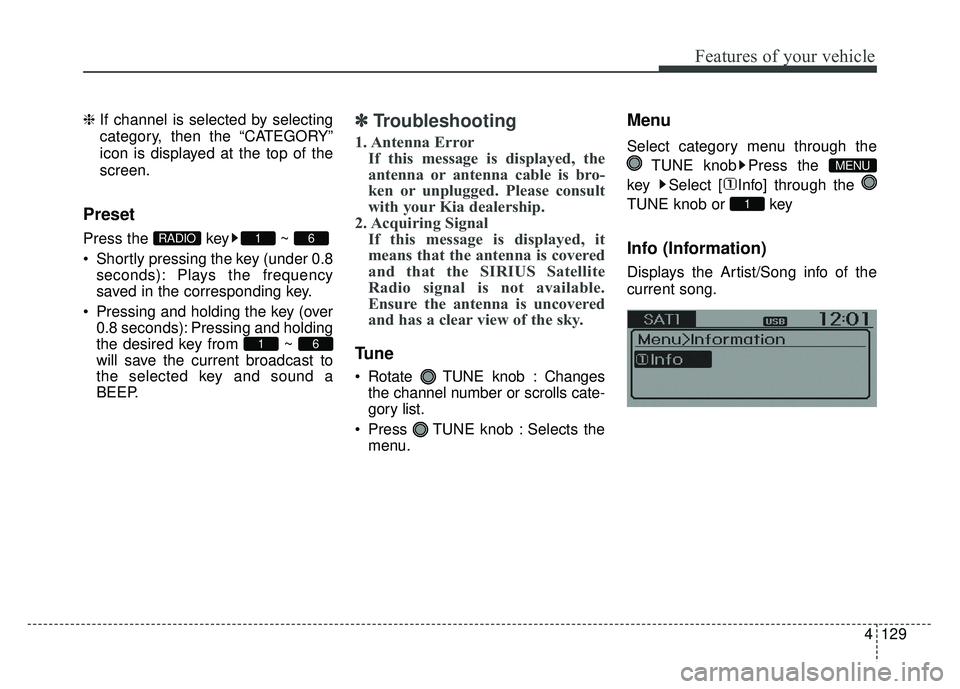
❈If channel is selected by selecting
category, then the “CATEGORY”
icon is displayed at the top of the
screen.
Preset
Press the key ~
Shortly pressing the key (under 0.8
seconds): Plays the frequency
saved in the corresponding key.
Pressing and holding the key (over 0.8 seconds): Pressing and holding
the desired key from ~
will save the current broadcast to
the selected key and sound a
BEEP.
✽ ✽ Troubleshooting
1. Antenna Error
If this message is displayed, the
antenna or antenna cable is bro-
ken or unplugged. Please consult
with your Kia dealership.
2. Acquiring Signal If this message is displayed, it
means that the antenna is covered
and that the SIRIUS Satellite
Radio signal is not available.
Ensure the antenna is uncovered
and has a clear view of the sky.
Tune
Rotate TUNE knob : Changes
the channel number or scrolls cate-
gory list.
Press TUNE knob : Selects the menu.
Menu
Select category menu through the
TUNE knob Press the
key Select [ Info] through the
TUNE knob or key
Info (Information)
Displays the Artist/Song info of the
current song.
1
MENU
61
61RADIO
Page 201 of 446
Features of your vehicle
130
4
USING YOUR USB DEVICE
When using an external USB
device, make sure the device is
not connected when starting up
the vehicle.
If you start the engine when the USB device is connected, it may
damage the USB device. (USB
flashdrives are very sensitive to
electric shock.) Connect the
device after starting up.
The System may not play inau- thentic MP3 or WMA files.
1) It can only play MP3 files with the compression rate between
8Kbps~320Kbps.
2) It can only play WMA music files with the compression rate
between 8Kbps~320Kbps.
Take precautions for static elec- tricity when connecting or dis-
connecting the external USB
device. An encrypted MP3 PLAYER is
not recognizable.
Depending on the condition of the external USB device, the
connected external USB device
can be unrecognizable.
When the formatted byte/sector setting of External USB device is
not either 512BYTE or
2048BYTE, then the device will
not be recognized.
Use only a USB device format- ted to FAT 12/16/32.
USB devices without USB I/F authentication may not be recog-
nizable.
If you repeatedly connect or dis- connect the USB device in a
short period of time, it may dam-
age the device.
You may hear a strange noise when connecting or disconnect-
ing a USB device.
If you disconnect the external USB device during playback in
USB mode, the external USB
device can be damaged or may
malfunction. It is recommended to disconnect
the external USB device when
the audio is turned off or in
modes other than USB.
(e.g, Radio, SIRIUS or CD)
Depending on the type and capacity of the external USB
device or the type of the files
stored in the device, there is a
difference in the time taken for
recognition of the device.
Do not use the USB device for purposes other than playing
music files.
Playing videos through the USB is not supported.
If you use devices such as a USB hub purchased separately,
the vehicle’s audio system may
not recognize the USB device. In
that case, connect the USB
device directly to the multimedia
terminal of the vehicle.
If the USB device is divided by logical drives, only the music
files on the highest-priority drive
are recognized by car audio.
(Continued)
Page 232 of 446
4161
Features of your vehicle
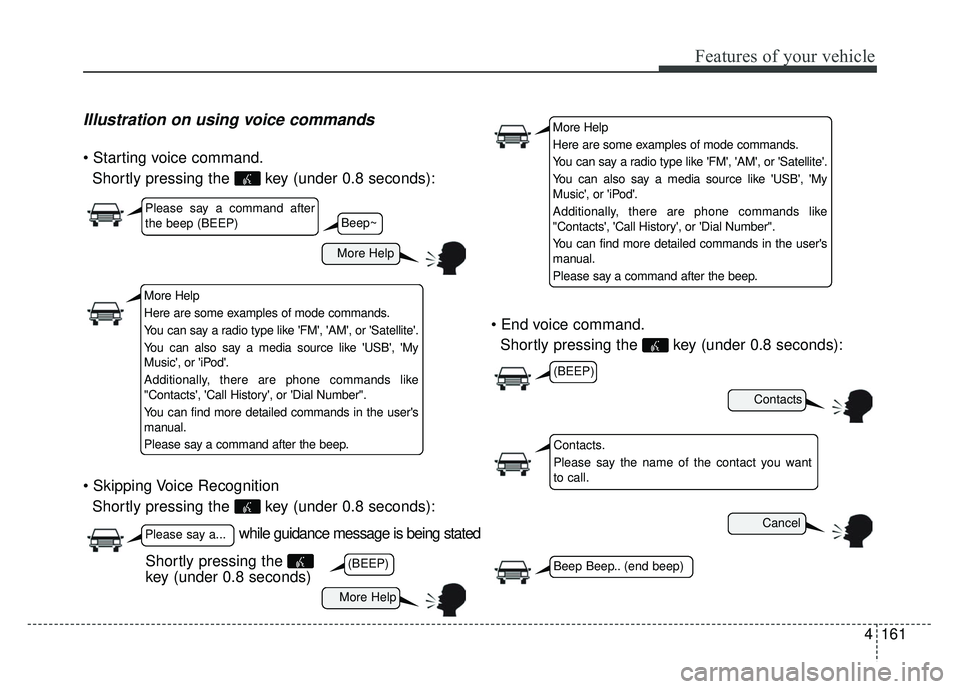
Illustration on using voice commands
Shortly pressing the key (under 0.8 seconds):
Shortly pressing the key (under 0.8 seconds):
Shortly pressing the key (under 0.8 seconds):
while guidance message is being stated
More Help
Contacts
Cancel
More Help
Please say a command after
the beep (BEEP)
Please say a...
Contacts.
Please say the name of the contact you want
to call.
(BEEP)
(BEEP)
Beep Beep.. (end beep)Shortly pressing the
key (under 0.8 seconds)
Beep~
More Help
Here are some examples of mode commands.
You can say a radio type like 'FM', 'AM', or 'Satellite'.
You can also say a media source like 'USB', 'My
Music', or 'iPod'.
Additionally, there are phone commands like
"Contacts', 'Call History', or 'Dial Number".
You can find more detailed commands in the user's
manual.
Please say a command after the beep.
More Help
Here are some examples of mode commands.
You can say a radio type like 'FM', 'AM', or 'Satellite'.
You can also say a media source like 'USB', 'My
Music', or 'iPod'.
Additionally, there are phone commands like
"Contacts', 'Call History', or 'Dial Number".
You can find more detailed commands in the user's
manual.
Please say a command after the beep.
Page 233 of 446
Features of your vehicle
162
4
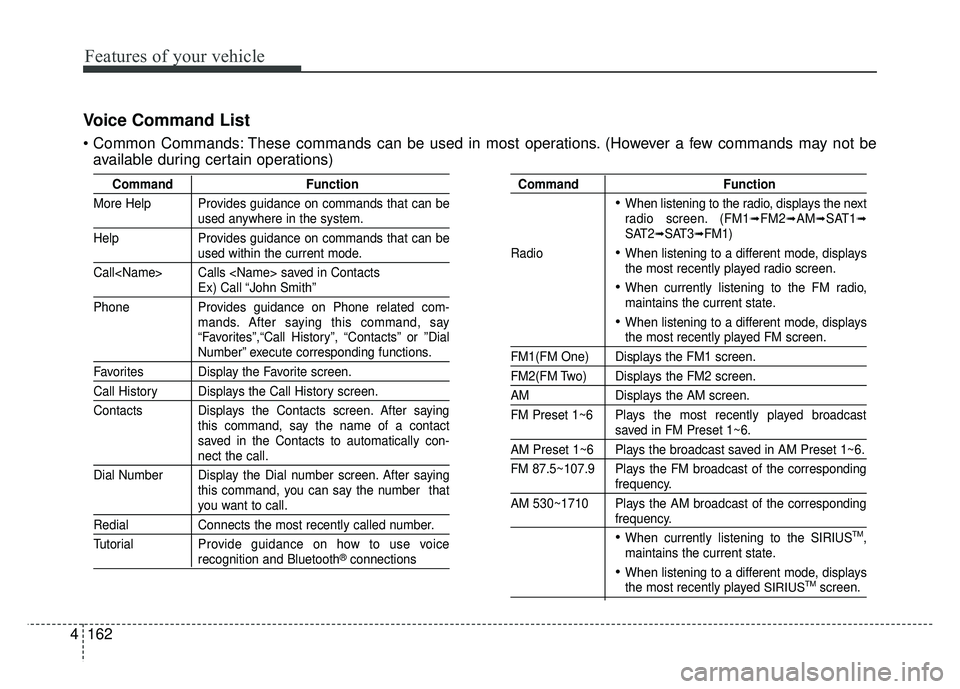
Voice Command List
These commands can be used in most operations. (However a few commands may not be
available during certain operations)
Command Function
More Help Provides guidance on commands that can be
used anywhere in the system.
Help Provides guidance on commands that can be
used within the current mode.
Call
Ex) Call “John Smith”
Phone Provides guidance on Phone related com- mands. After saying this command, say
“Favorites”,“Call History”, “Contacts” or ”Dial
Number” execute corresponding functions.
Favorites Display the Favorite screen.
Call History Displays the Call History screen.
Contacts Displays the Contacts screen. After sayingthis command, say the name of a contact
saved in the Contacts to automatically con-
nect the call.
Dial Number Display the Dial number screen. After saying this command, you can say the number that
you want to call.
RedialConnects the most recently called number.
Tutorial Pro vide guidance on how to use voice
recognition and Bluetooth®connections
Command Function
When listening to the radio, displays the next
radio screen. (FM1➟FM2➟AM➟SAT1➟SAT2➟SAT3➟FM1)
Radio
When listening to a different mode, displays
the most recently played radio screen.
When currently listening to the FM radio,
maintains the current state.
When listening to a different mode, displaysthe most recently played FM screen.
FM1(FM One) Displays the FM1 screen.
FM2(FM Two) Displays the FM2 screen.
AM Displays the AM screen.
FM Preset 1~6 Plays the most recently played broadcast
saved in FM Preset 1~6.
AM Preset 1~6 Plays the broadcast saved in AM Preset 1~6.
FM 87.5~107.9 Plays the FM broadcast of the corresponding
frequency.
AM 530~1710 Plays the AM broadcast of the corresponding
frequency.
When currently listening to the SIRIUSTM,
maintains the current state.
When listening to a different mode, displaysthe most recently played SIRIUSTMscreen.
Page 235 of 446
Features of your vehicle
164
4
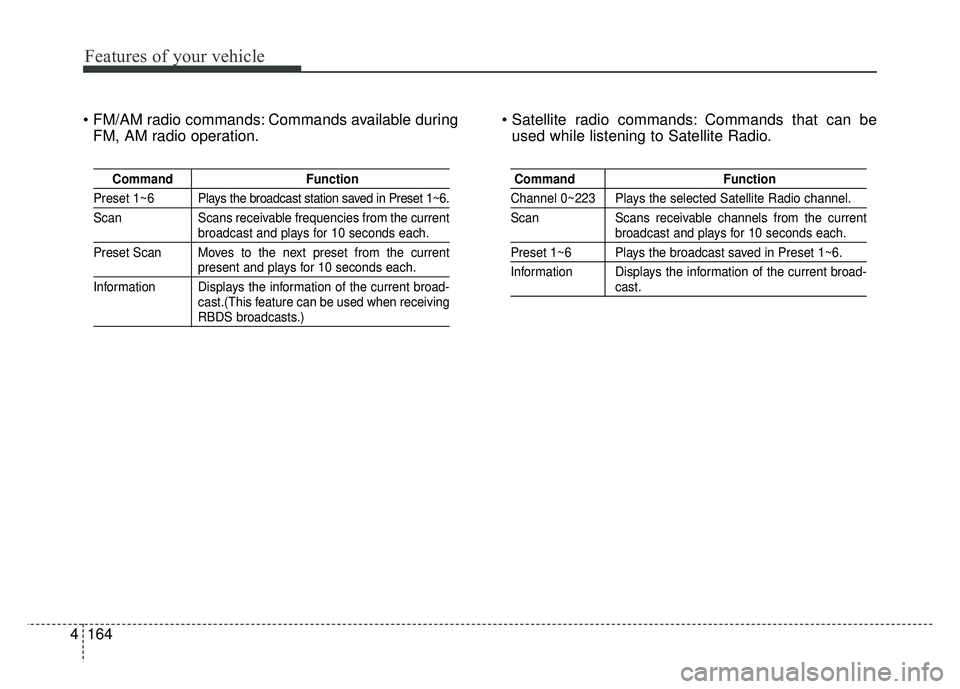
Commands available during
FM, AM radio operation. Commands that can be
used while listening to Satellite Radio.
Command Function
Preset 1~6 Plays the broadcast station saved in Preset 1~6.
Scan Scans receivable frequencies from the current
broadcast and plays for 10 seconds each.
Preset Scan Moves to the next preset from the current
present and plays for 10 seconds each.
Information Displays the information of the current broad- cast.(This feature can be used when receiving
RBDS broadcasts.)
Command Function
Channel 0~223 Plays the selected Satellite Radio channel.
Scan Scans receivable channels from the current
broadcast and plays for 10 seconds each.
Preset 1~6 Plays the broadcast saved in Preset 1~6.
Information Displays the information of the current broad-
cast.
Page 238 of 446
4167
Features of your vehicle
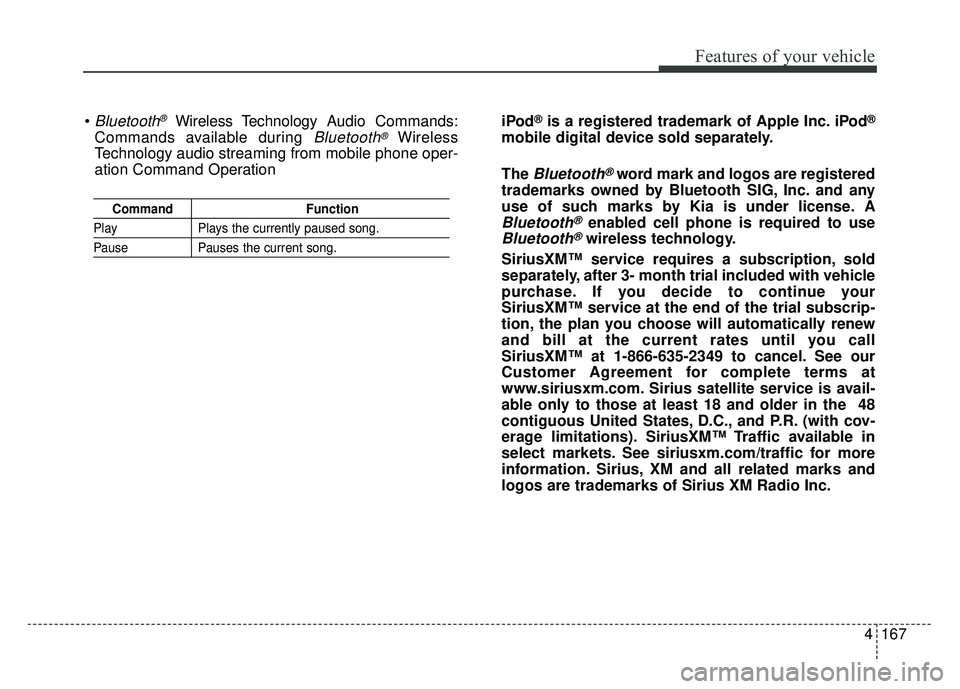
CommandFunction
PlayPlays the currently paused song.
PausePauses the current song.
Bluetooth®Wireless Technology A udio Commands:
Commands available during
Bluetooth®Wireless
Technology audio streaming from mobile phone oper-
ation Command Operation iPod
®is a registered trademark of Apple Inc. iPod®
mobile digital device sold separately.
The
Bluetooth®word mark and logos are registered
trademarks owned by Bluetooth SIG, Inc. and any
use of such marks by Kia is under license. A
Bluetooth®enabled cell phone is required to use
Bluetooth®wireless technology.
SiriusXM™ service requires a subscription, sold
separately, after 3- month trial included with vehicle
purchase. If you decide to continue your
SiriusXM™ service at the end of the trial subscrip-
tion, the plan you choose will automatically renew
and bill at the current rates until you call
SiriusXM™ at 1-866-635-2349 to cancel. See our
Customer Agreement for complete terms at
www.siriusxm.com. Sirius satellite service is avail-
able only to those at least 18 and older in the 48
contiguous United States, D.C., and P.R. (with cov-
erage limitations). SiriusXM™ Traffic available in
select markets. See siriusxm.com/traffic for more
information. Sirius, XM and all related marks and
logos are trademarks of Sirius XM Radio Inc.