ECO mode KIA RIO HATCHBACK 2017 Owner's Guide
[x] Cancel search | Manufacturer: KIA, Model Year: 2017, Model line: RIO HATCHBACK, Model: KIA RIO HATCHBACK 2017Pages: 532, PDF Size: 12.04 MB
Page 229 of 532
Features of your vehicle
4159
PHONE
Before using the Bluetooth®Wireless
Technology phone features
In order to use
Bluetooth®Wireless
Technology phone, you must first
pair and connect the
Bluetooth®
Wireless Technology mobile phone.
If the mobile phone is not paired or connected, it is not possible to
enter Phone mode. Once a phone
is paired or connected, the guid-
ance screen will be displayed.
If Priority is set upon vehicle igni- tion (IGN/ACC ON), the
Bluetooth®
Wireless Technology phone will be
automatically connected. Even if
you are outside, the
Bluetooth®
Wireless Technology phone will be
automatically connected once you
are in the vicinity of the vehicle. If
you do not want automatic
Bluetooth®Wireless Technology
phone connection, set the
Bluetooth®Wireless Technology
power to OFF.
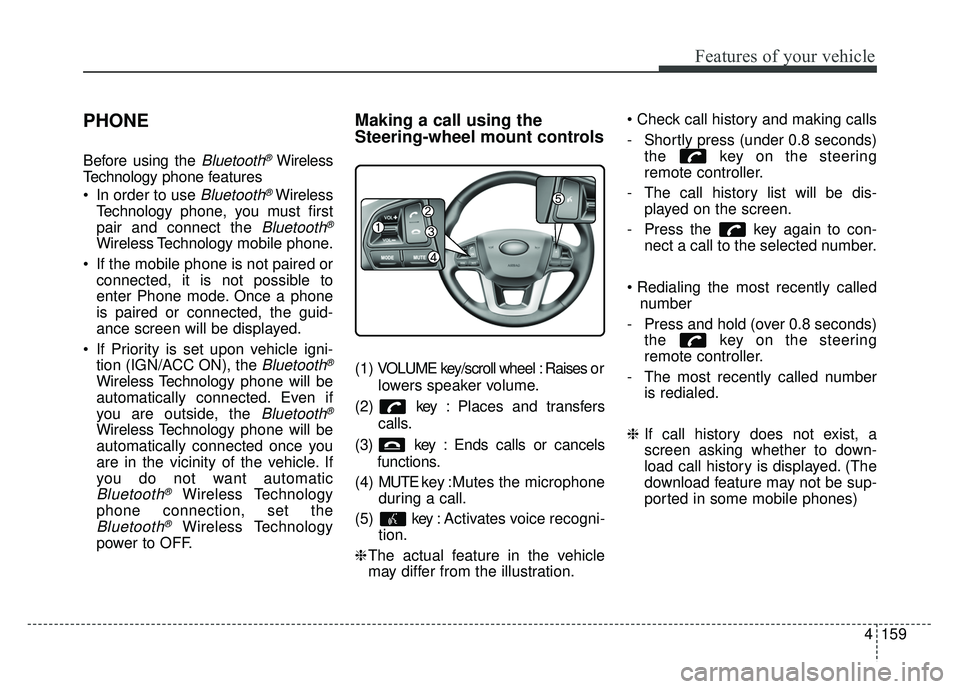
Making a call using the
Steering-wheel mount controls
( 1 ) VOLUME key/scroll wheel : Raises o r
lowers speaker volume.
(2) key : Places and transfers calls.
(3) key : Ends calls or cancels functions.
(4) MUTE key : Mutes the microphone
during a call.
(5) key : Activates voice recogni- tion.
❈ The actual feature in the vehicle
may differ from the illustration.
- Shortly press (under 0.8 seconds)
the key on the steering
remote controller.
- The call history list will be dis- played on the screen.
- Press the key again to con- nect a call to the selected number.
number
- Press and hold (over 0.8 seconds) the key on the steering
remote controller.
- The most recently called number is redialed.
❈ If call history does not exist, a
screen asking whether to down-
load call history is displayed. (The
download feature may not be sup-
ported in some mobile phones)
Page 242 of 532
![KIA RIO HATCHBACK 2017 Owners Guide Features of your vehicle
172
4
VOICE RECOGNITION
Using Voice Recognition
Starting Voice Recognition
Shortly press the key on the
steering wheel. Say a command.
If prompt feedback is in [ON], then
t](/img/2/57977/w960_57977-241.png "KIA RIO HATCHBACK 2017 Owners Guide Features of your vehicle
172
4
VOICE RECOGNITION
Using Voice Recognition
Starting Voice Recognition
Shortly press the key on the
steering wheel. Say a command.
If prompt feedback is in [ON], then
t")
Features of your vehicle
172
4
VOICE RECOGNITION
Using Voice Recognition
Starting Voice Recognition
Shortly press the key on the
steering wheel. Say a command.
If prompt feedback is in [ON], then
the system will say “Please say a
command after the beep (BEEP)”
If prompt feedback is in [OFF]
mode, then the system will only
say “(BEEP)”
To change Prompt Feedback [On]/[Off], go to
[System] [Prompt Feedback]
For proper recognition, say the command after the voice instruc-
tion and beep tone.
Contact List Best Practices
1) Use full names vs. short or single- syllable names (“John Smith” vs.
“Dad”, “Smith Residence” vs.
“Home”)
2) Avoid using special characters or hyphens (@, &, #, /, -, *, +, etc.)
3) Avoid using acronyms (“In Case Emergency” vs. “ICE”)
4) Spell words completely, no abbre- viations (“Doctor Goodman” vs.
“Dr. Goodman”)
Skipping Prompt Messages
While prompt message is being stat-
ed Shortly press the key on the
steering remote controller
The prompt message is immediately
ended and the beep tone will sound.
After the “beep”, say the voice com-
mand.
Re-starting Voice Recognition
While system waits for a command
Shortly press the key on the
steering remote controller
The command wait state is immedi-
ately ended and the beep tone will
sound. After the “beep”, say the voice
command.
SETUP/CLOCK
Page 243 of 532
Features of your vehicle
4173
ENDING VOICE
RECOGNITION
While Voice Recognition is operatingPress and hold the key on the
steering remote controller
ing any steering wheel control or a
different key will end voice com-
mand.
voice command, say “cancel” or
“end” to end voice command.
voice command, press and hold the key on the steering wheel to
end voice command.
Voice Recognition and Phone
Contact Tips:
The Kia Voice Recognition System may
have difficulty understanding some
accents or uncommon names. When
using Voice Recognition to place a call,
speak in a moderate tone, with clear
pronunciation.
To maximize the use of Voice
Recognition, consider these guidelines
when storing contacts :
Use full names vs. short or single syllable names (“John Smith” vs.
“Dad”, “Smith Residence” vs.
“Home”)
Avoid using special characters or hyphens (@, &, #, /, -, *, +, etc.)
Avoid using acronyms (“In Case Emergency” vs. “ICE”)
Spell words completely, no abbre- viations (“Doctor Goodman” vs.
“Dr. Goodman”)
Page 244 of 532
Features of your vehicle
174
4
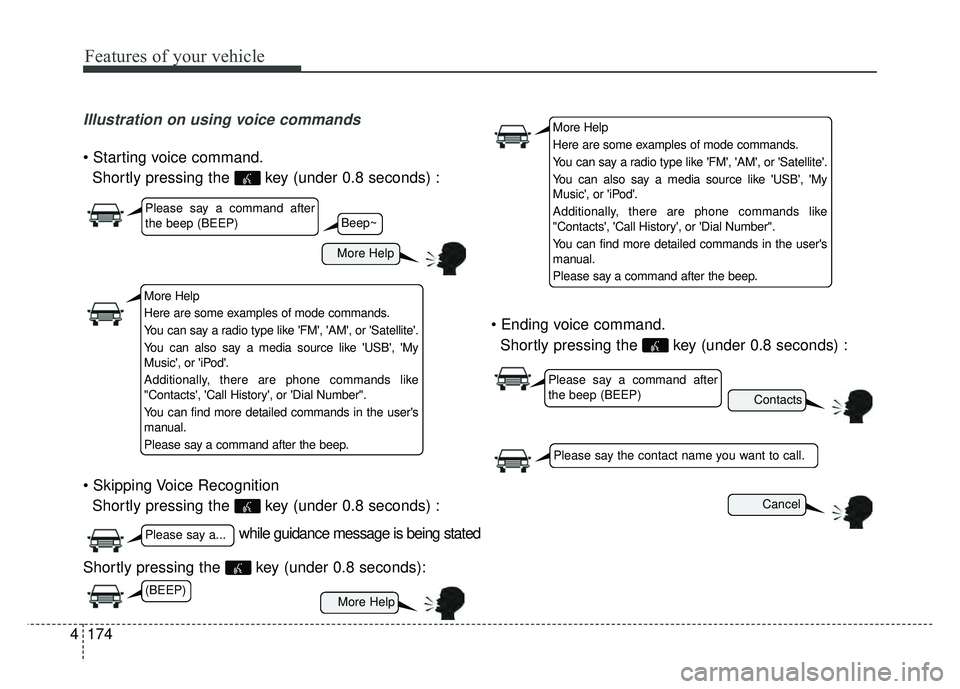
Illustration on using voice commands
Shortly pressing the key (under 0.8 seconds) :
Shortly pressing the key (under 0.8 seconds) :
Shortly pressing the key (under 0.8 seconds):
Shortly pressing the key (under 0.8 seconds) :
while guidance message is being stated
More Help
Contacts
Cancel
More Help
Please say a command after
the beep (BEEP)
Please say a...
Please say the contact name you want to call.
Beep~
More Help
Here are some examples of mode commands.
You can say a radio type like 'FM', 'AM', or 'Satellite'.
You can also say a media source like 'USB', 'My
Music', or 'iPod'.
Additionally, there are phone commands like
"Contacts', 'Call History', or 'Dial Number".
You can find more detailed commands in the user's
manual.
Please say a command after the beep.
More Help
Here are some examples of mode commands.
You can say a radio type like 'FM', 'AM', or 'Satellite'.
You can also say a media source like 'USB', 'My
Music', or 'iPod'.
Additionally, there are phone commands like
"Contacts', 'Call History', or 'Dial Number".
You can find more detailed commands in the user's
manual.
Please say a command after the beep.
Please say a command after
the beep (BEEP)
(BEEP)
Page 245 of 532
Features of your vehicle
4175
Voice Command List
These commands can be used in most operations. (However a few commands may not beavailable during certain operations)
Command Function
More Help Provides guidance on commands that can be
used anywhere in the system.
Help Provides guidance on commands that can be
used within the current mode.
Call
Ex) Call “John Smith”
Call
Ex) Call "John Smith" on Mobile
Call
Ex) Call "John Smith" in Office
Call
Ex) Call "John Smith" at Home
Call
Ex) Call "John Smith" on Other
Phone Provides guidance on Phone related com- mands. After saying this command, say
“Favorites”,“Call History”, “Contacts” or ”Dial
Number” execute corresponding functions.
Favorites Displays the Favorite screen.
Call History Displays the Call History screen.
Command Function
Contacts Displays the Contacts screen. After saying this command, say the name of a contact
saved in the Contacts to automatically con-
nect the call.
Dial Number Displays the Dial number screen. After saying this command, you can say the number that
you want to call.
RedialConnects the last dialed call number.
Tutorial Provides guidance on how to use voice
recognition and Bluetooth®connections
When listening to the radio, displays the next
radio screen. (FM1➟FM2➟AM➟SAT1➟SAT2➟SAT3➟FM1)
Radio
When listening to a different mode, displays
the most recently played radio screen.
When currently listening to the FM radio, main tains the current state.
When listening to a different mode, displaysthe most recently played FM screen.
FM1(FM One) Displays the FM1 screen.
FM2(FM Two) Displays the FM2 screen.
AM Displays the AM screen.
on Mobile
in Officeat Home
on Other
Page 252 of 532
Features of your vehicle
182
4
Features of your vehicle
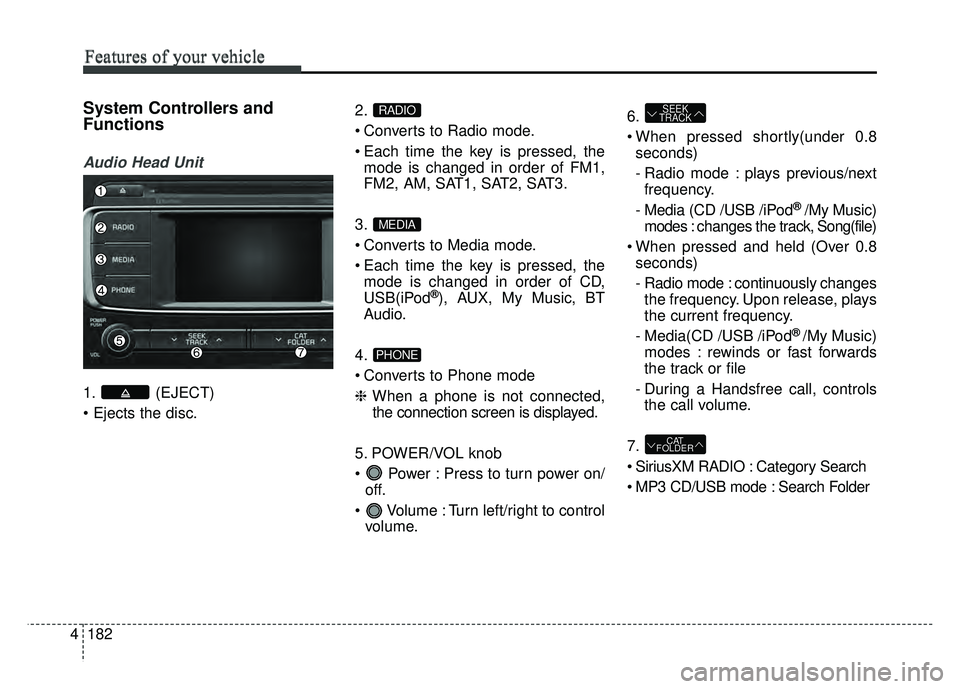
System Controllers and
Functions
Audio Head Unit
1. (EJECT)
2.
Converts to Radio mode.
Each time the key is pressed, the
mode is changed in order of FM1,
FM2, AM, SAT1, SAT2, SAT3.
3.
Converts to Media mode.
Each time the key is pressed, the mode is changed in order of CD,
USB(iPod
®), AUX, My Music, BT
Audio.
4.
Converts to Phone mode
❈ When a phone is not connected,
the connection screen is displayed.
5. POWER/VOL knob
Power : Press to turn power on/ off.
Volume : Turn left/right to control volume. 6.
When pressed shortly(under 0.8
seconds)
- Radio mode : plays previous/nextfrequency.
- Media (CD /USB /iPod
® /My Music)
modes : changes the track, Song(file)
When pressed and held (Over 0.8 seconds)
- Radio mode : continuously changesthe frequency. Upon release, plays
the current frequency.
- Media(CD /USB /iPod
® /My Music)
modes : rewinds or fast forwards
the track or file
- During a Handsfree call, controls the call volume.
7.
SiriusXM RADIO : Category Search
MP3 CD/USB mode : Search Folder
CAT
FOLDER
SEEK
TRACK
PHONE
MEDIA
RADIO
Page 253 of 532
4183
Features of your vehicle
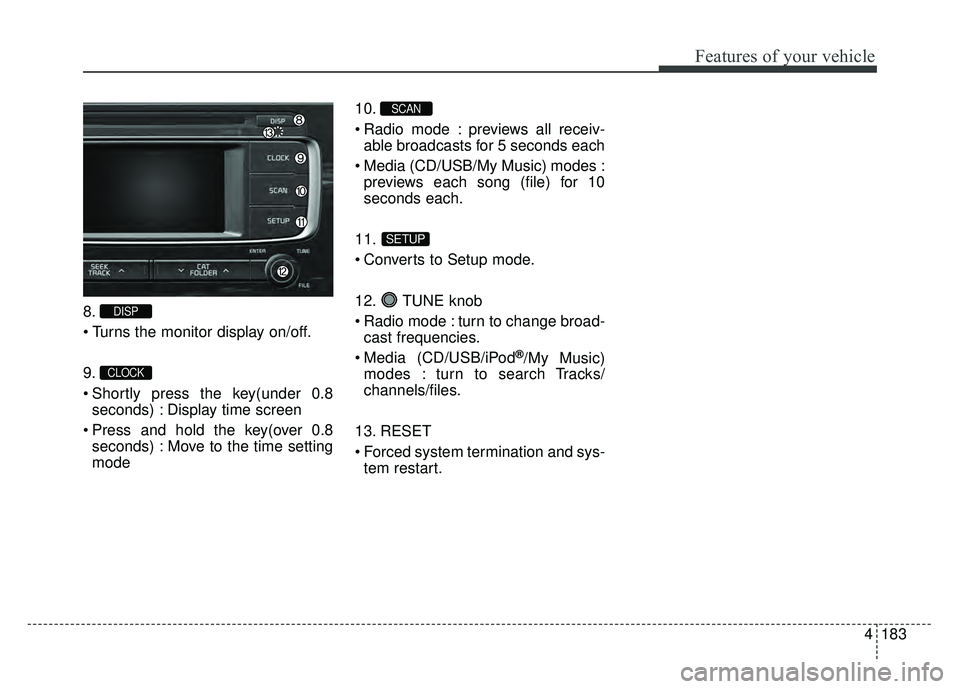
8.
9.
Shortly press the key(under 0.8seconds) : Display time screen
Press and hold the key(over 0.8 seconds) : Move to the time setting
mode 10.
Radio mode : previews all receiv-
able broadcasts for 5 seconds each
Media (CD/USB/My Music) modes : previews each song (file) for 10
seconds each.
11.
Converts to Setup mode.
12. TUNE knob
Radio mode : turn to change broad- cast frequencies.
Media (CD/USB/iPod
®/My Music)
modes : turn to search Tracks/
channels/files.
13. RESET
Forced system termination and sys- tem restart.
SETUP
SCAN
CLOCK
DISP
Page 254 of 532
Features of your vehicle
184
44
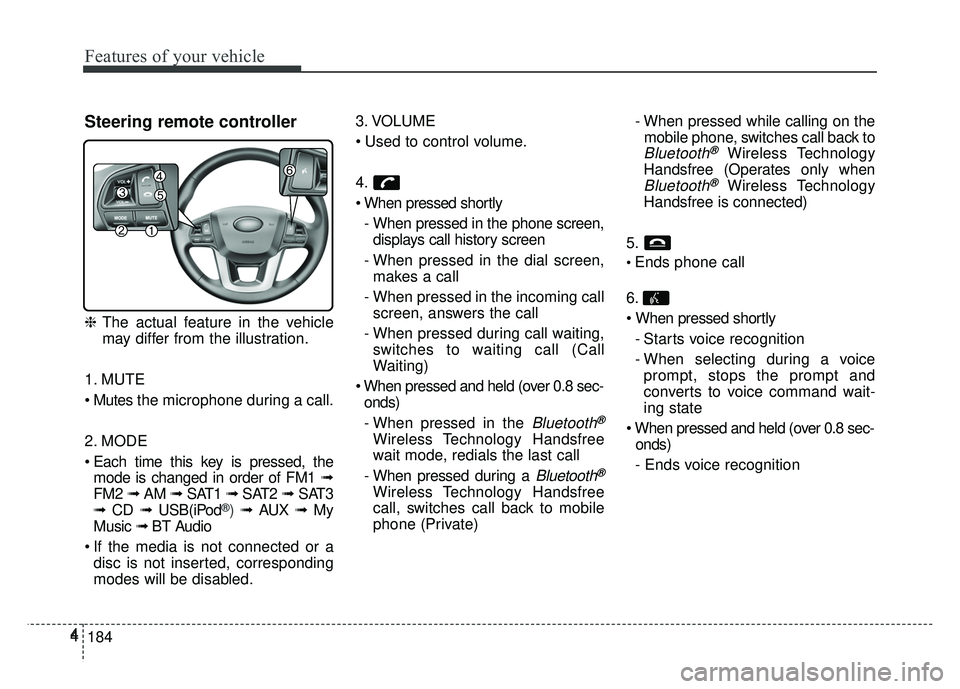
Steering remote controller
❈
The actual feature in the vehicle
may differ from the illustration.
1. MUTE
the microphone during a call.
2. MODE
Each time this key is pressed, the mode is changed in order of FM1 ➟
FM2 ➟ AM ➟ SAT1 ➟ SAT2 ➟SAT3
➟ CD ➟ USB(iPod
®) ➟ AUX ➟ My
Music ➟ BT Audio
If the media is not connected or a disc is not inserted, corresponding
modes will be disabled. 3. VOLUME
4.
- When pressed in the phone screen,displays call history screen
- When pressed in the dial screen, makes a call
- When pressed in the incoming call screen, answers the call
- When pressed during call waiting, switches to waiting call (Call
Waiting)
onds)
- When pressed in the
Bluetooth®
Wireless Technology Handsfree
wait mode, redials the last call
- When pressed during a
Bluetooth®
Wireless Technology Handsfree
call, switches call back to mobile
phone (Private) - When pressed while calling on the
mobile phone, switches call back to
Bluetooth®Wireless Technology
Handsfree (Operates only when
Bluetooth®Wireless Technology
Handsfree is connected)
5.
Ends phone call
6.
- Starts voice recognition
- When selecting during a voiceprompt, stops the prompt and
converts to voice command wait-
ing state
onds)
- Ends voice recognition
Page 256 of 532
Features of your vehicle
186
4
Searching Radio Frequencies
Using Seek
Press the key to play the
previous/next frequency.
Using TUNE
Turn the TUNE knob to select the
desired frequency.
Using Radio Mode
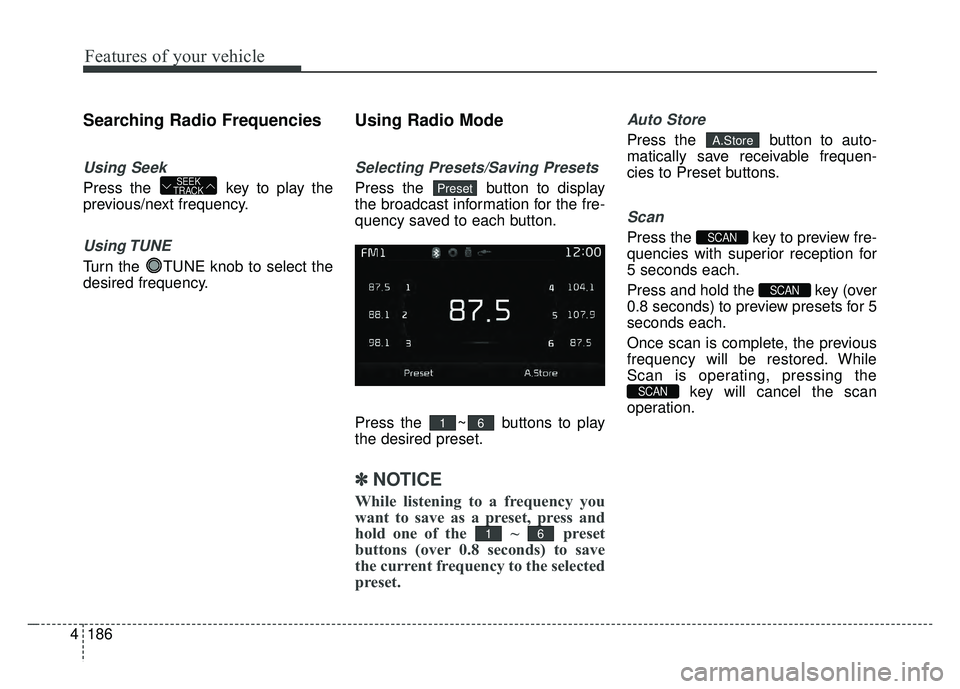
Selecting Presets/Saving Presets
Press the button to display
the broadcast information for the fre-
quency saved to each button.
Press the ~ buttons to play
the desired preset.
✽ ✽
NOTICE
While listening to a frequency you
want to save as a preset, press and
hold one of the ~ preset
buttons (over 0.8 seconds) to save
the current frequency to the selected
preset.
Auto Store
Press the button to auto-
matically save receivable frequen-
cies to Preset buttons.
Scan
Press the key to preview fre-
quencies with superior reception for
5 seconds each.
Press and hold the key (over
0.8 seconds) to preview presets for 5
seconds each.
Once scan is complete, the previous
frequency will be restored. While
Scan is operating, pressing the
key will cancel the scan
operation.
SCAN
SCAN
SCAN
A.Store
61
61
PresetSEEK
TRACK
Page 261 of 532
4191
Features of your vehicle
(Continued)
• Do not use abnormally shaped discs(8cm, heart-shaped, octagon-shaped)
as such discs could lead to malfunc-
tions.
• If the disc is straddled on the disc slot without removal for 10 seconds,
the disc will automatically be re-
inserted into the disc player.
• Only genuine audio CDs are sup- ported. Other discs may result in
recognition failure. (e.g. copy CD-R,
CDs with labels)MEDIA MODE
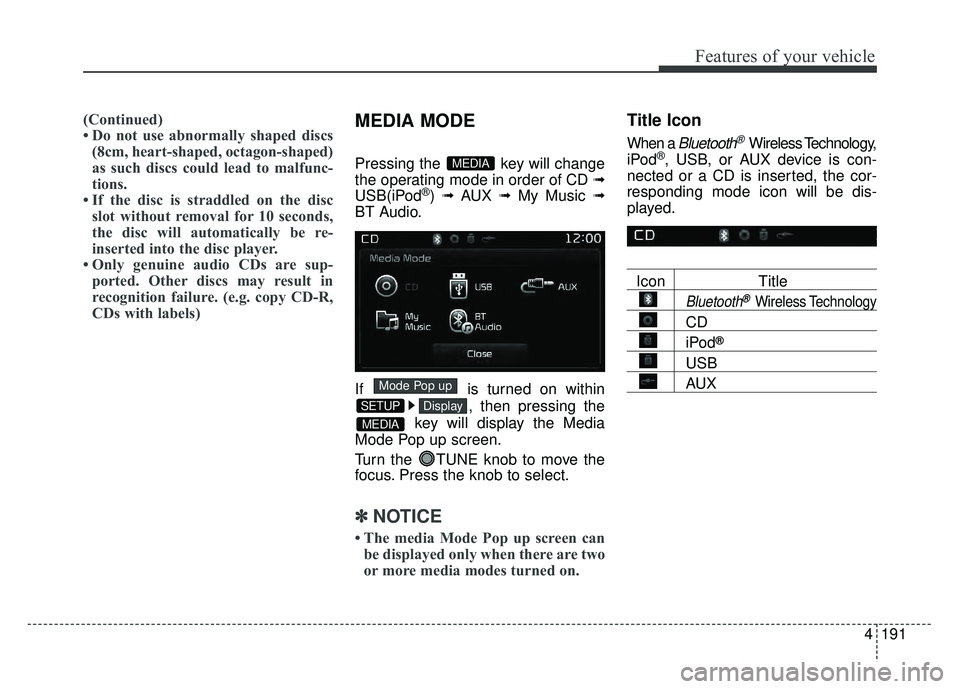
Pressing the key will change
the operating mode in order of CD
➟
USB(iPod®) ➟ AUX ➟ My Music ➟
BT Audio.
If is turned on within
, then pressing the
key will display the Media
Mode Pop up screen.
Turn the TUNE knob to move the
focus. Press the knob to select.
✽ ✽ NOTICE
• The media Mode Pop up screen can
be displayed only when there are two
or more media modes turned on.
Title Icon
When a Bluetooth®Wireless Technology,
iPod®, USB, or AUX device is con-
nected or a CD is inserted, the cor-
responding mode icon will be dis-
played.
Icon Title
Bluetooth®Wireless Technology
CD
iPod®
USB
AUX
MEDIA
DisplaySETUP
Mode Pop up
MEDIA