phone KIA RIO HATCHBACK 2017 Workshop Manual
[x] Cancel search | Manufacturer: KIA, Model Year: 2017, Model line: RIO HATCHBACK, Model: KIA RIO HATCHBACK 2017Pages: 532, PDF Size: 12.04 MB
Page 295 of 532
4225
Features of your vehicle
✽
✽NOTICE BEFORE DOWN-
LOADING CONTACTS
• Only contacts within connected
phones can be downloaded. Also
check to see that your mobile phone
supports the download feature.
• To learn more about whether your mobile phone supports contacts
downloads, refer to your mobile
phone user’s manual.
• The contacts for only the connected phone can be downloaded.
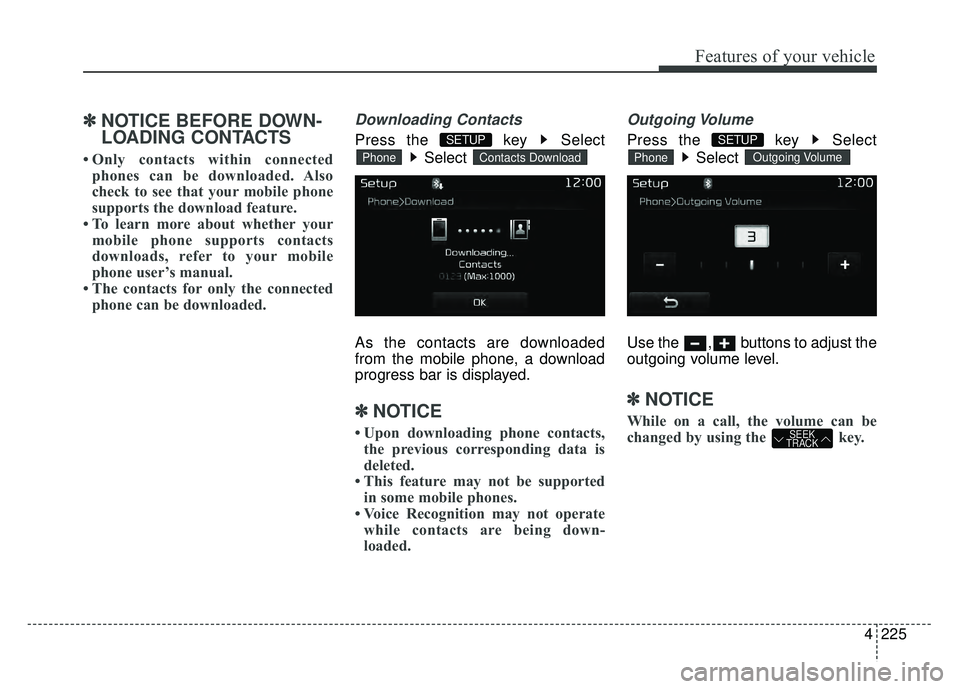
Downloading Contacts
Press the key Select
Select
As the contacts are downloaded
from the mobile phone, a download
progress bar is displayed.
✽ ✽ NOTICE
• Upon downloading phone contacts,
the previous corresponding data is
deleted.
• This feature may not be supported in some mobile phones.
• Voice Recognition may not operate while contacts are being down-
loaded.
Outgoing Volume
Press the key Select
Select
Use the , buttons to adjust the
outgoing volume level.
✽ ✽ NOTICE
While on a call, the volume can be
changed by using the key.SEEK
TRACK
Outgoing VolumePhone
SETUP
Contacts DownloadPhone
SETUP
Page 296 of 532
Features of your vehicle
226
4
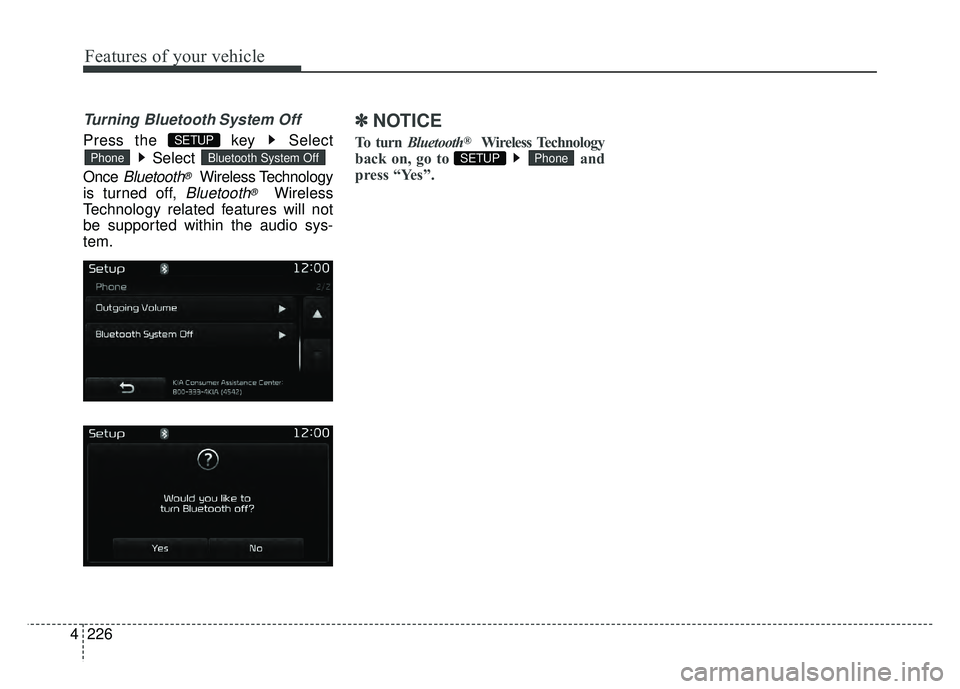
Turning Bluetooth System Off
Press the key Select
Select
Once
Bluetooth®Wireless Technology
is turned off,
Bluetooth®Wireless
Technology related features will not
be supported within the audio sys-
tem.
✽ ✽ NOTICE
To turn Bluetooth®Wireless Technology
back on, go to and
press “Yes”.PhoneSETUP Bluetooth System OffPhone
SETUP
Page 298 of 532
Features of your vehicle
228
4
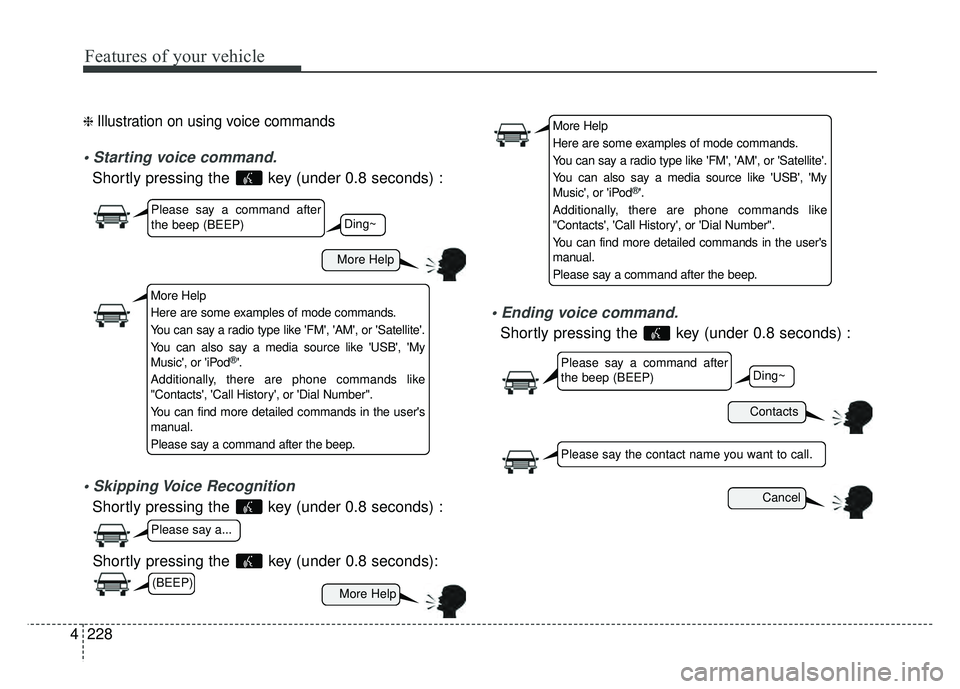
❈ Illustration on using voice commands
Shortly pressing the key (under 0.8 seconds) :
Shortly pressing the key (under 0.8 seconds) :
Shortly pressing the key (under 0.8 seconds) :
More Help
Contacts
Cancel
More Help
Please say a command after
the beep (BEEP)
Please say a command after
the beep (BEEP)
Please say a...
Please say the contact name you want to call.
Ding~
Ding~
Shortly pressing the key (under 0.8 seconds):
More Help
Here are some examples of mode commands.
You can say a radio type like 'FM', 'AM', or 'Satellite'.
You can also say a media source like 'USB', 'My
Music', or 'iPod
®'.
Additionally, there are phone commands like
"Contacts', 'Call History', or 'Dial Number".
You can find more detailed commands in the user's
manual.
Please say a command after the beep.
More Help
Here are some examples of mode commands.
You can say a radio type like 'FM', 'AM', or 'Satellite'.
You can also say a media source like 'USB', 'My
Music', or 'iPod
®'.
Additionally, there are phone commands like
"Contacts', 'Call History', or 'Dial Number".
You can find more detailed commands in the user's
manual.
Please say a command after the beep.
(BEEP)
Page 299 of 532
4229
Features of your vehicle
CommandFunction
More Help Provides guidance on commands that can be
used anywhere in the system.
Help Provides guidance on commands that can be
used within the current mode.
Call
Ex) Call “John Smith”
Call
Ex) Call "John Smith" on Mobile
Call
Ex) Call "John Smith" in Office
Call
Ex) Call "John Smith" at Home
Call
Ex) Call "John Smith" on Other
Phone Provides guidance on Phone related com- mands. After saying this command, say
“Favorites”,“Dial Number”, “Call History” or
“Contacts” execute corresponding functions.
Favorites Displaysthe Favorite screen.
Call History Displays the Call History screen.
Command Function
Contacts Displays the Contacts screen. After saying this command, say the name of a contact
saved in the Contacts to automatically con-
nect the call.
Dial Number Display
sthe Dial number screen. After saying
this command, you can say the number that
you want to call.
Redial Connects the last dialed call number.
Tutorial Provide
sguidance on how to use voice recognition and Bluetooth®connections.
When listening to the radio, displays the
next radio screen.
(FM1
➟FM2➟AM➟ SAT1➟ SAT2➟SAT3➟FM1)
Radio
When listening to a different mode, displays
the most recently played radio screen.
When currently listening to the FM radio,
maintains the current state.
When listening to a different mode, displaysthe most recently played FM screen.
FM1(FM One) Displays the FM1 screen.
FM2(FM Two) Displays the FM2 screen.
AM Displays the AM screen.
(Call by Name)
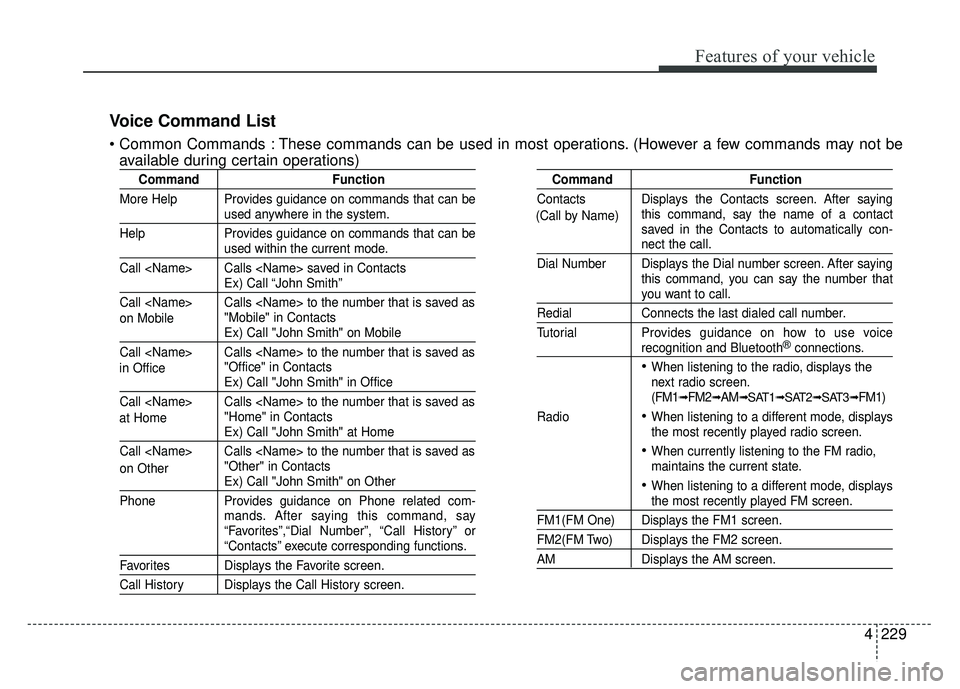
Voice Command List
These commands can be used in most operations. (However a few commands may not be
available during certain operations)
on Mobile
in Office at Home
on Other
Page 304 of 532
Features of your vehicle
234
4
SETUP
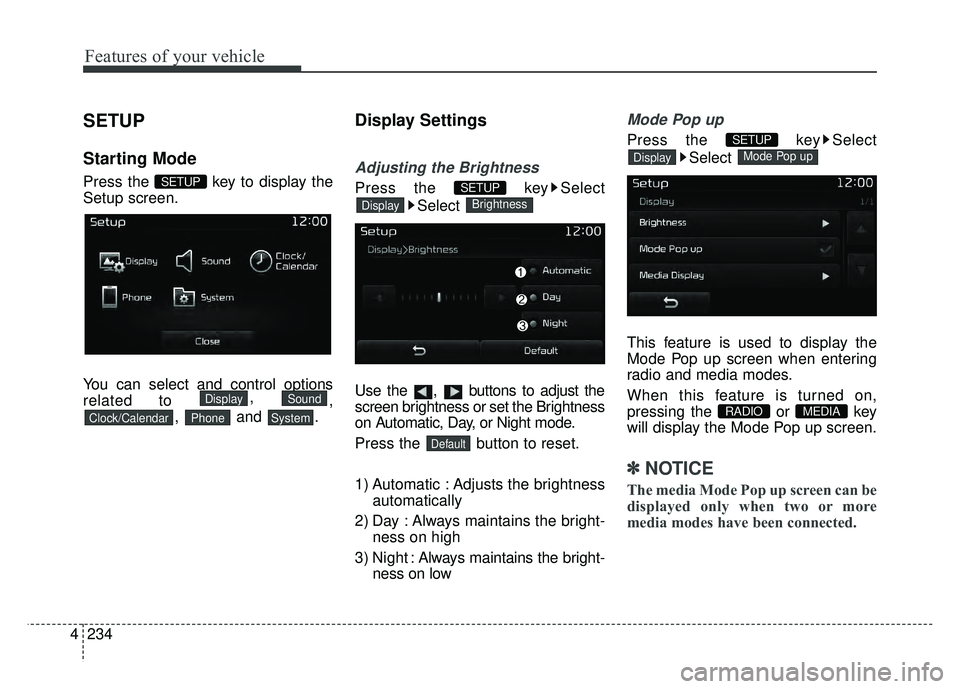
Starting Mode
Press the key to display the
Setup screen.
You can select and control options
related to ,
,
, and .
Display Settings
Adjusting the Brightness
Press the key Select
Select
Use the , buttons to adjust the
screen brightness or set the Brightness
on Automatic, Day, or Night mode.
Press the button to reset.
1) Automatic : Adjusts the brightness automatically
2) Day : Always maintains the bright- ness on high
3) Night : Always maintains the bright-
ness on low
Mode Pop up
Press the key Select
Select
This feature is used to display the
Mode Pop up screen when entering
radio and media modes.
When this feature is turned on,
pressing the or key
will display the Mode Pop up screen.
✽ ✽ NOTICE
The media Mode Pop up screen can be
displayed only when two or more
media modes have been connected.
MEDIA RADIO
Mode Pop upDisplay
SETUP
Default
BrightnessDisplay
SETUP
SystemPhoneClock/Calendar
SoundDisplay
SETUP