ECO mode KIA RIO HATCHBACK 2018 Owner's Manual
[x] Cancel search | Manufacturer: KIA, Model Year: 2018, Model line: RIO HATCHBACK, Model: KIA RIO HATCHBACK 2018Pages: 492, PDF Size: 10.36 MB
Page 198 of 492
Features of your vehicle
126
4
Automatic climate control system
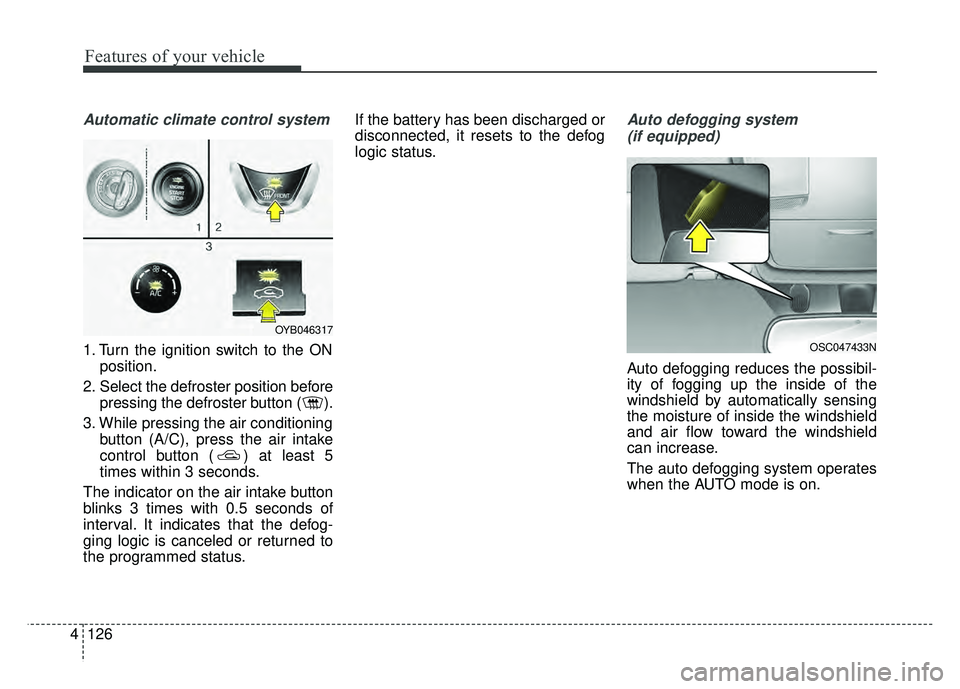
1. Turn the ignition switch to the ON
position.
2. Select the defroster position before pressing the defroster button ( ).
3. While pressing the air conditioning button (A/C), press the air intake
control button ( ) at least 5
times within 3 seconds.
The indicator on the air intake button
blinks 3 times with 0.5 seconds of
interval. It indicates that the defog-
ging logic is canceled or returned to
the programmed status. If the battery has been discharged or
disconnected, it resets to the defog
logic status.
Auto defogging system
(if equipped)
Auto defogging reduces the possibil-
ity of fogging up the inside of the
windshield by automatically sensing
the moisture of inside the windshield
and air flow toward the windshield
can increase.
The auto defogging system operates
when the AUTO mode is on.
OSC047433N
OYB046317
Page 219 of 492
Audio system
510
Steering wheel remote control
(Bluetooth®Wireless Technology
equipped model)
❈ The actual features in the vehicle
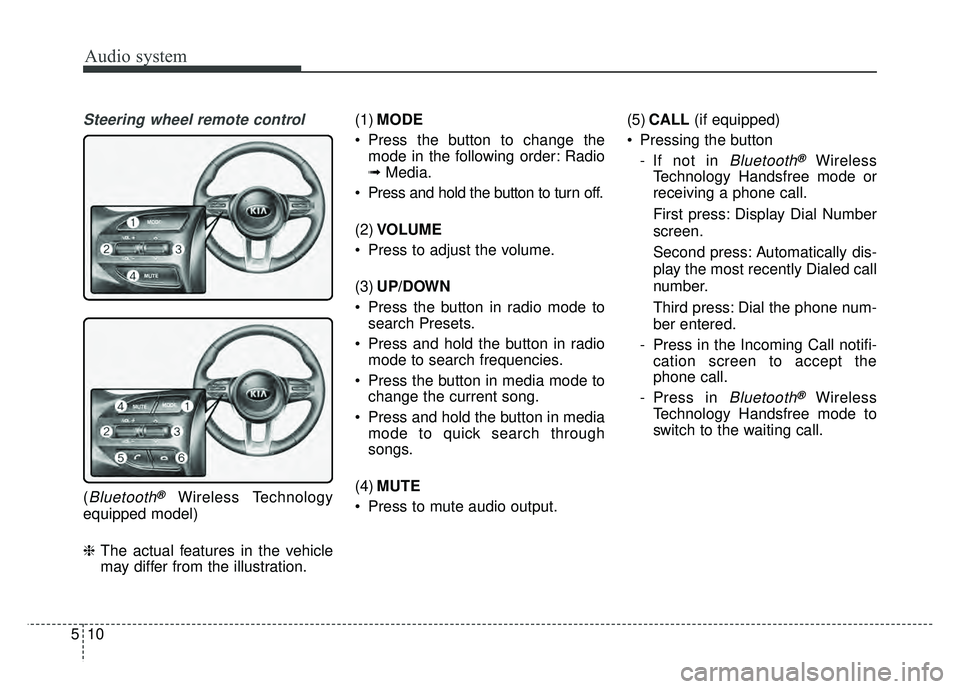
may differ from the illustration. (1)
MODE
Press the button to change the mode in the following order: Radio
➟ Media.
Press and hold the button to turn off.
(2) VOLUME
Press to adjust the volume.
(3) UP/DOWN
Press the button in radio mode to search Presets.
Press and hold the button in radio mode to search frequencies.
Press the button in media mode to change the current song.
Press and hold the button in media mode to quick search through
songs.
(4) MUTE
Press to mute audio output. (5)
CALL (if equipped)
Pressing the button - If not in
Bluetooth®Wireless
Technology Handsfree mode or
receiving a phone call.
First press: Display Dial Number
screen.
Second press: Automatically dis-
play the most recently Dialed call
number.
Third press: Dial the phone num-
ber entered.
- Press in the Incoming Call notifi- cation screen to accept the
phone call.
- Press in
Bluetooth®Wireless
Technology Handsfree mode to
switch to the waiting call.
Page 225 of 492
Audio system
516
SiriusXM
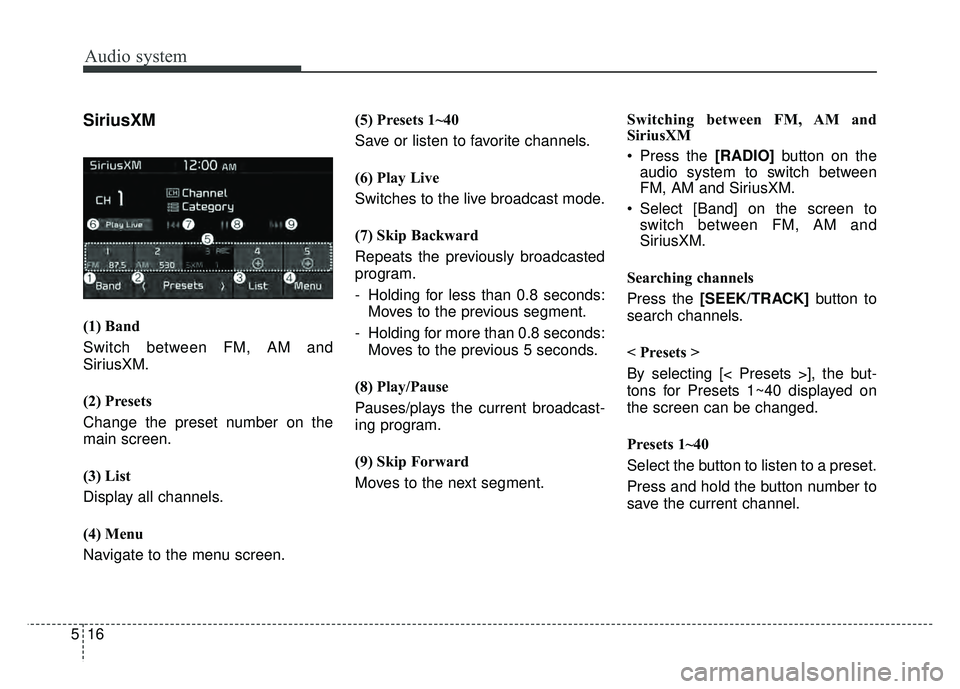
(1) Band
Switch between FM, AM and
SiriusXM.
(2) Presets
Change the preset number on the
main screen.
(3) List
Display all channels.
(4) Menu
Navigate to the menu screen.(5) Presets 1~40
Save or listen to favorite channels.
(6) Play Live
Switches to the live broadcast mode.
(7) Skip Backward
Repeats the previously broadcasted
program.
- Holding for less than 0.8 seconds:
Moves to the previous segment.
- Holding for more than 0.8 seconds: Moves to the previous 5 seconds.
(8) Play/Pause
Pauses/plays the current broadcast-
ing program.
(9) Skip Forward
Moves to the next segment. Switching between FM, AM and
SiriusXM
Press the [RADIO]
button on the
audio system to switch between
FM, AM and SiriusXM.
Select [Band] on the screen to switch between FM, AM and
SiriusXM.
Searching channels
Press the [SEEK/TRACK] button to
search channels.
< Presets >
By selecting [< Presets >], the but-
tons for Presets 1~40 displayed on
the screen can be changed.
Presets 1~40
Select the button to listen to a preset.
Press and hold the button number to
save the current channel.
Page 229 of 492
Audio system
520
(Continued)
• Use of aftermarket USB hubs andextension cables can result in the
vehicle’s audio system failing to
recognize your USB device.
Connect the USB device directly to
the multimedia port of your vehicle.
• When using high-capacity USB devices with logical drive divi-
sions, only files saved on the high-
est level logical drive can be
played.
If applications are loaded on a
USB drive, file playback may fail.
• Some MP3 players, cell phones, digital cameras, etc. (USB devices
that are not recognized as mobile
storage) may not operate normally
when connected.
• USB charging may not be sup- ported by some mobile devices.
• Operation is guaranteed only for standard (Metal Cover Type) USB
Memory drives.
• Operation of HDD, CF, SD and memory stick devices is not guar-
anteed. (Continued)(Continued)
• DRM (Digital Rights Management)
files cannot be played.
• SD-type USB memory, CF-type USB memory, and other USB
memory devices that require
adapters for connection are not
supported.
• Proper operation of USB HDDs or USB drives with connectors that
loosen due to vehicle vibrations is
not guaranteed. (iStick, etc.)
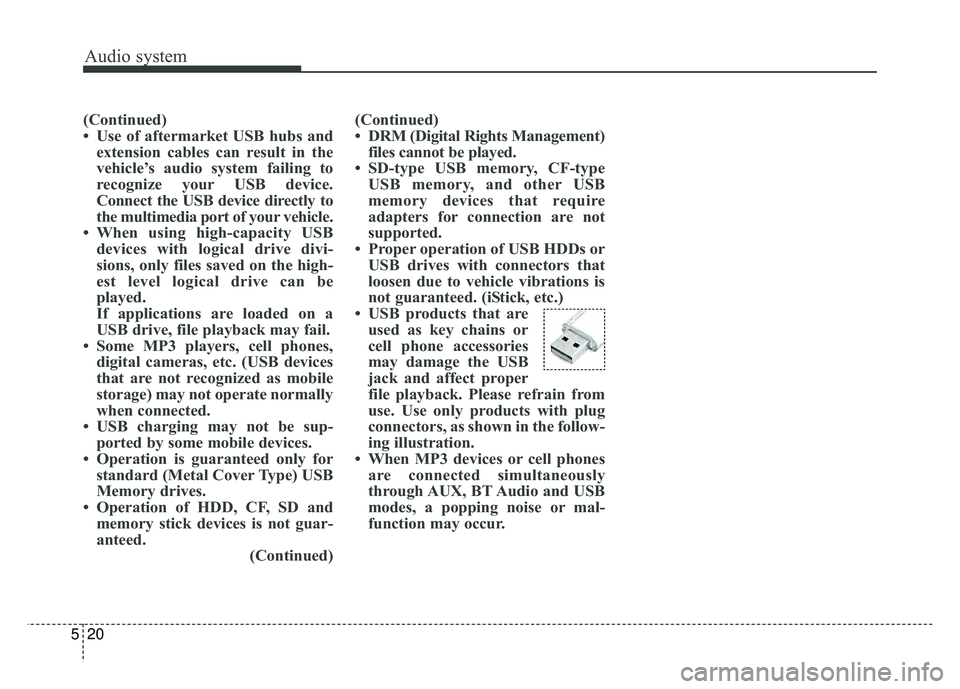
• USB products that are used as key chains or
cell phone accessories
may damage the USB
jack and affect proper
file playback. Please refrain from
use. Use only products with plug
connectors, as shown in the follow-
ing illustration.
• When MP3 devices or cell phones are connected simultaneously
through AUX, BT Audio and USB
modes, a popping noise or mal-
function may occur.
Page 231 of 492
![KIA RIO HATCHBACK 2018 Owners Manual Audio system
522
✽
✽NOTICE
The repeat folder function is avail-
able only when songs are playing
from the [File] category under
[List].
Shuffle play
Select [Shuffle] to enable/disable
‘Shuffleâ€](/img/2/57983/w960_57983-230.png "KIA RIO HATCHBACK 2018 Owners Manual Audio system
522
✽
✽NOTICE
The repeat folder function is avail-
able only when songs are playing
from the [File] category under
[List].
Shuffle play
Select [Shuffle] to enable/disable
‘Shuffleâ€")
Audio system
522
✽
✽NOTICE
The repeat folder function is avail-
able only when songs are playing
from the [File] category under
[List].
Shuffle play
Select [Shuffle] to enable/disable
‘Shuffle’, ‘Shuffle folder’ or ‘Shuffle
category’ play.
Shuffle: Songs are played in
random order.
Shuffle folder: Songs within the current folder are played in ran-
dom order.
Shuffle category: Songs within the current category are played in
random order.
Menu
Select [Menu], and select the desired
function.
Information: Detailed information on the currently playing song is dis-
played.
Sound Settings: Audio sound set- tings can be changed.
✽ ✽ NOTICE - Using the iPod®
Devices
• To use the audio system’s iPod®
control function, use the dedicated
cable provided with your iPod®.
• Connecting the iPod®to the vehi-
cle during play may result in a
loud noise that lasts about one to
two seconds. Connect the iPod
®to
the vehicle after stopping or paus-
ing play.
• Connect the iPod
®with the vehicle
in the ACC ON state to begin
charging.
• When connecting the iPod
®cable,
be sure to fully push the cable into
the port.
• When EQ effects are enabled simultaneously on external
devices, such as iPod
®s and the
audio system, the EQ effects may
overlap, causing sound quality
deterioration or distortion.
Deactivate the EQ function for all
external devices, if possible.
• Noise may occur when your iPod
®
or the AUX port is connected.
Disconnect and store separately
when not in use. (Continued)(Continued)
• There may be noise if the audio
system is used with an iPod
®or
AUX external device connected to
the power jack. In these cases, dis-
connect the iPod
®or external
device from the power jack.
• Play may be interrupted, or device malfunctions may occur depend-
ing on the characteristics of your
iPod
®/iPhone®.
• Play may fail if your iPhone®is
connected through both Bluetooth®
Wireless Technology and USB. In
this case, select Dock connector or
Bluetooth
®Wireless Technology
on your iPhone®to change the
sound output settings.
• If your software version does not support the communication proto-
col or your iPod
®is not recognized
due to device failure, anomalies or
defects, iPod
®mode cannot be
used.
• iPod
®nano (5th generation)
devices may not be recognized if
the battery is low. Charge suffi-
ciently before use. (Continued)
Page 232 of 492
Audio system
23
5
(Continued)
• The search and song play order in
the iPod
®device may be different
from the search order in the audio
system.
• If the iPod
®has failed due to an
internal defect, please reset the
iPod
®(consult your iPod®manual).
• Depending on the software ver- sion, the iPod
®may fail to sync
with the system. If the media is
removed or disconnected before
recognition, the previous mode
may not be restored (iPad
®cannot
be charged).
• Cables other than the 1-meter cable provided with iPod
®/iPhone®
products may not be recognized.
• When other music apps are used on your iPod
®, the system sync
function may fail due to malfunc-
tion of the iPod
®application.
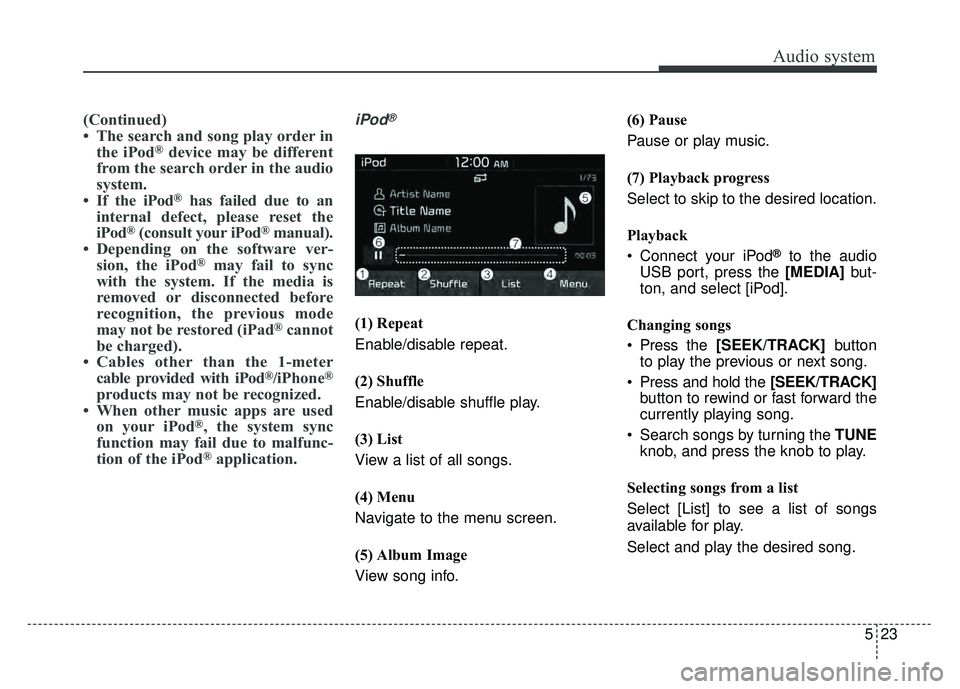
iPod®
(1) Repeat
Enable/disable repeat.
(2) Shuffle
Enable/disable shuffle play.
(3) List
View a list of all songs.
(4) Menu
Navigate to the menu screen.
(5) Album Image
View song info. (6) Pause
Pause or play music.
(7) Playback progress
Select to skip to the desired location.
Playback
Connect your iPod
®to the audio
USB port, press the [MEDIA] but-
ton, and select [iPod].
Changing songs
Press the [SEEK/TRACK] button
to play the previous or next song.
Press and hold the [SEEK/TRACK] button to rewind or fast forward the
currently playing song.
Search songs by turning the TUNE knob, and press the knob to play.
Selecting songs from a list
Select [List] to see a list of songs
available for play.
Select and play the desired song.
Page 240 of 492
Audio system
31
5
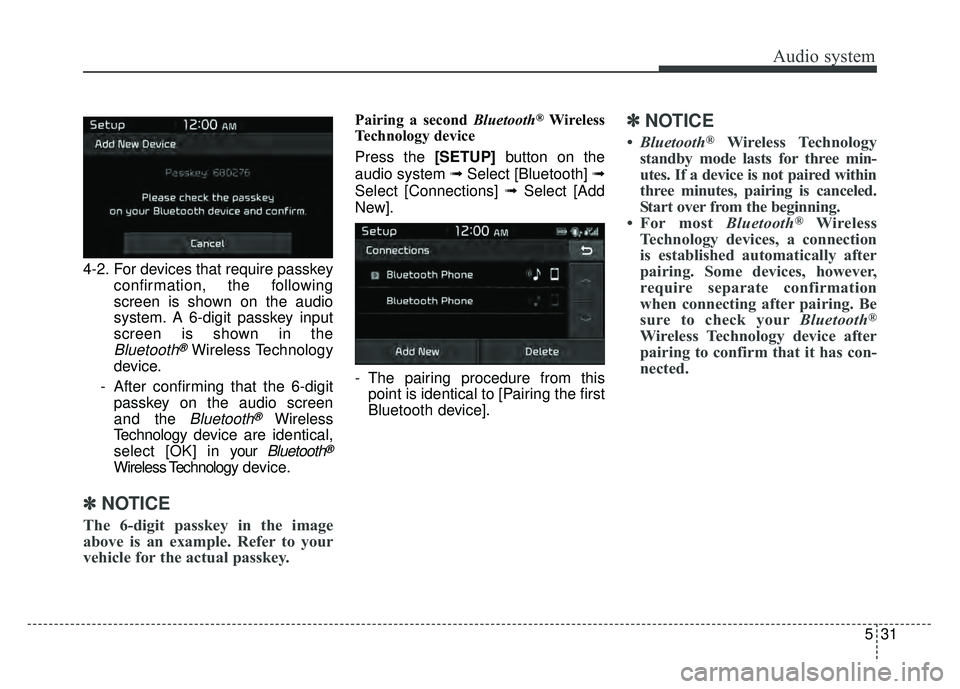
4-2. For devices that require passkey
confirmation, the following
screen is shown on the audio
system. A 6-digit passkey input
screen is shown in the
Bluetooth®Wireless Technology
device.
- After confirming that the 6-digit passkey on the audio screen
and the
Bluetooth®Wireless
Technology de vice are identical,
select [OK] in y our
Bluetooth®
Wireless Technology d e vice.
✽ ✽
NOTICE
The 6-digit passkey in the image
above is an example. Refer to your
vehicle for the actual passkey.
Pairing a second Bluetooth®Wireless
Technology device
Press the [SETUP] button on the
audio system ➟ Select [Bluetooth] ➟
Select [Connections] ➟ Select [Add
New].
- The pairing procedure from this point is identical to [Pairing the first
Bluetooth device].✽ ✽ NOTICE
•Bluetooth®Wireless Technology
standby mode lasts for three min-
utes. If a device is not paired within
three minutes, pairing is canceled.
Start over from the beginning.
• For most Bluetooth
®Wireless
Technology devices, a connection
is established automatically after
pairing. Some devices, however,
require separate confirmation
when connecting after pairing. Be
sure to check your Bluetooth
®
Wireless Technology device after
pairing to confirm that it has con-
nected.
Page 249 of 492
Driving your vehicle
• Be sure the exhaust system does not leak. . . . . . . . . . 6-3
Before driving . . . . . . . . . . . . . . . . . . . . . . . . . . . . . . 6-4
. . . . . . . . . . . . . . . . . . . . . . . . . 6-4
. . . . . . . . . . . . . . . . . . . . . . . . . . 6-4
. . . . . . . . . . . . . . . . . . . . . . . . . . . . . . . . 6-4
Key positions . . . . . . . . . . . . . . . . . . . . . . . . . . . . . . . 6-6
. . . . . . . . . . . . . . . . . . . . . . . . . 6-6
Engine start/stop button . . . . . . . . . . . . . . . . . . . . . 6-8
. . . . . . . . . . . . . 6-8
button position. . . . . . . . . . . . . . . . . 6-8
Starting the engine . . . . . . . . . . . . . . . . . . . . . . . . . 6-12
. . . . . . . . . . 6-12
. . . . . . . . . . . . 6-13
Manual transaxle . . . . . . . . . . . . . . . . . . . . . . . . . . 6-15
. . . . . . . . . . . . . . . . . . . . 6-15
. . . . . . . . . . . . . . . . . . . . . . . . 6-17
Automatic transaxle . . . . . . . . . . . . . . . . . . . . . . . . 6-18
. . . . . . . . . . . . . . . . . . 6-18
. . . . . . . . . . . . . . . . . . . . . . . . 6-22
Brake system . . . . . . . . . . . . . . . . . . . . . . . . . . . . . . 6-23
. . . . . . . . . . . . . . . . . . . . . . . . . . . . . . . . 6-23
. . . . . . . . . . . . . . . . . . . . . . . . . . . . . . . 6-25
. . . . . . . . . . . . . . . . . . 6-27
. . . . . . . . . . . . . . . 6-29
. . . . . . . . . . . . . . . . . . 6-33 . . . . . . . . . . . . 6-34
Radar type autonomous emergency braking . . . 6-37
. . . . . . . . . . . . . . . . . . . 6-37
. . . . . . . . 6-39
. . . . . . . . . . . . . . . . . . . . . . . . . . . . . . 6-40
. . . . . . . . . . . . . . . . . . . . . . . . . . . 6-42
. . . . . . . . . . . . . . . . . . . . . . . 6-43
Cruise control system. . . . . . . . . . . . . . . . . . . . . . . 6-48
. . . . . . . . . . . . . . . . . . . . . . . . . 6-48
. . . . . . . . . . . . . . . . . . . . . 6-49
. . . . . . . . . . . . . . . . . . 6-50
control on . . . . . . . . . . . . . . . . . . . . . . . . . . . . . . . . . . 6-50\
do one of the following . . . 6-51
approximately 20 mph (30 km/h) . . . . . . . . . . . . . . 6-51
do one of the following . . 6-52
Sport mode integrated control system . . . . . . . . . 6-53
. . . . . . . . . . . . . . . . . . . . . . . . . . . . . . . . . . 6-53\
Economical operation . . . . . . . . . . . . . . . . . . . . . . 6-55
Special driving conditions . . . . . . . . . . . . . . . . . . . 6-57
. . . . . . . . . . . . . . . . . . 6-57
. . . . . . . . . . . . . . . . . . . . . . . . . . . 6-57
6
Page 260 of 492
Driving your vehicle
12
6
Starting the engine with an
ignition key (if equipped)
1.Make sure the parking brake is
applied.
2. Manual Transaxle - Depress the
clutch pedal fully and shift the
transaxle into Neutral. Keep the
clutch pedal and brake pedal
depressed while turning the igni-
tion switch to the start position.
Automatic Transaxle - Place the
transaxle shift lever in P (Park).
Depress the brake pedal fully.
You can also start the engine when the shift lever is in the N (Neutral)position.
3.Turn the ignition switch to START and hold it there until the engine
starts (a maximum of 10 seconds),
then release the key.
It should be started withoutdepressing the accelerator.
4.Do not wait for the engine to warm up while the vehicle remains sta-
tionary.
Start driving at moderate engine
speeds. (Steep accelerating and
decelerating should be avoided.) If the engine stalls while the vehicle
is in motion, do not attempt to move
the shift lever to the P (Park) posi-
tion. If traffic and road conditions per-
mit, you may put the shift lever in the
N (Neutral) position while the vehicle
is still moving and turn the ignition
switch to the START position in an
attempt to restart the engine.
STARTING THE ENGINE
WARNING- Proper
footwear
Always wear appropriate shoes
when operating your vehicle.
Unsuitable shoes (high heels, ski
boots, sandals, etc.) may inter-
fere with your ability to use the
brake and accelerator pedals.
CAUTION- Starter
Do not engage the starter for more than 10 seconds. If theengine stalls or fails to start,wait 5 to 10 seconds before re-engaging the starter. Improperuse of the starter may damageit.
Page 303 of 492

655
Driving your vehicle
Your vehicle's fuel economy depends
mainly on your style of driving, where
you drive and when you drive.
Each of these factors affects how
many miles (kilometers) you can get
from a gallon (liter) of fuel. To operate
your vehicle as economically as pos-
sible, use the following driving sug-
gestions to help save money in both
fuel and repairs:
• Drive smoothly. Accelerate at amoderate rate. Don't make "jack-
rabbit" starts or full-throttle shifts
and maintain a steady cruising
speed. Don't race between stop-
lights. Try to adjust your speed to
the traffic so you don't have to
change speeds unnecessarily.
Avoid heavy traffic whenever pos-
sible. Always maintain a safe dis-
tance from other vehicles so you
can avoid unnecessary braking.
This also reduces brake wear.
Drive at a moderate speed. The faster you drive, the more fuel your
vehicle uses. Driving at a moderate
speed, especially on the highway,
is one of the most effective ways to
reduce fuel consumption. Don't "ride" the brake pedal. This
can increase fuel consumption and
also increase wear on these com-
ponents. In addition, driving with
your foot resting on the brake pedal
may cause the brakes to overheat,
which reduces their effectiveness
and may lead to more serious con-
sequences.
Take care of your tires. Keep them inflated to the recommended pres-
sure. Incorrect inflation, either too
much or too little, results in unnec-
essary tire wear. Check the tire
pressures at least once a month.
Be sure that the wheels are aligned correctly. Improper align-
ment can result from hitting curbs
or driving too fast over irregular
surfaces. Poor alignment causes
faster tire wear and may also result
in other problems as well as
greater fuel consumption. Keep your vehicle in good condi-
tion. For better fuel economy and
reduced maintenance costs, main-
tain your vehicle in accordance
with the maintenance schedule in
section 8. If you drive your vehicle
in severe conditions, more frequent
maintenance is required (see sec-
tion 8 for details).
Keep your vehicle clean. For maxi- mum service, your vehicle should
be kept clean and free of corrosive
materials. It is especially important
that mud, dirt, ice, etc. not be
allowed to accumulate on the
underside of the vehicle. This extra
weight can result in increased fuel
consumption and also contribute to
corrosion.
Travel lightly. Don't carry unneces- sary weight in your vehicle. Weight
reduces fuel economy.
Don't let the engine idle longer than necessary. If you are waiting
(and not in traffic), turn off your
engine and restart only when
you're ready to go.
ECONOMICAL OPERATION