battery KIA RIO HATCHBACK 2018 Owner's Manual
[x] Cancel search | Manufacturer: KIA, Model Year: 2018, Model line: RIO HATCHBACK, Model: KIA RIO HATCHBACK 2018Pages: 492, PDF Size: 10.36 MB
Page 198 of 492
Features of your vehicle
126
4
Automatic climate control system
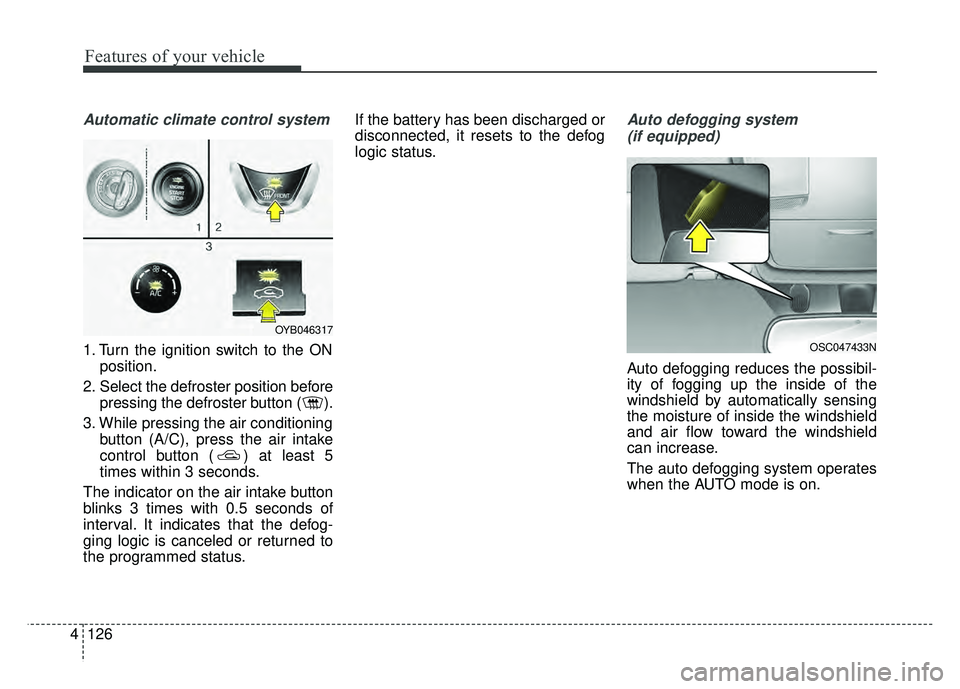
1. Turn the ignition switch to the ON
position.
2. Select the defroster position before pressing the defroster button ( ).
3. While pressing the air conditioning button (A/C), press the air intake
control button ( ) at least 5
times within 3 seconds.
The indicator on the air intake button
blinks 3 times with 0.5 seconds of
interval. It indicates that the defog-
ging logic is canceled or returned to
the programmed status. If the battery has been discharged or
disconnected, it resets to the defog
logic status.
Auto defogging system
(if equipped)
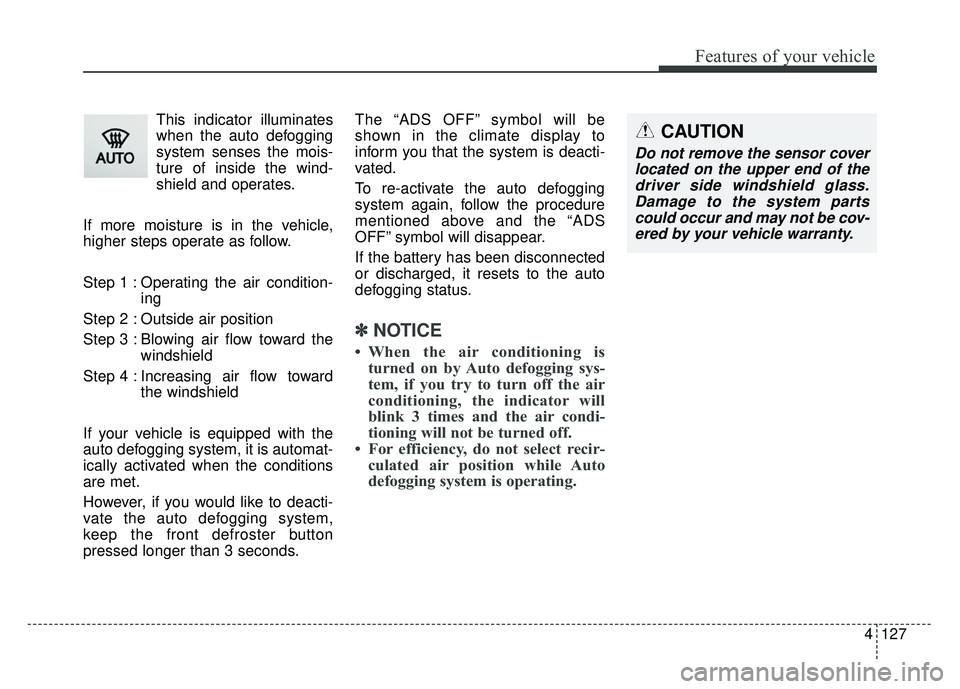
Auto defogging reduces the possibil-
ity of fogging up the inside of the
windshield by automatically sensing
the moisture of inside the windshield
and air flow toward the windshield
can increase.
The auto defogging system operates
when the AUTO mode is on.
OSC047433N
OYB046317
Page 199 of 492
4127
Features of your vehicle
This indicator illuminates
when the auto defogging
system senses the mois-
ture of inside the wind-
shield and operates.
If more moisture is in the vehicle,
higher steps operate as follow.
Step 1 : Operating the air condition- ing
Step 2 : Outside air position
Step 3 : Blowing air flow toward the windshield
Step 4 : Increasing air flow toward the windshield
If your vehicle is equipped with the
auto defogging system, it is automat-
ically activated when the conditions
are met.
However, if you would like to deacti-
vate the auto defogging system,
keep the front defroster button
pressed longer than 3 seconds. The “ADS OFF” symbol will be
shown in the climate display to
inform you that the system is deacti-
vated.
To re-activate the auto defogging
system again, follow the procedure
mentioned above and the “ADS
OFF” symbol will disappear.
If the battery has been disconnected
or discharged, it resets to the auto
defogging status.
✽ ✽
NOTICE
• When the air conditioning is
turned on by Auto defogging sys-
tem, if you try to turn off the air
conditioning, the indicator will
blink 3 times and the air condi-
tioning will not be turned off.
• For efficiency, do not select recir- culated air position while Auto
defogging system is operating.
CAUTION
Do not remove the sensor cover
located on the upper end of thedriver side windshield glass.Damage to the system partscould occur and may not be cov-ered by your vehicle warranty.
Page 205 of 492

4133
Features of your vehicle
Power outlet (if equipped)
The power outlet is designed to pro-
vide power for mobile telephones or
other devices designed to operate
with vehicle electrical systems. The
devices should draw less than 12V,
15A with the engine running.
Use the power outlet only when the
engine is running and remove the
accessory plug after use. Using the
accessory plug for prolonged periods
of time with the engine off could
cause the battery to discharge.
Only use 12V electric accessories
which are less than 15A in electric
capacity.
CAUTION - Seat damage
When cleaning the seats, donot use an organic solventsuch as thinner, benzene,alcohol and gasoline. Doingso may damage the surface ofthe heater or seats.
To prevent overheating the seat warmer, do not place any-thing on the seats that insu-lates against heat, such asblankets, cushions or seatcovers while the seat warmeris in operation.
Do not place heavy or sharp objects on seats equippedwith seat warmers. Damage tothe seat warming componentscould occur.
WARNING - Seat warmer
burns
The seat warmer may cause
burns even at low temperatures,
especially if used for long peri-
ods of time. The occupants
must be able to feel if the seat is
becoming too warm and to turn
the seat warmer off.
In particular, the driver must
exercise extreme care for the
following types of passengers:
1. Infants, children, elderly or disabled persons, or hospital
outpatients
2. Persons with sensitive skin or those that burn easily
3. Fatigued individuals
4. Intoxicated individuals
5. Individuals taking medication that can cause drowsiness or
sleepiness (sleeping pills,
cold tablets, etc.)
OSC047442N
Page 206 of 492
Features of your vehicle
134
4
Adjust the air-conditioner or heater to
the lowest operating level when
using the power outlet.
Close the cover when not in use.
Some electronic devices can cause
electronic interference when plugged
into a vehicle’s power outlet. These
devices may cause excessive audio
static and malfunctions in other elec-
tronic systems or devices used in
your vehicle.
Using electrical products which
exceed the limited capacity might
cause heating to the power outlet
and wiring that could lead to an elec-
trical breakdown. Always make sure
the electrical part is firmly plugged
into the power outlet. Incomplete
plugging may cause electrical break-
down.
Electrical products with a built-in bat-
tery might cause current flow, which
could lead to malfunction of the elec-
tric/electronic device in your vehicle.
Only use electrical products which
include reverse current preventionUSB charger (if equipped)
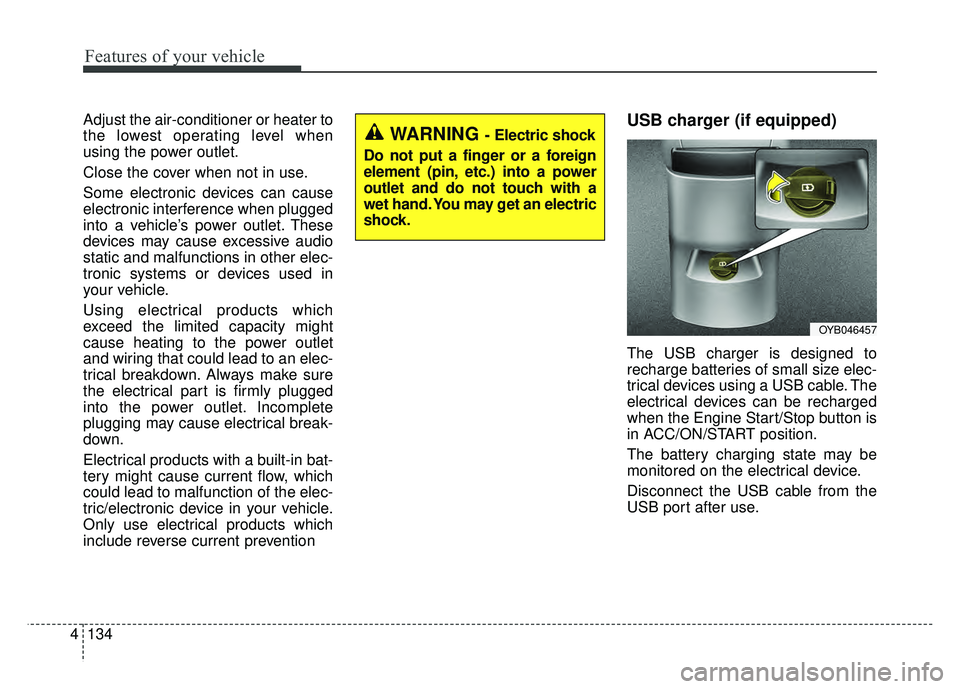
The USB charger is designed to
recharge batteries of small size elec-
trical devices using a USB cable. The
electrical devices can be recharged
when the Engine Start/Stop button is
in ACC/ON/START position.
The battery charging state may be
monitored on the electrical device.
Disconnect the USB cable from the
USB port after use.
WARNING - Electric shock
Do not put a finger or a foreign
element (pin, etc.) into a power
outlet and do not touch with a
wet hand. You may get an electric
shock.
OYB046457
Page 207 of 492
4135
Features of your vehicle
Some devices are not supportedfor fast charging but will be
charged with normal speed.
Use the USB charger when the engine is running to prevent bat-
tery discharge.
Only devices that fits the USB port can be used.
The USB charger can be used only for battery charging purposes.
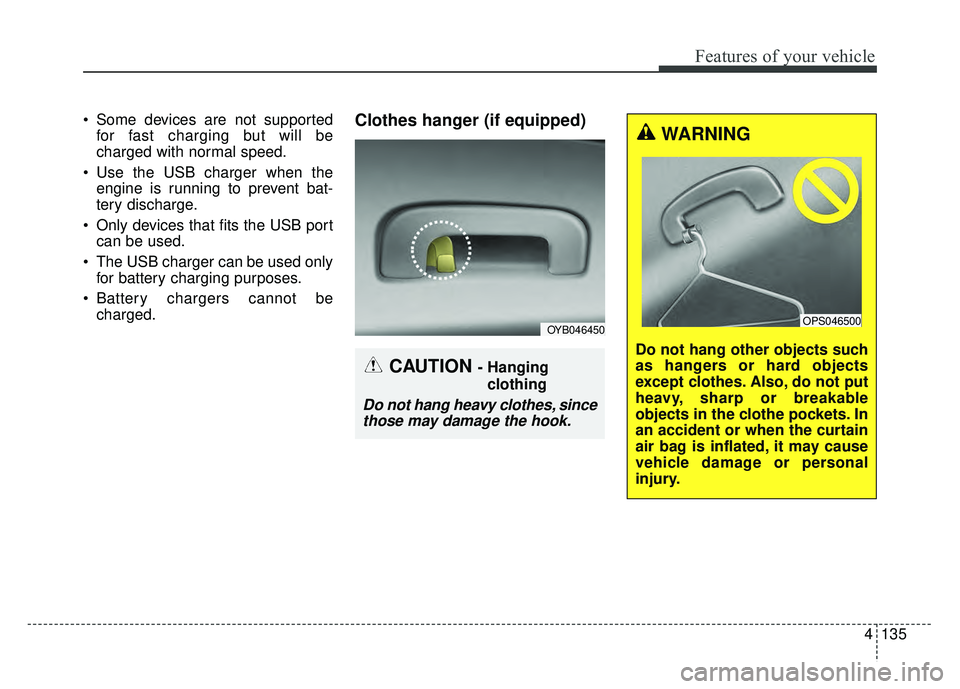
Battery chargers cannot be charged.Clothes hanger (if equipped)
OYB046450
CAUTION - Hanging
clothing
Do not hang heavy clothes, sincethose may damage the hook.
WARNING
Do not hang other objects such
as hangers or hard objects
except clothes. Also, do not put
heavy, sharp or breakable
objects in the clothe pockets. In
an accident or when the curtain
air bag is inflated, it may cause
vehicle damage or personal
injury.
OPS046500
Page 221 of 492
Audio system
512 Driving while distracted can result
in a loss of vehicle control that may
lead to an accident, severe person-
al injury, and death. The driver’s
primary responsibility is in the safe
and legal operation of a vehicle,
and use of any handheld devices,
other equipment, or vehicle sys-
tems which take the driver’s eyes,
attention and focus away from the
safe operation of a vehicle or which
are not permissible by law should
never be used during operation of
the vehicle.
Adjust the volume to levels that allow the driver to hear sounds
from outside of the vehicle. Driving
in a state where external sounds
cannot be heard may lead to acci-
dents.
Pay attention to the volume setting when turning the device on. A sud-
den output of extreme volume
upon turning the device on could
lead to hearing impairment. (Adjust
the volume to a suitable levels
before turning off the device.) If you want to change the position
of device installation, please
inquire with your place of purchase
or service maintenance center.
Technical expertise is required to
install or disassemble the device.
Turn on the car ignition before using this device. Do not operate
the audio system for long periods
of time with the ignition turned off
as such operations may lead to
battery discharge.
In case of product malfunction, please contact your place of pur-
chase or After Service center.
Placing the audio system within an electromagnetic environment may
result in noise interference.
CAUTION
When cleaning the device, make sure to turn off theaudio system and use a dryand smooth cloth.
Do not place beverages close to the audio system. Spillingbeverages may lead to systemmalfunction.
Never use tough materials, chemical cloths, or solvents(alcohol, benzene, thinners,etc.) as such materials maydamage the device panel orcause color/quality deteriora-tion.
Prevent caustic solutions such as perfume and cosmeticoil from contacting the dash-board because they maycause damage or discol-oration.
CAUTION - LCD Monitor
Do not subject the device tosevere shock or impact. Directpressure onto the front side ofthe monitor may cause damageto the LCD or touch screen.
Page 222 of 492
Audio system
13
5
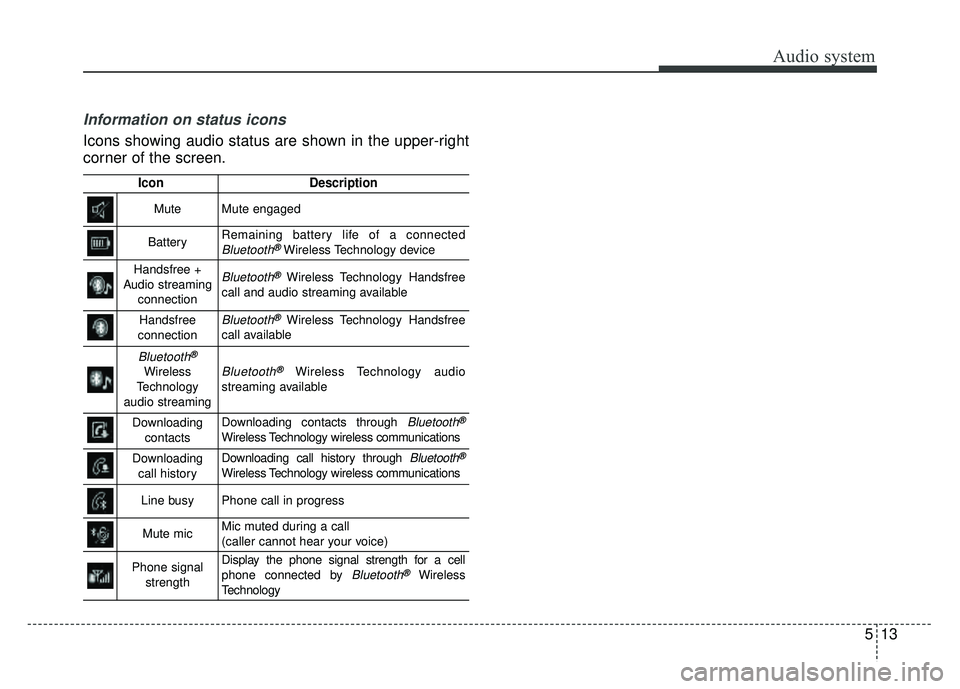
Information on status icons
Icons showing audio status are shown in the upper-right
corner of the screen.
IconDescription
MuteMute engaged
BatteryRemaining battery life of a connectedBluetooth®Wireless Technology device
Handsfree +
Audio streaming connectionBluetooth®Wireless Technology Handsfree
call and audio streaming available
Handsfree
connectionBluetooth®Wireless Technology Handsfree
call available
Bluetooth®
Wireless
Technology
audio streamingBluetooth®Wireless Technology audio
streaming available
Downloading contactsDownloading contacts through Bluetooth®
Wireless Technology wireless communications
Downloading call historyDownloading call history through Bluetooth®
Wireless Technology wireless communications
Line busyPhone call in progress
Mute micMic muted during a call
(caller cannot hear your voice)
Phone signal strengthDisplay the phone signal strength for a cell
phone connected by Bluetooth®Wireless
Technology
Page 231 of 492
![KIA RIO HATCHBACK 2018 Owners Manual Audio system
522
✽
✽NOTICE
The repeat folder function is avail-
able only when songs are playing
from the [File] category under
[List].
Shuffle play
Select [Shuffle] to enable/disable
‘Shuffleâ€](/img/2/57983/w960_57983-230.png "KIA RIO HATCHBACK 2018 Owners Manual Audio system
522
✽
✽NOTICE
The repeat folder function is avail-
able only when songs are playing
from the [File] category under
[List].
Shuffle play
Select [Shuffle] to enable/disable
‘Shuffleâ€")
Audio system
522
✽
✽NOTICE
The repeat folder function is avail-
able only when songs are playing
from the [File] category under
[List].
Shuffle play
Select [Shuffle] to enable/disable
‘Shuffle’, ‘Shuffle folder’ or ‘Shuffle
category’ play.
Shuffle: Songs are played in
random order.
Shuffle folder: Songs within the current folder are played in ran-
dom order.
Shuffle category: Songs within the current category are played in
random order.
Menu
Select [Menu], and select the desired
function.
Information: Detailed information on the currently playing song is dis-
played.
Sound Settings: Audio sound set- tings can be changed.
✽ ✽ NOTICE - Using the iPod®
Devices
• To use the audio system’s iPod®
control function, use the dedicated
cable provided with your iPod®.
• Connecting the iPod®to the vehi-
cle during play may result in a
loud noise that lasts about one to
two seconds. Connect the iPod
®to
the vehicle after stopping or paus-
ing play.
• Connect the iPod
®with the vehicle
in the ACC ON state to begin
charging.
• When connecting the iPod
®cable,
be sure to fully push the cable into
the port.
• When EQ effects are enabled simultaneously on external
devices, such as iPod
®s and the
audio system, the EQ effects may
overlap, causing sound quality
deterioration or distortion.
Deactivate the EQ function for all
external devices, if possible.
• Noise may occur when your iPod
®
or the AUX port is connected.
Disconnect and store separately
when not in use. (Continued)(Continued)
• There may be noise if the audio
system is used with an iPod
®or
AUX external device connected to
the power jack. In these cases, dis-
connect the iPod
®or external
device from the power jack.
• Play may be interrupted, or device malfunctions may occur depend-
ing on the characteristics of your
iPod
®/iPhone®.
• Play may fail if your iPhone®is
connected through both Bluetooth®
Wireless Technology and USB. In
this case, select Dock connector or
Bluetooth
®Wireless Technology
on your iPhone®to change the
sound output settings.
• If your software version does not support the communication proto-
col or your iPod
®is not recognized
due to device failure, anomalies or
defects, iPod
®mode cannot be
used.
• iPod
®nano (5th generation)
devices may not be recognized if
the battery is low. Charge suffi-
ciently before use. (Continued)
Page 238 of 492
Audio system
29
5
Precautions when connecting Bluetooth®
Wireless Technology devices
The vehicle supports the following
Bluetooth®Wireless Technology
functions. Some
Bluetooth®
Wireless Technology devices may
not support some functions.
1)
Bluetooth®Wireless Technology
Handsfree phone calls
2) Operations during a call (Private, Switch, Out Vol. controls)
3) Download call history saved to the
Bluetooth®Wireless Technology
device
4) Download contacts saved to the
Bluetooth®Wireless Technology
device
5) Automatic contacts/call history download when
Bluetooth®
Wireless Technology is connected
6) Automatic
Bluetooth®Wireless
Technology device connection
when the vehicle is started
7)
Bluetooth®Wireless Technology
audio streaming playback
Before connecting the audio sys- tem to your device, make sure your
device supports
Bluetooth®Wireless
Technology. Even if your device supports
Bluetooth®Wireless Technology, a
Bluetooth®Wireless Technology
connection cannot be established
if the device’s
Bluetooth®Wireless
Technology function is switched off.
Search and connect with the
Bluetooth®
Wireless Technology function enabled.
Pair or connect
Bluetooth®Wireless
Technology devices to the audio
system with the vehicle at a standstill.
If a
Bluetooth®Wireless Technology
connection is lost due to abnormal
conditions while a
Bluetooth®
Wireless Technology device is connect-
ed (communication range exceed-
ed, device power OFF, communi-
cation errors, etc.), the disconnect-
ed
Bluetooth®Wireless Technology
device is searched for and auto-
matically reconnected.
If you want to disable the
Bluetooth®
Wireless Technology device auto-
connect function, turn the
Bluetooth®Wireless Technology
function OFF on your device.
Consult the user manuals for indi-
vidual devices to see whether
Bluetooth®Wireless Technology is
supported. Handsfree call quality and volume
may vary depending on the type of
Bluetooth®Wireless Technology
device.
Some
Bluetooth®Wireless Technology
devices are subject to intermittent
Bluetooth®Wireless Technology
connection failures. In this case,
use the following method.
1) Turn the
Bluetooth®Wireless
Technology function off on your
Bluetooth®Wireless Technology
device ➟Turn it on and try again.
2) Delete the paired device from both the audio system and
Bluetooth®Wireless Technology
device, then pair again.
3) Power down your
Bluetooth®
Wireless Technology device ➟
Turn it on and try again.
4) Completely remove the battery from your
Bluetooth®Wireless
Technology device; reinsert it,
reboot, and attempt connection.
5) Restart the vehicle and reat- tempt connection.
Page 254 of 492
Driving your vehicle
66
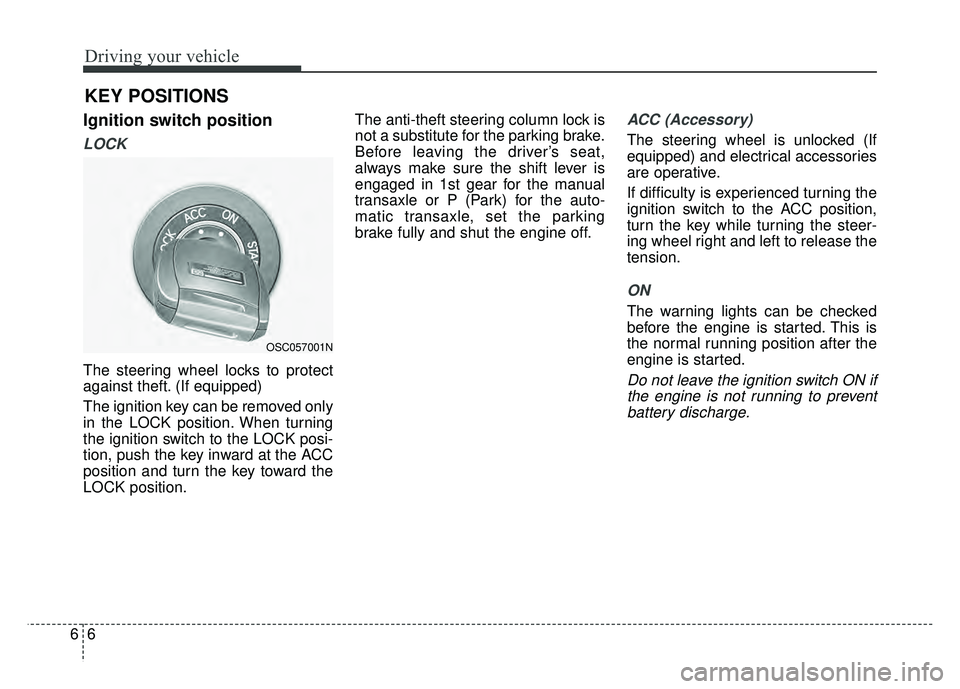
Ignition switch position
LOCK
The steering wheel locks to protect
against theft. (If equipped)
The ignition key can be removed only
in the LOCK position. When turning
the ignition switch to the LOCK posi-
tion, push the key inward at the ACC
position and turn the key toward the
LOCK position.The anti-theft steering column lock is
not a substitute for the parking brake.
Before leaving the driver’s seat,
always make sure the shift lever is
engaged in 1st gear for the manual
transaxle or P (Park) for the auto-
matic transaxle, set the parking
brake fully and shut the engine off.
ACC (Accessory)
The steering wheel is unlocked (If
equipped) and electrical accessories
are operative.
If difficulty is experienced turning the
ignition switch to the ACC position,
turn the key while turning the steer-
ing wheel right and left to release the
tension.
ON
The warning lights can be checked
before the engine is started. This is
the normal running position after the
engine is started.
Do not leave the ignition switch ON if
the engine is not running to preventbattery discharge.
KEY POSITIONS
OSC057001N