phone KIA Rondo 2017 3.G Owner's Guide
[x] Cancel search | Manufacturer: KIA, Model Year: 2017, Model line: Rondo, Model: KIA Rondo 2017 3.GPages: 625, PDF Size: 19.69 MB
Page 317 of 625
Audio system
547
Bluetooth®Wireless
Technology Setting
The Bluetooth®word mark and logos
are registered trademarks owned by
Bluetooth SIG, Inc. and any use of
such marks by Kia is under license.
Other trademarks and trade names
are those of their respective owners.
A
Bluetooth®enabled cell phone is
required to use
Bluetooth®Wireless
Technology.
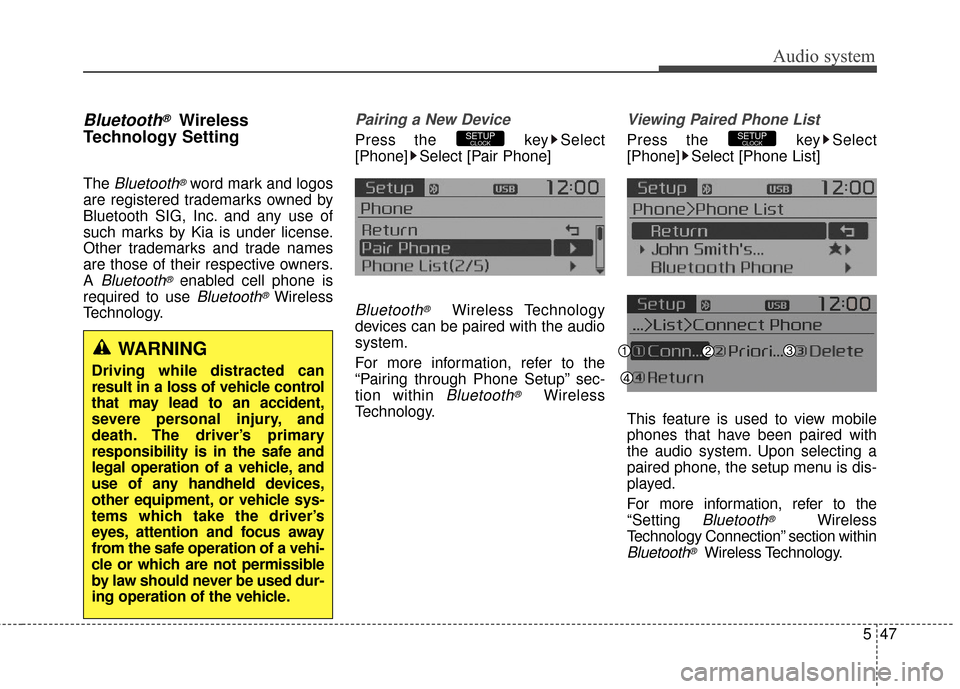
Pairing a New Device
Press the key Select
[Phone] Select [Pair Phone]
Bluetooth®Wireless Technology
devices can be paired with the audio
system.
For more information, refer to the
“Pairing through Phone Setup” sec-
tion within
Bluetooth®Wireless
Technology.
Viewing Paired Phone List
Press the key Select
[Phone] Select [Phone List]
This feature is used to view mobile
phones that have been paired with
the audio system. Upon selecting a
paired phone, the setup menu is dis-
played.
For more information, refer to the
“Setting
Bluetooth®Wireless
Technology Connection” section within
Bluetooth®Wireless Technology.
SETUPCLOCKSETUPCLOCK
WARNING
Driving while distracted can
result in a loss of vehicle control
that may lead to an accident,
severe personal injury, and
death. The driver’s primary
responsibility is in the safe and
legal operation of a vehicle, and
use of any handheld devices,
other equipment, or vehicle sys-
tems which take the driver’s
eyes, attention and focus away
from the safe operation of a vehi-
cle or which are not permissible
by law should never be used dur-
ing operation of the vehicle.
Page 318 of 625
Audio system
48
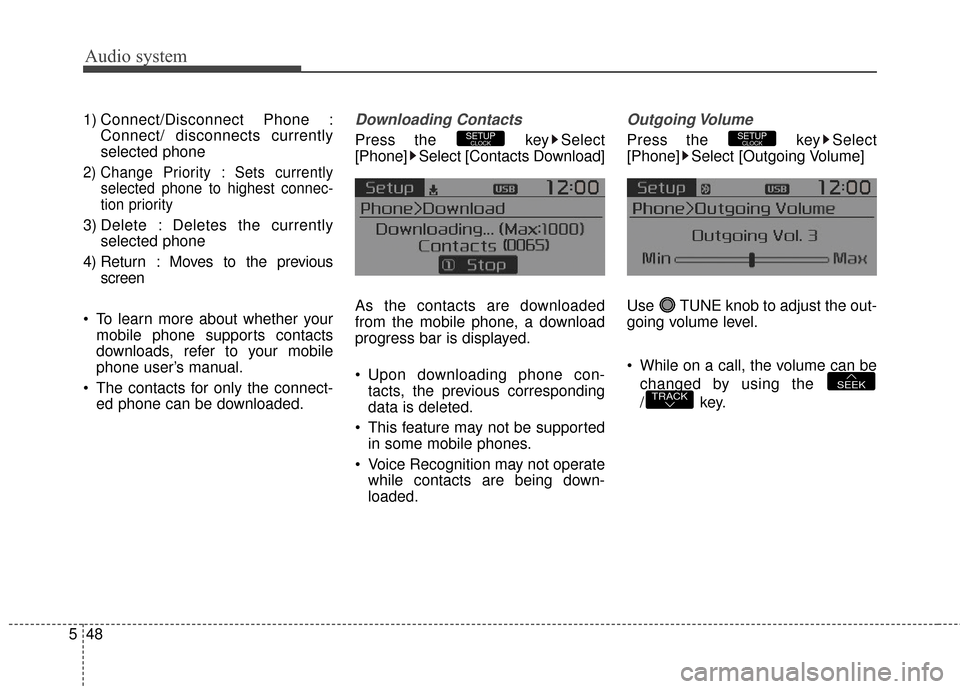
5 1) Connect/Disconnect Phone :
Connect/ disconnects currently
selected phone
2) Change Priority : Sets currently selected phone to highest connec-
tion priority
3) Delete : Deletes the currentlyselected phone
4) Return : Moves to the previous screen
To learn more about whether your mobile phone supports contacts
downloads, refer to your mobile
phone user’s manual.
The contacts for only the connect- ed phone can be downloaded.
Downloading Contacts
Press the key Select
[Phone] Select [Contacts Download]
As the contacts are downloaded
from the mobile phone, a download
progress bar is displayed.
Upon downloading phone con-tacts, the previous corresponding
data is deleted.
This feature may not be supported in some mobile phones.
Voice Recognition may not operate while contacts are being down-
loaded.
Outgoing Volume
Press the key Select
[Phone] Select [Outgoing Volume]
Use TUNE knob to adjust the out-
going volume level.
While on a call, the volume can be
changed by using the
/key.
TRACKSEEK
SETUPCLOCKSETUPCLOCK
Page 319 of 625
![KIA Rondo 2017 3.G Owners Guide Audio system
549
Turning Bluetooth System Off
Press the key Select
[Phone] Select [Bluetooth System
Off]
Once
Bluetooth®Wireless
Technology is turned off,
Bluetooth®
Wireless Technology related f](/img/2/2982/w960_2982-318.png "KIA Rondo 2017 3.G Owners Guide Audio system
549
Turning Bluetooth System Off
Press the key Select
[Phone] Select [Bluetooth System
Off]
Once
Bluetooth®Wireless
Technology is turned off,
Bluetooth®
Wireless Technology related f")
Audio system
549
Turning Bluetooth System Off
Press the key Select
[Phone] Select [Bluetooth System
Off]
Once
Bluetooth®Wireless
Technology is turned off,
Bluetooth®
Wireless Technology related features
will not be supported within the audio
system.
To turn
Bluetooth®Wireless
Technology back on, go to [Phone] and select “Yes”.SETUPCLOCK
SETUPCLOCK
Page 321 of 625
Audio system
551
ENDING VOICE
RECOGNITION
While Voice Recognition is operatingPress and hold the key on the
steering remote controller
While using voice command, pressing any steering wheel con-
trol or a different key will end voice
command.
When the system is waiting for a voice command, say “cancel” or
“end” to end voice command.
When the system is waiting for a voice command, press and hold
the key on the steering wheel
to end voice command.
Voice Recognition and Phone
Contact Tips:
The Kia Voice Recognition System
may have difficulty understanding
some accents or uncommon
names. When using Voice
Recognition to place a call, speak in
a moderate tone, with clear pronun-
ciation
To maximize the use of Voice
Recognition, consider these guide-
lines when storing contacts:
Do not store single-name entries(e.g., “Bob”, “Mom”, etc.). Instead,
always use full names (including
first and last names) for these con-
tacts
Do not use special characters (e.g., '@', '-', '*', '&', etc.)
Do not use abbreviations (i.e., use "Lieutenant" instead of "Lt.") or
acronyms (i.e., use "County
Finance Department" instead of
"C. F. D."; Be sure to say the name
exactly as it is entered in the con-
tacts list
Page 322 of 625
Audio system
52
5
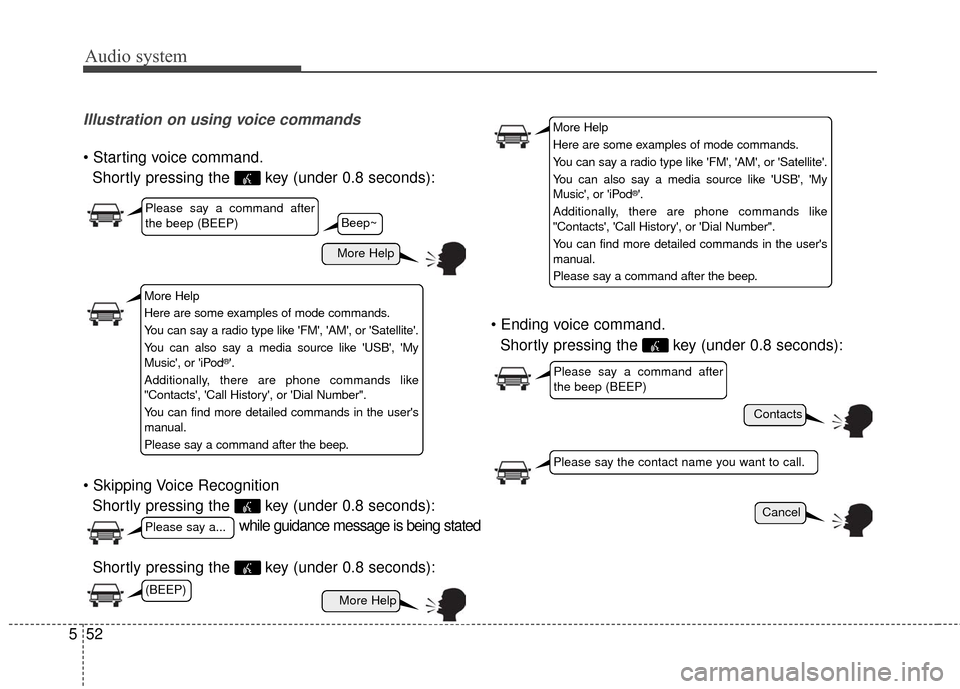
Illustration on using voice commands
Shortly pressing the key (under 0.8 seconds):
Shortly pressing the key (under 0.8 seconds):
Shortly pressing the key (under 0.8 seconds):
Shortly pressing the key (under 0.8 seconds):
while guidance message is being stated
More Help
Contacts
Cancel
More Help
Please say a command after
the beep (BEEP)
Please say a...
Please say the contact name you want to call.
Beep~
More Help
Here are some examples of mode commands.
You can say a radio type like 'FM', 'AM', or 'Satellite'.
You can also say a media source like 'USB', 'My
Music', or 'iPod
®'.
Additionally, there are phone commands like
"Contacts', 'Call History', or 'Dial Number".
You can find more detailed commands in the user's
manual.
Please say a command after the beep.
More Help
Here are some examples of mode commands.
You can say a radio type like 'FM', 'AM', or 'Satellite'.
You can also say a media source like 'USB', 'My
Music', or 'iPod
®'.
Additionally, there are phone commands like
"Contacts', 'Call History', or 'Dial Number".
You can find more detailed commands in the user's
manual.
Please say a command after the beep.
Please say a command after
the beep (BEEP)
(BEEP)
Page 323 of 625
Audio system
553
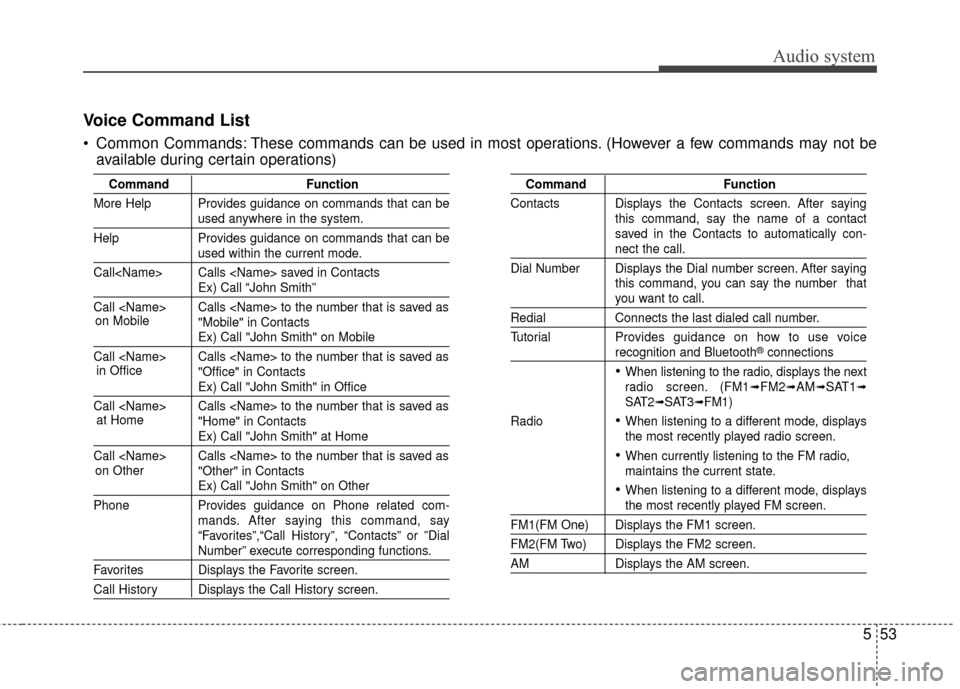
Voice Command List
Common Commands: These commands can be used in most operations. (However a few commands may not beavailable during certain operations)
Command Function
More Help Provides guidance on commands that can be
used anywhere in the system.
Help Provides guidance on commands that can be
used within the current mode.
Call
Ex) Call “John Smith”
Call
Ex) Call "John Smith" on Mobile
Call
Ex) Call "John Smith" in Office
Call
Ex) Call "John Smith" at Home
Call
Ex) Call "John Smith" on Other
Phone Provides guidance on Phone related com- mands. After saying this command, say
“Favorites”,“Call History”, “Contacts” or ”Dial
Number” execute corresponding functions.
Favorites Displays the Favorite screen.
Call History Displays the Call History screen.
Command Function
Contacts Displays the Contacts screen. After saying this command, say the name of a contact
saved in the Contacts to automatically con-
nect the call.
Dial Number Displays the Dial number screen. After saying this command, you can say the number that
you want to call.
RedialConnects the last dialed call number.
Tutorial Provides guidance on how to use voice
recognition and Bluetooth®connections
When listening to the radio, displays the next
radio screen. (FM1➟FM2➟AM➟SAT1➟SAT2➟SAT3➟FM1)
Radio
When listening to a different mode, displays
the most recently played radio screen.
When currently listening to the FM radio,
maintains the current state.
When listening to a different mode, displaysthe most recently played FM screen.
FM1(FM One) Displays the FM1 screen.
FM2(FM Two) Displays the FM2 screen.
AM Displays the AM screen.
on Mobile
in Officeat Home
on Other
Page 328 of 625
Audio system
58
5
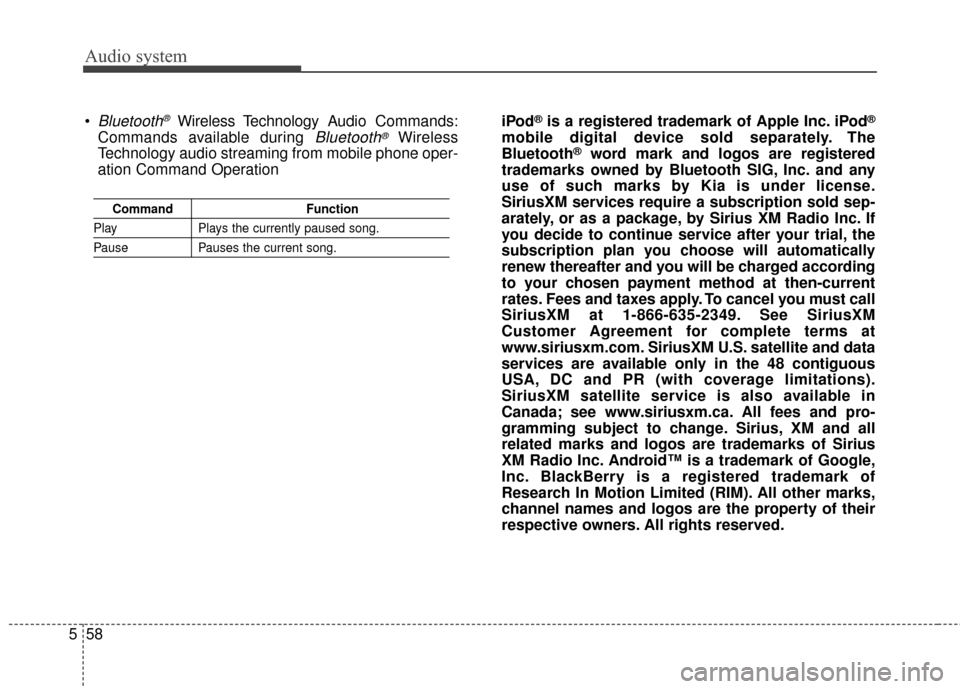
Command Function
PlayPlays the currently paused song.
PausePauses the current song.
Bluetooth®Wireless Technology A udio Commands:
Commands available during
Bluetooth®Wireless
Technology audio streaming from mobile phone oper-
ation Command Operation iPod
®is a registered trademark of Apple Inc. iPod®
mobile digital device sold separately. The
Bluetooth®word mark and logos are registered
trademarks owned by Bluetooth SIG, Inc. and any
use of such marks by Kia is under license.
SiriusXM services require a subscription sold sep-
arately, or as a package, by Sirius XM Radio Inc. If
you decide to continue service after your trial, the
subscription plan you choose will automatically
renew thereafter and you will be charged according
to your chosen payment method at then-current
rates. Fees and taxes apply. To cancel you must call
SiriusXM at 1-866-635-2349. See SiriusXM
Customer Agreement for complete terms at
www.siriusxm.com. SiriusXM U.S. satellite and data
services are available only in the 48 contiguous
USA, DC and PR (with coverage limitations).
SiriusXM satellite service is also available in
Canada; see www.siriusxm.ca. All fees and pro-
gramming subject to change. Sirius, XM and all
related marks and logos are trademarks of Sirius
XM Radio Inc. Android™ is a trademark of Google,
Inc. BlackBerry is a registered trademark of
Research In Motion Limited (RIM). All other marks,
channel names and logos are the property of their
respective owners. All rights reserved.
Page 330 of 625
Audio system
60
5
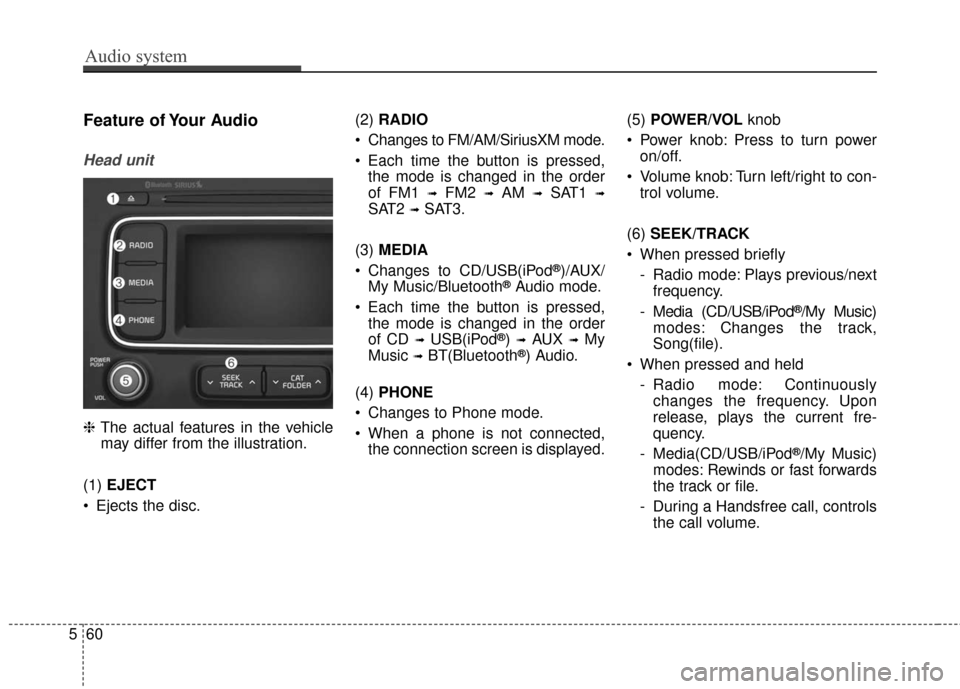
Feature of Your Audio
Head unit
❈ The actual features in the vehicle
may differ from the illustration.
(1) EJECT
Ejects the disc. (2)
RADIO
Changes to FM/AM/SiriusXM mode.
Each time the button is pressed, the mode is changed in the order
of FM1
➟FM2 ➟AM ➟SAT1 ➟
SAT2 ➟SAT3.
(3) MEDIA
Changes to CD/USB(iPod
®)/AUX/
My Music/Bluetooth®Audio mode.
Each time the button is pressed, the mode is changed in the order
of CD
➟USB(iPod®) ➟AUX ➟My
Music
➟BT(Bluetooth®) Audio.
(4) PHONE
Changes to Phone mode.
When a phone is not connected, the connection screen is displayed. (5)
POWER/VOL knob
Power knob: Press to turn power on/off.
Volume knob: Turn left/right to con- trol volume.
(6) SEEK/TRACK
When pressed briefly - Radio mode: Plays previous/nextfrequency.
- Media (CD/USB/iPod
®/My Music)
modes: Changes the track,
Song(file).
When pressed and held - Radio mode: Continuouslychanges the frequency. Upon
release, plays the current fre-
quency.
- Media(CD/USB/iPod
®/My Music)
modes: Rewinds or fast forwards
the track or file.
- During a Handsfree call, controls the call volume.
Page 332 of 625
Audio system
62
5
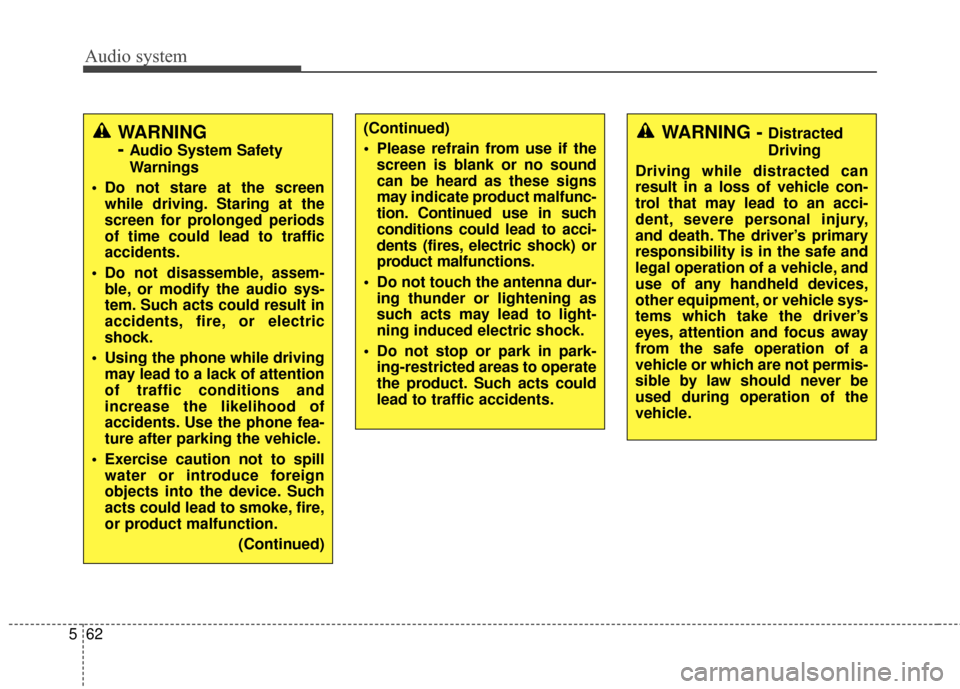
WARNING
-
Audio System Safety
Warnings
Do not stare at the screen while driving. Staring at the
screen for prolonged periods
of time could lead to traffic
accidents.
Do not disassemble, assem- ble, or modify the audio sys-
tem. Such acts could result in
accidents, fire, or electric
shock.
Using the phone while driving may lead to a lack of attention
of traffic conditions and
increase the likelihood of
accidents. Use the phone fea-
ture after parking the vehicle.
Exercise caution not to spill water or introduce foreign
objects into the device. Such
acts could lead to smoke, fire,
or product malfunction.
(Continued)
(Continued)
Please refrain from use if thescreen is blank or no sound
can be heard as these signs
may indicate product mal func-
tion. Continued use in such
conditions could lead to acci-
dents (fires, electric shock) or
product malfunctions.
Do not touch the antenna dur- ing thunder or lightening as
such acts may lead to light-
ning induced electric shock.
Do not stop or park in park- ing-restricted areas to operate
the product. Such acts could
lead to traffic accidents.WARNING - Distracted
Driving
Driving while distracted can
result in a loss of vehicle con-
trol that may lead to an acci-
dent, severe personal injury,
and death. The driver’s primary
responsibility is in the safe and
legal operation of a vehicle, and
use of any handheld devices,
other equipment, or vehicle sys-
tems which take the driver’s
eyes, attention and focus away
from the safe operation of a
vehicle or which are not permis-
sible by law should never be
used during operation of the
vehicle.
Page 335 of 625
Audio system
565
✽ ✽NOTICE - Using the USB
Devices
• Connect the USB device after turning on the engine. The USB
device may become damaged if it
is already connected when the
ignition is turned on. The USB
device may not operate properly if
the car ignition is turned on or off
with the USB device connected.
• Be careful for static electricity when connecting/disconnecting
USB devices.
• Encoded MP3 Players will not be recognized when connected as an
external device.
• When connecting an external USB device, the vehicle's audio system
may not recognize the USB
depending on what firmware is
used by USB device or what files
are on the USB.
• Only products formatted with byte/sectors under 64Kbyte will be
recognized.
• This device recognizes USB devices formatted in FAT 12/16/32 file for-
mats. This device does not recog-
nize files in NTFS file format. (Continued)(Continued)
• Some USB devices may not be sup-
ported due to compatibility issues.
• Avoid contact between the USB connector and bodily parts or for-
eign objects.
• Repeated connecting/disconnect- ing of USB devices within short
periods of time may result in prod-
uct malfunction.
• A strange noise may occur when disconnecting the USB.
• Make sure to connect/disconnect external USB devices with the
audio power turned off.
• The amount of time required to recognize the USB device may dif-
fer depending on the type, size or
file formats stored on the USB.
Such differences in time are not
indications of malfunctions.
• The vehicle audio system only sup- ports USB devices designed to
play music files.
• USB images and videos are not supported. (Continued)(Continued)
• Do not use the USB I/F to charge
batteries or USB accessories that
generate heat. Doing so may lead
to worsened performance or dam-
age to the audio system.
• The audio system may not recog- nize the USB device if separately
purchased USB hubs and exten-
sion cables are being used.
Connect the USB device directly
with the USB port of the vehicle.
• When using mass storage USB devices with separate logical
drives, only files saved to the root
drive can be played.
• Files may not properly operate if application programs are installed
on the USBs.
• The audio system may not operate normally if MP3 Players, cellular
phones, digital cameras, or other
electronic devices (USB devices
not recognized as portable disk
drives) are connected with the
audio system. (Continued)