tune up KIA Sedona 2016 3.G User Guide
[x] Cancel search | Manufacturer: KIA, Model Year: 2016, Model line: Sedona, Model: KIA Sedona 2016 3.GPages: 644, PDF Size: 19.23 MB
Page 331 of 644
4229
Features of your vehicle
SCAN
Press the key
1 second): Previews each broad-
cast for 5 seconds each
❈ Press the key again to
continue listening to the current
frequency
❈ If the “Category” icon is displayed,
channels are changed within the
current category.
Category
Press the key Set through
the
TUNEknob
The display will indicate the catego- ry menus, highlight the category
that the current channel belongs to.
In the Category List Mode, press the key to navigate cate-
gory list.
Press the tune knob to select the lowest channel in the highlighted
category.
❈ If channel is selected by selecting
category, then the “CATEGORY”
icon is displayed at the top of the
screen.
Preset
Press the key ~
Shortly pressing the key (less than
1 second): Plays the frequency
saved in the corresponding key.
Pressing and holding the key (more than 1 second): Pressing
and holding the desired key from ~ will save the current
broadcast to the selected key and
sound a BEEP.
61
61RADIO
CATFOLDER
CATFOLDER
SCAN
SCANRADIO
Page 332 of 644
Features of your vehicle
230
4
✽
✽
NOTICE - Troubleshooting
1. Antenna Error
If this message is displayed, the
antenna or antenna cable is bro-
ken or unplugged. Please consult
with your Kia dealership.
2. No Signal If this message is displayed, it
means that the antenna is covered
and that the SiriusXM Satellite
Radio signal is not available.
Ensure the antenna is uncovered
and has a clear view of the sky.
Tune
Rotate TUNE knob : Changes
the channel number or scrolls cat-
egory list.
Press TUNE knob : Selects the menu.
Menu
Select category menu through the
TUNE knob Press the
key Select [ Info] through the
TUNE knob or key
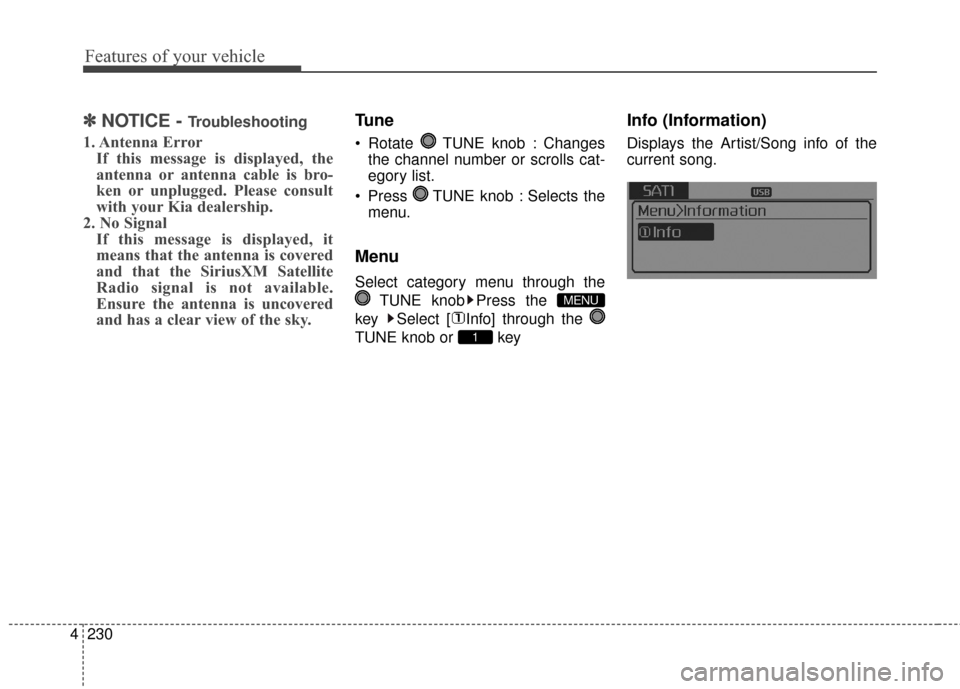
Info (Information)
Displays the Artist/Song info of the
current song.
1
MENU
Page 335 of 644
4233
Features of your vehicle
Folder Search : MP3 CD, USB
Mode
While file is playing
(Folder Up) key
While file is playing
(Folder Down) key
❈ If a folder is selected by pressing
the TUNE knob, the first file
within the selected folder will be
played.
❈ In iPod
®mode, moves to the Parent
Folder.
Searching Songs (File)
Turning TUNE knob : Searches for songs (files)
Pressing TUNE knob : Plays selected song (file).
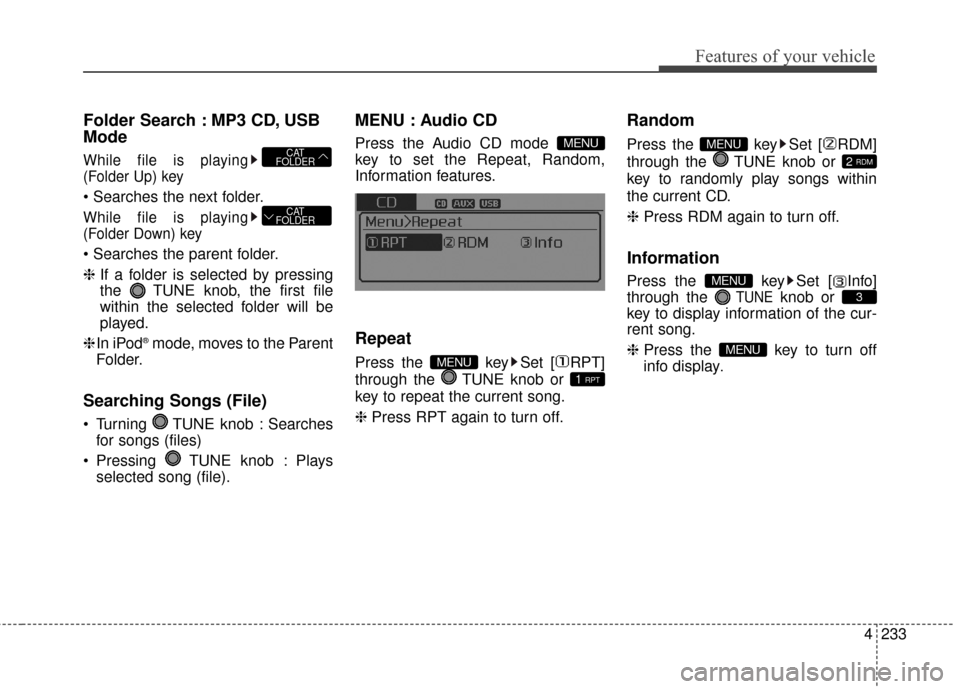
MENU : Audio CD
Press the Audio CD mode
key to set the Repeat, Random,
Information features.
Repeat
Press the key Set [ RPT]
through the TUNE knob or
key to repeat the current song.
❈ Press RPT again to turn off.
Random
Press the key Set [ RDM]
through the TUNE knob or
key to randomly play songs within
the current CD.
❈Press RDM again to turn off.
Information
Press the key Set [ Info]
through the
TUNEknob or
key to display information of the cur-
rent song.
❈ Press the key to turn off
info display
.
MENU
3
MENU
2 RDM
MENU
1 RPT
MENU
MENU
CAT
FOLDER
CAT
FOLDER
Page 336 of 644
Features of your vehicle
234
4
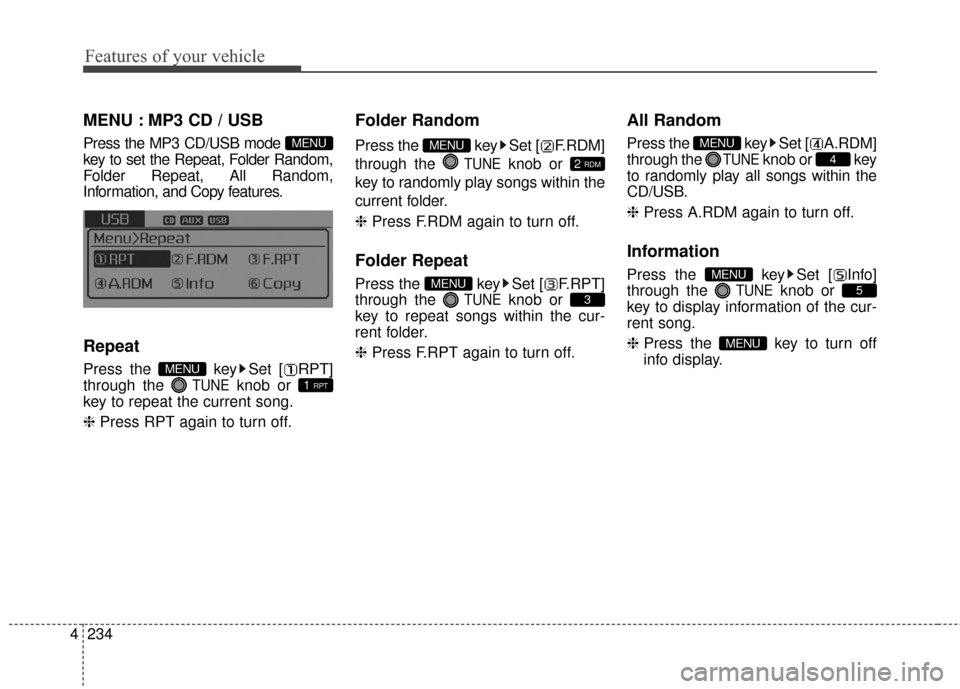
MENU : MP3 CD / USB
Press the MP3 CD/USB mode
key to set the Repeat, Folder Random,
Folder Repeat, All Random,
Information, and Copy features.
Repeat
Press the key Set [ RPT]
through the
TUNEknob or
key to repeat the current song.
❈ Press RPT again to turn off.
Folder Random
Press the key Set [ F.RDM]
through the
TUNEknob or
key to randomly play songs within the
current folder.
❈ Press F.RDM again to turn off.
Folder Repeat
Press the key Set [ F.RPT]
through the
TUNEknob or
key to repeat songs within the cur-
rent folder.
❈ Press F.RPT again to turn off.
All Random
Press the key Set [ A.RDM]
through the
TUNEknob or key
to randomly play all songs within the
CD/USB.
❈ Press A.RDM again to turn off.
Information
Press the key Set [ Info]
through the
TUNEknob or
key to display information of the cur-
rent song.
❈ Press the key to turn off
info display.
MENU
5
MENU
4
MENU
3
MENU
2 RDM
MENU
1 RPTMENU
MENU
Page 337 of 644
![KIA Sedona 2016 3.G User Guide 4235
Features of your vehicle
Copy
Press the key Set [ Copy]
through the TUNE knob or
key.
This is used to copy the current song
into My Music. You can play the
copied Music in My Music mode.
❈If](/img/2/2977/w960_2977-336.png "KIA Sedona 2016 3.G User Guide 4235
Features of your vehicle
Copy
Press the key Set [ Copy]
through the TUNE knob or
key.
This is used to copy the current song
into My Music. You can play the
copied Music in My Music mode.
❈If")
4235
Features of your vehicle
Copy
Press the key Set [ Copy]
through the TUNE knob or
key.
This is used to copy the current song
into My Music. You can play the
copied Music in My Music mode.
❈If another key is pressed while
copying is in progress, a pop up
asking you whether to cancel copy-
ing is displayed.
❈ If another media is connected or
inserted (USB, CD, iPod
®, AUX)
while copying is in progress, copy-
ing is canceled.
❈ Music will not be played while
copying is in progress.
MENU : iPod®
In iPod®mode, press the key to
set the Repeat, Random, Information
and Search features.
Repeat
Press the key Set [ RPT]
through the
TUNEknob or
key to repeat the current song.
❈ Press RPT again to turn repeat off.
Random
Press the key Set [ RDM]
through the TUNEknob or
key.
Plays all songs within the currently
playing category in random order.
❈ Press RDM again to turn off.
Information
Press the key Set [ Info]
through the
TUNEknob or
key.
Displays information of the current
song.
❈ Press the key to turn off
info display.
Search
Press the key Set [ Search]
through the
TUNEknob or
key.
Displays iPod
®category list.
❈ Searching iPod
®category is
key pressed, move to parent cate-
gory.MENU
4
MENU
MENU
3
MENU
2
MENU
1 RPTMENU
MENU
6
MENU
Page 338 of 644
Features of your vehicle
236
4
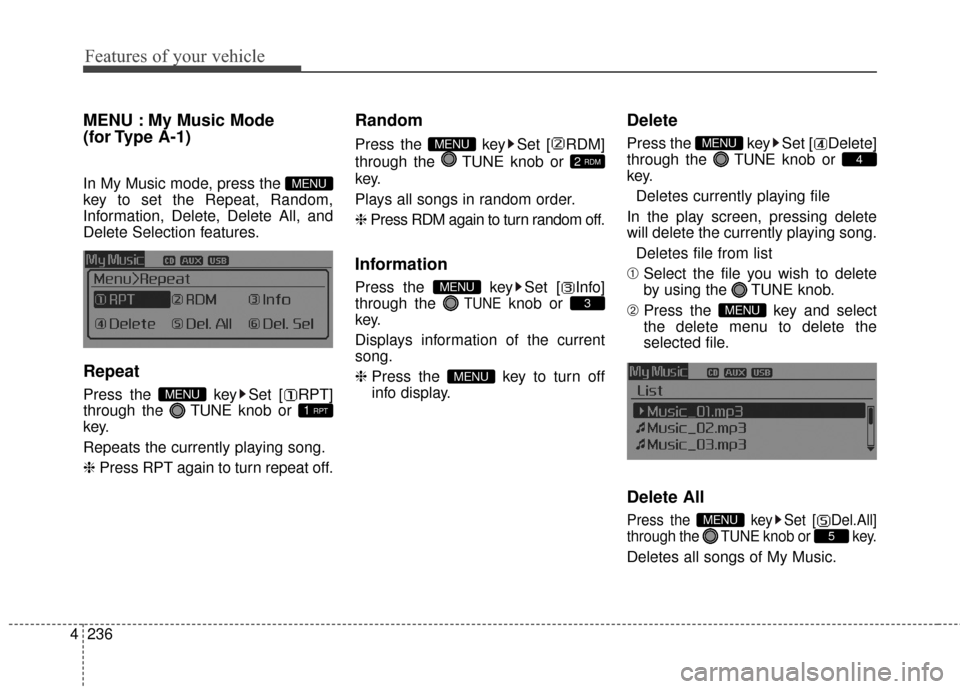
MENU : My Music Mode
(for Type A-1)
In My Music mode, press the
key to set the Repeat, Random,
Information, Delete, Delete All, and
Delete Selection features.
Repeat
Press the key Set [ RPT]
through the TUNEknob or
key.
Repeats the currently playing song.
❈ Press RPT again to turn repeat off.
Random
Press the key Set [ RDM]
through the TUNE knob or
key.
Plays all songs in random order.
❈ Press RDM again to turn random off.
Information
Press the key Set [ Info]
through the
TUNEknob or
key.
Displays information of the current
song.
❈ Press the key to turn off
info display.
Delete
Press the key Set [ Delete]
through the TUNEknob or
key.
Deletes currently playing file
In the play screen, pressing delete
will delete the currently playing song. Deletes file from list
➀ Select the file you wish to delete
by using the TUNE knob.
➁ Press the key and select
the delete menu to delete the
selected file.
Delete All
Press the key Set [ Del.All]
through the TUNEknob or key.
Deletes all songs of My Music.
5
MENU
MENU
4
MENU
MENU
3
MENU
2 RDM
MENU
1 RPTMENU
MENU
Page 339 of 644
![KIA Sedona 2016 3.G User Guide 4237
Features of your vehicle
Delete Selection
Press the key Set [ Del.Sel]
through the TUNEknob or
key.
Songs within My Music are selected
and deleted.
➀ Select the songs you wish to delete
from](/img/2/2977/w960_2977-338.png "KIA Sedona 2016 3.G User Guide 4237
Features of your vehicle
Delete Selection
Press the key Set [ Del.Sel]
through the TUNEknob or
key.
Songs within My Music are selected
and deleted.
➀ Select the songs you wish to delete
from")
4237
Features of your vehicle
Delete Selection
Press the key Set [ Del.Sel]
through the TUNEknob or
key.
Songs within My Music are selected
and deleted.
➀ Select the songs you wish to delete
from the list.
➁ After selecting, press key
and select the delete menu.
My Music
Even if memory is available, a
maximum of 6,000 songs can be
stored.
The same song can be copied up to 1,000 times.
Memory info can be checked in the System menu of Setup.
AUX
AUX is used to play external MEDIA
currently connected with the AUX
terminal.
AUX mode will automatically start
when an external device is connect-
ed with the AUX terminal.
If an external device is connected,
you can also press the key to
change to AUX mode.
❈AUX mode cannot be started
unless there is an external device
connected to the AUX terminal.
AUX
Fully insert the AUX cable into the
AUX terminal for use.
MEDIA
MENU
6
MENU
Page 341 of 644
4239
Features of your vehicle
Starting Bluetooth®Wireless
Technology Audio
key to change the
mode in order of CD ➟ USB ➟ AUX
➟ My Music ➟ BT Audio.
Bluetooth®
Wireless Technology audio will start
playing.
❈ Audio may not automatically start
playing in some mobile phones.
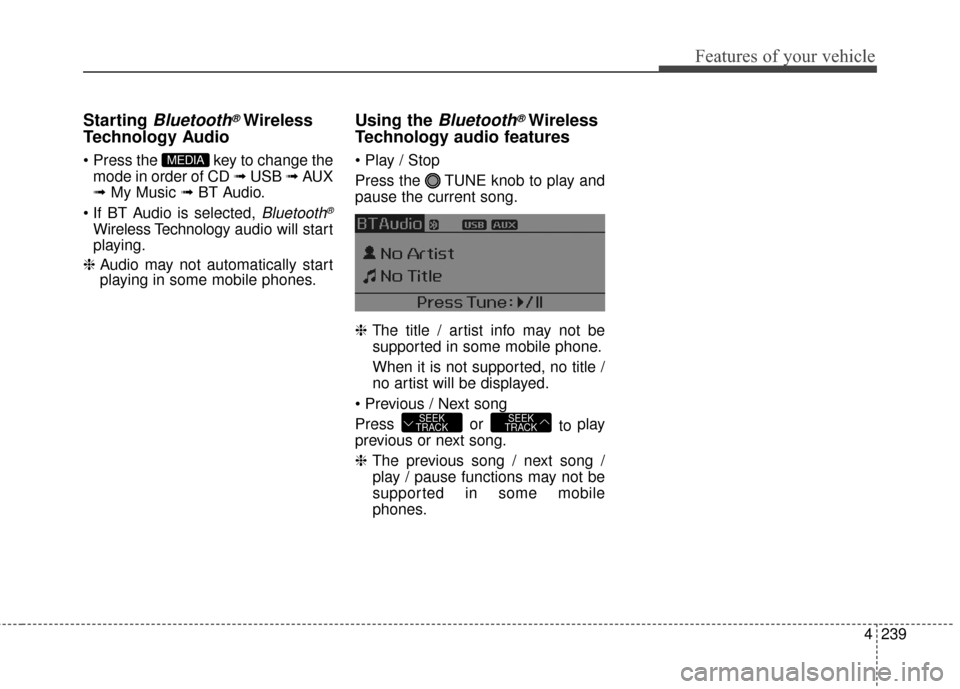
Using the Bluetooth®Wireless
Technology audio features
Press the TUNE knob to play and
pause the current song.
❈
The title / artist info may not be
supported in some mobile phone.
When it is not supported, no title /
no artist will be displayed.
Press or to play
previous or next song.
❈ The previous song / next song /
play / pause functions may not be
supported in some mobile
phones.
SEEK
TRACKSEEK
TRACK
MEDIA
Page 346 of 644
![KIA Sedona 2016 3.G User Guide Features of your vehicle
244
4
Pairing through [PHONE]
Setup
Press the key Select
[Phone] Select [Pair Phone]
Select TUNE knob
1. The following steps are the same
as those described in the section
"](/img/2/2977/w960_2977-345.png "KIA Sedona 2016 3.G User Guide Features of your vehicle
244
4
Pairing through [PHONE]
Setup
Press the key Select
[Phone] Select [Pair Phone]
Select TUNE knob
1. The following steps are the same
as those described in the section
\"")
Features of your vehicle
244
4
Pairing through [PHONE]
Setup
Press the key Select
[Phone] Select [Pair Phone]
Select TUNE knob
1. The following steps are the same
as those described in the section
"When No Devices have been
Paired" on the previous page.
Bluetooth®Wireless Technology
features supported within the vehi-
cle are as follows. Some features
may not be supported depending
on your
Bluetooth®Wireless
Technology device.
- Outgoing/Incoming Handsfree calls
- Operations during a call (Switch to Private, Switch to call waiting,
MIC on/off)
- Downloading Call History
- Downloading Mobile Contacts
-
Bluetooth®Wireless Technology
device auto connection
- Bluetooth Audio Streaming
Up to five
Bluetooth®Wireless
Technology devices can be paired
to the Car Handsfree system.
Only one
Bluetooth®Wireless
Technology device can be connected
at a time.
Other devices cannot be paired while a
Bluetooth®Wireless Technology
device is connected. Only
Bluetooth®Wireless Technology
Handsfree and Bluetooth audio relat-
ed features are supported.
Bluetooth related operations are possible only within devices that
support Handsfree or audio fea-
tures, such as a
Bluetooth®
Wireless Technology mobile phone
or a Bluetooth audio device.
If a connected
Bluetooth®Wireless
Technology device becomes dis-
connected due to being out of com-
munication range, turning the device
OFF, or a
Bluetooth®Wireless
Technology communication error,
corresponding
Bluetooth®Wireless
Technology devices are automati-
cally searched and reconnected.
If the system becomes unstable due to communication errors
between the car Handsfree and the
Bluetooth®Wireless Technology
device, reset the device by turning
off and back on again. Upon reset-
ting
Bluetooth®Wireless Technology
device, the system will be restored.
SETUP
Page 354 of 644
Features of your vehicle
252
4
1) Connect/Disconnect Phone :
Connect/ disconnects currently
selected phone
2) Change Priority : Sets currently selected phone to highest connec-
tion priority
3) Delete : Deletes the currently selected phone
4) Return : Moves to the previous screen
To learn more about whether your mobile phone supports contacts
downloads, refer to your mobile
phone user’s manual.
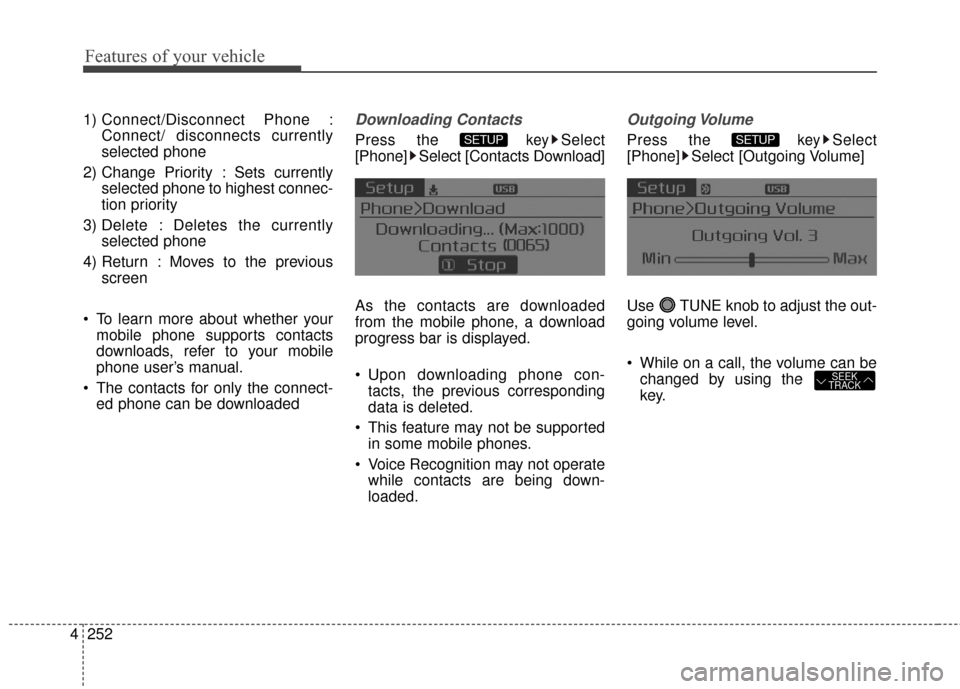
The contacts for only the connect- ed phone can be downloadedDownloading Contacts
Press the keySelect
[Phone] Select [Contacts Download]
As the contacts are downloaded
from the mobile phone, a download
progress bar is displayed.
Upon downloading phone con- tacts, the previous corresponding
data is deleted.
This feature may not be supported in some mobile phones.
Voice Recognition may not operate while contacts are being down-
loaded.
Outgoing Volume
Press the keySelect
[Phone] Select [Outgoing Volume]
Use TUNE knob to adjust the out-
going volume level.
While on a call, the volume can be changed by using the
key.
SEEK
TRACK
SETUPSETUP