camera KIA SELTOS 2021 Features and Functions Guide
[x] Cancel search | Manufacturer: KIA, Model Year: 2021, Model line: SELTOS, Model: KIA SELTOS 2021Pages: 62, PDF Size: 4.82 MB
Page 2 of 62
WELCOME TO THE KIA FAMILY!
Your new Kia vehicle has been designed, engineered and manufactured to provide you with years of comfortable and dependable driving. Kia is committed
to quality, innovation, safety and – above all – your satisfaction.
USING THIS FEATURES & FUNCTIONS GUIDE
The information contained in this guide is a brief overview of the operation and features of your new Kia vehicle.
This Features & Functions Guide and the specific operational and safety information it provides are not a substitute for your Owner’s Manual. In the interest
of your safety and that of the vehicle’s occupants, and to help you avoid risks that may result in death or serious injury, Kia reminds you to carefully read the
Owner’s Manual in order to fully familiarize yourself with the important information and safety warnings it contains.
While Kia endeavors to ensure that the information contained in this guide is accurate at the time of printing, Kia may change vehicle specifications without
notice in advance of or after the fact and assumes no liability in connection with such changes.
1.
If you’re having trouble scanning codes, check the following:
§ The code should be centered and focused in your mobile device’s camera screen
§ Consider moving your device closer to or farther away from the code
§ The code should be well lit, without significant shadow
§ Avoid scanning from a significant angle
§ Confirm that the device’s app supports 2D QR Code scanning
§ Tr y another QR Code Reader app; not all apps are created equal
2. After scanning, you may experience a “connection error” message or a “connecting” message with no subsequent response. These messages typically indicate that your device is having trouble connecting to the Internet
QUICK TIPS
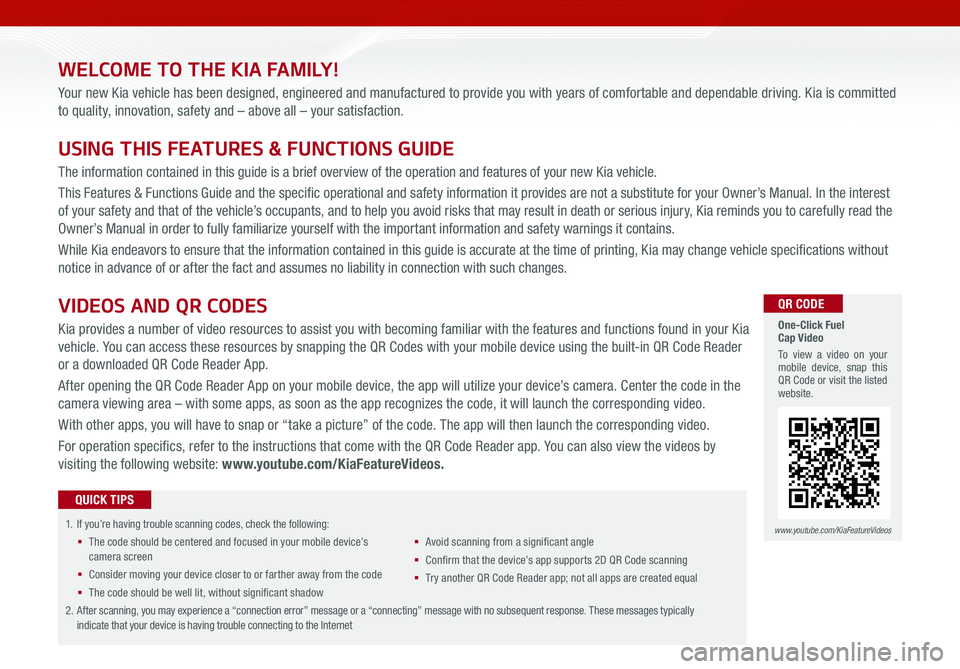
VIDEOS AND QR CODES
Kia provides a number of video resources to assist you with becoming familiar with the features and functions found in your Kia
vehicle. You can access these resources by snapping the QR Codes with your mobile device using the built-in QR Code Reader
or a downloaded QR Code Reader App.
After opening the QR Code Reader App on your mobile device, the app will utilize your device’s camera. Center the code in the
camera viewing area – with some apps, as soon as the app recognizes the code, it will launch the corresponding video.
With other apps, you will have to snap or “take a picture” of the code. The app will then launch the corresponding video.
For operation specifics, refer to the instructions that come with the QR Code Reader app. You can also view the videos by
visiting the following website: www.youtube.com/KiaFeatureVideos.
One-Click Fuel Cap Video
To view a video on your mobile device, snap this QR Code or visit the listed website.
www.youtube.com/KiaFeatureVideos
QR CODE
Page 15 of 62

ALWAYS CHECK THE OWNER’S MANUAL FOR COMPLETE OPER ATING INFORMATION AND SAFET Y WARNINGS. *IF EQUIPPED †LEGAL DISCL AIMERS ON BACK INSIDE COVER13
RES
SET
CNCL+
–
CRUISE
OK
RESSET
CNCL+
–
CRUISE
OKRESSET
CNCL+
–
CRUISE
OK
RESSET+
–
CRUISE
OK
RESSET+
–
CRUISE
OKRESSET+
–
CRUISE MODE
OK
RES
SET+
–
CRUISE
CANCEL
CANCEL
OKRESSET+
–
CRUISE
CANCEL
OK
MODE
ADVANCED DRIVER ASSISTANCE SYSTEMS (ADAS)
ADAS
COLLISION WARNING
EMERGENCY BRAKING
FCA is designed to detect and monitor a vehicle ahead or detect a pedestrian in the roadway through front
view camera recognition and front radar signals to warn the driver that a collision is imminent,
and if necessary, temporarily apply emergency braking. Initially, FCA provides Forward Collision Warning
(FCW ) when it detects a potential collision with a vehicle, pedestrian, or cyclist, emitting an audible
warning and visual alert on the instrument cluster A.
If the system detects that the collision risk has increased, Forward Collision-Avoidance Assist (FCA)
automatically applies the brakes to reduce your speed, potentially
helping to reduce the effects of a possible collision.
FCA User Settings:
• FCA is ON by default in most Kia models. FCA can be turned
ON/ OFF by going to the User Settings in the Instrument Cluster
• To go to User Settings , press the Mode button B on the Steering Wheel when the vehicle is at a
standstill, gear shift in Park and with the ignition on or the Engine Start /Stop button* in the ON position
• Press the OK button C up/down and select User Settings then Driver Assistance
– In some models, go to Driving Assist, then Forward Collision-Avoidance Assist or Forward Collision
Warning and press the OK button C
– In other models, go to Forward Safety and select Active Assist, Warning Only or Off
• Active Assist: Vehicle will provide a warning (audible & visual) and apply the brakes if needed
• Warning Only: Vehicle will provide a warning only (audible & visual)
• Off: System is off, no warnings or braking provided
• To adjust the FCA initial warning activation time, go to User Settings , Driver Assistance, Warning
Timing then select Normal, Early or Late, depending on your Kia model:
–
Early/Normal: Maximizes the amount of distance between the vehicles before the initial warning occurs
– Late: Reduces the amount of distance between the vehicles before the initial warning occurs
FCA/FCW will become active when the:
• Ignition is on or the Engine Start /Stop button* is ON
• Vehicle is traveling faster than 5 mph
• Electronic Stability Control (ESC) is ON
C
B
FCA Warning Volume can be adjusted in the User Settings in the Instrument Cluster or the Vehicle Settings* on the audio head unit. Go to Driver Assistance, then Warning Volume
QUICK TIP
A
Refer to the inside front cover for more information on QR codes.www.youtube.com/KiaFeatureVideos
QR CODES
Forward Collision- Avoidance Assist (FCA)Video
Forward Collision-Avoidance Assist (FCA)†6
Forward Collision-Avoidance Assist (FCA) is not a substitute for safe driving and may not detect all objects in front of the vehicle. Always drive safely and use caution.
Actual User Settings steps may vary by model. Refer to section 4 in the Owner’s Manual for more information.
For illustrative purposes only. Your actual display, buttons and/or features may vary.
REMINDERS:
• FCA will be activated by default when the ignition is cycled ON, even when previous setting was OFF
• If FCA is operating and the ESC (Electronic Stability Control) is turned off, FCA system is automatically turned off
• When the FCA system is off, the FCA warning indicator is on in the Instrument Cluster
( Type A; Controls located on right side of Steering Wheel)
Page 16 of 62

ADAS
ADVANCED DRIVER ASSISTANCE SYSTEMS (ADAS)
RESSET
CNCL+
–
CRUISE
OK
RESSET
CNCL+
–
CRUISE
OKRESSET
CNCL+
–
CRUISE
OK
RESSET+
–
CRUISE
OK
RESSET+
–
CRUISE
OKRESSET+
–
CRUISE MODE
OK
RES
SET+
–
CRUISE
CANCEL
CANCEL
OKRESSET+
–
CRUISE
CANCEL
OK
MODE
( Type A; Controls located on right side of Steering Wheel)
Lane Keeping Assist (LK A) is designed to detect the lane markers on the road with a front view camera on the windshield, and may
assist the driver’s steering to potentially help keep the vehicle in the lane. When turned on, the instrument cluster indicator
will initially illuminate white when turned on. It will remain white when the vehicle is traveling slower than 40 mph or when the
system does not detect the lane markers. When the system detects the lane markers and can assist the steering, the LK A icon will
illuminate green.
If the LK A detects that you are moving outside of your lane, the system may give an audible warning and display Lane Departure
Warning on the instrument cluster. If the vehicle continues to move outside of the lane, LK A may provide steering inputs, trying to
prevent the vehicle from moving outside its lane.
LK A is the operating mode by default when the Lane Safety/LK A button* A is depressed to ON.
There are three available modes:
• Active LK A – Provides more frequent steering inputs than standard LK A
• Lane Keeping Assist – Guides driver to keep vehicle within lanes and provides steering inputs when
vehicle is about to deviate from the lane
• Lane Departure Warning – Alerts driver when the system detects the vehicle leaving the lane. In this
mode the system will not provide steering inputs
All systems will operate under the following conditions:
• The vehicle speed exceeds approximately 40 mph
• LK A recognizes both sides of the lane markers the vehicle is traveling in
• The vehicle is between the lane markers
*IF EQUIPPED †LEGAL DISCL AIMERS ON BACK INSIDE COVER14SELTOS FEATURES & FUNCTIONS GUIDE
Refer to the inside front cover for more information on QR codes.www.youtube.com/KiaFeatureVideos
QR CODES
Lane Keeping Assist (LKA) Video
OFF
(Buttons located on left of Steering Wheel)
AB
C
Lane Keeping Assist and Lane Departure Warning are not substitutes for safe driving and may not always alert the driver if the vehicle is driven outside of its lane. Always drive safely and use caution.
For illustrative purposes only. Your actual display, buttons and/or features may vary.
Actual User Settings steps may vary by model. Refer to section 4 in the Owner’s Manual for more information.
Lane Keeping Assist (LKA)*†6
When the front-view camera does not detect the lane traveling in, the lanes are not illuminated
When the front-view camera detects the lane traveling in, both lanes are illuminated
L ANE KEEPING ASSISTL ANE KEEPING ASSISTL ANE KEEPING ASSISTL ANE KEEPING ASSIST
When the front-view camera detects the vehicle moving outside of the lane traveling in, a vehicle crossing lane indicator will blink, either on the left or right lane (as shown in both images above)
Refer to the inside front cover for more information on QR codes.www.youtube.com/KiaFeatureVideos
QR CODES
Lane Keeping Assist (LKA) Video
The LK A Warning Volume can be adjusted in the User Settings in the Instrument Cluster or the Vehicle Settings* on the audio head unit
QUICK TIP
Page 17 of 62

ADVANCED DRIVER ASSISTANCE SYSTEMS (ADAS)
ADAS
Refer to the inside front cover for more information on QR codes.www.youtube.com/KiaFeatureVideos
QR CODES
Driver Attention Warning (DAW) Video
ALWAYS CHECK THE OWNER’S MANUAL FOR COMPLETE OPER ATING INFORMATION AND SAFET Y WARNINGS. *IF EQUIPPED †LEGAL DISCL AIMERS ON BACK INSIDE COVER15
LK A User Settings:
• To turn LK A ON, with the ignition on or the Engine Start /
Stop button* in the ON position, press the Lane Safety/LK A
button* A. The instrument cluster indicator
will initially illuminate white indicating the system is on
• To turn LK A on in the user settings, go to the User Settings
menu in the Instrument Cluster, press the Mode button
B on the Steering Wheel when the vehicle is at a
standstill, gear shift in Park and with the ignition on or the
Engine Start /Stop button* in the ON position, and select
User Settings
• To switch between LK A modes (Lane Keep Assist, Lane
Departure Warning), go to User Settings in the Instrument
Cluster. Press the Move (OK ) button C up/down and select
desired setting and press the OK button C
REMINDERS:
•
LK A will not issue a warning if the turn signals or hazard lights are activated
•
When the ignition is cycled, LK A will return to the previously set state
•
Some models access settings through the Vehicle Settings in the audio head unit. Press the Setup hard key on the audio head unit, then VEHICLE on the screen to enter Vehicle Settings
Lane Keeping Assist (LKA)*†6 (continued)
Lane Keeping Assist and Lane Departure Warning are not substitutes for safe driving and may not always alert the driver if the vehicle is driven outside of its lane. Always drive safely and use caution.
For illustrative purposes only. Your actual display, buttons and/or features may vary.
Actual User Settings steps may vary by model. Refer to section 4 in the Owner’s Manual for more information.
The DAW system is designed to alert the driver if it detects
inattentive driving practices and, in certain situations, can
give a warning signal to take a break from driving. To turn the
DAW System ON/OFF, turn the ignition on and then select User
Settings in the Instrument Cluster or the Vehicle Settings* in the
audio head unit. Go to Driving Assistance, then Driver Attention
Warning and, if equipped, select Inattentive Driving Warning.
Driver Attention Warning modes:
OFF: Driver Attention Warning is deactivated D
Normal (Default): Driver Attention Warning warns the driver of
his/her inattentive driving practices
Late: Driver Attention Warning warns the driver of his/her
inattentive driving practices later than Normal mode
If DAW is activated, the DAW information will appear on the LCD Display E when you select
the Driving Assist mode . A message, “Consider taking a break,” appears on the LCD
display and a warning sounds to suggest the driver to take a break when the driver’s attention
level is below one bar F.
Driver Attention Warning (DAW)*†7
REMINDERS:
•The setup of DAW will be maintained, as selected, when the ignition is cycled
•
When activated, DAW does not display “Consider taking a break” message when the total trip driving time is less than 10 minutes
•
DAW will enter a standby mode if the camera does not detect the lanes and/or the driving speed remains under 40 mphDriver Attention War n
System Off
Level Time ——:—— Attention Level
LOW
HIGH
Level Time 00:27
Attention Level
LOWHIGH
Level Time 05:27
Consider taking a break
22.4 °C4025km
Driver Attention Warn.
System Off
Last Break ——:——Attention Level
LOW HIGH
Last Break 00:27 Attention Level
LOW
HIGH
Level Time 05:27
Consider taking a break
22.4
°C4025km
Driver Attention Warn. System Off
Last Break ——:——Attention Level
LOW HIGH
Last Break 00:27
Attention Level
LOWHIGH
Level Time 05:27
Consider taking a break
22.4
°C4025km
Driver Attention Warning is not a substitute for safe driving and may not detect all instances of inattentive driving practices. Failure to pay attention to travel conditions and vehicle operation could result in loss of vehicle control. Always drive safely and use caution. Refer to section 5 in the Owner’s Manual for more information.
EFD
Page 53 of 62
ALWAYS CHECK THE OWNER’S MANUAL FOR COMPLETE OPER ATING INFORMATION AND SAFET Y WARNINGS. *IF EQUIPPED †LEGAL DISCL AIMERS ON BACK INSIDE COVER51
OTHER KEY FEATURES
OTHER KEY FEATURES
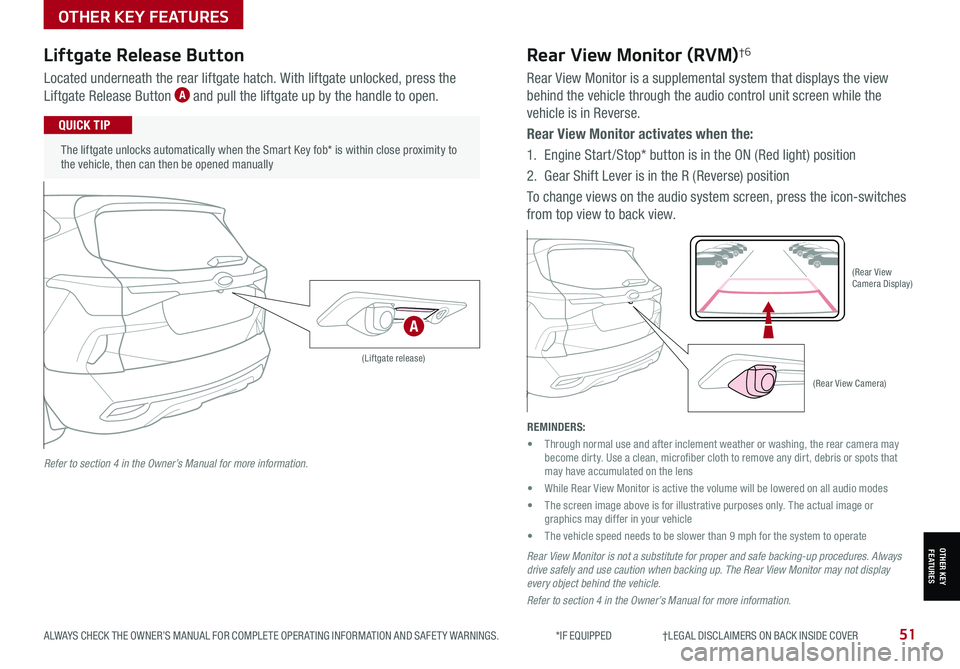
Liftgate Release Button
Located underneath the rear liftgate hatch. With liftgate unlocked, press the
Liftgate Release Button A and pull the liftgate up by the handle to open.
The liftgate unlocks automatically when the Smart Key fob* is within close proximity to the vehicle, then can then be opened manually
QUICK TIP
(Liftgate release)
REMINDERS:
• Through normal use and after inclement weather or washing, the rear camera may become dirty. Use a clean, microfiber cloth to remove any dirt, debris or spots that may have accumulated on the lens
• While Rear View Monitor is active the volume will be lowered on all audio modes
• The screen image above is for illustrative purposes only. The actual image or graphics may differ in your vehicle
• The vehicle speed needs to be slower than 9 mph for the system to operate
(Rear View Camera)
(Rear View Camera Display)
P
R
N
DSHIFTL OCK
RELEASE
Rear View Monitor (RVM)†6
Rear View Monitor is a supplemental system that displays the view
behind the vehicle through the audio control unit screen while the
vehicle is in Reverse.
Rear View Monitor activates when the:
1. Engine Start /Stop* button is in the ON (Red light) position
2.
Gear Shift Lever is in the R (Reverse) position
To change views on the audio system screen, press the icon-switches
from top view to back view.
Rear View Monitor is not a substitute for proper and safe backing-up procedures. Always drive safely and use caution when backing up. The Rear View Monitor may not display every object behind the vehicle.
Refer to section 4 in the Owner’s Manual for more information.
Refer to section 4 in the Owner’s Manual for more information.
A