set KIA SELTOS 2021 Navigation System Quick Reference Guide
[x] Cancel search | Manufacturer: KIA, Model Year: 2021, Model line: SELTOS, Model: KIA SELTOS 2021Pages: 244, PDF Size: 7.35 MB
Page 94 of 244
5-12
Deleting a previous destination
1 On the Previous Destinations screen, press
Delete.
2 Select the destination(s) to delete and press
Delete.
You can delete the selected place(s) or all places.
Searching for Kia Dealerships
You can easily search for service centers or service stations.
1 On the Navigation Menu screen, press Kia
Dealerships.
AAAvailable icons and their arrangement may differ
depending on the vehicle model and specifications.
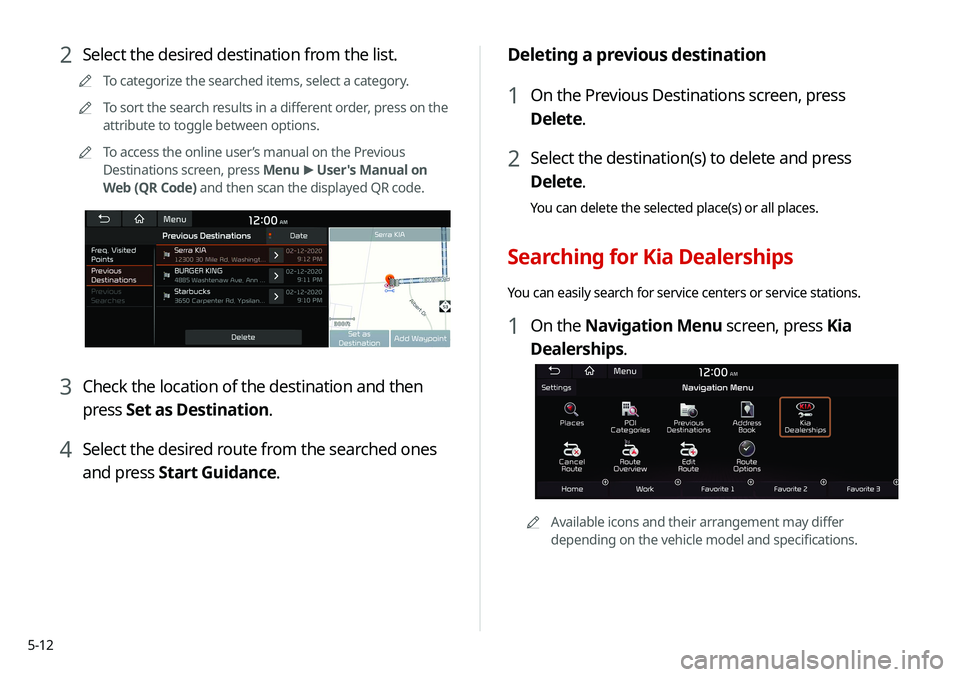
2 Select the desired destination from the list.
A
A
To categorize the searched items, select a category.
A
A
To sort the search results in a different order, press on the
attribute to toggle between options.
A
A
To access the online user’s manual on the Previous
Destinations screen, press Menu >
User's Manual on
Web (QR Code) and then scan the displayed QR code.
3 Check the location of the destination and then
press Set as Destination.
4 Select the desired route from the searched ones
and press Start Guidance.
Page 95 of 244
5-13
Searching the nearby points of interest
You can set a destination after searching the nearby points of
interest by the category.
1 On the Navigation Menu screen, press POI
Categories.
AAAvailable icons and their arrangement may differ
depending on the vehicle model and specifications.
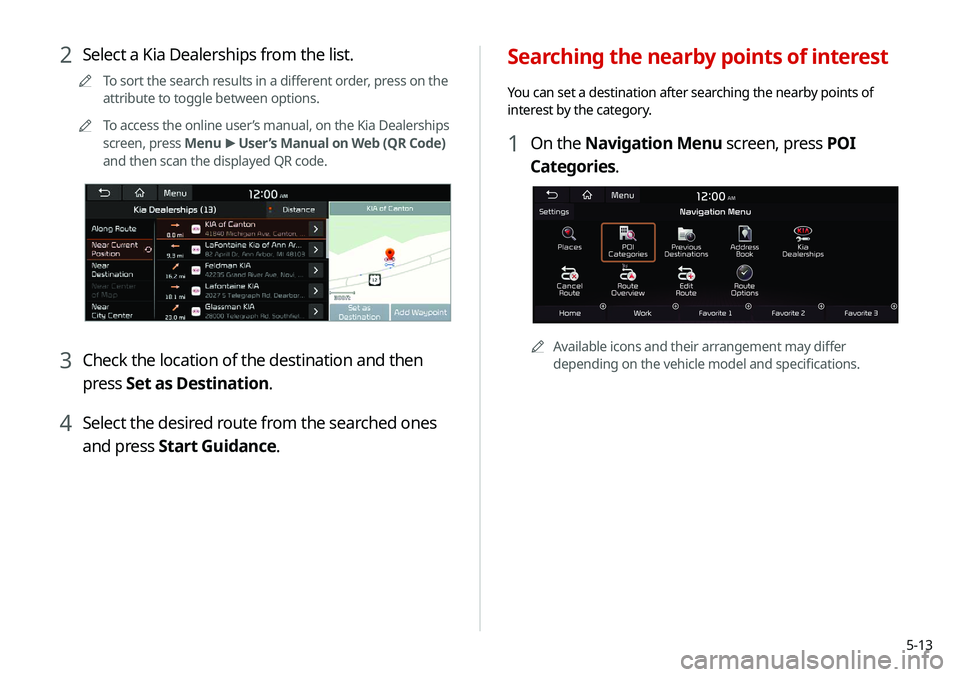
2 Select a Kia Dealerships from the list.
A
A
To sort the search results in a different order, press on the
attribute to toggle between options.
A
A
To access the online user’s manual, on the Kia Dealerships
screen, press Menu >
User’s Manual on Web (QR Code)
and then scan the displayed QR code.
3 Check the location of the destination and then
press Set as Destination.
4 Select the desired route from the searched ones
and press Start Guidance.
Page 97 of 244
5-15
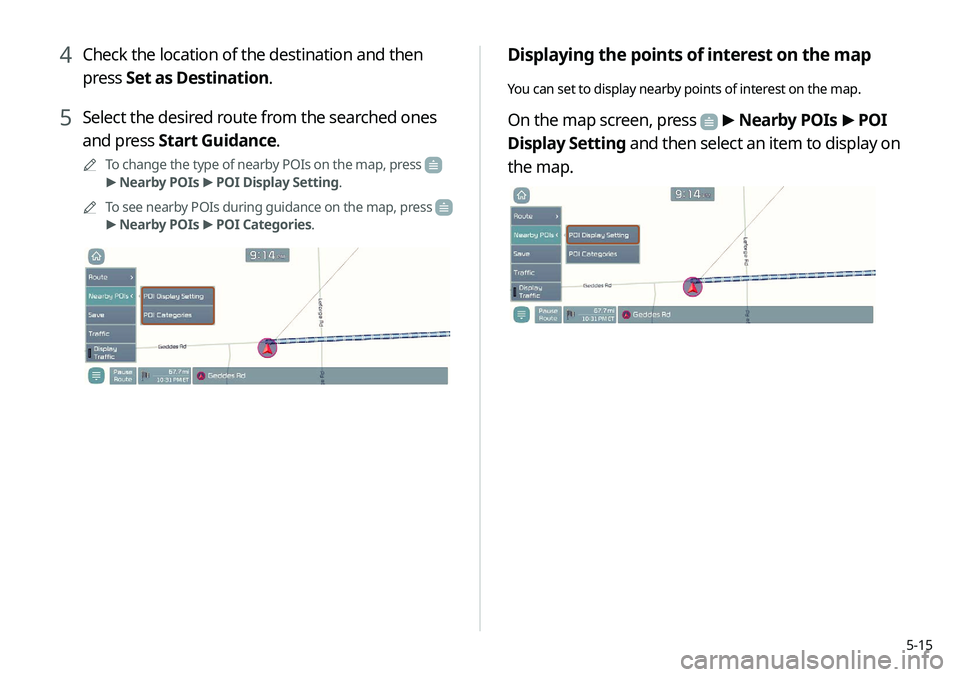
Displaying the points of interest on the map
You can set to display nearby points of interest on the map.
On the map screen, press > Nearby POIs >
POI
Display Setting and then select an item to display on
the map.
4 Check the location of the destination and then
press Set as Destination.
5 Select the desired route from the searched ones
and press Start Guidance.
A
A
To change the type of nearby POIs on the map, press
>
Nearby POIs >
POI Display Setting.
A
A
To see nearby POIs during guidance on the map, press
>
Nearby POIs >
POI Categories.
Page 98 of 244

5-16
2 On the map for a search, press Add Waypoint.
The selected waypoint is immediately added to the route.
3 After adding waypoints, press Reroute.
A
A
To access the online user’s manual on the Edit Route
screen, press Menu >
User's Manual on Web (QR Code)
and then scan the displayed QR code.
4 Select the updated route and then press Start
Guidance.
Editing the route
You can edit the current route so that you can travel via waypoints
on the way to the destination. You can add up to two waypoints.
Setting a waypoint
You can search for the desired place and set it as a waypoint.
1 On the Navigation Menu screen, press the
desired search method to search for a waypoint.
A
A
Available icons and their arrangement may differ
depending on the vehicle model and specifications.
A
A
For more information about the waypoint search:
> see “Searching by keyword,” “Searching by previous
destinations,” “Searching the nearby points of interest,”
“ Searching for restaurants (if equipped),” “Searching for
emergency services (if equipped).”
Page 104 of 244
5-22
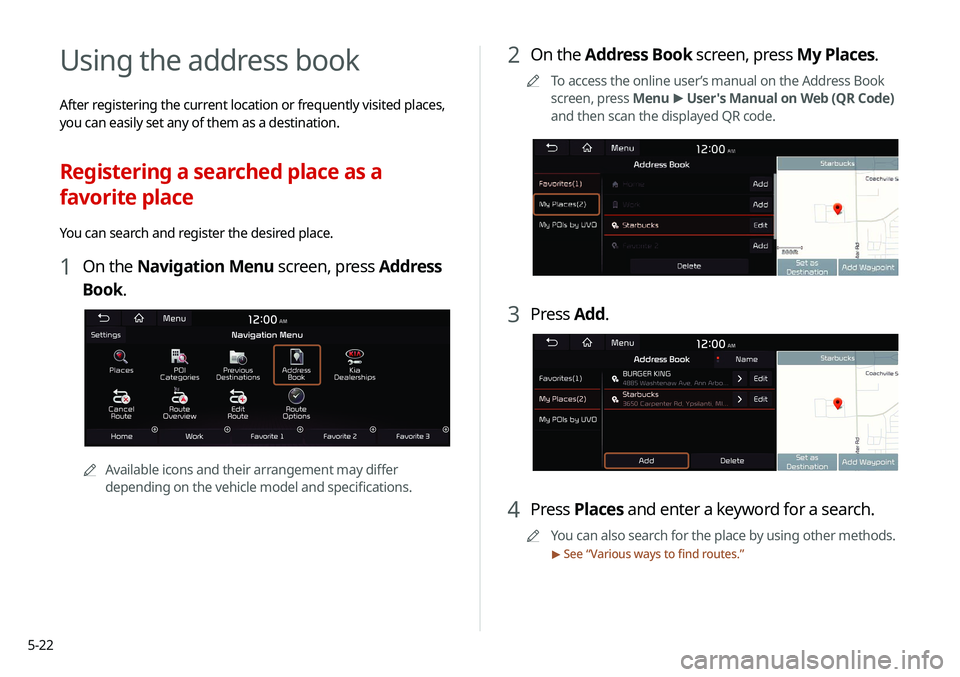
2 On the Address Book screen, press My Places.
A
A
To access the online user’s manual on the Address Book
screen, press Menu >
User's Manual on Web (QR Code)
and then scan the displayed QR code.
3 Press Add.
4 Press Places and enter a keyword for a search.
A
A
You can also search for the place by using other methods.
> See “Various ways to find routes.”
Using the address book
After registering the current location or frequently visited places,
you can easily set any of them as a destination.
Registering a searched place as a
favorite place
You can search and register the desired place.
1 On the Navigation Menu screen, press Address
Book.
AA
Available icons and their arrangement may differ
depending on the vehicle model and specifications.
Page 106 of 244
5-24
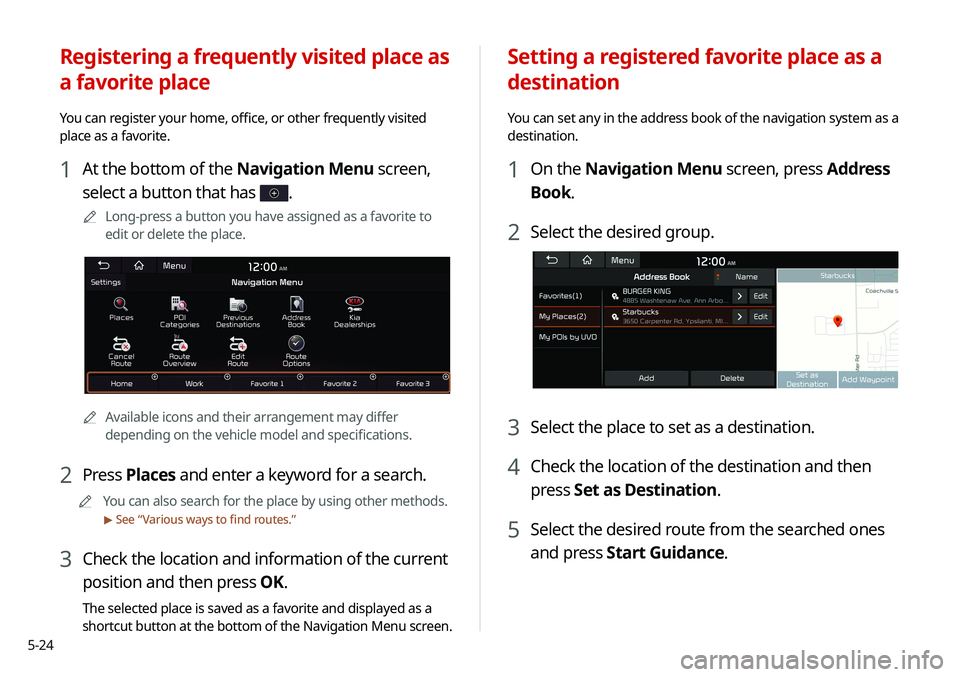
Setting a registered favorite place as a
destination
You can set any in the address book of the navigation system as a
destination.
1 On the Navigation Menu screen, press Address
Book.
2 Select the desired group.
3 Select the place to set as a destination.
4 Check the location of the destination and then
press Set as Destination.
5 Select the desired route from the searched ones
and press Start Guidance.
Registering a frequently visited place as
a favorite place
You can register your home, office, or other frequently visited
place as a favorite.
1 At the bottom of the Navigation Menu screen,
select a button that has
.
A
A
Long-press a button you have assigned as a favorite to
edit or delete the place.
AAAvailable icons and their arrangement may differ
depending on the vehicle model and specifications.
2 Press Places and enter a keyword for a search.
A
A
You can also search for the place by using other methods.
> See “Various ways to find routes.”
3 Check the location and information of the current
position and then press OK.
The selected place is saved as a favorite and displayed as a
shortcut button at the bottom of the Navigation Menu screen.
Page 107 of 244
5-25
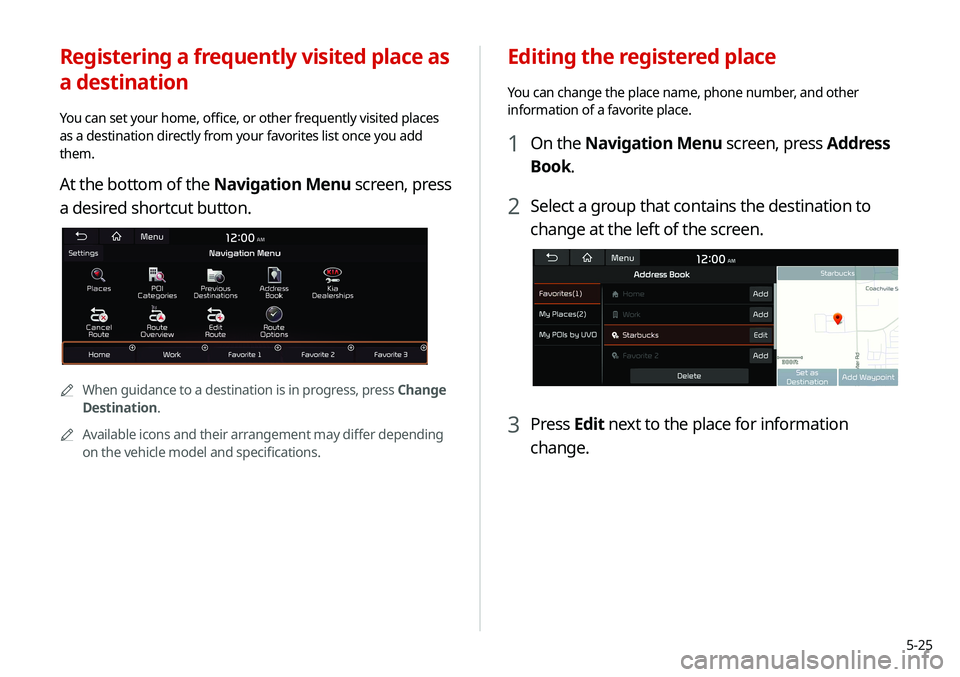
Editing the registered place
You can change the place name, phone number, and other
information of a favorite place.
1 On the Navigation Menu screen, press Address
Book.
2 Select a group that contains the destination to
change at the left of the screen.
3 Press Edit next to the place for information
change.
Registering a frequently visited place as
a destination
You can set your home, office, or other frequently visited places
as a destination directly from your favorites list once you add
them.
At the bottom of the Navigation Menu screen, press
a desired shortcut button.
AAWhen guidance to a destination is in progress, press Change
Destination.
A
A
Available icons and their arrangement may differ depending
on the vehicle model and specifications.
Page 109 of 244
5-27
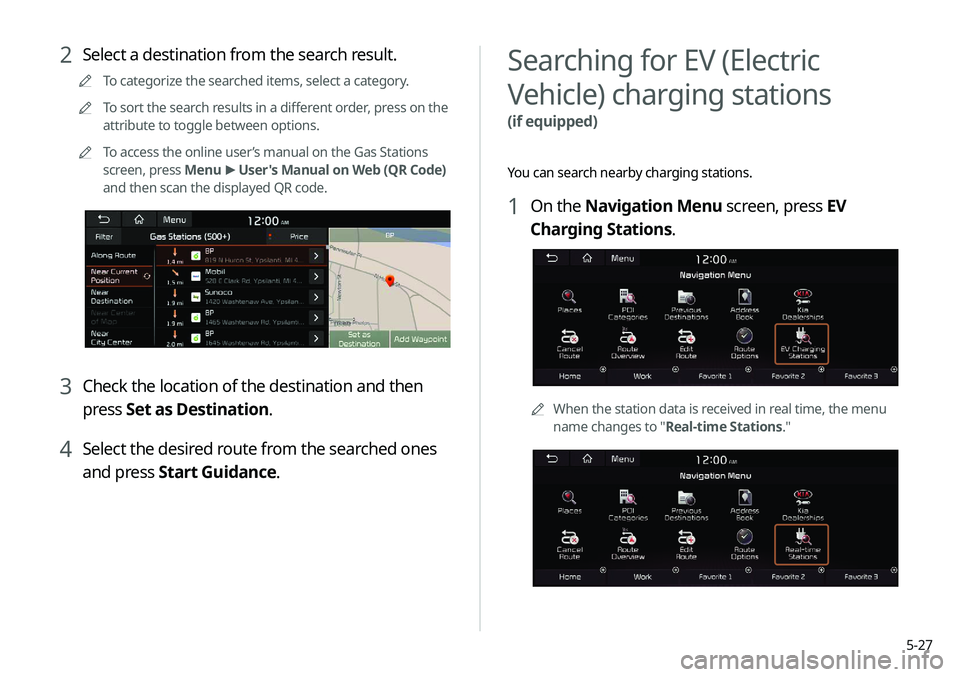
Searching for EV (Electric
Vehicle) charging stations
(if equipped)
You can search nearby charging stations.
1 On the Navigation Menu screen, press EV
Charging Stations.
AAWhen the station data is received in real time, the menu
name changes to "Real-time Stations."
2 Select a destination from the search result.
A
A
To categorize the searched items, select a category.
A
A
To sort the search results in a different order, press on the
attribute to toggle between options.
A
A
To access the online user’s manual on the Gas Stations
screen, press Menu >
User's Manual on Web (QR Code)
and then scan the displayed QR code.
3 Check the location of the destination and then
press Set as Destination.
4 Select the desired route from the searched ones
and press Start Guidance.
Page 110 of 244
5-28
END USER LICENSE
AGREEMENT
PLEASE READ THIS END USER LICENSE AGREEMENT ("EULA")
CAREFULLY BEFORE USING THE NAVIGATION SYSTEM.
This is a license agreement between you and Hyundai MnSoft,
INC. including its affiliates ("COMPANY") regarding a copy of the
COMPANY navigable map database together with associated
software, media and explanatory printed documentation
published by COMPANY (jointly the "Product"). The Product is
provided for your personal, internal use only and not for resale.
It is protected by copyright and is subject to the following terms
which are agreed to by you, on the one hand, and COMPANY
and its licensors (and their licensors and suppliers) (collectively,
"Licensors") on the other hand.
By using the Product, you accept and agree to all terms and
conditions in this End User License Agreement ("EULA"). IF
YOU DO NOT AGREE TO THE TERMS OF THIS EULA, YOU MUST
PROMPTLY EXIT THE PRODUCT OPERATION PROGRAM AND DO
NOT USE OR ACCESS TO THE PRODUCT. YOU AGREE THAT YOUR
RIGHTS UNDER THIS EULA MAY BE TERMINATED AUTOMATICALLY
WITHOUT NOTICE IF YOU FAIL TO COMPLY WITH ANY TERM(S) OF
THIS EULA.
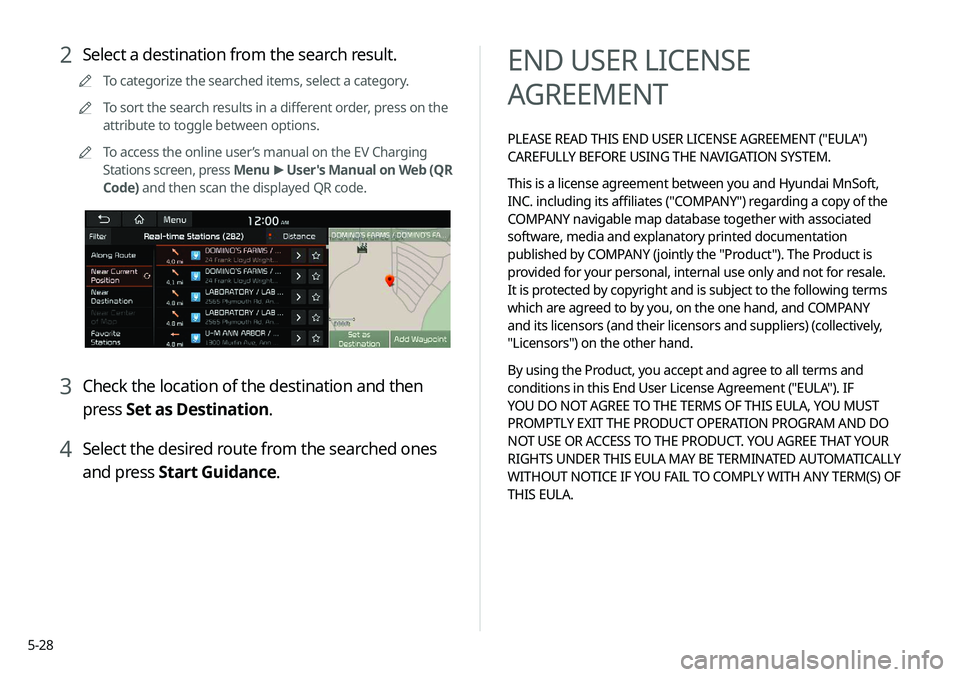
2 Select a destination from the search result.
A
A
To categorize the searched items, select a category.
A
A
To sort the search results in a different order, press on the
attribute to toggle between options.
A
A
To access the online user’s manual on the EV Charging
Stations screen, press Menu >
User's Manual on Web (QR
Code) and then scan the displayed QR code.
3 Check the location of the destination and then
press Set as Destination.
4 Select the desired route from the searched ones
and press Start Guidance.
Page 111 of 244
5-29
COPYING OR USE OF THE PRODUCT EXCEPT AS PERMITTED
BY THIS EULA IS UNAUTHORIZED AND IS COPYRIGHT
INFRINGEMENT UNDER THE LAWS OF YOUR COUNTRY. IF
YOU COPY OR USE THE PRODUCT WITHOUT COMPANY'S
PERMISSION, EXCEPT AS PERMITTED BY THIS EULA, YOU ARE
VIOLATING THE LAW AND LIABLE TO COMPANY AND ITS
LICENSORS FOR DAMAGES, AND YOU MAY BE SUBJECT TO
CRIMINAL PENALTIES.
THE PRODUCT MAY INCLUDE ENFORCEMENT TECHNOLOGY
DESIGNED TO PREVENT (i) UNAUTHORIZED COPYING OF THE
PRODUCT ONTO PHYSICAL STORAGE MEDIA OR VIA TRANSFER
OVER THE INTERNET OR OTHER ELECTRONIC COMMUNICATION
MEANS AND/OR (ii) ILLEGAL USAGE OF THE PRODUCT OTHER
THAN BY A SPECIFICALLY AHTORIZED DEVICE. YOU AGREE THAT
COMPANY MAY USE THESE MEASURES TO PROTECT COMPANY
AND THE LICENSORS AGAINST COPYRIGHT INFRINGEMENT.
Uploads. The Product may provide functionality through which
you are able to upload certain information about your use of the
Product (collectively, "Uploads") to COMPANY's servers or receive
other services from COMPANY (collectively, the "Services"). If
you use such functionality, you authorize COMPANY to retain
your Uploads on its servers. COMPANY will have no obligation
to provide any Services, may change the form and nature of
any Services at any time with or without notice to you, will have
no liability whatsoever to you for any failure of the Product or
Services to transmit your Uploads to or from COMPANY's servers,
may cease providing any Services at any time with or without
notice to you, and will have no obligation to retain your Uploads (or
any other materials you may provide to COMPANY) on its servers
or return your Uploads (or any other materials you may provide
to COMPANY) to you before deleting them from its servers.
Terms and Conditions
Personal Use Only. You agree to use this Product together
with COMPANY's authorized application for the solely personal,
non-commercial purposes for which you were licensed, and
not for service bureau, time-sharing or other similar purposes.
Accordingly, but subject to the restrictions set forth in the
following paragraphs, you agree not to otherwise reproduce,
copy, modify, decompile, disassemble, create any derivative
works of, or reverse engineer any portion of this Data, and may
not transfer or distribute it in any form, for any purpose, except
to the extent permitted by mandatory laws. You may not assign
this EULA or any of the rights or licenses granted under this EULA,
except when installed in the system for which it was created.
Restrictions. Except where you have been specifically licensed
to do so by COMPANY, and without limiting the preceding
paragraph, you may not use the Product (i) with any products,
systems, or applications installed or otherwise connected to or
in communication with vehicles, capable of vehicle navigation,
positioning, dispatch, real time route guidance, fleet management
or similar applications; or (ii) with or in communication with any
positioning devices or any mobile or wireless-connected electronic
or computer devices, including without limitation cellular phones,
palmtop and handheld computers, pagers, and personal digital
assistants or PDAs.