Speed KIA SELTOS 2022 Navigation System Quick Reference Guide
[x] Cancel search | Manufacturer: KIA, Model Year: 2022, Model line: SELTOS, Model: KIA SELTOS 2022Pages: 316, PDF Size: 10.48 MB
Page 204 of 316

9-16
\334\334Caution
Be sure to always check the vehicle surroundings while driving. The equipped cameras and
sensors may not operate properly under all driving conditions.
SCC Reaction (if equipped)
Adjusts the responsiveness of Smart Cruise Control to the acceleration of a leading vehicle.
Driving Convenience (if equipped)
Sets the properties of Driving Convenience system.0000
A
The Driving Convenience system operates based on the information from the navigation
system so you must use the system only when the navigation system operates properly.
\225Highway Driving Assist: Assists driving in a highway according to the set speed and
distance to the leading vehicle while keeping the vehicle centered in the lane.
0000
A
The highway driving assist system operates only on a highway. When the vehicle exits
from the highway, the system is turned off automatically.
\225Highway Auto Speed Zone Slowdown: Automatically decelerates in a highway speed
enforcement zone.
0000
A
The highway auto speed zone slowdown system operates only on a highway. When
the vehicle exits from the highway, the system is turned off automatically.
0000
A
It operates considering the speed cameras located on the selected route.
\225Highway Auto Curve Slowdown: Automatically decelerates in a highway curve zone.
0000
A
It operates based on the curve zones on the route. When the destination is not set, it
operates based on the curve zones on the expected path.
\225Highway Auto Speed Change: Automatically adjusts the vehicle speed on a highway
based on navigation data.
Page 205 of 316

9-17
Speed Limit (if equipped)
Sets the properties of the Speed Limit system.
\225Speed Limit Offset: Adjusts the offset amount of the speed limit.
\225Speed Limit Assist: Adjusts the vehicle set speed based on the current speed limit of the
road.
\225Speed Limit Warning: Provides a warning when the speed limit is exceeded.
\225Off: Disables the Speed Limit functions.
Warning Timing (if equipped)
Sets the timing of the warning.
Warning Volume (if equipped)
Sets the volume of the warning sound.
Haptic Warning (if equipped)
Sets the intensity of the steering wheel vibration warning.
Driver Attention Warning (if equipped)
Sets the properties of the Driver Attention Warning system.
\225Leading Vehicle Departure Alert: Alerts the driver during a stop, when the leading
vehicle departs.
\335Warning
Be sure to always check the road conditions ahead or surroundings before departure. An
accident caused by distracted driving can be prevented.
\225Inattentive Driving Warning: Provides a warning when signs of driver inattentiveness
are detected, and recommends a rest if needed.
\225Safety Notice Call: When abnormal driving is detected, a Connected Services Center
representative will call to check on your safety.
Page 207 of 316

9-19
\335Warning
\225Safe Exit Assist may not operate properly when a vehicle is coming rapidly two lanes
over from your vehicle or a vehicle is approaching at a fast speed from the rear in the
lane next to your vehicle.
\225Safe Exit Assist may not operate properly if there is any vehicle or obstacle at the rear
area of your vehicle.
\225Safe Exit Assist may be activated later than normal or may not operate properly if a
vehicle is approaching fast from the rear of your vehicle.
\225Safe Exit Assist may not operate when the Blind-Spot Safety system malfunctions as
follows:
-The warning message of the Blind-Spot Safety system appears on the instrument
cluster.
-The sensors of the Blind-Spot Safety system are contaminated or covered.
-The Blind-Spot Safety system does not generate warning or generates a wrong
alert.
\225
Active Assist: Provides a warning and vehicle control when a risk of blind-spot collision is
detected.
\335Warning
Always be aware of road conditions while driving and be alert for unexpected situations
even though Blind-Spot Collision Warning and Blind-Spot Collision-Avoidance Assist are
operating.
\225Warning Only: Provides a warning when a risk of blind-spot collision is detected.
\225Off: Disables Blind-Spot Safety function.
Parking Safety (if equipped)
Sets the properties of the Parking Safety systems.
\225Rear Cross-Traffic Safety: Provides a warning when a risk of rear cross-traffic collision is
detected while reversing. It provides vehicle control to avoid collision, depending on the
vehicle model and specifications.
\225Camera Settings: Sets the properties of the cameras.
000DDisplay Contents: Specify information that will be displayed on the view screen.
Setting items may differ depending on the vehicle model and camera type.
000DDisplay Settings: Adjust the brightness and contrast of the view screen. To initialize all
Surround View or Rear View screen settings of the phone projection, press
Reset.
Page 208 of 316
9-20
\225Surround View Monitor Auto On: Automatically activates Surround View Monitor when
Parking Distance Warning is active.
\225Parking Distance Warning Auto On: Automatically activates Parking Distance Warning
when traveling at low speeds.
\225Rear Active Assist: Provides a warning and emergency braking when a risk of rear
collision is detected while reversing.
\225Rear Warning Only: Provides a warning when a risk of rear collision is detected while
backing up.
\225Off: Disables Parking Safety functions.
\335Warning
\225Even though the vehicle is equipped the Parking Safety system, be sure to check any
obstacles in the surroundings while driving. Relying on the Parking Safety system may
cause an accident. Accordingly, be sure to control the vehicle by your judgment.
\225When the sensors cannot detect any obstacles due to the detection limit, it may cause an
accident. Be sure to always check the surroundings while parking.
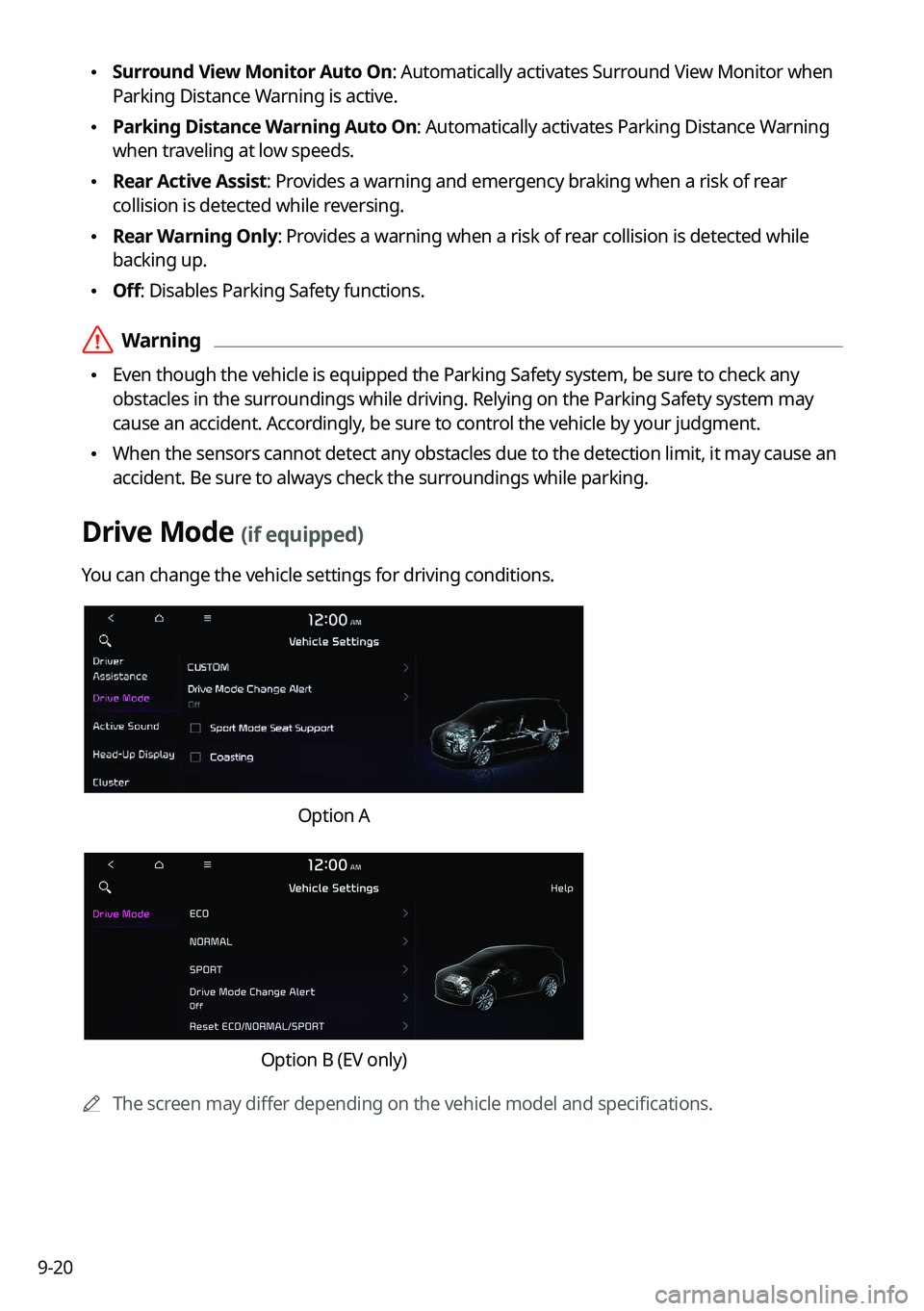
Drive Mode (if equipped)
You can change the vehicle settings for driving conditions.
Option A
Option B (EV only)
0000
A
The screen may differ depending on the vehicle model and specifications.
Page 209 of 316

9-21
CUSTOM (if equipped)
You can set to select the drive mode optimized for the driving habits or road conditions.
\225Powertrain: Select a drive mode that performs optimum engine and transmission
control depending on the driving situation.
000DNORMAL: Optimized for balanced comfort.
000DSPORT: Optimized for agile driving.
\225
Steering: Select a drive mode that performs optimum steering wheel control depending
on the driving situation.
000DNORMAL: Optimized for smooth steering.
000DSPORT: Optimized for agile steering.
ECO (EV only)
This is a drive mode for increasing the vehicle's fuel efficiency. You can change the climate
control mode, the active coast energy regeneration level, and speed limit settings.
NORMAL (EV only)
This is a drive mode focused on the driver and passenger's comfort. You can change the
climate control mode and the active coast energy regeneration level.
SPORT (EV only)
This drive mode enables a more dynamic driving performance. You can change the climate
control mode and the active coast energy regeneration level.
Drive Mode Change Alert (if equipped)
You can set how to display the notification message when the drive mode is changed.
\225
Detailed Alert: Displays a detailed notification message along with the vehicle image
when the drive mode is changed.
\225Simple Alert: Displays the notification at the top or on the split screen when the drive
mode is changed.
\225Off: When the drive mode changes, no notification is provided.
Page 211 of 316
9-23
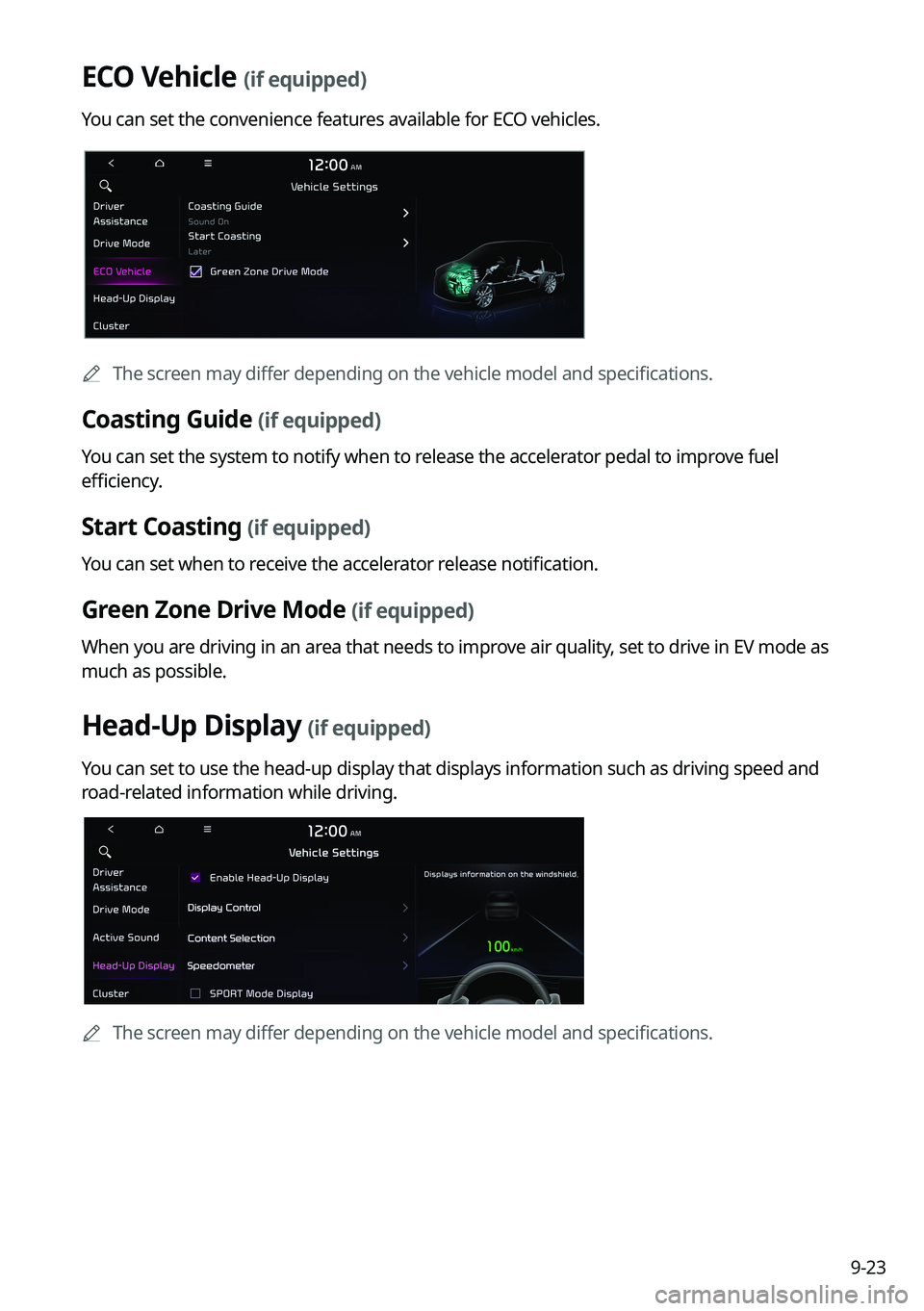
ECO Vehicle (if equipped)
You can set the convenience features available for ECO vehicles.
0000
A
The screen may differ depending on the vehicle model and specifications.
Coasting Guide (if equipped)
You can set the system to notify when to release the accelerator pedal to improve fuel
efficiency.
Start Coasting (if equipped)
You can set when to receive the accelerator release notification.
Green Zone Drive Mode (if equipped)
When you are driving in an area that needs to improve air quality, set to drive in EV mode as
much as possible.
Head-Up Display (if equipped)
You can set to use the head-up display that displays information such as driving speed and
road-related information while driving.
0000
A
The screen may differ depending on the vehicle model and specifications.
Page 212 of 316

9-24
Enable Head-Up Display (if equipped)
Can determine whether or not to use the head-up display.
Display Control (if equipped)
Adjust the height, rotation, and brightness of the head-up display.
Content Selection (if equipped)
Select the items to display on the head-up display.
Speedometer (if equipped)
Can set the driving speed items and colors to display on the head-up display.
SPORT Mode Display (if equipped)
Displays information about sporty driving on the head-up display, in sync with SPORT mode.
Cluster (if equipped)
You can set the data to display on the instrument cluster and the volume and type for guiding
beep.
0000
A
The screen may differ depending on the vehicle model and specifications.
Select Theme (if equipped)
Select and apply a theme to the cluster.
Service Interval (if equipped)
You can set to guide you when to perform the vehicle inspection.
\225Enable Service Interval: Sets the service inspection interval. When it exceeds, the
notification is provided.
\225Distance: Sets the driving distance for a service.
\225Duration: Sets the service cycle.
\225Reset: Initializes the settings for distance and duration.
Page 213 of 316
9-25
Energy Consumption Reset (if equipped)
You can set to automatically initialize the average fuel economy.
\225After Ignition: The average fuel economy is automatically initialize whenever you drive
the vehicle.
\225After Refueling
: The average fuel economy is automatically initialize whenever you refuel
the vehicle.
\225 After Recharging: The average fuel economy is automatically initialize whenever you
charge the vehicle (EV only).
\225Off: The average fuel economy initialize is unavailable.
Reset Fuel Economy (if equipped)
Select which average fuel economy to display on the cluster.
\225At Vehicle Start: Displays the fuel economy after engine restart.
\225After Refueling: Displays the fuel economy after refueling.
\225After Recharging: Displays the fuel economy after recharging (EV only).
\225Manually: Displays the accumulated fuel economy.
Content Selection (if equipped)
You can set the content to display on the instrument cluster.
\225Wiper/Lights Display: When the wiper or light lever operates, the operation mode
appears.
\225Traffic Signs: Displays the road information such as speed bumps and speed limits.
\225Blind-Spot View: Displays the blind spot view on the instrument cluster when the turn
signal lamp is operating.
\225Icy Road Warning: When the outside temperature drops below 4 °C (39 °F), the
possibility of road icing appears.
Cluster Voice Guidance Volume (if equipped)
You can adjust the voice guidance volume of the cluster.
Welcome Sound (if equipped)
You can set to generate the notification sound when turning on or off the instrument cluster.
Page 218 of 316
9-30
2 Press Unlock (if equipped)
You can set to unlock all doors by pressing the door unlock button twice.0000
A
When you press the door unlock button once, only the driver's seat door is unlocked.
Smart Sliding Door (if equipped)
Set the sliding door to automatically open when you move close to the sliding door carrying
your smart key.
Power Trunk Opening Speed or Power Liftgate Opening Speed
(if equipped)
Set the opening speed for the power trunk (liftgate).
Power Trunk Opening Height or Power Liftgate Opening Height
(if equipped)
Set the opening height for the power trunk (liftgate).
Smart Trunk or Smart Liftgate (if equipped)
Opens the trunk (liftgate) automatically when approaching the trunk (liftgate) with the smart
key.
0000
A
The displayed name may differ depending on the vehicle model and specifications.
Liftgate Auto Close (if equipped)
Set the liftgate to automatically close when you move away from the back of the liftgate while
carrying the smart key.
Page 229 of 316
9-41
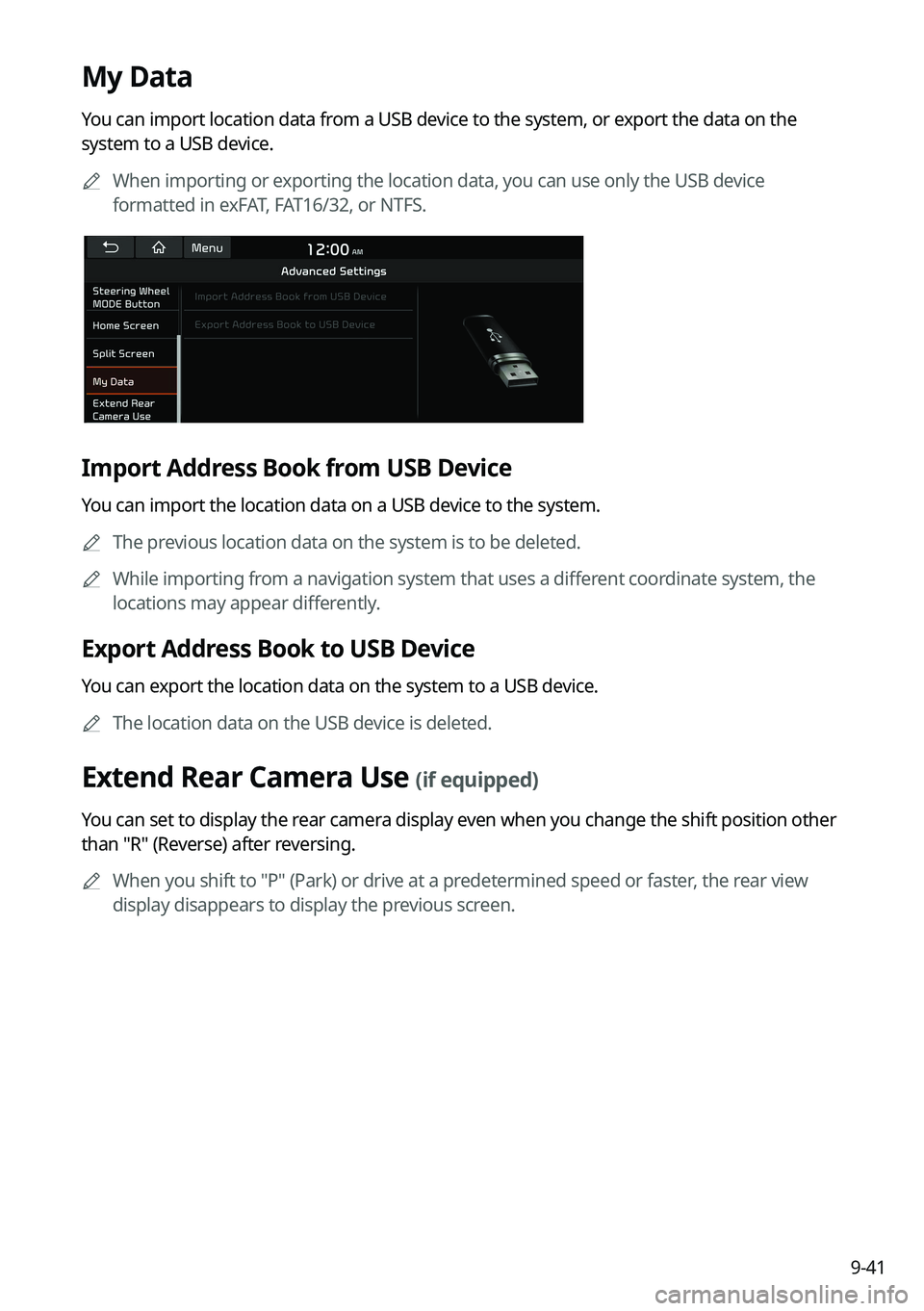
My Data
You can import location data from a USB device to the system, or export the data on the
system to a USB device.0000
A
When importing or exporting the location data, you can use only the USB device
formatted in exFAT, FAT16/32, or NTFS.
Import Address Book from USB Device
You can import the location data on a USB device to the system.
0000
A
The previous location data on the system is to be deleted.
0000
A
While importing from a navigation system that uses a different coordinate system, the
locations may appear differently.
Export Address Book to USB Device
You can export the location data on the system to a USB device.
0000
A
The location data on the USB device is deleted.
Extend Rear Camera Use (if equipped)
You can set to display the rear camera display even when you change the shift position other
than "R" (Reverse) after reversing.
0000
A
When you shift to "P" (Park) or drive at a predetermined speed or faster, the rear view
display disappears to display the previous screen.