Speed KIA SELTOS 2022 Navigation System Quick Reference Guide
[x] Cancel search | Manufacturer: KIA, Model Year: 2022, Model line: SELTOS, Model: KIA SELTOS 2022Pages: 316, PDF Size: 10.48 MB
Page 104 of 316
5-10
Seeing traffic Information
You can see real-time traffic information such as ongoing road works or accidents.
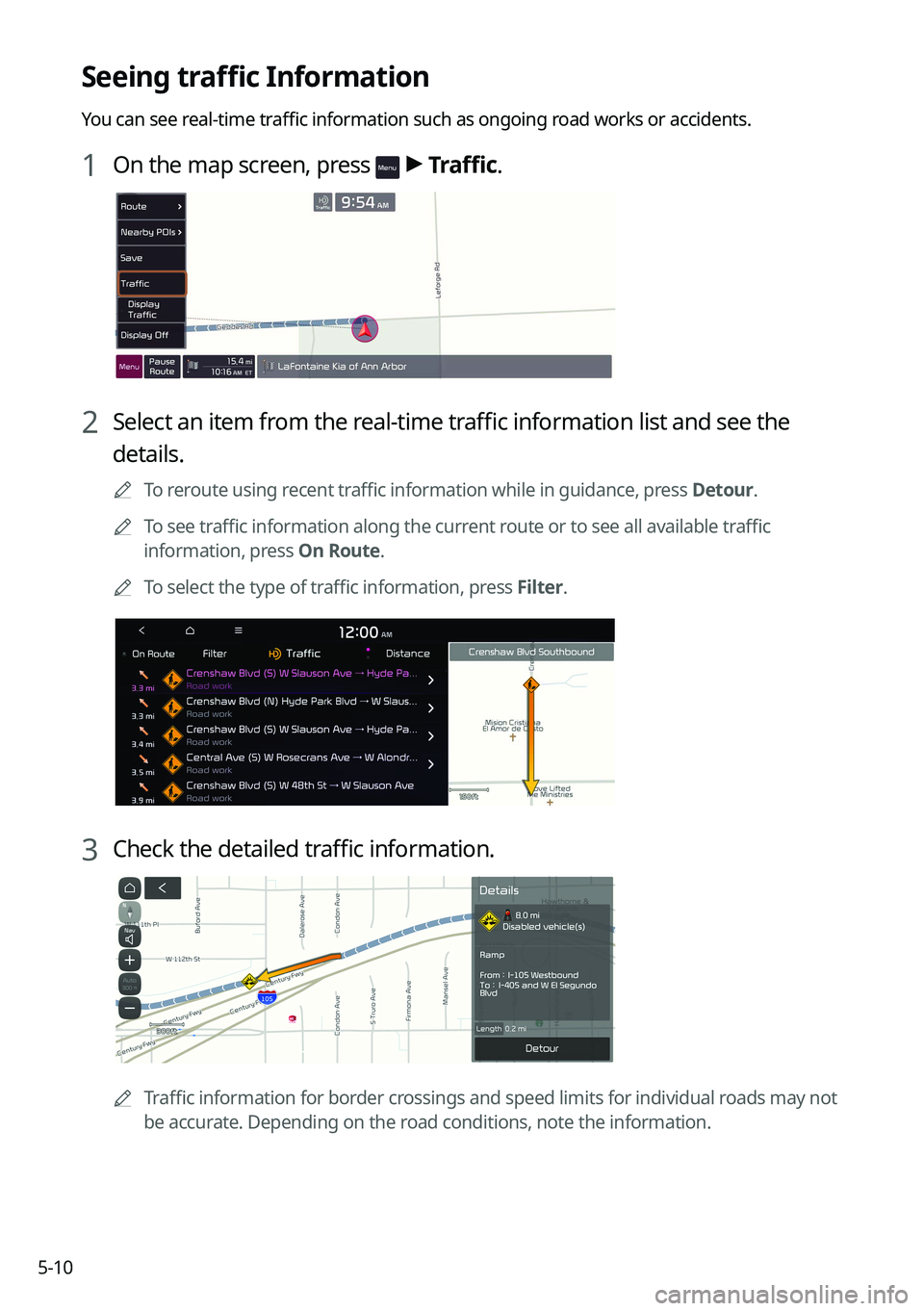
1 On the map screen, press > Traffic.
2 Select an item from the real-time traffic information list and see the
details.
0000
A
To reroute using recent traffic information while in guidance, press Detour.
0000
A
To see traffic information along the current route or to see all available traffic
information, press On Route.
0000
A
To select the type of traffic information, press Filter.
3 Check the detailed traffic information.
0000
A
Traffic information for border crossings and speed limits for individual roads may not
be accurate. Depending on the road conditions, note the information.
Page 141 of 316

6-11
3 Select a contact from the list.
The system dials the selected contact.
0000AYou can download only the contacts that can be displayed on the connected Bluetoot\
h
device. The contacts may not appear in some Apps.
0000
A
You can download up to 5,000 contacts for each device.
0000
A
The download may not work in some phone models.
0000
A
Contacts from both the mobile device and its SIM card are downloaded at the same time.
The system may not be able to download SIM card contacts from all phone models.
0000
A
When speed dial numbers are set to contacts on the phone, press and hold a speed
dial number on the dial pad to make a call easily. Some mobile phone models may not
support the speed dial function.
0000
A
You cannot download contacts when the download is prohibited by the phone. Some
phone models may require approval for a download. When a successful download is not
made, check the phone screen or its settings.
0000
A
Depending on the phone model or operation status, downloading may take longer than
usual.
0000
A
When a new contacts list is downloaded, the previous records are removed.
0000
A
The downloaded contacts cannot be edited or deleted from the system.
0000
A
When another mobile phone is connected, the screen does not display the contacts
downloaded from the previous phone, but they are kept in the system until the phone is
deleted from the list.
0000
A
Learn more about receiving calls while using a Bluetooth connection.
> See "Accepting an
incoming call over Bluetooth."
Page 154 of 316

7-2
Voice recognition
With the voice recognition function, you can access various functions of the infotainmen\
t
system without manipulating the screen or buttons. This function prevents driver distraction
and dangerous situations.
Use voice commands to access various functions easily.0000
A
The system can recognize the specified voice commands.
> See "Available voice commands"
or "Seeing the voice recognition help."
0000
A
Note the following for accurate delivery of command when saying it.
000DPronounce a command accurately and naturally like a conversation.
000DKeep the correct posture and say commands toward the direction of the microphone.
0000
A
Voice recognition is automatically ended when:
000DYou make or receive a call.
000DThe front or rear cameras operate (if equipped).
000DThe
[RADIO] or [MEDIA] button is pressed to perform another function.
000DRerouting or other unexpected action is made due to deviation from the route during
guidance.
0000
A
Voice recognition may not work properly when:
000DThe sunroof or windows are open so the wind is strong.
000DThe fan speed of the air conditioner or heater is high (level 3 or below is
recommended).
000DThe vehicle is passing through a tunnel.
000DThe vehicle is driving on an unpaved road and its noise and vibration are loud.
000DNoise is loud due to a heavy rain or storm.
Using the voice recognition
1 On the steering wheel, press the Voice Recognition button.
Voice recognition starts along with voice guidance.
0000
A
To skip the voice guidance, press the Voice Recognition button on the steering wheel.
Page 165 of 316
7-13
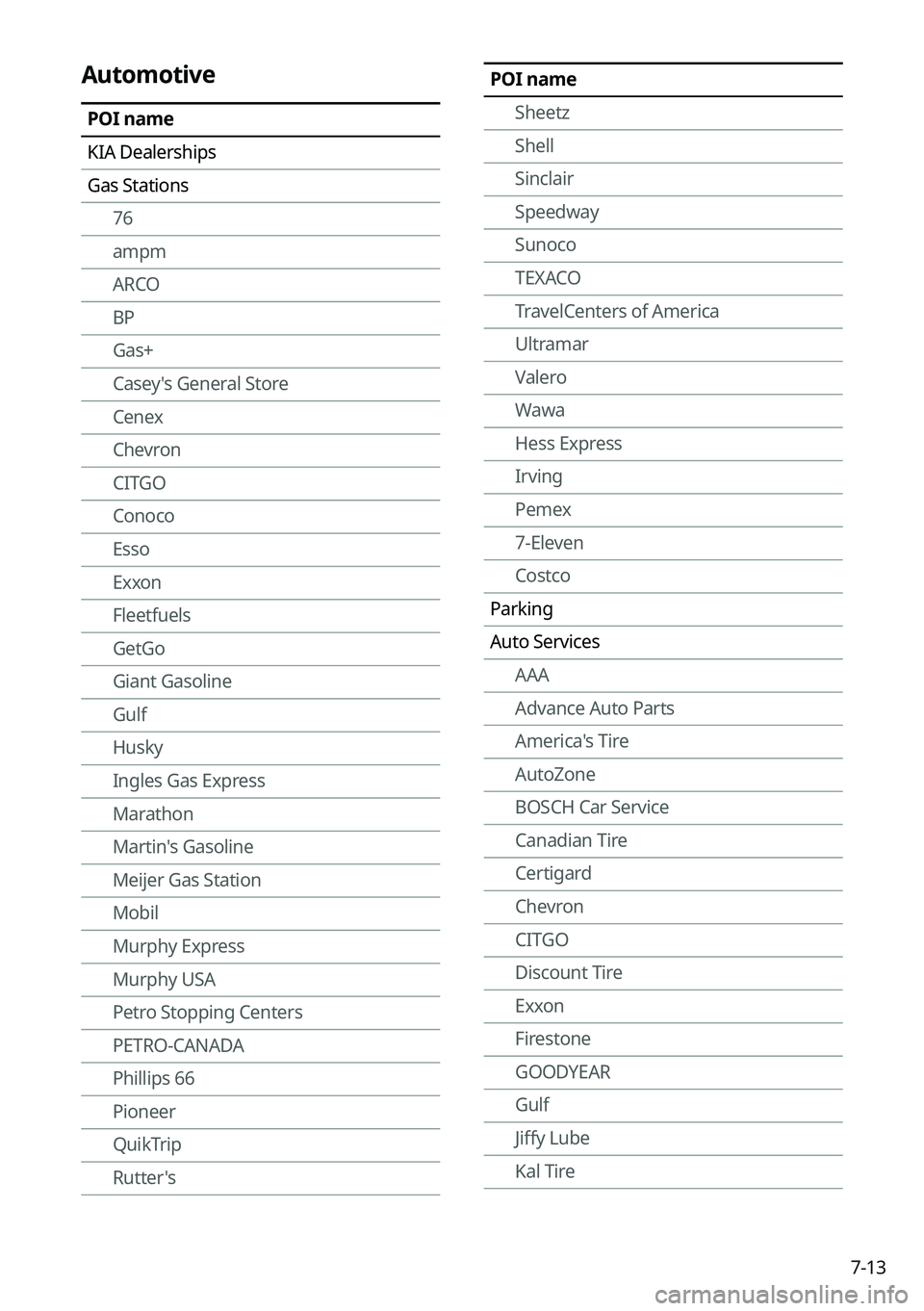
POI nameSheetz
Shell
Sinclair
Speedway
Sunoco
TEXACO
TravelCenters of America
Ultramar
Valero
Wawa
Hess Express
Irving
Pemex
7-Eleven
Costco
Parking
Auto Services AAA
Advance Auto Parts
America's Tire
AutoZone
BOSCH Car Service
Canadian Tire
Certigard
Chevron
CITGO
Discount Tire
Exxon
Firestone
GOODYEAR
Gulf
Jiffy Lube
Kal TireAutomotive
POI name
KIA Dealerships
Gas Stations76
ampm
ARCO
BP
Gas+
Casey's General Store
Cenex
Chevron
CITGO
Conoco
Esso
Exxon
Fleetfuels
GetGo
Giant Gasoline
Gulf
Husky
Ingles Gas Express
Marathon
Martin's Gasoline
Meijer Gas Station
Mobil
Murphy Express
Murphy USA
Petro Stopping Centers
PETRO-CANADA
Phillips 66
Pioneer
QuikTrip
Rutter's
Page 191 of 316
9-3
Configuring the vehicle settings (Type1)
(if equipped)
You can configure the functions for driving and related environments.
\335Warning
Make sure you stop the vehicle before changing settings to ensure safety.0000
A
Vehicle settings can be changed only when the vehicle is on.
0000
A
Available settings may differ depending on the vehicle model and specifications.
0000
A
Depending on the climate control system, some functions may not be supported.
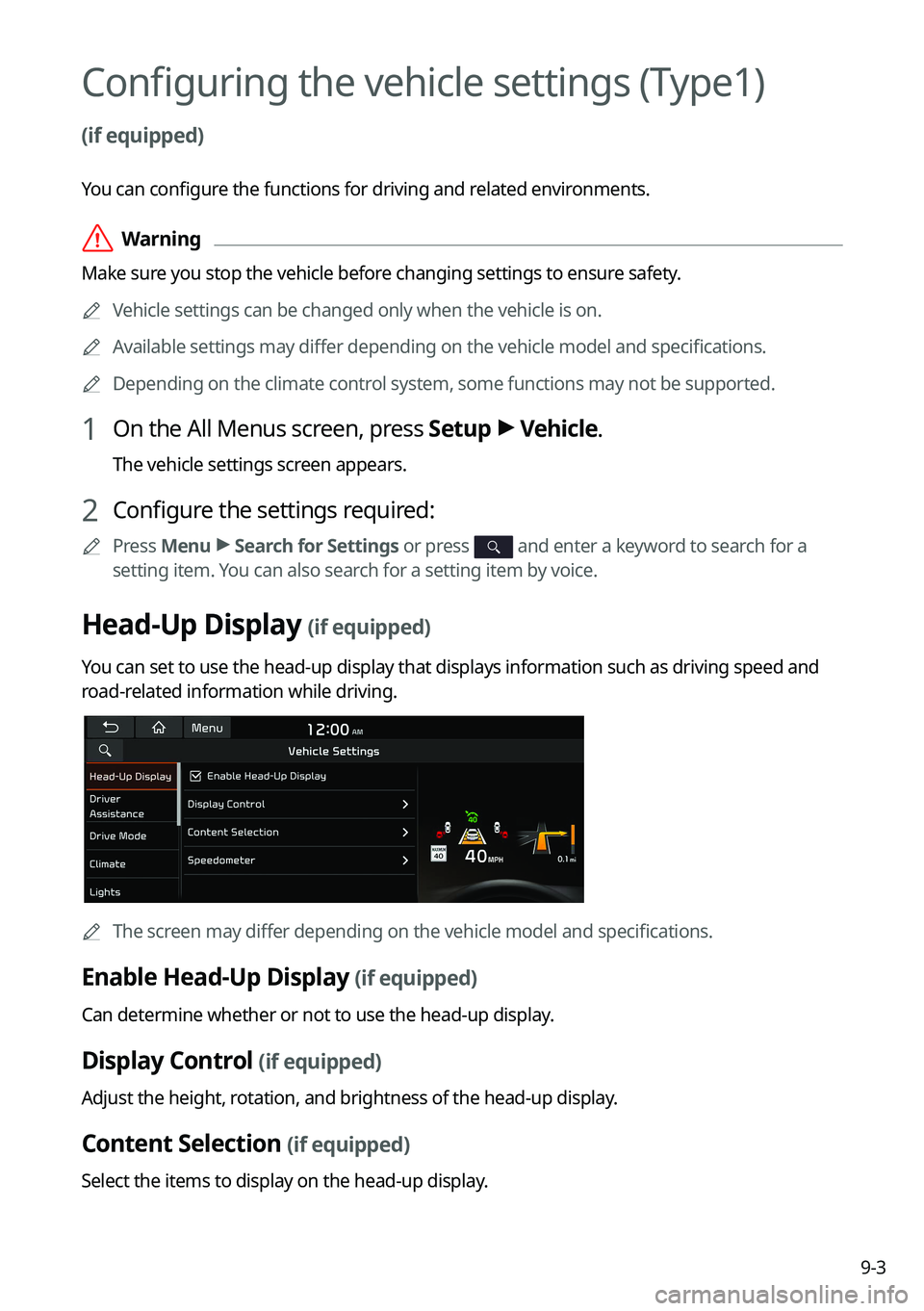
1 On the All Menus screen, press Setup >
Vehicle.
The vehicle settings screen appears.
2 Configure the settings required:
0000
A
Press Menu >
Search for Settings or press and enter a keyword to search for a
setting item. You can also search for a setting item by voice.
Head-Up Display (if equipped)
You can set to use the head-up display that displays information such as driving speed and
road-related information while driving.
0000
A
The screen may differ depending on the vehicle model and specifications.
Enable Head-Up Display (if equipped)
Can determine whether or not to use the head-up display.
Display Control (if equipped)
Adjust the height, rotation, and brightness of the head-up display.
Content Selection (if equipped)
Select the items to display on the head-up display.
Page 192 of 316

9-4
Speedometer (if equipped)
Can set the driving speed items and colors to display on the head-up display.
Driver Assistance (if equipped)
You can set to use various systems that assist the driver for safety.
0000AThe screen may differ depending on the vehicle model and specifications. Refer to the car
owner's manual for details of the function.
\335Warning
\225Be sure to always check the road conditions while driving. The Driver Assistance system
helps you drive safely and conveniently. Relying solely on the function may cause violation
of traffic rules and regulations, resulting in an accident.
\225Be sure to control the vehicle by your judgment and keep traffic regulations for safety.
When the function is active, drive the vehicle with keeping eyes forward and checking the
surroundings.
\225Not all warnings or functions are necessary when they are active, and they do not replace
the driver discretion under any circumstances. Stay focused on the road while driving.
\334\334Caution
Be sure to always check the vehicle surroundings while driving. The equipped cameras and
sensors may not operate properly under all driving conditions.
SCC Reaction (if equipped)
Adjusts the responsiveness of Smart Cruise Control to the acceleration of a leading vehicle.
Page 193 of 316
9-5
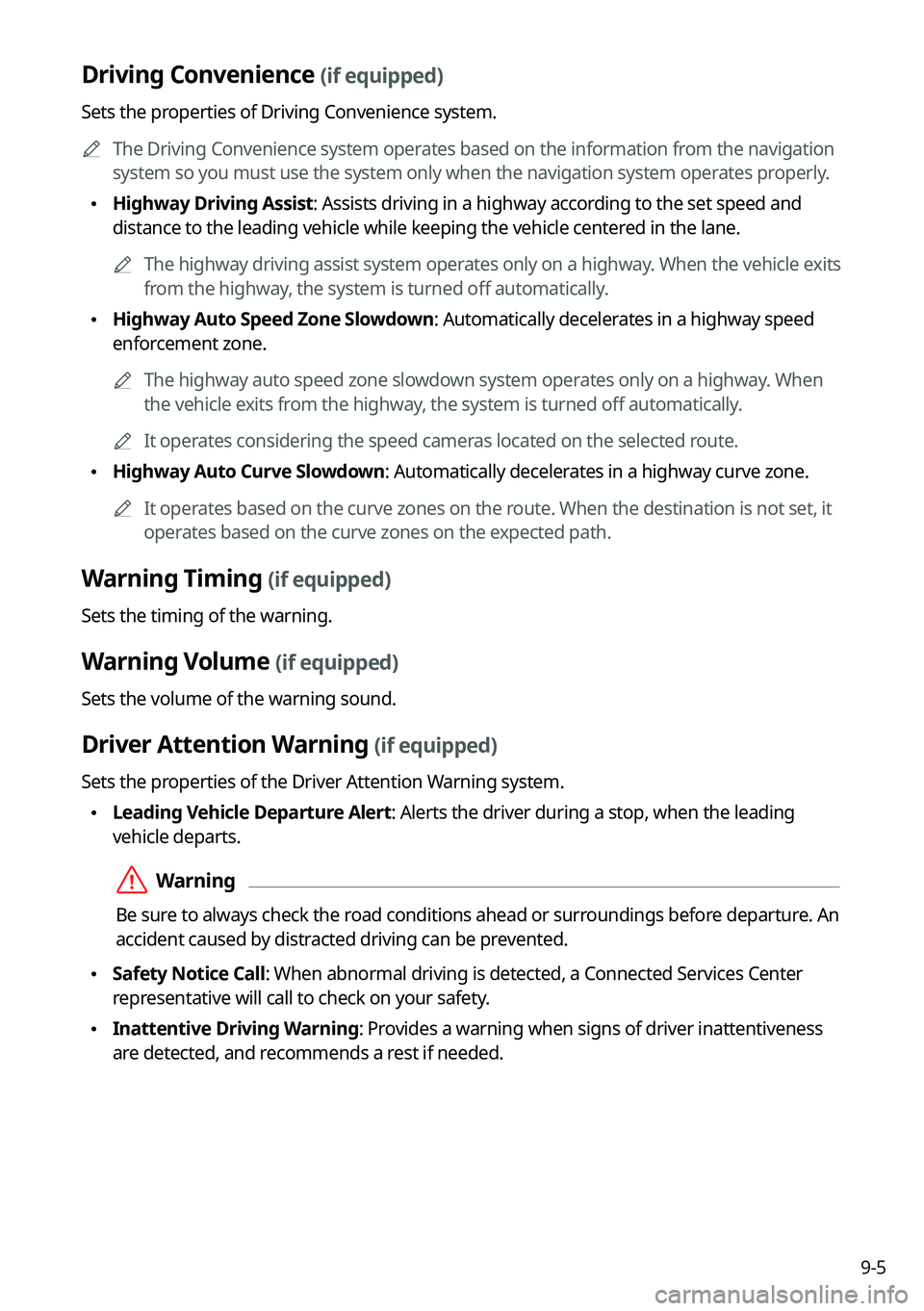
Driving Convenience (if equipped)
Sets the properties of Driving Convenience system.0000
A
The Driving Convenience system operates based on the information from the navigation
system so you must use the system only when the navigation system operates properly.
\225Highway Driving Assist: Assists driving in a highway according to the set speed and
distance to the leading vehicle while keeping the vehicle centered in the lane.
0000
A
The highway driving assist system operates only on a highway. When the vehicle exits
from the highway, the system is turned off automatically.
\225Highway Auto Speed Zone Slowdown: Automatically decelerates in a highway speed
enforcement zone.
0000
A
The highway auto speed zone slowdown system operates only on a highway. When
the vehicle exits from the highway, the system is turned off automatically.
0000
A
It operates considering the speed cameras located on the selected route.
\225Highway Auto Curve Slowdown: Automatically decelerates in a highway curve zone.
0000
A
It operates based on the curve zones on the route. When the destination is not set, it
operates based on the curve zones on the expected path.
Warning Timing (if equipped)
Sets the timing of the warning.
Warning Volume (if equipped)
Sets the volume of the warning sound.
Driver Attention Warning (if equipped)
Sets the properties of the Driver Attention Warning system.
\225Leading Vehicle Departure Alert: Alerts the driver during a stop, when the leading
vehicle departs.
\335Warning
Be sure to always check the road conditions ahead or surroundings before departure. An
accident caused by distracted driving can be prevented.
\225Safety Notice Call: When abnormal driving is detected, a Connected Services Center
representative will call to check on your safety.
\225Inattentive Driving Warning: Provides a warning when signs of driver inattentiveness
are detected, and recommends a rest if needed.
Page 195 of 316

9-7
\335Warning
\225Safe Exit Assist may not operate properly when a vehicle is coming rapidly two lanes
over from your vehicle or a vehicle is approaching at a fast speed from the rear in the
lane next to your vehicle.
\225Safe Exit Assist may not operate properly if there is any vehicle or obstacle at the rear
area of your vehicle.
\225Safe Exit Assist may be activated later than normal or may not operate properly if a
vehicle is approaching fast from the rear of your vehicle.
\225Safe Exit Assist may not operate when the Blind-Spot Safety system malfunctions as
follows:
-The warning message of the Blind-Spot Safety system appears on the instrument
cluster.
-The sensors of the Blind-Spot Safety system are contaminated or covered.
-The Blind-Spot Safety system does not generate warning or generates a wrong
alert.
\225
Active Assist: Provides a warning and vehicle control when a risk of blind-spot collision is
detected.
\335Warning
Always be aware of road conditions while driving and be alert for unexpected situations
even though Blind-Spot Collision Warning and Blind-Spot Collision-Avoidance Assist are
operating.
\225Warning Only: Provides a warning when a risk of blind-spot collision is detected.
\225Off: Disables Blind-Spot Safety function.
Parking Safety (if equipped)
Sets the properties of the Parking Safety systems.
\225Surround View Monitor Auto On: Automatically activates Surround View Monitor when
Parking Distance Warning is active (if equipped).
\225Parking Distance Warning Auto On: Automatically activates Parking Distance Warning
when traveling at low speeds.
\225Rear Cross-Traffic Safety: Provides a warning when a risk of rear cross-traffic collision is
detected while reversing. It provides vehicle control to avoid collision, depending on the
vehicle model and specifications.
\225Active Assist: Provides a warning and emergency braking when a risk of rear collision is
detected while reversing.
\225Warning Only: Provides a warning when a risk of rear collision is detected while backing
up.
\225Off: Disables Parking Safety functions.
Page 196 of 316
9-8
\335Warning
\225Even though the vehicle is equipped the Parking Safety system, be sure to check any
obstacles in the surroundings while driving. Relying on the Parking Safety system may
cause an accident. Accordingly, be sure to control the vehicle by your judgment.
\225When the sensors cannot detect any obstacles due to the detection limit, it may cause an
accident. Be sure to always check the surroundings while parking.
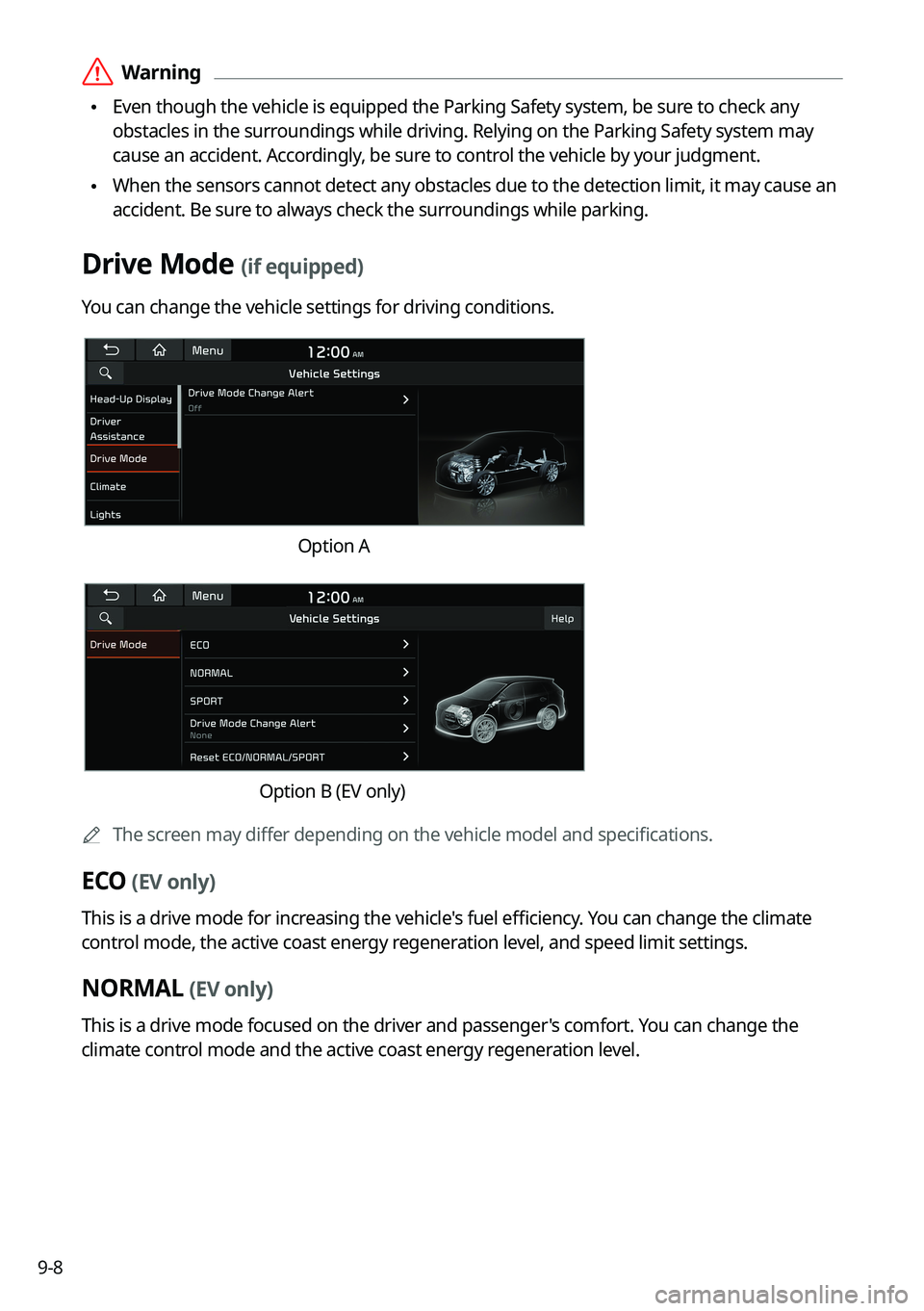
Drive Mode (if equipped)
You can change the vehicle settings for driving conditions.
Option A
Option B (EV only)
0000
A
The screen may differ depending on the vehicle model and specifications.
ECO (EV only)
This is a drive mode for increasing the vehicle's fuel efficiency. You can change the climate
control mode, the active coast energy regeneration level, and speed limit settings.
NORMAL (EV only)
This is a drive mode focused on the driver and passenger's comfort. You can change the
climate control mode and the active coast energy regeneration level.
Page 200 of 316
9-12
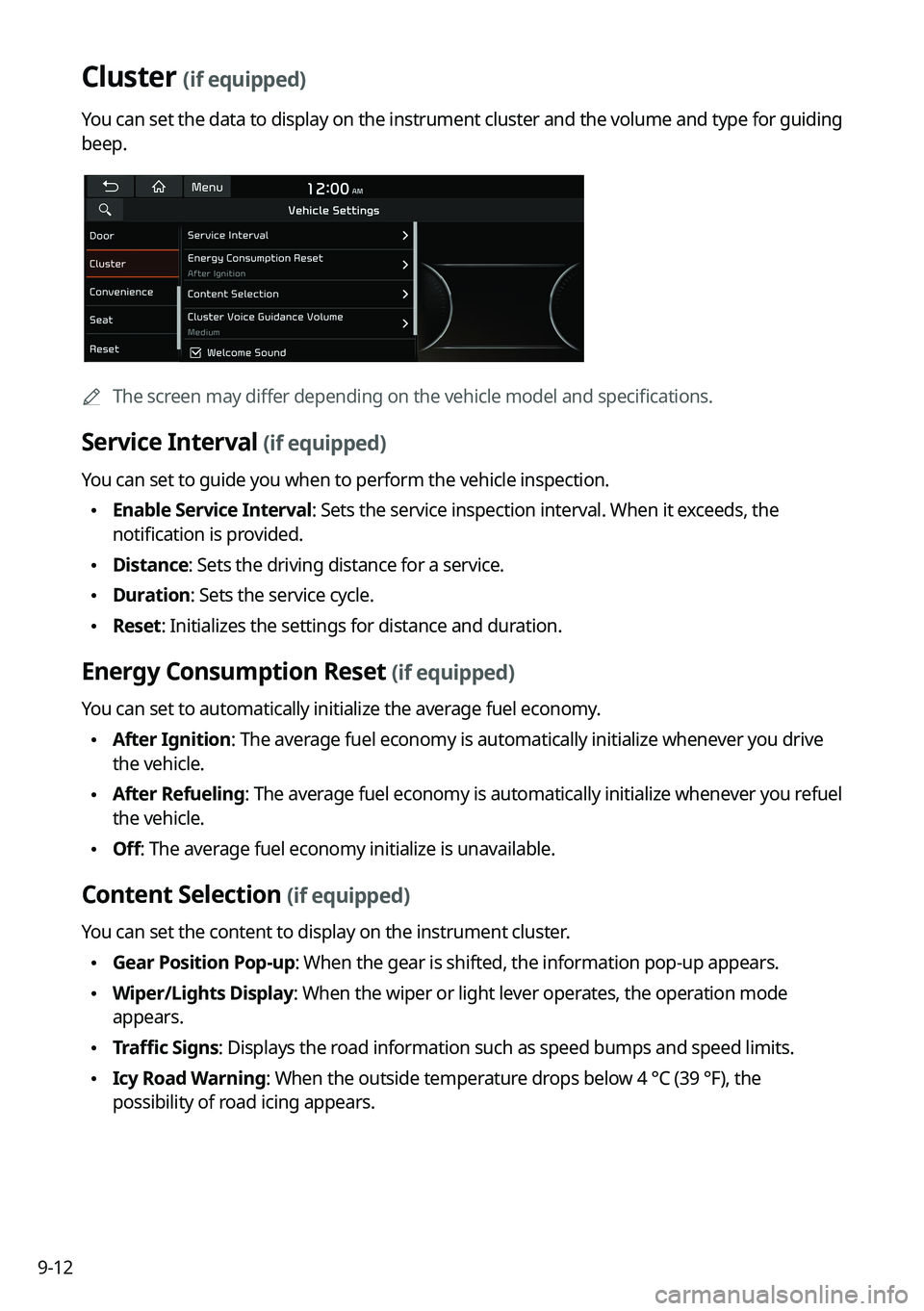
Cluster (if equipped)
You can set the data to display on the instrument cluster and the volume and type for guiding
beep.
0000AThe screen may differ depending on the vehicle model and specifications.
Service Interval (if equipped)
You can set to guide you when to perform the vehicle inspection.
\225Enable Service Interval: Sets the service inspection interval. When it exceeds, the
notification is provided.
\225Distance: Sets the driving distance for a service.
\225Duration: Sets the service cycle.
\225Reset: Initializes the settings for distance and duration.
Energy Consumption Reset (if equipped)
You can set to automatically initialize the average fuel economy.
\225After Ignition: The average fuel economy is automatically initialize whenever you drive
the vehicle.
\225After Refueling
: The average fuel economy is automatically initialize whenever you refuel
the vehicle.
\225 Off: The average fuel economy initialize is unavailable.
Content Selection (if equipped)
You can set the content to display on the instrument cluster.
\225Gear Position Pop-up: When the gear is shifted, the information pop-up appears.
\225Wiper/Lights Display: When the wiper or light lever operates, the operation mode
appears.
\225Traffic Signs: Displays the road information such as speed bumps and speed limits.
\225Icy Road Warning: When the outside temperature drops below 4 °C (39 °F), the
possibility of road icing appears.