Speed volume KIA SELTOS 2022 Navigation System Quick Reference Guide
[x] Cancel search | Manufacturer: KIA, Model Year: 2022, Model line: SELTOS, Model: KIA SELTOS 2022Pages: 316, PDF Size: 10.48 MB
Page 4 of 316
2
Safety Warnings
Be sure to keep the following instructions. Otherwise, it may cause serious injury or accident.
\335Driving
Obey all traffic laws while driving.
\225
Relying solely on the navigation system may cause violation of traffic rules and regulations, resulting in an
accident.
In order to check the vehicle speed, see the speedometer first, not the speed on the
navigation system.
\225The speed on the navigation system may differ from actual vehicle speed.
While driving, refrain from watching the screen.
\225An accident may occur by negligence in keeping your eyes forward.
\225To manipulate the screen or buttons requiring multiple steps, be sure to stop your vehicle.
To use your mobile phone, first stop your vehicle.
\225When you use your mobile phone while driving, it may disperse your atten\
tion, resulting in an accident.
\225When making a call while driving, use the Bluetooth Hands-free function and if possible, minimise the call
time.
Make sure that the volume of the phone is sufficiently low so that the external sound is
audible.
\225When you drive with no external sound present may cause a traffic accident.
\225When you drive for a long time with a loud audio volume, it may affect your hearing.
For emergency services (e.g. hospital, fire station), do not rely solely on the navigation
system.
\225Some emergency services may not be included in the navigation map. Check relevant information in advance
to stay prepared for an emergency.
\335System handling
Do NOT arbitrarily disassemble or modify the system.
\225It may cause an accident, fire, or electric shock.
Exercise caution to make sure that no liquid or foreign materials enter the system.
\225It may cause smoke generation, fire ignition, or system failure.
When the screen is not displayed, the volume is muted, or other system failures occur,
immediately stop using the system.
\225Otherwise, it may cause fire, electric shock, or fatal system failure.
0000
A
If you experience any problems with the system, contact your place of purchase or dealer.
Page 17 of 316
5
Be sure to keep the following instructions. Otherwise, it may cause serious injury or accident.
\335Driving
Obey all traffic laws while driving.
\225 Relying solely on the navigation system may cause violation of traffic rules and regulations, resulting in an
accident.
In order to check the vehicle speed, see the speedometer first, not the speed on the
navigation system.
\225The speed on the navigation system may differ from actual vehicle speed.
While driving, refrain from watching the screen.
\225An accident may occur by negligence in keeping your eyes forward.
\225To manipulate the screen or buttons requiring multiple steps, be sure to stop your vehicle.
To use your mobile phone, first stop your vehicle.
\225When you use your mobile phone while driving, it may disperse your attention, resulting in an accident.
\225If necessary, use handsfree (Bluetooth) calling when driving and minimize the call time.
Make sure that the volume of the phone is sufficiently low so that the external sound is
audible.
\225When you drive with no external sound present may cause a traffic accident.
\225When you drive for a long time with a loud audio volume, it may affect your hearing.
For emergency services (e.g. hospital, fire station), do not rely solely on the navigation
system.
\225Some emergency services may not be included in the navigation map. Check relevant information in advance
to stay prepared for an emergency.
\335System handling
Do NOT arbitrarily disassemble or modify the system.
\225 It may cause an accident, fire, or electric shock.
Exercise caution to make sure that no liquid or foreign materials enter the system.
\225It may cause smoke generation, fire ignition, or system failure.
When the screen is not displayed, the volume is muted, or other system failures occur,
immediately stop using the system.
\225Otherwise, it may cause fire, electric shock, or fatal system failure.
0000
A
If you experience any problems with the system, contact your place of purchase or dealer.
Safety Warnings
Page 193 of 316
9-5
Driving Convenience (if equipped)
Sets the properties of Driving Convenience system.0000
A
The Driving Convenience system operates based on the information from the navigation
system so you must use the system only when the navigation system operates properly.
\225Highway Driving Assist: Assists driving in a highway according to the set speed and
distance to the leading vehicle while keeping the vehicle centered in the lane.
0000
A
The highway driving assist system operates only on a highway. When the vehicle exits
from the highway, the system is turned off automatically.
\225Highway Auto Speed Zone Slowdown: Automatically decelerates in a highway speed
enforcement zone.
0000
A
The highway auto speed zone slowdown system operates only on a highway. When
the vehicle exits from the highway, the system is turned off automatically.
0000
A
It operates considering the speed cameras located on the selected route.
\225Highway Auto Curve Slowdown: Automatically decelerates in a highway curve zone.
0000
A
It operates based on the curve zones on the route. When the destination is not set, it
operates based on the curve zones on the expected path.
Warning Timing (if equipped)
Sets the timing of the warning.
Warning Volume (if equipped)
Sets the volume of the warning sound.
Driver Attention Warning (if equipped)
Sets the properties of the Driver Attention Warning system.
\225Leading Vehicle Departure Alert: Alerts the driver during a stop, when the leading
vehicle departs.
\335Warning
Be sure to always check the road conditions ahead or surroundings before departure. An
accident caused by distracted driving can be prevented.
\225Safety Notice Call: When abnormal driving is detected, a Connected Services Center
representative will call to check on your safety.
\225Inattentive Driving Warning: Provides a warning when signs of driver inattentiveness
are detected, and recommends a rest if needed.
Page 200 of 316
9-12
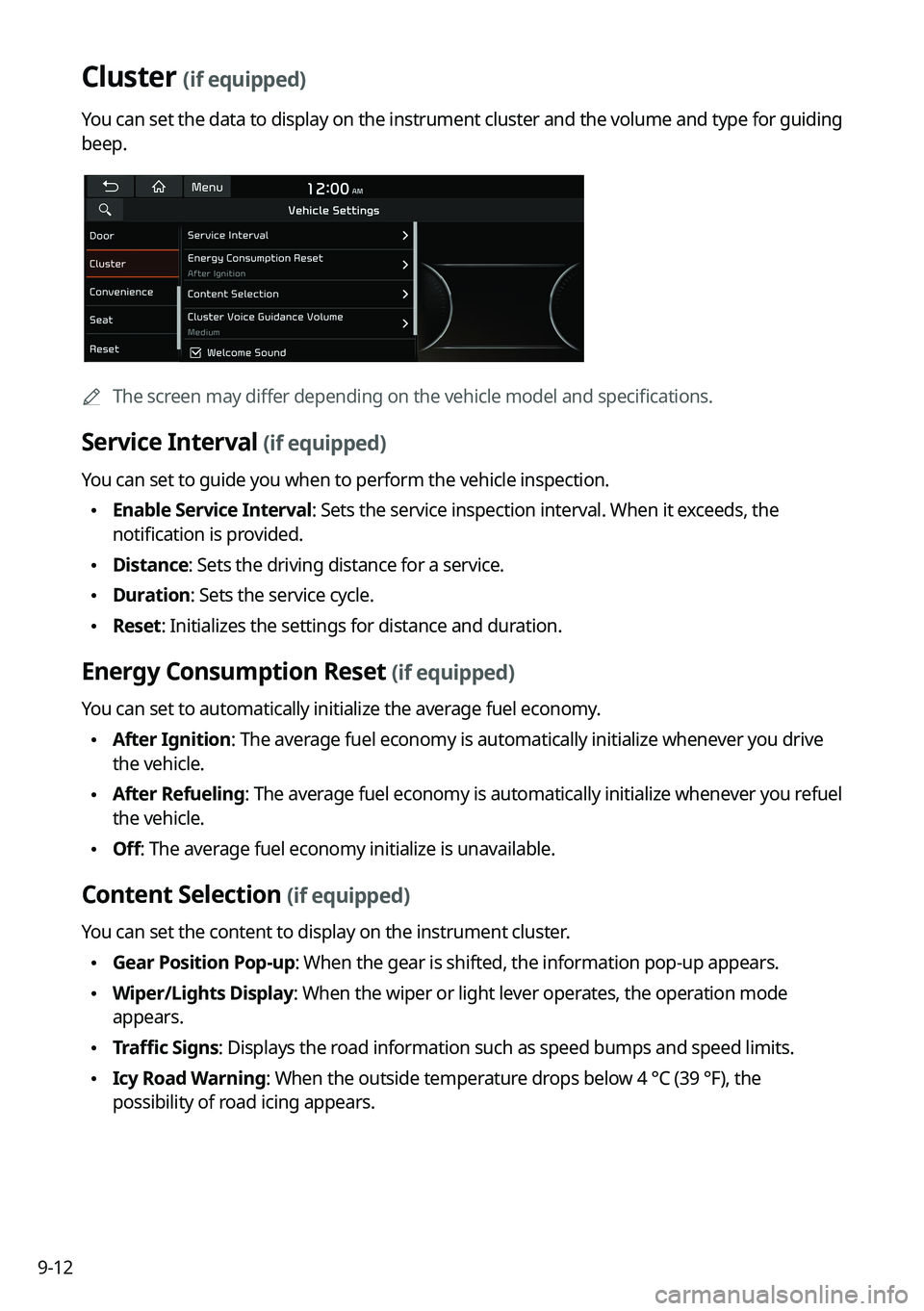
Cluster (if equipped)
You can set the data to display on the instrument cluster and the volume and type for guiding
beep.
0000AThe screen may differ depending on the vehicle model and specifications.
Service Interval (if equipped)
You can set to guide you when to perform the vehicle inspection.
\225Enable Service Interval: Sets the service inspection interval. When it exceeds, the
notification is provided.
\225Distance: Sets the driving distance for a service.
\225Duration: Sets the service cycle.
\225Reset: Initializes the settings for distance and duration.
Energy Consumption Reset (if equipped)
You can set to automatically initialize the average fuel economy.
\225After Ignition: The average fuel economy is automatically initialize whenever you drive
the vehicle.
\225After Refueling
: The average fuel economy is automatically initialize whenever you refuel
the vehicle.
\225 Off: The average fuel economy initialize is unavailable.
Content Selection (if equipped)
You can set the content to display on the instrument cluster.
\225Gear Position Pop-up: When the gear is shifted, the information pop-up appears.
\225Wiper/Lights Display: When the wiper or light lever operates, the operation mode
appears.
\225Traffic Signs: Displays the road information such as speed bumps and speed limits.
\225Icy Road Warning: When the outside temperature drops below 4 °C (39 °F), the
possibility of road icing appears.
Page 205 of 316

9-17
Speed Limit (if equipped)
Sets the properties of the Speed Limit system.
\225Speed Limit Offset: Adjusts the offset amount of the speed limit.
\225Speed Limit Assist: Adjusts the vehicle set speed based on the current speed limit of the
road.
\225Speed Limit Warning: Provides a warning when the speed limit is exceeded.
\225Off: Disables the Speed Limit functions.
Warning Timing (if equipped)
Sets the timing of the warning.
Warning Volume (if equipped)
Sets the volume of the warning sound.
Haptic Warning (if equipped)
Sets the intensity of the steering wheel vibration warning.
Driver Attention Warning (if equipped)
Sets the properties of the Driver Attention Warning system.
\225Leading Vehicle Departure Alert: Alerts the driver during a stop, when the leading
vehicle departs.
\335Warning
Be sure to always check the road conditions ahead or surroundings before departure. An
accident caused by distracted driving can be prevented.
\225Inattentive Driving Warning: Provides a warning when signs of driver inattentiveness
are detected, and recommends a rest if needed.
\225Safety Notice Call: When abnormal driving is detected, a Connected Services Center
representative will call to check on your safety.
Page 212 of 316

9-24
Enable Head-Up Display (if equipped)
Can determine whether or not to use the head-up display.
Display Control (if equipped)
Adjust the height, rotation, and brightness of the head-up display.
Content Selection (if equipped)
Select the items to display on the head-up display.
Speedometer (if equipped)
Can set the driving speed items and colors to display on the head-up display.
SPORT Mode Display (if equipped)
Displays information about sporty driving on the head-up display, in sync with SPORT mode.
Cluster (if equipped)
You can set the data to display on the instrument cluster and the volume and type for guiding
beep.
0000
A
The screen may differ depending on the vehicle model and specifications.
Select Theme (if equipped)
Select and apply a theme to the cluster.
Service Interval (if equipped)
You can set to guide you when to perform the vehicle inspection.
\225Enable Service Interval: Sets the service inspection interval. When it exceeds, the
notification is provided.
\225Distance: Sets the driving distance for a service.
\225Duration: Sets the service cycle.
\225Reset: Initializes the settings for distance and duration.
Page 213 of 316
9-25
Energy Consumption Reset (if equipped)
You can set to automatically initialize the average fuel economy.
\225After Ignition: The average fuel economy is automatically initialize whenever you drive
the vehicle.
\225After Refueling
: The average fuel economy is automatically initialize whenever you refuel
the vehicle.
\225 After Recharging: The average fuel economy is automatically initialize whenever you
charge the vehicle (EV only).
\225Off: The average fuel economy initialize is unavailable.
Reset Fuel Economy (if equipped)
Select which average fuel economy to display on the cluster.
\225At Vehicle Start: Displays the fuel economy after engine restart.
\225After Refueling: Displays the fuel economy after refueling.
\225After Recharging: Displays the fuel economy after recharging (EV only).
\225Manually: Displays the accumulated fuel economy.
Content Selection (if equipped)
You can set the content to display on the instrument cluster.
\225Wiper/Lights Display: When the wiper or light lever operates, the operation mode
appears.
\225Traffic Signs: Displays the road information such as speed bumps and speed limits.
\225Blind-Spot View: Displays the blind spot view on the instrument cluster when the turn
signal lamp is operating.
\225Icy Road Warning: When the outside temperature drops below 4 °C (39 °F), the
possibility of road icing appears.
Cluster Voice Guidance Volume (if equipped)
You can adjust the voice guidance volume of the cluster.
Welcome Sound (if equipped)
You can set to generate the notification sound when turning on or off the instrument cluster.
Page 236 of 316

9-48
System Volumes
You can adjust the volume for each system function including phone projection.
Subsystem Volumes
You can adjust the volume for each system function and initialize all volume settings.0000
A
To initialize all system sound settings, press Reset.
Connected Device Volumes
You can adjust the volume of the phone projection and initialize all volume settings.
\225Android Auto: Vary the volume of your Android smartphone, connected to the system,
depending on the function.
\225Apple CarPlay: Vary the volume of your iPhone, connected to the system, depending on
the function.
0000
A
To initialize all system sound settings of the phone projection, press Reset.
Speed Dependent Volume Control (if equipped)
Automatically adjusts Audio volume according to vehicle speed.
Start-up Volume Limit
You can set to automatically decrease the audio volume to an adequate level when turning
on the vehicle.
Dynamic Speed Compensation (if equipped)
Provides a stable listening environment by adjusting the audio volume depending on the
vehicle speed.
Page 241 of 316
9-53
Speed Dependent Volume Control (if equipped)
Automatically adjusts Audio volume according to vehicle speed.
Dynamic Speed Compensation (if equipped)
Provides a stable listening environment by adjusting the audio volume depending on the
vehicle speed.
Start-up Volume Limit
You can set to automatically decrease the audio volume to an adequate level when turning
on the vehicle.
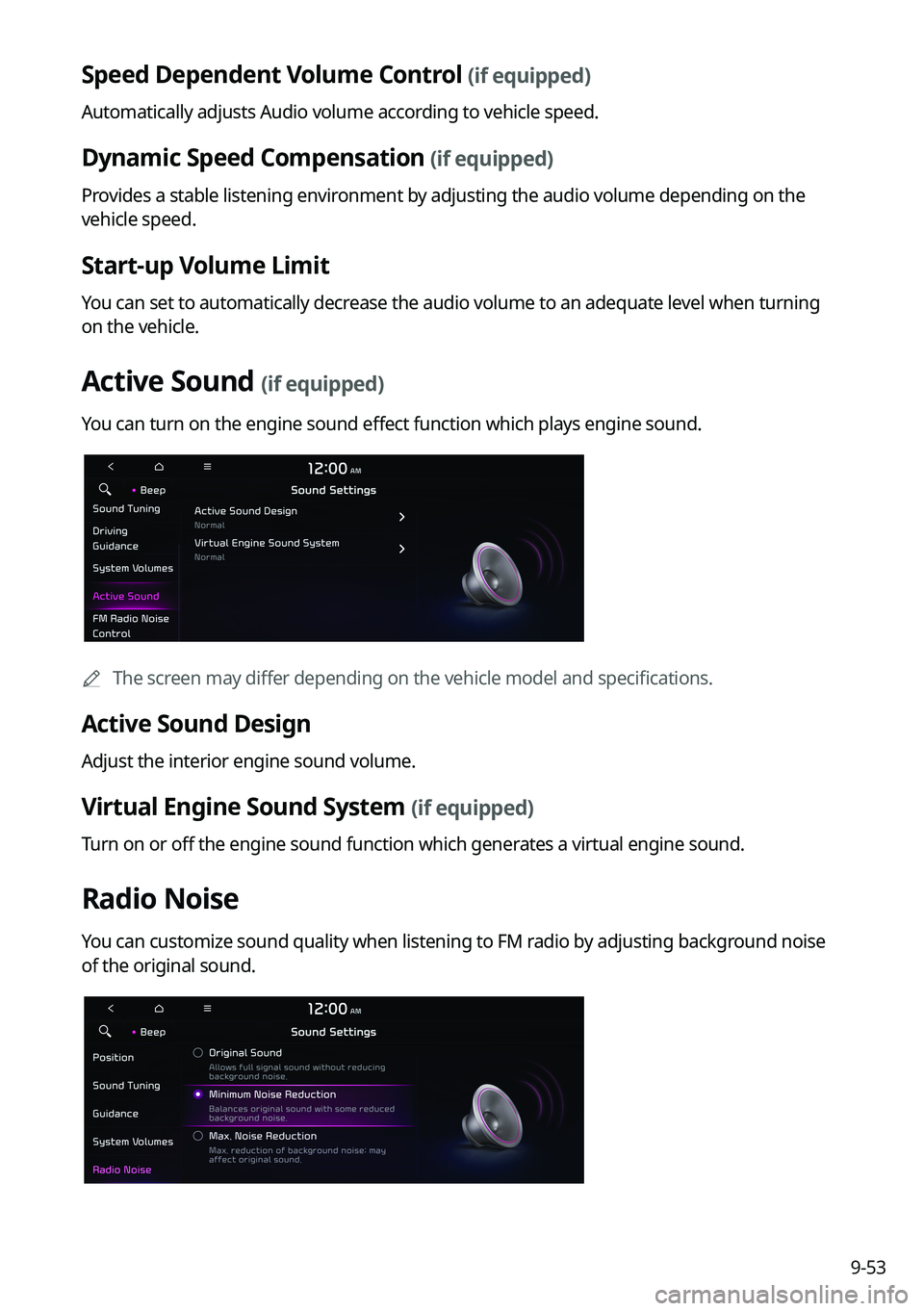
Active Sound (if equipped)
You can turn on the engine sound effect function which plays engine sound.
0000
A
The screen may differ depending on the vehicle model and specifications.
Active Sound Design
Adjust the interior engine sound volume.
Virtual Engine Sound System (if equipped)
Turn on or off the engine sound function which generates a virtual engine sound.
Radio Noise
You can customize sound quality when listening to FM radio by adjusting background noise
of the original sound.