phone KIA Sorento 2011 2.G User Guide
[x] Cancel search | Manufacturer: KIA, Model Year: 2011, Model line: Sorento, Model: KIA Sorento 2011 2.GPages: 377, PDF Size: 7.51 MB
Page 205 of 377
4 127
Features of your vehicle
■Voice Recognition Activation The voice recognition engine containedin the Bluetooth System can be activat-
ed in the following conditions:
- Button Activation
The voice recognition system will be
active when the button is
pressed and after the sound of a
Beep.
- Active Listening The voice recognition system will be
active for a period of time when the
Voice Recognition system has asked
for a customer response.
The system can recognize single digits- from zero to nine while number greater
than ten will not be recognized.
If the command is not recognized, the system will announce "Pardon" or No
input voice signal from microphone. (No
response)
The system shall cancel voice recogn- tion mode in following cases : When
pressing the button and saying
cancel following the beep. When not
making a call and pressing the
button. When voice recognition has
failed 3 consecutive times. At any time if you say “help”, the system
will announce what commands are
available.
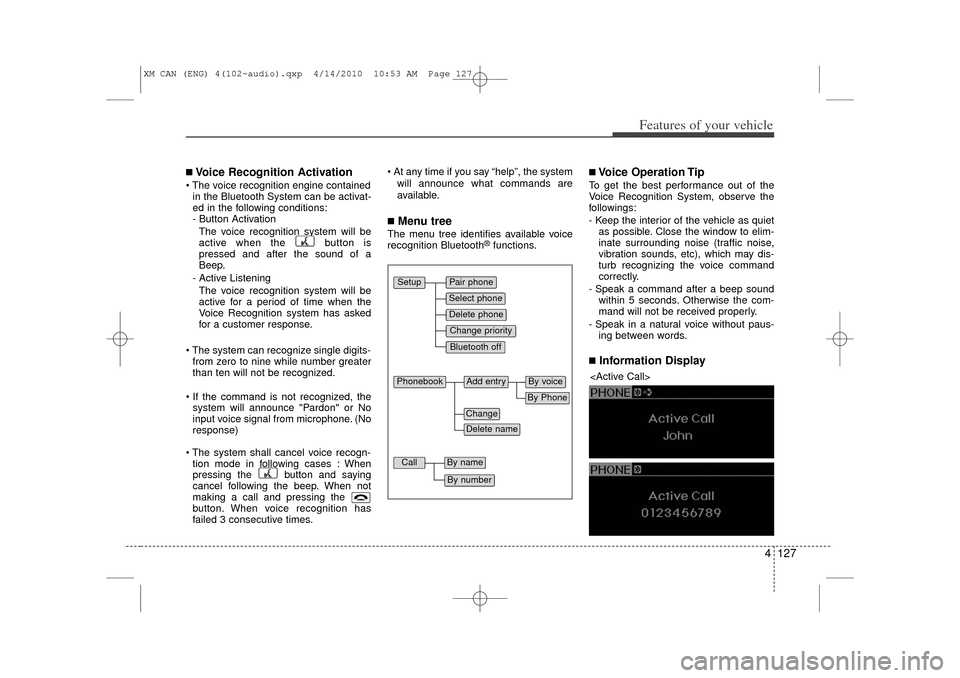
■Menu treeThe menu tree identifies available voice
recognition Bluetooth
®functions.
■Voice Operation TipTo get the best performance out of the
Voice Recognition System, observe the
followings:
- Keep the interior of the vehicle as quietas possible. Close the window to elim-
inate surrounding noise (traffic noise,
vibration sounds, etc), which may dis-
turb recognizing the voice command
correctly.
- Speak a command after a beep sound within 5 seconds. Otherwise the com-
mand will not be received properly.
- Speak in a natural voice without paus- ing between words.■Information Display
Pair phoneSelect phoneChange priorityDelete phoneBluetooth off
Setup
Add entry
Phonebook
ChangeDelete name
By PhoneBy voice
Call
By nameBy number
XM CAN (ENG) 4(102~audio).qxp 4/14/2010 10:53 AM Page 127
Page 206 of 377
Features of your vehicle128
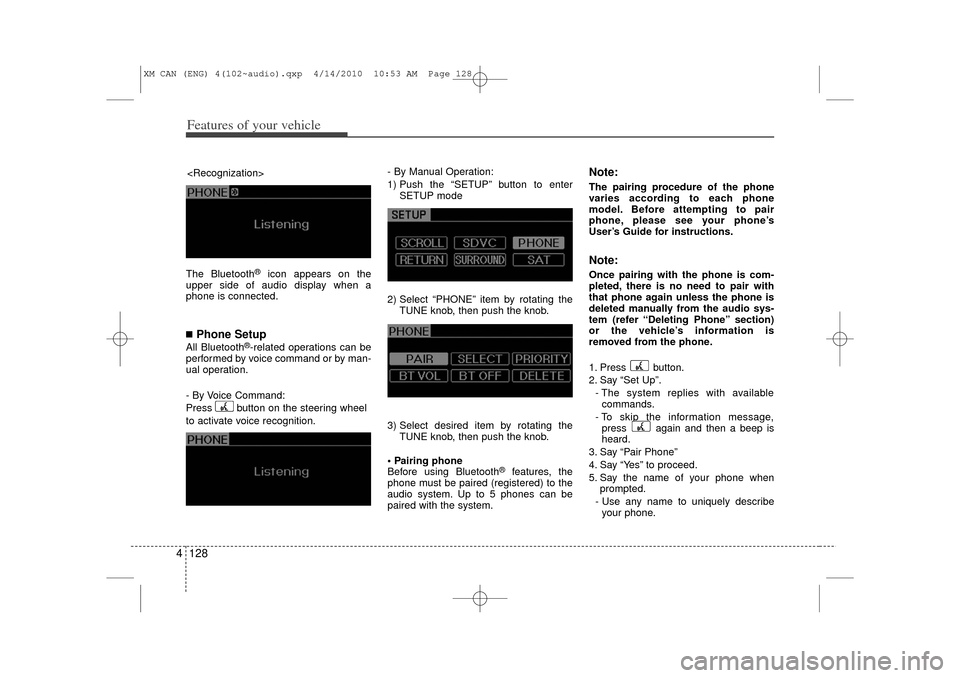
4The Bluetooth
®
icon appears on the
upper side of audio display when a
phone is connected.
■Phone SetupAll Bluetooth
®-related operations can be
performed by voice command or by man-
ual operation.
- By Voice Command:
Press button on the steering wheel
to activate voice recognition. - By Manual Operation:
1) Push the “SETUP” button to enter
SETUP mode
2) Select “PHONE” item by rotating the TUNE knob, then push the knob.
3) Select desired item by rotating the TUNE knob, then push the knob.
Pairing phone
Before using Bluetooth
®
features, the
phone must be paired (registered) to the
audio system. Up to 5 phones can be
paired with the system.
Note:The pairing procedure of the phone
varies according to each phone
model. Before attempting to pair
phone, please see your phone’s
User’s Guide for instructions.Note:Once pairing with the phone is com-
pleted, there is no need to pair with
that phone again unless the phone is
deleted manually from the audio sys-
tem (refer “Deleting Phone” section)
or the vehicle’s information is
removed from the phone.
1. Press button.
2. Say “Set Up”.
- The system replies with availablecommands.
- To skip the information message, press again and then a beep is
heard.
3. Say “Pair Phone”
4. Say “Yes” to proceed.
5. Say the name of your phone when prompted.
- Use any name to uniquely describe your phone.
XM CAN (ENG) 4(102~audio).qxp 4/14/2010 10:53 AM Page 128
Page 207 of 377
4 129
Features of your vehicle
6. Bluetooth
®
system will repeat the
name you stated.
7. Say "Yes" to confirm.
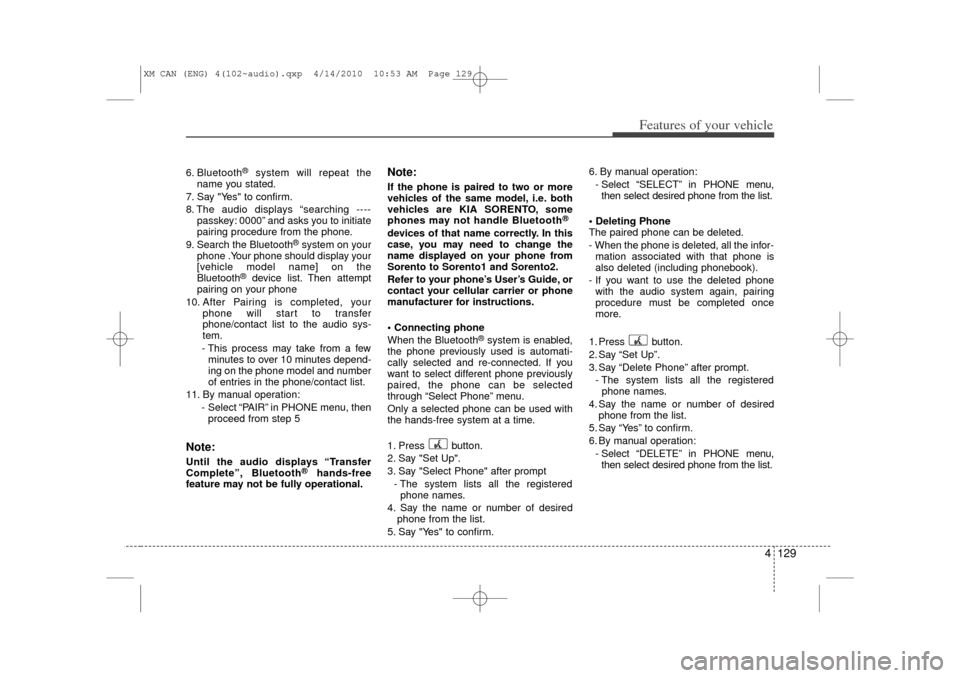
8. The audio displays “searching ---- passkey: 0000” and asks you to initiate
pairing procedure from the phone.
9. Search the Bluetooth
®system on your
phone .Your phone should display your
[vehicle model name] on the
Bluetooth
®
device list. Then attempt
pairing on your phone
10. After Pairing is completed, your phone will start to transfer
phone/contact list to the audio sys-
tem.
- This process may take from a few minutes to over 10 minutes depend-
ing on the phone model and number
of entries in the phone/contact list.
11. By manual operation: - Select “PAIR” in PHONE menu, thenproceed from step 5
Note:Until the audio displays “Transfer
Complete”, Bluetooth
®
hands-free
feature may not be fully operational.
Note:If the phone is paired to two or more
vehicles of the same model, i.e. both
vehicles are KIA SORENTO, some
phones may not handle Bluetooth
®
devices of that name correctly. In this
case, you may need to change the
name displayed on your phone from
Sorento to Sorento1 and Sorento2.
Refer to your phone’s User’s Guide, or
contact your cellular carrier or phone
manufacturer for instructions.
Connecting phone
When the Bluetooth
®system is enabled,
the phone previously used is automati-
cally selected and re-connected. If you
want to select different phone previously
paired, the phone can be selected
through “Select Phone” menu.
Only a selected phone can be used with
the hands-free system at a time.
1. Press button.
2. Say "Set Up".
3. Say "Select Phone" after prompt
- The system lists all the registeredphone names.
4. Say the name or number of desired phone from the list.
5. Say "Yes" to confirm. 6. By manual operation:
- Select “SELECT” in PHONE menu,then select desired phone from the list.
Deleting Phone
The paired phone can be deleted.
- When the phone is deleted, all the infor- mation associated with that phone is
also deleted (including phonebook).
- If you want to use the deleted phone with the audio system again, pairing
procedure must be completed once
more.
1. Press button.
2. Say “Set Up”.
3. Say “Delete Phone” after prompt. - The system lists all the registeredphone names.
4. Say the name or number of desired phone from the list.
5. Say “Yes” to confirm.
6. By manual operation: - Select “DELETE” in PHONE menu,then select desired phone from the list.
XM CAN (ENG) 4(102~audio).qxp 4/14/2010 10:53 AM Page 129
Page 208 of 377
Features of your vehicle130
4 Changing Priority
When several phones are paired to the
audio system, the system attempts to
connect following order when the
Bluetooth
®system is enabled:
1) “Priority” checked phone.
2) Previously connected phone
3) Gives up auto connection.
1. Press button.
2. Say “Set Up”.
3. Say “Change Priority” after prompt. - The system lists all the registeredphone names.
4. Say the name or number of desired phone from the list.
5. Say “Yes” to confirm.
6. By manual operation: - Select “PRIORITY” in PHONE menu,then select desired phone from the list. Adjusting Bluetooth
®Volume
Bluetooth
®
system volume can be
adjusted separately from main volume of
the audio system. Volume control is avail-
able by manual operation only.
- Select “BT VOL” in PHONE menu,adjust volume to desired level by turn-
ing the TUNE knob, then press the
knob again to confirm.
Turning Bluetooth
®ON/OFF
Bluetooth
®system can be enabled (ON)
or disabled (OFF) by this menu.
- If Bluetooth®is disabled, all the com-
mands related to Bluetooth
®
system
prompts whether you wish to turn
Bluetooth® ON or not.
1. Press button.
2. Say “Set Up”
3. Say “Bluetooth Off ” after prompt.
4. Say “Yes” to confirm.
5. By manual operation:
- Select “BT Off ” in PHONE menu, then after announcement, say “YES”
to confirm.
■Phone Book (In-Vehicle) Adding Entry
Phone numbers and voice tags can be
registered. Entries registered in the
phone can also be transferred.
Adding Entry by Voice
1. Press button.
2. Say "Phonebook".
- The system replies with all availablecommands.
- To skip the information message, press again and then a beep is
heard.
3. Say "Add Entry".
4. Say "By Voice" to proceed.
5. Say the name of the entry when prompted.
6. Say “Yes” to confirm.
7. Say the phone number of that entry when prompted.
8. Say “Store” if phone number input is finished.
9. Say a phone number type. “Home”, “Work”, “Mobile”, “Other” or “Default” is
available.
10. Say “Yes” to complete adding entry.
11. Say “Yes” to store additional location for this contact, or say “Cancel” to fin-
ish the process.
XM CAN (ENG) 4(102~audio).qxp 4/14/2010 10:53 AM Page 130
Page 209 of 377
4 131
Features of your vehicle
✽
✽NOTICE- The system can recognize single digits
from zero to nine. Numbers that are
ten or greater cannot be recognized.
- You can enter each digit individually or group digits together in preferred
string lengths.
- To speed up input, it is a good idea to group all digits into a continuous
string.
- The display corresponding to each operation appears on the screen as fol-
lows:
- Input operation example: 1. Say: “Nine, nine, five”➟ Display: “995”
2. And say: “Seven, three, four”➟ Display: “995734”
Adding Entry by Phone
1. Press button.
2. Say "Phonebook".
3. Say "Add Entry" after prompt.
4. Say "By Phone" to proceed.
5. Say “Yes” to confirm.
6. Your phone will start to transfer phone/contact list to the audio system.
This process may take over 10 minutes
depending on the phone model and
number of entries
7. Wait until the audio displays “Transfer Complete” message.
Changing Name
The registered names can be modified.
1. Press button.
2. Say “Phonebook”.
3. Say “Change Name” after prompt.
4. Say the name of the entry (voice tag).
5. Say “Yes” to confirm.
6. Say new desired name.
Deleting Name
The registered names can be deleted.
1. Press button.
2. Say “Phonebook”.
3. Say “Delete Name” after prompt.
4. Say the name of the entry (voice tag).
5. Say “Yes” to confirm.
■Making a Phone Call Calling by Name
A phone call can be made by speaking
names registered in the audio system.
1. Press button.
2. Say "Call".
3. Say “Name” when prompted.
4. Say desired name (voice tag).
5. Say desired location (phone number type). Only stored locations can be
selected.
6. Say “Yes” to confirm and make a call.
✽ ✽ TipA shortcut to each of the following func-
tions is available:
1. Say “Call Name”
2. Say “Call
3. Say “Call
XM CAN (ENG) 4(102~audio).qxp 4/14/2010 10:53 AM Page 131
Page 210 of 377
Features of your vehicle132
4 Dialing by Number
A phone call can be made by dialing the
spoken numbers. The system can recog-
nize single digits from zero to nine.
1. Press button.
2. Say “Call”.
3. Say “Number” when prompted.
4. Say desired phone numbers.
5. Say “Dial” to complete the number and
make a call.
✽ ✽ TipA shortcut to each of the following func-
tions is available:
1. Say “Dial Number”
2. Say “Dial
■Receiving a Phone CallWhen receiving a phone call, a ringtone
is audible from speakers and the audio
system changes into telephone mode.
When receiving a phone call, “Incoming”
message and incoming phone number (if
available) are displayed on the audio.
To Answer a Call:
- Press button on the steering wheel.
To Reject a Call:
- Press button on the steering wheel.
To Adjust Ring Volume:
- Use VOLUME buttons on the steering
wheel.
To Transfer a Call to the Phone (Secret Call):
- Press and hold button on the steer- ing wheel until the audio system trans-
fers a call to the phone.
■Talking on the PhoneWhen talking on the phone, “Active Calls”
message and the other party’s phone
number (if available) are displayed on the
audio.
To Mute the Microphone
- Press button on the steering wheel.
To Finish a Call- Press button on the steering wheel.✽ ✽ NOTICEIn the following situations, you or the
other party may have difficulty hearing
each other:
1. Speaking at the same time, your voice
may not reach each other parties. (This
is not a malfunction.) Speak alternate-
ly with the other party on the phone.
2. Keep the Bluetooth(R) volume to a low level. High-level volume may
result in distortion and echo.
3. When driving on a rough road.
4. When driving at high speeds.
5. When the window is open.
6. When the air conditioning vents are facing the microphone.
7. When the sound of the air condition- ing fan is loud.
XM CAN (ENG) 4(102~audio).qxp 4/14/2010 10:53 AM Page 132
Page 211 of 377
4 133
Features of your vehicle
■Using the head unit as Bluetooth
musicThe head unit supports A2DP (Audio
Advanced Distribution Profile) and
AVRCP (Audio Video Remote Control
Profile).
Both profiles are available for listening to
the MP3 music via Bluetooth cellular
phone supporting above Bluetooth pro-
files.
To play MP3 music from the Bluetooth
cellular phone, press the [AUX] button
until “MP3 Play” is displayed on the LCD.
Then try playing music by phone.
When playing music from the Bluetooth
cellular phone, the head unit displays
MP3 MODE.
NOTE: Not only MP3 files, all the soundsthat the phone supports can be
heard by the audio system.
The Bluetooth cellular phones shall feature A2DP and AVRCP functions.
Some A2DP and AVRCP Bluetooth cellular phones may not play music
through the head unit on first try.
Please try the below;
i.e : Menu
➟Filemanager
➟Music
➟
Option
➟Play via Bluetooth
Please refer to User’s Guide of your phone for more detaild informa-
tions. To stop music, try stop music
by the phone and change audio
mode to differernt one. (e.g. FM, CD,
iPod, ...)
XM CAN (ENG) 4(102~audio).qxp 4/14/2010 10:53 AM Page 133