audio KIA Sorento 2013 2.G User Guide
[x] Cancel search | Manufacturer: KIA, Model Year: 2013, Model line: Sorento, Model: KIA Sorento 2013 2.GPages: 388, PDF Size: 7.56 MB
Page 198 of 388
Features of your vehicle108
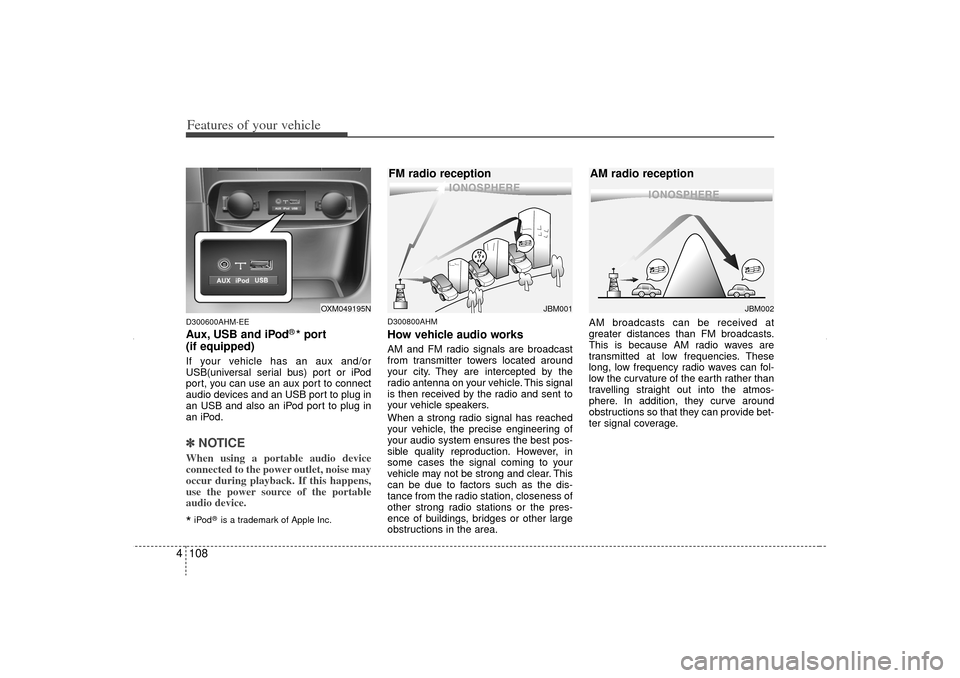
4D300600AHM-EEAux, USB and iPod
®* port
(if equipped)
If your vehicle has an aux and/or
USB(universal serial bus) port or iPod
port, you can use an aux port to connect
audio devices and an USB port to plug in
an USB and also an iPod port to plug in
an iPod.✽ ✽ NOTICEWhen using a portable audio device
connected to the power outlet, noise may
occur during playback. If this happens,
use the power source of the portable
audio device.*iPod
®is a trademark of Apple Inc.
D300800AHMHow vehicle audio worksAM and FM radio signals are broadcast
from transmitter towers located around
your city. They are intercepted by the
radio antenna on your vehicle. This signal
is then received by the radio and sent to
your vehicle speakers.
When a strong radio signal has reached
your vehicle, the precise engineering of
your audio system ensures the best pos-
sible quality reproduction. However, in
some cases the signal coming to your
vehicle may not be strong and clear. This
can be due to factors such as the dis-
tance from the radio station, closeness of
other strong radio stations or the pres-
ence of buildings, bridges or other large
obstructions in the area. AM broadcasts can be received at
greater distances than FM broadcasts.
This is because AM radio waves are
transmitted at low frequencies. These
long, low frequency radio waves can fol-
low the curvature of the earth rather than
travelling straight out into the atmos-
phere. In addition, they curve around
obstructions so that they can provide bet-
ter signal coverage.
JBM001
FM radio reception
JBM002
AM radio reception
OXM049195N
XM CAN (ENG) 4(106~audio).QXP 4/19/2011 10:48 AM Page 108
Page 199 of 388
4 109
Features of your vehicle
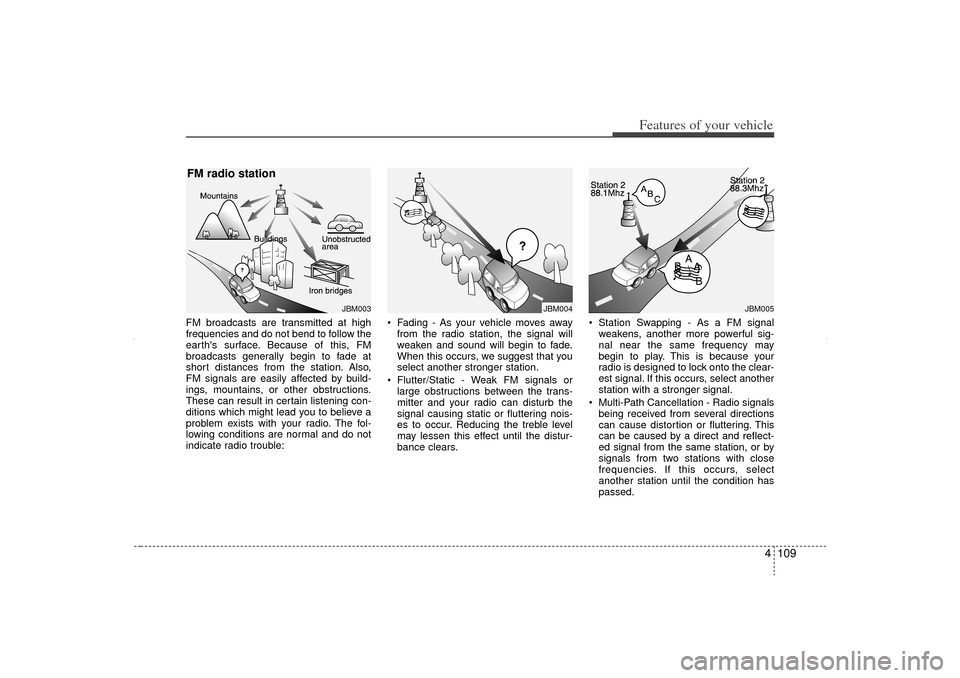
FM broadcasts are transmitted at high
frequencies and do not bend to follow the
earth's surface. Because of this, FM
broadcasts generally begin to fade at
short distances from the station. Also,
FM signals are easily affected by build-
ings, mountains, or other obstructions.
These can result in certain listening con-
ditions which might lead you to believe a
problem exists with your radio. The fol-
lowing conditions are normal and do not
indicate radio trouble: Fading - As your vehicle moves away
from the radio station, the signal will
weaken and sound will begin to fade.
When this occurs, we suggest that you
select another stronger station.
Flutter/Static - Weak FM signals or large obstructions between the trans-
mitter and your radio can disturb the
signal causing static or fluttering nois-
es to occur. Reducing the treble level
may lessen this effect until the distur-
bance clears. Station Swapping - As a FM signal
weakens, another more powerful sig-
nal near the same frequency may
begin to play. This is because your
radio is designed to lock onto the clear-
est signal. If this occurs, select another
station with a stronger signal.
Multi-Path Cancellation - Radio signals being received from several directions
can cause distortion or fluttering. This
can be caused by a direct and reflect-
ed signal from the same station, or by
signals from two stations with close
frequencies. If this occurs, select
another station until the condition has
passed.
JBM004
JBM005
JBM003
FM radio station
XM CAN (ENG) 4(106~audio).QXP 4/19/2011 10:48 AM Page 109
Page 200 of 388
Features of your vehicle110
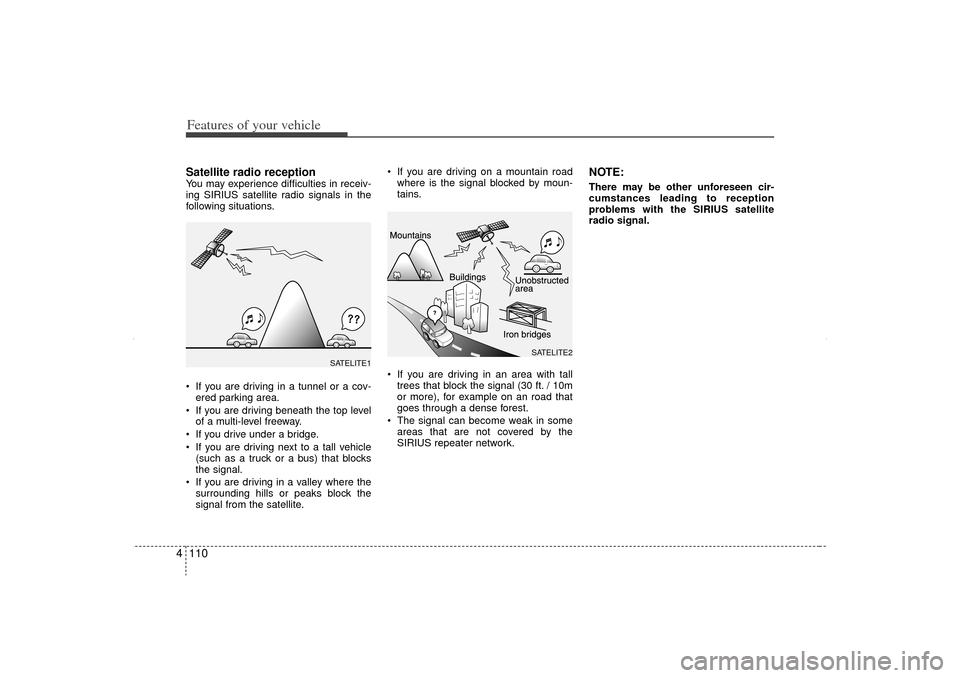
4Satellite radio receptionYou may experience difficulties in receiv-
ing SIRIUS satellite radio signals in the
following situations.
If you are driving in a tunnel or a cov-
ered parking area.
If you are driving beneath the top level of a multi-level freeway.
If you drive under a bridge.
If you are driving next to a tall vehicle (such as a truck or a bus) that blocks
the signal.
If you are driving in a valley where the surrounding hills or peaks block the
signal from the satellite. If you are driving on a mountain road
where is the signal blocked by moun-
tains.
If you are driving in an area with tall trees that block the signal (30 ft. / 10m
or more), for example on an road that
goes through a dense forest.
The signal can become weak in some areas that are not covered by the
SIRIUS repeater network.
NOTE:There may be other unforeseen cir-
cumstances leading to reception
problems with the SIRIUS satellite
radio signal.
SATELITE2
SATELITE1
XM CAN (ENG) 4(106~audio).QXP 4/19/2011 10:48 AM Page 110
Page 201 of 388
4 111
Features of your vehicle
Using a cellular phone or a two-wayradio When a cellular phone is used inside the
vehicle, noise may be produced from the
audio equipment. This does not mean
that something is wrong with the audio
equipment. In such a case, use the cellu-
lar phone at a place as far as possible
from the audio equipment.
Care of disc If the temperature inside the car is too high, open the car windows for ventilation
before using your car audio.
It is illegal to copy and use MP3/WMA files without permission. Use CDs that
are created only by lawful means.
Do not apply volatile agents such as benzene and thinner, normal cleaners
and magnetic sprays made for ana-
logue disc onto CDs.
To prevent the disc surface from get- ting damaged. Hold and carry CDs by
the edges or the edges of the center
hole only.
Clean the disc surface with a piece of soft cloth before playback (wipe it from
the center to the outside edge).
Do not damage the disc surface or attach pieces of sticky tape or paper
onto it.
Make sure on undesirable matter other than CDs are inserted into the CD
player (Do not insert more than one
CD at a time). Keep CDs in their cases after use to
protect them from scratches or dirt.
Depending on the type of CD-R/CD- RW CDs, certain CDs may not operate
normally according to manufacturing
companies or making and recording
methods. In such circumstances, if you
still continue to use those CDs, they
may cause the malfunction of your car
audio system.
✽ ✽ NOTICE
- Playing an
Incompatible Copy
Protected Audio CD
Some copy protected CDs, which do not
comply with the international audio CD
standards (Red Book), may not play on
your car audio. Please note that if you
try to play copy protected CDs and the
CD player does not perform correctly
the CDs maybe defective, not the CD
player.
CAUTION
When using a communication sys-
tem such a cellular phone or a radioset inside the vehicle, a separate external antenna must be fitted.When a cellular phone or a radio setis used with an internal antenna alone, it may interfere with the vehi-cle's electrical system and adverse-ly affect safe operation of the vehi- cle.
WARNING
Do not use a cellular phone while
driving. Stop at a safe location to
use a cellular phone.
XM CAN (ENG) 4(106~audio).QXP 4/19/2011 10:48 AM Page 111
Page 202 of 388
Features of your vehicle112
4
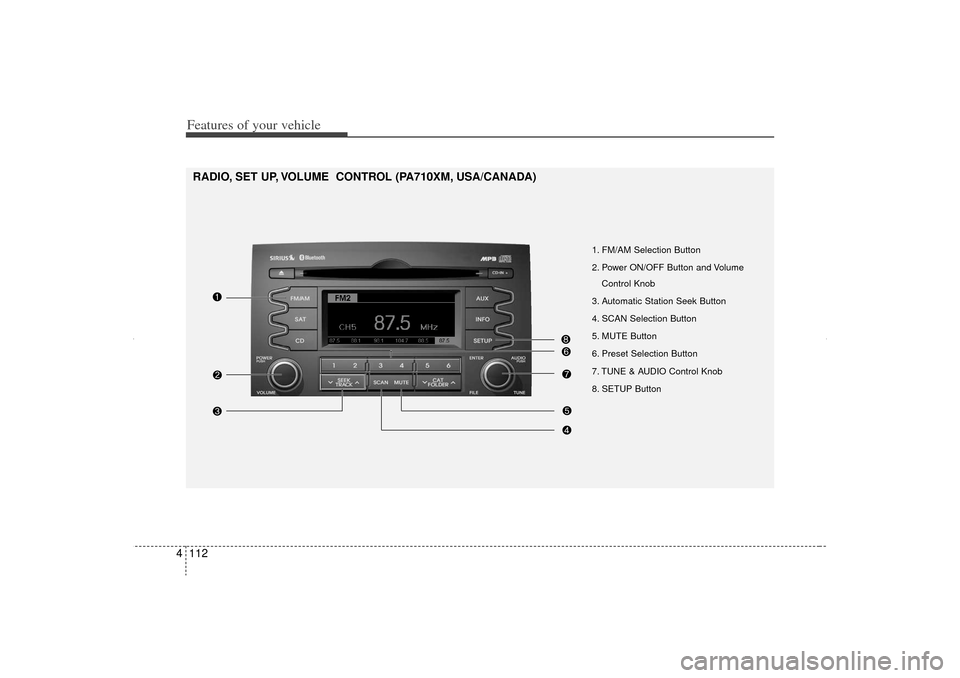
1. FM/AM Selection Button
2. Power ON/OFF Button and Volume
Control Knob
3. Automatic Station Seek Button
4. SCAN Selection Button
5. MUTE Button
6. Preset Selection Button
7. TUNE & AUDIO Control Knob
8. SETUP Button
RADIO, SET UP, VOLUME CONTROL (PA710XM, USA/CANADA)
XM CAN (ENG) 4(106~audio).QXP 4/19/2011 10:48 AM Page 112
Page 203 of 388
4 113
Features of your vehicle
Using RADIO, SETUP, VOLUME
and AUDIO CONTROL
1. FM/AM Selection Button The FM/AM button toggles between FM
and AM. Listed below are the paths as
the system switches from FM to AM and
back to FM.
FM/AM : FM1
➟FM2
➟AM
➟FM1...
FM : FM1
➟FM2
➟FM1...
2. Power ON/OFF Button & Volume Control Knob Turns the audio system on/off when
the ignition switch is on ACC or ON.
If the knob is turned clockwise/counter- clockwise, the volume will increase
/decrease.3. Automatic Station Seek Button When the [SEEK ] is pressed, it will
automatically tune to the next lower
station.
When the [SEEK ] is pressed, it will automatically tune to the next higher
station.
4. SCAN Button When the button is pressed, it auto-matically scans the radio stations
upwards.
The SCAN feature steps through each station, starting from the initial station,
for ten seconds.
Press the [SCAN] button again to stop the scan feature and to listen to the
currently selected channel.5. MUTE ButtonWhen the button is pressed, stops sound
and “Audio Mute” is displayed on LCD.6. Preset Selection Button Press [1]~[6] buttons less than 0.8 sec-onds to play the station saved in each
button.
Press [1]~[6] b utton more than 0.8 sec-
onds or longer to save the current sta-
tion to the respective button with a
beep.
7. TUNE Knob & Audio Control Knob Rotate the knob clockwise or counter-
clock wise to increase or decrease from
current frequency.
(AM 10 kHz, FM 200 kHz)
Pressing the button changes the BASS,
MIDDLE, TREBLE, FADER and BAL-
ANCE TUNE mode. The mode selected
is shown on the display. After selecting
each mode, rotate the Audio control knob
clockwise or counterclockwise.
BASS Control
To increase the BASS, rotate the knob
clockwise, while to decrease the BASS,
rotate the knob counterclockwise.
MIDDLE Control
To increase the MIDDLE, rotate the knob
clockwise, while to decrease the MID-
DLE, rotate the knob counterclockwise.
TREBLE Control
To increase the TREBLE, rotate the knob
clockwise, while to decrease the TRE-
BLE, rotate the knob counterclockwise.
XM CAN (ENG) 4(106~audio).QXP 4/19/2011 10:48 AM Page 113
Page 204 of 388
Features of your vehicle114
4 FADER Control
Turn the control knob clockwise to
emphasize rear speaker sound (front
speaker sound will be attenuated). When
the control knob is turned counterclock-
wise, front speaker sound will be empha-
sized (rear speaker sound will be attenu-
ated).
BALANCE Control
Rotate the knob clockwise to emphasize
right speaker sound (left speaker sound
will be attenuated). When the control
knob is turned counter clockwise, left
speaker sound will be emphasized (right
speaker sound will be attenuated).8. SETUP ButtonPress this button to enter SETUP mode,
If no action is taken for 8 seconds, it will
return to previous mode.
In “SETUP” mode, rotate the TUNE knob
to move the cursor between items, and
push the TUNE knob to select.
SCROLL
Select whether long file names are
scrolled continuously (“ON”) or just once
(“OFF”). SDVC
Select this item to turn the SDVC(Speed
Dependent Volume Control) feature ON
or OFF. If it is turned ON, volume level is
adjusted automatically according to the
vehicle speed.
P.BASS (PowerBass)
This function creates virtual sound
effects and allows adjustments to the
BASS level.
HIGH
➟MID
➟LOW
➟OFF
➟ HIGH...
SAT (if available)
Select default display of SIRIUS mode.
“Category/Channel name” or “Artist/Song
Title” can be selected.
PHONE (if available)
Select this item to enter BLUETOOTH
®
setup mode. Refer to “BLUETOOTH
PHONE OPERATION” section for
detailed information.
XM CAN (ENG) 4(106~audio).QXP 4/19/2011 10:48 AM Page 114
Page 205 of 388
4 115
Features of your vehicle
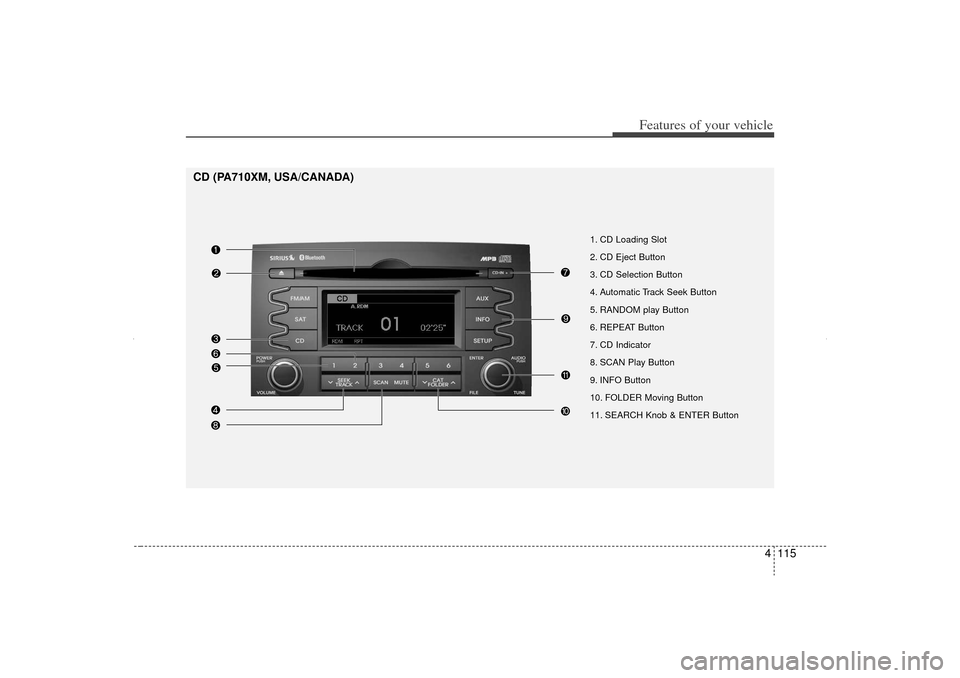
1. CD Loading Slot
2. CD Eject Button
3. CD Selection Button
4. Automatic Track Seek Button
5. RANDOM play Button
6. REPEAT Button
7. CD Indicator
8. SCAN Play Button
9. INFO Button
10. FOLDER Moving Button
11. SEARCH Knob & ENTER Button
CD (PA710XM, USA/CANADA)
XM CAN (ENG) 4(106~audio).QXP 4/19/2011 10:48 AM Page 115
Page 206 of 388
Features of your vehicle116
4Using CD Player
1. CD Loading SlotInsert a CD label side up and gently push
in while ignition switch is on ACC or ON.
The audio automatically switches to CD
mode and begins to play the CD. If the
audio was turned off, audio power will
automatically turned on as the CD is
inserted.- This audio only recognizes 12cm-size,
CD-DA (Audio CD) or ISO data-CD
(MP3 CD).- If UDF data-CD or non-CD (e.g. DVD) is inserted, "Reading Error" message will
be displayed and the disc will be eject-
ed.2. CD Eject Button Press [ ] button to eject the CD. This
button works regardless of ignition
switch status.3. CD Selection ButtonIf there is a CD in the CD DECK it switch-
es to CD mode. If there is no CD, then the message "No
Disc" will become displayed on the LCD
for 3 seconds and returns to the previous
mode.
4. Track Selection Button Press [TRACK ] button for less than
0.8 seconds to play from the beginning
of current song.
Press [TRACK ] button for less than 0.8 seconds and press again within 1
second to play the previous song.
Press [TRACK ] button for 0.8 sec- onds or longer to initiate reverse direc-
tion high speed sound search of cur-
rent song.
Press [TRACK ] button for less than 0.8 seconds to play the next song.
Press [TRACK ] button for 0.8 sec- onds or longer to initiate forward direc-
tion high speed sound search of cur-
rent song.5. RANDOM Play ButtonPress this button for less than 0.8 sec-
onds to activate 'RDM' mode and more
than 0.8 seconds to activate 'ALL RDM'
mode.
RDM : Only files/tracks in a folder/discare played back in a random
sequence. ALL RDM (MP3/WMA Only) : All files in
a disc are played back in the random
sequence.
6. REPEAT ButtonPress this button for less than 0.8 sec-
onds to activate 'RPT' mode and more
than 0.8 seconds to activate 'FLD RPT'
mode.
RPT : Only a track (file) is repeatedlyplayed back.
FLD RPT (MP3/WMA Only) : Only files are repeatedly played back.7. CD IndicatorWhen car ignition switch is ACC or ON
and if the CD is loaded, this indicator is
lit. If the CD is ejected, the light is turned
off.8. SCAN Play ButtonPlay each song in the CD for 10 seconds.
To cancel SCAN Play, press this button
again.9. INFO ButtonDisplays the information of the current
song.
- Audio CD : Disc Title/Artist, Track Title/Artist, Total Track.
CAUTION
Do not insert a CD if CD indicator islit.
XM CAN (ENG) 4(106~audio).QXP 4/19/2011 10:48 AM Page 116
Page 207 of 388
4 117
Features of your vehicle
- MP3 CD : File Name, Title, Artist,Album, Folder, Total Files (Not dis-
played if the information is unavailable
on the CD or file.)10. FOLDER Moving Button Press [FOLDER ] button to move to child folder of the current folder and
display the first song in the folder.
Press TUNE/ ENTER knob to move to
the folder displayed. It will play the first
song in the folder.
Press [FOLDER ] button to move to parent folder of the current folder and
display the first song in the folder.
Press TUNE/ENTER knob to move to
the folder displayed.11. SEARCH Knob & ENTER Button Turn this knob clockwise to browse
songs after current song, or counter-
clockwise to browse songs before cur-
rent song. To play the displayed song,
press the knob.
Pressing this knob without turning enters to AUDIO CONTROL mode.
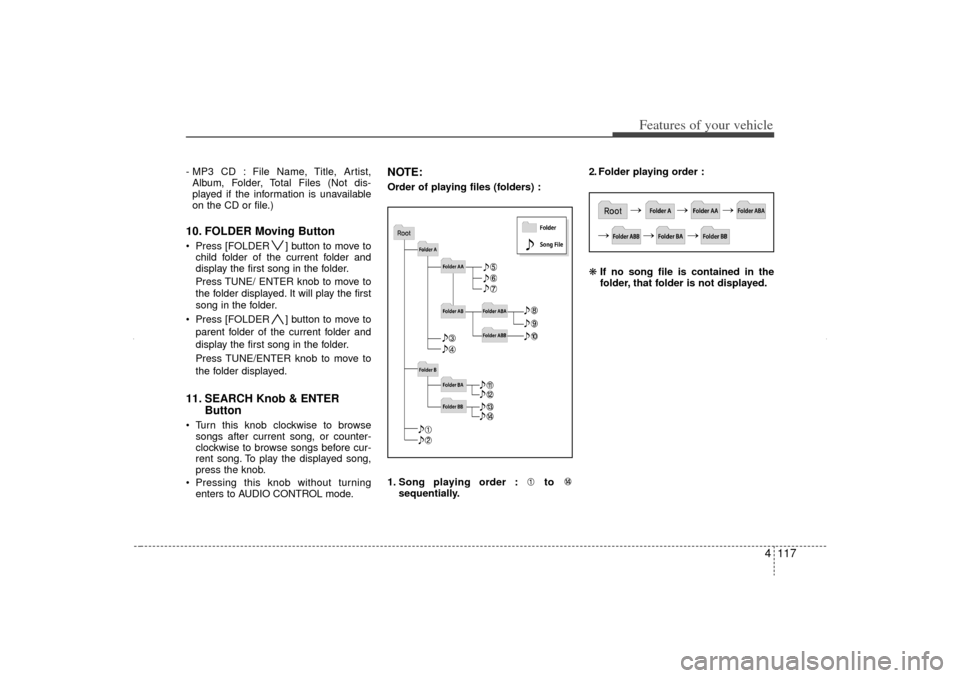
NOTE:Order of playing files (folders) :
1. Song playing order : to sequentially. 2. Folder playing order :
❋
If no song file is contained in the
folder, that folder is not displayed.
XM CAN (ENG) 4(106~audio).QXP 4/19/2011 10:48 AM Page 117