steering KIA Sorento 2014 3.G Owner's Guide
[x] Cancel search | Manufacturer: KIA, Model Year: 2014, Model line: Sorento, Model: KIA Sorento 2014 3.GPages: 508, PDF Size: 7.59 MB
Page 179 of 508
Features of your vehicle88
4Trip A/B
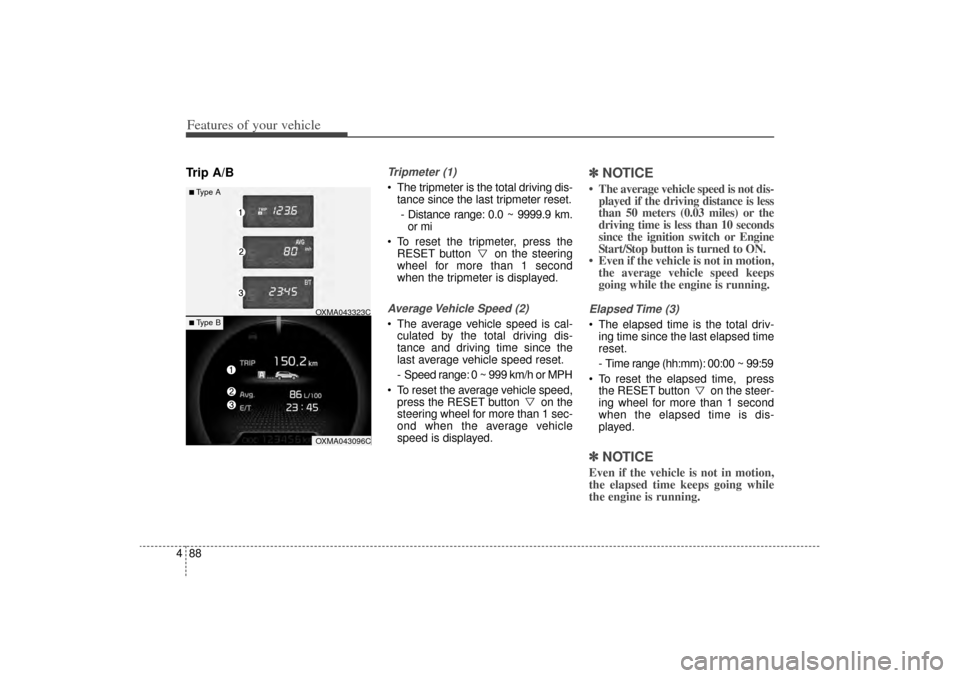
Tripmeter (1) The tripmeter is the total driving dis-
tance since the last tripmeter reset.
- Distance range: 0.0 ~ 9999.9 km. or mi
To reset the tripmeter, press the RESET button on the steering
wheel for more than 1 second
when the tripmeter is displayed.Average Vehicle Speed (2) The average vehicle speed is cal-culated by the total driving dis-
tance and driving time since the
last average vehicle speed reset.
- Speed range: 0 ~ 999 km/h or MPH
To reset the average vehicle speed, press the RESET button on the
steering wheel for more than 1 sec-
ond when the average vehicle
speed is displayed.
✽ ✽ NOTICE• The average vehicle speed is not dis-
played if the driving distance is less
than 50 meters (0.03 miles) or the
driving time is less than 10 seconds
since the ignition switch or Engine
Start/Stop button is turned to ON.
• Even if the vehicle is not in motion, the average vehicle speed keeps
going while the engine is running.Elapsed Time (3) The elapsed time is the total driv-
ing time since the last elapsed time
reset.
- Time range (hh:mm): 00:00 ~ 99:59
To reset the elapsed time, press the RESET button on the steer-
ing wheel for more than 1 second
when the elapsed time is dis-
played.✽ ✽ NOTICEEven if the vehicle is not in motion,
the elapsed time keeps going while
the engine is running.
■Type A
OXMA043323COXMA043096C
■ Type B
XM(FL) CAN(ENG) 4a(~158).QXP 1/23/2013 3:50 PM Page 88
Page 180 of 508
489
Features of your vehicle
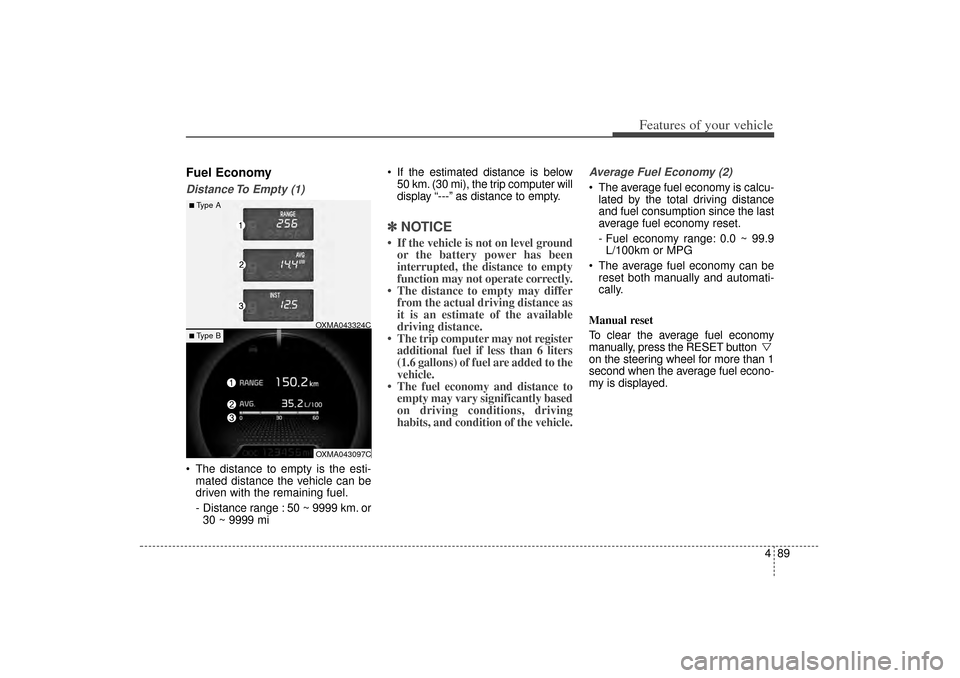
Fuel EconomyDistance To Empty (1) The distance to empty is the esti-mated distance the vehicle can be
driven with the remaining fuel.
- Distance range : 50 ~ 9999 km. or30 ~ 9999 mi If the estimated distance is below
50 km. (30 mi), the trip computer will
display “---” as distance to empty.
✽ ✽ NOTICE• If the vehicle is not on level ground
or the battery power has been
interrupted, the distance to empty
function may not operate correctly.
• The distance to empty may differ from the actual driving distance as
it is an estimate of the available
driving distance.
• The trip computer may not register additional fuel if less than 6 liters
(1.6 gallons) of fuel are added to the
vehicle.
• The fuel economy and distance to empty may vary significantly based
on driving conditions, driving
habits, and condition of the vehicle.
Average Fuel Economy (2) The average fuel economy is calcu-
lated by the total driving distance
and fuel consumption since the last
average fuel economy reset.
- Fuel economy range: 0.0 ~ 99.9L/100km or MPG
The average fuel economy can be reset both manually and automati-
cally.
Manual reset
To clear the average fuel economy
manually, press the RESET button
on the steering wheel for more than 1
second when the average fuel econo-
my is displayed.
■Type A
OXMA043324COXMA043097C
■ Type B
XM(FL) CAN(ENG) 4a(~158).QXP 1/23/2013 3:50 PM Page 89
Page 185 of 508
Features of your vehicle94
4✽
✽
NOTICE
- Electronic Brake
force Distribution
(EBD) System
Warning Light
When the ABS Warning Light is on
or both ABS and Parking Brake &
Brake Fluid Warning Lights are on,
the speedometer, odometer, or trip-
meter may not work. Also, the EPS
Warning Light may illuminate and
the steering effort may increase or
decrease.
In this case, have your vehicle inspect-
ed by an authorized Kia dealer as
soon as possible.
Electronic Power
Steering (EPS) WarningLight (if equipped)This warning light illuminates:
Once you set the ignition switch or Engine Start/Stop Button to the ON
position.
- It remains on until the engine isstarted.
When there is a malfunction with the EPS.
In this case, have your vehicle
inspected by an authorized Kia
dealer.
Malfunction Indicator
Lamp (MIL)This warning light illuminates:
Once you set the ignition switch or Engine Start/Stop Button to the ON
position.
- It remains on until the engine isstarted.
When there is a malfunction with the emission control system.
In this case, have your vehicle
inspected by an authorized Kia
dealer.
CAUTION -
Malfunction
Indicator
Lamp (MIL)
Driving with the MalfunctionIndicator Lamp (MIL) on maycause damage to the emissioncontrol systems which couldeffect drivability and/or fueleconomy.
XM(FL) CAN(ENG) 4a(~158).QXP 1/23/2013 3:50 PM Page 94
Page 199 of 508
Features of your vehicle108
4Battery saver function The purpose of this feature is to
prevent the battery from being dis-
charged if the lights are left in the
ON position. The system automati-
cally shuts off the parking lights 30
seconds after the ignition key is
removed and the driver’s door is
opened and closed.
With this feature, the parking lights will turn off automatically if the driver
parks on the side of the road at night
and opens the driver’s side door.
If necessary, to keep the parking
lights on when the ignition key is
removed, perform the following:
1) Open the driver-side door.
2) Turn the parking lights OFF and ON again using the light switch
on the steering column.
Headlight escort function
(if equipped)If you turn the ignition switch to the
ACC or OFF position with the head-
lights ON, the headlights remain on
for about 30 minutes. However, if the
driver's door is opened and closed,
the headlights are turned off after 15
seconds.
The headlights can be turned off by
pressing the lock button on the trans-
mitter (or smart key) twice or turning
the light switch to the OFF position.
Headlight welcome function
(if equipped)When the headlight (light switch in
the headlight or AUTO position) is on
and all doors (and tailgate) are
locked and closed, the position light
and headlight will come on for 15
seconds if any of the below is per-
formed.
Without smart key system
- When the door unlock button ispressed on the transmitter.
With the smart key system - When the door unlock button ispressed on the smart key.
At this time, if you press the door lock
button, the position light and head-
light will turn off immediately.
LIGHTING
CAUTION
If the driver gets out of the vehi- cle through other doors (exceptdriver’s door), the battery saverfunction does not operate andthe headlight escort functiondoes not turn off automatically.Therefore, It causes the batteryto be discharged. In this case,make sure to turn off the lampbefore getting out of the vehicle.
XM(FL) CAN(ENG) 4a(~158).QXP 1/23/2013 3:50 PM Page 108
Page 251 of 508
Features of your vehicle160
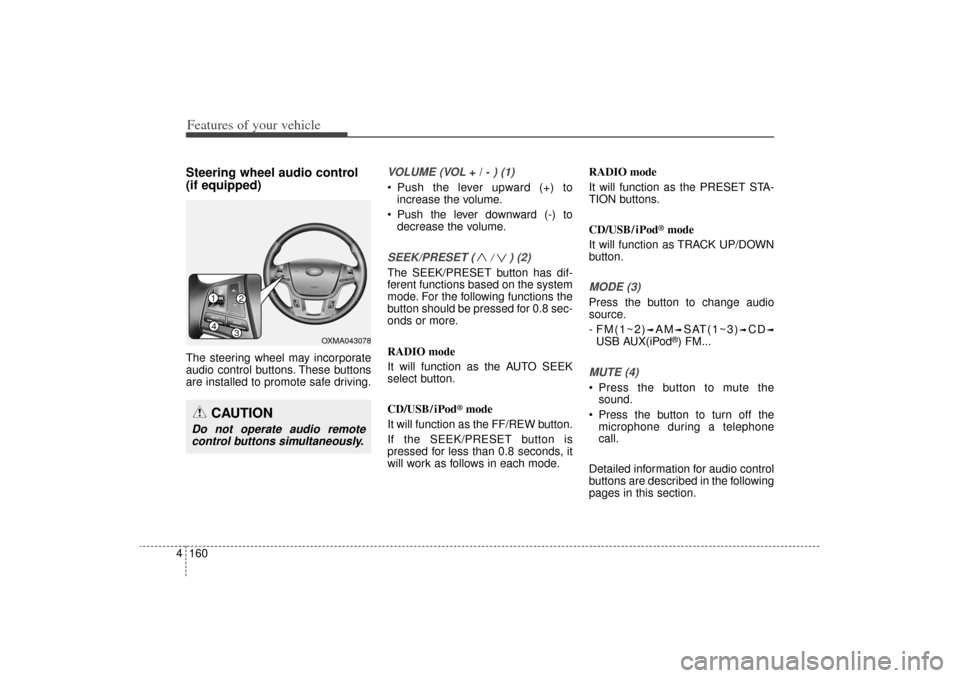
4Steering wheel audio control
(if equipped) The steering wheel may incorporate
audio control buttons. These buttons
are installed to promote safe driving.
VOLUME (VOL
+ / -
) (1)
• Push the lever upward (+) to
increase the volume.
Push the lever downward (-) to decrease the volume.SEEK/PRESET ( / ) (2)The SEEK/PRESET button has dif-
ferent functions based on the system
mode. For the following functions the
button should be pressed for 0.8 sec-
onds or more.
RADIO mode
It will function as the AUTO SEEK
select button.
CD/USB/ iPod
®mode
It will function as the FF/REW button.
If the SEEK/PRESET button is
pressed for less than 0.8 seconds, it
will work as follows in each mode. RADIO mode
It will function as the PRESET STA-
TION buttons.
CD/USB/ iPod
®mode
It will function as TRACK UP/DOWN
button.
MODE (3)Press the button to change audio
source.
- FM(1~2)
➟AM
➟SAT(1~3)
➟CD
➟
USB AUX(iPod
®) FM...
MUTE (4) Press the button to mute the sound.
Press the button to turn off the microphone during a telephone
call.
Detailed information for audio control
buttons are described in the following
pages in this section.
CAUTION
Do not operate audio remote control buttons simultaneously.
14
32
OXMA043078
XM(FL) CAN(ENG) 4b(AUDIO).qxp 1/23/2013 3:42 PM Page 160
Page 285 of 508
Features of your vehicle194
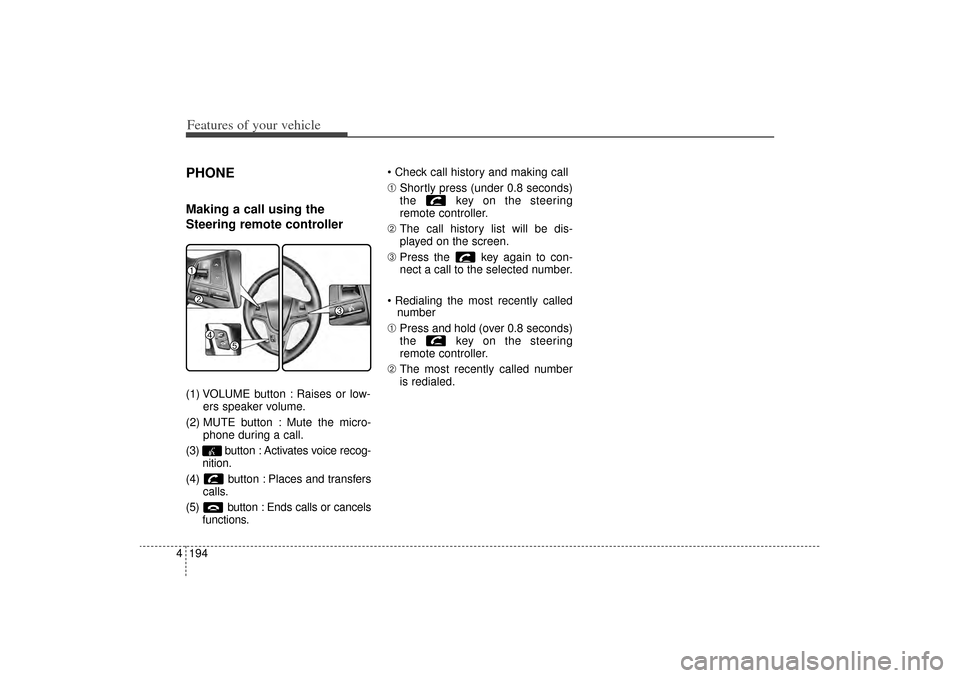
4PHONEMaking a call using the
Steering remote controller(1) VOLUME button : Raises or low-
ers speaker volume.
(2) MUTE button : Mute the micro- phone during a call.
(3) button : Activates voice recog- nition.
(4) button : Places and transfers calls.
(5) button : Ends calls or cancels functions. Check call history and making call
➀
Shortly press (under 0.8 seconds)
the key on the steering
remote controller.
➁ The call history list will be dis-
played on the screen.
\b Press the key again to con-
nect a call to the selected number.
Redialing the most recently called number
➀ Press and hold (over 0.8 seconds)
the key on the steering
remote controller.
➁ The most recently called number
is redialed.
XM(FL) CAN(ENG) 4b(AUDIO).qxp 1/23/2013 3:43 PM Page 194
Page 286 of 508
4 195
Features of your vehicle
Bluetooth
®Wireless Technology
Pairing a Bluetooth
®
Wireless
Technology wireless technolo-
gy Device
What is Bluetooth
®
Wireless
Technology Pairing?
Pairing refers to the process of syn-
chronizing your
Bluetooth
®
Wireless
Technology phone or device with the
car audio system for connection.
Pairing is necessary to connect and
use the
Bluetooth
®
Wireless
Technology feature.
Pairing Key / Key
on the Steering Remote
ControllerWhen No Devices have been
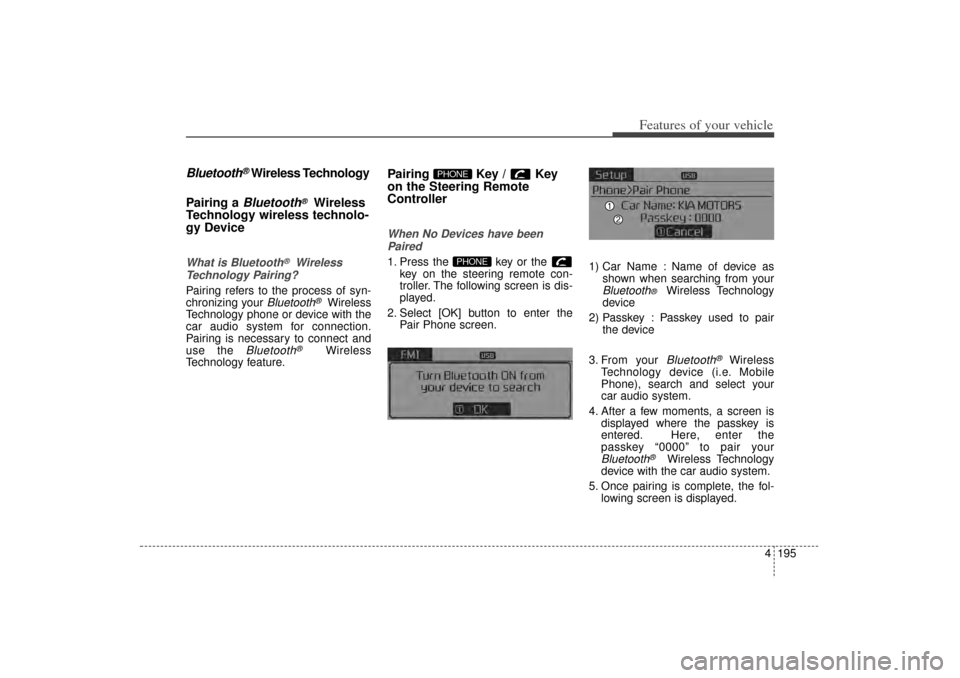
Paired1. Press the key or the key on the steering remote con-
troller. The following screen is dis-
played.
2. Select [OK] button to enter the Pair Phone screen. 1) Car Name : Name of device as
shown when searching from your
Bluetooth
®
Wireless Technology
device
2) Passkey : Passkey used to pair the device
3. From your Bluetooth
®
Wireless
Technology device (i.e. Mobile
Phone), search and select your
car audio system.
4. After a few moments, a screen is displayed where the passkey is
entered. Here, enter the
passkey “0000” to pair your
Bluetooth
®
Wireless Technology
device with the car audio system.
5. Once pairing is complete, the fol- lowing screen is displayed.
PHONE
PHONE
XM(FL) CAN(ENG) 4b(AUDIO).qxp 1/23/2013 3:43 PM Page 195
Page 287 of 508
Features of your vehicle196
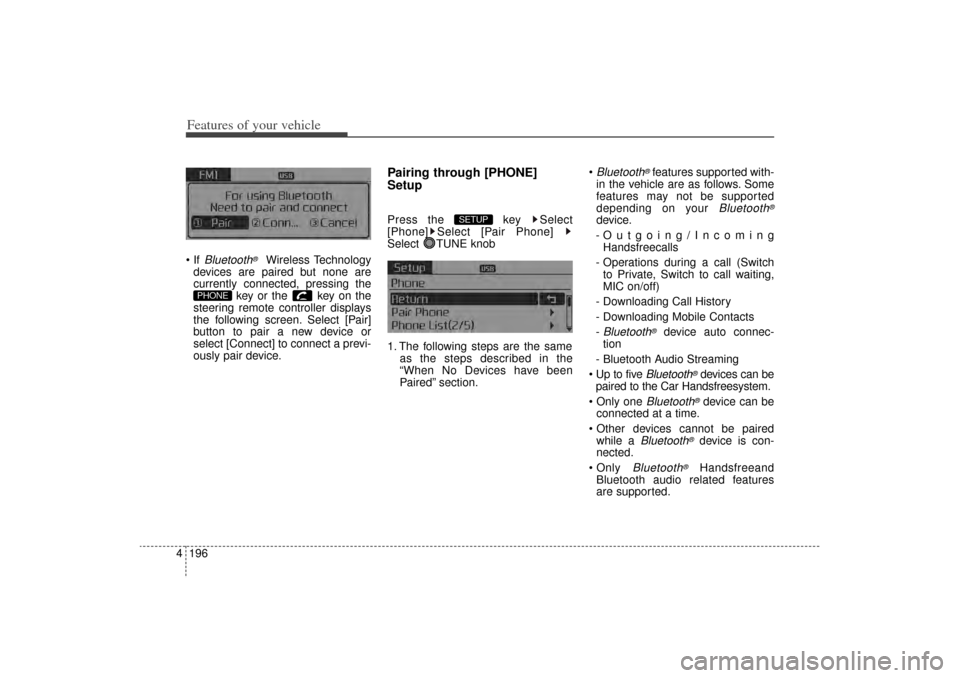
4 If
Bluetooth
®
Wireless Technology
devices are paired but none are
currently connected, pressing the key or the key on the
steering remote controller displays
the following screen. Select [Pair]
button to pair a new device or
select [Connect] to connect a previ-
ously pair device.
Pairing through [PHONE]
SetupPress the key Select
[Phone] Select [Pair Phone]
Select TUNE knob
1. The following steps are the same as the steps described in the
“When No Devices have been
Paired” section.
Bluetooth
®features supported with-
in the vehicle are as follows. Some
features may not be supported
depending on your
Bluetooth
®
device.
-Outgoing/Incoming Handsfreecalls
- Operations during a call (Switch to Private, Switch to call waiting,
MIC on/off)
- Downloading Call History
- Downloading Mobile Contacts
-Bluetooth
®
device auto connec-
tion
- Bluetooth Audio Streaming
Up to five
Bluetooth
®devices can be
paired to the Car Handsfreesystem.
Only one
Bluetooth
®device can be
connected at a time.
Other devices cannot be paired while a
Bluetooth
®device is con-
nected.
Only
Bluetooth
®
Handsfreeand
Bluetooth audio related features
are supported.
SETUP
PHONE
XM(FL) CAN(ENG) 4b(AUDIO).qxp 1/23/2013 3:43 PM Page 196
Page 291 of 508
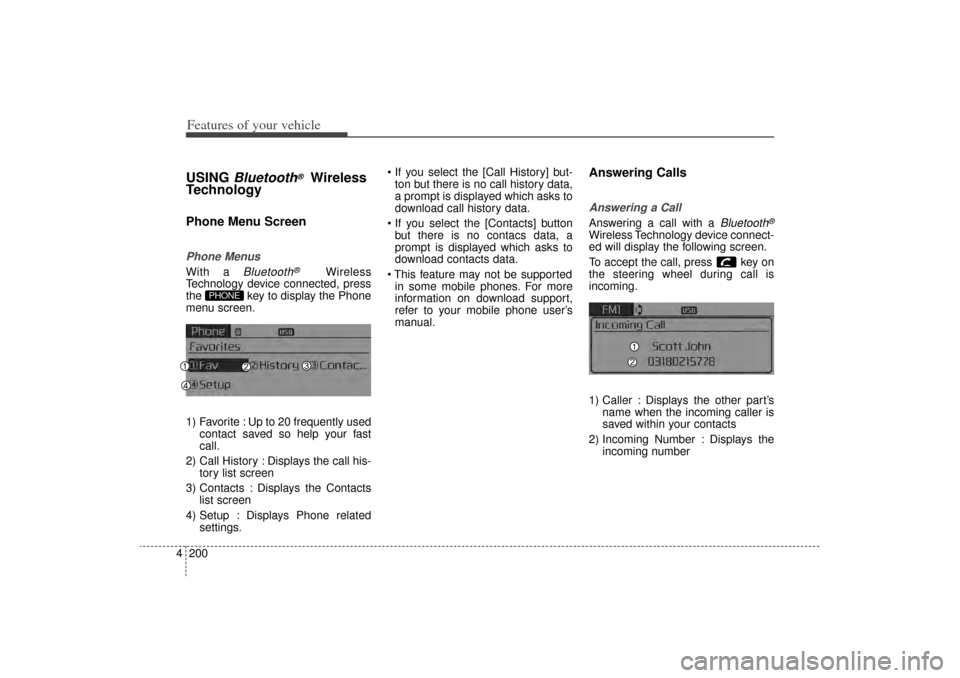
Features of your vehicle200
4USING
Bluetooth
®
Wireless
Technology
Phone Menu ScreenPhone MenusWith a
Bluetooth
®
Wireless
Technology device connected, press
the key to display the Phone
menu screen.
1) Favorite : Up to 20 frequently used contact saved so help your fast
call.
2) Call History : Displays the call his- tory list screen
3) Contacts : Displays the Contacts list screen
4) Setup : Displays Phone related settings. If you select the [Call History] but-
ton but there is no call history data,
a prompt is displayed which asks to
download call history data.
If you select the [Contacts] button but there is no contacs data, a
prompt is displayed which asks to
download contacts data.
This feature may not be supported in some mobile phones. For more
information on download support,
refer to your mobile phone user’s
manual.
Answering CallsAnswering a CallAnswering a call with a
Bluetooth
®
Wireless Technology device connect-
ed will display the following screen.
To accept the call, press key on
the steering wheel during call is
incoming.
1) Caller : Displays the other part’s name when the incoming caller is
saved within your contacts
2) Incoming Number : Displays the incoming number
PHONE
XM(FL) CAN(ENG) 4b(AUDIO).qxp 1/23/2013 3:43 PM Page 200
Page 297 of 508
![KIA Sorento 2014 3.G Owners Guide Features of your vehicle206
4VOICE RECOGNITIONUsing Voice RecognitionStarting Voice RecognitionShortly press the key on the
steering remote controller. Say a
command If prompt feedback is in [ON],](/img/2/2957/w960_2957-296.png "KIA Sorento 2014 3.G Owners Guide Features of your vehicle206
4VOICE RECOGNITIONUsing Voice RecognitionStarting Voice RecognitionShortly press the key on the
steering remote controller. Say a
command If prompt feedback is in [ON],")
Features of your vehicle206
4VOICE RECOGNITIONUsing Voice RecognitionStarting Voice RecognitionShortly press the key on the
steering remote controller. Say a
command If prompt feedback is in [ON], then
the system will say “Please say a
command after the beep (BEEP)”
If prompt feedback is in [OFF], then
the system will only say “(BEEP)”
To change Prompt Feedback [On]/[Off], go to [System] [Prompt Feedback]
For proper recognition, say the command after the voice instruc-
tion and beep tone.
Skipping Prompt MessagesWhile prompt message is being stat-
ed Shortly press the key on the
steering remote controller (under 0.8
seconds)
The prompt message is immediately
ended and the beep tone will sound.
After the “beep”, say the voice com-
mand.Re-starting Voice RecognitionWhile system waits for a command
Shortly press the key on the
steering remote controller (under 0.8
seconds)
The command wait state is immedi-
ately ended and the beep ton will
sound. After the “beep”, say the voice
command.
SETUP
XM(FL) CAN(ENG) 4b(AUDIO).qxp 1/23/2013 3:43 PM Page 206