change KIA SORENTO 2014 Navigation System Quick Reference Guide
[x] Cancel search | Manufacturer: KIA, Model Year: 2014, Model line: SORENTO, Model: KIA SORENTO 2014Pages: 236, PDF Size: 7.61 MB
Page 2 of 236
Thank you for purchasing this Audio
Navigation System.
This user's manual explains how to use
the KIA Motor Audio Navigation System.
Before using the product, read the con-
tents of this user's manual carefully and
use this product safely.
• The screens shown in this manual may
differ with the actual screens of the
product.
• The design and specification of this
product may change without prior noti-
fication for product improvement.
• W h e n t r a n s f e r r i n g t h e v e h i c l e t o
another individual, include this user's
manual so that the next driver can con -
tinue its use.
Precaution for safe usage
• Driving while distracted can result in a
loss of vehicle control, that may lead to
an accident, severe personal injury, and
death. The driver’s primary responsibil -
ity is in the safe and legal operation of a
vehicle, and use of any handheld devices,
other equipment, or vehicle systems which
take the driver’s eyes, attention and focus
away from the safe operation of a vehicle
or which are not permissible by law should
never be used during operation of the
vehicle.
• Do not operate the Audio Navigation sys -
tem while driving.
• Do not disassemble, assemble, or modify
the Audio Navigation system.
• Do not watch the screen for prolonged
periods of time while driving.
• Set the volume to a level which allows the
driver to be aware of external conditions.
• Do not operate the Audio Navigation sys-
tem for prolonged periods of time with the
vehicle ignition in ACC. Such operations
may lead to battery discharge.
• Be cautious not to spill water or introduce
foreign objects into the device.
• Do not cause severe shock to the device.
Direct pressure onto the front side of the
monitor may cause damage to the LCD or
touch panel.
• In case of product malfunction, please
contact your place of purchase or service
center.
• When cleaning the touch screen, make
sure to turn off the device and use a dry
and smooth cloth. Never use tough mate -
rials, chemical cloths, or solvents (alcohol,
ammonia, benzene, thinners, etc.) as such
materials may damage the device panel
or cause color and quality deterioration.
All Map Database cannot be copied without permission.
This is protected by U.S. copyright laws. All rights not expressly granted are reserved.
You may not otherwise reproduce, modify, and distribute the content without M&Soft, Inc's prior written consent.
Page 3 of 236
Read the following safety cautions for
your safety.
Please read the following safety matters for your safety. This
User's Manual describes circumstances that may inflict injury
onto drivers and others with the following notations (Warning,
Caution, Information, Notice).
Before using the product, read the contents of this user's
manual carefully and use this product safely.
※ The design and specification of this product may change without
prior notification for product improvement. Safety Warnings
Failure to observe the safety instructions within this category could
result in serious injury or death.
Safety Cautions
Failure to observe the safety instructions within this category could
result in accident related injuries or damage to the vehicle.
Notations used within this User's
Manual
CaUTIoN
• Information on matters that could potentially lead to injury or vehi-
cle damage/malfunction
• Information that could lead to higher user safety
i Information
• Information and tips that provides additional user convenience in
using the product
NoTICe
• Information on specific features that facilitate proper product use and
functional understanding
• Information on terminology used within this manual
Page 15 of 236
Warnings and Cautions
Basic l
1-3
Safety Cautions
Pay attention to traffic conditions while driving.
In some instances, the navigation may provide guidance through re-
stricted areas.
Operating the device while driving could lead to accidents due to a
lack of attention to external surroundings. First park the vehicle before
operating the device. In addition, the touch screen may not work for
some functions when the vehicle is in motion. The touch screen fea-
ture will be supported once the vehicle has stopped.
Adjust the volume to levels that allow the driver to hear sounds from outside of the vehicle. Driving in a state where external
sounds cannot be heard may lead to accidents.
Pay attention to the volume setting when turning the device on. A sudden output of extreme volume upon turning the device on
could lead to hearing impairment. (Adjust the volume to a suitable
levels before turning off the device.)
If you want to change the position of device installation, please in- quire with your place of purchase or service maintenance center.
Technical expertise is required to install or disassemble the device.
Turn on the car ignition before using this device. Do not operate the Navigation system for long periods of time with the ignition
turned off as such operations may lead to battery discharge.
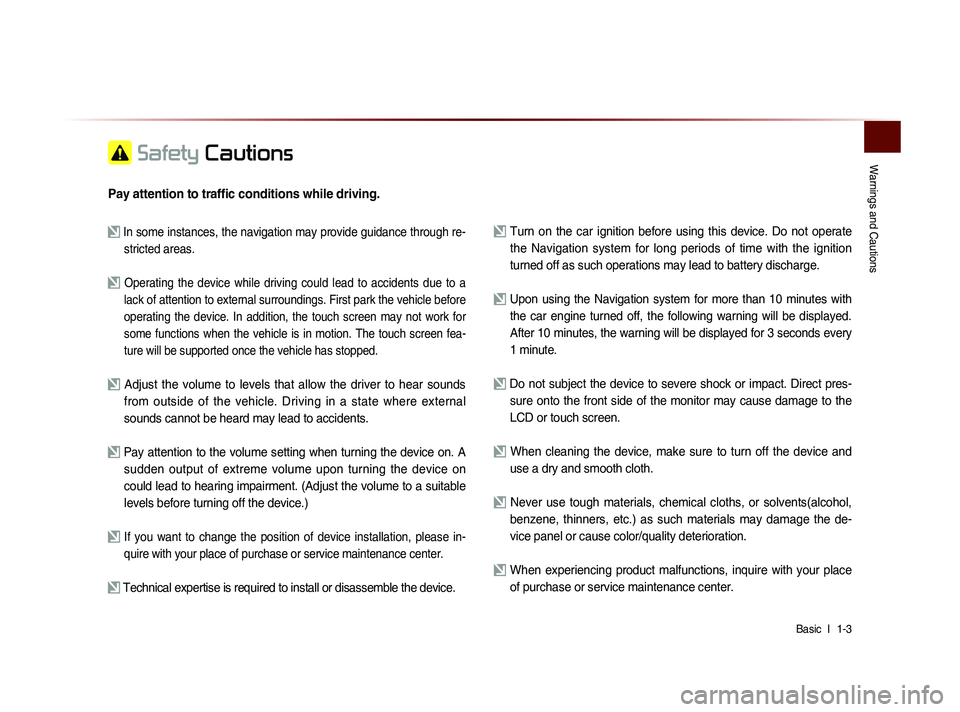
Upon using the Navigation system for more than 10 minutes with
the car engine turned off, the following warning will be displayed.
After 10 minutes, the warning will be displayed for 3 seconds every
1 minute.
Do not subject the device to severe shock or impact. Direct pres- sure onto the front side of the monitor may cause damage to the
LCD or touch screen.
When cleaning the device, make sure to turn off the device and use a dry and smooth cloth.
Never use tough materials, chemical cloths, or solvents(alcohol, benzene, thinners, etc.) as such materials may damage the de-
vice panel or cause color/quality deterioration.
When experiencing product malfunctions, inquire with your place of purchase or service maintenance center.
Page 18 of 236
1-6
Head Unit
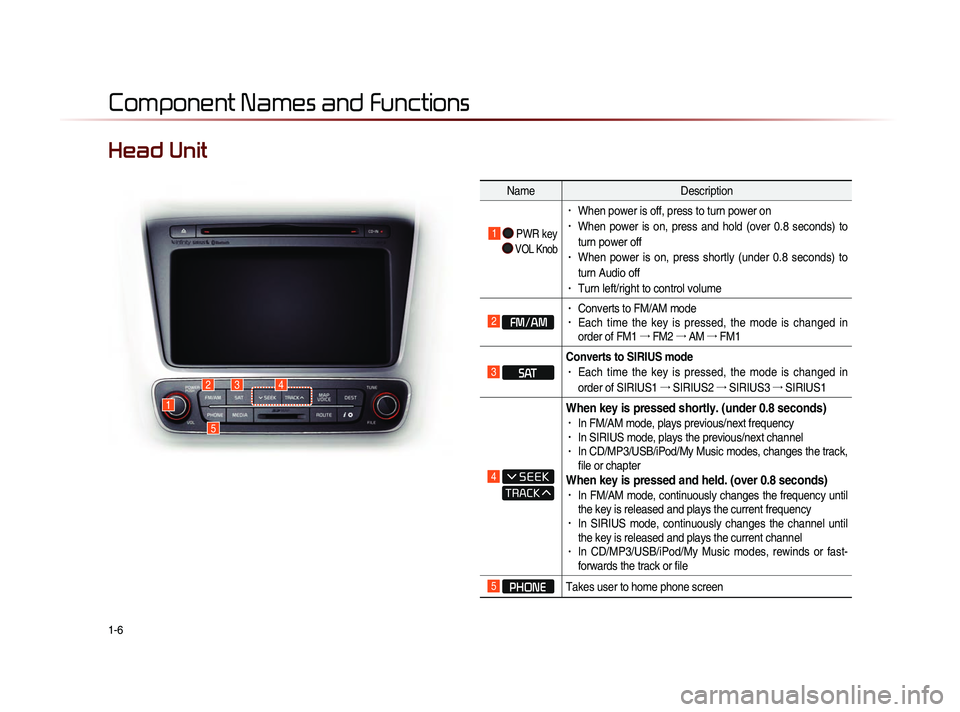
NameDescription
1 PWR key
VOL Knob
• When power is off, press to turn power on• When power is on, press and hold (over 0.8 seconds) to
turn power off
• When power is on, press shortly (under 0.8 seconds) to
turn Audio off
• Turn left/right to control volume
2 FM/AM
• Converts to FM/AM mode • Each time the key is pressed, the mode is changed in
order of FM1 →
FM2 →
AM →
FM1
3 SAT Converts to SIRIUS mode
• Each time the key is pressed, the mode is changed in
order of SIRIUS1 →
SIRIUS2 →
SIRIUS3 →
SIRIUS1
4
When key is pressed shortly. (under 0.8 seconds)• In FM/AM mode, plays previous/next frequency• In SIRIUS mode, plays the previous/next channel• In CD/MP3/USB/iPod/My Music modes, changes the track,
file or chapter
When key is pressed and held. (over 0.8 seconds)• In FM/AM mode, continuously changes the frequency until
the key is released and plays the current frequency
• In SIRIUS mode, continuously changes the channel until
the key is released and plays the current channel
• In CD/MP3/USB/iPod/My Music modes, rewinds or fast-
forwards the track or file
5 PHONE Takes user to home phone screen
Component Names and Functions
1
234
5
Page 19 of 236
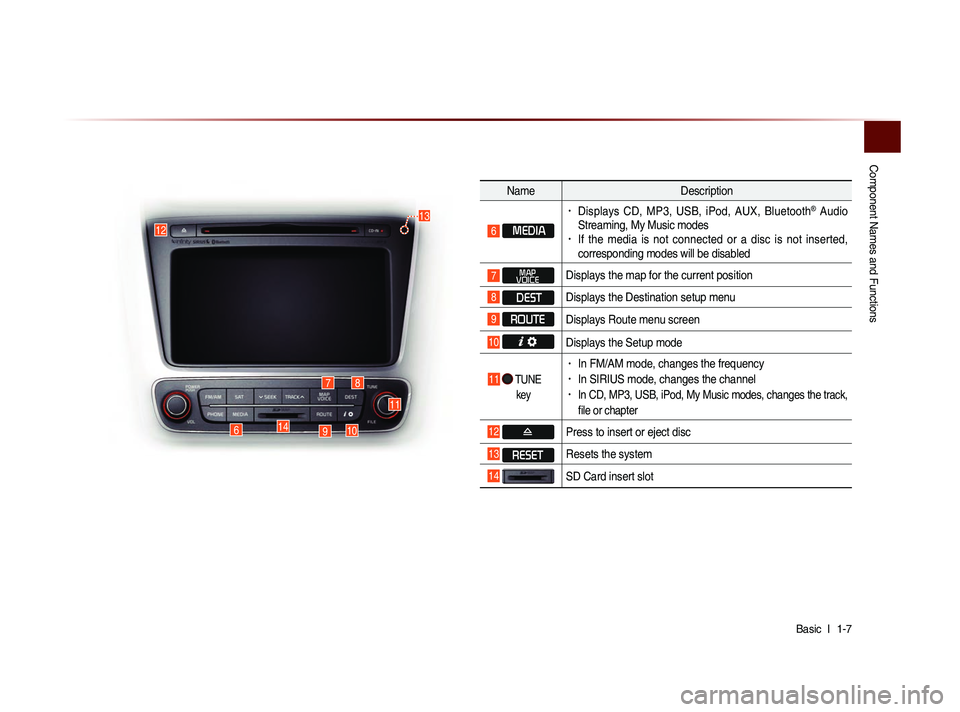
Component Names and Functions
Basic l
1-7
Name Description
6 MEDIA
• Displays CD, MP3, USB, iPod, AUX, Bluetooth® Audio
Streaming, My Music modes
• If the media is not connected or a disc is not inserted,
corresponding modes will be disabled
7 MAP
VOICEDisplays the map for the current position
8 DEST Displays the Destination setup menu
9 ROUTE
Displays Route menu screen
10 Displays the Setup mode
11 TUNE
key
• In FM/AM mode, changes the frequency • In SIRIUS mode, changes the channel • In CD, MP3, USB, iPod, My Music modes, changes the track,
file or chapter
12 Press to insert or eject disc
13 RESET Resets the system
14 SD Card insert slot
78
910
11
12
14
13
6
Page 20 of 236
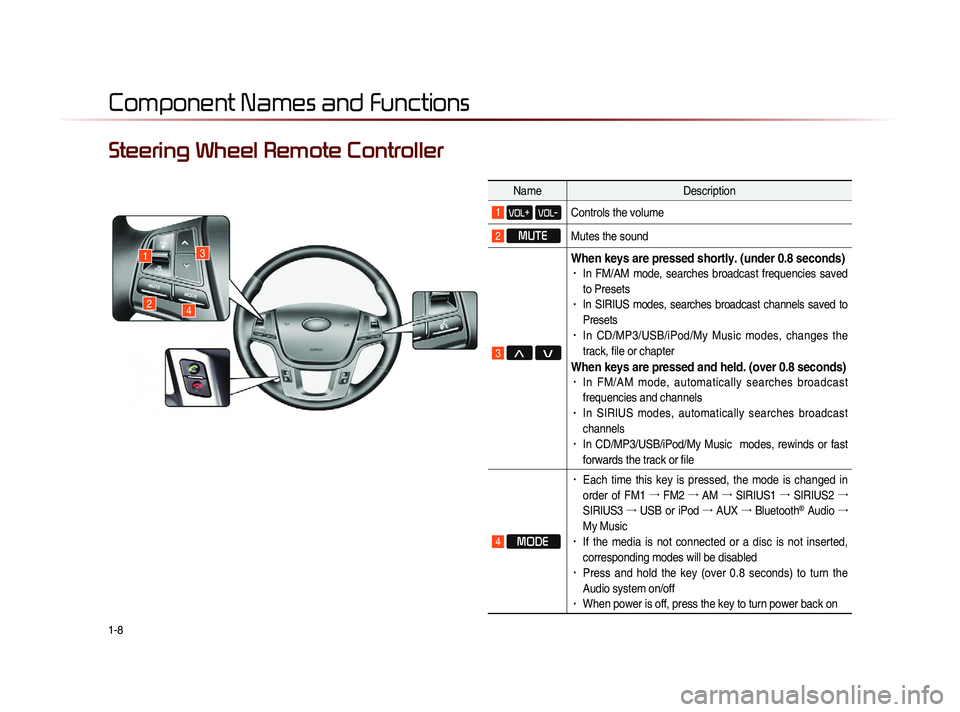
1-8
Component Names and Functions
Steering Wheel Remote Controller
NameDescription
1 VOL+ VOL-Controls the volume
2 MUTE
Mutes the sound
3 Λ V
When keys are pressed shortly. (under 0.8 seconds)• In FM/AM mode, searches broadcast frequencies saved
to Presets
• In SIRIUS modes, searches broadcast channels saved to
Presets
• In CD/MP3/USB/iPod/My Music modes, changes the
track, file or chapter
When keys are pressed and held. (over 0.8 seconds)• In FM/AM mode, automatically searches broadcast
frequencies and channels
• In SIRIUS modes, automatically searches broadcast
channels
• In CD/MP3/USB/iPod/My Music modes, rewinds or fast
forwards the track or file
4 MODE
• Each time this key is pressed, the mode is changed in
order of FM1 →
FM2 →
AM →
SIRIUS1 →
SIRIUS2 →
SIRIUS3 →
USB or iPod →
AUX →
Bluetooth
® Audio →
My Music
• If the media is not connected or a disc is not inserted,
corresponding modes will be disabled
• Press and hold the key (over 0.8 seconds) to turn the
Audio system on/off
• When power is off, press the key to turn power back on
1
24
3
Page 23 of 236
Starting the System for the First Time
Basic l
1-11
Turning the System On/Off
Turning the System On
If the engine start button is pressed without
pressing the brakes, then the ACC and
system will turn on.
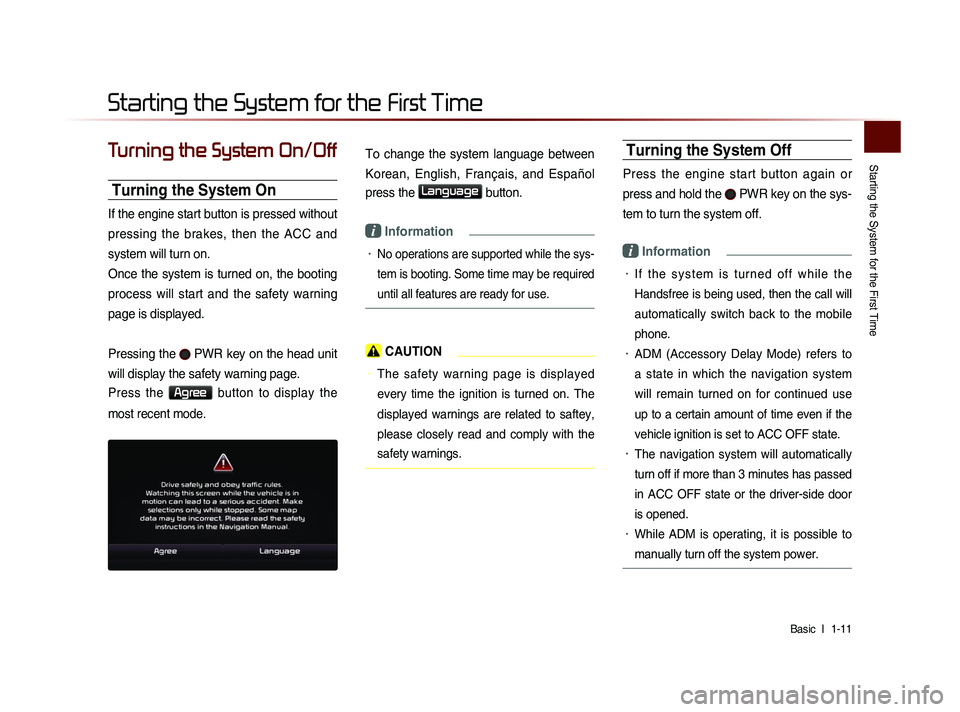
Once the system is turned on, the booting
process will start and the safety warning
page is displayed.
Pressing the
PWR key on the head unit
will display the safety warning page.
Press the Agree button to display the
most recent mode.
To change the system language between
Korean, English, Français, and Español
press the
Language button.
i Information
• No operations are supported while the sys-
tem is booting. Some time may be required
until all features are ready for use.
CAUTION
• The safety warning page is displayed
every time the ignition is turned on. The
displayed warnings are related to saftey,
please closely read and comply with the
safety warnings.
Turning the System Off
Press the engine start button again or
press and hold the
PWR key on the sys-
tem to turn the system off.
i Information
• I f t h e s y s t e m i s t u r n e d o f f w h i l e t h e
Handsfree is being used, then the call will
automatically switch back to the mobile
phone.
• ADM (Accessory Delay Mode) refers to
a state in which the navigation system
will remain turned on for continued use
up to a certain amount of time even if the
vehicle ignition is set to ACC OFF state.
• The navigation system will automatically
turn off if more than 3 minutes has passed
in ACC OFF state or the driver-side door
is opened.
• While ADM is operating, it is possible to
manually turn off the system power.
Starting the System for the First Time
Page 28 of 236
2-4
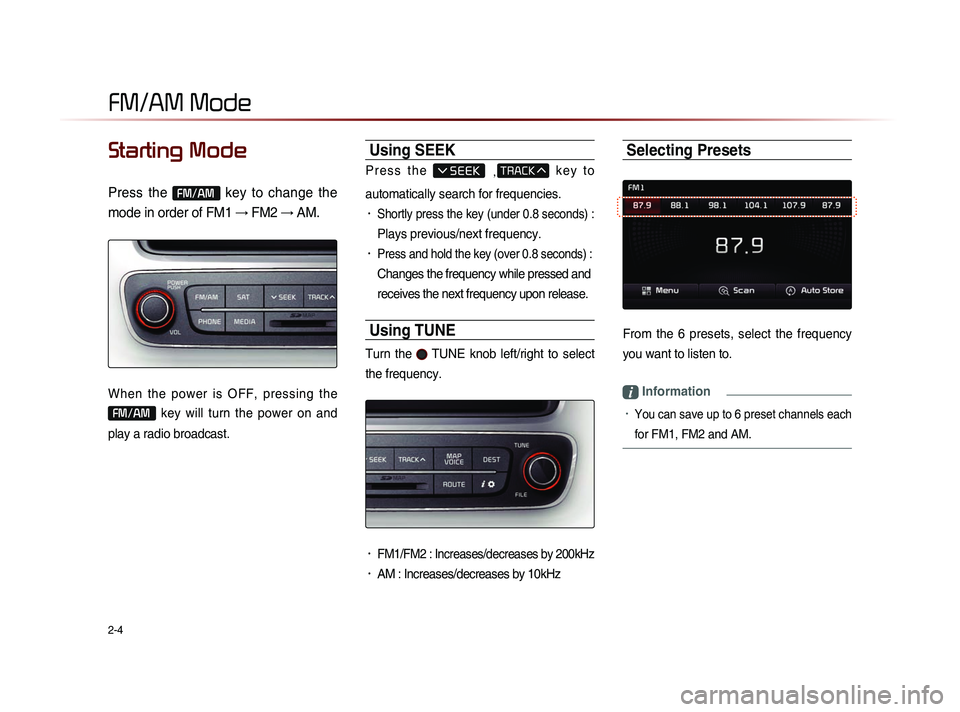
Starting Mode
Press the FM/AM key to change the
mode in order of FM1 → FM2 → AM.
When the power is OFF, pressing the
FM/AM key will turn the power on and
play a radio broadcast.
Using SEEK
P r e s s t h e , k e y t o
automatically search for frequencies.
• Shortly press the key (under 0.8 seconds) :
Plays previous/next frequency.
• Press and hold the key (over 0.8 seconds) :
Changes the frequency while pressed and
receives the next frequency upon release.
Using TUNE
Turn the TUNE knob left/right to select
the frequency.
• FM1/FM2 : Increases/decreases by 200kHz
• AM : Increases/decreases by 10kHz
Selecting Presets
From the 6 presets, select the frequency
you want to listen to.
i Information
• You can save up to 6 preset channels each
for FM1, FM2 and AM.
FM/AM Mode
Page 35 of 236
SIRIUS Mode
Audio l
2-11
Starting Mode
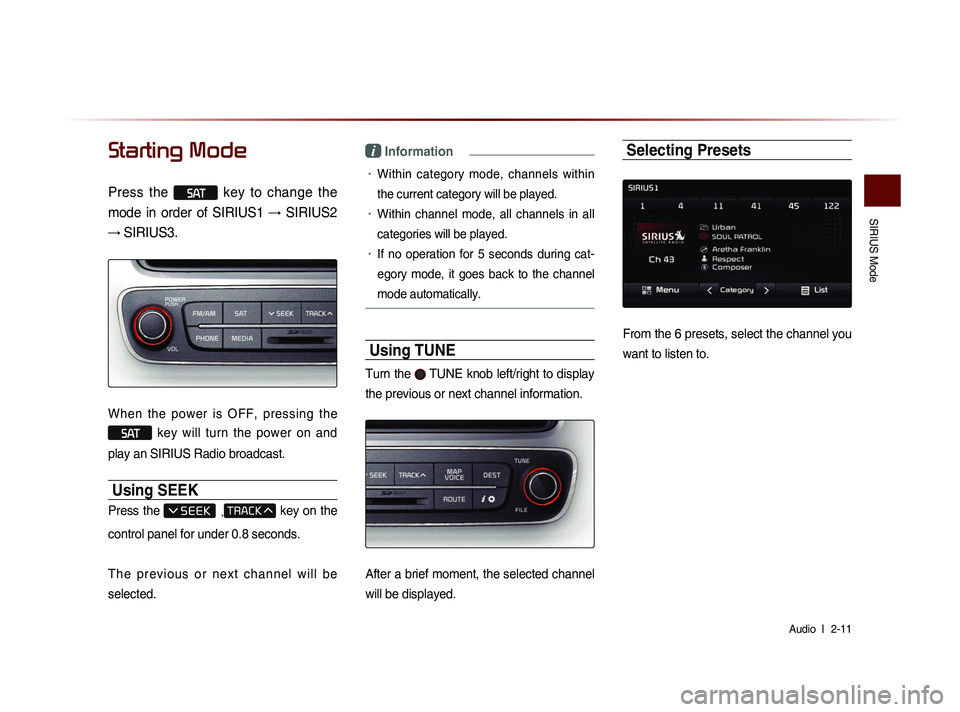
Press the SAT key to change the
mode in order of SIRIUS1 → SIRIUS2
→ SIRIUS3.
When the power is OFF, pressing the
SAT key will turn the power on and
play an SIRIUS Radio broadcast.
Using SEEK
Press the , key on the
control panel for under 0.8 seconds.
T h e p r e v i o u s o r n e x t c h a n n e l w i l l b e
selected.
i Information
• Within category mode, channels within
the current category will be played.
• Within channel mode, all channels in all
categories will be played.
• If no operation for 5 seconds during cat-
eg
ory mode, it goes back to the channel
mode automatically.
Using TUNE
Turn the TUNE knob left/right to display
the previous or next channel information.
After a brief moment, the selected channel
will be displayed.
Selecting Presets
From the 6 presets, select the channel you
want to listen to.
Page 40 of 236
2-16
CD-R/RW Compatibility
• This device supports CD-R, CD-RW,
and MP3 discs burned in Audio CD for-
mats.
• The recording of CD-R and CD-RW
discs with this device is not supported.
• CD-R/RW discs recorded as audio CDs
that were not finalized are not supported
by this device.
PC-created Disc Compatibility
• When burning a disc on a PC, the disc
may not operate in this device depend-
ing on the software settings. In such
cases, inquire with the software manu-
facturer.
• Additional information regarding compat-
ibility is displayed on the CD-R/RW soft-
ware disc box.
• DVD-R/W discs are not compatible with
this device.
Cautions upon Writing CDs
• When a multi-session disc is being
recorded, make sure to close the ses-
sion before recording.
• If MP3/WMA file extensions are changed,
such could result in malfunctions.
• In the case of MP3/WMA, write using
only English. (Other languages are not
supported)
• Unauthorized use of copy-protected
music files is prohibited by law.
• Prolonged use of CD-R/CD-RW prod-
ucts that do not satisfy related specifica-
tions may result in product malfunction.
• When writing CDs, low-speed writing is
recommended.
Compressed Audio Compatibility
• Physical formats of CD : Model 1, Model
2 XA format 1.
• This device supports audio file compressed
through MPEG-1 audio stream layer 3
(MP3) using 8kbps ~ 320kbps. (CBR or
VBR)
• For stable operation, the use of files
in 95kbps~192kbps bit rate range and
44.1kHz SAMPLING frequency is rec-
ommended.
• This device supports WMA audio files
using 20kbps ~ 320kbps. (CBR or VBR)
• Variable bit rate files may operate, but
the play time information may not be
properly displayed.
• This device only supports tracks with file
extension of ".mp3" or ".wma".
• This device does not support multises-
sion discs.
• This device supports only 8 layer folders.
Disc