phone KIA Sorento 2015 3.G User Guide
[x] Cancel search | Manufacturer: KIA, Model Year: 2015, Model line: Sorento, Model: KIA Sorento 2015 3.GPages: 508, PDF Size: 7.59 MB
Page 262 of 508
4 171
Features of your vehicle
Bluetooth
®
Wireless
Technology
Bluetooth
®Wireless Technology
The
Bluetooth
®word mark and logos
are registered trademarks owned by
Bluetooth SIG, lnc. and any use of
such marks by Kia is under license.
A
Bluetooth
®enabled call phone is
required to use Bluetooth
®
wireless
technology.
Before Using the
Bluetooth
®
HandsfreeWhat is Bluetooth
®?
Bluetooth
®
refers to a short-dis-
tance wireless networking technol-
ogy which uses a 2.45GHz fre-
quency to connect various devices
within a certain distance.
Supported within PCs, external devices,
Bluetooth
®phones, PDAs,
various electronic devices, and
automotive environments,
Bluetooth
®allows data to be trans-
mitted at high speeds without hav-
ing to use a connector cable.
Bluetooth
®
Handsfree refers to a
device which allows the user to con-
veniently make phone calls with
Bluetooth
®mobile phones through
the AV/Navigation system.
Bluetooth
®Handsfree may not be
supported in some mobile phones.
To learn more about mobile device
compatibility, visit www
.kia.com
.
Precautions for Safe Driving Bluetooth
®Handsfree is a feature
that enables drivers to practice safe
driving. Connecting the head unit
with a
Bluetooth
®phone allows the
user to conveniently make and
receive calls and use contacts.
Before using
Bluetooth
®, carefully
read the contents of this user’s
manual.
Excessive use or operations while driving may lead to negligent driv-
ing practices and result in acci-
dents. Refrain from excessive oper-
ations while driving.
Viewing the screen for prolonged periods of time is dangerous and
may lead to accidents. When driv-
ing, view the screen only for short
periods of time.
XM(FL) CAN(ENG) 4b(AUDIO).qxp 1/23/2013 3:42 PM Page 171
Page 263 of 508
Features of your vehicle172
4When connecting a
Bluetooth
®
Phone Before connecting the head unit
with the mobile phone, check to
see that the mobile phone sup-
ports
Bluetooth
®features.
Even if the phone supports
Bluetooth
®, the phone will not be
found during device searches if
the phone has been set to hidden
state or the
Bluetooth
®power is
turned off. Disable the hidden
state or turn on the Bluetooth
®
power prior to searching/connect-
ing with the Head unit.
Bluetooth phone is automatically connected when the ignition on.
If you do not want automatic con- nection with your
Bluetooth
®
device, turn off the
Bluetooth
®
feature within your mobile phone.
The Handsfree call volume and quality may differ depending on
the mobile phone. Park the vehicle when connecting
the head unit with the mobile
phone.
Bluetooth
®
connection may
become intermittently discon-
nected in some mobile phones.
Follow these steps to try again.
1. Within the mobile phone, turn the
Bluetooth
®
function off/on
and try again.
2. Turn the mobile phone power Off/On and try again.
3. Completely remove the mobile phone battery, reboot, and then
again.
4. Reboot the Audio Video Navigation System and try
again.
5. Delete all paired devices, pair and try again.
Handsfree call quality and volume may differ depending on the
model of your mobile phone.
XM(FL) CAN(ENG) 4b(AUDIO).qxp 1/23/2013 3:42 PM Page 172
Page 264 of 508
4 173
Features of your vehicle
Voice Recognition When using the voice recognitionfeature, only commands listed with-
in the user's manual are supported.
Be aware that during the operation of the voice recognition system,
pressing any key other than the key terminate voice recognition
mode.
For superior voice recognition per- formance, position the microphone
used for voice recognition above
the head of the driver’s seat and
maintain a proper position when
saying commands.
Within the following situations, voice recognition may not function
properly due to external sound.
- When the windows and sunroof are open
- When the wind of the cooling / heating device is strong
- When entering and passing through tunnels
(Continued)(Continued)
- When driving on rugged and uneven roads
- During severe rain (heavy rains, windstorms)
Phone related voice commands can be used only when a
Bluetooth
®
Wireless Technology device is con-
nected.
When making calls by stating a name, the corresponding contact
must be downloaded and stored
within the audio system.
After downloading the
Bluetooth
®
Wireless Technology phone book, it
takes some times to convert the
phone book data into voice infor-
mation. During this time, voice
recognition may not properly oper-
ate.
Pronounce the voice commands naturally and clearly as if in a nor-
mal conversation.
XM(FL) CAN(ENG) 4b(AUDIO).qxp 1/23/2013 3:42 PM Page 173
Page 266 of 508
4 175
Features of your vehicle
SYSTEM CONTROLLERS
AND FUNCTIONS❈Display and settings may differ
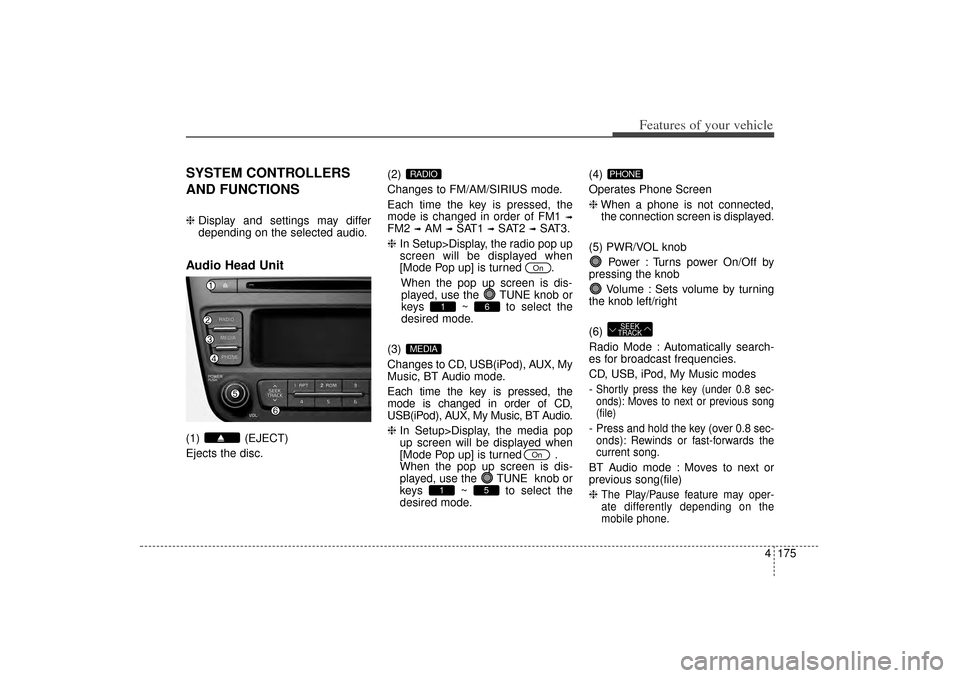
depending on the selected audio.Audio Head Unit(1) (EJECT)
Ejects the disc. (2)
Changes to FM/AM/SIRIUS mode.
Each time the key is pressed, the
mode is changed in order of FM1
➟
FM2
➟AM
➟SAT1
➟SAT2
➟SAT3.
❈ In Setup>Display, the radio pop up
screen will be displayed when
[Mode Pop up] is turned .
When the pop up screen is dis-played, use the TUNE knob or
keys ~ to select the
desired mode.
(3)
Changes to CD, USB(iPod), AUX, My
Music, BT Audio mode.
Each time the key is pressed, the
mode is changed in order of CD,
USB(iPod), AUX, My Music, BT Audio.
❈ In Setup>Display, the media pop
up screen will be displayed when
[Mode Pop up] is turned .
When the pop up screen is dis-
played, use the TUNE knob or
keys ~ to select the
desired mode. (4)
Operates Phone Screen
❈
When a phone is not connected,
the connection screen is displayed.
(5) PWR/VOL knob Power : Turns power On/Off by
pressing the knob
Volume : Sets volume by turning
the knob left/right
(6)
Radio Mode : Automatically search-
es for broadcast frequencies.
CD, USB, iPod, My Music modes
-
Shortly press the key (under 0.8 sec-
onds): Moves to next or previous song
(file)- Press and hold the key (over 0.8 sec-
onds): Rewinds or fast-forwards the
current song.BT Audio mode : Moves to next or
previous song(file)
❈
The Play/Pause feature may oper-
ate differently depending on the
mobile phone.
SEEK
TRACKPHONE
5
1
On
MEDIA
6
1
On
RADIO
XM(FL) CAN(ENG) 4b(AUDIO).qxp 1/23/2013 3:42 PM Page 175
Page 267 of 508
Features of your vehicle176
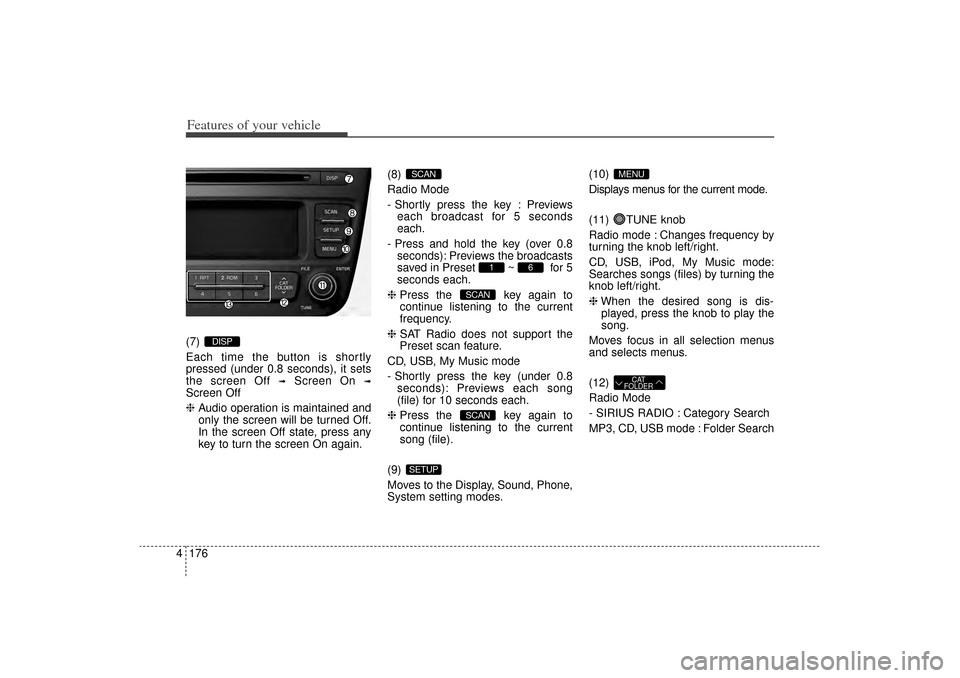
4(7)
Each time the button is shortly
pressed (under 0.8 seconds), it sets
the screen Off
➟
Screen On
➟
Screen Off
❈ Audio operation is maintained and
only the screen will be turned Off.
In the screen Off state, press any
key to turn the screen On again. (8)
Radio Mode
- Shortly press the key : Previews
each broadcast for 5 seconds
each.
- Press and hold the key (over 0.8 seconds): Previews the broadcasts
saved in Preset ~ for 5
seconds each.
❈ Press the key again to
continue listening to the current
frequency.
❈ SAT Radio does not support the
Preset scan feature.
CD, USB, My Music mode
- Shortly press the key (under 0.8 seconds): Previews each song
(file) for 10 seconds each.
❈ Press the key again to
continue listening to the current
song (file).
(9)
Moves to the Display, Sound, Phone,
System setting modes. (10)
Displays menus for the current mode.
(11) TUNE knob
Radio mode : Changes frequency by
turning the knob left/right.
CD, USB, iPod, My Music mode:
Searches songs (files) by turning the
knob left/right.
❈
When the desired song is dis-
played, press the knob to play the
song.
Moves focus in all selection menus
and selects menus.
(12)
Radio Mode
- SIRIUS RADIO : Category Search
MP3, CD, USB mode : Folder Search
CAT
FOLDER
MENU
SETUP
SCANSCAN
6
1
SCAN
DISP
XM(FL) CAN(ENG) 4b(AUDIO).qxp 1/23/2013 3:42 PM Page 176
Page 284 of 508
4 193
Features of your vehicle
Bluetooth
®Wireless Technology
AUDIO
What is
Bluetooth
®Wireless
Technology
?
Bluetooth
®Wireless Technology is a
wireless technology that allows mul-
tiple devices to be connected in a
short range, low-powered devices
like hands-free, stereo headset, wire-
less remote controller, etc. For more
information, visit
the
Bluetooth
®
Wireless Technology
website at
www
.Bluetooth.com
Before using
Bluetooth
®
Wireless
Technology audio features
Bluetooth
®
Wireless Technology
audio may not be supported
depending on the compatibility of
your
Bluetooth
®Wireless Technology
mobile phone.
In order to use Bluetooth
®Wireless
Technology audio, you must first
pair and connect the Bluetooth
®
Wireless Technology mobile phone.
Bluetooth
®
Wireless Technology
audio can be used only when the
[Audio Streaming] of Phone is
turned .
❈ Setting
Bluetooth
®Wireless Technology
Audio Streaming : Press the
key Select [Phone] through the tune
knob or key Select [Audio
Streaming] through the TUNE
knob Set
/
Starting
Bluetooth
®Wireless
Technology Audio
Press the key to change the
mode in order of
CD➟ USB➟ AUX➟My Music➟ BT
Audio.
If BT Audio is selected,
Bluetooth
®
Wireless Technology audio will start
playing.
❈ Audio may not automatically start
playing in some mobile phones.
Using the
Bluetooth
®Wireless
Technology audio features
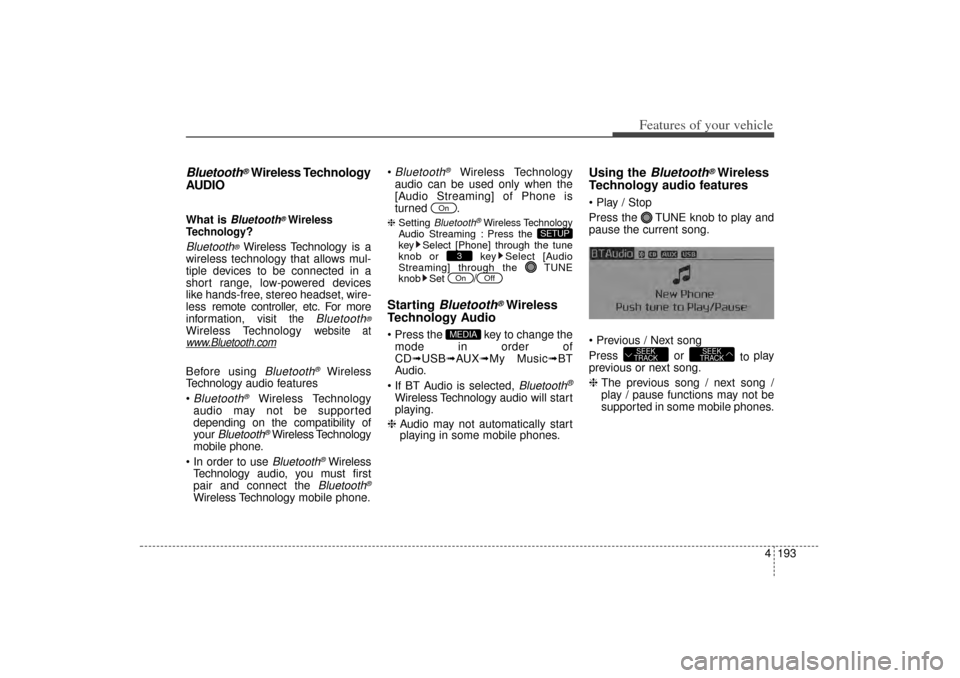
Play / Stop
Press the TUNE knob to play and
pause the current song.
Previous / Next song
Press or to play
previous or next song.
❈ The previous song / next song /
play / pause functions may not be
supported in some mobile phones.
SEEK
TRACK
SEEK
TRACK
MEDIA
Off
On3
SETUP
On
XM(FL) CAN(ENG) 4b(AUDIO).qxp 1/23/2013 3:42 PM Page 193
Page 285 of 508
Features of your vehicle194
4PHONEMaking a call using the
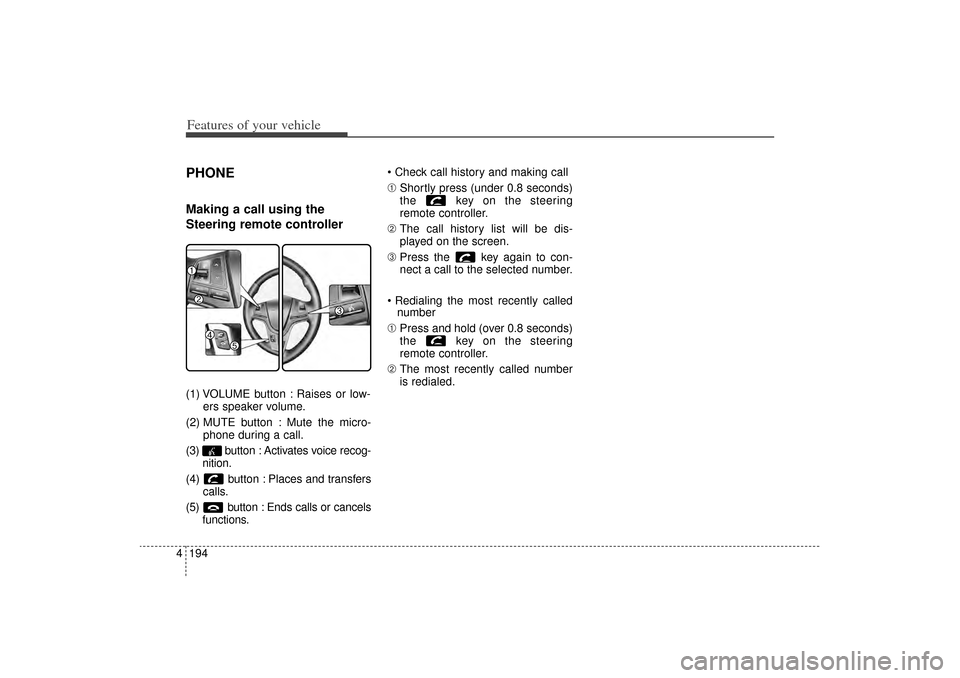
Steering remote controller(1) VOLUME button : Raises or low-
ers speaker volume.
(2) MUTE button : Mute the micro- phone during a call.
(3) button : Activates voice recog- nition.
(4) button : Places and transfers calls.
(5) button : Ends calls or cancels functions. Check call history and making call
➀
Shortly press (under 0.8 seconds)
the key on the steering
remote controller.
➁ The call history list will be dis-
played on the screen.
\b Press the key again to con-
nect a call to the selected number.
Redialing the most recently called number
➀ Press and hold (over 0.8 seconds)
the key on the steering
remote controller.
➁ The most recently called number
is redialed.
XM(FL) CAN(ENG) 4b(AUDIO).qxp 1/23/2013 3:43 PM Page 194
Page 286 of 508
4 195
Features of your vehicle
Bluetooth
®Wireless Technology
Pairing a Bluetooth
®
Wireless
Technology wireless technolo-
gy Device
What is Bluetooth
®
Wireless
Technology Pairing?
Pairing refers to the process of syn-
chronizing your
Bluetooth
®
Wireless
Technology phone or device with the
car audio system for connection.
Pairing is necessary to connect and
use the
Bluetooth
®
Wireless
Technology feature.
Pairing Key / Key
on the Steering Remote
ControllerWhen No Devices have been
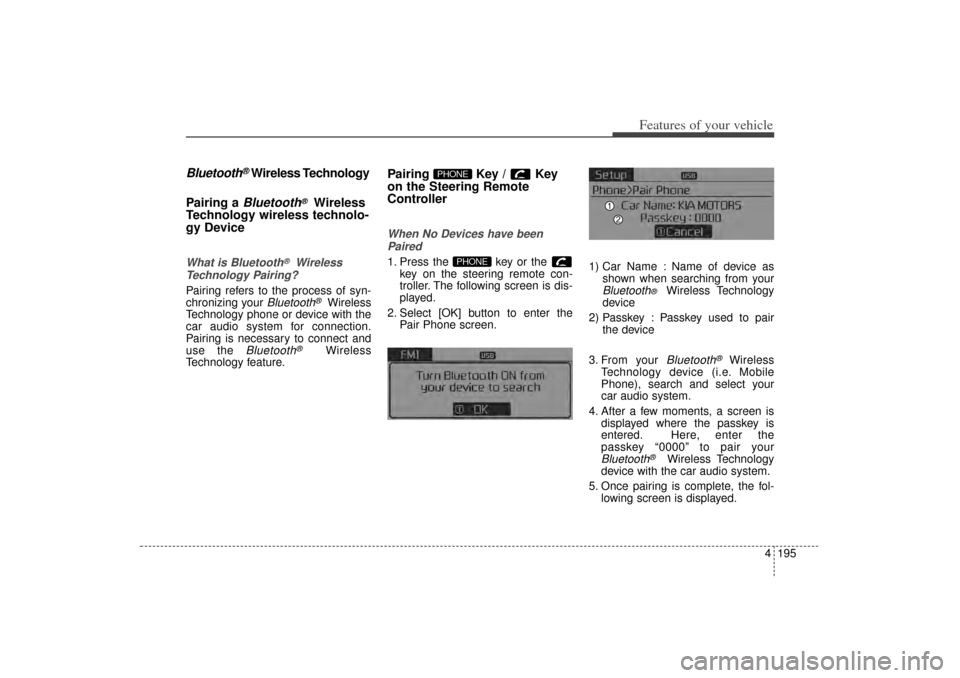
Paired1. Press the key or the key on the steering remote con-
troller. The following screen is dis-
played.
2. Select [OK] button to enter the Pair Phone screen. 1) Car Name : Name of device as
shown when searching from your
Bluetooth
®
Wireless Technology
device
2) Passkey : Passkey used to pair the device
3. From your Bluetooth
®
Wireless
Technology device (i.e. Mobile
Phone), search and select your
car audio system.
4. After a few moments, a screen is displayed where the passkey is
entered. Here, enter the
passkey “0000” to pair your
Bluetooth
®
Wireless Technology
device with the car audio system.
5. Once pairing is complete, the fol- lowing screen is displayed.
PHONE
PHONE
XM(FL) CAN(ENG) 4b(AUDIO).qxp 1/23/2013 3:43 PM Page 195
Page 287 of 508
Features of your vehicle196
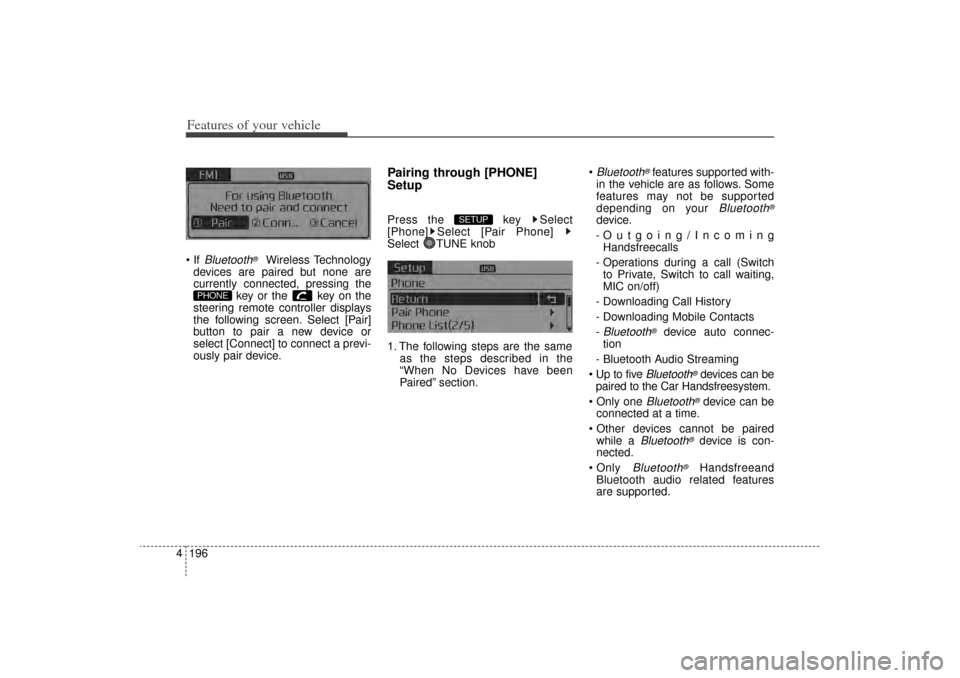
4 If
Bluetooth
®
Wireless Technology
devices are paired but none are
currently connected, pressing the key or the key on the
steering remote controller displays
the following screen. Select [Pair]
button to pair a new device or
select [Connect] to connect a previ-
ously pair device.
Pairing through [PHONE]
SetupPress the key Select
[Phone] Select [Pair Phone]
Select TUNE knob
1. The following steps are the same as the steps described in the
“When No Devices have been
Paired” section.
Bluetooth
®features supported with-
in the vehicle are as follows. Some
features may not be supported
depending on your
Bluetooth
®
device.
-Outgoing/Incoming Handsfreecalls
- Operations during a call (Switch to Private, Switch to call waiting,
MIC on/off)
- Downloading Call History
- Downloading Mobile Contacts
-Bluetooth
®
device auto connec-
tion
- Bluetooth Audio Streaming
Up to five
Bluetooth
®devices can be
paired to the Car Handsfreesystem.
Only one
Bluetooth
®device can be
connected at a time.
Other devices cannot be paired while a
Bluetooth
®device is con-
nected.
Only
Bluetooth
®
Handsfreeand
Bluetooth audio related features
are supported.
SETUP
PHONE
XM(FL) CAN(ENG) 4b(AUDIO).qxp 1/23/2013 3:43 PM Page 196
Page 288 of 508
4 197
Features of your vehicle
Normal operations are possibleonly within devices that support
Handsfree or audio features, such
as a
Bluetooth
®mobile phone or a
Bluetooth audio device.
If a connected Bluetooth
®
device
becomes disconnected due to
being out of communication range,
turning the device OFF, or a
Bluetooth
®
communication error,
corresponding
Bluetooth
®
devices
are automatically searched and
connected.
the system becomes unstable due to communication errors between
the car Handsfreeand the
Bluetooth
®
device, reset the
Bluetooth
®and try
again. Upon resetting
Bluetooth
®, the
system is restored to its factory
release state.
After Pairing is complete, a con- tacts download request is sent
once to the mobile phone. As some
mobile phones may require confir-
mation upon receiving a download
request, check the mobile phone
screen.
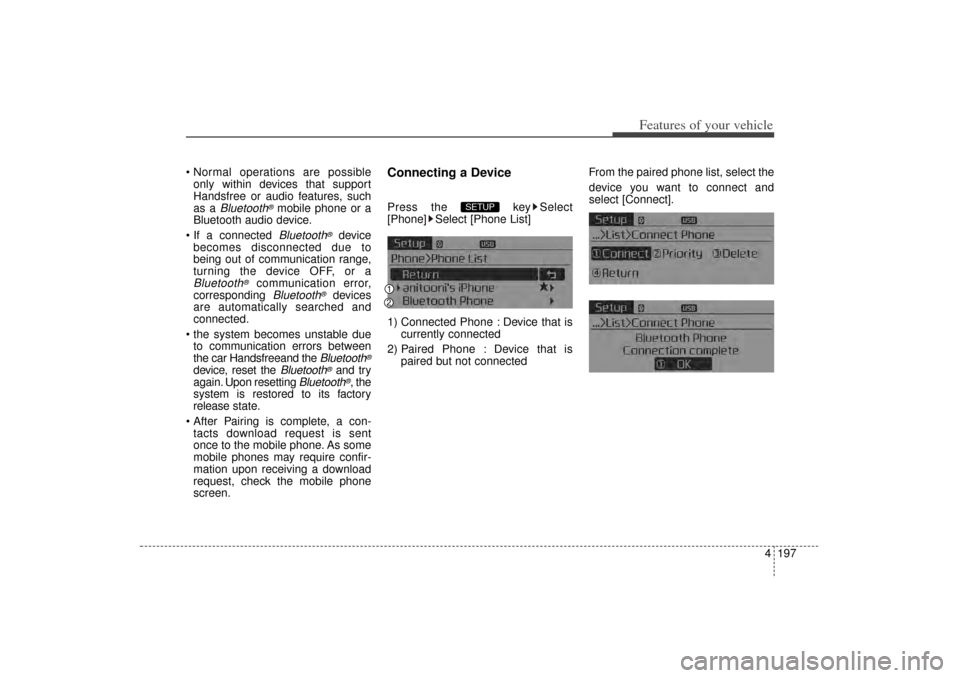
Connecting a DevicePress the key Select
[Phone] Select [Phone List]
1) Connected Phone : Device that is currently connected
2) Paired Phone : Device that is paired but not connected From the paired phone list, select the
device you want to connect and
select [Connect].
SETUP
XM(FL) CAN(ENG) 4b(AUDIO).qxp 1/23/2013 3:43 PM Page 197