reset KIA Sorento 2016 3.G User Guide
[x] Cancel search | Manufacturer: KIA, Model Year: 2016, Model line: Sorento, Model: KIA Sorento 2016 3.GPages: 565, PDF Size: 10.63 MB
Page 229 of 565
4145
Features of your vehicle
Adjusting the driver and passenger
side temperature individually
Press the “SYNC” button again toadjust the driver and passenger
side temperature individually. The
illumination of button turns off.
Operate the driver side tempera- ture control knob to adjust the driv-
er side temperature.
Operate the passenger side tem- perature control knob to adjust the
passenger side temperature.
Temperature conversion
You can switch the temperature
mode from Centigrade to Fahrenheit
as follows:
While pressing the OFF button,
press the AUTO button for 3 seconds
or more.
The display will change from
Centigrade to Fahrenheit, or from
Fahrenheit to Centigrade.
If the battery has been discharged or
disconnected, the temperature mode
display will reset to Fahrenheit.Air intake control
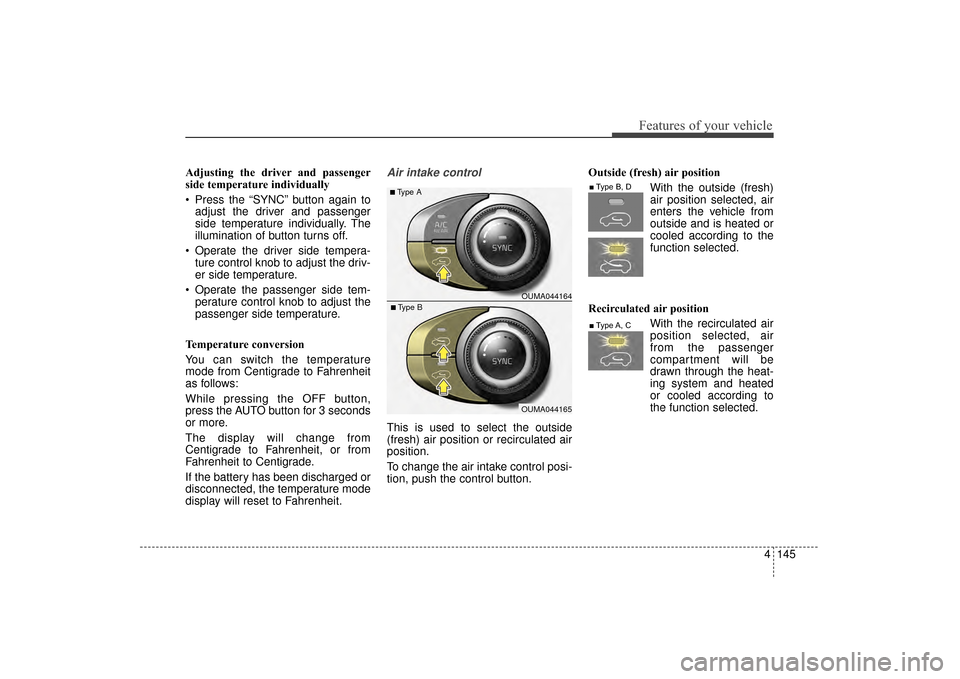
This is used to select the outside
(fresh) air position or recirculated air
position.
To change the air intake control posi-
tion, push the control button. Outside (fresh) air position
With the outside (fresh)air position selected, air
enters the vehicle from
outside and is heated or
cooled according to the
function selected.
Recirculated air position With the recirculated airposition selected, air
from the passenger
compartment will be
drawn through the heat-
ing system and heated
or cooled according to
the function selected.
■Type A, C
■Type B, D
OUMA044165
OUMA044164
■Type A
■Type B
UM CAN (ENG) 4.qxp 12/1/2014 12:58 PM Page 145
Page 238 of 565
Features of your vehicle
154
4
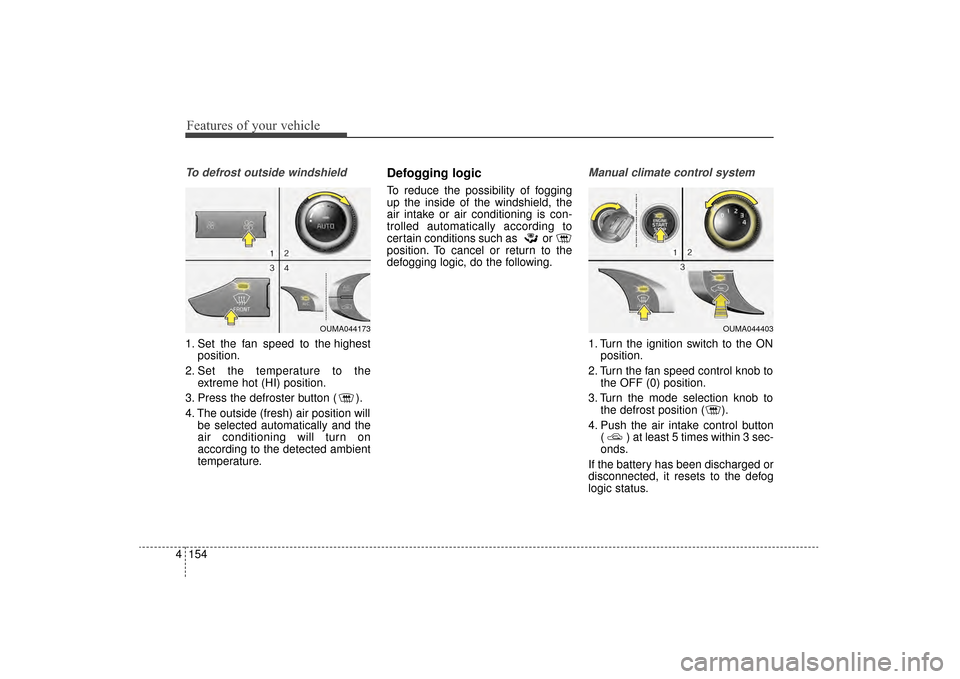
To defrost outside windshield
1. Set the fan speed to the highest
position.
2. Set the temperature to the extreme hot (HI) position.
3. Press the defroster button ( ).
4. The outside (fresh) air position will be selected automatically and the
air conditioning will turn on
according to the detected ambient
temperature.
Defogging logic
To reduce the possibility of fogging
up the inside of the windshield, the
air intake or air conditioning is con-
trolled automatically according to
certain conditions such as or
position. To cancel or return to the
defogging logic, do the following.
Manual climate control system
1. Turn the ignition switch to the ONposition.
2. Turn the fan speed control knob to the OFF (0) position.
3. Turn the mode selection knob to the defrost position ( ).
4. Push the air intake control button ( ) at least 5 times within 3 sec-
onds.
If the battery has been discharged or
disconnected, it resets to the defog
logic status.
OUMA044173OUMA044403
UM CAN (ENG) 4.qxp 12/1/2014 12:59 PM Page 154
Page 239 of 565
4155
Features of your vehicle
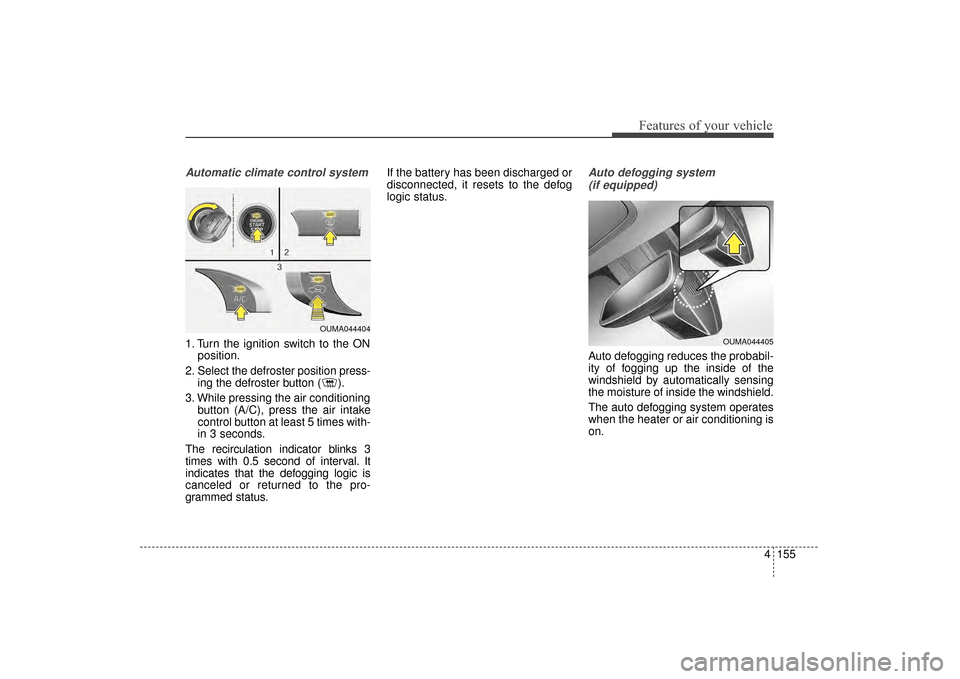
Automatic climate control system
1. Turn the ignition switch to the ONposition.
2. Select the defroster position press- ing the defroster button ( ).
3. While pressing the air conditioning button (A/C), press the air intake
control button at least 5 times with-
in 3 seconds.
The recirculation indicator blinks 3
times with 0.5 second of interval. It
indicates that the defogging logic is
canceled or returned to the pro-
grammed status. If the battery has been discharged or
disconnected, it resets to the defog
logic status.
Auto defogging system
(if equipped)
Auto defogging reduces the probabil-
ity of fogging up the inside of the
windshield by automatically sensing
the moisture of inside the windshield.
The auto defogging system operates
when the heater or air conditioning is
on.
OUMA044404
OUMA044405
UM CAN (ENG) 4.qxp 12/1/2014 12:59 PM Page 155
Page 256 of 565
Features of your vehicle
172
4
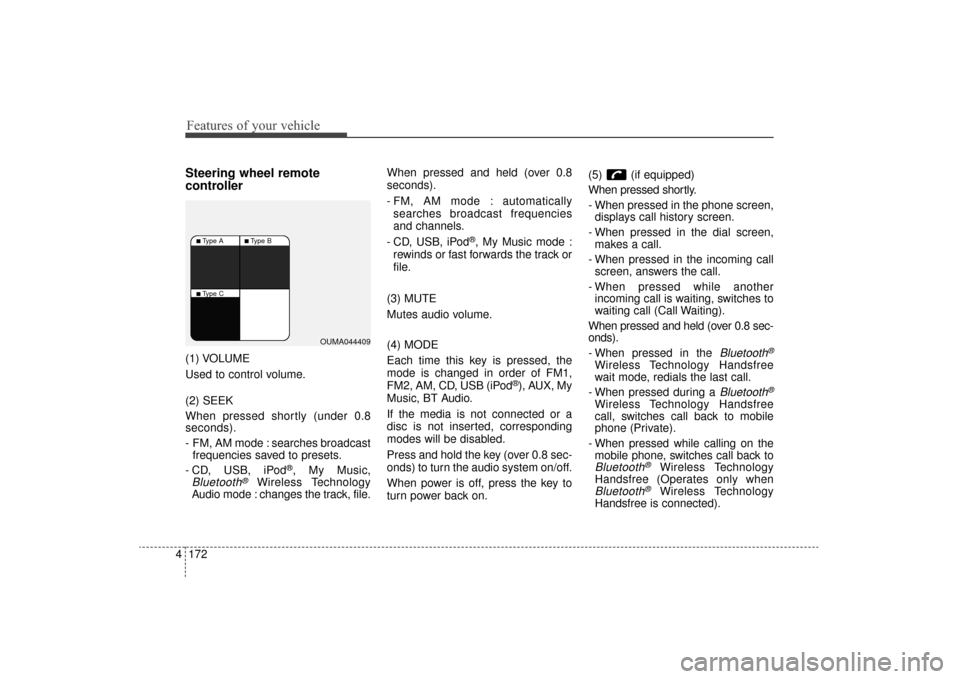
Steering wheel remote
controller
(1) VOLUME
Used to control volume.
(2) SEEK
When pressed shortly (under 0.8
seconds).
- FM, AM mode : searches broadcast
frequencies saved to presets.
- CD, USB, iPod
®, My Music,
Bluetooth®Wireless Technology
Audio mode : changes the track, file. When pressed and held (over 0.8
seconds).
- FM, AM mode : automatically
searches broadcast frequencies
and channels.
- CD, USB, iPod
®, My Music mode :
rewinds or fast forwards the track or
file.
(3) MUTE
Mutes audio volume.
(4) MODE
Each time this key is pressed, the
mode is changed in order of FM1,
FM2, AM, CD, USB (iPod
®), AUX, My
Music, BT Audio.
If the media is not connected or a
disc is not inserted, corresponding
modes will be disabled.
Press and hold the key (over 0.8 sec-
onds) to turn the audio system on/off.
When power is off, press the key to
turn power back on. (5) (if equipped)
When pressed shortly.
- When pressed in the phone screen,
displays call history screen.
- When pressed in the dial screen, makes a call.
- When pressed in the incoming call screen, answers the call.
- When pressed while another incoming call is waiting, switches to
waiting call (Call Waiting).
When pressed and held (over 0.8 sec-
onds).
- When pressed in the
Bluetooth®
Wireless Technology Handsfree
wait mode, redials the last call.
- When pressed during a
Bluetooth®
Wireless Technology Handsfree
call, switches call back to mobile
phone (Private).
- When pressed while calling on the mobile phone, switches call back to
Bluetooth®Wireless Technology
Handsfree (Operates only when
Bluetooth®Wireless Technology
Handsfree is connected).
OUMA044409
■Type A■Type B
■Type C
UM CAN (ENG) 4b (Audio).qxp 11/7/2014 3:01 PM Page 172
Page 263 of 565
4179
Features of your vehicle
(Continued)
If you use devices such as a USBhub purchased separately, the
vehicle’s audio system may not
recognize the USB device. In that
case, connect the USB device
directly to the multimedia terminal
of the vehicle.
If the USB device is divided by log- ical drives, only the music files on
the highest-priority drive are recog-
nized by car audio.
Devices such as MP3 Player/ Cellular phone/Digital camera can
be unrecognizable by standard
USB I/F can be unrecognizable.
Charging through the USB may not be supported in some mobile
devices.
USB HDD or USB types liable to connection failures due to vehicle
vibrations are not supported. (i-stick
type)
Some non-standard USB devices (METAL COVER TYPE USB) can
be unrecognizable.
(Continued)(Continued)
Some USB flash memory readers
(such as CF, SD, micro SD, etc.) or
external-HDD type devices can be
unrecognizable.
Music files protected by DRM (DIGI- TAL RIGHTS MANAGEMENT) are
not recognizable.
The data in the USB memory may be lost while using this audio.
Always back up important data on
a personal storage device.
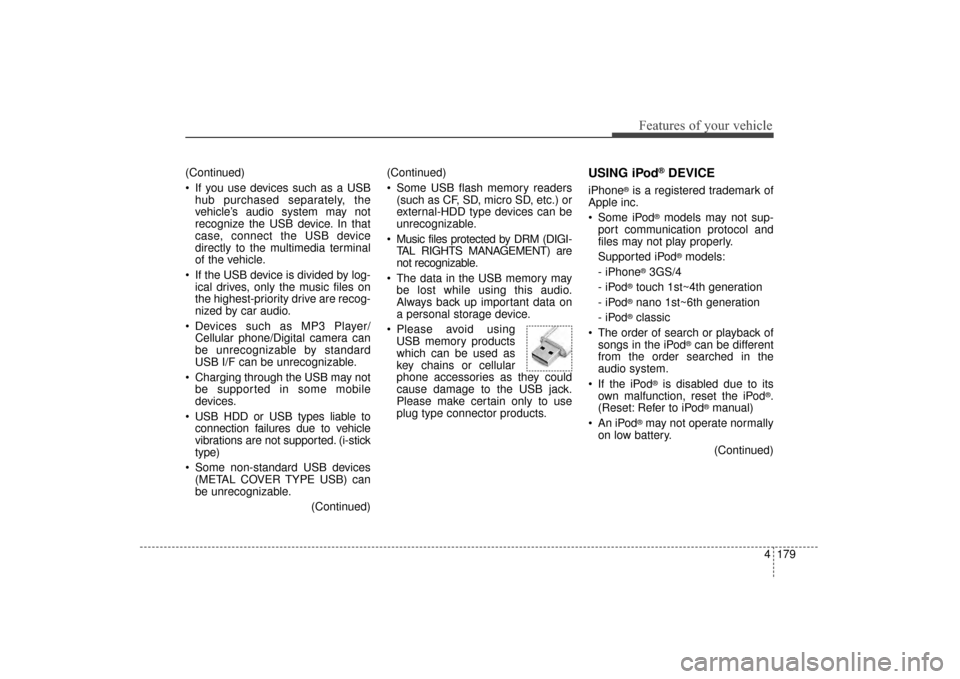
Please avoid using USB memory products
which can be used as
key chains or cellular
phone accessories as they could
cause damage to the USB jack.
Please make certain only to use
plug type connector products.USING iPod®DEVICE
iPhone®is a registered trademark of
Apple inc.
Some iPod
®models may not sup-
port communication protocol and
files may not play properly.
Supported iPod
®models:
- iPhone
®3GS/4
- iPod
®touch 1st~4th generation
- iPod
®nano 1st~6th generation
- iPod
®classic
The order of search or playback of songs in the iPod
®can be different
from the order searched in the
audio system.
If the iPod
®is disabled due to its
own malfunction, reset the iPod®.
(Reset: Refer to iPod®manual)
An iPod
®may not operate normally
on low battery.
(Continued)
UM CAN (ENG) 4b (Audio).qxp 11/7/2014 3:01 PM Page 179
Page 269 of 565
4185
Features of your vehicle
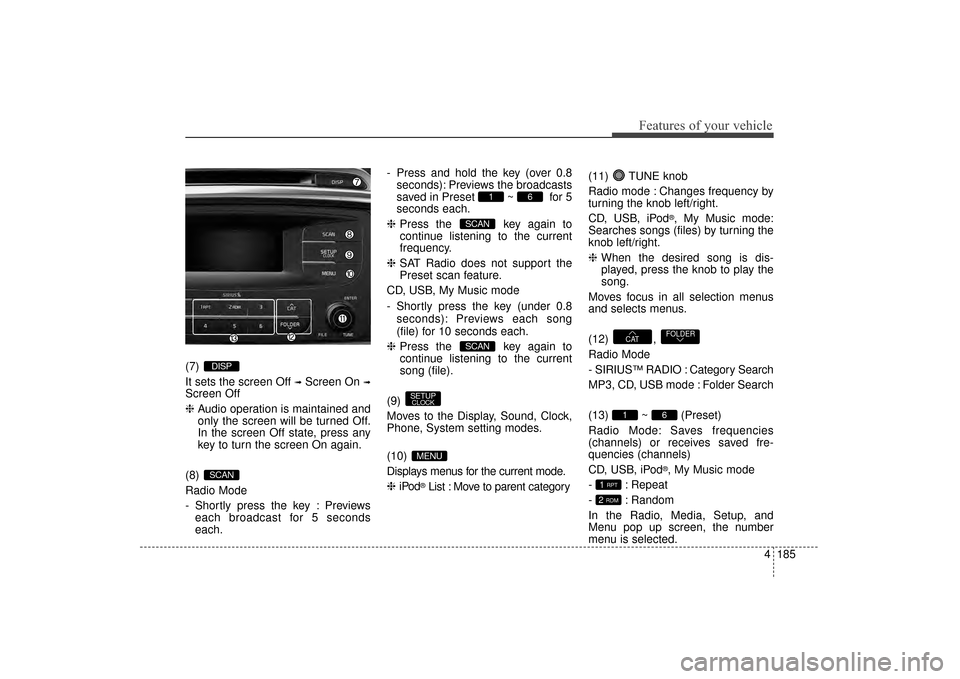
(7)
It sets the screen Off
➟Screen On ➟
Screen Off
❈Audio operation is maintained and
only the screen will be turned Off.
In the screen Off state, press any
key to turn the screen On again.
(8)
Radio Mode
- Shortly press the key : Previews each broadcast for 5 seconds
each. - Press and hold the key (over 0.8
seconds): Previews the broadcasts
saved in Preset ~ for 5
seconds each.
❈ Press the key again to
continue listening to the current
frequency.
❈ SAT Radio does not support the
Preset scan feature.
CD, USB, My Music mode
- Shortly press the key (under 0.8 seconds): Previews each song
(file) for 10 seconds each.
❈ Press the key again to
continue listening to the current
song (file).
(9)
Moves to the Display, Sound, Clock,
Phone, System setting modes.
(10)
Displays menus for the current mode.
❈ iPod
®List : Move to parent category (11) TUNE knob
Radio mode : Changes frequency by
turning the knob left/right.
CD, USB, iPod
®, My Music mode:
Searches songs (files) by turning the
knob left/right.
❈ When the desired song is dis-
played, press the knob to play the
song.
Moves focus in all selection menus
and selects menus.
(12) ,
Radio Mode
- SIRIUS
™RADIO : Category Search
MP3, CD, USB mode : Folder Search
(13) ~ (Preset)
Radio Mode: Saves frequencies
(channels) or receives saved fre-
quencies (channels)
CD, USB, iPod
®, My Music mode
- : Repeat
- : Random
In the Radio, Media, Setup, and
Menu pop up screen, the number
menu is selected.
2 RDM
1 RPT
61
FOLDERCAT
MENU
SETUPCLOCK
SCAN
SCAN
61
SCAN
DISP
UM CAN (ENG) 4b (Audio).qxp 11/7/2014 3:01 PM Page 185
Page 274 of 565
Features of your vehicle
190
4
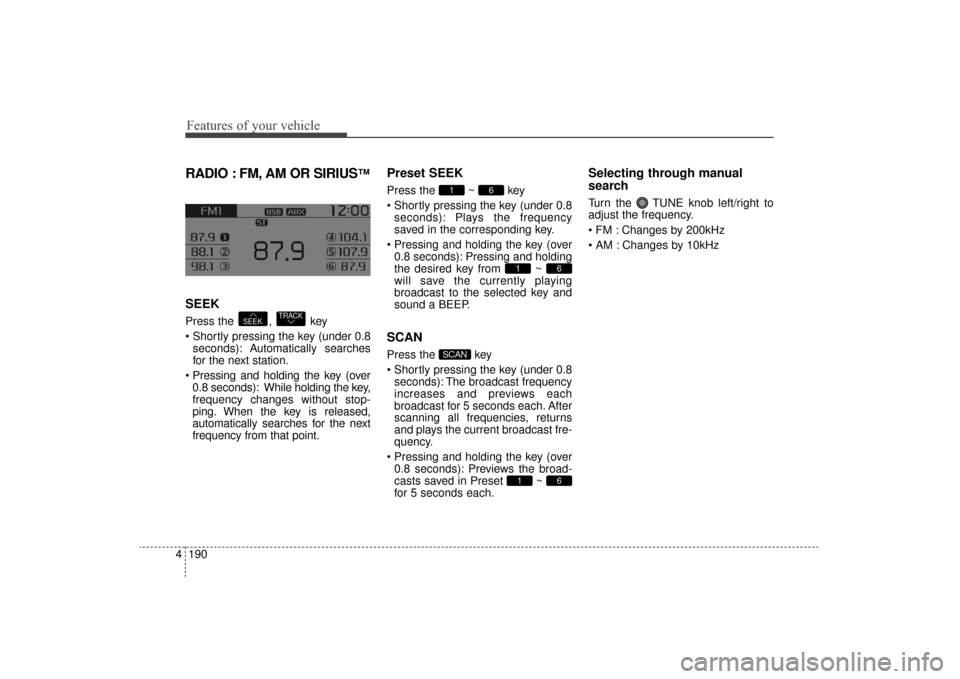
RADIO : FM, AM OR SIRIUS™
SEEK
Press the , key
seconds): A utomatically searches
for the next station.
0.8 seconds): While holding the key,
frequency changes without stop-
ping. When the key is released,
automatically searches for the next
frequency from that point.
Preset SEEK
Press the ~ key
seconds): Plays the frequency
saved in the corresponding key.
0.8 seconds): Pressing and holding
the desired key from ~
will save the currently playing
broadcast to the selected key and
sound a BEEP.
SCAN
Press the key
seconds): The broadcast frequency
increases and previews each
broadcast for 5 seconds each. After
scanning all frequencies, returns
and plays the current broadcast fre-
quency.
0.8 seconds): Previews the broad-
casts saved in Preset ~
for 5 seconds each.
Selecting through manual
search
Turn the TUNE knob left/right to
adjust the frequency.
Changes by 200kHz
Changes by 10kHz
61
SCAN
61
61
TRACKSEEK
UM CAN (ENG) 4b (Audio).qxp 11/7/2014 3:01 PM Page 190
Page 278 of 565
Features of your vehicle
194
4
Preset
Press the key ~
Shortly pressing the key (under 0.8
seconds): Plays the frequency
saved in the corresponding key.
Pressing and holding the key (over 0.8 seconds): Pressing and holding
the desired key from ~
will save the current broadcast to
the selected key and sound a
BEEP.
✽ ✽ Troubleshooting
1. Antenna Error
If this message is displayed, the
antenna or antenna cable is bro-
ken or unplugged. Please consult
with your Kia dealership.
2. No Signal If this message is displayed, it
means that the antenna is covered
and that the SIRIUS™ Satellite
Radio signal is not available.
Ensure the antenna is uncovered
and has a clear view of the sky.
Tune
Rotate TUNE knob : Changes
the channel number or scrolls cat-
egory list.
Press TUNE knob : Selects the menu.
Menu
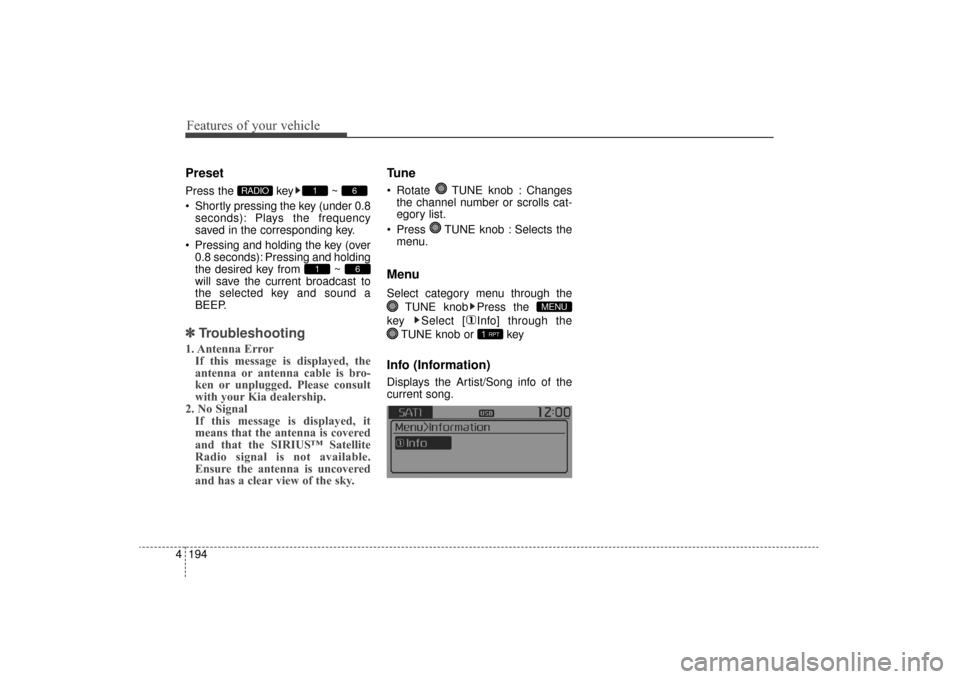
Select category menu through the
TUNE knob Press the
key Select [ Info] through the TUNE knob or key
Info (Information)
Displays the Artist/Song info of the
current song.
1 RPT
MENU
61
61RADIO
UM CAN (ENG) 4b (Audio).qxp 11/7/2014 3:01 PM Page 194
Page 292 of 565
![KIA Sorento 2016 3.G User Guide Features of your vehicle
208
4
Pairing through [PHONE]
Setup
Press the key Select
[Phone] Select [Pair Phone]
Select TUNE knob
1. The following steps are the same
as those described in the section](/img/2/2978/w960_2978-291.png "KIA Sorento 2016 3.G User Guide Features of your vehicle
208
4
Pairing through [PHONE]
Setup
Press the key Select
[Phone] Select [Pair Phone]
Select TUNE knob
1. The following steps are the same
as those described in the section")
Features of your vehicle
208
4
Pairing through [PHONE]
Setup
Press the key Select
[Phone] Select [Pair Phone]
Select TUNE knob
1. The following steps are the same
as those described in the section
"When No Devices have been
Paired" on the previous page.
Bluetooth®Wireless Technology
features supported within the vehi-
cle are as follows. Some features
may not be supported depending
on your
Bluetooth®Wireless Technology
device.
- Outgoing/Incoming Handsfree calls
- Operations during a call (Switch to Private, Switch to call waiting,
MIC on/off)
- Downloading Call History
- Downloading Mobile Contacts
-
Bluetooth®Wireless Technology
device auto connection
- Bluetooth Audio Streaming
Up to five
Bluetooth®Wireless Technology
devices can be paired to the Car
Handsfree system.
Only one
Bluetooth®device can be con-
nected at a time.
Only one
Bluetooth®Wireless Technology
device can be connected at a time.
Other devices cannot be paired while a
Bluetooth®Wireless Technology device
is connected. Only
Bluetooth®Wireless Technology
Handsfree and Bluetooth audio related
features are supported.
Bluetooth related operations are possi- ble only within devices that support
Handsfree or audio features, such as a
Bluetooth®Wireless Technology mobile
phone or a Bluetooth audio device.
If a connected
Bluetooth®Wireless
Technology device becomes discon-
nected due to being out of communica-
tion range, turning the device OFF, or a
Bluetooth®Wireless Technology com-
munication error, corresponding
Bluetooth®Wireless Technology
devices are automatically searched and
reconnected.
If the system becomes unstable due to communication errors between the car
Handsfree and the
Bluetooth®Wireless
Technology device, reset the device by
turning off and back on again. Upon
resetting
Bluetooth®Wireless
Technology device, the system will be
restored.
SETUPCLOCK
UM CAN (ENG) 4b (Audio).qxp 11/7/2014 3:02 PM Page 208
Page 306 of 565
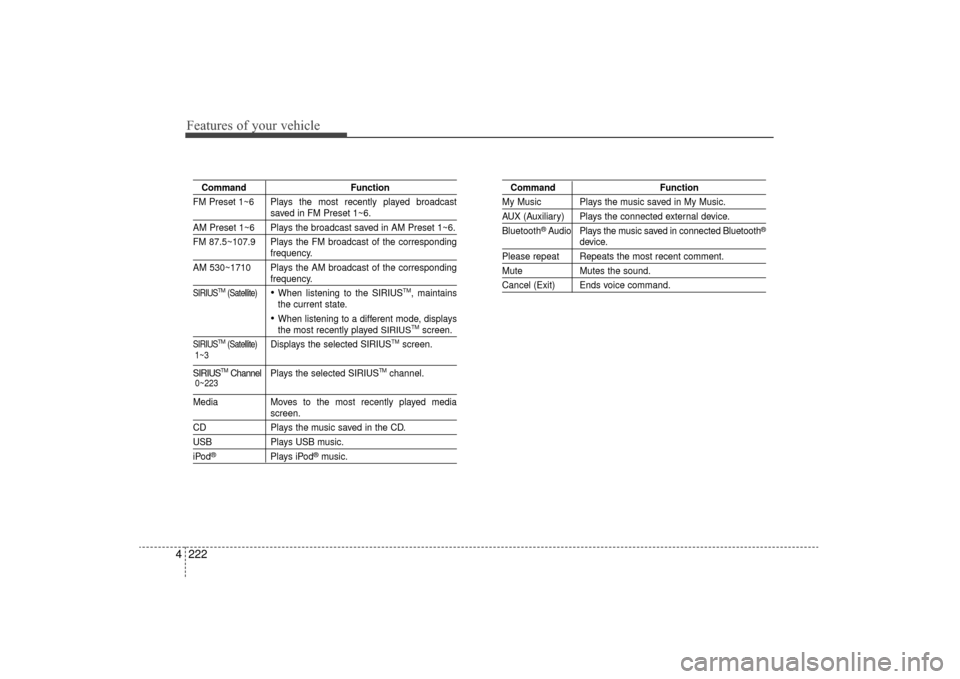
Features of your vehicle
222
4
Command Function
FM Preset 1~6 Plays the most recently played broadcast
saved in FM Preset 1~6.
AM Preset 1~6 Plays the broadcast saved in AM Preset 1~6.
FM 87.5~107.9 Plays the FM broadcast of the corresponding
frequency.
AM 530~1710 Plays the AM broadcast of the corresponding
frequency.
SIRIUSTM(Satellite)When listening to the SIRIUSTM, maintains
the current state.
When listening to a different mode, displaysthe most recently played SIRIUSTMscreen.
SIRIUSTM(Satellite)Displays the selected SIRIUSTMscreen.
SIRIUSTMChannel P l ay s the selected SIRIUSTMchannel.
Media Moves to the most recently played mediascreen.
CD Plays the music saved in the CD.
USBPlays USB music.
iPod®Plays iPod®music.
Command Function
My Music Plays the music saved in My Music.
AUX (Auxiliary) Plays the connected external device.
Bluetooth
®Audio Plays the music saved in connected Bluetooth®
device.
Please repeat Repeats the most recent comment.
Mute Mutes the sound.
Cancel (Exit) Ends voice command.
0~223
1~3
UM CAN (ENG) 4b (Audio).qxp 11/7/2014 3:02 PM Page 222