Screen KIA Sorento 2017 3.G Owner's Guide
[x] Cancel search | Manufacturer: KIA, Model Year: 2017, Model line: Sorento, Model: KIA Sorento 2017 3.GPages: 576, PDF Size: 7.82 MB
Page 300 of 576
![KIA Sorento 2017 3.G Owners Guide 4215
Features of your vehicle
Contacts
Press the key Select
[Contacts]
The list of saved phone book entries
is displayed.
NOTE:
Find a contact in alphabetical
order, press the key. Up to 1,000 conta](/img/2/2983/w960_2983-299.png "KIA Sorento 2017 3.G Owners Guide 4215
Features of your vehicle
Contacts
Press the key Select
[Contacts]
The list of saved phone book entries
is displayed.
NOTE:
Find a contact in alphabetical
order, press the key. Up to 1,000 conta")
4215
Features of your vehicle
Contacts
Press the key Select
[Contacts]
The list of saved phone book entries
is displayed.
NOTE:
Find a contact in alphabetical
order, press the key. Up to 1,000 contacts saved in your
Bluetooth®Wireless Technology
phone can be downloaded into the
car contacts. Contacts that have
been downloaded to the car cannot
be edited or deleted on the phone.
Mobile phone contacts are man-
aged separately for each paired
Bluetooth®Wireless Technology
device (max 5 devices x 1,000 con-
tacts each). Previously down-
loaded data is maintained even if
the
Bluetooth®Wireless
Technology device has been dis-
connected. (However, the contacts
and call history saved to the phone
will be deleted if a paired phone is
deleted.)
It is possible to download contacts
during Bluetooth
®streaming audio.
When downloading contacts, the
icon will be displayed within the
status bar. It is not possible to begin down-
loading a contact list when the con-
tact download feature has been
turned off within the
Bluetooth®
Wireless Technology device. In
addition, some devices may
require device authorization upon
attempting to download contacts. If
downloading does not normally
occur, check the
Bluetooth®
Wireless Technology device set-
tings or the screen state.
The contacts download feature
may not be supported in some
mobile phones. For more informa-
tion of supported Bluetooth
®
devices and function support, refer
to your phone’s user manual.
MENU
PHONE
Page 302 of 576
4217
Features of your vehicle
1) Connect/Disconnect Phone :
Connect/ disconnects currently
selected phone
2) Change Priority : Sets currently
selected phone to highest connec-
tion priority
3) Delete : Deletes the currently
selected phone
4) Return : Moves to the previous
screen
To learn more about whether your
mobile phone supports contact
downloads, refer to your mobile
phone user’s manual.
The contacts for only the connect-
ed phone can be downloaded
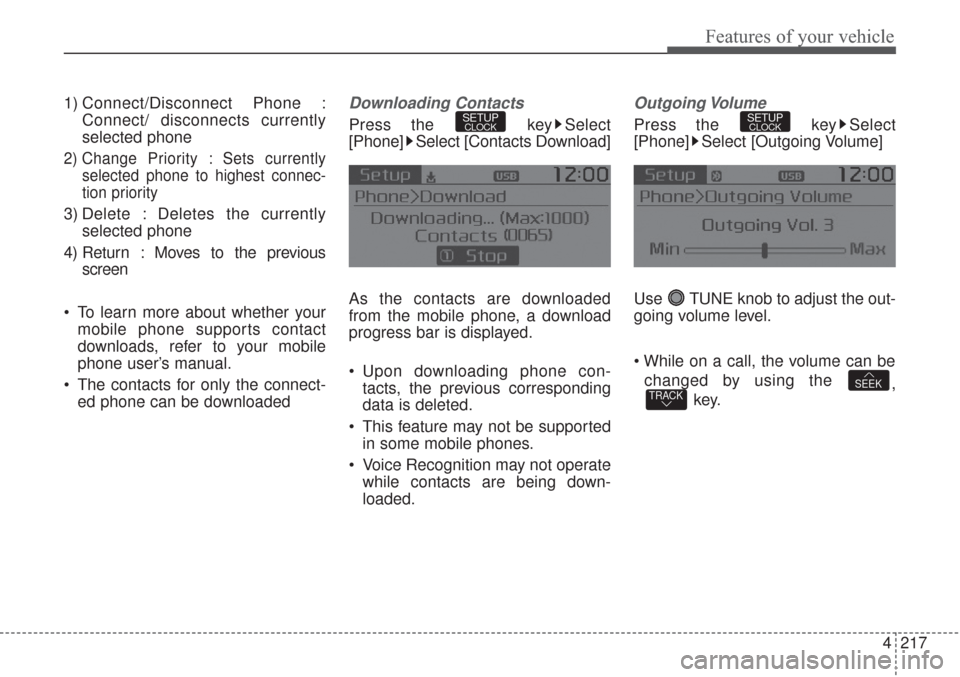
Downloading Contacts
Press the key Select
[Phone] Select [Contacts Download]
As the contacts are downloaded
from the mobile phone, a download
progress bar is displayed.
Upon downloading phone con-
tacts, the previous corresponding
data is deleted.
This feature may not be supported
in some mobile phones.
Voice Recognition may not operate
while contacts are being down-
loaded.
Outgoing Volume
Press the key Select
[Phone] Select [Outgoing Volume]
Use TUNE knob to adjust the out-
going volume level.
changed by using the
,
key.
TRACKSEEK
SETUPCLOCKSETUPCLOCK
Page 307 of 576
Features of your vehicle
222 4
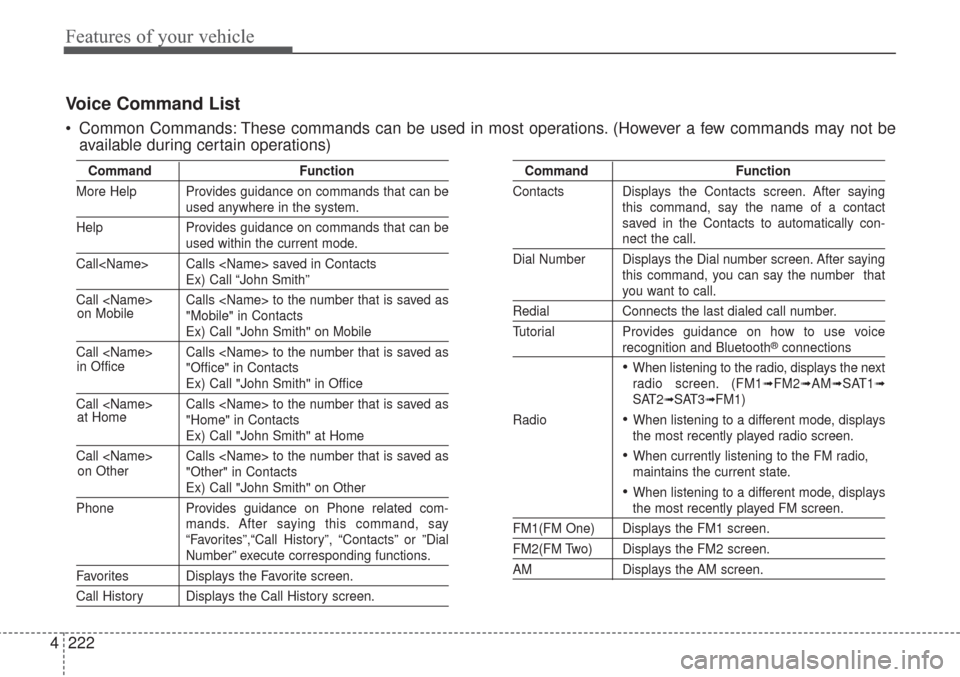
Voice Command List
Common Commands: These commands can be used in most operations. (However a few commands may not be
available during certain operations)
Command Function
More Help Provides guidance on commands that can be
used anywhere in the system.
Help Provides guidance on commands that can be
used within the current mode.
Call
Ex) Call “John Smith”
Call
"Mobile" in Contacts
Ex) Call "John Smith" on Mobile
Call
"Office" in Contacts
Ex) Call "John Smith" in Office
Call
"Home" in Contacts
Ex) Call "John Smith" at Home
Call
"Other" in Contacts
Ex) Call "John Smith" on Other
Phone Provides guidance on Phone related com-
mands. After saying this command, say
“Favorites”,“Call History”, “Contacts” or ”Dial
Number” execute corresponding functions.
Favorites Displays the Favorite screen.
Call History Displays the Call History screen.
Command Function
Contacts Displays the Contacts screen. After saying
this command, say the name of a contact
saved in the Contacts to automatically con-
nect the call.
Dial Number Displays the Dial number screen. After saying
this command, you can say the number that
you want to call.
Redial Connects the last dialed call number.
Tutorial Provides guidance on how to use voice
recognition and Bluetooth®connections
When listening to the radio, displays the next
radio screen. (FM1➟FM2➟AM➟SAT1➟SAT2➟SAT3➟FM1)
Radio
When listening to a different mode, displays
the most recently played radio screen.
When currently listening to the FM radio,
maintains the current state.
When listening to a different mode, displaysthe most recently played FM screen.
FM1(FM One) Displays the FM1 screen.
FM2(FM Two) Displays the FM2 screen.
AM Displays the AM screen.
on Mobile
in Office
at Home
on Other
Page 308 of 576
4223
Features of your vehicle
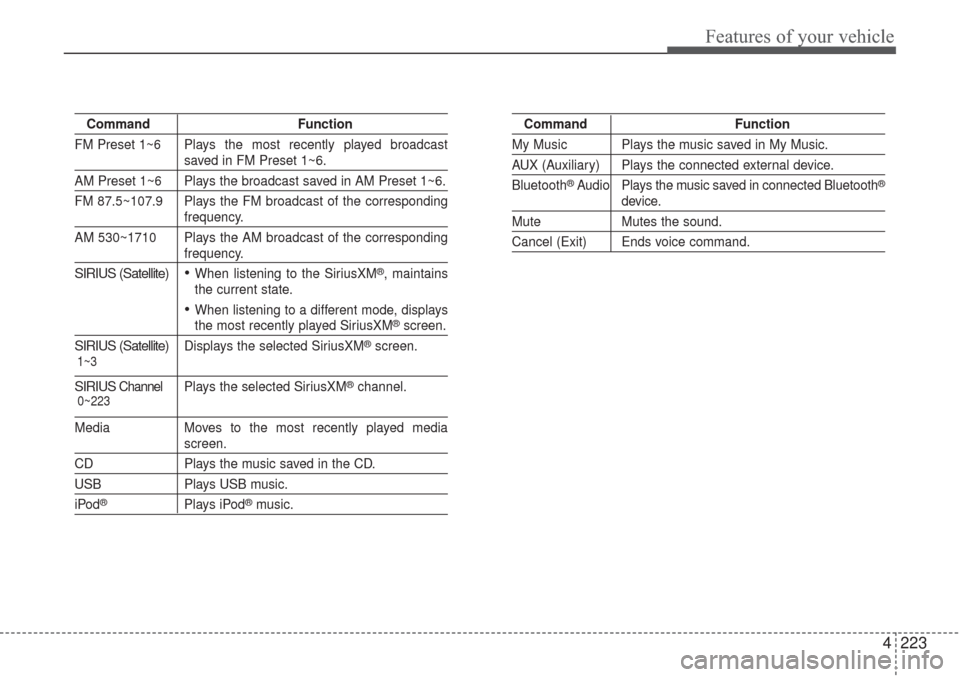
Command Function
FM Preset 1~6 Plays the most recently played broadcast
saved in FM Preset 1~6.
AM Preset 1~6 Plays the broadcast saved in AM Preset 1~6.
FM 87.5~107.9 Plays the FM broadcast of the corresponding
frequency.
AM 530~1710 Plays the AM broadcast of the corresponding
frequency.
SIRIUS (Satellite)When listening to the SiriusXM®, maintains
the current state.
When listening to a different mode, displaysthe most recently played SiriusXM®screen.
SIRIUS (Satellite)Displays the selected SiriusXM®screen.
SIRIUSChannel P l ay s the selected SiriusXM®channel.
Media Moves to the most recently played mediascreen.
CD Plays the music saved in the CD.
USB Plays USB music.
iPod®Plays iPod®music.
Command Function
My Music Plays the music saved in My Music.
AUX (Auxiliary) Plays the connected external device.
Bluetooth
®Audio Plays the music saved in connected Bluetooth®
device.
Mute Mutes the sound.
Cancel (Exit) Ends voice command.
0~223 1~3
Page 310 of 576
4225
Features of your vehicle
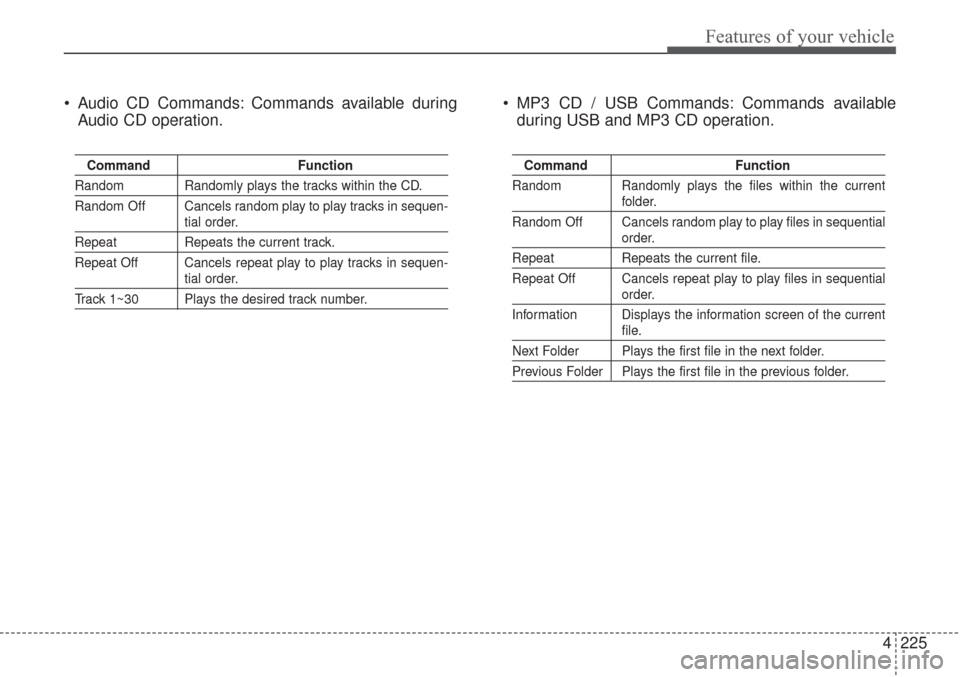
Audio CD Commands: Commands available during
Audio CD operation. MP3 CD / USB Commands: Commands available
during USB and MP3 CD operation.
Command Function
Random Randomly plays the tracks within the CD.
Random Off Cancels random play to play tracks in sequen-
tial order.
Repeat Repeats the current track.
Repeat Off Cancels repeat play to play tracks in sequen-
tial order.
Track 1~30 Plays the desired track number.
Command Function
Random Randomly plays the files within the current
folder.
Random Off Cancels random play to play files in sequential
order.
Repeat Repeats the current file.
Repeat Off Cancels repeat play to play files in sequential
order.
Information Displays the information screen of the current
file.
Next Folder Plays the first file in the next folder.
Previous Folder Plays the first file in the previous folder.
Page 379 of 576
Driving your vehicle
66
5
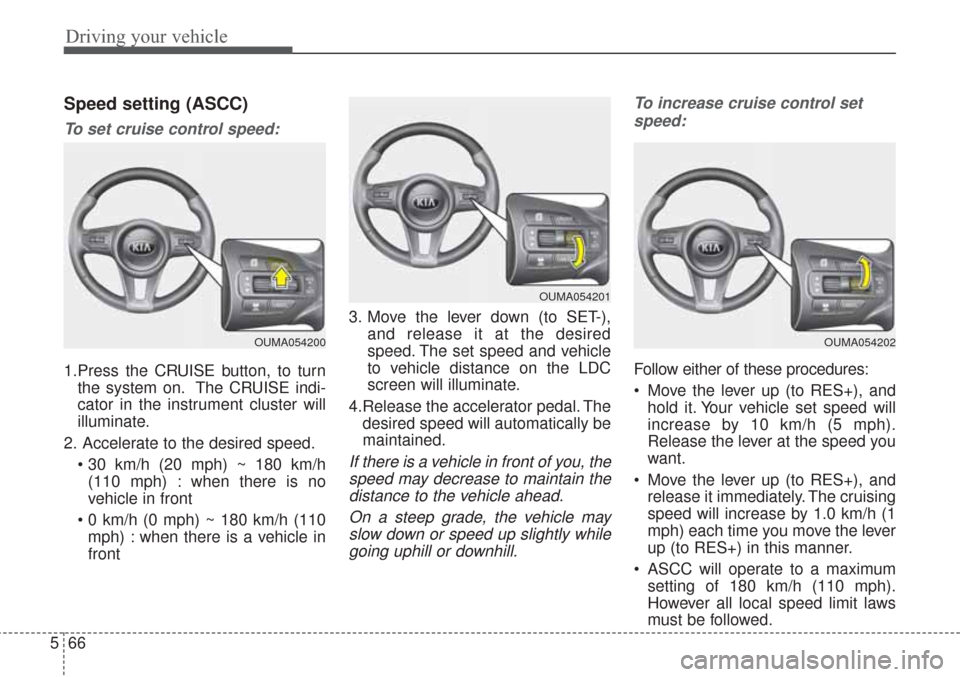
Speed setting (ASCC)
To set cruise control speed:
1.Press the CRUISE button, to turn
the system on. The CRUISE indi-
cator in the instrument cluster will
illuminate.
2. Accelerate to the desired speed. (110 mph) : when there is no
vehicle in front
mph) : when there is a vehicle in
front 3. Move the lever down (to SET-),
and release it at the desired
speed. The set speed and vehicle
to vehicle distance on the LDC
screen will illuminate.
4.Release the accelerator pedal. The desired speed will automatically be
maintained.
If there is a vehicle in front of you, thespeed may decrease to maintain thedistance to the vehicle ahead.
On a steep grade, the vehicle mayslow down or speed up slightly whilegoing uphill or downhill. To increase cruise control set
speed:
Follow either of these procedures:
Move the lever up (to RES+), and hold it. Your vehicle set speed will
increase by 10 km/h (5 mph).
Release the lever at the speed you
want.
Move the lever up (to RES+), and release it immediately. The cruising
speed will increase by 1.0 km/h (1
mph) each time you move the lever
up (to RES+) in this manner.
ASCC will operate to a maximum setting of 180 km/h (110 mph).
However all local speed limit laws
must be followed.
OUMA054200
OUMA054201
OUMA054202