radio number KIA SORENTO 2020 Navigation System Quick Reference Guide
[x] Cancel search | Manufacturer: KIA, Model Year: 2020, Model line: SORENTO, Model: KIA SORENTO 2020Pages: 58, PDF Size: 5.72 MB
Page 7 of 58
6
Steering wheel remote control
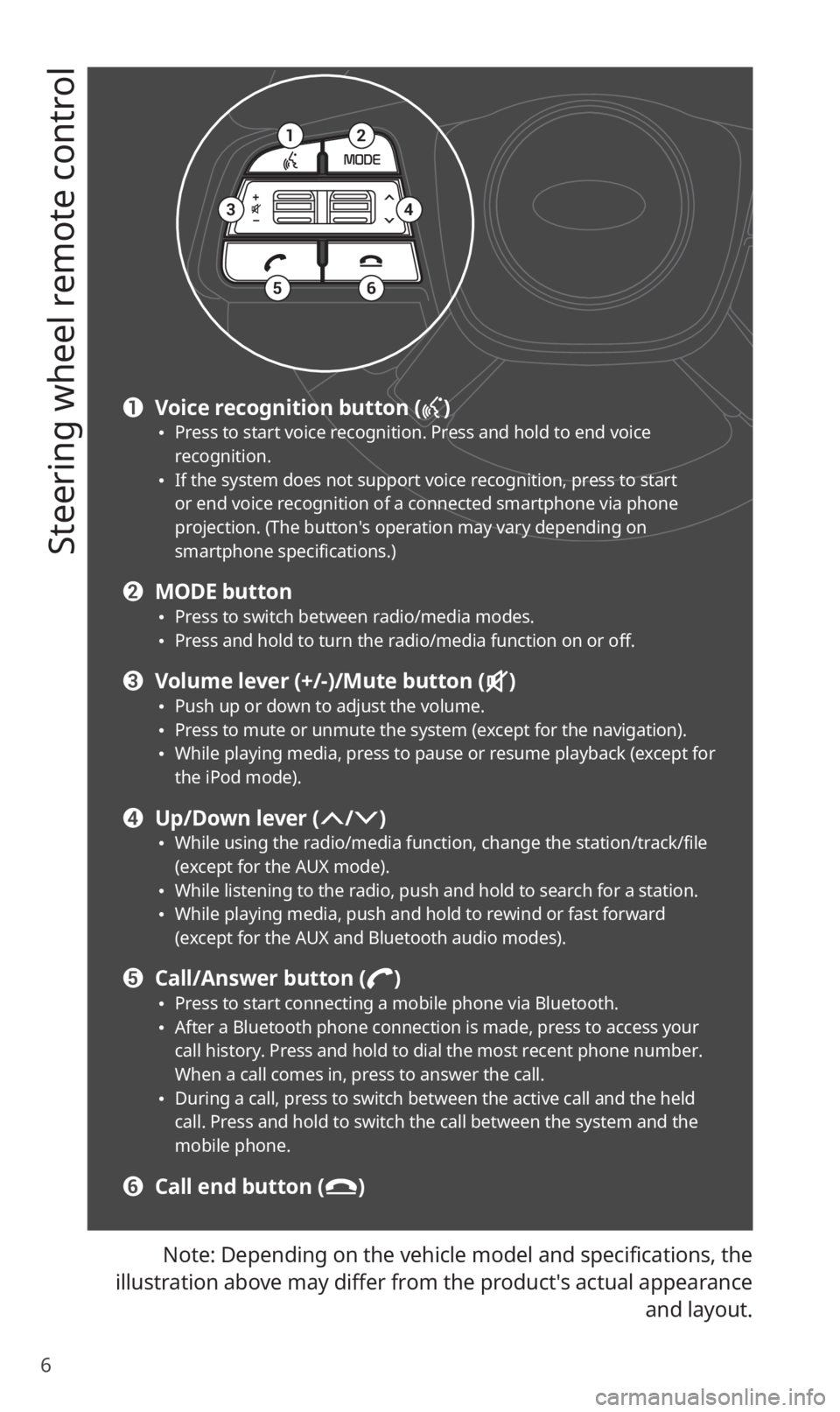
Note: Depending on the vehicle model and specifications, the
illustration above may differ from the product′s actual appearance
and layout.
12
34
56
a Voice recognition button () 0024Press to start voice recognition. Press and hold to end voice recognition. 0024If the system does not support voice recognition, press to start or end voice recognition of a connected smartphone via phone projection. (The button′s operation may vary depending on smartphone specifications.)
b MODE button 0024Press to switch between radio/media modes. 0024Press and hold to turn the radio/media function on or off.
c Volume lever (+/-)/Mute button () 0024Push up or down to adjust the volume. 0024Press to mute or unmute the system (except for the navigation). 0024While playing media, press to pause or resume playback (except for the iPod mode).
d Up/Down lever (/) 0024While using the radio/media function, change the station/track/file (except for the AUX mode). 0024While listening to the radio, push and hold to search for a station. 0024While playing media, push and hold to rewind or fast forward (except for the AUX and Bluetooth audio modes).
e Call/Answer button () 0024Press to start connecting a mobile phone via Bluetooth. 0024After a Bluetooth phone connection is made, press to access your call history. Press and hold to dial the most recent phone number. When a call comes in, press to answer the call. 0024During a call, press to switch between the active call and the held call. Press and hold to switch the call between the system and the mobile phone.
f Call end button ()
Page 21 of 58
20
Listening to SiriusXM™ radio
You can listen to radio channels provided by SiriusXM, a satellite radio
service. Various kinds of channels, such as music, sports, and news, are
available via streaming or live broadcast.
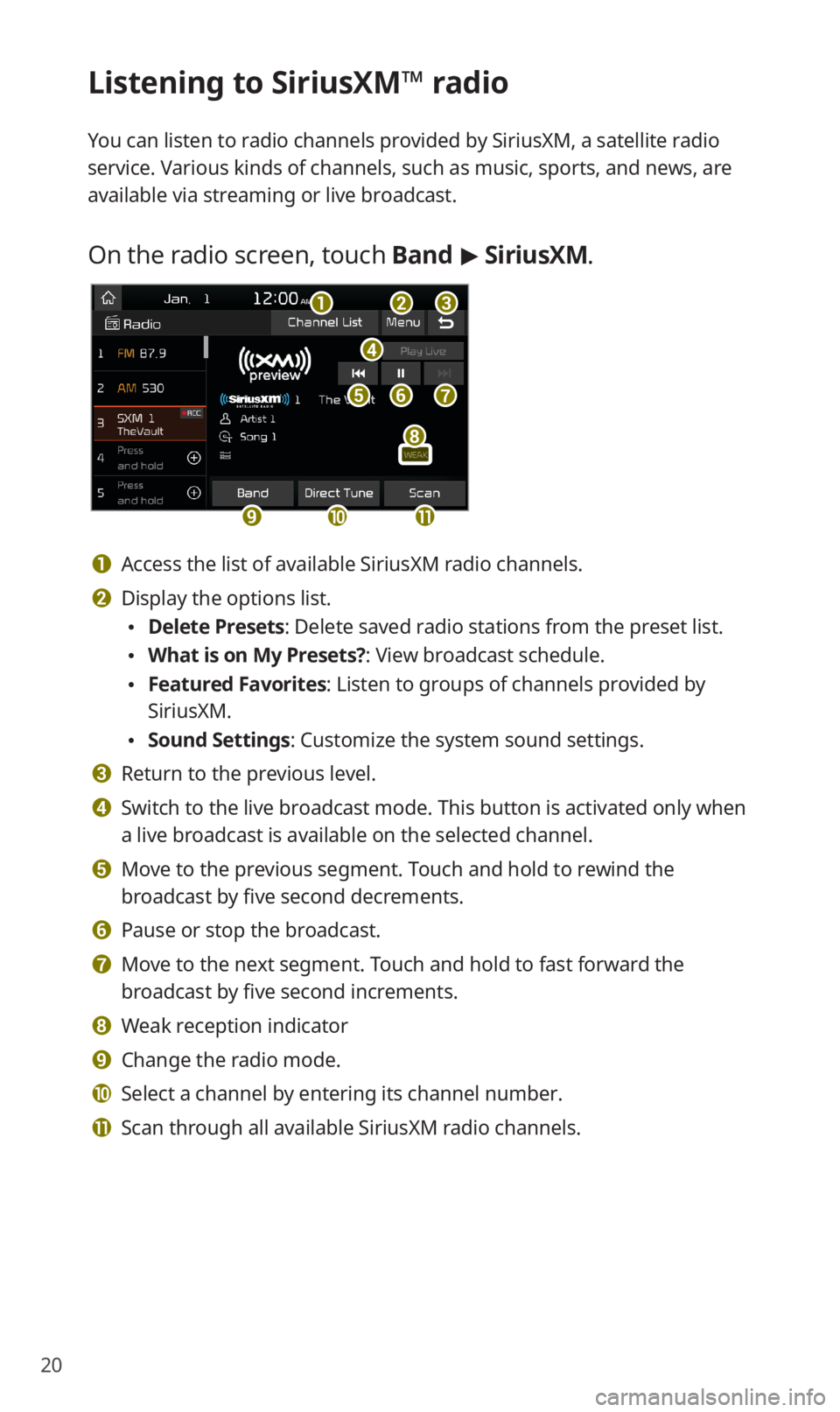
On the radio screen, touch Band > SiriusXM.
d
feg
abc
ijk
h
a Access the list of available SiriusXM radio channels.
b Display the options list.
0024Delete Presets: Delete saved radio stations from the preset list.
0024What is on My Presets?: View broadcast schedule.
0024Featured Favorites: Listen to groups of channels provided by
SiriusXM.
0024Sound Settings: Customize the system sound settings.
c Return to the previous level.
d Switch to the live broadcast mode. This button is activated only when
a live broadcast is available on the selected channel.
e Move to the previous segment. Touch and hold to rewind the
broadcast by five second decrements.
f Pause or stop the broadcast.
g Move to the next segment. Touch and hold to fast forward the
broadcast by five second increments.
h Weak reception indicator
i Change the radio mode.
j Select a channel by entering its channel number.
k Scan through all available SiriusXM radio channels.
Page 50 of 58
49
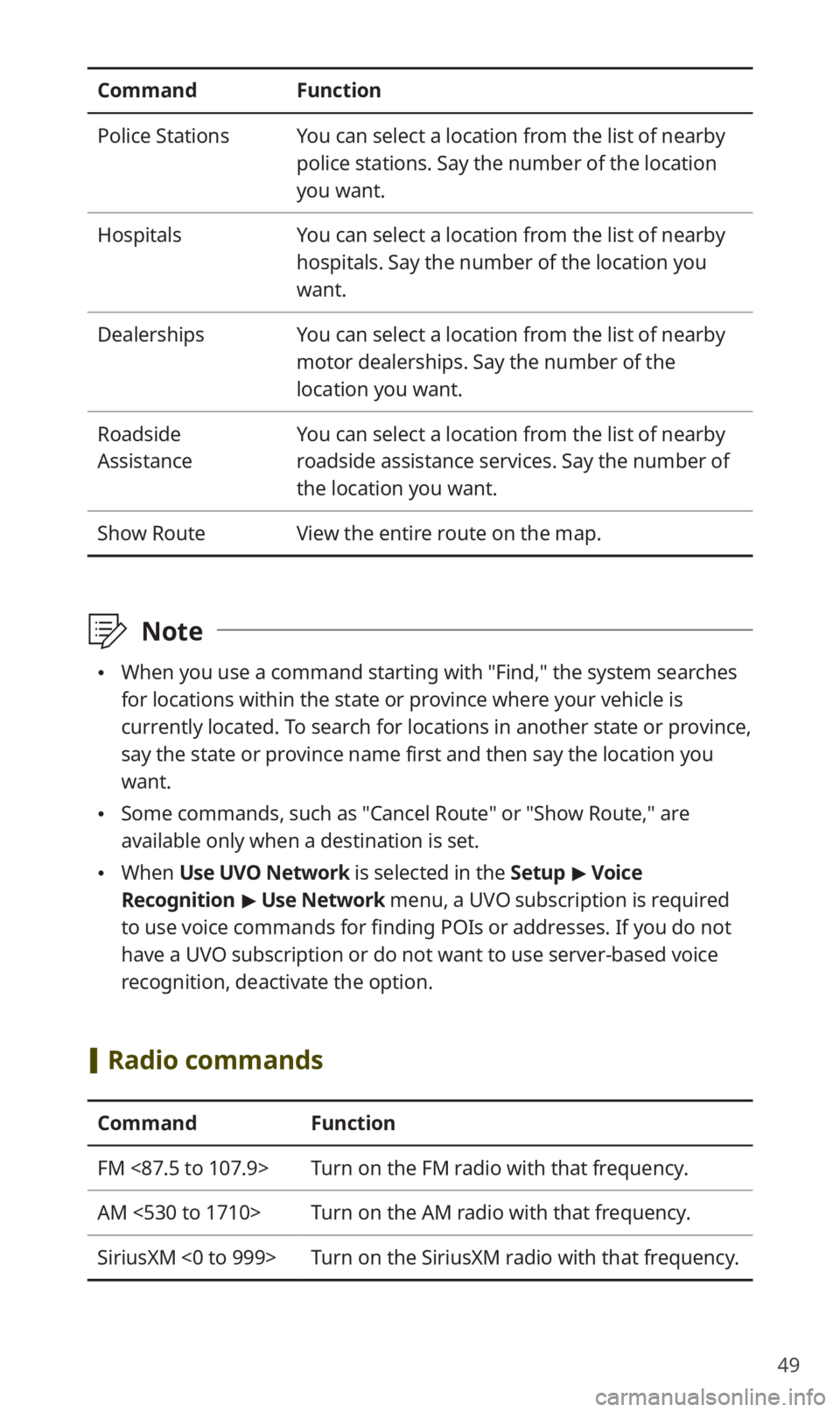
CommandFunction
Police StationsYou can select a location from the list of nearby
police stations. Say the number of the location
you want.
HospitalsYou can select a location from the list of nearby
hospitals. Say the number of the location you
want.
DealershipsYou can select a location from the list of nearby
motor dealerships. Say the number of the
location you want.
Roadside
Assistance
You can select a location from the list of nearby
roadside assistance services. Say the number of
the location you want.
Show RouteView the entire route on the map.
\333Note
0024When you use a command starting with ″Find,″ the system searches
for locations within the state or province where your vehicle is
currently located. To search for locations in another state or province,
say the state or province name first and then say the location you
want.
0024Some commands, such as ″Cancel Route″ or ″Show Route,″ are
available only when a destination is set.
0024When Use UVO Network is selected in the Setup > Voice
Recognition > Use Network menu, a UVO subscription is required
to use voice commands for finding POIs or addresses. If you do not
have a UVO subscription or do not want to use server-based voice
recognition, deactivate the option.
[Radio commands
CommandFunction
FM <87.5 to 107.9>Turn on the FM radio with that frequency.
AM <530 to 1710>Turn on the AM radio with that frequency.
SiriusXM <0 to 999>Turn on the SiriusXM radio with that frequency.