key KIA SORENTO 2021 Features and Functions Guide
[x] Cancel search | Manufacturer: KIA, Model Year: 2021, Model line: SORENTO, Model: KIA SORENTO 2021Pages: 70, PDF Size: 5.67 MB
Page 3 of 70
GETTING STARTED
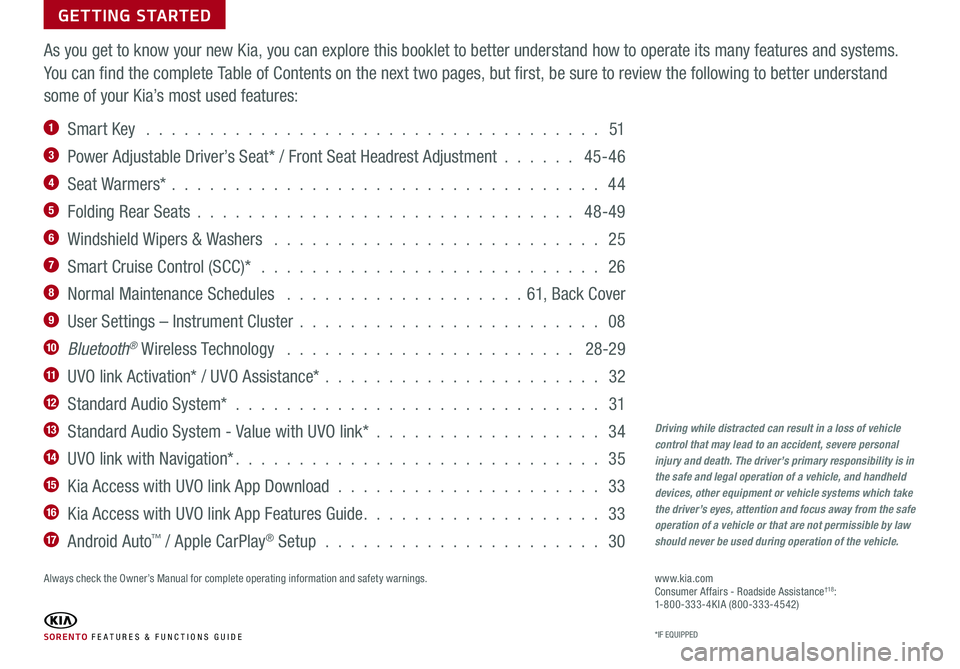
As you get to know your new Kia, you can explore this booklet to better understand how to operate its many features and systems.
You can find the complete Table of Contents on the next two pages, but first, be sure to review the following to better understand
some of your Kia’s most used features:
1 Smart Key . . . . . . . . . . . . . . . . . . . . . . . . . . . . . . . . . . . . 51
3 Power Adjustable Driver’s Seat* / Front Seat Headrest Adjustment . . . . . . 45-46
4 Seat Warmers* . . . . . . . . . . . . . . . . . . . . . . . . . . . . . . . . . . 44
5 Folding Rear Seats . . . . . . . . . . . . . . . . . . . . . . . . . . . . . . 48-49
6 Windshield Wipers & Washers . . . . . . . . . . . . . . . . . . . . . . . . . . 25
7 Smart Cruise Control (SCC)* . . . . . . . . . . . . . . . . . . . . . . . . . . . 26
8 Normal Maintenance Schedules . . . . . . . . . . . . . . . . . . .61, Back Cover
9 User Settings – Instrument Cluster . . . . . . . . . . . . . . . . . . . . . . . . 08
10 Bluetooth® Wireless Technology . . . . . . . . . . . . . . . . . . . . . . . 28-29
11 UVO link Activation* / UVO Assistance* . . . . . . . . . . . . . . . . . . . . . . 32
12 Standard Audio System* . . . . . . . . . . . . . . . . . . . . . . . . . . . . . 31
13 Standard Audio System - Value with UVO link* . . . . . . . . . . . . . . . . . . 34
14 UVO link with Navigation* . . . . . . . . . . . . . . . . . . . . . . . . . . . . . 35
15 Kia Access with UVO link App Download . . . . . . . . . . . . . . . . . . . . . 33
16 Kia Access with UVO link App Features Guide . . . . . . . . . . . . . . . . . . . 33
17 Android Auto™ / Apple CarPlay® Setup . . . . . . . . . . . . . . . . . . . . . . 30
Driving while distracted can result in a loss of vehicle control that may lead to an accident, severe personal injury and death. The driver’s primary responsibility is in the safe and legal operation of a vehicle, and handheld devices, other equipment or vehicle systems which take the driver’s eyes, attention and focus away from the safe operation of a vehicle or that are not permissible by law should never be used during operation of the vehicle.
www.kia.com Consumer Affairs - Roadside Assistance†18:1-800-333-4KIA (800-333-4542)
SORENTO FE ATURES & FUNCTIONS GUIDE*IF EQUIPPED
Always check the Owner’s Manual for complete operating information and safety warnings.
Page 4 of 70
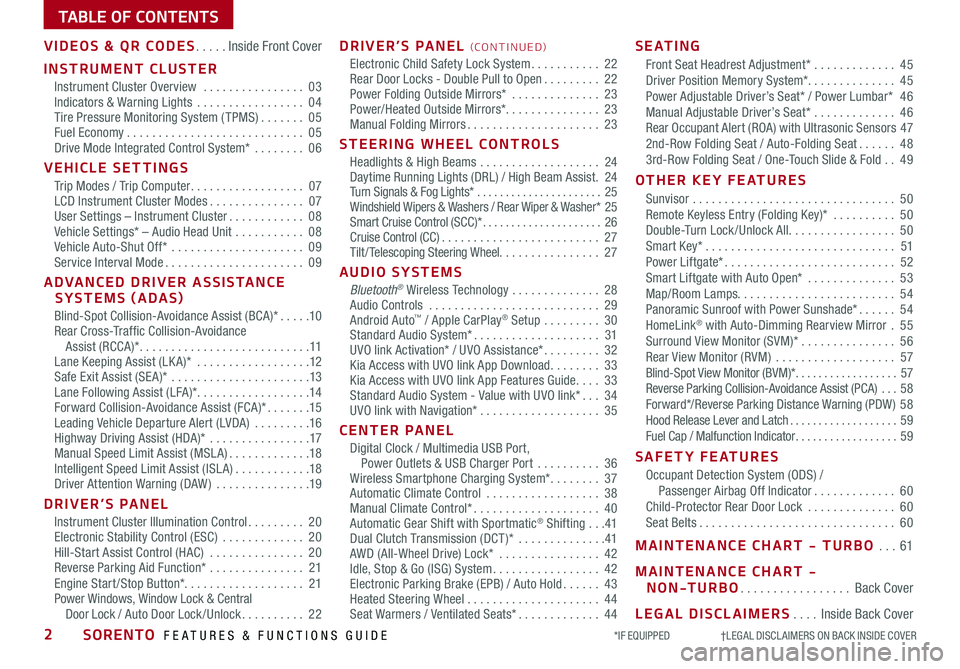
TABLE OF CONTENTS
VIDEOS & QR CODES .....Inside Front Cover
INSTRUMENT CLUSTER
Instrument Cluster Overview ................03Indicators & Warning Lights .................04Tire Pressure Monitoring System ( TPMS) .......05Fuel Economy ............................05Drive Mode Integrated Control System* ........06
VEHICLE SETTINGS
Trip Modes / Trip Computer ..................07LCD Instrument Cluster Modes ...............07User Settings – Instrument Cluster ............08Vehicle Settings* – Audio Head Unit ...........08Vehicle Auto-Shut Off* .....................09Service Interval Mode ......................09
ADVANCED DRIVER ASSISTANCE SYSTEMS (ADAS)
Blind-Spot Collision-Avoidance Assist (BCA)* .....10Rear Cross-Traffic Collision-Avoidance Assist (RCCA)* ...........................11Lane Keeping Assist (LK A)* ..................12Safe Exit Assist (SE A)* ......................13Lane Following Assist (LFA)* ..................14Forward Collision-Avoidance Assist (FCA)* .......15Leading Vehicle Departure Alert (LVDA) .........16Highway Driving Assist (HDA)* ................17Manual Speed Limit Assist (MSL A) .............18Intelligent Speed Limit Assist (ISL A) ............18Driver Attention Warning (DAW) ...............19
DRIVER’S PANEL
Instrument Cluster Illumination Control .........20Electronic Stability Control (ESC) .............20Hill-Start Assist Control (HAC) ...............20Reverse Parking Aid Function* ...............21Engine Start /Stop Button*. . . . . . . . . . . . . . . . . . . 21Power Windows, Window Lock & Central Door Lock / Auto Door Lock /Unlock ..........22
DRIVER’S PANEL (CO N T IN U ED)
Electronic Child Safety Lock System ...........22Rear Door Locks - Double Pull to Open .........22Power Folding Outside Mirrors* ..............23Power/Heated Outside Mirrors*. . . . . . . . . . . . . . . 23Manual Folding Mirrors .....................23
STEERING WHEEL CONTROLS
Headlights & High Beams ...................24Daytime Running Lights (DRL) / High Beam Assist .24Turn Signals & Fog Lights* ......................25Windshield Wipers & Washers / Rear Wiper & Washer* 25Smart Cruise Control (SCC)* .....................26Cruise Control (CC) .........................27Tilt/ Telescoping Steering Wheel. . . . . . . . . . . . . . . . 27
AUDIO SYSTEMS
Bluetooth® Wireless Technology ..............28 Audio Controls ...........................29 Android Auto™ / Apple CarPlay® Setup .........30Standard Audio System* ....................31UVO link Activation* / UVO Assistance* .........32Kia Access with UVO link App Download ........33Kia Access with UVO link App Features Guide ....33Standard Audio System - Value with UVO link* ...34UVO link with Navigation* ...................35
CENTER PANEL
Digital Clock / Multimedia USB Port, Power Outlets & USB Charger Port ..........36Wireless Smartphone Charging System* ........37Automatic Climate Control ..................38Manual Climate Control* ....................40Automatic Gear Shift with Sportmatic® Shifting ...41Dual Clutch Transmission (DCT )* ..............41AWD (All-Wheel Drive) Lock* ................42Idle, Stop & Go (ISG) System .................42Electronic Parking Brake (EPB) / Auto Hold ......43Heated Steering Wheel .....................44Seat Warmers / Ventilated Seats* .............44
S E AT I N G
Front Seat Headrest Adjustment* .............45Driver Position Memory System*. . . . . . . . . . . . . . 45Power Adjustable Driver’s Seat* / Power Lumbar* 46Manual Adjustable Driver’s Seat* .............46Rear Occupant Alert (ROA) with Ultrasonic Sensors 472nd-Row Folding Seat / Auto-Folding Seat ......483rd-Row Folding Seat / One-Touch Slide & Fold ..49
OTHER KEY FEATURES
Sunvisor ................................50Remote Keyless Entry (Folding Key)* ..........50Double-Turn Lock /Unlock All .................50Smart Key* ..............................51Power Liftgate* ...........................52Smart Liftgate with Auto Open* ..............53Map/Room Lamps. . . . . . . . . . . . . . . . . . . . . . . . . 54Panoramic Sunroof with Power Sunshade* ......54HomeLink® with Auto-Dimming Rearview Mirror .55Surround View Monitor (SVM)* ...............56Rear View Monitor (RVM) ...................57Blind-Spot View Monitor (BVM)* ..................57Reverse Parking Collision-Avoidance Assist (PCA) ...58Forward*/Reverse Parking Distance Warning (PDW ) 58Hood Release Lever and Latch ...................59Fuel Cap / Malfunction Indicator ..................59
SAFETY FEATURES
Occupant Detection System (ODS) / Passenger Airbag Off Indicator .............60Child-Protector Rear Door Lock ..............60Seat Belts ...............................60
MAINTENANCE CHART - TURBO ...61
MAINTENANCE CHART -
NON-TURBO .................Back Cover
LEGAL DISCLAIMERS ....Inside Back Cover
*IF EQUIPPED †LEGAL DISCL AIMERS ON BACK INSIDE COVER2SORENTO FEATURES & FUNCTIONS GUIDE
Page 10 of 70
*IF EQUIPPED8SORENTO FEATURES & FUNCTIONS GUIDE
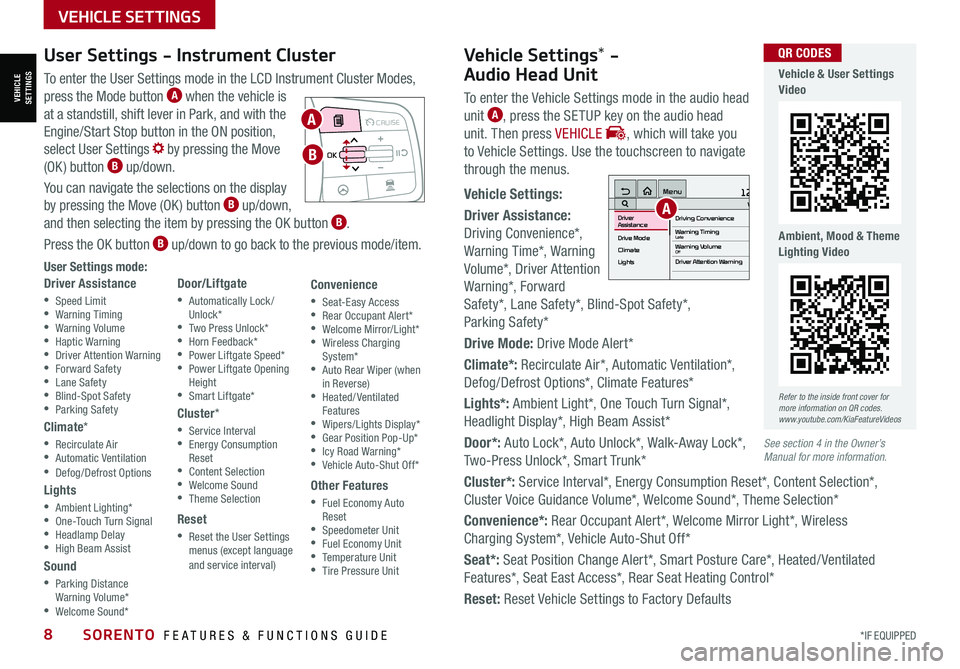
To enter the User Settings mode in the LCD Instrument Cluster Modes,
press the Mode button A when the vehicle is
at a standstill, shift lever in Park, and with the
Engine/Start Stop button in the ON position,
select User Settings by pressing the Move
(OK ) button B up/down.
You can navigate the selections on the display
by pressing the Move (OK ) button B up/down,
and then selecting the item by pressing the OK button B.
Press the OK button B up/down to go back to the previous mode/item.
User Settings mode:
Driver Assistance
•Speed Limit •Warning Timing •Warning Volume •Haptic Warning •Driver Attention Warning •Forward Safety •Lane Safety •Blind-Spot Safety •Parking Safety
Climate*
•Recirculate Air •Automatic Ventilation •Defog/Defrost Options
Lights
•Ambient Lighting* •One-Touch Turn Signal •Headlamp Delay •High Beam Assist
Sound
•Parking Distance Warning Volume* •Welcome Sound*
Door/Liftgate
•Automatically Lock /Unlock* •Two Press Unlock* •Horn Feedback* •Power Liftgate Speed* •Power Liftgate Opening Height •Smart Liftgate*
Cluster*
•Service Interval •Energy Consumption Reset •Content Selection •Welcome Sound •Theme Selection
Reset
•Reset the User Settings menus (except language and service interval)
Convenience
•Seat-Easy Access •Rear Occupant Alert* •Welcome Mirror/Light* •Wireless Charging System* •Auto Rear Wiper (when in Reverse) •Heated/ Ventilated Features •Wipers/Lights Display* •Gear Position Pop-Up* •Icy Road Warning* •Vehicle Auto-Shut Off*
Other Features
•Fuel Economy Auto Reset •Speedometer Unit •Fuel Economy Unit •Temperature Unit •Tire Pressure Unit
User Settings - Instrument Cluster
Refer to the inside front cover for more information on QR codes.www.youtube.com/KiaFeatureVideos
QR CODES
MODE MODE
MODE
MODE MODE
OK
CRUISE
Smart Cruise Control
OK
Cruise Control
OK
CRUISE
BluetoothEco
OK
CRUISE
L FA
OK
CRUISE
User Settings
Trip Modes
Fuel Econ
OK
CRUISE
HDA
MODE
OK
CRUISE
Audio LV DA MSLA - ISLA
MODE
OK
MODE CRUISE
CRUISE
A
B
Vehicle & User Settings Video
Ambient, Mood & Theme Lighting Video
See section 4 in the Owner’s Manual for more information.
Vehicle Settings* -
Audio Head Unit
To enter the Vehicle Settings mode in the audio head
unit A, press the SETUP key on the audio head
unit. Then press VEHICLE , which will take you
to Vehicle Settings. Use the touchscreen to navigate
through the menus.
Vehicle Settings:
Driver Assistance:
Driving Convenience*,
Warning Time*, Warning
Volume*, Driver Attention
Warning*, Forward
Safety*, Lane Safety*, Blind-Spot Safety*,
Parking Safety*
Drive Mode: Drive Mode Alert*
Climate*: Recirculate Air*, Automatic Ventilation*,
Defog/Defrost Options*, Climate Features*
Lights*: Ambient Light*, One Touch Turn Signal*,
Headlight Display*, High Beam Assist*
Door*: Auto Lock*, Auto Unlock*, Walk-Away Lock*,
Two-Press Unlock*, Smart Trunk*
Cluster*: Service Interval*, Energy Consumption Reset*, Content Selection*,
Cluster Voice Guidance Volume*, Welcome Sound*, Theme Selection*
Convenience*: Rear Occupant Alert*, Welcome Mirror Light*, Wireless
Charging System*, Vehicle Auto-Shut Off*
Seat*: Seat Position Change Alert*, Smart Posture Care*, Heated/ Ventilated
Features*, Seat East Access*, Rear Seat Heating Control*
Reset: Reset Vehicle Settings to Factory Defaults
12:00 AM Jan. 1MenuVehicle SettingsDriving Convenience
Drive Mode
Climate
LightsDriver
AssistanceWarning TimingLateWarning VolumeOffDriver Attention Warning
VEHICLESETTINGS
VEHICLE SETTINGS
A
Page 12 of 70
*IF EQUIPPED †LEGAL DISCL AIMERS ON BACK INSIDE COVER10SORENTO FEATURES & FUNCTIONS GUIDE
Blind-Spot Collision-Avoidance Assist (BCA)†6
REMINDERS:
•
BCW will not issue a warning if the vehicle speed is 6 mph or more above the surrounding vehicles
•
When BCW is ON and the ignition is cycled, BCW returns to its previous state
•
BCW is a supplemental system. Do not solely rely on this system. Always pay attention to the road and drive safely
The BCA system is not a substitute for safe and proper driving. Always drive safely and use caution.
Refer to section 5 in the Owner’s Manual for more information.
The images on this page are for illustrative purposes only and may not reflect actual feature or operation.
•
• BCW Warning Volume can be adjusted in the User Settings in the Instrument Cluster or the Vehicle Settings* on the audio head unit. Go to Driver Assistance, then Warning Volume
• BCW will activate when:
– The system is turned on
– Other vehicles are detected on the rear sides of the vehicle
– Vehicle speed is above approximately 20 mph
QUICK TIP
A
B
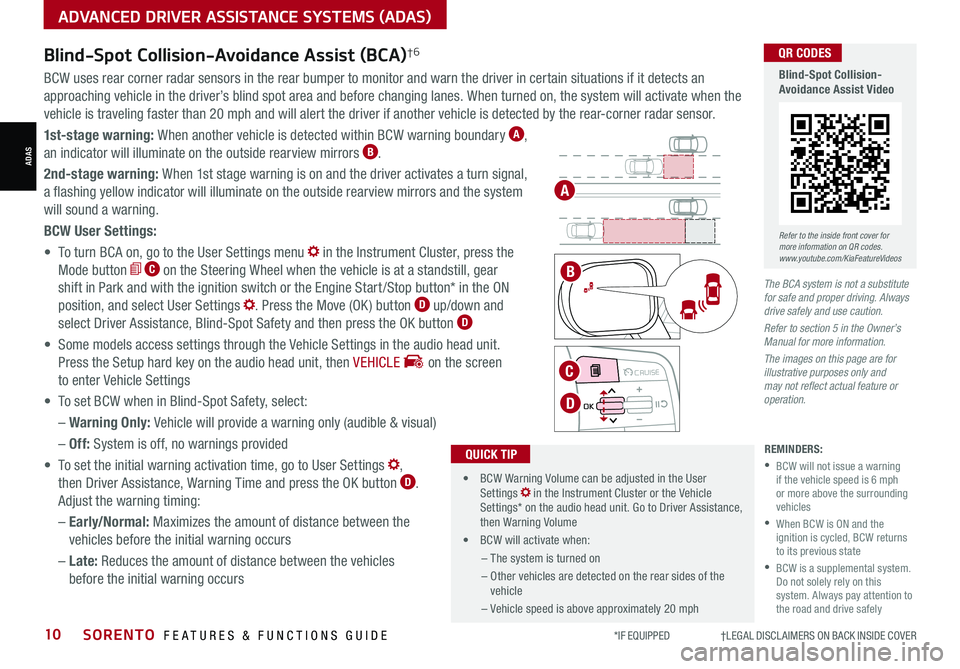
BCW uses rear corner radar sensors in the rear bumper to monitor and warn the driver in certain situations if it detects an
approaching vehicle in the driver’s blind spot area and before changing lanes. When turned on, the system will activate when the
vehicle is traveling faster than 20 mph and will alert the driver if another vehicle is detected by the rear-corner radar sensor.
1st-stage warning: When another vehicle is detected within BCW warning boundary A,
an indicator will illuminate on the outside rearview mirrors B.
2nd-stage warning: When 1st stage warning is on and the driver activates a turn signal,
a flashing yellow indicator will illuminate on the outside rearview mirrors and the system
will sound a warning.
BCW User Settings:
• To turn BCA on, go to the User Settings menu in the Instrument Cluster, press the
Mode button C on the Steering Wheel when the vehicle is at a standstill, gear
shift in Park and with the ignition switch or the Engine Start /Stop button* in the ON
position, and select User Settings . Press the Move (OK ) button D up/down and
select Driver Assistance, Blind-Spot Safety and then press the OK button D
• Some models access settings through the Vehicle Settings in the audio head unit.
Press the Setup hard key on the audio head unit, then VEHICLE on the screen
to enter Vehicle Settings
• To set BCW when in Blind-Spot Safety, select:
– Warning Only: Vehicle will provide a warning only (audible & visual)
– Off: System is off, no warnings provided
• To set the initial warning activation time, go to User Settings ,
then Driver Assistance, Warning Time and press the OK button D.
Adjust the warning timing:
– Early/Normal: Maximizes the amount of distance between the
vehicles before the initial warning occurs
– Late: Reduces the amount of distance between the vehicles
before the initial warning occurs
MODE MODE
MODE
MODE MODE
OK
CRUISE
Smart Cruise Control
OK
Cruise Control
OK
CRUISE
Bluetooth Eco
OK
CRUISE
L FA
OK
CRUISE
User Settings
Trip Modes
Fuel Econ
OK
CRUISE
HDA
MODE
OK
CRUISE
Audio LV DA MSLA - ISLA
MODE
OK
MODE CRUISE
CRUISE
C
D
Refer to the inside front cover for more information on QR codes.www.youtube.com/KiaFeatureVideos
QR CODES
Blind-Spot Collision-Avoidance Assist Video
ADAS
ADVANCED DRIVER ASSISTANCE SYSTEMS (ADAS)
Page 13 of 70
ALWAYS CHECK THE OWNER’S MANUAL FOR COMPLETE OPER ATING INFORMATION AND SAFET Y WARNINGS. *IF EQUIPPED †LEGAL DISCL AIMERS ON BACK INSIDE COVER11
Rear Cross-Traffic Collision Avoidance Assist (RCCA)*†6
REMINDERS:
•
The RCCA feature can be turned OFF/ON in User Settings, under Driver Assistance, Parking Safety
•
When vehicle power is cycled, RCCA will remain in the previous state
•
When a vehicle is approaching within the sensing range, and traveling faster than 3 mph, the RCCA system will show a warning
•
The RCCA systems is a supplemental system. Do not solely rely on this system and always pay attention to the road and its conditions
Rear Cross-Traffic Collision-Avoidance Assist (RCCA) is designed to warn the driver, under certain
conditions, may activate the Electronic Stability Control (ESC) and temporarily apply braking if it
detects cross traffic approaching the vehicle, when vehicle is in reverse.
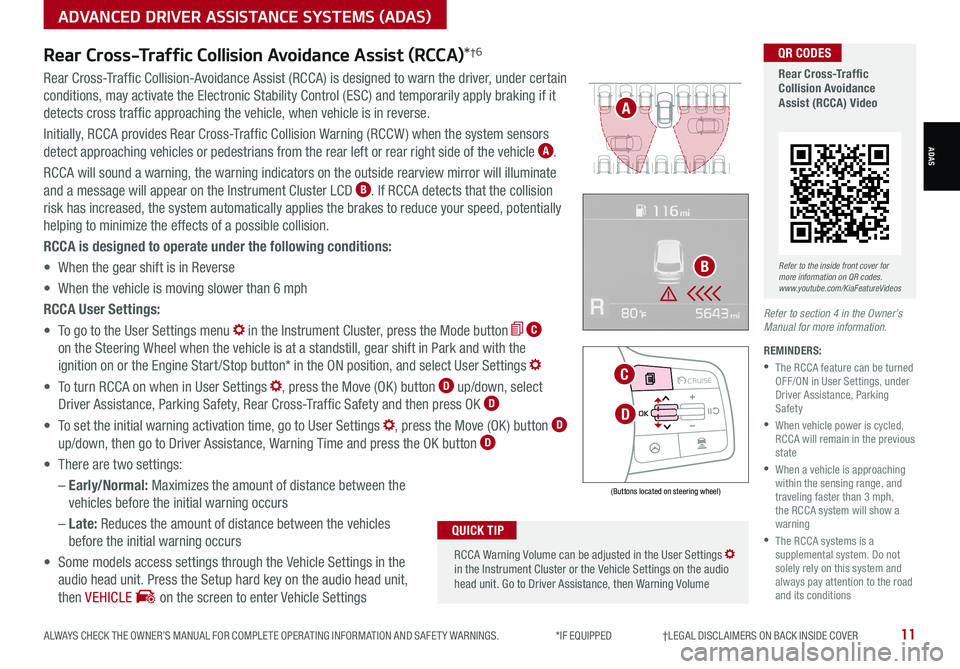
Initially, RCCA provides Rear Cross-Traffic Collision Warning (RCCW ) when the system sensors
detect approaching vehicles or pedestrians from the rear left or rear right side of the vehicle A.
RCCA will sound a warning, the warning indicators on the outside rearview mirror will illuminate
and a message will appear on the Instrument Cluster LCD B. If RCCA detects that the collision
risk has increased, the system automatically applies the brakes to reduce your speed, potentially
helping to minimize the effects of a possible collision.
RCCA is designed to operate under the following conditions:
• When the gear shift is in Reverse
• When the vehicle is moving slower than 6 mph
RCCA User Settings:
• To go to the User Settings menu in the Instrument Cluster, press the Mode button C
on the Steering Wheel when the vehicle is at a standstill, gear shift in Park and with the
ignition on or the Engine Start /Stop button* in the ON position, and select User Settings
• To turn RCCA on when in User Settings , press the Move (OK ) button D up/down, select
Driver Assistance, Parking Safety, Rear Cross-Traffic Safety and then press OK D
• To set the initial warning activation time, go to User Settings , press the Move (OK ) button D
up/down, then go to Driver Assistance, Warning Time and press the OK button D
• There are two settings:
– Early/Normal: Maximizes the amount of distance between the
vehicles before the initial warning occurs
– Late: Reduces the amount of distance between the vehicles
before the initial warning occurs
• Some models access settings through the Vehicle Settings in the
audio head unit. Press the Setup hard key on the audio head unit,
then VEHICLE on the screen to enter Vehicle Settings
Refer to section 4 in the Owner’s Manual for more information.
RCCA Warning Volume can be adjusted in the User Settings in the Instrument Cluster or the Vehicle Settings on the audio head unit. Go to Driver Assistance, then Warning Volume
QUICK TIP
(Buttons located on steering wheel)
MODE MODE
MODE
MODE MODE
OK
CRUISE
Smart Cruise Control
OK
Cruise Control
OK
CRUISE
Bluetooth Eco
OK
CRUISE
L FA
OK
CRUISE
User Settings
Trip Modes
Fuel Econ
OK
CRUISE
HDA
MODE
OK
CRUISE
Audio LV DA MSLA - ISLA
MODE
OK
MODE CRUISE
CRUISE
D
C
A
BRefer to the inside front cover for more information on QR codes.www.youtube.com/KiaFeatureVideos
QR CODES
Rear Cross-Traffic Collision Avoidance Assist (RCCA) Video
ADVANCED DRIVER ASSISTANCE SYSTEMS (ADAS)
ADAS
Page 15 of 70
ALWAYS CHECK THE OWNER’S MANUAL FOR COMPLETE OPER ATING INFORMATION AND SAFET Y WARNINGS. *IF EQUIPPED †LEGAL DISCL AIMERS ON BACK INSIDE COVER13
LK A User Settings:
• To turn LK A ON, with the ignition on or the Engine Start /Stop button* in the
ON position, press the Lane Safety/LK A button* A. The instrument cluster
indicator will initially illuminate white indicating the system is on
• To turn LK A on in the user settings, go to the User Settings menu in the
Instrument Cluster, press the Mode button B on the Steering Wheel when
the vehicle is at a standstill, gear shift in Park and with the ignition on or the
Engine Start /Stop button* in the ON position, and
select User Settings
• To switch between LK A modes (Lane Keep Assist,
Lane Departure Warning), go to User Settings
in the Instrument Cluster. Press the Move (OK )
button C up/down and select desired setting and
press the OK button C
REMINDERS:
•
LK A will not issue a warning if the turn signals or hazard lights are activated
•
When the ignition is cycled, LK A will return to the previously set state
•
Some models access settings through the Vehicle Settings in the audio head unit. Press the Setup hard key on the audio head unit, then VEHICLE on the screen to enter Vehicle Settings
The LK A Warning Volume can be adjusted in the User Settings in the Instrument Cluster or the Vehicle Settings* on the audio head unit
QUICK TIP
Lane Keeping Assist (LKA)*†6 (continued)
MODE MODE
MODE
MODE MODE
OK
CRUISE
Smart Cruise Control
OK
Cruise Control
OK
CRUISE
Bluetooth Eco
OK
CRUISE
L FA
OK
CRUISE
User Settings
Trip Modes
Fuel Econ
OK
CRUISE
HDA
MODE
OK
CRUISE
Audio LV DA MSLA - ISLA
MODE
OK
MODE CRUISE
CRUISE
B
C
HOLDA
(Located on Panel to the left of the steering wheel)
Lane Keeping Assist and Lane Departure Warning are not substitutes for safe driving and may not always alert the driver if the vehicle is driven outside of its lane. Always drive safely and use caution.
For illustrative purposes only. Your actual display, buttons and/or features may vary.
Actual User Settings steps may vary by model. Refer to section 4 in the Owner’s Manual for more information.
Refer to the inside front cover for more information on QR codes.www.youtube.com/KiaFeatureVideos
QR CODES
Safe Exit Assist (SEA) Video
Safe Exit Assist (SEA)*†6a
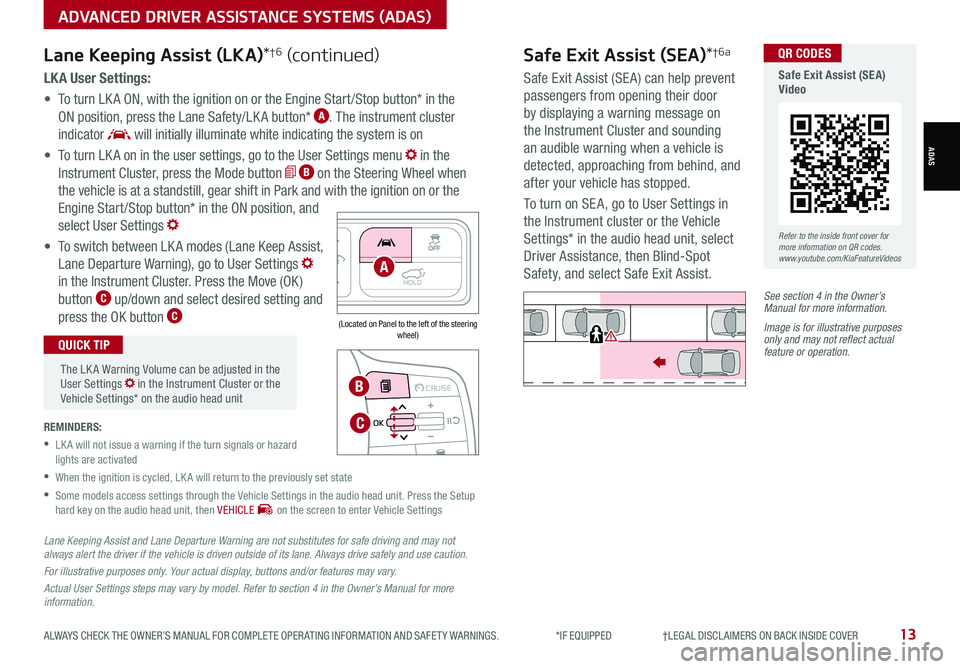
Safe Exit Assist (SE A) can help prevent
passengers from opening their door
by displaying a warning message on
the Instrument Cluster and sounding
an audible warning when a vehicle is
detected, approaching from behind, and
after your vehicle has stopped.
To turn on SE A, go to User Settings in
the Instrument cluster or the Vehicle
Settings* in the audio head unit, select
Driver Assistance, then Blind-Spot
Safety, and select Safe Exit Assist.
See section 4 in the Owner’s Manual for more information.
Image is for illustrative purposes only and may not reflect actual feature or operation.
Watch for traffic
ADVANCED DRIVER ASSISTANCE SYSTEMS (ADAS)
ADAS
Page 16 of 70
*IF EQUIPPED †LEGAL DISCL AIMERS ON BACK INSIDE COVER14SORENTO FEATURES & FUNCTIONS GUIDE
Lane Following Assist (LFA)*†6
REMINDERS:
•
If the ignition is cycled, LFA returns to its previous state, on or off, if activated in the User Settings menu and when combined with SCC. If using the Steering Wheel LK A button, then LK A defaults to off
•
LFA is not a substitute for safe and proper driving. Always drive safely and use caution
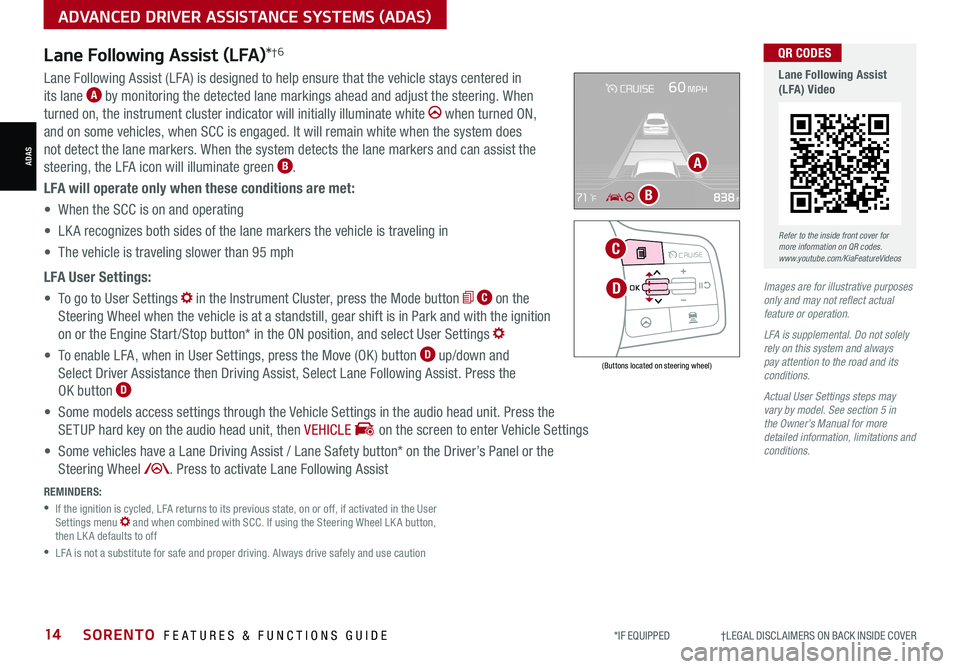
Lane Following Assist (LFA) is designed to help ensure that the vehicle stays centered in
its lane A by monitoring the detected lane markings ahead and adjust the steering. When
turned on, the instrument cluster indicator will initially illuminate white when turned ON,
and on some vehicles, when SCC is engaged. It will remain white when the system does
not detect the lane markers. When the system detects the lane markers and can assist the
steering, the LFA icon will illuminate green B.
LFA will operate only when these conditions are met:
• When the SCC is on and operating
• LK A recognizes both sides of the lane markers the vehicle is traveling in
• The vehicle is traveling slower than 95 mph
LFA User Settings:
• To go to User Settings in the Instrument Cluster, press the Mode button C on the
Steering Wheel when the vehicle is at a standstill, gear shift is in Park and with the ignition
on or the Engine Start /Stop button* in the ON position, and select User Settings
• To enable LFA, when in User Settings, press the Move (OK ) button D up/down and
Select Driver Assistance then Driving Assist, Select Lane Following Assist. Press the
OK button D
• Some models access settings through the Vehicle Settings in the audio head unit. Press the
SETUP hard key on the audio head unit, then VEHICLE on the screen to enter Vehicle Settings
• Some vehicles have a Lane Driving Assist / Lane Safety button* on the Driver’s Panel or the
Steering Wheel . Press to activate Lane Following Assist
(Buttons located on steering wheel)
Images are for illustrative purposes only and may not reflect actual feature or operation.
LFA is supplemental. Do not solely rely on this system and always pay attention to the road and its conditions.
Actual User Settings steps may vary by model. See section 5 in the Owner’s Manual for more detailed information, limitations and conditions.
MODE MODE
MODE
MODE MODE
OK
CRUISE
Smart Cruise Control
OK
Cruise Control
OK
CRUISE
Bluetooth Eco
OK
CRUISE
L FA
OK
CRUISE
User Settings
Trip Modes
Fuel Econ
OK
CRUISE
HDA
MODE
OK
CRUISE
Audio LV DA MSLA - ISLA
MODE
OK
MODE CRUISE
CRUISE
D
C
A
B
Refer to the inside front cover for more information on QR codes.www.youtube.com/KiaFeatureVideos
QR CODES
Lane Following Assist (LFA) Video
ADAS
ADVANCED DRIVER ASSISTANCE SYSTEMS (ADAS)
Page 18 of 70
See section 5 in the Owner’s Manual for more information.
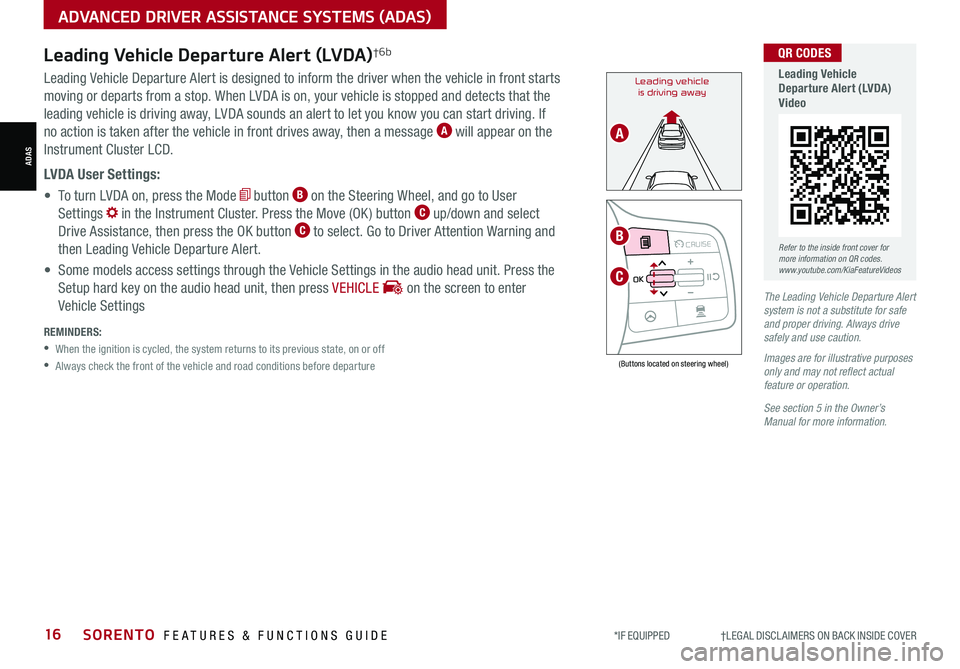
Leading Vehicle Departure Alert is designed to inform the driver when the vehicle in front starts
moving or departs from a stop. When LVDA is on, your vehicle is stopped and detects that the
leading vehicle is driving away, LVDA sounds an alert to let you know you can start driving. If
no action is taken after the vehicle in front drives away, then a message A will appear on the
Instrument Cluster LCD.
LVDA User Settings:
• To turn LVDA on, press the Mode button B on the Steering Wheel, and go to User
Settings in the Instrument Cluster. Press the Move (OK ) button C up/down and select
Drive Assistance, then press the OK button C to select. Go to Driver Attention Warning and
then Leading Vehicle Departure Alert.
• Some models access settings through the Vehicle Settings in the audio head unit. Press the
Setup hard key on the audio head unit, then press VEHICLE on the screen to enter
Vehicle SettingsThe Leading Vehicle Departure Alert system is not a substitute for safe and proper driving. Always drive safely and use caution.
Images are for illustrative purposes only and may not reflect actual feature or operation.
Leading vehicle
is driving away
(Buttons located on steering wheel)
Leading Vehicle Departure Alert (LVDA)†6b
REMINDERS:
•
When the ignition is cycled, the system returns to its previous state, on or off
•
Always check the front of the vehicle and road conditions before departure
MODE MODE
MODE
MODE MODE
OK
CRUISE
Smart Cruise Control
OK
Cruise Control
OK
CRUISE
Bluetooth Eco
OK
CRUISE
L FA
OK
CRUISE
User Settings
Trip Modes
Fuel Econ
OK
CRUISE
HDA
MODE
OK
CRUISE
Audio LV DA MSLA - ISLA
MODE
OK
MODE CRUISE
CRUISE
B
C
A
Refer to the inside front cover for more information on QR codes.www.youtube.com/KiaFeatureVideos
QR CODES
Leading Vehicle Departure Alert (LVDA) Video
*IF EQUIPPED †LEGAL DISCL AIMERS ON BACK INSIDE COVER16SORENTO FEATURES & FUNCTIONS GUIDE
ADAS
ADVANCED DRIVER ASSISTANCE SYSTEMS (ADAS)
Page 19 of 70
REMINDERS:
•
Current highway speeds and controlled or limited access road information may vary. Future navigation updates may change this information
•
If the driver changes the speed while in automatic speed setting mode, it deactivates and enters a manual mode
•
When the ignition is cycled, the system returns to its previous state, on or off
MODE MODE
MODE
MODE MODE
OK
CRUISE
Smart Cruise Control
OK
Cruise Control
OK
CRUISE
BluetoothEco
OK
CRUISE
L FA
OK
CRUISE
User Settings
Trip Modes
Fuel Econ
OK
CRUISE
HDA
MODE
OK
CRUISE
Audio LV DA MSLA - ISLA
MODE
OK
MODE CRUISE
CRUISE
60mph
A
B
C
D
E
Refer to the inside front cover for more information on QR codes.www.youtube.com/KiaFeatureVideos
QR CODES
Highway Driving Assist (HDA) Video
ALWAYS CHECK THE OWNER’S MANUAL FOR COMPLETE OPER ATING INFORMATION AND SAFET Y WARNINGS. *IF EQUIPPED †LEGAL DISCL AIMERS ON BACK INSIDE COVER17
Highway Driving Assist (HDA)*†6
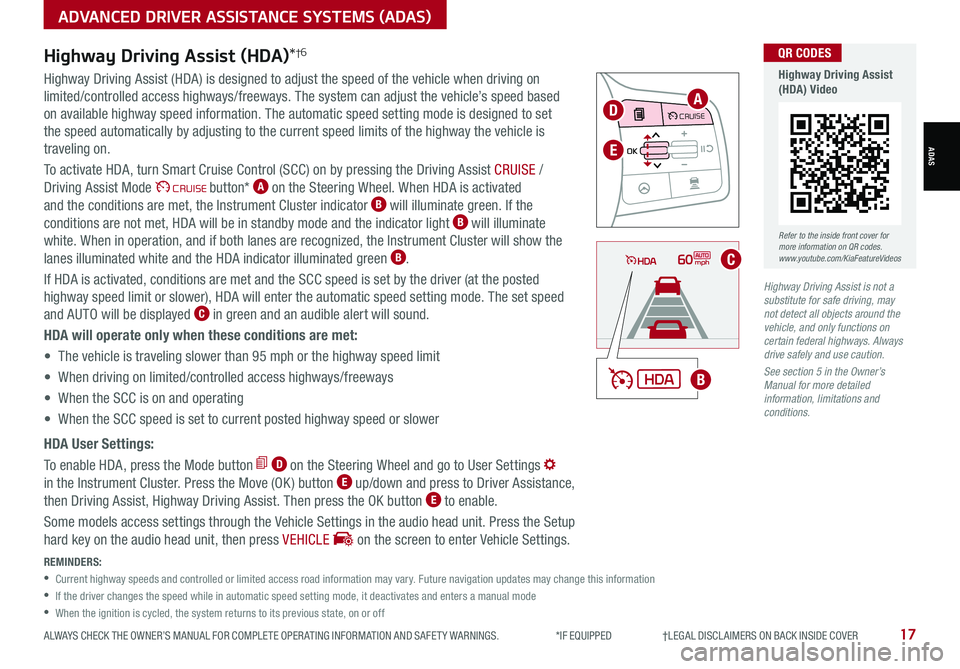
Highway Driving Assist (HDA) is designed to adjust the speed of the vehicle when driving on
limited/controlled access highways/freeways. The system can adjust the vehicle’s speed based
on available highway speed information. The automatic speed setting mode is designed to set
the speed automatically by adjusting to the current speed limits of the highway the vehicle is
traveling on.
To activate HDA, turn Smart Cruise Control (SCC) on by pressing the Driving Assist CRUISE /
Driving Assist Mode CRUISE button* A on the Steering Wheel. When HDA is activated
and the conditions are met, the Instrument Cluster indicator B will illuminate green. If the
conditions are not met, HDA will be in standby mode and the indicator light B will illuminate
white. When in operation, and if both lanes are recognized, the Instrument Cluster will show the
lanes illuminated white and the HDA indicator illuminated green B.
If HDA is activated, conditions are met and the SCC speed is set by the driver (at the posted
highway speed limit or slower), HDA will enter the automatic speed setting mode. The set speed
and AUTO will be displayed C in green and an audible alert will sound.
HDA will operate only when these conditions are met:
• The vehicle is traveling slower than 95 mph or the highway speed limit
• When driving on limited/controlled access highways/freeways
• When the SCC is on and operating
• When the SCC speed is set to current posted highway speed or slower
HDA User Settings:
To enable HDA, press the Mode button D on the Steering Wheel and go to User Settings
in the Instrument Cluster. Press the Move (OK ) button E up/down and press to Driver Assistance,
then Driving Assist, Highway Driving Assist. Then press the OK button E to enable.
Some models access settings through the Vehicle Settings in the audio head unit. Press the Setup
hard key on the audio head unit, then press VEHICLE on the screen to enter Vehicle Settings.
Highway Driving Assist is not a substitute for safe driving, may not detect all objects around the vehicle, and only functions on certain federal highways. Always drive safely and use caution.
See section 5 in the Owner’s Manual for more detailed information, limitations and conditions.
ADVANCED DRIVER ASSISTANCE SYSTEMS (ADAS)
ADAS
Page 21 of 70
ALWAYS CHECK THE OWNER’S MANUAL FOR COMPLETE OPER ATING INFORMATION AND SAFET Y WARNINGS. *IF EQUIPPED †LEGAL DISCL AIMERS ON BACK INSIDE COVER19
Driver Attention Warning is not a substitute for safe driving and may not detect all instances of inattentive driving practices. Failure to pay attention to travel conditions and vehicle operation could result in loss of vehicle control. Always drive safely and use caution.
See section 5 in the Owner’s Manual for more information.
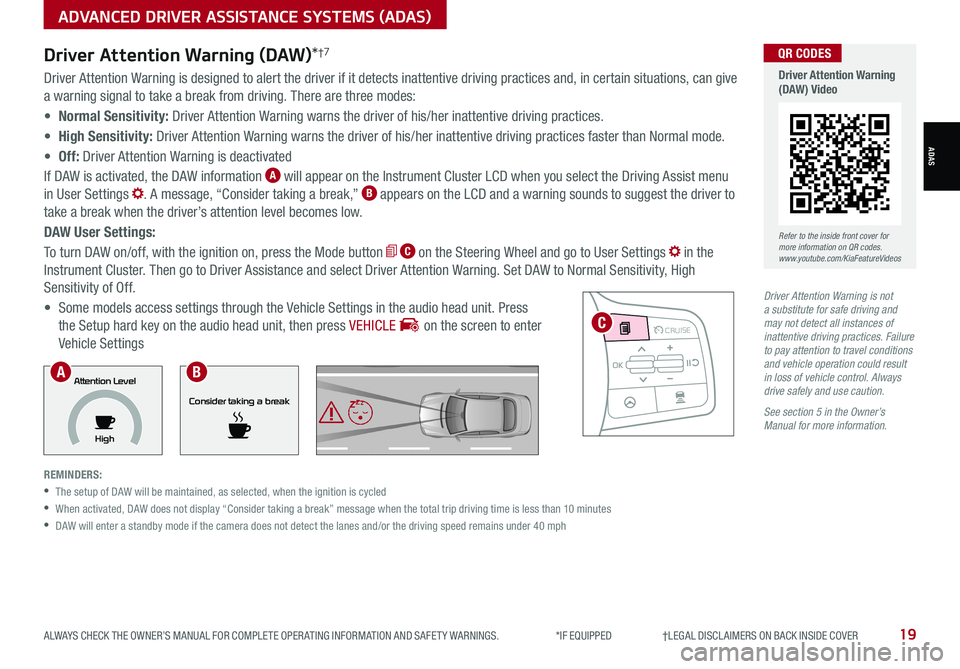
Driver Attention Warning is designed to alert the driver if it detects inattentive driving practices and, in certain situations, can give
a warning signal to take a break from driving. There are three modes:
• Normal Sensitivity: Driver Attention Warning warns the driver of his/her inattentive driving practices.
• High Sensitivity: Driver Attention Warning warns the driver of his/her inattentive driving practices faster than Normal mode.
• Off: Driver Attention Warning is deactivated
If DAW is activated, the DAW information A will appear on the Instrument Cluster LCD when you select the Driving Assist menu
in User Settings . A message, “Consider taking a break,” B appears on the LCD and a warning sounds to suggest the driver to
take a break when the driver’s attention level becomes low.
DAW User Settings:
To turn DAW on/off, with the ignition on, press the Mode button C on the Steering Wheel and go to User Settings in the
Instrument Cluster. Then go to Driver Assistance and select Driver Attention Warning. Set DAW to Normal Sensitivity, High
Sensitivity of Off.
• Some models access settings through the Vehicle Settings in the audio head unit. Press
the Setup hard key on the audio head unit, then press VEHICLE on the screen to enter
Vehicle Settings
REMINDERS:
•
The setup of DAW will be maintained, as selected, when the ignition is cycled
•
When activated, DAW does not display “Consider taking a break” message when the total trip driving time is less than 10 minutes
•
DAW will enter a standby mode if the camera does not detect the lanes and/or the driving speed remains under 40 mph
Driver Attention Warning (DAW)*†7
MODE MODE
MODE
MODE MODE
OK
CRUISE
Smart Cruise Control
OK
Cruise Control
OK
CRUISE
Bluetooth Eco
OK
CRUISE
L FA
OK
CRUISE
User Settings
Trip Modes
Fuel Econ
OK
CRUISE
HDA
MODE
OK
CRUISE
Audio LV DA MSLA - ISLA
MODE
OK
MODE CRUISE
CRUISE
Consider taking a break
Attention Level
HighAB
C
Refer to the inside front cover for more information on QR codes.www.youtube.com/KiaFeatureVideos
QR CODES
Driver Attention Warning (DAW) Video
ADVANCED DRIVER ASSISTANCE SYSTEMS (ADAS)
ADAS