NAV KIA SORENTO 2022 Navigation System Quick Reference Guide
[x] Cancel search | Manufacturer: KIA, Model Year: 2022, Model line: SORENTO, Model: KIA SORENTO 2022Pages: 324, PDF Size: 10.45 MB
Page 159 of 324
7-7
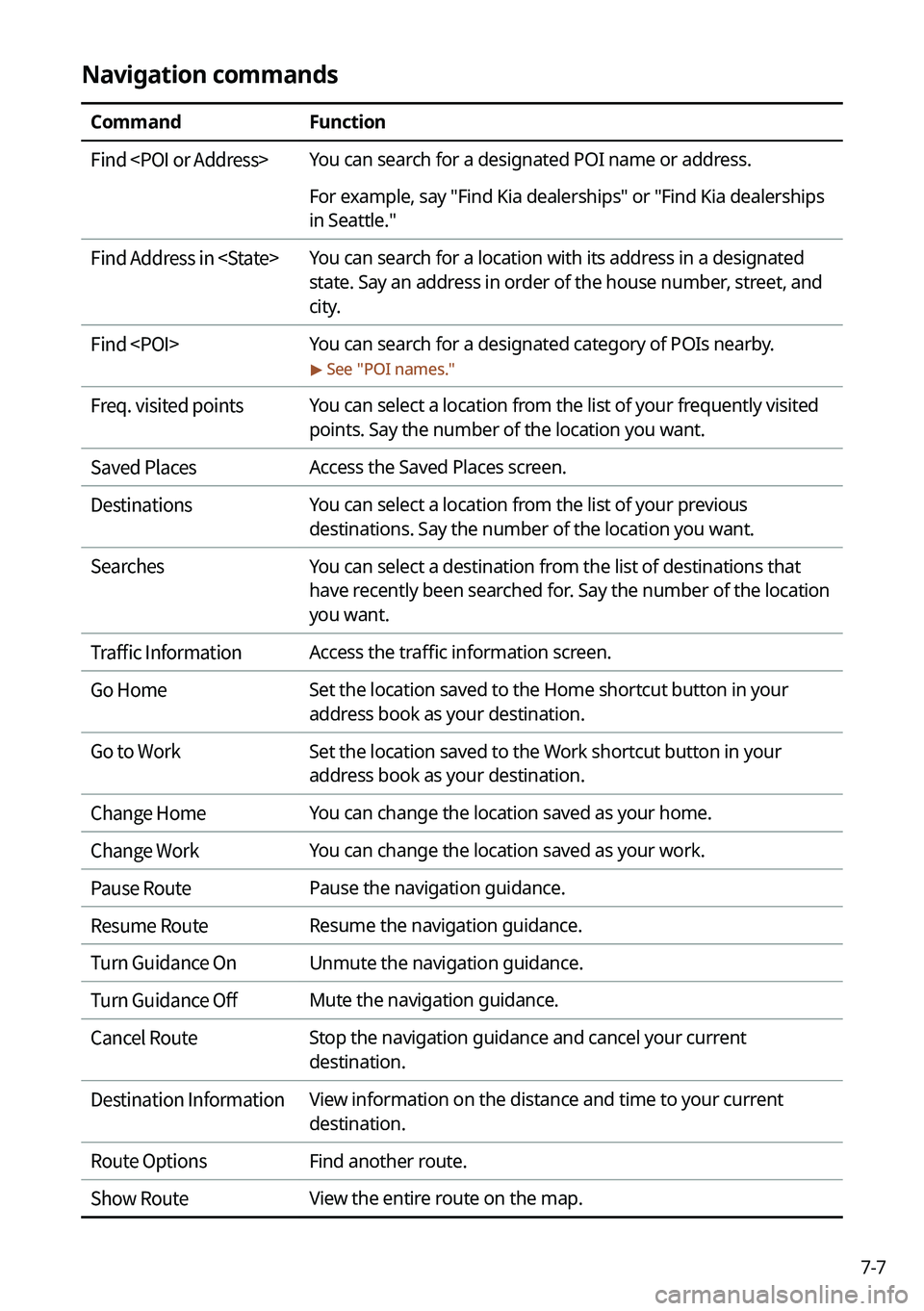
Navigation commands
CommandFunction
Find
For example, say "Find Kia dealerships" or "Find Kia dealerships
in Seattle."
Find Address in
state. Say an address in order of the house number, street, and
city.
Find
> See "
POI names."
Freq. visited points You can select a location from the list of your frequently visited
points. Say the number of the location you want.
Saved Places Access the Saved Places screen.
Destinations You can select a location from the list of your previous
destinations. Say the number of the location you want.
Searches You can select a destination from the list of destinations that
have recently been searched for. Say the number of the location
you want.
Traffic Information Access the traffic information screen.
Go Home Set the location saved to the Home shortcut button in your
address book as your destination.
Go to Work Set the location saved to the Work shortcut button in your
address book as your destination.
Change Home You can change the location saved as your home.
Change Work You can change the location saved as your work.
Pause Route Pause the navigation guidance.
Resume Route Resume the navigation guidance.
Turn Guidance On Unmute the navigation guidance.
Turn Guidance Off Mute the navigation guidance.
Cancel Route Stop the navigation guidance and cancel your current
destination.
Destination Information View information on the distance and time to your current
destination.
Route Options Find another route.
Show Route View the entire route on the map.
Page 170 of 324
7-18
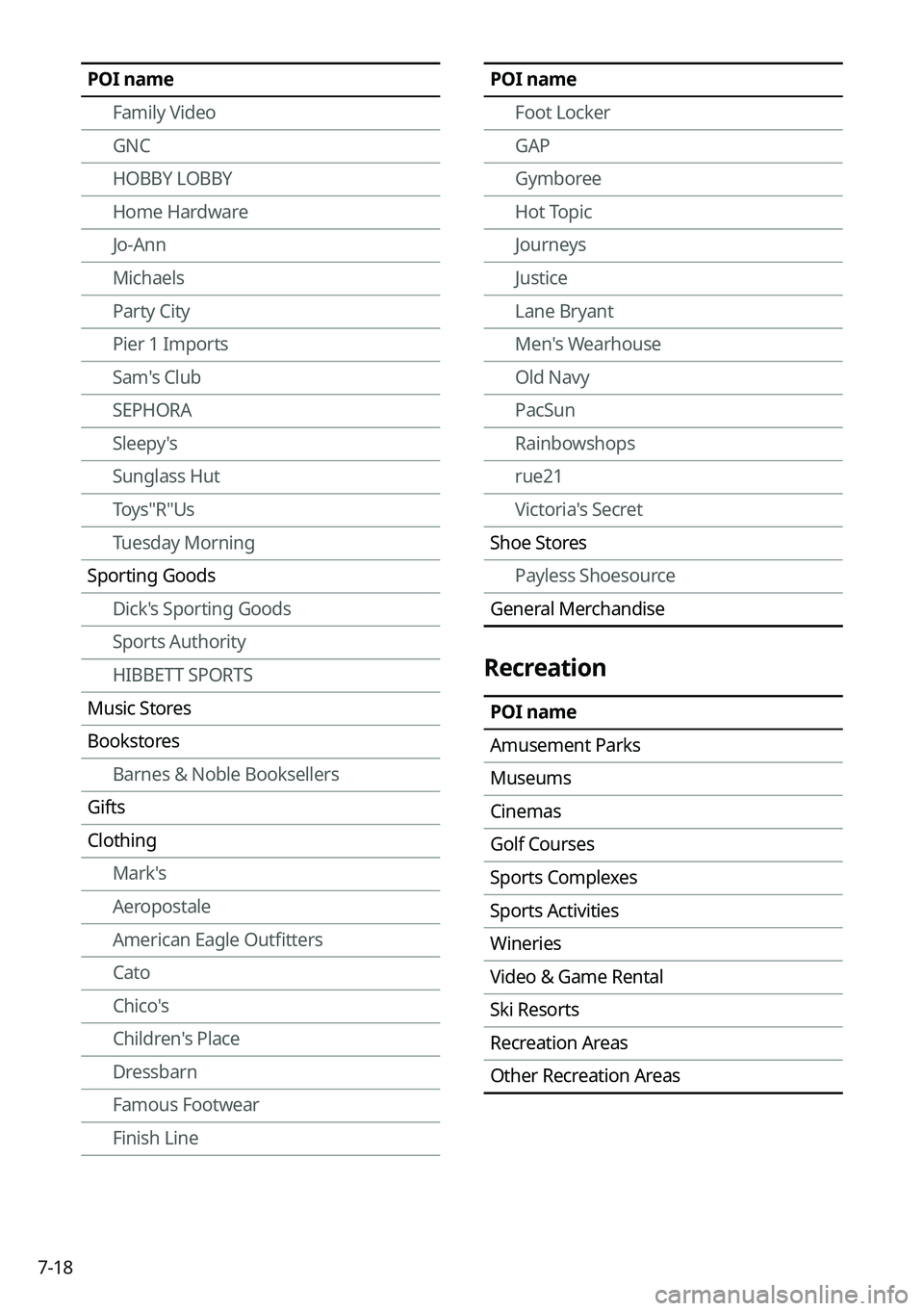
POI nameFoot Locker
GAP
Gymboree
Hot Topic
Journeys
Justice
Lane Bryant
Men's Wearhouse
Old Navy
PacSun
Rainbowshops
rue21
Victoria's Secret
Shoe Stores Payless Shoesource
General Merchandise
Recreation
POI name
Amusement Parks
Museums
Cinemas
Golf Courses
Sports Complexes
Sports Activities
Wineries
Video & Game Rental
Ski Resorts
Recreation Areas
Other Recreation Areas
POI name
Family Video
GNC
HOBBY LOBBY
Home Hardware
Jo-Ann
Michaels
Party City
Pier 1 Imports
Sam's Club
SEPHORA
Sleepy's
Sunglass Hut
Toys"R"Us
Tuesday Morning
Sporting Goods Dick's Sporting Goods
Sports Authority
HIBBETT SPORTS
Music Stores
Bookstores Barnes & Noble Booksellers
Gifts
Clothing Mark's
Aeropostale
American Eagle Outfitters
Cato
Chico's
Children's Place
Dressbarn
Famous Footwear
Finish Line
Page 187 of 324
8-11
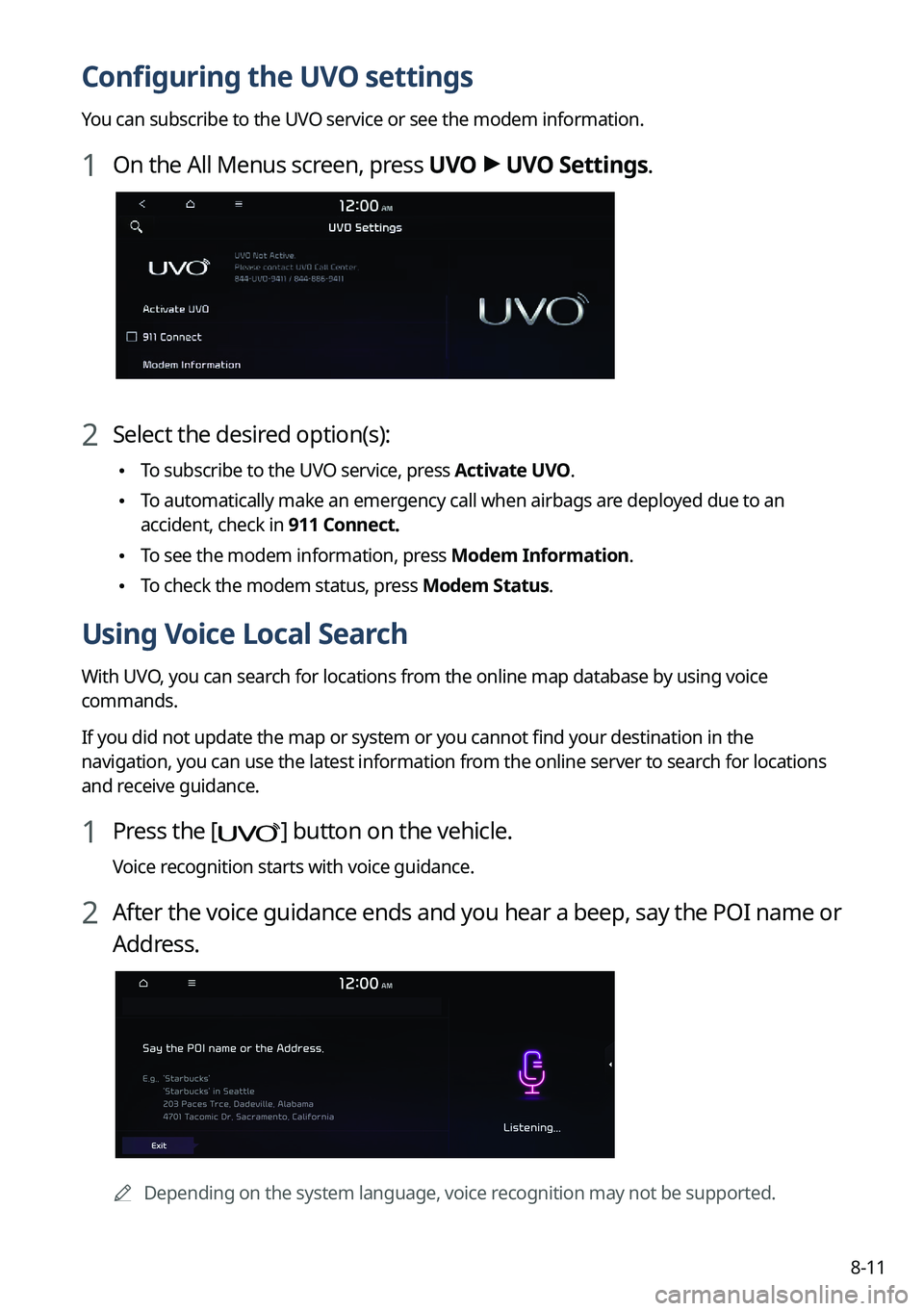
Configuring the UVO settings
You can subscribe to the UVO service or see the modem information.
1 On the All Menus screen, press UVO >
UVO Settings.
2 Select the desired option(s):
\225 To subscribe to the UVO service, press Activate UVO.
\225To automatically make an emergency call when airbags are deployed due to an
accident, check in 911 Connect.
\225To see the modem information, press Modem Information.
\225To check the modem status, press Modem Status.
Using Voice Local Search
With UVO, you can search for locations from the online map database by using voice
commands.
If you did not update the map or system or you cannot find your destination in the
navigation, you can use the latest information from the online server to search for locations
and receive guidance.
1 Press the [] button on the vehicle.
Voice recognition starts with voice guidance.
2 After the voice guidance ends and you hear a beep, say the POI name or
Address.
0000A
Depending on the system language, voice recognition may not be supported.
Page 188 of 324
8-12
Route guidance service (if equipped)
Use a more convenient, accurate route guidance service through the UVO route guidance
service.
Finding a route by manually entering a destination
You can use fast and accurate route guidance based on real-time and forecast traffic data
collected by the UVO Center.
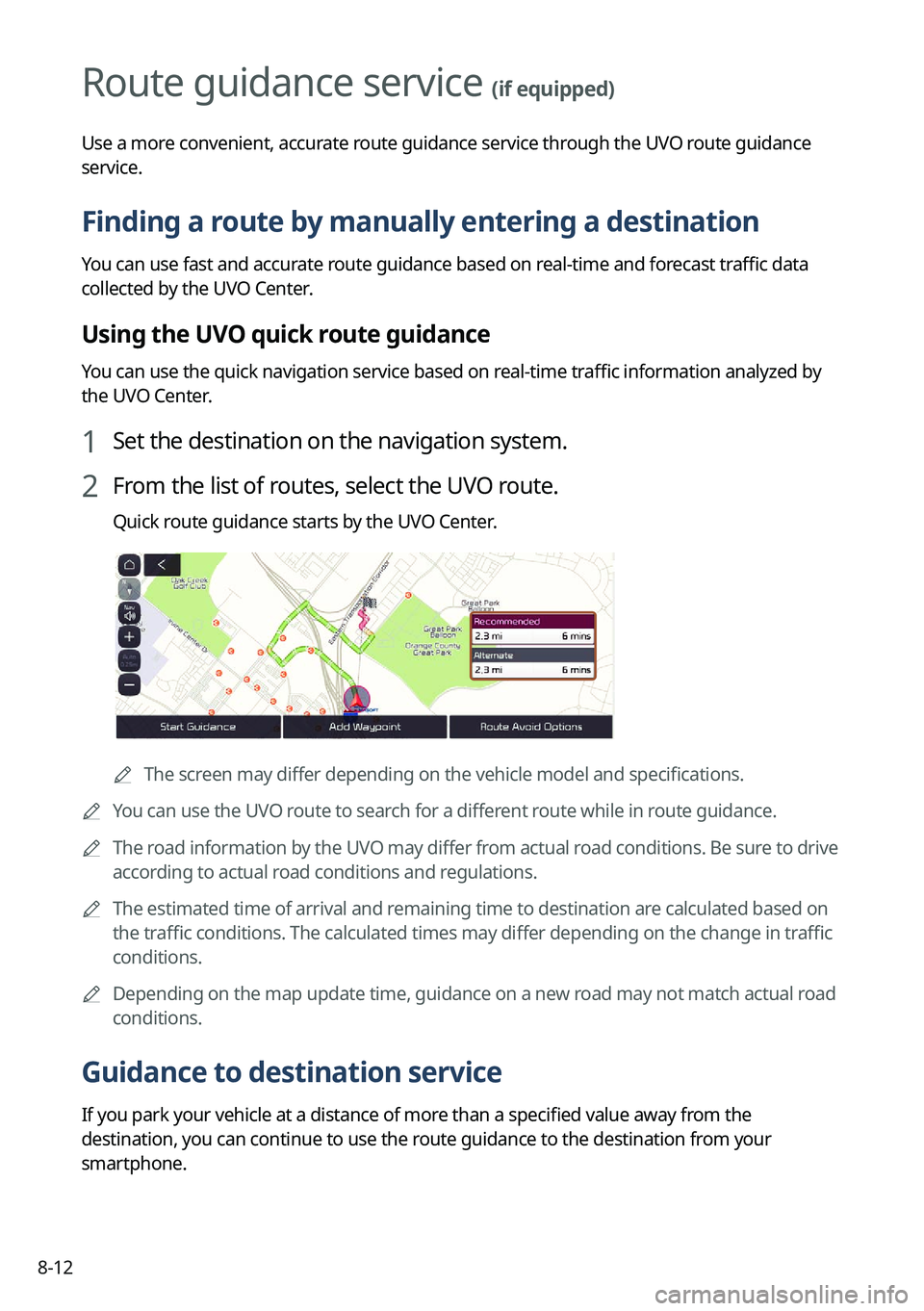
Using the UVO quick route guidance
You can use the quick navigation service based on real-time traffic information analyzed by
the UVO Center.
1 Set the destination on the navigation system.
2 From the list of routes, select the UVO route.
Quick route guidance starts by the UVO Center.
0000AThe screen may differ depending on the vehicle model and specifications.
0000
A
You can use the UVO route to search for a different route while in route guidance.
0000
A
The road information by the UVO may differ from actual road conditions. Be sure to drive
according to actual road conditions and regulations.
0000
A
The estimated time of arrival and remaining time to destination are calculated based on
the traffic conditions. The calculated times may differ depending on the change in traffic
conditions.
0000
A
Depending on the map update time, guidance on a new road may not match actual road
conditions.
Guidance to destination service
If you park your vehicle at a distance of more than a specified value away from the
destination, you can continue to use the route guidance to the destination from your
smartphone.
Page 189 of 324
Settings
Configuring system settings
Configuring the vehicle settings (Type1/ Type2)
Configuring the device connections settings (Type1/ Type2)
Configuring the advanced system settings (Type1) Configuring the button settings (Type1/ Type2)
Configuring the sound settings (Type1/ Type2)
Configuring the voice recognition settings (Type1/ Type2)
Configuring the navigation settings (Type1/ Type2)
Configuring the UVO settings (Type1/ Type2)
Configuring the user profile settings (Type1/ Type2)
Configuring the general system settings (Type1/ Type2)
Configuring the screen theme/layout settings (Type2) Configuring the display settings (Type1/ Type2)
Configuring the media settings (Type1)
How to Update the Map and Software for your
Infotainment System
09
Page 193 of 324

9-5
Driving Convenience (if equipped)
Sets the properties of Driving Convenience system.0000
A
The Driving Convenience system operates based on the information from the navigation
system so you must use the system only when the navigation system operates properly.
\225Highway Driving Assist: Assists driving in a highway according to the set speed and
distance to the leading vehicle while keeping the vehicle centered in the lane.
0000
A
The highway driving assist system operates only on a highway. When the vehicle exits
from the highway, the system is turned off automatically.
\225Highway Auto Speed Zone Slowdown: Automatically decelerates in a highway speed
enforcement zone.
0000
A
The highway auto speed zone slowdown system operates only on a highway. When
the vehicle exits from the highway, the system is turned off automatically.
0000
A
It operates considering the speed cameras located on the selected route.
\225Highway Auto Curve Slowdown: Automatically decelerates in a highway curve zone.
0000
A
It operates based on the curve zones on the route. When the destination is not set, it
operates based on the curve zones on the expected path.
Warning Timing (if equipped)
Sets the timing of the warning.
Warning Volume (if equipped)
Sets the volume of the warning sound.
Driver Attention Warning (if equipped)
Sets the properties of the Driver Attention Warning system.
\225Leading Vehicle Departure Alert: Alerts the driver during a stop, when the leading
vehicle departs.
\335Warning
Be sure to always check the road conditions ahead or surroundings before departure. An
accident caused by distracted driving can be prevented.
\225Safety Notice Call: When abnormal driving is detected, a Connected Services Center
representative will call to check on your safety.
\225Inattentive Driving Warning: Provides a warning when signs of driver inattentiveness
are detected, and recommends a rest if needed.
Page 200 of 324

9-12
Cluster (if equipped)
You can set the data to display on the instrument cluster and the volume and type for guiding
beep.
0000AThe screen may differ depending on the vehicle model and specifications.
Service Interval (if equipped)
You can set to guide you when to perform the vehicle inspection.
\225Enable Service Interval: Sets the service inspection interval. When it exceeds, the
notification is provided.
\225Distance: Sets the driving distance for a service.
\225Duration: Sets the service cycle.
\225Reset: Initializes the settings for distance and duration.
Energy Consumption Reset (if equipped)
You can set to automatically initialize the average fuel economy.
\225After Ignition: The average fuel economy is automatically initialize whenever you drive
the vehicle.
\225After Refueling
: The average fuel economy is automatically initialize whenever you refuel
the vehicle.
\225 Off: The average fuel economy initialize is unavailable.
Content Selection (if equipped)
You can set the content to display on the instrument cluster.
\225Gear Position Pop-up: When the gear is shifted, the information pop-up appears.
\225Wiper/Lights Display: When the wiper or light lever operates, the operation mode
appears.
\225Traffic Signs: Displays the road information such as speed bumps and speed limits.
\225Icy Road Warning: When the outside temperature drops below 4 °C (39 °F), the
possibility of road icing appears.
Page 204 of 324
9-16
\335Warning
\225Be sure to always check the road conditions while driving. The Driver Assistance system
helps you drive safely and conveniently. Relying solely on the function may cause violation
of traffic rules and regulations, resulting in an accident.
\225Be sure to control the vehicle by your judgment and keep traffic regulations for safety.
When the function is active, drive the vehicle with keeping eyes forward and checking the
surroundings.
\225Not all warnings or functions are necessary when they are active, and they do not replace
the driver discretion under any circumstances. Stay focused on the road while driving.
\334\334Caution
Be sure to always check the vehicle surroundings while driving. The equipped cameras and
sensors may not operate properly under all driving conditions.
SCC Reaction (if equipped)
Adjusts the responsiveness of Smart Cruise Control to the acceleration of a leading vehicle.
Driving Convenience (if equipped)
Sets the properties of Driving Convenience system.
0000
A
The Driving Convenience system operates based on the information from the navigation
system so you must use the system only when the navigation system operates properly.
\225Highway Driving Assist: Assists driving in a highway according to the set speed and
distance to the leading vehicle while keeping the vehicle centered in the lane.
0000
A
The highway driving assist system operates only on a highway. When the vehicle exits
from the highway, the system is turned off automatically.
\225Highway Auto Speed Zone Slowdown: Automatically decelerates in a highway speed
enforcement zone.
0000
A
The highway auto speed zone slowdown system operates only on a highway. When
the vehicle exits from the highway, the system is turned off automatically.
0000
A
It operates considering the speed cameras located on the selected route.
\225Highway Auto Curve Slowdown: Automatically decelerates in a highway curve zone.
0000
A
It operates based on the curve zones on the route. When the destination is not set, it
operates based on the curve zones on the expected path.
\225Highway Auto Speed Change: Automatically adjusts the vehicle speed on a highway
based on navigation data.
Page 213 of 324
9-25
Energy Consumption Reset (if equipped)
You can set to automatically initialize the average fuel economy.
\225After Ignition: The average fuel economy is automatically initialize whenever you drive
the vehicle.
\225After Refueling
: The average fuel economy is automatically initialize whenever you refuel
the vehicle.
\225 After Recharging: The average fuel economy is automatically initialize whenever you
charge the vehicle (EV only).
\225Off: The average fuel economy initialize is unavailable.
Reset Fuel Economy (if equipped)
Select which average fuel economy to display on the cluster.
\225At Vehicle Start: Displays the fuel economy after engine restart.
\225After Refueling: Displays the fuel economy after refueling.
\225After Recharging: Displays the fuel economy after recharging (EV only).
\225Manually: Displays the accumulated fuel economy.
Content Selection (if equipped)
You can set the content to display on the instrument cluster.
\225Wiper/Lights Display: When the wiper or light lever operates, the operation mode
appears.
\225Traffic Signs: Displays the road information such as speed bumps and speed limits.
\225Blind-Spot View: Displays the blind spot view on the instrument cluster when the turn
signal lamp is operating.
\225Icy Road Warning: When the outside temperature drops below 4 °C (39 °F), the
possibility of road icing appears.
Cluster Voice Guidance Volume (if equipped)
You can adjust the voice guidance volume of the cluster.
Welcome Sound (if equipped)
You can set to generate the notification sound when turning on or off the instrument cluster.
Page 229 of 324
9-41
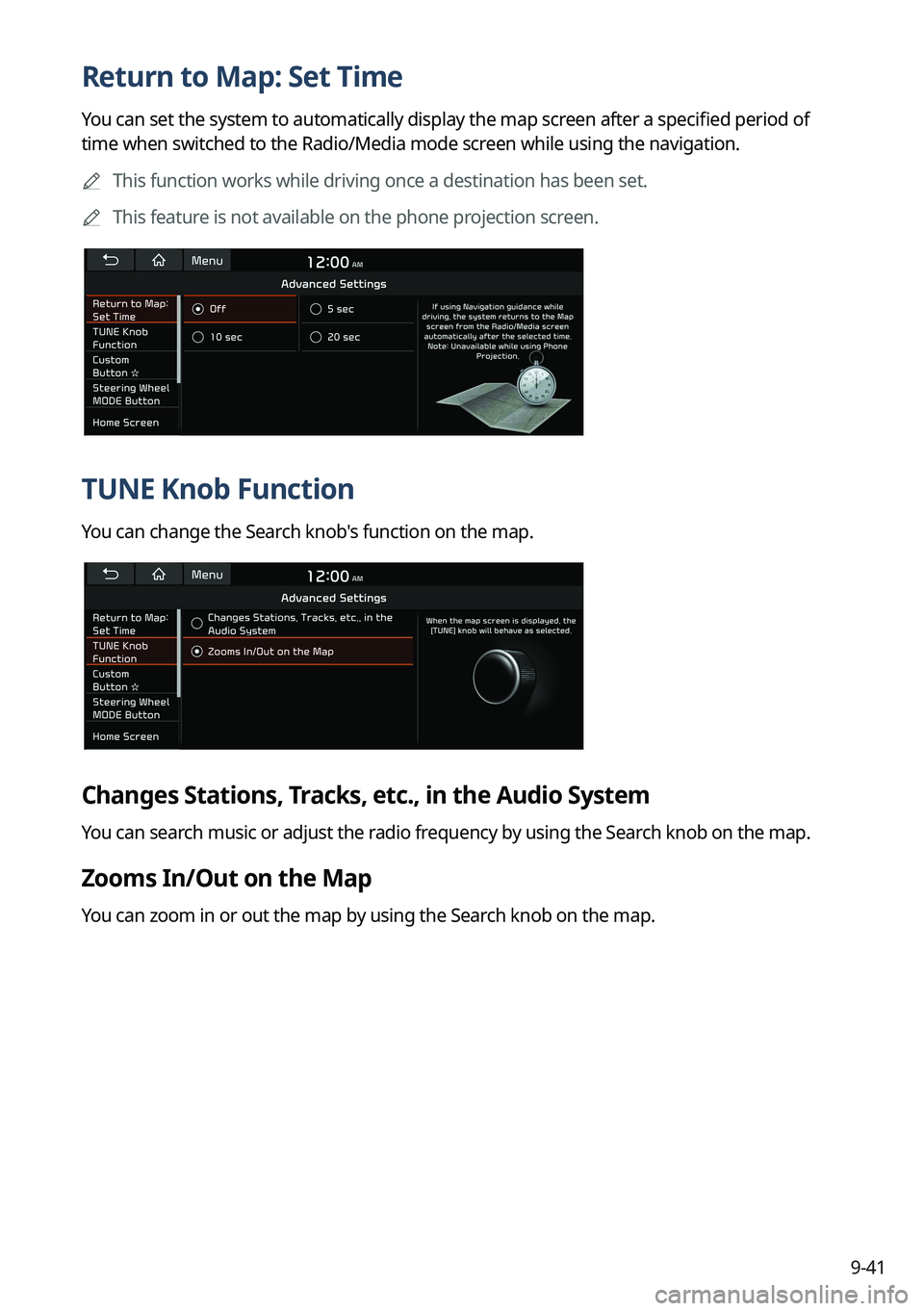
Return to Map: Set Time
You can set the system to automatically display the map screen after a specified period of
time when switched to the Radio/Media mode screen while using the navigation.0000
A
This function works while driving once a destination has been set.
0000
A
This feature is not available on the phone projection screen.
TUNE Knob Function
You can change the Search knob's function on the map.
Changes Stations, Tracks, etc., in the Audio System
You can search music or adjust the radio frequency by using the Search knob on the map.
Zooms In/Out on the Map
You can zoom in or out the map by using the Search knob on the map.