Setup KIA Soul 2016 2.G User Guide
[x] Cancel search | Manufacturer: KIA, Model Year: 2016, Model line: Soul, Model: KIA Soul 2016 2.GPages: 556, PDF Size: 21.35 MB
Page 269 of 556
![KIA Soul 2016 2.G User Guide 4189
Features of your vehicle
Disconnecting a Device
Press the key Select
[Phone] Select [Phone List]
From the paired phone list, select the
currently connected device and
select [Disconnect] button.](/img/2/2979/w960_2979-268.png "KIA Soul 2016 2.G User Guide 4189
Features of your vehicle
Disconnecting a Device
Press the key Select
[Phone] Select [Phone List]
From the paired phone list, select the
currently connected device and
select [Disconnect] button.")
4189
Features of your vehicle
Disconnecting a Device
Press the key Select
[Phone] Select [Phone List]
From the paired phone list, select the
currently connected device and
select [Disconnect] button.
Deleting a Device
Press the key Select
[Phone] Select [Phone List]
From the paired phone list, select the
device you want to delete and select
[Delete] button. When deleting the currently con-
nected device, the device will auto-
matically be disconnected to pro-
ceed with the deleting process.
If a paired
Bluetooth®Wireless
Technology device is deleted, the
device’s call history and contacts
data will also be deleted.
To re-use a deleted device, you must pair the device again.
SETUPCLOCKSETUPCLOCK
Page 270 of 556
Features of your vehicle
190
4
USING Bluetooth®Wireless
Technology(if equipped)
Phone Menu Screen
Phone Menus
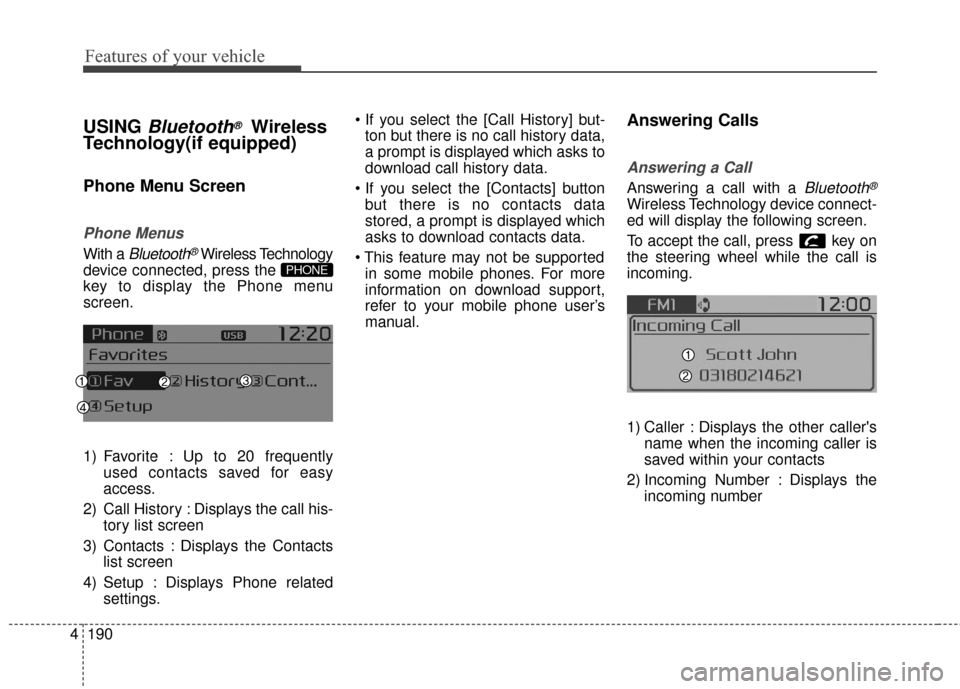
With a Bluetooth®Wireless Technology
device connected, press the
key to display the Phone menu
screen.
1) Favorite : Up to 20 frequently used contacts saved for easy
access.
2) Call History : Displays the call his- tory list screen
3) Contacts : Displays the Contacts list screen
4) Setup : Displays Phone related settings.
ton but there is no call history data,
a prompt is displayed which asks to
download call history data.
but there is no contacts data
stored, a prompt is displayed which
asks to download contacts data.
in some mobile phones. For more
information on download support,
refer to your mobile phone user’s
manual.
Answering Calls
Answering a Call
Answering a call with a Bluetooth®
Wireless Technology device connect-
ed will display the following screen.
To accept the call, press key on
the steering wheel while the call is
incoming.
1) Caller : Displays the other caller's name when the incoming caller is
saved within your contacts
2) Incoming Number : Displays the incoming number
PHONE
Page 271 of 556
4191
Features of your vehicle
✽
✽NOTICE
• When an incoming call pop-up is
displayed, most Audio and SETUP
mode features are disabled. Only
the call volume will operate.
• The telephone number may not be properly displayed in some mobile
phones.
Favorites
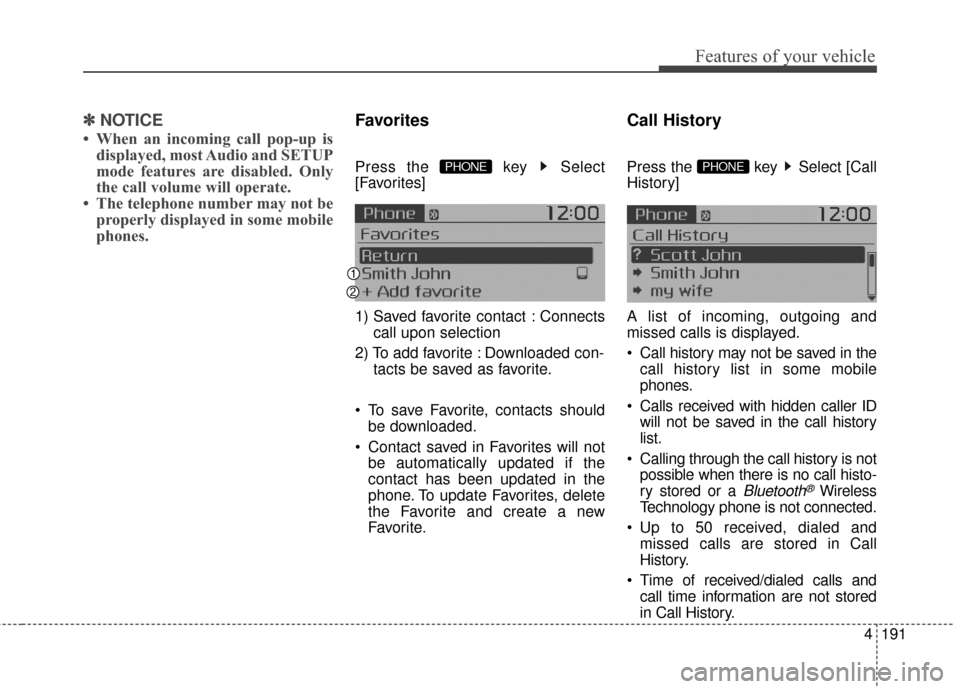
Press the key Select
[Favorites]
1) Saved favorite contact : Connects
call upon selection
2) To add favorite : Downloaded con- tacts be saved as favorite.
To save Favorite, contacts should be downloaded.
Contact saved in Favorites will not be automatically updated if the
contact has been updated in the
phone. To update Favorites, delete
the Favorite and create a new
Favorite.
Call History
Press the key Select [Call
History]
A list of incoming, outgoing and
missed calls is displayed.
Call history may not be saved in thecall history list in some mobile
phones.
Calls received with hidden caller ID will not be saved in the call history
list.
Calling through the call history is not possible when there is no call histo-
ry stored or a
Bluetooth®Wireless
Technology phone is not connected.
Up to 50 received, dialed and missed calls are stored in Call
History.
Time of received/dialed calls and call time information are not stored
in Call History.
PHONE PHONE
Page 273 of 556
4193
Features of your vehicle
Bluetooth®Wireless
Technology Setting
The Bluetooth®word mark and logos
are registered trademarks owned by
Bluetooth SIG, Inc. and any use of
such marks by Kia is under license.
Other trademarks and trade names
are those of their respective owners.
A
Bluetooth®enabled cell phone is
required to use
Bluetooth®Wireless
Technology.
Pairing a New Device
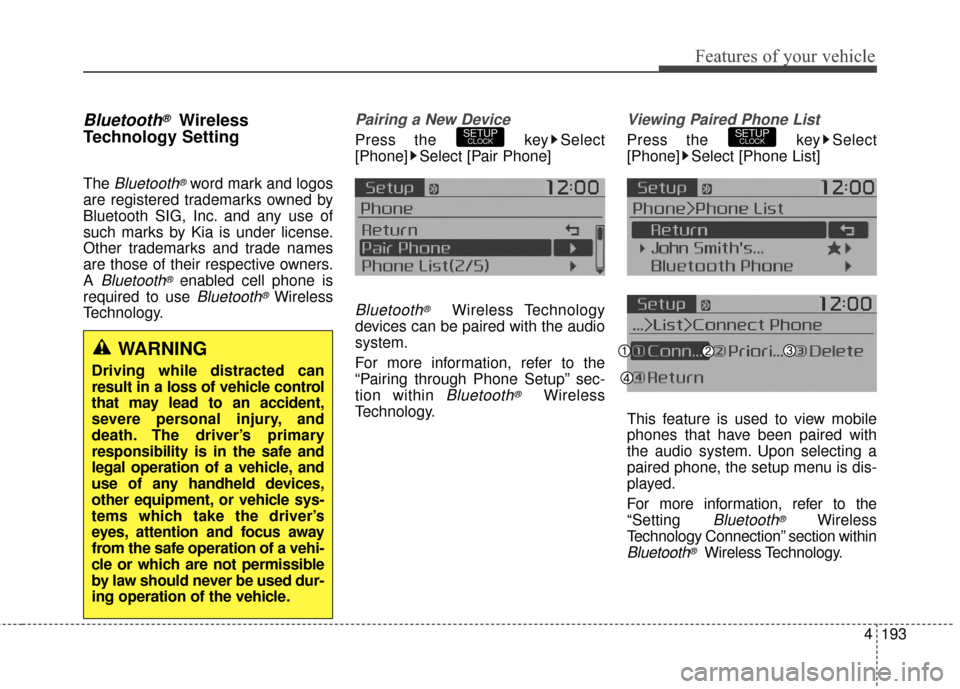
Press the key Select
[Phone] Select [Pair Phone]
Bluetooth®Wireless Technology
devices can be paired with the audio
system.
For more information, refer to the
“Pairing through Phone Setup” sec-
tion within
Bluetooth®Wireless
Technology.
Viewing Paired Phone List
Press the key Select
[Phone] Select [Phone List]
This feature is used to view mobile
phones that have been paired with
the audio system. Upon selecting a
paired phone, the setup menu is dis-
played.
For more information, refer to the
“Setting
Bluetooth®Wireless
Technology Connection” section within
Bluetooth®Wireless Technology.
SETUPCLOCKSETUPCLOCK
WARNING
Driving while distracted can
result in a loss of vehicle control
that may lead to an accident,
severe personal injury, and
death. The driver’s primary
responsibility is in the safe and
legal operation of a vehicle, and
use of any handheld devices,
other equipment, or vehicle sys-
tems which take the driver’s
eyes, attention and focus away
from the safe operation of a vehi-
cle or which are not permissible
by law should never be used dur-
ing operation of the vehicle.
Page 274 of 556
Features of your vehicle
194
4
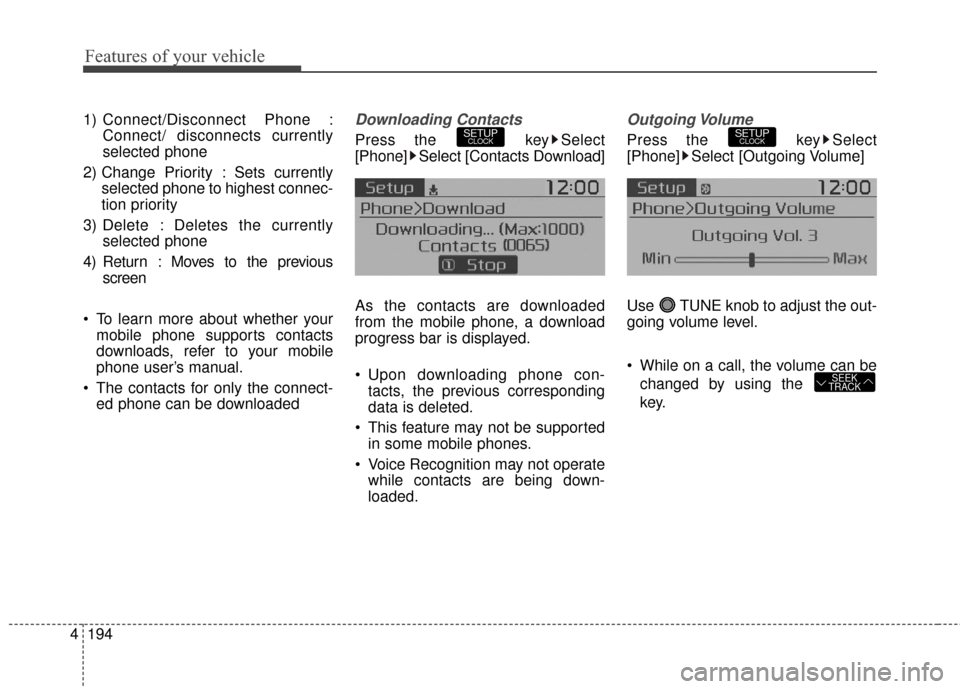
1) Connect/Disconnect Phone :
Connect/ disconnects currently
selected phone
2) Change Priority : Sets currently selected phone to highest connec-
tion priority
3) Delete : Deletes the currently selected phone
4) Return : Moves to the previous screen
To learn more about whether your mobile phone supports contacts
downloads, refer to your mobile
phone user’s manual.
The contacts for only the connect- ed phone can be downloadedDownloading Contacts
Press the key Select
[Phone] Select [Contacts Download]
As the contacts are downloaded
from the mobile phone, a download
progress bar is displayed.
Upon downloading phone con-tacts, the previous corresponding
data is deleted.
This feature may not be supported in some mobile phones.
Voice Recognition may not operate while contacts are being down-
loaded.
Outgoing Volume
Press the key Select
[Phone] Select [Outgoing Volume]
Use TUNE knob to adjust the out-
going volume level.
While on a call, the volume can be
changed by using the
key.
SEEK
TRACK
SETUPCLOCKSETUPCLOCK
Page 275 of 556
![KIA Soul 2016 2.G User Guide 4195
Features of your vehicle
Turning Bluetooth System Off
Press the key Select
[Phone] Select [Bluetooth System
Off]
Once
Bluetooth®Wireless Technology
is turned off,
Bluetooth®Wireless
Technolo](/img/2/2979/w960_2979-274.png "KIA Soul 2016 2.G User Guide 4195
Features of your vehicle
Turning Bluetooth System Off
Press the key Select
[Phone] Select [Bluetooth System
Off]
Once
Bluetooth®Wireless Technology
is turned off,
Bluetooth®Wireless
Technolo")
4195
Features of your vehicle
Turning Bluetooth System Off
Press the key Select
[Phone] Select [Bluetooth System
Off]
Once
Bluetooth®Wireless Technology
is turned off,
Bluetooth®Wireless
Technology related features will not
be supported within the audio sys-
tem.
To turn
Bluetooth®Wireless
Technology back on, go to [Phone] and select “Yes”.SETUPCLOCK
SETUPCLOCK
Page 276 of 556
![KIA Soul 2016 2.G User Guide Features of your vehicle
196
4
VOICE RECOGNITION
Using Voice Recognition
Starting Voice Recognition
Shortly press the key on the
steering wheel. Say a command If prompt feedback is in [ON], then
th](/img/2/2979/w960_2979-275.png "KIA Soul 2016 2.G User Guide Features of your vehicle
196
4
VOICE RECOGNITION
Using Voice Recognition
Starting Voice Recognition
Shortly press the key on the
steering wheel. Say a command If prompt feedback is in [ON], then
th")
Features of your vehicle
196
4
VOICE RECOGNITION
Using Voice Recognition
Starting Voice Recognition
Shortly press the key on the
steering wheel. Say a command If prompt feedback is in [ON], then
the system will say “Please say a
command after the beep (BEEP)”
If prompt feedback is in [OFF]
mode, then the system will only
say “(BEEP)”
To change Prompt Feedback [On]/[Off], go to [System][Prompt Feedback]
For proper recognition, say the command after the voice instruc-
tion and beep tone.
Skipping Prompt Messages
While prompt message is being stat-
ed Shortly press the key on the
steering remote controller
The prompt message is immediately
ended and the beep tone will sound.
After the “beep”, say the voice com-
mand.
Re-starting Voice Recognition
While system waits for a command
Shortly press the key on the
steering remote controller
The command wait state is immedi-
ately ended and the beep ton will
sound. After the “beep”, say the voice
command.
SETUPCLOCK
Page 287 of 556
4207
Features of your vehicle
SYSTEM CONTROLLERS
AND FUNCTIONS
❈Display and settings may differ
depending on the selected audio.
Audio Head Unit
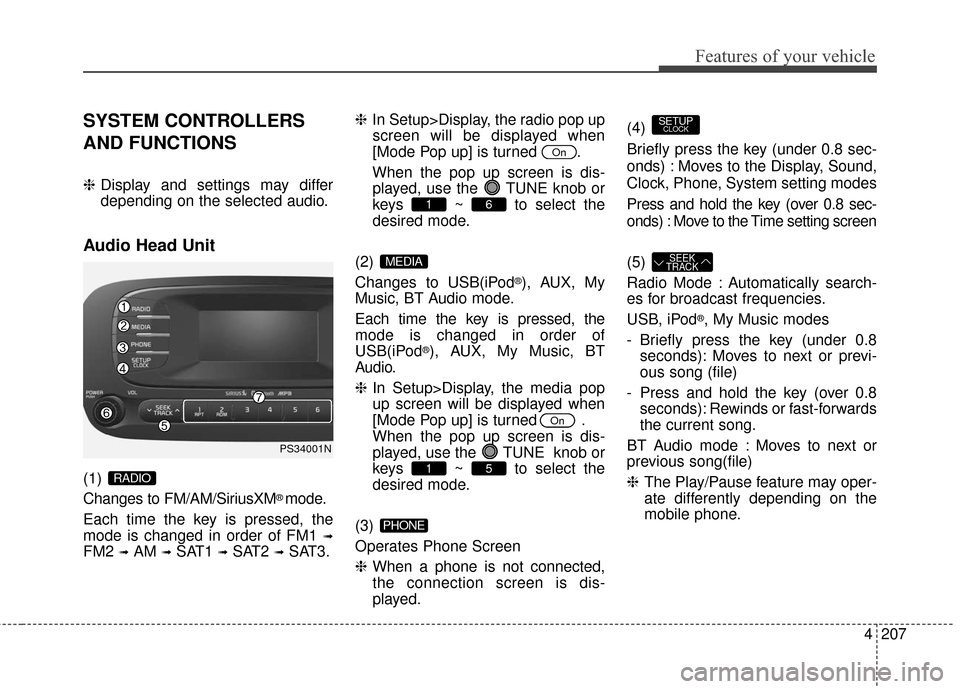
(1)
Changes to FM/AM/SiriusXM
®mode.
Each time the key is pressed, the
mode is changed in order of FM1
➟
FM2 ➟AM ➟SAT1 ➟SAT2 ➟SAT3. ❈
In Setup>Display, the radio pop up
screen will be displayed when
[Mode Pop up] is turned .
When the pop up screen is dis- played, use the TUNE knob or
keys ~ to select the
desired mode.
(2)
Changes to USB(iPod
®), AUX, My
Music, BT Audio mode.
Each time the key is pressed, the
mode is changed in order of
USB(iPod
®), AUX, My Music, BT
Audio.
❈ In Setup>Display, the media pop
up screen will be displayed when
[Mode Pop up] is turned .
When the pop up screen is dis-
played, use the TUNE knob or
keys ~ to select the
desired mode.
(3)
Operates Phone Screen
❈ When a phone is not connected,
the connection screen is dis-
played. (4)
Briefly press the key (under 0.8 sec-
onds) : Moves to the Display, Sound,
Clock, Phone, System setting modes
Press and hold the key (over 0.8 sec-
onds) : Move to the Time setting screen
(5)
Radio Mode : Automatically search-
es for broadcast frequencies.
USB, iPod
®, My Music modes
- Briefly press the key (under 0.8 seconds): Moves to next or previ-
ous song (file)
- Press and hold the key (over 0.8 seconds): Rewinds or fast-forwards
the current song.
BT Audio mode : Moves to next or
previous song(file)
❈ The Play/Pause feature may oper-
ate differently depending on the
mobile phone.
SEEK
TRACK
SETUPCLOCK
PHONE
51
On
MEDIA
61
On
RADIO
PS34001N
Page 288 of 556
Features of your vehicle
208
4
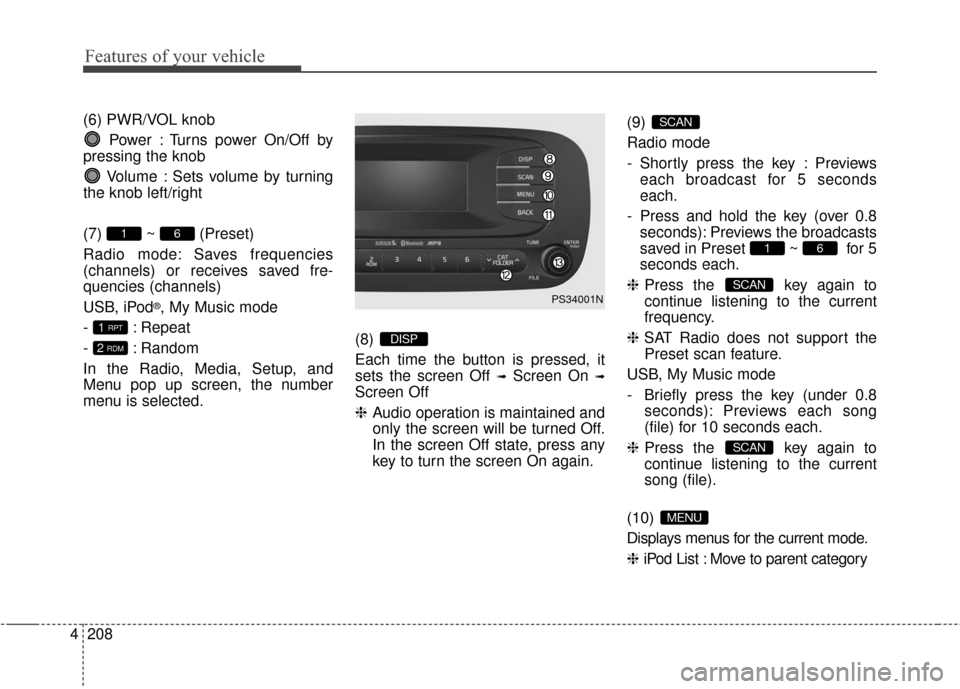
(6) PWR/VOL knob
Power : Turns power On/Off by
pressing the knob
Volume : Sets volume by turning
the knob left/right
(7) ~ (Preset)
Radio mode: Saves frequencies
(channels) or receives saved fre-
quencies (channels)
USB, iPod
®, My Music mode
- : Repeat
- : Random
In the Radio, Media, Setup, and
Menu pop up screen, the number
menu is selected. (8)
Each time the button is pressed, it
sets the screen Off
➟Screen On ➟
Screen Off
❈
Audio operation is maintained and
only the screen will be turned Off.
In the screen Off state, press any
key to turn the screen On again. (9)
Radio mode
- Shortly press the key : Previews
each broadcast for 5 seconds
each.
- Press and hold the key (over 0.8 seconds): Previews the broadcasts
saved in Preset ~ for 5
seconds each.
❈ Press the key again to
continue listening to the current
frequency.
❈ SAT Radio does not support the
Preset scan feature.
USB, My Music mode
- Briefly press the key (under 0.8 seconds): Previews each song
(file) for 10 seconds each.
❈ Press the key again to
continue listening to the current
song (file).
(10)
Displays menus for the current mode.
❈ iPod List : Move to parent category
MENU
SCAN
SCAN
61
SCAN
DISP2 RDM
1 RPT
61
PS34001N
Page 290 of 556
![KIA Soul 2016 2.G User Guide Features of your vehicle
210
4
SETUP
Display Settings
Press the key Select [Display]
through TUNE knob or key
Select menu through TUNE knob
Mode Pop up
[Mode Pop up] Changes /
selection mode
or](/img/2/2979/w960_2979-289.png "KIA Soul 2016 2.G User Guide Features of your vehicle
210
4
SETUP
Display Settings
Press the key Select [Display]
through TUNE knob or key
Select menu through TUNE knob
Mode Pop up
[Mode Pop up] Changes /
selection mode
or")
Features of your vehicle
210
4
SETUP
Display Settings
Press the key Select [Display]
through TUNE knob or key
Select menu through TUNE knob
Mode Pop up
[Mode Pop up] Changes /
selection mode
or key to display the mode
change pop up screen.
Media Display
When playing an MP3 file, select the
desired display info from ‘Folder/File’
or ‘Album/Artist/Song’.
MEDIA
RADIO
OffOn
1
SETUPCLOCK