USB KIA Soul 2016 2.G Owner's Guide
[x] Cancel search | Manufacturer: KIA, Model Year: 2016, Model line: Soul, Model: KIA Soul 2016 2.GPages: 556, PDF Size: 21.35 MB
Page 300 of 556
Features of your vehicle
220
4
Changing Song/File
While song (file) is playing
key
Shortly pressing the key : Plays the current song from the beginning.
❈ If the key is pressed
again within 2 second, the previ-
ous song is played.
Pressing and holding the key (over 0.8 seconds): Rewinds the song.
While song (file) is playing key
Shortly pressing the key : Plays the next song.
Pressing and holding the key (over 0.8 seconds) : Fast forwards the
song.
Scan
While song (file) is playing
key
Scans allsongs from the next song for 10
seconds each.
❈ Press the key again to turn
off.
❈ The SCAN function is not support-
ed in iPod
®mode. Folder Search : USB Mode
While file is playing
(Folder Up) key
While file is playing
(Folder Down) key
❈
If a folder is selected by pressing
the TUNE knob, the first file
within the selected folder will be
played.
❈ In iPod
®mode, moves to the
Parent Folder.
Searching Songs (File)
Turning TUNE knob : Searches for songs (files)
Pressing TUNE knob : Plays selected song (file).
CAT
FOLDER
CAT
FOLDER
SCAN
SCAN
SEEK
TRACK
SEEK
TRACK
SEEK
TRACK
Page 301 of 556
![KIA Soul 2016 2.G Owners Guide 4221
Features of your vehicle
MENU : USB
Press the USB mode key to
set the Repeat, Folder Random,
Folder Repeat, All Random,
Information, and Copy features.
Repeat
Press the key Set [ RPT]
through t](/img/2/2979/w960_2979-300.png "KIA Soul 2016 2.G Owners Guide 4221
Features of your vehicle
MENU : USB
Press the USB mode key to
set the Repeat, Folder Random,
Folder Repeat, All Random,
Information, and Copy features.
Repeat
Press the key Set [ RPT]
through t")
4221
Features of your vehicle
MENU : USB
Press the USB mode key to
set the Repeat, Folder Random,
Folder Repeat, All Random,
Information, and Copy features.
Repeat
Press the key Set [ RPT]
through the
TUNEknob or
key to repeat the current song.
❈ Press RPT again to turn off.
Folder Random
Press the key Set [ F.RDM]
through the
TUNEknob or
key to randomly play songs within the
current folder.
❈ Press F.RDM again to turn off.
Folder Repeat
Press the key Set [ F.RPT]
through the
TUNEknob or
key to repeat songs within the cur-
rent folder.
❈ Press F.RPT again to turn off.
All Random
Press the key Set [ A.RDM]
through the
TUNEknob or key
to randomly play all songs within the
USB.
❈ Press A.RDM again to turn off.
Information
Press the key Set [ Info]
through the
TUNEknob or
key to display information of the cur-
rent song.
❈ Press the key to turn off
info display.
MENU
5
MENU
4
MENU
3
MENU
2 RDM
MENU
1 RPTMENU
MENU
Page 302 of 556
![KIA Soul 2016 2.G Owners Guide Features of your vehicle
222
4
Copy
Press the key Set [ Copy]
through the TUNE knob or
key.
This is used to copy the current song
into My Music. You can play the
copied Music in My Music mode.
❈](/img/2/2979/w960_2979-301.png "KIA Soul 2016 2.G Owners Guide Features of your vehicle
222
4
Copy
Press the key Set [ Copy]
through the TUNE knob or
key.
This is used to copy the current song
into My Music. You can play the
copied Music in My Music mode.
❈")
Features of your vehicle
222
4
Copy
Press the key Set [ Copy]
through the TUNE knob or
key.
This is used to copy the current song
into My Music. You can play the
copied Music in My Music mode.
❈ If another key is pressed while
copying is in progress, a pop up
asking you whether to cancel
copying is displayed.
❈ If another media is connected or
inserted (USB, iPod
®, AUX) while
copying is in progress, copying is
canceled.
❈ Music will not be played while
copying is in progress.
MENU : iPod®
In iPod®mode, press the key to
set the Repeat, Random, Information
and Search features.
Repeat
Press the key Set [ RPT]
through the
TUNEknob or
key to repeat the current song.
❈ Press RPT again to turn repeat off.
Random
Press the key Set [ RDM]
through the TUNE knob or
key.
Plays all songs within the currently
playing category in random order.
❈Press RDM again to turn off.
Information
Press the key Set [ Info]
through the
TUNEknob or
key.
Displays information of the current
song.
❈ Press the key to turn off
info display.
Search
Press the key Set [ Search]
through the
TUNEknob or
key.
Displays iPod
®category list.
❈ Searching iPod
®category is
key pressed, move to par-
ent category.MENU
4
MENU
MENU
3
MENU
2 RDM
MENU
1 RPTMENU
MENU
6
MENU
Page 306 of 556
![KIA Soul 2016 2.G Owners Guide Features of your vehicle
226
4
Bluetooth®Wireless Technology
audio can be used only when the
[Audio Streaming] of Phone is
turned .
❈ Setting
Bluetooth®Wireless
Technology
Audio Streaming :
Press](/img/2/2979/w960_2979-305.png "KIA Soul 2016 2.G Owners Guide Features of your vehicle
226
4
Bluetooth®Wireless Technology
audio can be used only when the
[Audio Streaming] of Phone is
turned .
❈ Setting
Bluetooth®Wireless
Technology
Audio Streaming :
Press")
Features of your vehicle
226
4
Bluetooth®Wireless Technology
audio can be used only when the
[Audio Streaming] of Phone is
turned .
❈ Setting
Bluetooth®Wireless
Technology
Audio Streaming :
Press the key Select
[Phone] Select [Audio Streaming]
through the TUNE knob Set
/
Starting Bluetooth®Wireless
Technology Audio
Press the key to change
the mode in order of USB➟AUX
➟My Music➟BT Audio.
If BT Audio is selected,
Bluetooth®
Wireless Technology audio will start
playing.
❈ Audio may not automatically start
playing in some mobile phones.
Using the Bluetooth®Wireless
Technology audio features
Press the TUNE knob to play and
pause the current song.
❈ The title / artist info may not be
supported in some mobile phone.
When it is not supported, no
title/no artist will be displayed.
Press or to play
previous or next song.
❈ The previous song / next song /
play / pause functions may not be
supported in some mobile
phones.
SEEK
TRACKSEEK
TRACK
MEDIA
OffOn
SETUPCLOCK
On
Page 307 of 556
4227
Features of your vehicle
PHONE(IF EQUIPPED)
Before using the Bluetooth®Wireless
Technology phone features
Bluetooth®Wireless
Technology phone, you must first
pair and connect the
Bluetooth®
Wireless Technology mobile phone.
connected, it is not possible to
enter Phone mode. Once a phone
is paired or connected, the guid-
ance screen will be displayed.
tion (IGN/ACC ON), the
Bluetooth®
Wireless Technology phone will be
automatically connected. Even if
you are outside, the
Bluetooth®
Wireless Technology phone will be
automatically connected once you
are in the vicinity of the vehicle. If
you do not want automatic
Bluetooth®Wireless Technology
phone connection, set the
Bluetooth®Wireless Technology
power to OFF
Making a call using the
Steering-wheel mounted controls
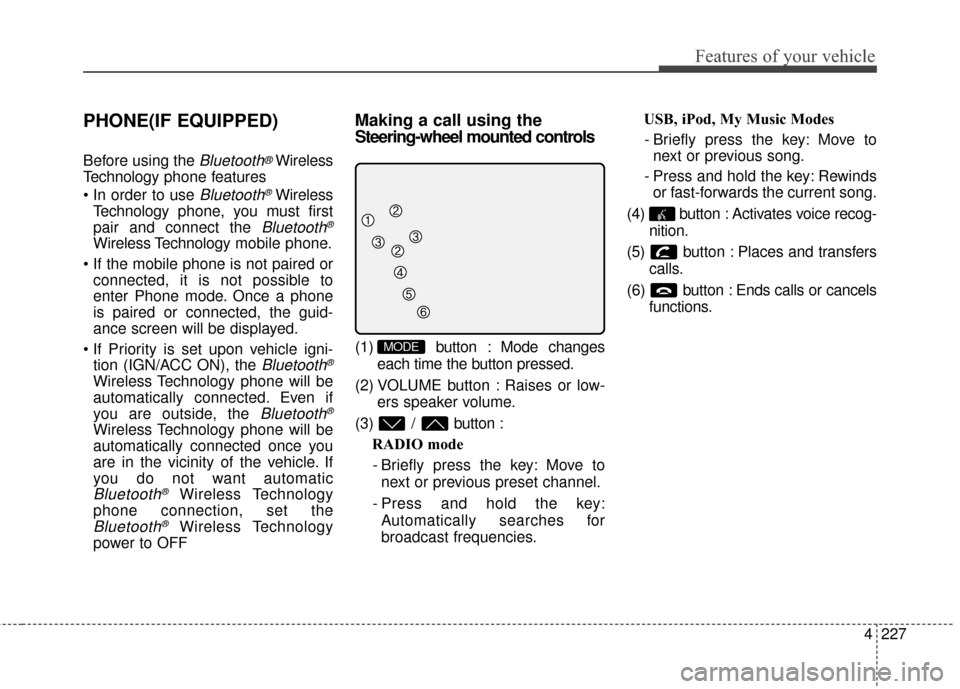
(1) button : Mode changes
each time the button pressed.
(2) VOLUME button : Raises or low- ers speaker volume.
(3) / button : RADIO mode
- Briefly press the key: Move to next or previous preset channel.
- Press and hold the key: Automatically searches for
broadcast frequencies. USB, iPod, My Music Modes
- Briefly press the key: Move to next or previous song.
- Press and hold the key: Rewinds or fast-forwards the current song.
(4) button : Activates voice recog- nition.
(5) button : Places and transfers calls.
(6) button : Ends calls or cancels functions.MODE
Page 323 of 556
4243
Features of your vehicle
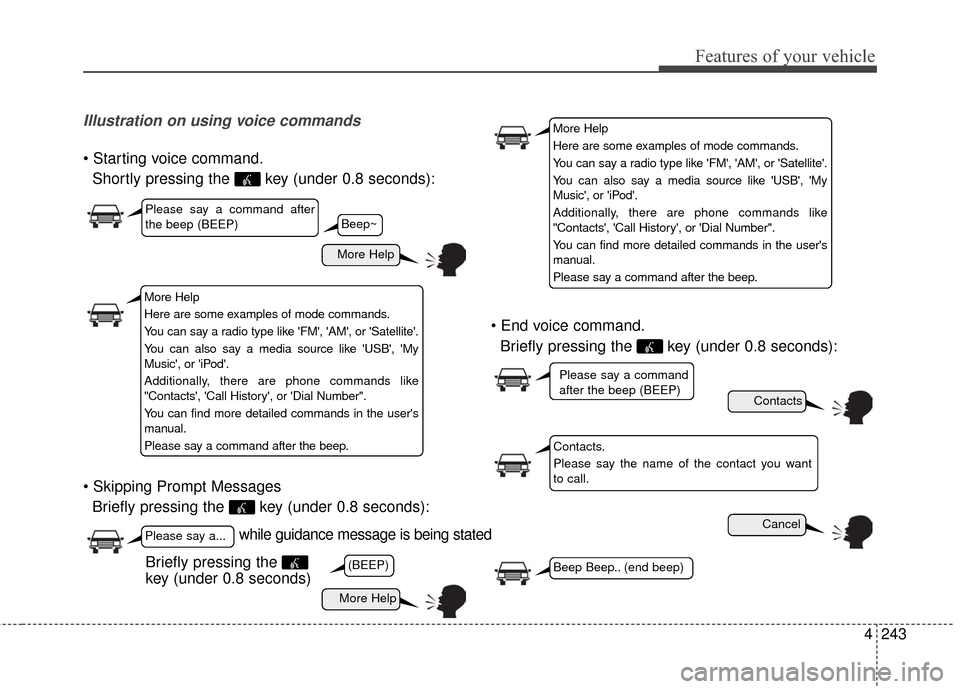
Illustration on using voice commands
Shortly pressing the key (under 0.8 seconds):
Briefly pressing the key (under 0.8 seconds):
Briefly pressing the key (under 0.8 seconds):
while guidance message is being stated
More Help
Contacts
Cancel
More Help
Please say a command after
the beep (BEEP)
Please say a...
Contacts.
Please say the name of the contact you want
to call.
(BEEP)
Please say a command
after the beep (BEEP)
Beep Beep.. (end beep)Briefly pressing the
key (under 0.8 seconds)
Beep~
More Help
Here are some examples of mode commands.
You can say a radio type like 'FM', 'AM', or 'Satellite'.
You can also say a media source like 'USB', 'My
Music', or 'iPod'.
Additionally, there are phone commands like
"Contacts', 'Call History', or 'Dial Number".
You can find more detailed commands in the user's
manual.
Please say a command after the beep.
More Help
Here are some examples of mode commands.
You can say a radio type like 'FM', 'AM', or 'Satellite'.
You can also say a media source like 'USB', 'My
Music', or 'iPod'.
Additionally, there are phone commands like
"Contacts', 'Call History', or 'Dial Number".
You can find more detailed commands in the user's
manual.
Please say a command after the beep.
Page 325 of 556
4245
Features of your vehicle
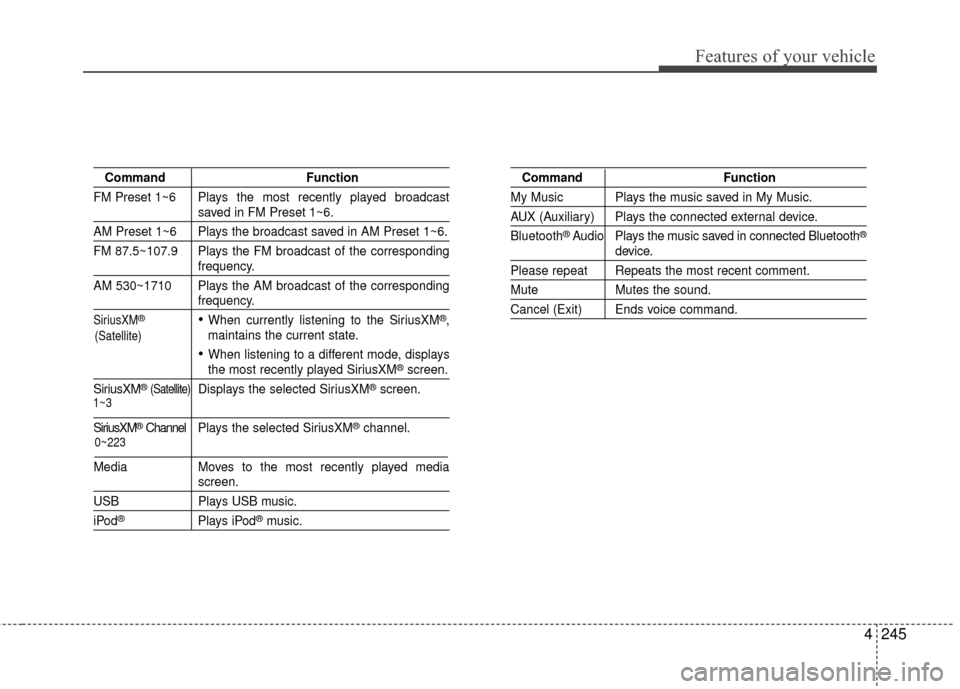
CommandFunction
FM Preset 1~6 Plays the most recently played broadcast
saved in FM Preset 1~6.
AM Preset 1~6 Plays the broadcast saved in AM Preset 1~6.
FM 87.5~107.9 Plays the FM broadcast of the corresponding
frequency.
AM 530~1710 Plays the AM broadcast of the corresponding
frequency.
SiriusXM®When currently listening to the SiriusXM®,
maintains the current state.
When listening to a different mode, displaysthe most recently played SiriusXM®screen.
SiriusXM
® (Satellite)Displays the selected SiriusXM®screen.
SiriusXM®Channel P l ay s the selected SiriusXM®channel.
Media Moves to the most recently played media
screen.
USB Plays USB music.
iPod®Plays iPod®music.
Command Function
My Music Plays the music saved in My Music.
AUX (Auxiliary) Plays the connected external device.
Bluetooth
®Audio Plays the music saved in connected Bluetooth®
device.
Please repeat Repeats the most recent comment.
Mute Mutes the sound.
Cancel (Exit) Ends voice command.
0~223
1~3
(Satellite)
Page 327 of 556
4247
Features of your vehicle
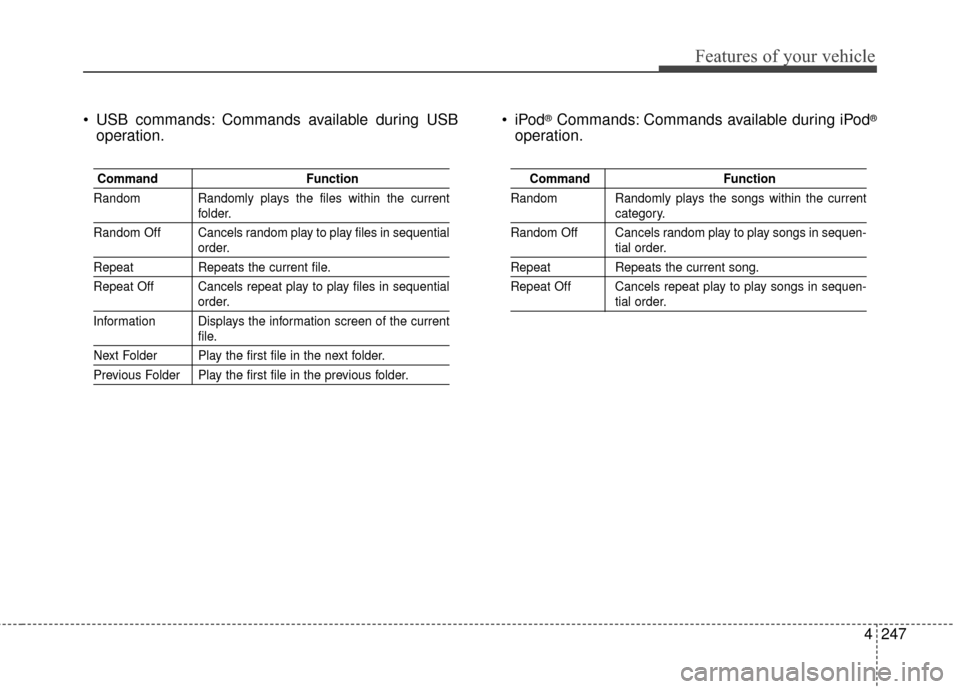
USB commands: Commands available during USBoperation. ®Commands: Commands available during iPod®
operation.
Command
Function
Random Randomly plays the files within the current
folder.
Random Off Cancels random play to play files in sequential
order.
Repeat Repeats the current file.
Repeat Off Cancels repeat play to play files in sequential
order.
Information Displays the information screen of the current
file.
Next Folder Play the first file in the next folder.
Previous Folder Play the first file in the previous folder.
Command Function
Random Randomly plays the songs within the current
category.
Random Off Cancels random play to play songs in sequen-
tial order.
Repeat Repeats the current song.
Repeat Off Cancels repeat play to play songs in sequen-
tial order.
Page 549 of 556
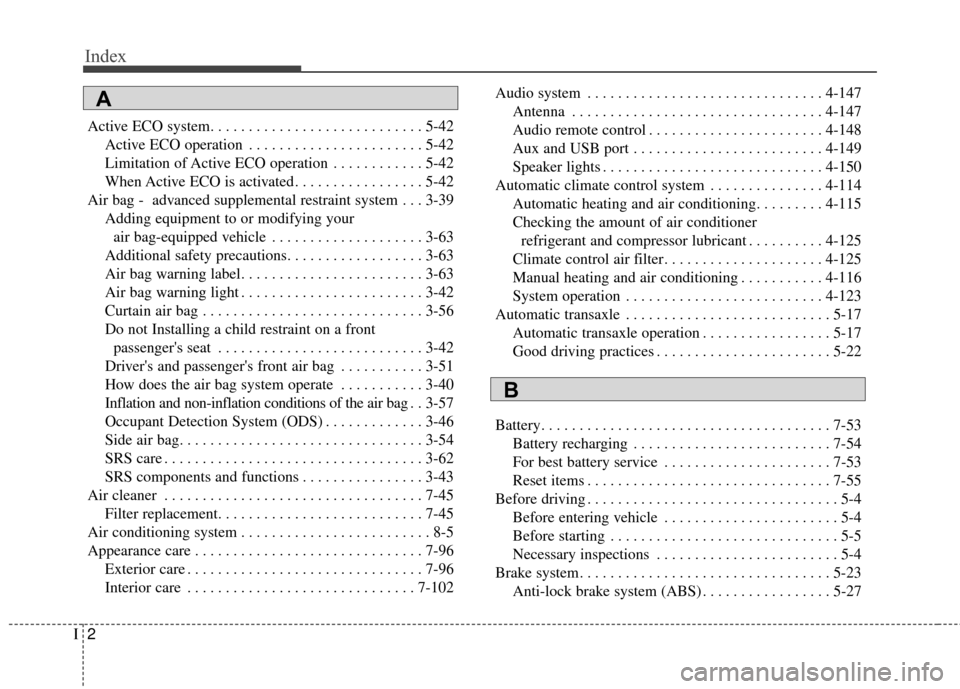
Index
2I
Active ECO system. . . . . . . . . . . . . . . . . . . . . . . . . . . . 5-42Active ECO operation . . . . . . . . . . . . . . . . . . . . . . . 5-42
Limitation of Active ECO operation . . . . . . . . . . . . 5-42
When Active ECO is activated . . . . . . . . . . . . . . . . . 5-42
Air bag - advanced supplemental restraint system . . . 3-39 Adding equipment to or modifying yourair bag-equipped vehicle . . . . . . . . . . . . . . . . . . . . 3-63
Additional safety precautions. . . . . . . . . . . . . . . . . . 3-63
Air bag warning label. . . . . . . . . . . . . . . . . . . . . . . . 3-63
Air bag warning light . . . . . . . . . . . . . . . . . . . . . . . . 3-42
Curtain air bag . . . . . . . . . . . . . . . . . . . . . . . . . . . . . 3-56
Do not Installing a child restraint on a front passenger's seat . . . . . . . . . . . . . . . . . . . . . . . . . . . 3-42
Driver's and passenger's front air bag . . . . . . . . . . . 3-51
How does the air bag system operate . . . . . . . . . . . 3-40
Inflation and non-inflation conditions of the air bag . . 3-57
Occupant Detection System (ODS) . . . . . . . . . . . . . 3-46
Side air bag. . . . . . . . . . . . . . . . . . . . . . . . . . . . . . . . 3-54
SRS care . . . . . . . . . . . . . . . . . . . . . . . . . . . . . . . . . . 3-62\
SRS components and functions . . . . . . . . . . . . . . . . 3-43
Air cleaner . . . . . . . . . . . . . . . . . . . . . . . . . . . . . . . . . . 7-45\
Filter replacement. . . . . . . . . . . . . . . . . . . . . . . . . . . 7-45
Air conditioning system . . . . . . . . . . . . . . . . . . . . . . . . . 8-5
Appearance care . . . . . . . . . . . . . . . . . . . . . . . . . . . . . . 7-96 Exterior care . . . . . . . . . . . . . . . . . . . . . . . . . . . . . . . 7-96
Interior care . . . . . . . . . . . . . . . . . . . . . . . . . . . . . . 7-102 Audio system . . . . . . . . . . . . . . . . . . . . . . . . . . . . . . . 4-147
Antenna . . . . . . . . . . . . . . . . . . . . . . . . . . . . . . . . . 4-147
Audio remote control . . . . . . . . . . . . . . . . . . . . . . . 4-148
Aux and USB port . . . . . . . . . . . . . . . . . . . . . . . . . 4-149
Speaker lights . . . . . . . . . . . . . . . . . . . . . . . . . . . . . 4-150
Automatic climate control system . . . . . . . . . . . . . . . 4-114 Automatic heating and air conditioning. . . . . . . . . 4-115
Checking the amount of air conditionerrefrigerant and compressor lubricant . . . . . . . . . . 4-125
Climate control air filter. . . . . . . . . . . . . . . . . . . . . 4-125
Manual heating and air conditioning . . . . . . . . . . . 4-116
System operation . . . . . . . . . . . . . . . . . . . . . . . . . . 4-123
Automatic transaxle . . . . . . . . . . . . . . . . . . . . . . . . . . . 5-17 Automatic transaxle operation . . . . . . . . . . . . . . . . . 5-17
Good driving practices . . . . . . . . . . . . . . . . . . . . . . . 5-22
Battery. . . . . . . . . . . . . . . . . . . . . . . . . . . . . . . . . . . . \
. . 7-53 Battery recharging . . . . . . . . . . . . . . . . . . . . . . . . . . 7-54
For best battery service . . . . . . . . . . . . . . . . . . . . . . 7-53
Reset items . . . . . . . . . . . . . . . . . . . . . . . . . . . . . . . . 7-55
Before driving . . . . . . . . . . . . . . . . . . . . . . . . . . . . . . . . . 5-4 Before entering vehicle . . . . . . . . . . . . . . . . . . . . . . . 5-4
Before starting . . . . . . . . . . . . . . . . . . . . . . . . . . . . . . 5-5
Necessary inspections . . . . . . . . . . . . . . . . . . . . . . . . 5-4
Brake system. . . . . . . . . . . . . . . . . . . . . . . . . . . . . . . . . 5-23 Anti-lock brake system (ABS) . . . . . . . . . . . . . . . . . 5-27
A
B