change time KIA SOUL 2017 Owner's Manual
[x] Cancel search | Manufacturer: KIA, Model Year: 2017, Model line: SOUL, Model: KIA SOUL 2017Pages: 589, PDF Size: 13.3 MB
Page 276 of 589
![KIA SOUL 2017 Owners Manual Audio system
541
Favorites
Select the [PHONE]button on the
audio system ➟ Select [Favorites] ➟
Favorites list displayed.
(1) Add to Favorites: Add a down- loaded phone number to
favorites.
(2) Fav](/img/2/54636/w960_54636-275.png "KIA SOUL 2017 Owners Manual Audio system
541
Favorites
Select the [PHONE]button on the
audio system ➟ Select [Favorites] ➟
Favorites list displayed.
(1) Add to Favorites: Add a down- loaded phone number to
favorites.
(2) Fav")
Audio system
541
Favorites
Select the [PHONE]button on the
audio system ➟ Select [Favorites] ➟
Favorites list displayed.
(1) Add to Favorites: Add a down- loaded phone number to
favorites.
(2) Favorites list: A list of paired favorites is displayed
Connect a call when selected.
Menu
Press the [MENU] button, and select
the desired function.
Delete: Delete a saved favorite.
✽ ✽ NOTICE
• Up to 20 favorites can be paired
for each paired Bluetooth®
Wireless Technology device.
• Favorites can be accessed when the Bluetooth
®Wireless Technology
device they were paired from is
connected.
• The audio system does not down- load favorites from Bluetooth
®
Wireless Technology devices.
Favorites must be newly saved
before use.
• To add to favorites, contacts must be downloaded first.
• Saved favorites are not updated even if the contacts of the connected
Bluetooth
®Wireless Technology
device are changed. In this case,
favorites need to be deleted and
added again.
Call history
Select the [PHONE] button on the
audio system ➟ Select [Call history]
➟ Call history is displayed.
(1) Call history: Display the down- loaded call history list.
Connect a call when selected.
(2) Call duration: Display the time the call was connected.
Page 279 of 589
![KIA SOUL 2017 Owners Manual Audio system
44
5
Setup
Access Display, Sound, Date/Time,
Bluetooth, System and Display Off
settings.
Select the [SETUP/CLOCK] button
on the audio system.
Display
Select the [SETUP/CLOCK] button on
t](/img/2/54636/w960_54636-278.png "KIA SOUL 2017 Owners Manual Audio system
44
5
Setup
Access Display, Sound, Date/Time,
Bluetooth, System and Display Off
settings.
Select the [SETUP/CLOCK] button
on the audio system.
Display
Select the [SETUP/CLOCK] button on
t")
Audio system
44
5
Setup
Access Display, Sound, Date/Time,
Bluetooth, System and Display Off
settings.
Select the [SETUP/CLOCK] button
on the audio system.
Display
Select the [SETUP/CLOCK] button on
the audio system ➟ Select [Display].
Mode: Audio screen brightness can be adjusted to the time of day.
Illumination: The brightness of the audio screen can be changed.
Screen Saver: Set the information displayed when the audio system
is switched off or the screen is
turned off.
Sound
Select the [SETUP/CLOCK] button
on the audio system ➟Select
[Sound].
Position: Sound balance and pan- ning can be adjusted.
Tone: Sound tone color can be adjusted.
Speed Dependent Volume: Automatically adjust volume based
on vehicle speed.
Date/Time
Select the [SETUP/CLOCK] button
on the audio system ➟Select
[Date/Time].
Set Time: Set the time displayed on the audio screen.
Time Format: Choose between 12- hour and 24-hour time formats.
Set Date: Set the date displayed on the audio screen.
Bluetooth
Select the [SETUP/CLOCK] button
➟ Select [Bluetooth].
Connections: Control pairing, dele- tion, connection and disconnection
of
Bluetooth®Wireless Technology
devices.
Auto Connection Priority: Set the connection priority of
Bluetooth®
Wireless Technology devices when
the vehicle is started.
Download Contacts: Contacts can be downloaded from connected
Bluetooth®Wireless Technology
devices.
Bluetooth Voice Prompts: Play or mute voice prompts for
Bluetooth®
Wireless Technology device pair-
ing, connection and errors.
Page 280 of 589
Audio system
545
✽
✽NOTICE
• When paired devices are deleted,
the call history and contacts of the
device saved to the audio system
are deleted.
• For Bluetooth
®Wireless Technology
connections with low connection
priority, some time may be
required for the connection to be
established.
• Contacts can be downloaded only from the currently connected
Bluetooth
®Wireless Technology
device.
• If no Bluetooth
®Wireless Technology
device is connected, the download
contacts button is disabled.
• If the language setting is Korean, Bluetooth
®Wireless Technology
voice prompts are not supported.
System
Select the [SETUP/CLOCK] button
on the audio system ➟Select
[System].
Memory Information: View My Music memory usage.
Language: Change the user lan- guage.
Default: Reset the audio system.
System Information: At the System Information screen, Software ver-
sion information, updates are avail-
able.
- System Update: At the SystemInformation screen, insert the
USB memory with the latest file
downloaded, and then select the
[Update] to begin updating. The
system with then reboot auto-
matically.
✽ ✽ NOTICE
• The system resets to the default
values, and all saved data and set-
tings are lost.
• This product needs supplemented software updates and additional
functions, which collectively may
take some time to complete,
depending on the amount of data.
• If the Power is disconnected or the USB is removed during an update,
the data might be damaged. Please
wait until the update is complete
while engine is on.
Display Off
To prevent glare, the screen can be
turned off with the audio system in
operation.
Select the [SETUP/CLOCK] button
on the audio system ➟Select
[Display Off].
✽ ✽ NOTICE
Use ‘Screen Saver’ to set the infor-
mation to be displayed when the
screen is turned off.
Page 285 of 589
Audio system
50
5 Adjust the volume to levels that
allow the driver to hear sounds
from outside of the vehicle. Driving
in a state where external sounds
cannot be heard may lead to acci-
dents.
Pay attention to the volume setting when turning the device on. A sud-
den output of extreme volume
upon turning the device on could
lead to hearing impairment. (Adjust
the volume to a suitable levels
before turning off the device.)
If you want to change the position of device installation, please
inquire with your place of purchase
or service maintenance center.
Technical expertise is required to
install or disassemble the device. Turn on the car ignition before
using this device. Do not operate
the audio system for long periods
of time with the ignition turned off
as such operations may lead to
battery discharge.
In case of product malfunction, please contact your place of pur-
chase or After Service center.
Placing the audio system within an electromagnetic environment may
result in noise interference.
WARNING - Driver
distraction
Operating the device while driv-
ing could lead to accidents due
to a lack of attention to external
surroundings. First park the
vehicle before operating the
device.
CAUTION- LCD Monitor
Do not subject the device to
severe shock or impact. Direct
pressure onto the front side of
the monitor may cause damage
to the LCD or touch screen.
CAUTION
When cleaning the device, make sure to turn off theaudio system and use a dryand smooth cloth.
Do not place beverages close to the audio system. Spillingbeverages may lead to systemmalfunction.
Never use tough materials, chemical cloths, or solvents(alcohol, benzene, thinners,etc.) as such materials maydamage the device panel orcause color/quality deteriora-tion.
Prevent caustic solutions such as perfume and cosmet-ic oil from contacting thedashboard because they maycause damage or discol-oration.
Page 291 of 589
![KIA SOUL 2017 Owners Manual Audio system
56
5 List
A list of all channels is displayed.
Press the desired channel.
Favorite channels can be saved to
[Presets] by pressing the [+].
Menu
Press the [Menu], and select the
desired fu](/img/2/54636/w960_54636-290.png "KIA SOUL 2017 Owners Manual Audio system
56
5 List
A list of all channels is displayed.
Press the desired channel.
Favorite channels can be saved to
[Presets] by pressing the [+].
Menu
Press the [Menu], and select the
desired fu")
Audio system
56
5 List
A list of all channels is displayed.
Press the desired channel.
Favorite channels can be saved to
[Presets] by pressing the [+].
Menu
Press the [Menu], and select the
desired function.
Presets: Save up to 40 frequently
used channels.
To listen to a preset, press the
desired channel.
Press and hold the desired slot
from 1 through 40. This saves the
current channel in the selected
slot.
If the slot is empty, simply pressing
saves the channel to the slot.
Categories: Channels can be searched by category.
Direct Tune: The desired channel can be selected by entering num-
bers.
Sound Settings: Audio sound set- tings can be changed. Tag Song: Tag the current song
information.
When an Apple device (iPhone
®,
iPod®) is connected, tagged song
information is sent automatically to
the connected device.
✽ ✽ NOTICE
Up to 50 songs can be tagged.
Scan: All channels available in the
vehicle's current location are
played for ten seconds each.
Program Schedule: View the pro- gram schedule.
Featured Favorites: The Featured Favorites feature allows SiriusXM™
to broadcast additional presets.
- Example 1: During holidays,“Holiday Music” might include all
SiriusXM™ channels that are
playing holiday music for easy
access by users.
Multiple sets of Featured Favorites
data can be broadcast by
SiriusXM™ and can change from
time to time.
Information: View detailed channel information. Category Lock: Search or scan
channels in the current category
only.
Page 308 of 589
Audio system
573
Phone
✽
✽NOTICE - Using
Bluetooth®Wireless Technology
Phone
• Bluetooth®Wireless Technology is
a near-field wireless networking
technology that uses the 2.4 GHz
frequency to connect various
devices within a certain distance
wirelessly.
• The technology is used in PCs, peripherals, Bluetooth
®Wireless
Technology phones, tablet PCs,
household appliances and automo-
biles. Devices supporting
Bluetooth
®Wireless Technology
can exchange data at high speeds
without physical cable connec-
tions.
• Bluetooth
®Wireless Technology
Handsfree devices enable conven-
ient access to phone functions
through cell phones equipped with
Bluetooth
®Wireless Technology.
• Some Bluetooth®Wireless Technology
devices may not be supported by
the Bluetooth
®Wireless Technology
Handsfree function. (Continued)(Continued)
• When
Bluetooth
®Wireless
Technology is connected and calls
are attempted through a connect-
ed cell phone from outside the
vehicle, the call is connected
through the Bluetooth
®Wireless
Technology Handsfree function of
the vehicle.
• Please be sure to disconnect the Bluetooth
®Wireless Technology
Handsfree function through your
Bluetooth
®Wireless Technology
device or the audio screen.
• The Bluetooth
®Wireless
Technology Handsfree function
helps drivers to drive safely. By
connecting a Bluetooth
®Wireless
Technology-enabled phone to the
vehicle’s audio system, phone calls
can be made and received through
the audio system and contacts can
be managed. Consult the user
manual before use.
• Excessive manipulation of con- trols while driving, making it diffi-
cult to pay attention to the road
ahead, can lead to accidents. Do
not operate the device excessively
while driving. (Continued)(Continued)
• Looking at the screen for a pro-
longed time increases the risk of
accidents. Keep time spent looking
at the screen to a minimum.
Page 317 of 589
![KIA SOUL 2017 Owners Manual Audio system
82
5
Setup
Access Display, Sound, Date/Time,
Bluetooth, System, Screen Saver
and Display Off settings.
Select the [SETUP] button on the
audio system.
Display
Select the [SETUP] button on](/img/2/54636/w960_54636-316.png "KIA SOUL 2017 Owners Manual Audio system
82
5
Setup
Access Display, Sound, Date/Time,
Bluetooth, System, Screen Saver
and Display Off settings.
Select the [SETUP] button on the
audio system.
Display
Select the [SETUP] button on")
Audio system
82
5
Setup
Access Display, Sound, Date/Time,
Bluetooth, System, Screen Saver
and Display Off settings.
Select the [SETUP] button on the
audio system.
Display
Select the [SETUP] button on the
audio system ➟ Select [Display].
Mode: Audio screen brightness can be adjusted to the time of day.
Illumination: The brightness of the audio screen can be changed.
Sound
Select the [SETUP] button on the
audio system ➟ Select [Sound].
Position: Sound balance and pan- ning can be adjusted.
Tone: Sound tone color can be adjusted.
Speed Dependent Volume: Automatically adjust volume based
on vehicle speed.
Beep: Select whether to play a sound when the screen is touched.
Date/Time
Select the [SETUP] button on the
audio system ➟ Select [Date/Time].
Set Time: Set the time displayed on the audio screen.
Time Format: Choose between 12- hour and 24-hour time formats.
Set Date: Set the date displayed on the audio screen.
Bluetooth
Select the [SETUP] button on the
audio system ➟ Select [Bluetooth].
Connections: Control pairing, dele- tion, connection and disconnection
of
Bluetooth®Wireless Technology
devices.
Auto Connection Priority: Set the connection priority of
Bluetooth®
Wireless Technology devices when
the vehicle is started.
Download Contacts: Contacts can be downloaded from connected
Bluetooth®Wireless Technology
devices.
Bluetooth Voice Prompts: Play or mute voice prompts for
Bluetooth®
Wireless Technology device pair-
ing, connection and errors.
✽ ✽ NOTICE
• When paired devices are deleted,
the call history and contacts of the
device saved to the audio system
are deleted.
• For Bluetooth
®Wireless Technology
connections with low connection pri-
ority, some time may be required for
the connection to be established.
(Continued)
Page 318 of 589
Audio system
583
(Continued)
• Contacts can be downloaded onlyfrom the currently connected
Bluetooth
®Wireless Technology
device.
If no Bluetooth
®Wireless Technology
device is connected, the download
contacts button is disabled.
• If the language setting is Korean, Bluetooth
®Wireless Technology
voice prompts are not supported.
System
Select the [SETUP] button on the
audio system ➟ Select [System].
Memory Information: View My Music memory usage.
Language: Change the user lan- guage.
Default: Reset the audio system.
System Information: At the System Information screen, Software version
information, updates are available.
- System Update: At the SystemInformation screen, insert the
USB memory with the latest file
downloaded, and then select the
[Update] to begin updating. The
system with then reboot auto-
matically.
✽ ✽ NOTICE
• The system resets to the default
values, and all saved data and set-
tings are lost.
• This product needs supplemented software updates and additional
functions, which collectively may
take some time to complete,
depending on the amount of data.
• If the Power is disconnected or the USB is removed during an update,
the data might be damaged. Please
wait until the update is complete
while engine is on.
Screen Saver
Set the information displayed when
the audio system is switched off or
the screen is turned off.
Select the [SETUP] button on the
audio system ➟ Select [Screen
Saver].
Analog: An analog clock is dis- played.
Digital: A digital clock is displayed.
None: No information is displayed.
Display Off
To prevent glare, the screen can be
turned off with the audio system in
operation.
Select the [SETUP] button on the
audio system ➟ Select [Display Off].
Page 322 of 589
63
Driving your vehicle
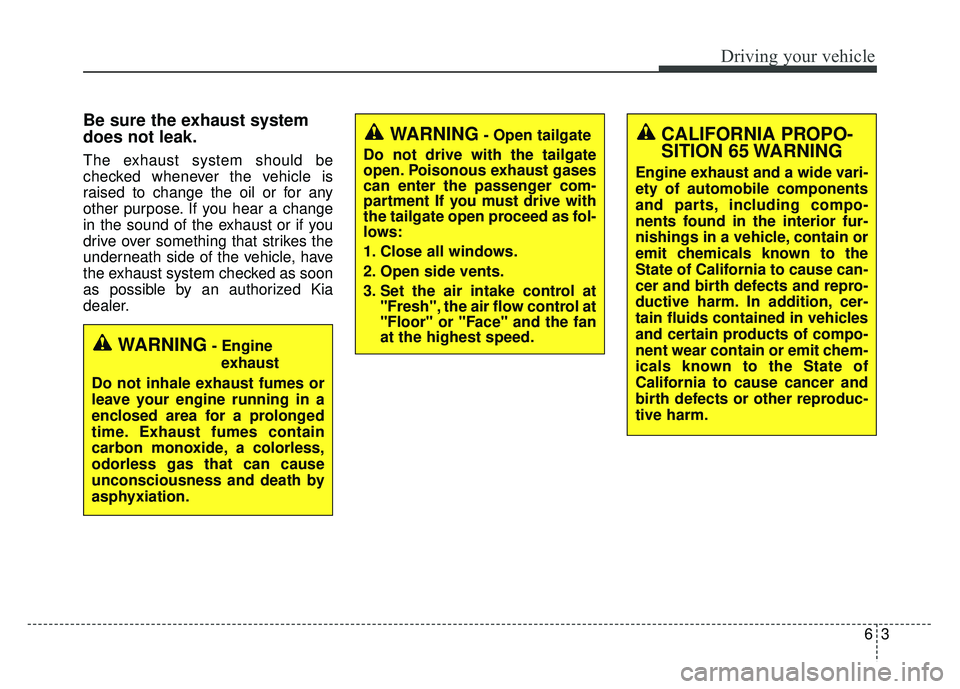
Be sure the exhaust system
does not leak.
The exhaust system should be
checked whenever the vehicle is
raised to change the oil or for any
other purpose. If you hear a change
in the sound of the exhaust or if you
drive over something that strikes the
underneath side of the vehicle, have
the exhaust system checked as soon
as possible by an authorized Kia
dealer.
WARNING- Engineexhaust
Do not inhale exhaust fumes or
leave your engine running in a
enclosed area for a prolonged
time. Exhaust fumes contain
carbon monoxide, a colorless,
odorless gas that can cause
unconsciousness and death by
asphyxiation.
WARNING- Open tailgate
Do not drive with the tailgate
open. Poisonous exhaust gases
can enter the passenger com-
partment If you must drive with
the tailgate open proceed as fol-
lows:
1. Close all windows.
2. Open side vents.
3. Set the air intake control at "Fresh", the air flow control at
"Floor" or "Face" and the fan
at the highest speed.CALIFORNIA PROPO-
SITION 65 WARNING
Engine exhaust and a wide vari-
ety of automobile components
and parts, including compo-
nents found in the interior fur-
nishings in a vehicle, contain or
emit chemicals known to the
State of California to cause can-
cer and birth defects and repro-
ductive harm. In addition, cer-
tain fluids contained in vehicles
and certain products of compo-
nent wear contain or emit chem-
icals known to the State of
California to cause cancer and
birth defects or other reproduc-
tive harm.
Page 328 of 589
69
Driving your vehicle
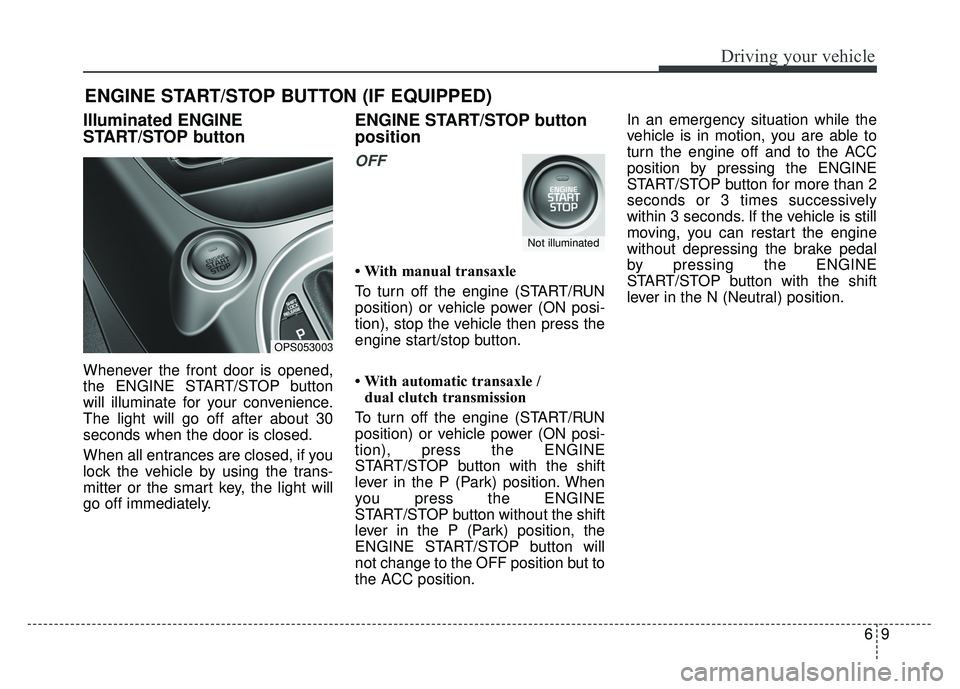
Illuminated ENGINE
START/STOP button
Whenever the front door is opened,
the ENGINE START/STOP button
will illuminate for your convenience.
The light will go off after about 30
seconds when the door is closed.
When all entrances are closed, if you
lock the vehicle by using the trans-
mitter or the smart key, the light will
go off immediately.
ENGINE START/STOP button
position
OFF
• With manual transaxle
To turn off the engine (START/RUN
position) or vehicle power (ON posi-
tion), stop the vehicle then press the
engine start/stop button.
• With automatic transaxle / dual clutch transmission
To turn off the engine (START/RUN
position) or vehicle power (ON posi-
tion), press the ENGINE
START/STOP button with the shift
lever in the P (Park) position. When
you press the ENGINE
START/STOP button without the shift
lever in the P (Park) position, the
ENGINE START/STOP button will
not change to the OFF position but to
the ACC position. In an emergency situation while the
vehicle is in motion, you are able to
turn the engine off and to the ACC
position by pressing the ENGINE
START/STOP button for more than 2
seconds or 3 times successively
within 3 seconds. If the vehicle is still
moving, you can restart the engine
without depressing the brake pedal
by pressing the ENGINE
START/STOP button with the shift
lever in the N (Neutral) position.
ENGINE START/STOP BUTTON (IF EQUIPPED)
OPS053003
Not illuminated