wheel KIA SOUL 2017 Owner's Manual
[x] Cancel search | Manufacturer: KIA, Model Year: 2017, Model line: SOUL, Model: KIA SOUL 2017Pages: 589, PDF Size: 13.3 MB
Page 135 of 589
449
Features of your vehicle
Instrument Cluster Control
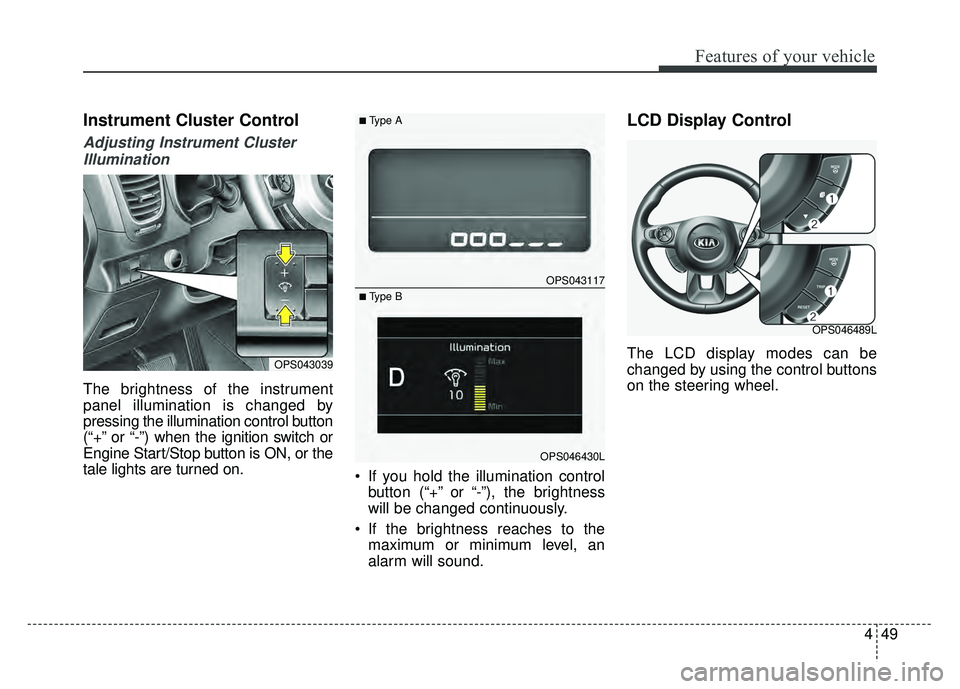
Adjusting Instrument ClusterIllumination
The brightness of the instrument
panel illumination is changed by
pressing the illumination control button
(“+” or “-”) when the ignition switch or
Engine Start/Stop button is ON, or the
tale lights are turned on. If you hold the illumination control
button (“+” or “-”), the brightness
will be changed continuously.
If the brightness reaches to the maximum or minimum level, an
alarm will sound.
LCD Display Control
The LCD display modes can be
changed by using the control buttons
on the steering wheel.OPS043039
OPS043117
OPS046430L
■Type A
■ Type B
OPS046489L
Page 155 of 589
469
Features of your vehicle
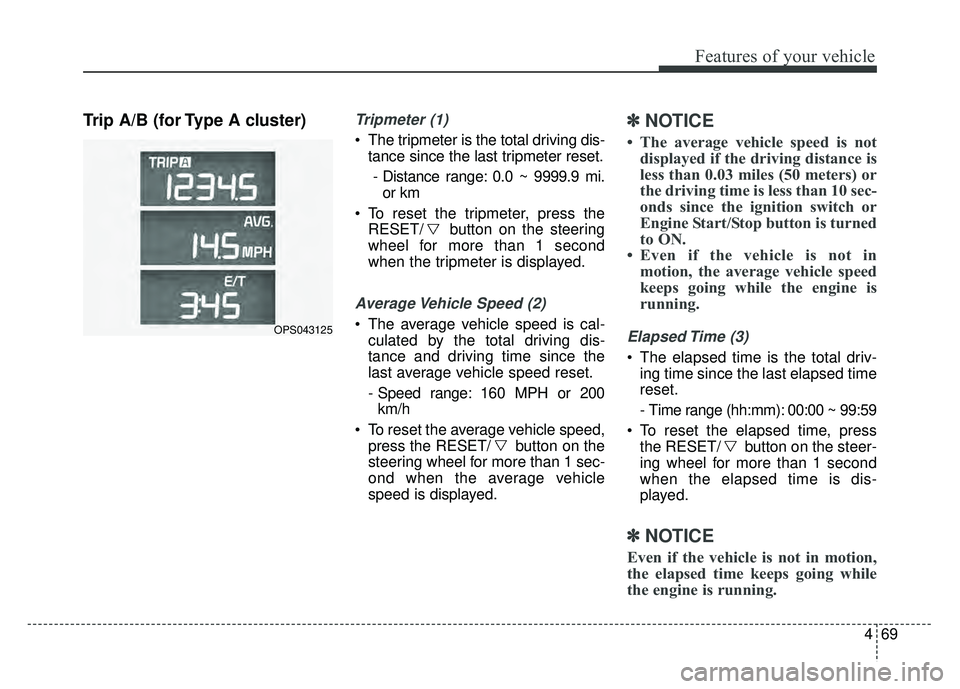
Trip A/B (for Type A cluster)Tripmeter (1)
The tripmeter is the total driving dis-tance since the last tripmeter reset.
- Distance range: 0.0 ~ 9999.9 mi. or km
To reset the tripmeter, press the RESET/ button on the steering
wheel for more than 1 second
when the tripmeter is displayed.
Average Vehicle Speed (2)
The average vehicle speed is cal-culated by the total driving dis-
tance and driving time since the
last average vehicle speed reset.
- Speed range: 160 MPH or 200km/h
To reset the average vehicle speed, press the RESET/ button on the
steering wheel for more than 1 sec-
ond when the average vehicle
speed is displayed.
✽ ✽ NOTICE
• The average vehicle speed is not
displayed if the driving distance is
less than 0.03 miles (50 meters) or
the driving time is less than 10 sec-
onds since the ignition switch or
Engine Start/Stop button is turned
to ON.
• Even if the vehicle is not in motion, the average vehicle speed
keeps going while the engine is
running.
Elapsed Time (3)
The elapsed time is the total driv-
ing time since the last elapsed time
reset.
- Time range (hh:mm): 00:00 ~ 99:59
To reset the elapsed time, press the RESET/ button on the steer-
ing wheel for more than 1 second
when the elapsed time is dis-
played.
✽ ✽ NOTICE
Even if the vehicle is not in motion,
the elapsed time keeps going while
the engine is running.
OPS043125
Page 156 of 589
Features of your vehicle
70
4
Fuel Economy
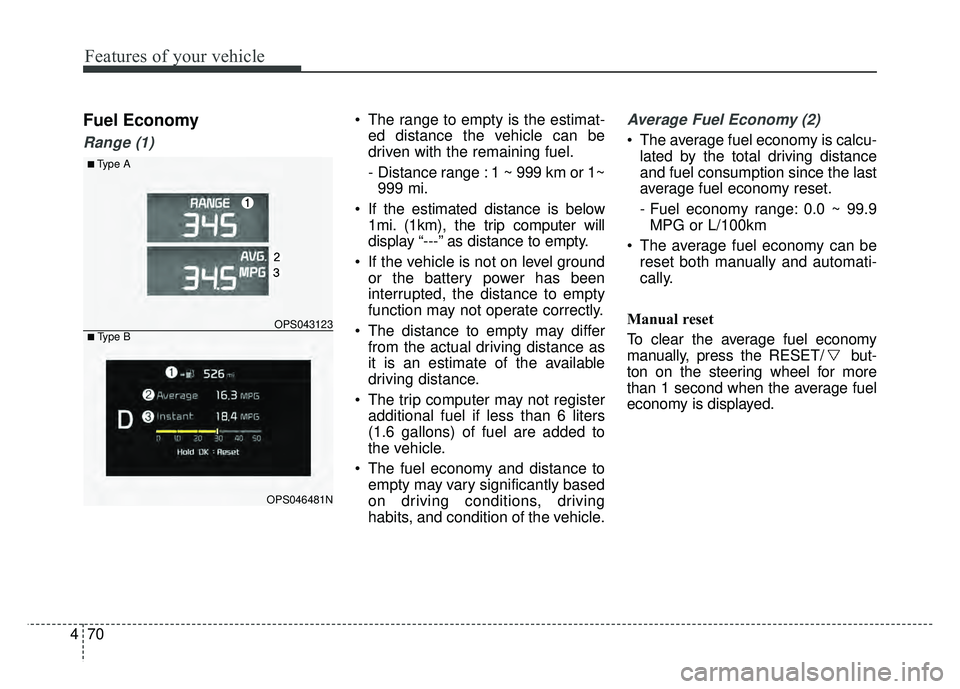
Range (1)
The range to empty is the estimat-
ed distance the vehicle can be
driven with the remaining fuel.
- Distance range : 1 ~ 999 km or 1~999 mi.
If the estimated distance is below 1mi. (1km), the trip computer will
display “---” as distance to empty.
If the vehicle is not on level ground or the battery power has been
interrupted, the distance to empty
function may not operate correctly.
The distance to empty may differ from the actual driving distance as
it is an estimate of the available
driving distance.
The trip computer may not register additional fuel if less than 6 liters
(1.6 gallons) of fuel are added to
the vehicle.
The fuel economy and distance to empty may vary significantly based
on driving conditions, driving
habits, and condition of the vehicle.Average Fuel Economy (2)
The average fuel economy is calcu-lated by the total driving distance
and fuel consumption since the last
average fuel economy reset.
- Fuel economy range: 0.0 ~ 99.9MPG or L/100km
The average fuel economy can be reset both manually and automati-
cally.
Manual reset
To clear the average fuel economy
manually, press the RESET/ but-
ton on the steering wheel for more
than 1 second when the average fuel
economy is displayed.
■Type A
OPS043123
OPS046481N
■ Type B
Page 161 of 589
475
Features of your vehicle
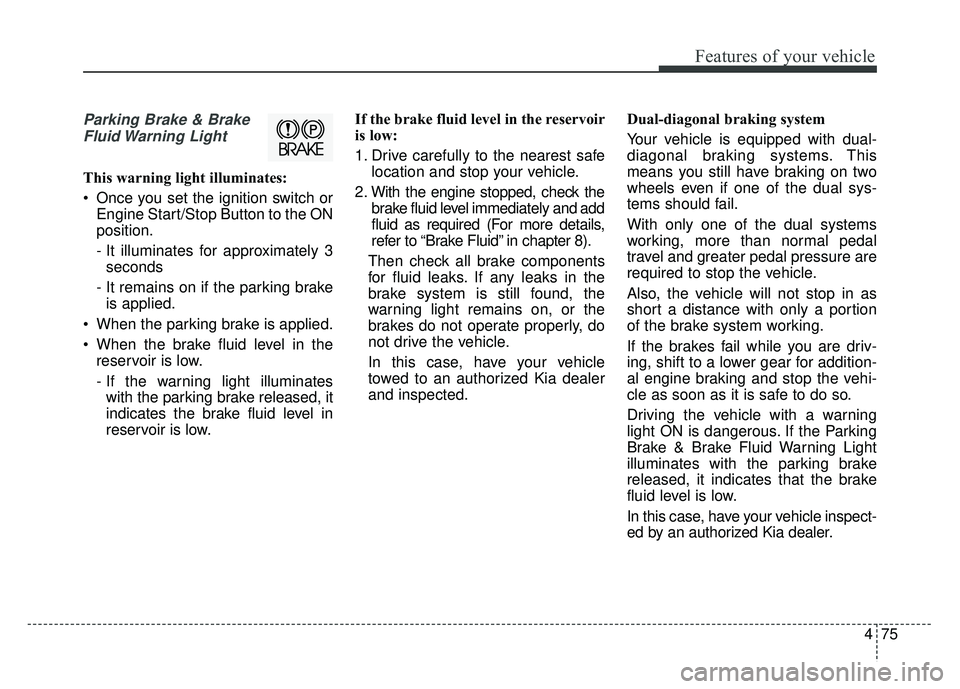
Parking Brake & BrakeFluid Warning Light
This warning light illuminates:
Once you set the ignition switch or Engine Start/Stop Button to the ON
position.
- It illuminates for approximately 3seconds
- It remains on if the parking brake is applied.
When the parking brake is applied.
When the brake fluid level in the reservoir is low.
- If the warning light illuminateswith the parking brake released, it
indicates the brake fluid level in
reservoir is low. If the brake fluid level in the reservoir
is low:
1. Drive carefully to the nearest safe
location and stop your vehicle.
2. With the engine stopped, check the brake fluid level immediately and add
fluid as required (For more details,
refer to “Brake Fluid” in chapter 8).
Then check all brake components
for fluid leaks. If any leaks in the
brake system is still found, the
warning light remains on, or the
brakes do not operate properly, do
not drive the vehicle.
In this case, have your vehicle
towed to an authorized Kia dealer
and inspected. Dual-diagonal braking system
Your vehicle is equipped with dual-
diagonal braking systems. This
means you still have braking on two
wheels even if one of the dual sys-
tems should fail.
With only one of the dual systems
working, more than normal pedal
travel and greater pedal pressure are
required to stop the vehicle.
Also, the vehicle will not stop in as
short a distance with only a portion
of the brake system working.
If the brakes fail while you are driv-
ing, shift to a lower gear for addition-
al engine braking and stop the vehi-
cle as soon as it is safe to do so.
Driving the vehicle with a warning
light ON is dangerous. If the Parking
Brake & Brake Fluid Warning Light
illuminates with the parking brake
released, it indicates that the brake
fluid level is low.
In this case, have your vehicle inspect-
ed by an authorized Kia dealer.
Page 192 of 589
Features of your vehicle
106
4
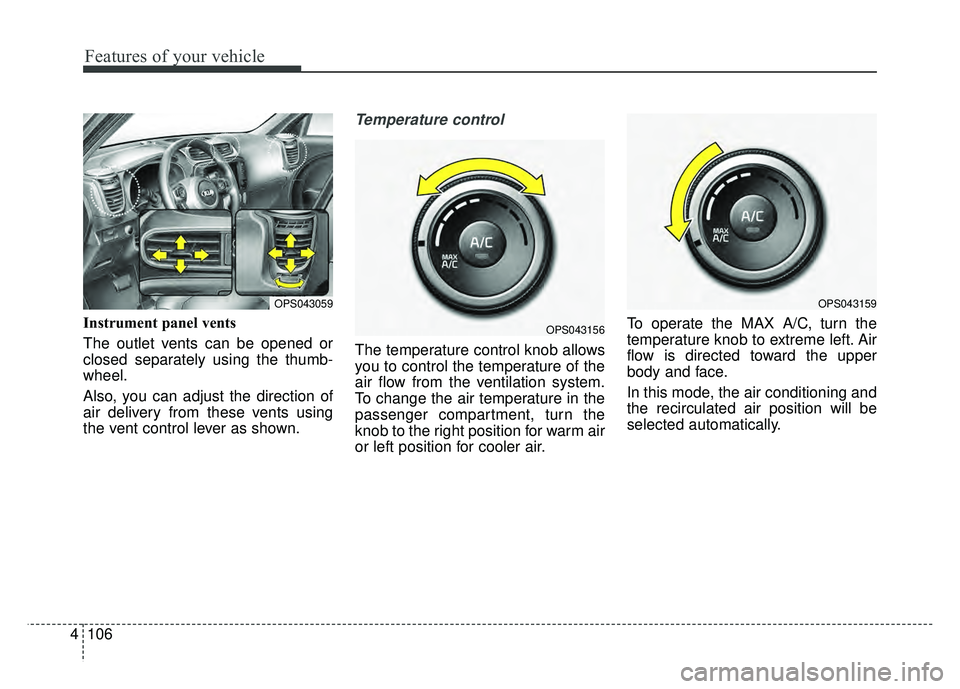
Instrument panel vents
The outlet vents can be opened or
closed separately using the thumb-
wheel.
Also, you can adjust the direction of
air delivery from these vents using
the vent control lever as shown.
Temperature control
The temperature control knob allows
you to control the temperature of the
air flow from the ventilation system.
To change the air temperature in the
passenger compartment, turn the
knob to the right position for warm air
or left position for cooler air. To operate the MAX A/C, turn the
temperature knob to extreme left. Air
flow is directed toward the upper
body and face.
In this mode, the air conditioning and
the recirculated air position will be
selected automatically.
OPS043059
OPS043156
OPS043159
Page 204 of 589
Features of your vehicle
118
4
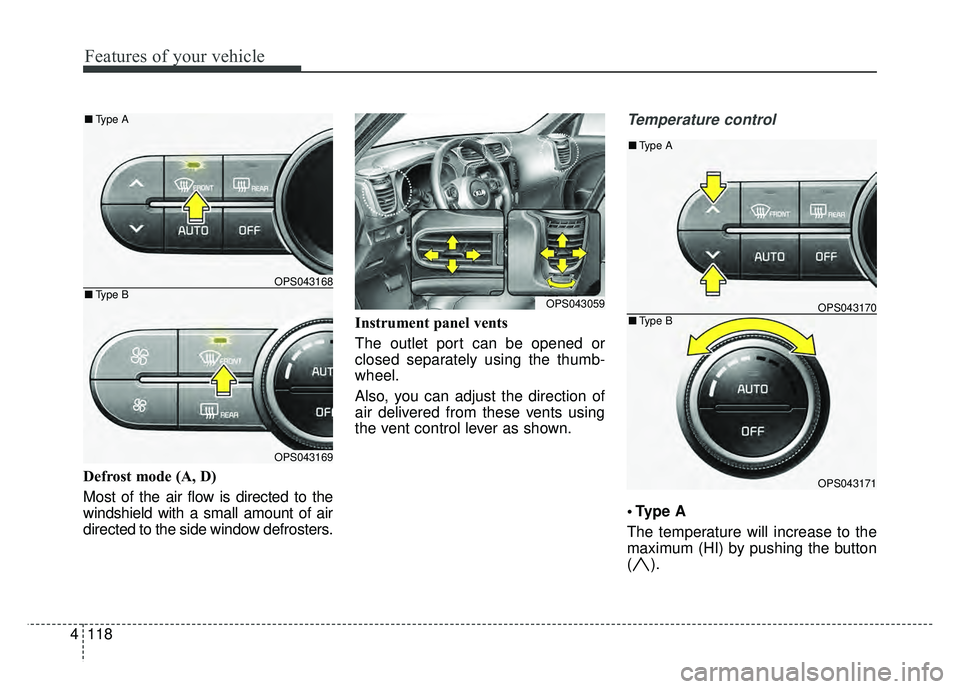
Defrost mode (A, D)
Most of the air flow is directed to the
windshield with a small amount of air
directed to the side window defrosters. Instrument panel vents
The outlet port can be opened or
closed separately using the thumb-
wheel.
Also, you can adjust the direction of
air delivered from these vents using
the vent control lever as shown.
Temperature control
A
The temperature will increase to the
maximum (HI) by pushing the button
().
OPS043168
OPS043169
■
Type B
■Type A
OPS043059OPS043170
OPS043171
■Type B
■Type A
Page 238 of 589
Audio system
53
Audio remote control
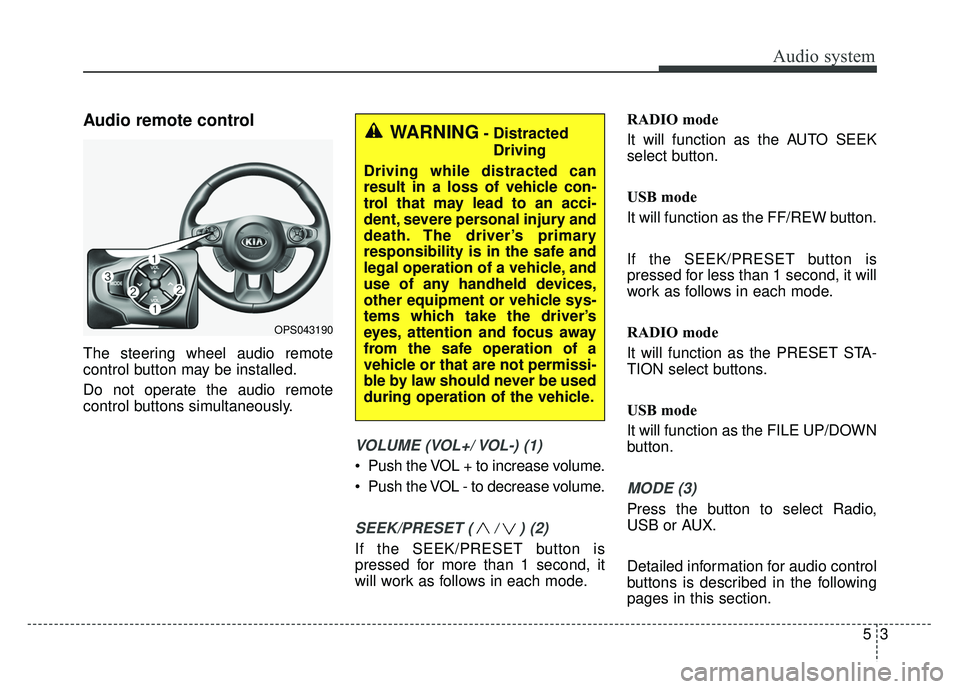
The steering wheel audio remote
control button may be installed.
Do not operate the audio remote
control buttons simultaneously.
VOLUME (VOL+/ VOL-) (1)
Push the VOL + to increase volume.
Push the VOL - to decrease volume.
SEEK/PRESET ( / ) (2)
If the SEEK/PRESET button is
pressed for more than 1 second, it
will work as follows in each mode.RADIO mode
It will function as the AUTO SEEK
select button.
USB mode
It will function as the FF/REW button.
If the SEEK/PRESET button is
pressed for less than 1 second, it will
work as follows in each mode.
RADIO mode
It will function as the PRESET STA-
TION select buttons.
USB mode
It will function as the FILE UP/DOWN
button.
MODE (3)
Press the button to select Radio,
USB or AUX.
Detailed information for audio control
buttons is described in the following
pages in this section.
OPS043190
WARNING- Distracted
Driving
Driving while distracted can
result in a loss of vehicle con-
trol that may lead to an acci-
dent, severe personal injury and
death. The driver’s primary
responsibility is in the safe and
legal operation of a vehicle, and
use of any handheld devices,
other equipment or vehicle sys-
tems which take the driver’s
eyes, attention and focus away
from the safe operation of a
vehicle or that are not permissi-
ble by law should never be used
during operation of the vehicle.
Page 248 of 589
Audio system
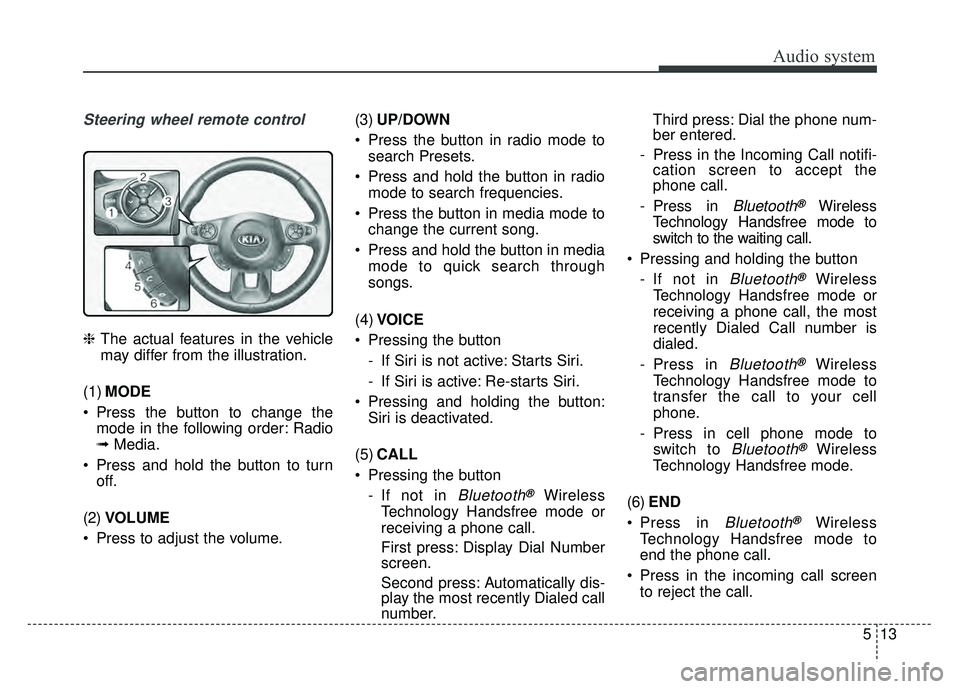
Steering wheel remote control
❈The actual features in the vehicle
may differ from the illustration.
(1) MODE
Press the button to change the mode in the following order: Radio
➟ Media.
Press and hold the button to turn off.
(2) VOLUME
Press to adjust the volume. (3)
UP/DOWN
Press the button in radio mode to search Presets.
Press and hold the button in radio mode to search frequencies.
Press the button in media mode to change the current song.
Press and hold the button in media mode to quick search through
songs.
(4) VOICE
Pressing the button - If Siri is not active: Starts Siri.
- If Siri is active: Re-starts Siri.
Pressing and holding the button: Siri is deactivated.
(5) CALL
Pressing the button - If not in
Bluetooth®Wireless
Technology Handsfree mode or
receiving a phone call.
First press: Display Dial Number
screen.
Second press: Automatically dis-
play the most recently Dialed call
number. Third press: Dial the phone num-
ber entered.
- Press in the Incoming Call notifi- cation screen to accept the
phone call.
- Press in
Bluetooth®Wireless
Technology Handsfree mode to
switch to the waiting call.
Pressing and holding the button - If not in
Bluetooth®Wireless
Technology Handsfree mode or
receiving a phone call, the most
recently Dialed Call number is
dialed.
- Press in
Bluetooth®Wireless
Technology Handsfree mode to
transfer the call to your cell
phone.
- Press in cell phone mode to switch to
Bluetooth®Wireless
Technology Handsfree mode.
(6) END
Press in
Bluetooth®Wireless
Technology Handsfree mode to
end the phone call.
Press in the incoming call screen to reject the call.
513
Page 272 of 589
Audio system
537
Pairing a Bluetooth®Wireless
Technology device
Information on pairing Bluetooth®
Wireless Technology devices
Pairing refers to the process of
pairing
Bluetooth®Wireless
Technology cell phones or devices
with the system prior to connec-
tion. This is a necessary procedure
for
Bluetooth®Wireless Technology
connection and usage.
Up to five devices can be paired.
Pairing
Bluetooth®Wireless
Technology device is not allowed
while vehicle is moving. Pairing the first
Bluetooth
®Wireless
Technology device
Select the [PHONE] button on the
audio system or the [CALL] button
on the steering wheel remote control
➟ Search for the vehicle from the
Bluetooth®Wireless Technology
device, and pair ➟ Enter the passkey
on the
Bluetooth®Wireless Technology
device or approve passkey ➟
Bluetooth®Wireless Technology pair-
ing completed.
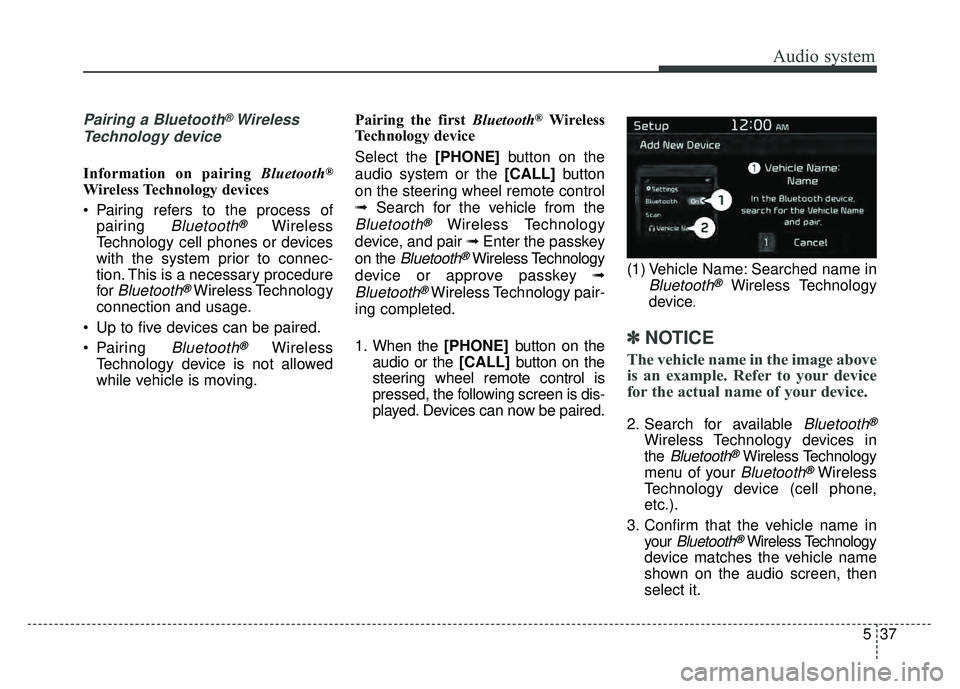
1. When the [PHONE] button on the
audio or the [CALL] button on the
steering wheel remote control is
pressed, the following screen is dis-
played. Devices can now be paired. (1) Vehicle Name: Searched name inBluetooth®Wireless Technology
device
.
✽ ✽ NOTICE
The vehicle name in the image above
is an example. Refer to your device
for the actual name of your device.
2. Search for available Bluetooth®
Wireless Technology devices in
the
Bluetooth®Wireless Technology
menu of your
Bluetooth®Wireless
Technology device (cell phone,
etc.).
3. Confirm that the vehicle name in your
Bluetooth®Wireless Technology
device matches the vehicle name
shown on the audio screen, then
select it.
Page 274 of 589
![KIA SOUL 2017 Owners Manual Audio system
539
Connecting Bluetooth®Wireless
Technology devices
If there are no connected devices
Select the [PHONE] button on the
audio system or the [CALL] button in
the steering wheel remote con](/img/2/54636/w960_54636-273.png "KIA SOUL 2017 Owners Manual Audio system
539
Connecting Bluetooth®Wireless
Technology devices
If there are no connected devices
Select the [PHONE] button on the
audio system or the [CALL] button in
the steering wheel remote con")
Audio system
539
Connecting Bluetooth®Wireless
Technology devices
If there are no connected devices
Select the [PHONE] button on the
audio system or the [CALL] button in
the steering wheel remote control ➟
List of paired
Bluetooth®Wireless
Technology devices ➟ Select the
desired
Bluetooth®Wireless Technology
device from the list ➟ Connect
Bluetooth®Wireless Technology. If there are connected devices
Select the [PHONE]
button on the
audio system ➟ Select [Settings] ➟
Select [Connections] ➟Select
Bluetooth®Wireless Technology device
to connect ➟ Select [Connect] ➟
Connect
Bluetooth®Wireless Technology.
✽ ✽ NOTICE
• Only one Bluetooth®Wireless
Technology device can be connect-
ed at a time.
• When a Bluetooth
®Wireless
Technology device is connected,
other devices cannot be paired.
Accepting/rejecting phone calls
Receiving phone calls with Bluetooth®
Wireless Technology connected.
(1) Caller name: If the caller number is in your contacts, the correspon-
ding name is displayed.
(2) Incoming phone number: Incoming phone number is displayed.
(3) Accept: Accept call.
(4) Reject: Reject call.