ECO mode KIA SOUL 2018 Owner's Manual
[x] Cancel search | Manufacturer: KIA, Model Year: 2018, Model line: SOUL, Model: KIA SOUL 2018Pages: 620, PDF Size: 13.29 MB
Page 261 of 620
Audio system
26
5
✽
✽
NOTICE - Using the iPod®
Devices
• To use the audio system’s iPod®
control function, use the dedicated
cable provided with your iPod®.
• Connecting the iPod®to the vehi-
cle during play may result in a
loud noise that lasts about one to
two seconds. Connect the iPod
®to
the vehicle after stopping or paus-
ing play.
• Connect the iPod
®with the vehicle
in the ACC ON state to begin
charging.
• When connecting the iPod
®cable,
be sure to fully push the cable into
the port.
• When EQ effects are enabled simultaneously on external
devices, such as iPod
®s and the
audio system, the EQ effects may
overlap, causing sound quality
deterioration or distortion.
Deactivate the EQ function for all
external devices, if possible.
• Noise may occur when your iPod
®
or the AUX port is connected.
Disconnect and store separately
when not in use. (Continued)(Continued)
• There may be noise if the audio
system is used with an iPod
®or
AUX external device connected to
the power jack. In these cases, dis-
connect the iPod
®or external
device from the power jack.
• Play may be interrupted, or device malfunctions may occur depend-
ing on the characteristics of your
iPod
®/iPhone®.
• Play may fail if your iPhone®is
connected through both Bluetooth®
Wireless Technology and USB. In
this case, select Dock connector or
Bluetooth
®Wireless Technology
on your iPhone®to change the
sound output settings.
• If your software version does not support the communication proto-
col or your iPod
®is not recognized
due to device failure, anomalies or
defects, iPod
®mode cannot be
used.
• iPod
®nano (5th generation)
devices may not be recognized if
the battery is low. Charge suffi-
ciently before use. (Continued)(Continued)
• The search and song play order in
the iPod
®device may be different
from the search order in the audio
system.
• If the iPod
®has failed due to an
internal defect, please reset the
iPod
®(consult your iPod®manu-
al).
• Depending on the software ver- sion, the iPod
®may fail to sync
with the system. If the media is
removed or disconnected before
recognition, the previous mode
may not be restored (iPad
®cannot
be charged).
• Cables other than the 1-meter cable provided with iPod
®/iPhone®
products may not be recognized.
• When other music apps are used on your iPod
®, the system sync
function may fail due to malfunc-
tion of the iPod
®application.
Page 273 of 620
Audio system
38
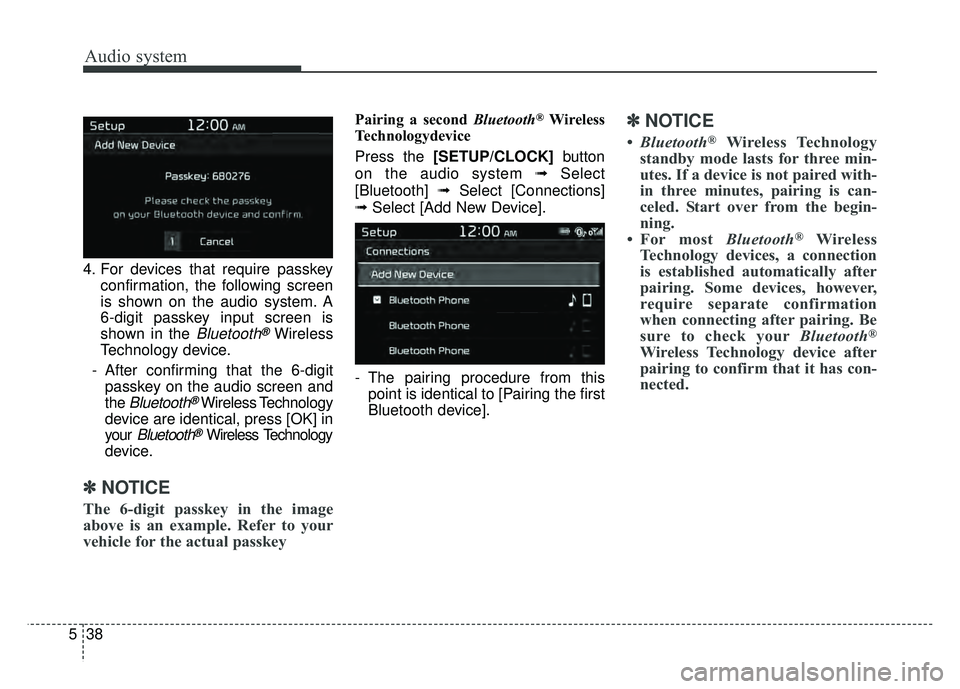
5 4. For devices that require passkey
confirmation, the following screen
is shown on the audio system. A
6-digit passkey input screen is
shown in the
Bluetooth®Wireless
Technology device.
- After confirming that the 6-digit passkey on the audio screen and
the
Bluetooth®Wireless Technology
device are identical, press [OK] in
your
Bluetooth®Wireless Technology
device.
✽ ✽ NOTICE
The 6-digit passkey in the image
above is an example. Refer to your
vehicle for the actual passkey
Pairing a second Bluetooth®Wireless
Technologydevice
Press the [SETUP/CLOCK] button
on the audio system ➟Select
[Bluetooth] ➟Select [Connections]
➟ Select [Add New Device].
- The pairing procedure from this point is identical to [Pairing the first
Bluetooth device].✽ ✽ NOTICE
•Bluetooth®Wireless Technology
standby mode lasts for three min-
utes. If a device is not paired with-
in three minutes, pairing is can-
celed. Start over from the begin-
ning.
• For most Bluetooth
®Wireless
Technology devices, a connection
is established automatically after
pairing. Some devices, however,
require separate confirmation
when connecting after pairing. Be
sure to check your Bluetooth
®
Wireless Technology device after
pairing to confirm that it has con-
nected.
Page 284 of 620
Audio system
549
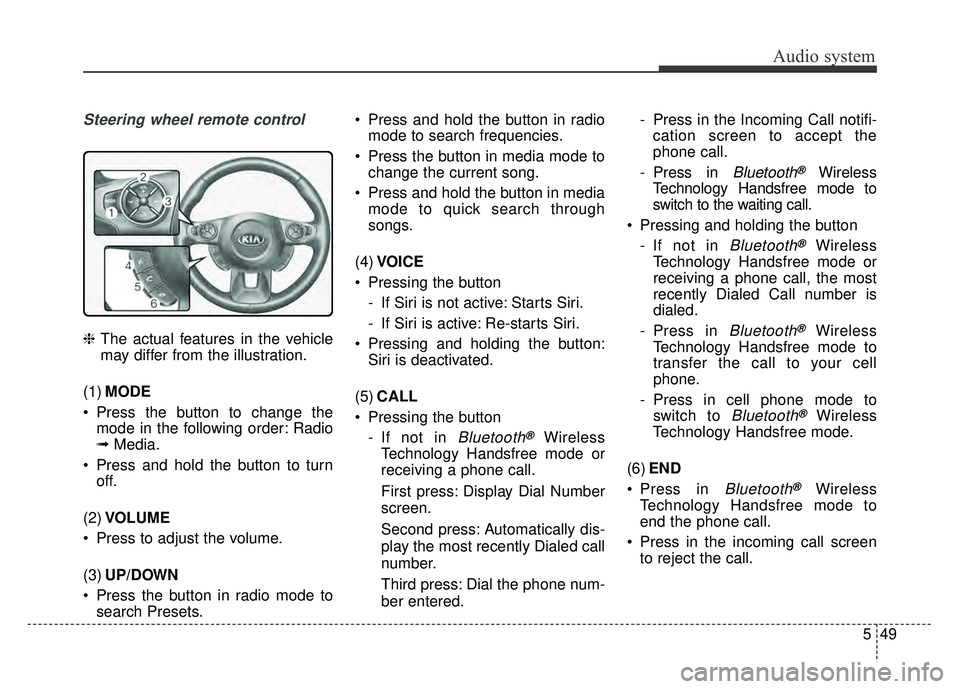
Steering wheel remote control
❈The actual features in the vehicle
may differ from the illustration.
(1) MODE
Press the button to change the mode in the following order: Radio
➟ Media.
Press and hold the button to turn off.
(2) VOLUME
Press to adjust the volume.
(3) UP/DOWN
Press the button in radio mode to search Presets. Press and hold the button in radio
mode to search frequencies.
Press the button in media mode to change the current song.
Press and hold the button in media mode to quick search through
songs.
(4) VOICE
Pressing the button - If Siri is not active: Starts Siri.
- If Siri is active: Re-starts Siri.
Pressing and holding the button: Siri is deactivated.
(5) CALL
Pressing the button - If not in
Bluetooth®Wireless
Technology Handsfree mode or
receiving a phone call.
First press: Display Dial Number
screen.
Second press: Automatically dis-
play the most recently Dialed call
number.
Third press: Dial the phone num-
ber entered. - Press in the Incoming Call notifi-
cation screen to accept the
phone call.
- Press in
Bluetooth®Wireless
Technology Handsfree mode to
switch to the waiting call.
Pressing and holding the button - If not in
Bluetooth®Wireless
Technology Handsfree mode or
receiving a phone call, the most
recently Dialed Call number is
dialed.
- Press in
Bluetooth®Wireless
Technology Handsfree mode to
transfer the call to your cell
phone.
- Press in cell phone mode to switch to
Bluetooth®Wireless
Technology Handsfree mode.
(6) END
Press in
Bluetooth®Wireless
Technology Handsfree mode to
end the phone call.
Press in the incoming call screen to reject the call.
Page 290 of 620
Audio system
555
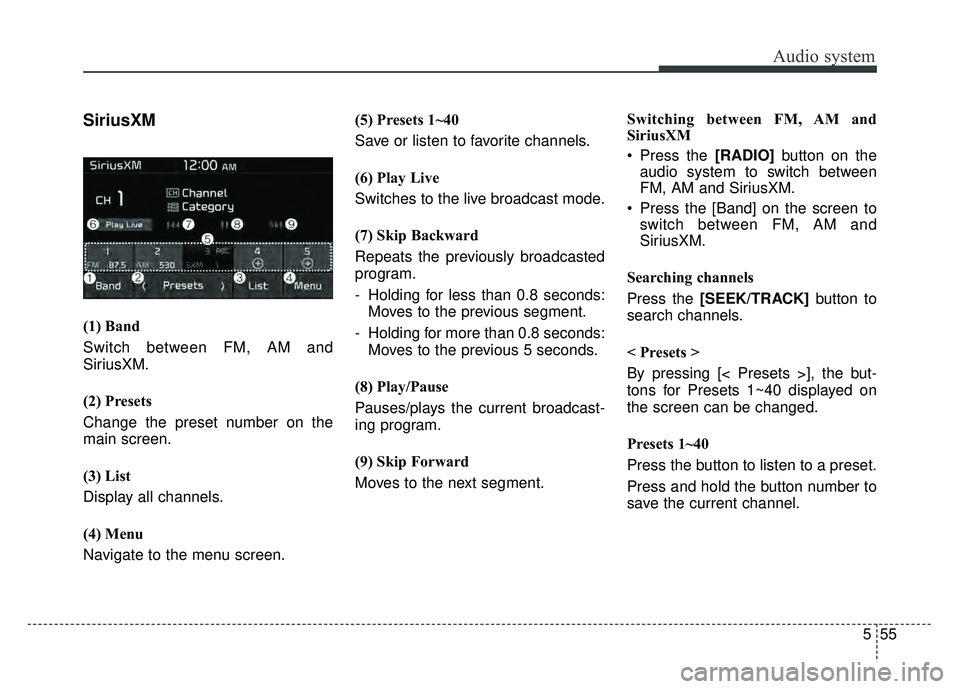
SiriusXM
(1) Band
Switch between FM, AM and
SiriusXM.
(2) Presets
Change the preset number on the
main screen.
(3) List
Display all channels.
(4) Menu
Navigate to the menu screen.(5) Presets 1~40
Save or listen to favorite channels.
(6) Play Live
Switches to the live broadcast mode.
(7) Skip Backward
Repeats the previously broadcasted
program.
- Holding for less than 0.8 seconds:
Moves to the previous segment.
- Holding for more than 0.8 seconds: Moves to the previous 5 seconds.
(8) Play/Pause
Pauses/plays the current broadcast-
ing program.
(9) Skip Forward
Moves to the next segment. Switching between FM, AM and
SiriusXM
Press the [RADIO]
button on the
audio system to switch between
FM, AM and SiriusXM.
Press the [Band] on the screen to switch between FM, AM and
SiriusXM.
Searching channels
Press the [SEEK/TRACK] button to
search channels.
< Presets >
By pressing [< Presets >], the but-
tons for Presets 1~40 displayed on
the screen can be changed.
Presets 1~40
Press the button to listen to a preset.
Press and hold the button number to
save the current channel.
Page 298 of 620
Audio system
563
✽
✽NOTICE - Using the iPod®
Devices
• To use the audio system’s iPod®
control function, use the dedicated
cable provided with your iPod®.
• Connecting the iPod®to the vehi-
cle during play may result in a
loud noise that lasts about one to
two seconds. Connect the iPod
®to
the vehicle after stopping or paus-
ing play.
• Connect the iPod
®with the vehicle
in the ACC ON state to begin
charging.
• When connecting the iPod
®cable,
be sure to fully push the cable into
the port.
• When EQ effects are enabled simultaneously on external
devices, such as iPod
®s and the
audio system, the EQ effects may
overlap, causing sound quality
deterioration or distortion.
Deactivate the EQ function for all
external devices, if possible.
• Noise may occur when your iPod
®
or the AUX port is connected.
Disconnect and store separately
when not in use. (Continued)(Continued)
• There may be noise if the audio
system is used with an iPod
®or
AUX external device connected to
the power jack. In these cases, dis-
connect the iPod
®or external
device from the power jack.
• Play may be interrupted, or device malfunctions may occur depend-
ing on the characteristics of your
iPod
®/iPhone®.
• Play may fail if your iPhone®is
connected through both
Bluetooth
®Wireless Technology
and USB. In this case, select Dock
connector or Bluetooth
®Wireless
Technology on your iPhone®to
change the sound output settings.
• If your software version does not support the communication proto-
col or your iPod
®is not recognized
due to device failure, anomalies or
defects, iPod
®mode cannot be
used.
• iPod
®nano (5th generation)
devices may not be recognized if
the battery is low. Charge suffi-
ciently before use. (Continued)(Continued)
• The search and song play order in
the iPod
®device may be different
from the search order in the audio
system.
• If the iPod
®has failed due to an
internal defect, please reset the
iPod
®(consult your iPod®manu-
al).
• Depending on the software ver- sion, the iPod
®may fail to sync
with the system. If the media is
removed or disconnected before
recognition, the previous mode
may not be restored (iPad
®cannot
be charged).
• Cables other than the 1-meter cable provided with iPod
®/iPhone®
products may not be recognized.
• When other music apps are used on your iPod
®, the system sync
function may fail due to malfunc-
tion of the iPod
®application.
Page 311 of 620
Audio system
76
5
✽
✽
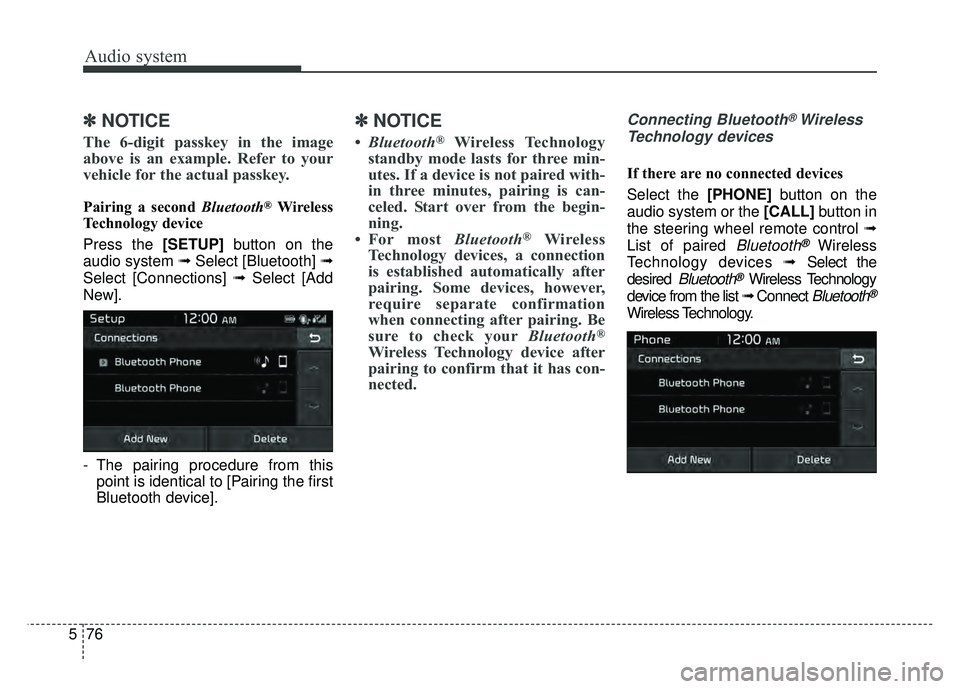
NOTICE
The 6-digit passkey in the image
above is an example. Refer to your
vehicle for the actual passkey.
Pairing a second Bluetooth®Wireless
Technology device
Press the [SETUP] button on the
audio system ➟ Select [Bluetooth] ➟
Select [Connections] ➟ Select [Add
New].
- The pairing procedure from this point is identical to [Pairing the first
Bluetooth device].
✽ ✽ NOTICE
•Bluetooth®Wireless Technology
standby mode lasts for three min-
utes. If a device is not paired with-
in three minutes, pairing is can-
celed. Start over from the begin-
ning.
• For most Bluetooth
®Wireless
Technology devices, a connection
is established automatically after
pairing. Some devices, however,
require separate confirmation
when connecting after pairing. Be
sure to check your Bluetooth
®
Wireless Technology device after
pairing to confirm that it has con-
nected.
Connecting Bluetooth®Wireless
Technology devices
If there are no connected devices
Select the [PHONE] button on the
audio system or the [CALL] button in
the steering wheel remote control ➟
List of paired
Bluetooth®Wireless
Technology devices ➟Select the
desired
Bluetooth®Wireless Technology
device from the list ➟ Connect
Bluetooth®
Wireless Technology.
Page 321 of 620
. . . . . . . . . . . . . . . 6-77
. . . . . . . . . . . . . . . . . . . . . . 6-78
Drive mode integrated control system . . . . . . . . . 6-84
Lane departure warning system (LDWS) . . . . . . 6-85
. . . . . . . . . . . . . . . . . . . . . . . . . . . 6-88
. . . . . . . . . . . . . . 6-89
vehicle leaves the lane, or may warn you even if the
vehicle does not leave the lane when . . . . . . . . . . . . 6-89
Blind spot detection system (BSD) . . . . . . . . . . . . 6-91
LCA (Lane Change Assist) . . . . . . . . . . . . . . . . . . . . 6-92
. . . . . . . . . . . . . . . . . 6-95
. . . . . . . . . . . . . . . . . . . . . . . . . . . . 6-97
Foward collision warning system (FCWS) . . . . . 6-99
. . . . . . . . . . . . . . . . . . . . . . . . . . . . . 6-99
. . . . . . . . . . . . . . . . . . . . . 6-101
Economical operation . . . . . . . . . . . . . . . . . . . . . 6-103
Special driving conditions . . . . . . . . . . . . . . . . . . 6-105
. . . . . . . . . . . . . . . . . 6-105
. . . . . . . . . . . . . . . . 6-105
. . . . . . . . . . . . . . . . . . . . . . . . . . 6-106
. . . . . . . . . . . . . . . . . . . . . . . . . . . 6-107
. . . . . . . . . . . . . . . . . . . . . . . . . . . . . 6-107
. . . . . . . . . . . . . . . . . . . . . . . . . . . 6-108
. . . . . . . . . . . . . . . . . . . . . . 6-108 . . . . . . . . . . . . . . . . . . . . . . . . . . . . . 6-109
. . . . . . . . . . . . . . . . . . . . . . . . . . . . 6-109
Winter driving . . . . . . . . . . . . . . . . . . . . . . . . . . . 6-110
. . . . . . . . . . . . . . . . . . . . . . 6-110
. . . . . . . . . 6-112
. . . . . . . . . . . . . . . . . . . . . 6-112
. . . . . . 6-112
. . . . . . . . . . . . . . . . . . . 6-112
. 6
-112
. . . . . . . . . . . . 6-113
. . . 6-113
. . . . . . . . . . . . . . . . . . 6-113
Vehicle load limit . . . . . . . . . . . . . . . . . . . . . . . . . 6-114
. . . . . . . . . . . . . 6-114
. . . . . . . . . . . . . . . . . . . . . . . . . . . 6-118
Vehicle weight glossary . . . . . . . . . . . . . . . . . . . . 6-120
. . . . . . . . . . . . . . . . . . . . . . . . . . . 6-120
. . . . . . . . . . . . . . . . . . . . . . . . . . 6-120
. . . . . . . . . . . . . . . . . . . . . . . . . . . . . . . 6-120
. . . . . . . . . . . . . . . . . . . . . 6-120
. . . . . . . . . . . . . . 6-120
. . . . . . . . . . . . . . . . . . 6-120
. . . . . . . . . . . 6-120
6
Page 327 of 620
Driving your vehicle
86
Manual Transaxle
To start the vehicle, keep the clutch
pedal and brake pedal depressed, and
make sure the engine RPM is within
normal range (under 1000 rpm). After
checking, shift the transaxle shift lever
to the desired position.
Unlock the parking brake, and take
your foot off the clutch pedal. Then,
lightly depress the accelerator pedal
and slowly start the vehicle.
4.Do not wait for the engine to warmup while the vehicle remains sta-
tionary.
Start driving at moderate engine
speeds. (Steep accelerating and
decelerating should be avoided.) Do not engage the starter for more
than 10 seconds. If the engine stalls
or fails to start, wait 5 to 10 seconds
before re-engaging the starter.
Improper use of the starter may
damage it. Stopping manual transaxle vehicles
1. After safely parking the vehicle,
press the clutch pedal and brake
pedal at the same time.
2. While depressing the clutch pedal and brake pedal at the same time,
shift the transaxle lever to ‘N’.CAUTION- Starter
If the engine stalls while you arein motion, do not attempt tomove the shift lever to the P(Park) position. If traffic androad conditions permit, you mayput the shift lever in the N(Neutral) position while thevehicle is still moving and turnthe ignition switch to the STARTposition in an attempt to restartthe engine.
WARNING- Steering
wheel
Never reach for any controls
through the steering wheel
while the vehicle is in motion.
The presence of your hand or
arm in this area could cause a
loss of vehicle control.
Page 331 of 620
Driving your vehicle
12
6
Manual Transaxle
To start the vehicle, keep the clutch
pedal and brake pedal depressed, and
make sure the engine RPM is within
normal range (under 1000 rpm). After
checking, shift the transaxle shift lever
to the desired position.
Unlock the parking brake, and take
your foot off the clutch pedal. Then,
lightly depress the accelerator pedal
and slowly start the vehicle.
5.Do not wait for the engine to warm
up while the vehicle remains sta-
tionary.
Start driving at moderate engine
speeds. (Steep accelerating and
decelerating should be avoided.) Even if the smart key is in the vehi-
cle, if it is far away from you, the
engine may not start.
When the ENGINE START/STOP button is in the ACC position or
above, if any door is opened, the
system checks for the smart key. If
the smart key is not in the vehicle,
a message "key is not in the vehi-
cle" will appear on the LCD display.
And if all doors are closed, the
chime will sound for 5 seconds. The
indicator or warning will turn off
while the vehicle is moving. Always
have the smart key with you. Stopping manual transaxle vehicles
1. After safely parking the vehicle,
press the clutch pedal and brake
pedal at the same time.
2. While depressing the clutch pedal and brake pedal at the same time,
shift the transaxle lever to ‘N’.
CAUTION- Starter
If the engine stalls while thevehicle is in motion, do notattempt to move the shift leverto the P (Park) position. If thetraffic and road conditions per-mit, you may put the shift leverin the N (Neutral) position whilethe vehicle is still moving andpress the ENGINE START/STOPbutton in an attempt to restartthe engine.
Page 340 of 620
621
Driving your vehicle
- Parking in N (Neutral) gear
Follow below steps when parking
and you want the vehicle to move
when pushed.
1.After parking your vehicle, step onthe brake pedal and move the shift
lever to [P] with the ignition button in
[ON] or while the engine is running.
2.If the parking brake is applied unlock the parking brake.
3.While pressing the brake pedal, turn the ignition button [OFF].
- For smart key equipped vehicles,the ignition switch can be moved
to [OFF] only when the shift lever
is in [P].
4.Change the gear shift lever to [N] (Neutral) while pressing the brake
pedal and pushing [SHIFT LOCK
RELEASE] button or inserting,
pressing down a tool (e.g. flathead
screw-driver) into the [SHIFT LOCK
RELEASE] access hole at the same
time. Then, the vehicle will move
when external force is applied. D (Drive)
This is the normal forward driving
position. The transaxle will automati-
cally shift through a 6-gear
sequence, providing the best fuel
economy and power.
For extra power when passing anoth-
er vehicle or climbing grades, depress
the accelerator fully, at which time the
transaxle will automatically downshift
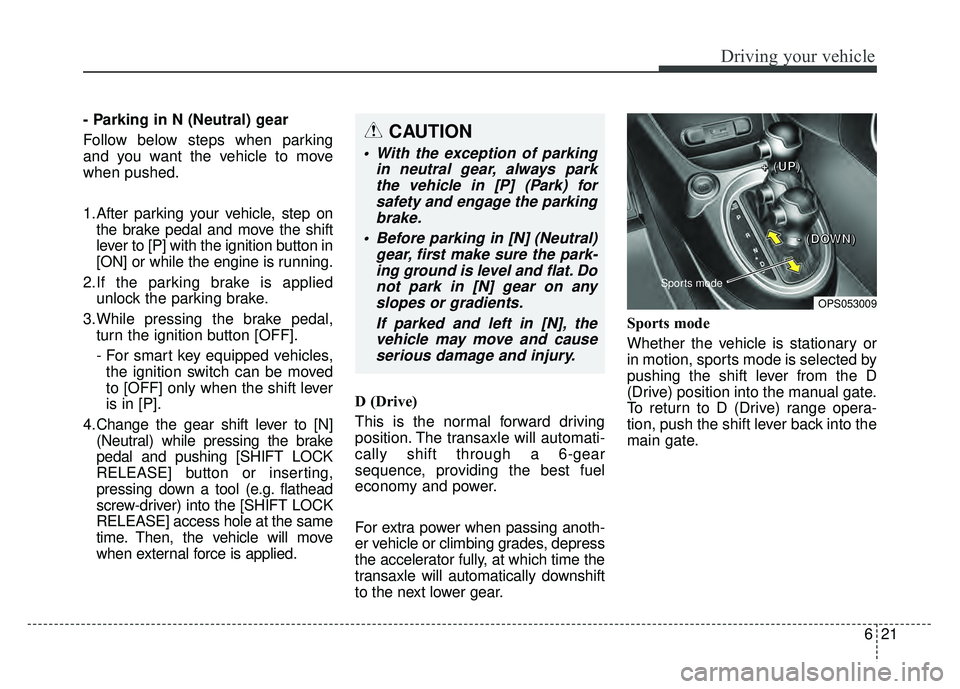
to the next lower gear. Sports mode
Whether the vehicle is stationary or
in motion, sports mode is selected by
pushing the shift lever from the D
(Drive) position into the manual gate.
To return to D (Drive) range opera-
tion, push the shift lever back into the
main gate.CAUTION
With the exception of parking
in neutral gear, always parkthe vehicle in [P] (Park) forsafety and engage the parkingbrake.
Before parking in [N] (Neutral) gear, first make sure the park-ing ground is level and flat. Donot park in [N] gear on anyslopes or gradients.
If parked and left in [N], thevehicle may move and causeserious damage and injury.
OPS053009
Sports mode
+
+
+
+
(
(
(
(
U
U
U
U
P
P
P
P
)
)
)
)
-
-
-
-
(
(
(
(
D
D
D
D
O
O
O
O
W
W
W
W
N
N
N
N
)
)
)
)