start KIA SOUL 2021 Navigation System Quick Reference Guide
[x] Cancel search | Manufacturer: KIA, Model Year: 2021, Model line: SOUL, Model: KIA SOUL 2021Pages: 211, PDF Size: 6.67 MB
Page 91 of 211

5-23
Registering a frequently visited place as
a destination
You can set your home, office, or other frequently visited places
as a destination directly from your favorites list once you add
them.
At the bottom of the Navigation Menu screen, touch
a desired shortcut button.
0000
A
If any destination, to change it, touch Yes on the pop-up
window.
0000A Available icons and their arrangement may differ depending
on the vehicle model and specifications.
Setting a registered favorite place as a
destination
You can set any in the address book of the navigation system as a
destination.
1 On the Navigation Menu screen, touch Address
Book.
2 Select the desired group.
0000
A
To select one of the sites received from the UVO website
or app, touch My POIs by UVO.
> See “Using the received
location information.”
3 Select the place to set as a destination.
4 Check the location of the destination and then
touch Start Guidance.
0000
A
If any destination, to change it, touch Yes on the pop-up
window.
Page 94 of 211

5-26
END USER LICENSE
AGREEMENT
PLEASE READ THIS END USER LICENSE AGREEMENT ("EULA")
CAREFULLY BEFORE USING THE NAVIGATION SYSTEM.
This is a license agreement between you and Hyundai MnSoft,
INC. including its affiliates ("COMPANY") regarding a copy of the
COMPANY navigable map database together with associated
software, media and explanatory printed documentation
published by COMPANY (jointly the "Product"). The Product is
provided for your personal, internal use only and not for resale.
It is protected by copyright and is subject to the following terms
which are agreed to by you, on the one hand, and COMPANY
and its licensors (and their licensors and suppliers) (collectively,
"Licensors") on the other hand.
By using the Product, you accept and agree to all terms and
conditions in this End User License Agreement ("EULA"). IF
YOU DO NOT AGREE TO THE TERMS OF THIS EULA, YOU MUST
PROMPTLY EXIT THE PRODUCT OPERATION PROGRAM AND DO
NOT USE OR ACCESS TO THE PRODUCT. YOU AGREE THAT YOUR
RIGHTS UNDER THIS EULA MAY BE TERMINATED AUTOMATICALLY
WITHOUT NOTICE IF YOU FAIL TO COMPLY WITH ANY TERM(S) OF
THIS EULA.
2 Select a destination from the search result.
0000
A
To categorize the searched items, select a category.
0000
A
To change the sorting order, touch
on the drop-down
list and then select the sorting criteria.
0000
A
To access the online user’s manual on the Gas Stations
screen, touch Menu >
User’s Manual on Web (QR Code)
and then scan the displayed QR code.
3 Check the location of the destination and then
touch Start Guidance.
Page 124 of 211
7-2
Voice recognition
With the voice recognition function, you can access various
functions of the infotainment system without manipulating the
screen or buttons. This function prevents driver distraction and
dangerous situations.
Use voice commands to access various functions easily.0000
A
The system can recognize the specified voice commands.
> See “ Available voice commands” or the voice recognition help.
0000
A
Note the following for accurate delivery of command when
saying it.
-Pronounce a command accurately and naturally like a
conversation.
-Keep the correct posture and say commands toward the
direction of the microphone.
0000
A
Voice recognition is automatically ended when:
-You make or receive a call.
-A media source is connected or disconnected.
-The front or rear cameras operate (if equipped).
-The [RADIO] or [MEDIA] button is pressed to perform
another function.
- Rerouting or other unexpected action is made due to
deviation from the route during guidance. 0000
A
Voice recognition may not work properly when:
-The sunroof or windows are open so the wind is strong.
-The fan speed of the air conditioner or heater is high (level
3 or below is recommended).
-The vehicle is passing through a tunnel.
-The vehicle is driving on an unpaved road and its noise and
vibration are loud.
-Noise is loud due to a heavy rain or storm.
Using the voice recognition
1 On the steering wheel, press the [] button.
Voice recognition starts along with voice guidance.
0000
A
To skip the voice guidance, press the [
] button on the
steering wheel.
2 When a beep sound is heard, say a command to
perform (e.g. navigation, music, call).
> See “ Available
voice commands” or the voice recognition help.
The recognized command appears in text at the top of the
screen and the corresponding function is performed. 0000
A
When an additional command is required to perform, the
commands that can be followed in the next step appear
on the screen. Say a command or touch a command.
0000
A
When there are several similar commands, say a
command number to perform.
Page 130 of 211
7-8
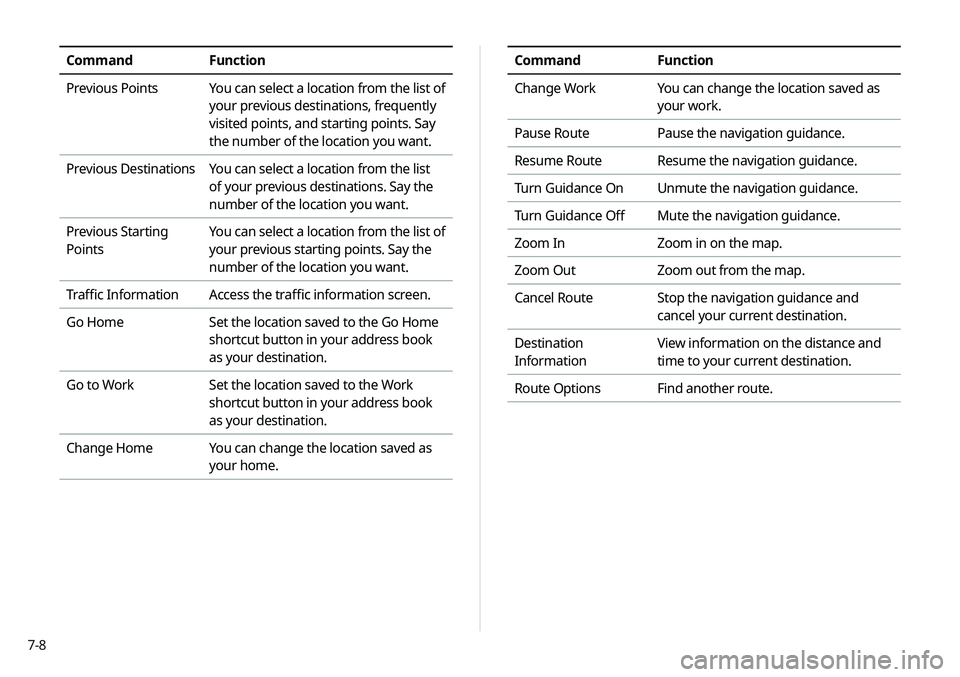
CommandFunction
Change Work You can change the location saved as
your work.
Pause Route Pause the navigation guidance.
Resume Route Resume the navigation guidance.
Turn Guidance On Unmute the navigation guidance.
Turn Guidance Off Mute the navigation guidance.
Zoom In Zoom in on the map.
Zoom Out Zoom out from the map.
Cancel Route Stop the navigation guidance and
cancel your current destination.
Destination
Information View information on the distance and
time to your current destination.
Route Options Find another route.CommandFunction
Previous Points You can select a location from the list of
your previous destinations, frequently
visited points, and starting points. Say
the number of the location you want.
Previous Destinations You can select a location from the list
of your previous destinations. Say the
number of the location you want.
Previous Starting
Points You can select a location from the list of
your previous starting points. Say the
number of the location you want.
Traffic Information Access the traffic information screen.
Go Home Set the location saved to the Go Home
shortcut button in your address book
as your destination.
Go to Work Set the location saved to the Work
shortcut button in your address book
as your destination.
Change Home You can change the location saved as
your home.
Page 131 of 211
7-9
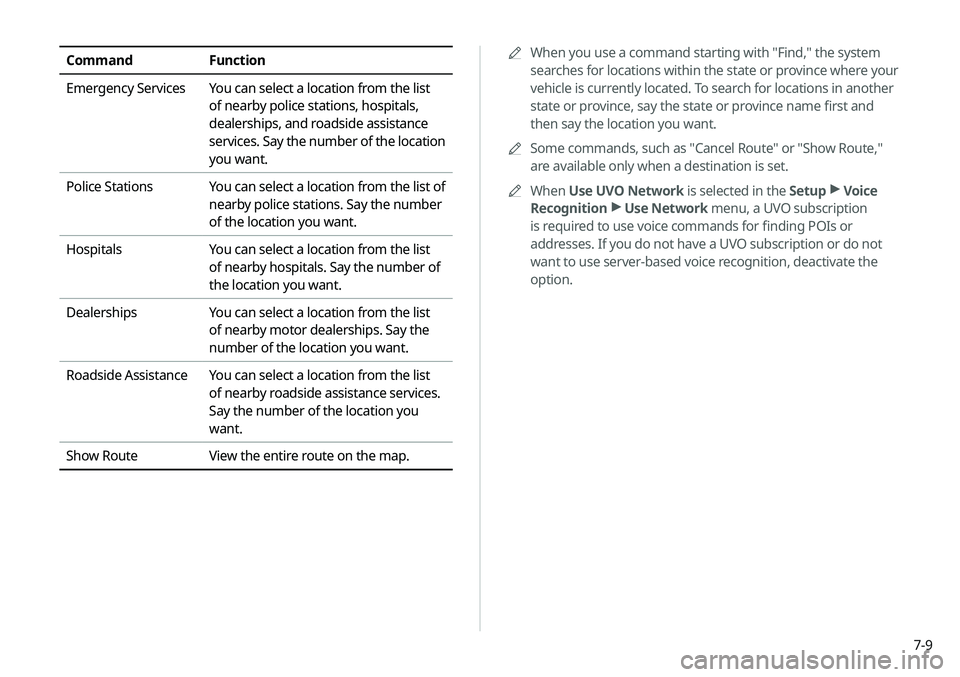
CommandFunction
Emergency Services You can select a location from the list
of nearby police stations, hospitals,
dealerships, and roadside assistance
services. Say the number of the location
you want.
Police Stations You can select a location from the list of
nearby police stations. Say the number
of the location you want.
Hospitals You can select a location from the list
of nearby hospitals. Say the number of
the location you want.
Dealerships You can select a location from the list
of nearby motor dealerships. Say the
number of the location you want.
Roadside Assistance You can select a location from the list
of nearby roadside assistance services.
Say the number of the location you
want.
Show Route View the entire route on the map. 0000
A
When you use a command starting with "Find," the system
searches for locations within the state or province where your
vehicle is currently located. To search for locations in another
state or province, say the state or province name first and
then say the location you want.
0000
A
Some commands, such as "Cancel Route " or "Show Route,"
are available only when a destination is set.
0000
A
When Use UVO Network is selected in the Setup >
Voice
Recognition >
Use Network menu, a UVO subscription
is required to use voice commands for finding POIs or
addresses. If you do not have a UVO subscription or do not
want to use server-based voice recognition, deactivate the
option.
Page 141 of 211
![KIA SOUL 2021 Navigation System Quick Reference Guide 7-19
4 Say a command.
0000
A
You can perform the functions related to Bluetooth calls
on the system and other functions on your Apple device.
0000
A
Press the [
] button to restart Siri.
5 To end Sir](/img/2/55175/w960_55175-140.png "KIA SOUL 2021 Navigation System Quick Reference Guide 7-19
4 Say a command.
0000
A
You can perform the functions related to Bluetooth calls
on the system and other functions on your Apple device.
0000
A
Press the [
] button to restart Siri.
5 To end Sir")
7-19
4 Say a command.
0000
A
You can perform the functions related to Bluetooth calls
on the system and other functions on your Apple device.
0000
A
Press the [
] button to restart Siri.
5 To end Siri, press and hold the [] button on the
steering wheel.
Siri Eyes Free is enabled only while driving. When you shift to “P”
(Park) or apply the parking brake, you can disable this function.
0000
A
Apple devices may have different functions enabled and
may vary in the way how they respond to Siri commands,
depending on the device type and iOS version.
Using the Siri Eyes Free
When you connect an Apple device that is compatible with Siri
to your system via Bluetooth, you can use the Siri Eyes Free.
This allows you to perform the functions on your system and
Apple device with voice commands so that you can devote your
attention to driving.
First, make sure that your Apple device supports Siri and that you
have activated Siri.
1 Connect your Apple device to your system via
Bluetooth.
2 On the steering wheel, press and hold the []
button.
3 On the Siri screen, touch Speak.
Page 142 of 211
7-20
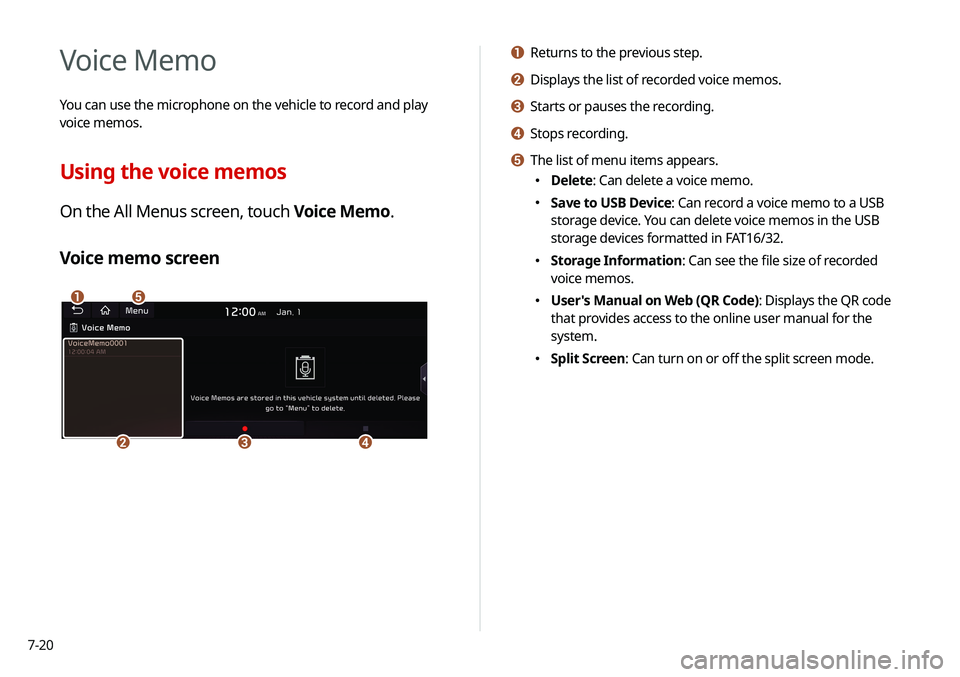
a Returns to the previous step.
b Displays the list of recorded voice memos.
c Starts or pauses the recording.
d Stops recording.
e The list of menu items appears.
\225Delete: Can delete a voice memo.
\225Save to USB Device: Can record a voice memo to a USB
storage device. You can delete voice memos in the USB
storage devices formatted in FAT16/32.
\225Storage Information: Can see the file size of recorded
voice memos.
\225User's Manual on Web (QR Code): Displays the QR code
that provides access to the online user manual for the
system.
\225Split Screen: Can turn on or off the split screen mode.
Voice Memo
You can use the microphone on the vehicle to record and play
voice memos.
Using the voice memos
On the All Menus screen, touch Voice Memo.
Voice memo screen
\037\036
\035\034\033
Page 143 of 211

7-21
Playing a voice memo
You can select and play a recorded voice memo.
From the list of Voice Memos, touch the desired voice
memo.
Recording a voice memo
1 On the Voice Memo screen, touch .
It starts recording a voice memo.
2 When recording is finished, touch on the
screen or press the [
] button on the steering
wheel.
The voice memo is automatically saved.
0000
A
To temporarily stop recording, touch
.
0000
A
When recording starts, the other audio functions are muted
or playback is paused.
0000
A
When you make or receive a call while recording, the
recording is paused.
0000
A
When you make an emergency call or you are connected to
an emergency call after airbag deployment, the recording is
stopped and the recorded voice memo is automatically saved.
Page 147 of 211

8-3
3 Enter your phone number or email address, and
then touch Submit.
0000
A
When you have a registered account and verification code,
touch I already have a code.
4 Enter the verification code you received from
MyUVO.com and then touch Submit.
0000
A
Now activation starts. While the activation is in progress,
the system buttons are locked.
Subscribing to the service
You must activate the service to use it on the system. An account
with MyUVO.com is required to activate the service. When you do
not have an account, create a new account to activate the service.
When you already have an account, enter the verification code
you received from MyUVO.com.
\334Caution
Do NOT turn off the vehicle when the service setting is in
progress. It may cause system malfunction.
1 Park your vehicle in a safe place.
0000
A
You cannot enter information for service activation while
your vehicle is moving.
2 On the All Menus screen, touch UVO >
UVO
Settings >
Activate UVO.
Page 150 of 211

8-6
Diagnosing the vehicle
If you are curious about whether or not there is a problem with
your vehicle, you can diagnose your vehicle. With the diagnosis
result, you can also reserve a maintenance service.
1 Park your vehicle in a safe location.
0000
A
The vehicle must be stationary because some components
cannot be diagnosed while driving.
2 On the All Menus screen, touch UVO >
Vehicle
Diagnostics.
Remote vehicle diagnosis starts.
0000
A
Keep the screen on until the diagnosed result appears.
When you switch to another screen during diagnosis, the
diagnosis service is canceled.
Contacting for roadside assistance
When you encounter a disabled vehicle or other problems on
the road, you can directly contact the UVO Center for roadside
assistance and receive the service for vehicle towing.
Perform any of the following methods:
\225On the All Menus screen, touch UVO >
Roadside Assist.
\225
Press the [] button on the vehicle.
0000A Depending on the network status, this feature may not work
correctly.