start KIA SOUL 2021 Navigation System Quick Reference Guide
[x] Cancel search | Manufacturer: KIA, Model Year: 2021, Model line: SOUL, Model: KIA SOUL 2021Pages: 211, PDF Size: 6.67 MB
Page 151 of 211

8-7
Using the received location information
You can view points of interest (POIs) received from the UVO
website and the UVO application and set one of them as the
destination.
1 On the All Menus screen, touch UVO >
My POIs.
2 From the list of received locations, select a place
name.
3 See the diagnosis results and perform a required
function, as follows:
\225
To schedule a maintenance service at a preferred Kia
dealership or the nearest one, touch Schedule Service.
\225To call the UVO center for roadside assistance, touch
Roadside Assist.
0000A A diagnosis result provided by this service is only an estimated
result based on the signals from your vehicle. Visit a Kia
Motors dealership for a detailed diagnosis.
0000
A
When a critical diagnostics issue is detected on your
vehicle, an automatic diagnosis starts when a warning light
illuminates on the instrument cluster. You are notified of the
diagnosis result.
0000
A
Your preferred dealership must be registered on MyUVO.com
for you to schedule a maintenance service with it.
Page 153 of 211

8-9
Configuring the UVO settings
You can subscribe to the UVO service or see the modem
information.0000
A
For more information:
> see “Configuring the UVO settings.”
Using Voice Local Search
With UVO, you can search for locations from the online map
database by using voice commands.
If you did not update the map or system or you cannot find your
destination in the navigation, you can use the latest information
from the online server to search for locations and receive
guidance.
1 Press the [] button on the vehicle.
Voice recognition starts with voice guidance.
2 After the voice guidance ends and you hear a
beep, say the POI name or Address.
0000
A
Depending on the system language, voice recognition
may not be supported.
Page 157 of 211

9-3
Android Auto
You can activate the Android Auto function to pair your Android
smartphone with the system.
Apple CarPlay
You can activate the Apple CarPlay function to pair your iPhone
with the system.
Auto Connection Priority
Set Bluetooth connection priority for devices to automatically
connect them when starting the vehicle.
Bluetooth Voice Prompts
Set whether to hear voice prompts for events related to Bluetooth
connections.
Message Settings
\225Message Notification: Sets to receive message notifications.
\225Predefined Messages : Can edit message templates for replies.
0000
A
This option may not be available in some phone models.
Bluetooth System Info
You can see and edit the Bluetooth information of the system.
Privacy Mode
Enable or disable Privacy Mode.
Hide data including contacts and call history from showing up on
the system screen to protect privacy.
Reset
You can delete all registered Bluetooth devices and initialize
Bluetooth settings. All data for Bluetooth devices are also deleted.
Page 164 of 211

9-10
Navigation Guidance
You can set to enable the navigation sound to be heard first when
using both the navigation system and Radio/Media system.
Proximity Warning
Lowers all other audio volumes when the camera view is active.
Navigation Guidance During Calls
Even during a call, the navigation sound is heard.
Start-up Volume Limit
You can set to automatically decrease the audio volume to an
adequate level when turning on the vehicle.
Navigation Volume
You can select a method to adjust the navigation volume.
Mute Navigation Guidance (if equipped)
Press the Mute button on the steering wheel when the navigation
guidance is being output to set to mute the guidance volume for
10 seconds.
Use Map Screen Volume Buttons
You can adjust the navigation volume by using the volume control
button on the map screen.
Use Map Screen Volume Buttons or Volume
Knob
By using the volume control button on the map screen or using
the [VOLUME] knob on the control panel, you can adjust the
navigation volume.
Page 167 of 211

9-13
Unit
You can set the distance unit of the navigation map to mile or
km.
Show Previous Destinations after Navigation
Start-up
You can set to automatically display the previous destinations on
a pop-up window when the navigation system starts.
Auto Re-center Map
You can set the system to automatically display the current
position when the specified period of time elapses after changing
to another position on the map.
Save Previous Destinations
You can set to automatically save the previous destinations,
searched ones, and starting points.
Speed Limit
Sets whether or not to display the speed limits on the screen.
Return to Map: Set Time
You can set the system to automatically display the map screen
after a specified period of time when switched to the Radio/Media
mode screen while using the navigation.
> See “Return to Map: Set
Time.”
GPS Information
Can see the GPS satellite status and coordinates of the current
position.
\037
\036
The following information appears:
a Can see the reception status of the satellite signals.
\225 Receiving: Satellite signals are being received and the
current position is recognized.
\225Searching: The system is scanning the satellite signals.
b Can see the current location.
Page 180 of 211
10-2
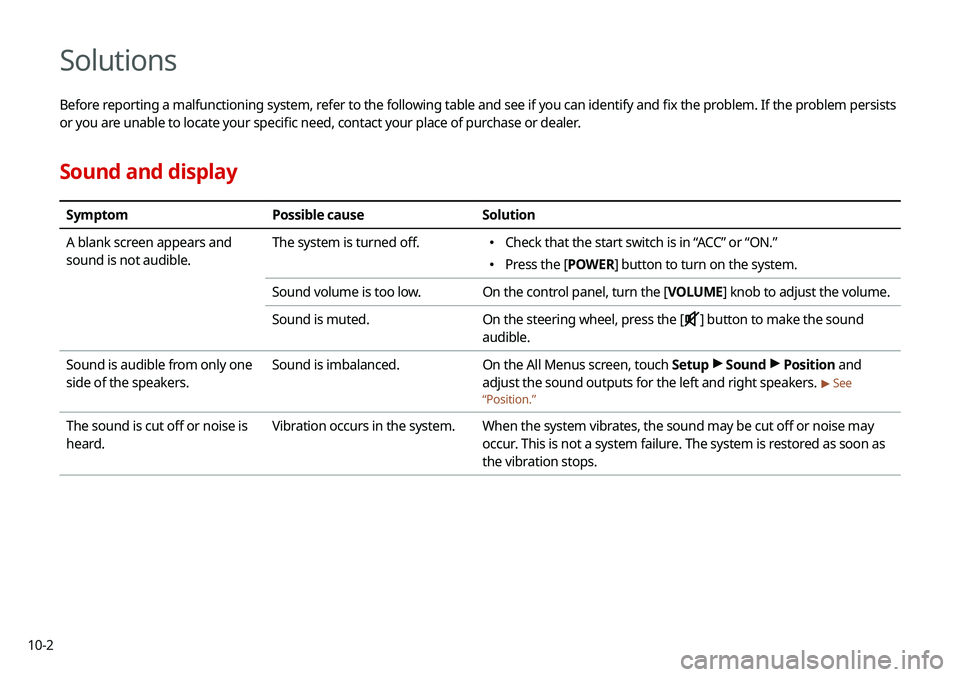
Solutions
Before reporting a malfunctioning system, refer to the following table and see if you can identify and fix the problem. If the problem persists
or you are unable to locate your specific need, contact your place of purchase or dealer.
Sound and display
SymptomPossible cause Solution
A blank screen appears and
sound is not audible. The system is turned off.
\225
Check that the start switch is in “ACC” or “ON.”
\225Press the [ POWER] button to turn on the system.
Sound volume is too low. On the control panel, turn the [VOLUME] knob to adjust the volume.
Sound is muted. On the steering wheel, press the [
] button to make the sound
audible.
Sound is audible from only one
side of the speakers. Sound is imbalanced.
On the All Menus screen, touch Setup >
Sound >
Position and
adjust the sound outputs for the left and right speakers.
> See
“ Position.”
The sound is cut off or noise is
heard. Vibration occurs in the system.
When the system vibrates, the sound may be cut off or noise may
occur. This is not a system failure. The system is restored as soon as
the vibration stops.
Page 185 of 211
10-7
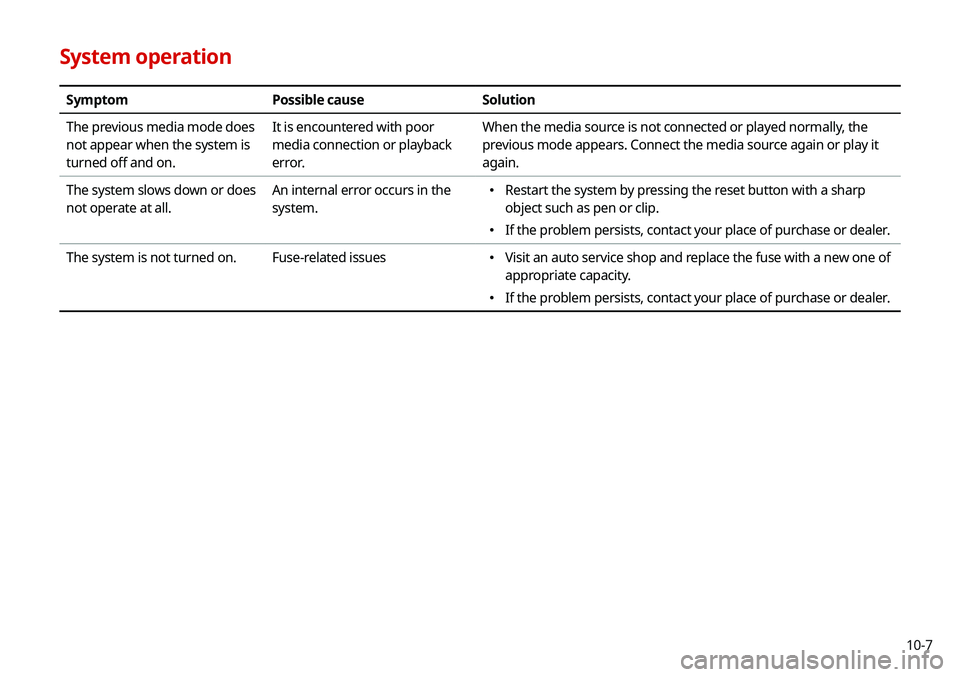
System operation
SymptomPossible cause Solution
The previous media mode does
not appear when the system is
turned off and on. It is encountered with poor
media connection or playback
error. When the media source is not connected or played normally, the
previous mode appears. Connect the media source again or play it
again.
The system slows down or does
not operate at all. An internal error occurs in the
system.
\225
Restart the system by pressing the reset button with a sharp
object such as pen or clip.
\225If the problem persists, contact your place of purchase or dealer.
The system is not turned on. Fuse-related issues
\225
Visit an auto service shop and replace the fuse with a new one of
appropriate capacity.
\225If the problem persists, contact your place of purchase or dealer.