turn KIA SOUL 2021 Navigation System Quick Reference Guide
[x] Cancel search | Manufacturer: KIA, Model Year: 2021, Model line: SOUL, Model: KIA SOUL 2021Pages: 211, PDF Size: 6.67 MB
Page 125 of 211
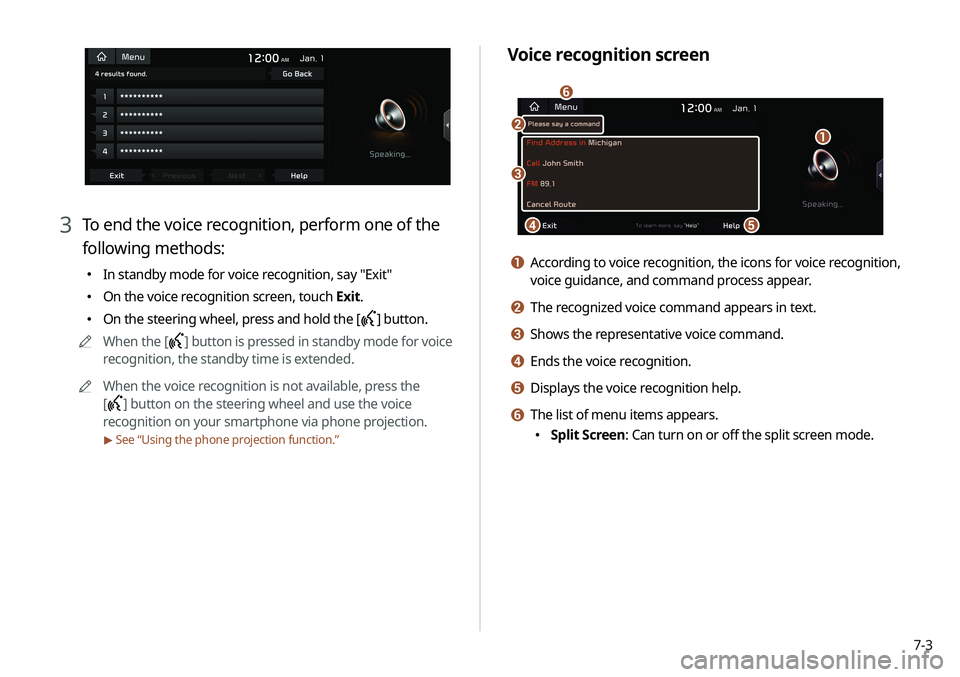
7-3
Voice recognition screen
\037\036
\035\034
\033
\032
a According to voice recognition, the icons for voice recognition,
voice guidance, and command process appear.
b The recognized voice command appears in text.
c Shows the representative voice command.
d Ends the voice recognition.
e Displays the voice recognition help.
f The list of menu items appears.
\225Split Screen: Can turn on or off the split screen mode.
3 To end the voice recognition, perform one of the
following methods:
\225In standby mode for voice recognition, say "Exit"
\225On the voice recognition screen, touch Exit.
\225On the steering wheel, press and hold the [] button.
0000
A
When the [
] button is pressed in standby mode for voice
recognition, the standby time is extended.
0000
A
When the voice recognition is not available, press the
[
] button on the steering wheel and use the voice
recognition on your smartphone via phone projection.
> See “Using the phone projection function.”
Page 126 of 211
7-4
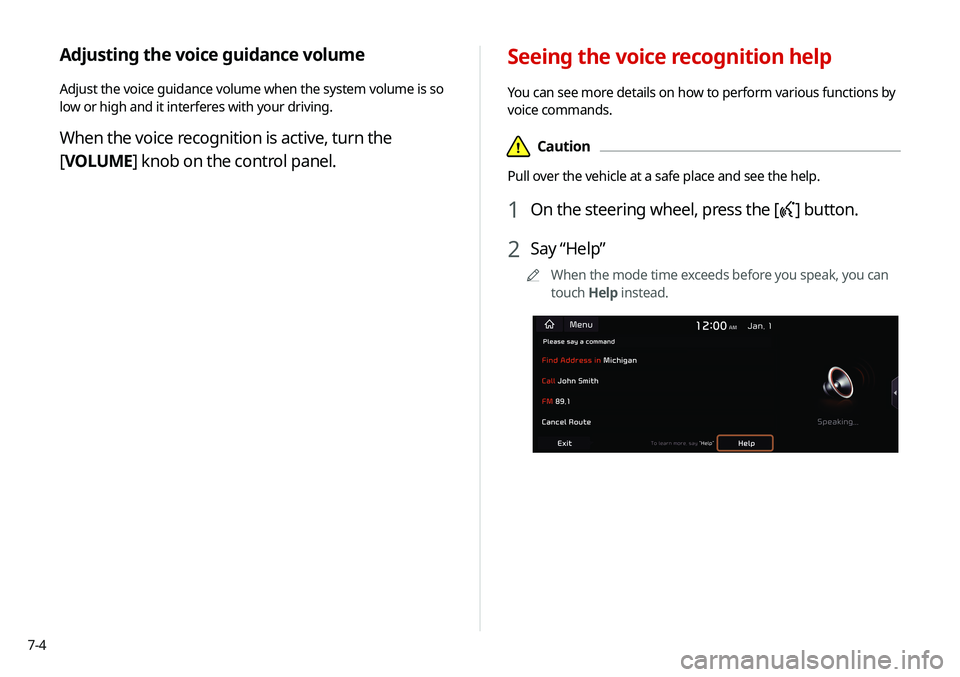
Seeing the voice recognition help
You can see more details on how to perform various functions by
voice commands.
\334Caution
Pull over the vehicle at a safe place and see the help.
1 On the steering wheel, press the [] button.
2 Say “Help”
0000
A
When the mode time exceeds before you speak, you can
touch Help instead.
Adjusting the voice guidance volume
Adjust the voice guidance volume when the system volume is so
low or high and it interferes with your driving.
When the voice recognition is active, turn the
[VOLUME] knob on the control panel.
Page 127 of 211
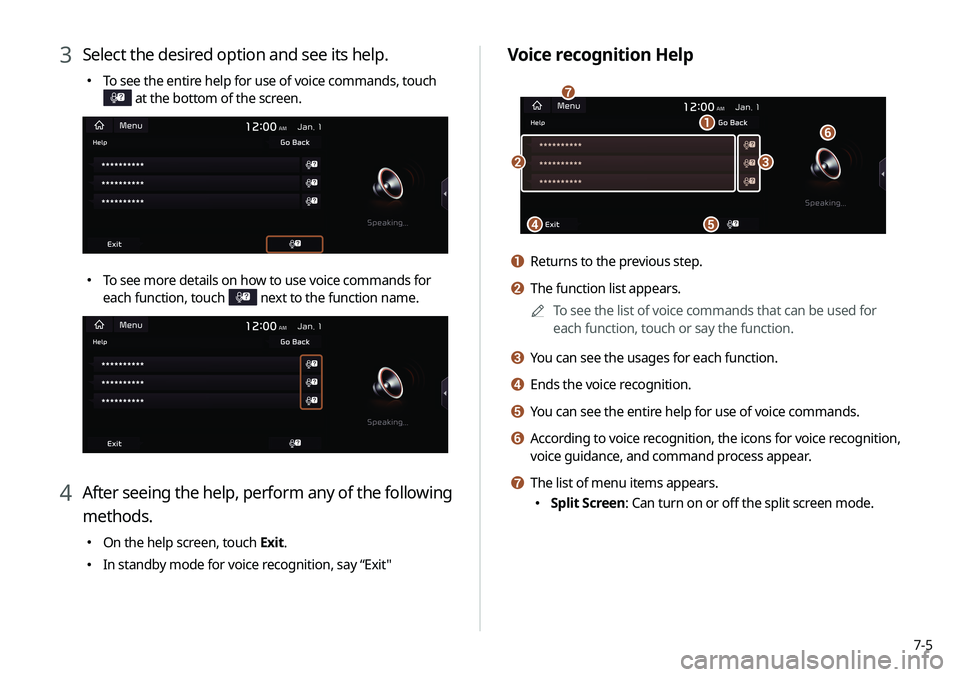
7-5
Voice recognition Help
\037
\036
\035
\034\033
\032
\031
a Returns to the previous step.
b The function list appears.0000
A
To see the list of voice commands that can be used for
each function, touch or say the function.
c You can see the usages for each function.
d Ends the voice recognition.
e You can see the entire help for use of voice commands.
f According to voice recognition, the icons for voice recognition,
voice guidance, and command process appear.
g The list of menu items appears.
\225Split Screen: Can turn on or off the split screen mode.
3 Select the desired option and see its help.
\225To see the entire help for use of voice commands, touch
at the bottom of the screen.
\225To see more details on how to use voice commands for
each function, touch
next to the function name.
4 After seeing the help, perform any of the following
methods.
\225On the help screen, touch Exit.
\225In standby mode for voice recognition, say “Exit"
Page 130 of 211
7-8
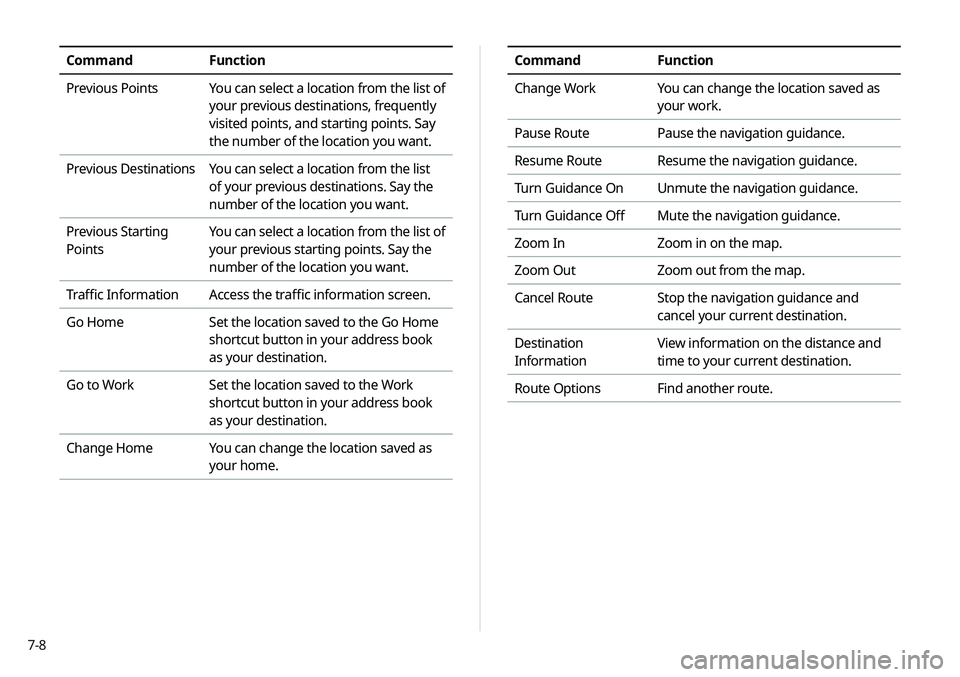
CommandFunction
Change Work You can change the location saved as
your work.
Pause Route Pause the navigation guidance.
Resume Route Resume the navigation guidance.
Turn Guidance On Unmute the navigation guidance.
Turn Guidance Off Mute the navigation guidance.
Zoom In Zoom in on the map.
Zoom Out Zoom out from the map.
Cancel Route Stop the navigation guidance and
cancel your current destination.
Destination
Information View information on the distance and
time to your current destination.
Route Options Find another route.CommandFunction
Previous Points You can select a location from the list of
your previous destinations, frequently
visited points, and starting points. Say
the number of the location you want.
Previous Destinations You can select a location from the list
of your previous destinations. Say the
number of the location you want.
Previous Starting
Points You can select a location from the list of
your previous starting points. Say the
number of the location you want.
Traffic Information Access the traffic information screen.
Go Home Set the location saved to the Go Home
shortcut button in your address book
as your destination.
Go to Work Set the location saved to the Work
shortcut button in your address book
as your destination.
Change Home You can change the location saved as
your home.
Page 132 of 211

7-10
Radio commands
CommandFunction
FM <87.5 to 107.9> Turn on the FM radio with that
frequency.
AM <530 to 1710> Turn on the AM radio with that
frequency.
SiriusXM <0 to 999> Turn on the SiriusXM radio with that
channel number.
Other commands
CommandFunction
Help Move to the help screen.
Line <1 to 4>* Select an item with the designated
number on a list. Simple numbers, such
as "One" or "Two," can be recognized.
Yes * Accept a notification asking for your
confirmation in an exceptional situation.
Command Function
No* Deny a notification asking for your
confirmation in an exceptional situation.
Next* If there are more than five items on a list,
scroll to the next page.
Previous* If you scroll to the next page of a list,
scroll back to the previous page.
Manual Input* When using the Dial Number command,
open the keypad to enter a phone
number manually.
Go Back* Returns to the previous step.
Exit End voice recognition.
* These commands are available only in certain situations.
Page 142 of 211
7-20
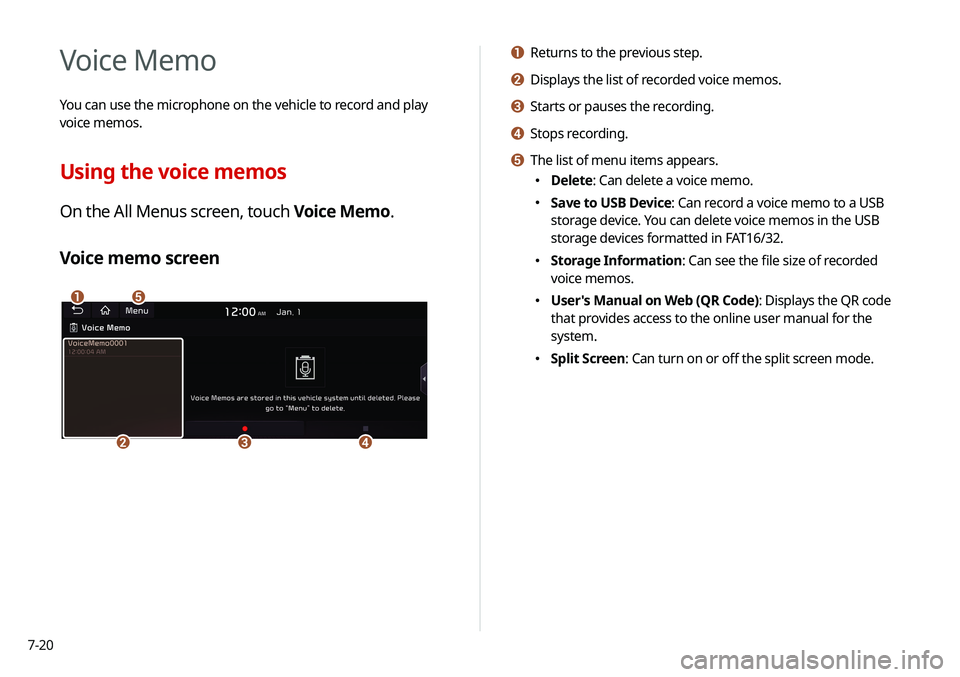
a Returns to the previous step.
b Displays the list of recorded voice memos.
c Starts or pauses the recording.
d Stops recording.
e The list of menu items appears.
\225Delete: Can delete a voice memo.
\225Save to USB Device: Can record a voice memo to a USB
storage device. You can delete voice memos in the USB
storage devices formatted in FAT16/32.
\225Storage Information: Can see the file size of recorded
voice memos.
\225User's Manual on Web (QR Code): Displays the QR code
that provides access to the online user manual for the
system.
\225Split Screen: Can turn on or off the split screen mode.
Voice Memo
You can use the microphone on the vehicle to record and play
voice memos.
Using the voice memos
On the All Menus screen, touch Voice Memo.
Voice memo screen
\037\036
\035\034\033
Page 147 of 211

8-3
3 Enter your phone number or email address, and
then touch Submit.
0000
A
When you have a registered account and verification code,
touch I already have a code.
4 Enter the verification code you received from
MyUVO.com and then touch Submit.
0000
A
Now activation starts. While the activation is in progress,
the system buttons are locked.
Subscribing to the service
You must activate the service to use it on the system. An account
with MyUVO.com is required to activate the service. When you do
not have an account, create a new account to activate the service.
When you already have an account, enter the verification code
you received from MyUVO.com.
\334Caution
Do NOT turn off the vehicle when the service setting is in
progress. It may cause system malfunction.
1 Park your vehicle in a safe place.
0000
A
You cannot enter information for service activation while
your vehicle is moving.
2 On the All Menus screen, touch UVO >
UVO
Settings >
Activate UVO.
Page 148 of 211
8-4
Running the UVO
You can run the UVO in the system to use the service.
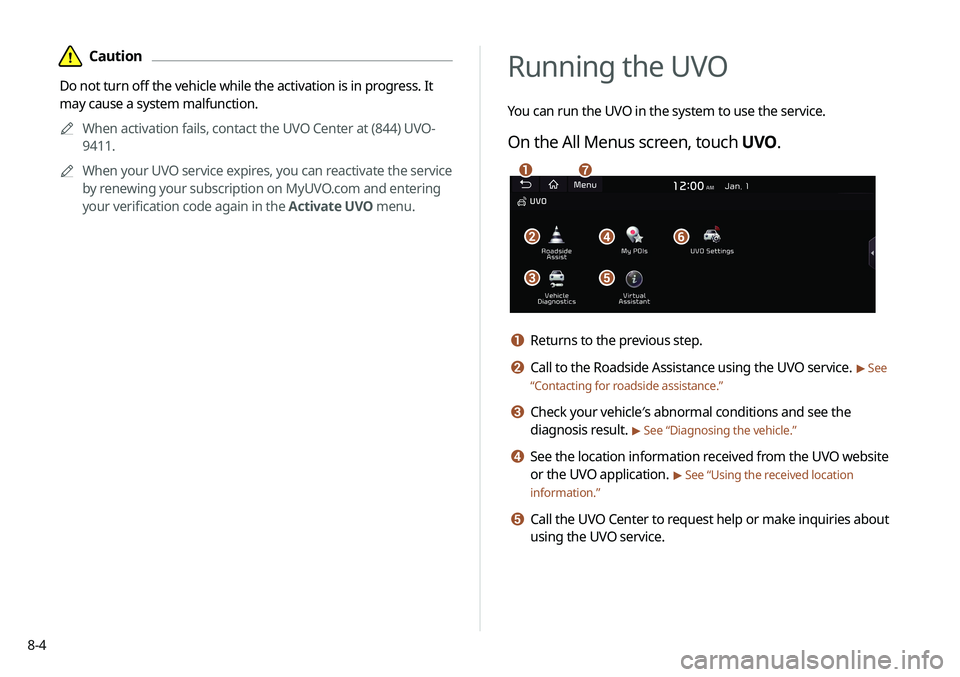
On the All Menus screen, touch UVO.
\037\036\035
\034\033
\032\031
a Returns to the previous step.
b Call to the Roadside Assistance using the UVO service. > See
“ Contacting for roadside assistance.”
c Check your vehicle′s abnormal conditions and see the
diagnosis result.
> See “Diagnosing the vehicle.”
d See the location information received from the UVO website
or the UVO application.
> See “Using the received location
information.”
e Call the UVO Center to request help or make inquiries about
using the UVO service.
\334Caution
Do not turn off the vehicle while the activation is in progress. It
may cause a system malfunction.
0000
A
When activation fails, contact the UVO Center at (844) UVO-
9411.
0000
A
When your UVO service expires, you can reactivate the service
by renewing your subscription on MyUVO.com and entering
your verification code again in the Activate UVO menu.
Page 149 of 211
8-5
f Access the UVO service to use it on the system, activate
the automatic 911 connection feature, or access modem
information.
g The list of menu items appears.
\225User's Manual on Web (QR Code): Displays the QR code
that provides access to the online user manual for the
system.
\225Split Screen: Can turn on or off the split screen mode.
\335Warning
Driving while distracted may cause a loss of vehicle control
that may lead to an accident, severe bodily injury, or death. The
driver's primary responsibility is the safe and legal operation of
the vehicle, and the use of any vehicle systems, including the
touch screen and steering wheel controls that take the driver's
eyes, attention, and focus away from safe driving or that are not
permissible by the law, should never be used while driving.
0000
A
Use the UVO features on the system when the vehicle is
stationary with the vehicle turned on.
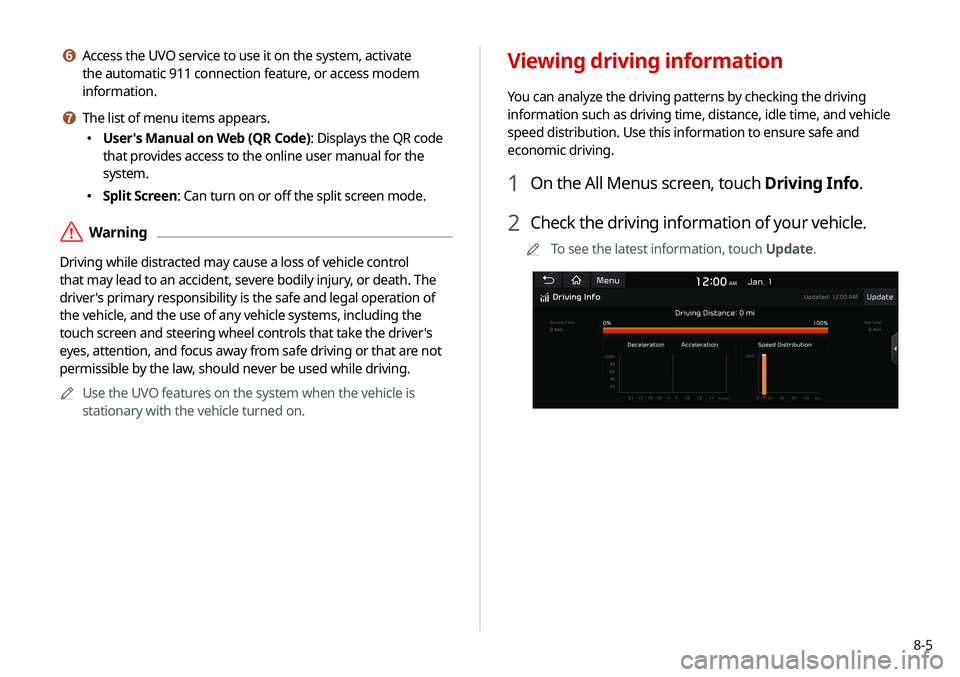
Viewing driving information
You can analyze the driving patterns by checking the driving
information such as driving time, distance, idle time, and vehicle
speed distribution. Use this information to ensure safe and
economic driving.
1 On the All Menus screen, touch Driving Info.
2 Check the driving information of your vehicle.
0000
A
To see the latest information, touch Update.
Page 152 of 211

8-80000
A
When the storage space is not sufficient, data is automatically
deleted from the oldest ones.
0000
A
To make a call to the selected location, make sure that your
mobile phone has been connected to Bluetooth or Phone
Projection.
Contacting the UVO Center
You can contact a UVO Center representative directly to request
help or make inquiries about using the UVO services.
Perform any of the following methods:
\225On the All Menus screen, touch UVO >
Virtual Assistant.
\225
Press the [] button on the vehicle.
0000
A
To end the call, touch End on the screen or press the [
]
button.
0000
A
This feature is not available during a Bluetooth call.
3 Check the location information.
\037
\036
\035
\034
\033
a Returns to the previous step.
b Displays the detailed information of the selected place
including the address and contact number.
c Displays the location of the selected place on the map.
d Dials the phone number of the location. This option is
available only when the phone number is included in the
location.
e The list of menu items appears.
\225Delete: Can delete a location from the list.
\225User's Manual on Web (QR Code): Displays the QR
code that provides access to the online user manual
for the system.
\225Split Screen: Can turn on or off the split screen mode.