turn KIA SOUL 2021 Navigation System Quick Reference Guide
[x] Cancel search | Manufacturer: KIA, Model Year: 2021, Model line: SOUL, Model: KIA SOUL 2021Pages: 211, PDF Size: 6.67 MB
Page 5 of 211
3
\334System handling
Do NOT apply excessive force to the system.
\225When you apply excessive pressure to the screen, the LCD panel or touch
panel may get damaged.
To clean the screen or button panel, first turn off the vehicle
and then use a dry, soft cloth to wipe it.
\225Do not wipe using a rough or hard cloth, chemical fiber, organic solvent (e.g.
alcohol, benzene, thinner), or air freshener. The panel surface may become
scratched or damaged due to a chemical reaction.
When you install an air freshener on the air conditioner vent,
the surface may be deformed due to leakage.
0000
A
If you experience any problems with the system, contact your
place of purchase or dealer.
Safety Precautions
Be sure to keep the following instructions. Otherwise, it may
cause minor injury or system damage.
\334Operation
Use the system with the vehicle started.
\225
When you use the system for a long time with the vehicle stopped, it may\
cause battery discharge.
Do NOT install unapproved products.
\225Using unapproved products may cause an error while using the system.
\225System errors caused by installing unapproved products are not covered
under the warranty.
Page 6 of 211
4
Component names and functions
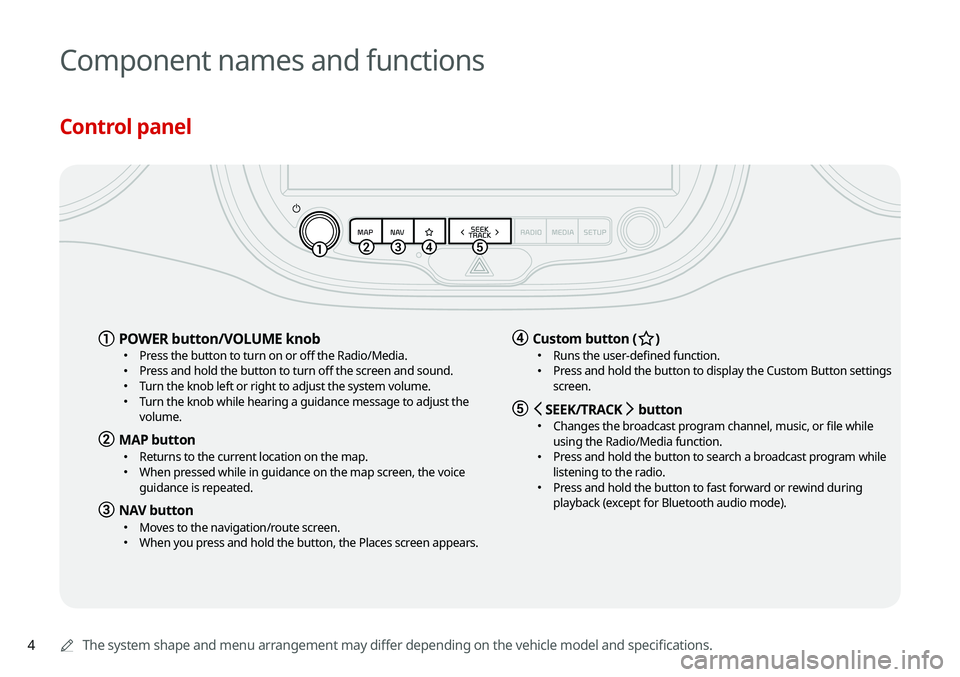
Control panel
0000AThe system shape and menu arrangement may differ depending on the vehicle model and specifications.
a POWER button/VOLUME knob \225
Press the button to turn on or off the Radio/Media. \225Press and hold the button to turn off the screen and sound. \225Turn the knob left or right to adjust the system volume. \225Turn the knob while hearing a guidance message to adjust the
volume.
b MAP button \225Returns to the current location on the map. \225When pressed while in guidance on the map screen, the voice
guidance is repeated.
c NAV button \225Moves to the navigation/route screen. \225When you press and hold the button, the Places screen appears.
d Custom button (B ) \225
Runs the user-defined function. \225Press and hold the button to display the Custom Button settings
screen.
e < SEEK/TRACK > button \225
Changes the broadcast program channel, music, or file while
using the Radio/Media function.
\225Press and hold the button to search a broadcast program while
listening to the radio.
\225Press and hold the button to fast forward or rewind during
playback (except for Bluetooth audio mode).
Page 7 of 211
5
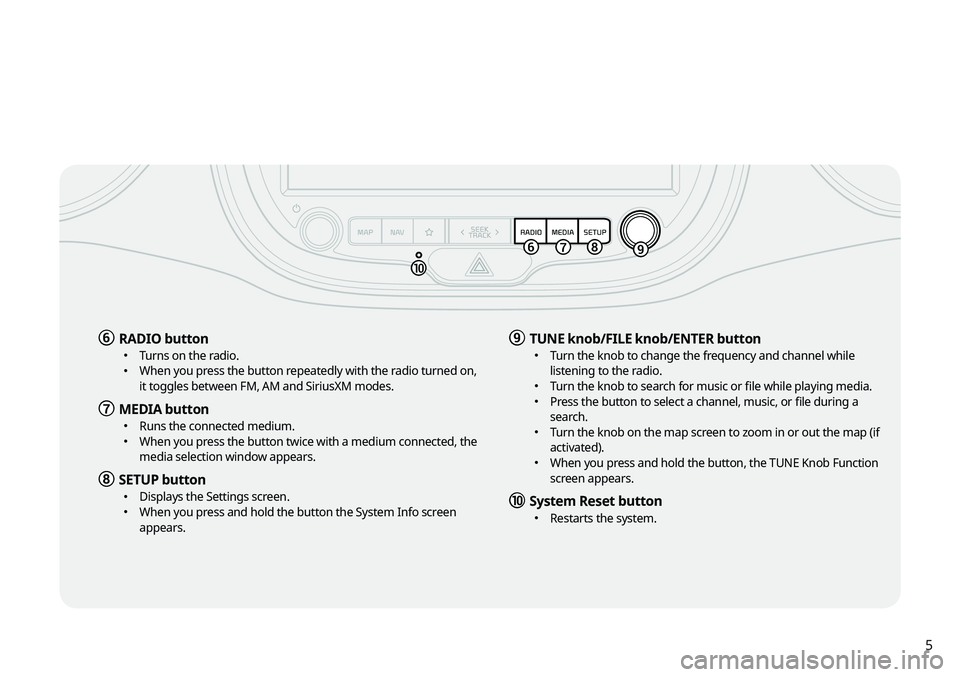
f RADIO button \225Turns on the radio. \225When you press the button repeatedly with the radio turned on,
it toggles between FM, AM and SiriusXM modes.
g MEDIA button \225Runs the connected medium. \225When you press the button twice with a medium connected, the
media selection window appears.
h SETUP button \225Displays the Settings screen. \225When you press and hold the button the System Info screen
appears.
i TUNE knob/FILE knob/ENTER button \225Turn the knob to change the frequency and channel while
listening to the radio.
\225Turn the knob to search for music or file while playing media. \225Press the button to select a channel, music, or file during a
search.
\225Turn the knob on the map screen to zoom in or out the map (if
activated).
\225When you press and hold the button, the TUNE Knob Function
screen appears.
j System Reset button \225Restarts the system.
Page 9 of 211
7
\335Warning
\225Driving while distracted can result in a loss of vehicle control
that may lead to an accident, severe bodily injury, or death.
The driver's primary responsibility is the safe and legal
operation of the vehicle, and the use of any vehicle systems,
including the touch screen and steering wheel controls, which
take the driver's eyes, attention, and focus away from the safe
operation of the vehicle, or which are not permissible by law,
should never be used during the operation of the vehicle.
\225Some functions may not be active while driving to ensure
safety. Those functions run only when the vehicle is stationary.
In order to use them, first stop the vehicle.
\225When the screen is not displayed, the volume is muted, or
other system failures occur, immediately stop using the
system. When you use the faulty system continuously, it may
cause fire, electric shock, or fatal system failure.
\334Caution
\225The system can be turned on even when the ignition switch is
in “ACC” or “ON.” However, when you use the system without
turning on the vehicle for a long time, it may cause battery
discharge. To use the system for a long time, be sure to turn
on the vehicle.
\225When you use the system with the vehicle turned off, the
battery warning message appears. The warning message
disappears as soon as you turn on the vehicle.
Turning the system on or off
Turning on the system
1 Turn on the vehicle.
2 When a safety warning message appears, read it
and touch Confirm.
0000
A
To change the display language, touch Language.
Turning off the system
To turn off the system while driving, press and hold
the [POWER] button on the panel.
The screen and sound will be turned off.
0000
A
To use the system again, press the [ POWER] button.
0000
A
When a specified period of time elapses after turning off the
vehicle, the system automatically shuts down. When you open
the driver's door, the system immediately shuts down.
Page 15 of 211
5
\334System handling
Do NOT apply excessive force to the system.
\225 When you apply excessive pressure to the screen, the LCD panel or touch
panel may get damaged.
To clean the screen or button panel, first turn off the vehicle
and then use a dry, soft cloth to wipe it.
\225Do not wipe using a rough or hard cloth, chemical fiber, organic solvent (e.g.
alcohol, benzene, thinner), or air freshener. The panel surface may become
scratched or damaged due to a chemical reaction.
When you install an air freshener on the air conditioner vent,
the surface may be deformed due to leakage.
0000
A
If you experience any problems with the system, contact your
place of purchase or dealer.
Be sure to keep the following instructions. Otherwise, it may
cause minor injury or system damage.
\334Operation
Use the system with the vehicle started.
\225 When you use the system for a long time with the vehicle stopped, it may\
cause battery discharge.
Do NOT install unapproved products.
\225Using unapproved products may cause an error while using the system.
\225System errors caused by installing unapproved products are not covered
under the warranty.
Safety Precautions
Page 16 of 211

6
Contents
01 System overview
Component names and functions 1-2
Control panel 1-2
Steering wheel remote control 1-3
Turning the system on or off 1-4
Turning on the system 1-4
Turning off the system 1-5
Using the touch screen 1-6
“Touch” gesture 1-7
“Touch and hold” gesture 1-7
“Slide” gesture 1-8
“Drag” gesture 1-8
“Swipe” gesture 1-9
“Spread/pinch” gesture 1-9
Using the Home screen 1-10
Home screen 1-10
Editing widgets on the Home screen 1-11
Editing icons on the Home screen 1-11
Seeing the All Menus screen 1-12
Split screen 1-12
Opening the split screen 1-12
Editing the split screen 1-13
Closing the split screen 1-13
02 Useful functions
Using the phone projection function 2-2
Pairing to an Android smartphone via Android Auto 2-2
Pairing to an iPhone via Apple CarPlay 2-4
Using the driving assist display 2-6
Using the rear-view display 2-7
Using the HD Radio Data 2-8
Viewing traffic information 2-9
Checking weather information via HD Radio Data 2-10
Checking weather information in Doppler Radar 2-10
Using the sound mood lamp 2-11
Page 19 of 211
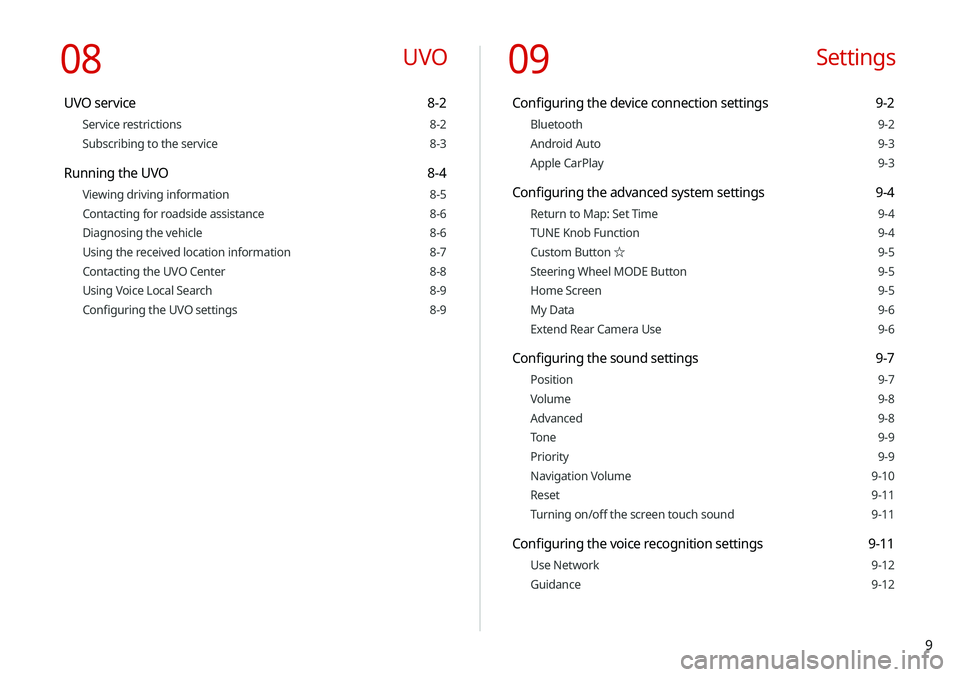
9
09 Settings
Configuring the device connection settings 9-2
Bluetooth 9-2
Android Auto 9-3
Apple CarPlay 9-3
Configuring the advanced system settings 9-4
Return to Map: Set Time 9-4
TUNE Knob Function 9-4
Custom Button ☆ 9-5
Steering Wheel MODE Button 9-5
Home Screen 9-5
My Data 9-6
Extend Rear Camera Use 9-6
Configuring the sound settings 9-7
Position 9-7
Volume 9-8
Advanced 9-8
Tone 9-9
Priority 9-9
Navigation Volume 9-10
Reset 9-11
Turning on/off the screen touch sound 9-11
Configuring the voice recognition settings 9-11
Use Network 9-12
Guidance 9-12
08 UVO
UVO service 8-2
Service restrictions 8-2
Subscribing to the service 8-3
Running the UVO 8-4
Viewing driving information 8-5
Contacting for roadside assistance 8-6
Diagnosing the vehicle 8-6
Using the received location information 8-7
Contacting the UVO Center 8-8
Using Voice Local Search 8-9
Configuring the UVO settings 8-9
Page 21 of 211
System overview
Component names and functionsTurning the system on or off Using the touch screen
Using the Home screen
Seeing the All Menus screen Split screen
01
Page 22 of 211
1-2
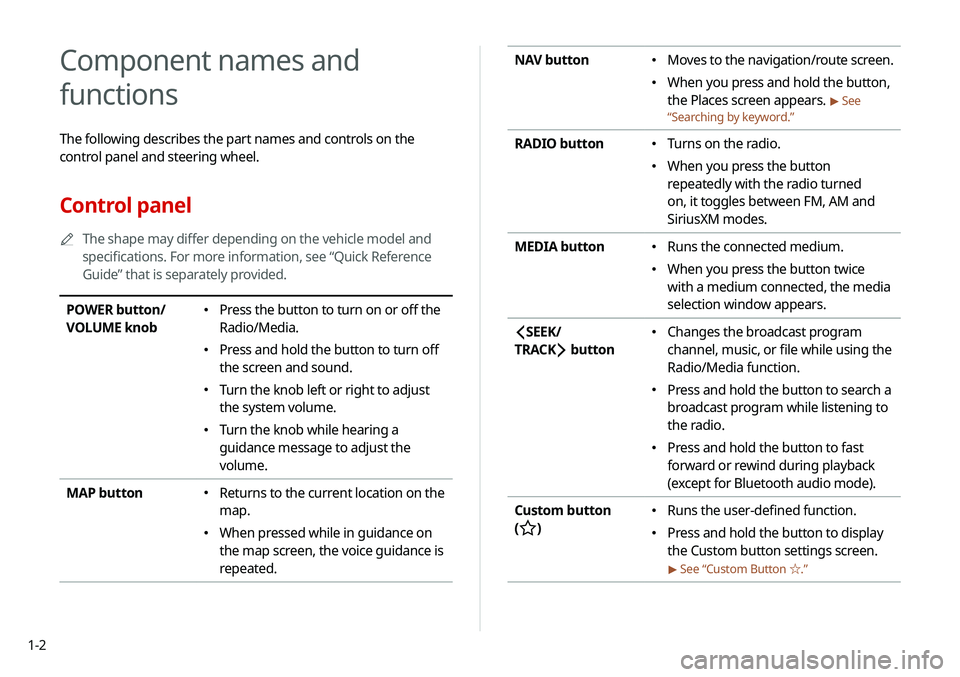
NAV button \225Moves to the navigation/route screen.
\225When you press and hold the button,
the Places screen appears.
> See
“ Searching by keyword.”
RADIO button \225
Turns on the radio.
\225When you press the button
repeatedly with the radio turned
on, it toggles between FM, AM and
SiriusXM modes.
MEDIA button
\225 Runs the connected medium.
\225When you press the button twice
with a medium connected, the media
selection window appears.
SEEK/
TRACK
button
\225 Changes the broadcast program
channel, music, or file while using the
Radio/Media function.
\225Press and hold the button to search a
broadcast program while listening to
the radio.
\225Press and hold the button to fast
forward or rewind during playback
(except for Bluetooth audio mode).
Custom button
(
)
\225 Runs the user-defined function.
\225Press and hold the button to display
the Custom button settings screen.
> See “Custom Button ☆ .”
Component names and
functions
The following describes the part names and controls on the
control panel and steering wheel.
Control panel
0000
A
The shape may differ depending on the vehicle model and
specifications. For more information, see “Quick Reference
Guide” that is separately provided.
POWER button/
VOLUME knob \225Press the button to turn on or off the
Radio/Media.
\225Press and hold the button to turn off
the screen and sound.
\225Turn the knob left or right to adjust
the system volume.
\225Turn the knob while hearing a
guidance message to adjust the
volume.
MAP button
\225 Returns to the current location on the
map.
\225When pressed while in guidance on
the map screen, the voice guidance is
repeated.
Page 23 of 211
1-3
Steering wheel remote control
0000
A
The shape may differ depending on the vehicle model and
specifications. For more information, see “Quick Reference
Guide” that is separately provided.
Voice Recognition
button
(
)
\225 Press to start voice recognition
and press and hold to end voice
recognition.
\225Press and hold to start or end
voice recognition of a connected
smartphone via phone projection.
(The button’s operation may
vary depending on smartphone
specifications.)
MODE button
\225 Press the button repeatedly to toggle
among radio and media modes.
\225Press and hold the button to display
the settings for the Steering wheel
MODE button:
> see “Steering Wheel
MODE Button.”
Volume lever
(+/-) \225 Push the lever up or down to adjust
the volume.
Mute button
(
)
\225 Press the button to mute or unmute
the volume (except for navigation
sound).
\225Press the button to pause or resume
during playback.
SETUP button \225Displays the Settings screen.
\225When you press and hold the button
the System Info screen appears.
> See
“ System Info.”
TUNE knob/
FILE knob/
ENTER button \225
Turn the knob to change the
frequency and channel while listening
to the radio.
\225Turn the knob to search for music or
file while playing media.
\225Press the button to select a channel,
music, or file during a search.
\225Turn the knob on the map screen to
zoom in or out the map (if activated).
> See “ TUNE Knob Function.”
\225
When you press and hold the button,
the TUNE Knob Function screen
appears.
> See “ TUNE Knob Function.”
System Reset
button \225
Restarts the system.