ECU KIA Soul EV 2016 2.G Owner's Guide
[x] Cancel search | Manufacturer: KIA, Model Year: 2016, Model line: Soul EV, Model: KIA Soul EV 2016 2.GPages: 524, PDF Size: 25.82 MB
Page 193 of 524
4123
Features of your vehicle
The following must be observed
when installing ANY floormat to the
vehicle.
Ensure that the floormats aresecurely attached to the vehicle's
floormat anchor(s) before driving
the vehicle.
Do not use ANY floormat that can- not be firmly attached to the vehi-
cle's floormat anchors.
Do not stack floormats on top of one another (e.g. all-weather rub-
ber mat on top of a carpeted floor-
mat). Only a single floormat should
be installed in each position.
IMPORTANT - Your vehicle was
manufactured with driver's side floor-
mat anchors that are designed to
securely hold the floormat in place.
To avoid any interference with pedal
operation, Kia recommends that only
the Kia floormat designed for use in
your vehicle be installed.Luggage net holder
(if equipped)
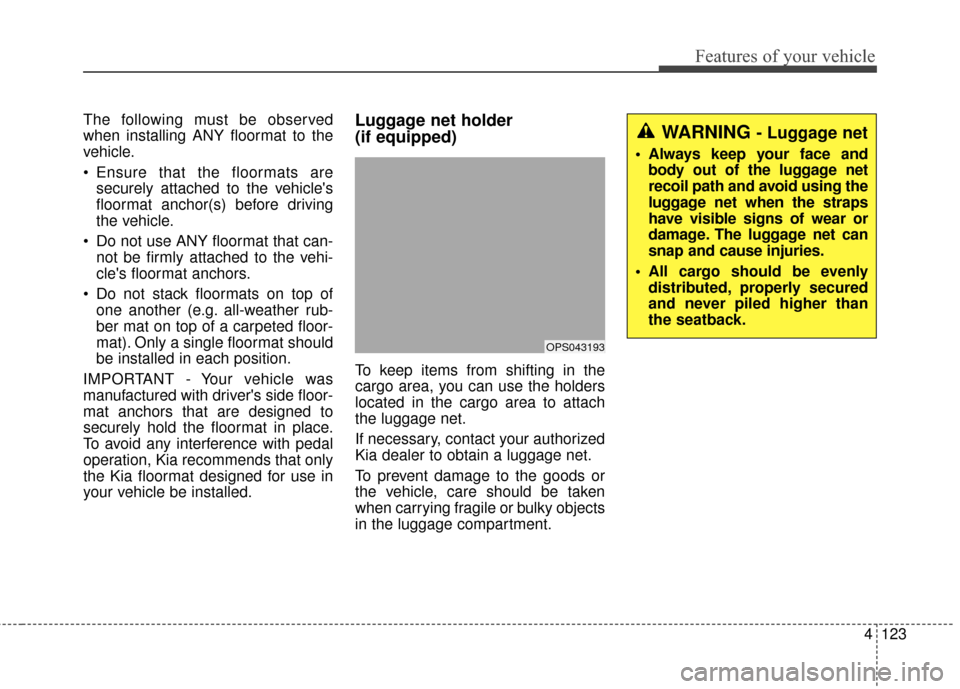
To keep items from shifting in the
cargo area, you can use the holders
located in the cargo area to attach
the luggage net.
If necessary, contact your authorized
Kia dealer to obtain a luggage net.
To prevent damage to the goods or
the vehicle, care should be taken
when carrying fragile or bulky objects
in the luggage compartment.
OPS043193
WARNING - Luggage net
Always keep your face and body out of the luggage net
recoil path and avoid using the
luggage net when the straps
have visible signs of wear or
damage. The luggage net can
snap and cause injuries.
All cargo should be evenly distributed, properly secured
and never piled higher than
the seatback.
Page 195 of 524
4125
Features of your vehicle
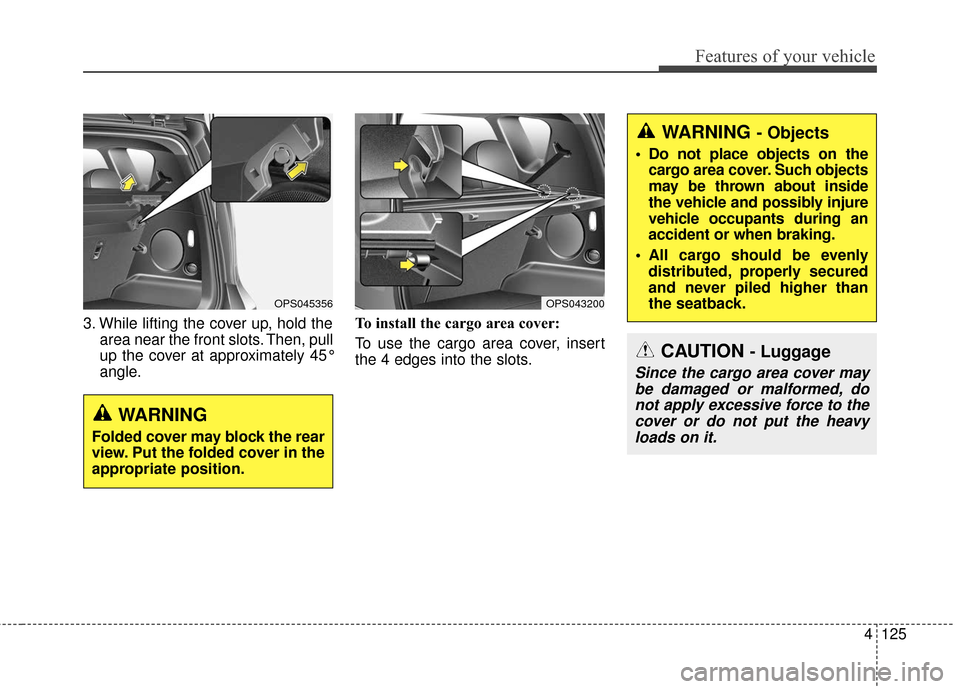
3. While lifting the cover up, hold thearea near the front slots. Then, pull
up the cover at approximately 45°
angle. To install the cargo area cover:
To use the cargo area cover, insert
the 4 edges into the slots.
WARNING - Objects
Do not place objects on the
cargo area cover. Such objects
may be thrown about inside
the vehicle and possibly injure
vehicle occupants during an
accident or when braking.
All cargo should be evenly distributed, properly secured
and never piled higher than
the seatback.
CAUTION - Luggage
Since the cargo area cover maybe damaged or malformed, donot apply excessive force to thecover or do not put the heavyloads on it.
OPS043200OPS045356
WARNING
Folded cover may block the rear
view. Put the folded cover in the
appropriate position.
Page 233 of 524
4163
Features of your vehicle
Pairing key / key
on the Steering Remote
Controller
When No Devices have beenPaired
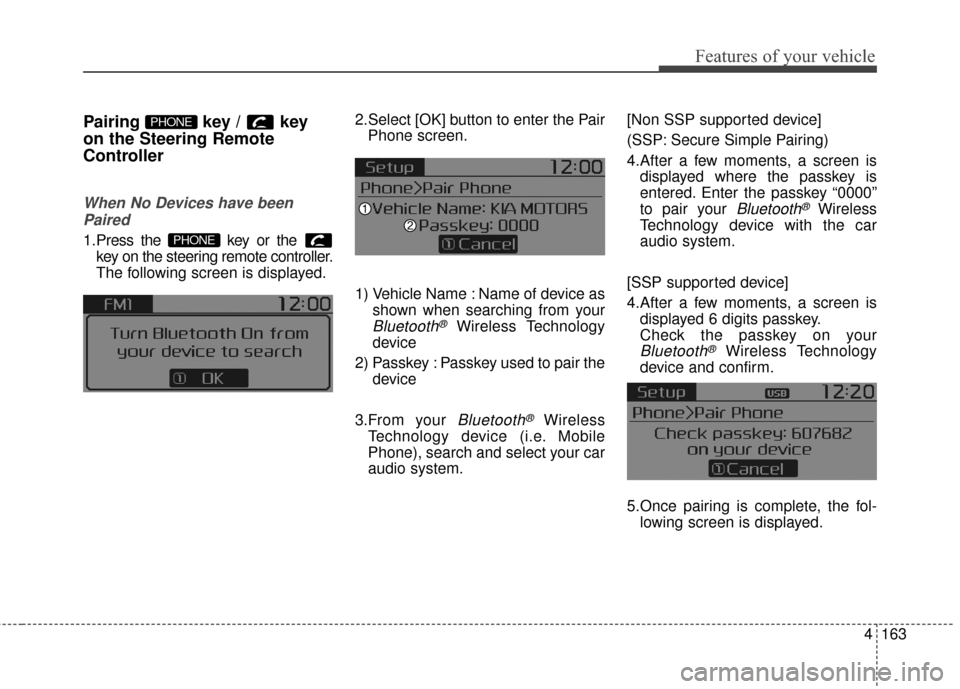
1.Press the key or the key on the steering remote controller.
The following screen is displayed. 2.Select [OK] button to enter the Pair
Phone screen.
1) Vehicle Name : Name of device as shown when searching from your
Bluetooth®Wireless Technology
device
2) Passkey : Passkey used to pair the device
3.From your
Bluetooth®Wireless
Technology device (i.e. Mobile
Phone), search and select your car
audio system. [Non SSP supported device]
(SSP: Secure Simple Pairing)
4.After a few moments, a screen is
displayed where the passkey is
entered. Enter the passkey “0000”
to pair your
Bluetooth®Wireless
Technology device with the car
audio system.
[SSP supported device]
4.After a few moments, a screen is displayed 6 digits passkey.
Check the passkey on your
Bluetooth®Wireless Technology
device and confirm.
5.Once pairing is complete, the fol- lowing screen is displayed.
PHONE
PHONE
Page 248 of 524
Features of your vehicle
178
4
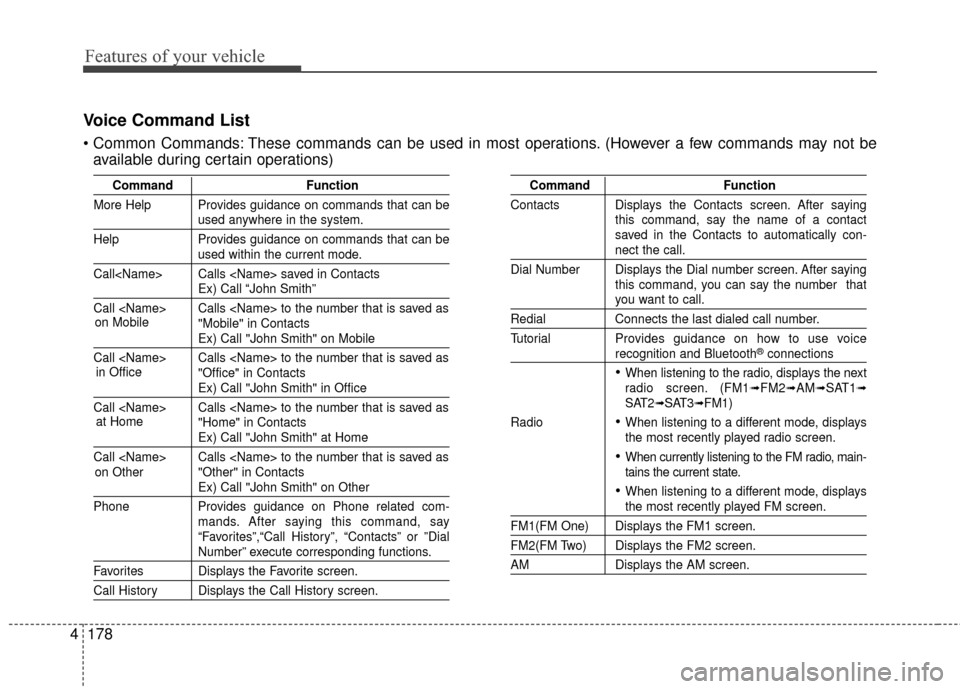
Voice Command List
These commands can be used in most operations. (However a few commands may not be
available during certain operations)
Command Function
More Help Provides guidance on commands that can be
used anywhere in the system.
Help Provides guidance on commands that can be
used within the current mode.
Call
Ex) Call “John Smith”
Call
Ex) Call "John Smith" on Mobile
Call
Ex) Call "John Smith" in Office
Call
Ex) Call "John Smith" at Home
Call
Ex) Call "John Smith" on Other
Phone Provides guidance on Phone related com- mands. After saying this command, say
“Favorites”,“Call History”, “Contacts” or ”Dial
Number” execute corresponding functions.
Favorites Displays the Favorite screen.
Call History Displays the Call History screen.
Command Function
Contacts Displays the Contacts screen. After saying this command, say the name of a contact
saved in the Contacts to automatically con-
nect the call.
Dial Number Displays the Dial number screen. After saying this command, you can say the number that
you want to call.
RedialConnects the last dialed call number.
Tutorial Provides guidance on how to use voice
recognition and Bluetooth®connections
When listening to the radio, displays the next
radio screen. (FM1➟FM2➟AM➟SAT1➟SAT2➟SAT3➟FM1)
Radio
When listening to a different mode, displays
the most recently played radio screen.
When currently listening to the FM radio, main-
tains the current state.
When listening to a different mode, displaysthe most recently played FM screen.
FM1(FM One) Displays the FM1 screen.
FM2(FM Two) Displays the FM2 screen.
AM Displays the AM screen.
on Mobile
in Officeat Home
on Other
Page 279 of 524
4209
Features of your vehicle
Pairing Key / Key
on the Steering Remote
Controller
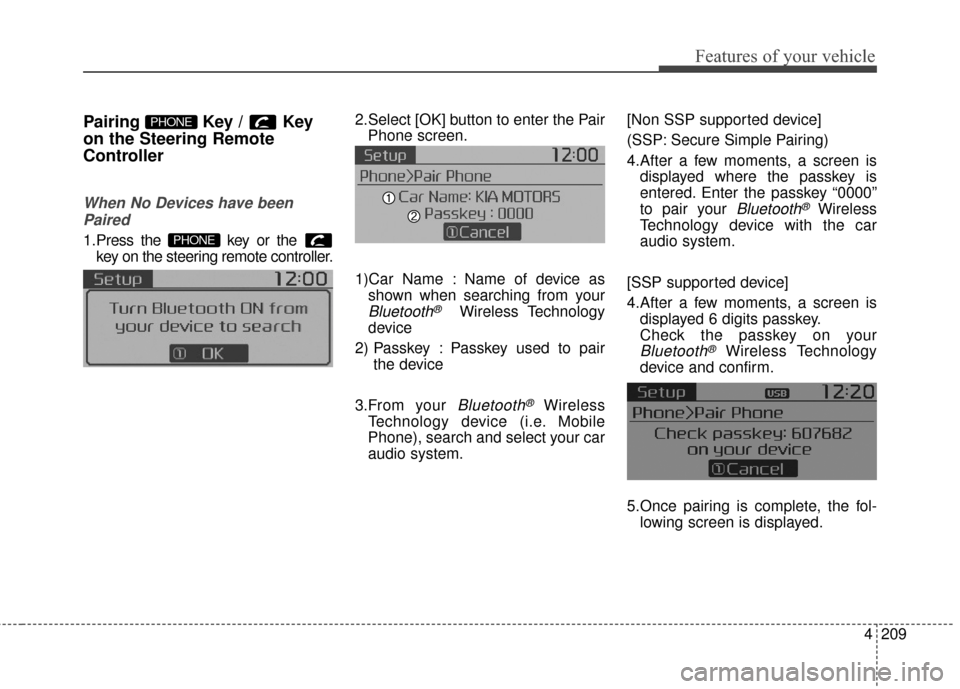
When No Devices have beenPaired
1.Press the key or the key on the steering remote controller.
The following screen is displayed. 2.Select [OK] button to enter the Pair
Phone screen.
1)Car Name : Name of device as shown when searching from your
Bluetooth®Wireless Technology
device
2) Passkey : Passkey used to pair the device
3.From your
Bluetooth®Wireless
Technology device (i.e. Mobile
Phone), search and select your car
audio system. [Non SSP supported device]
(SSP: Secure Simple Pairing)
4.After a few moments, a screen is
displayed where the passkey is
entered. Enter the passkey “0000”
to pair your
Bluetooth®Wireless
Technology device with the car
audio system.
[SSP supported device]
4.After a few moments, a screen is displayed 6 digits passkey.
Check the passkey on your
Bluetooth®Wireless Technology
device and confirm.
5.Once pairing is complete, the fol- lowing screen is displayed.
PHONE
PHONE
Page 294 of 524
Features of your vehicle
224
4
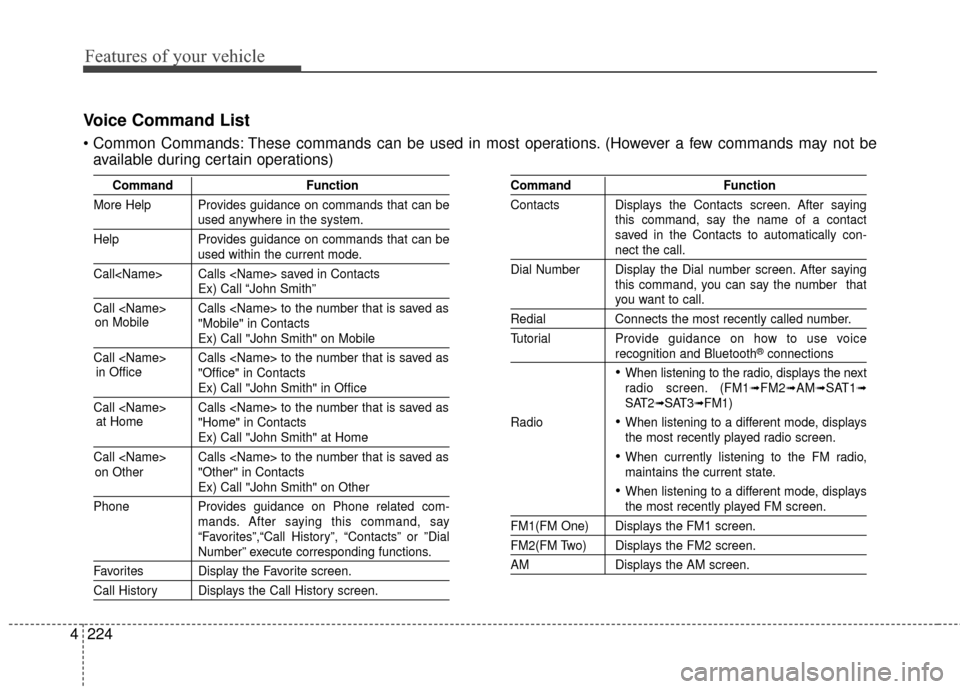
Voice Command List
These commands can be used in most operations. (However a few commands may not be
available during certain operations)
Command Function
More Help Provides guidance on commands that can be
used anywhere in the system.
Help Provides guidance on commands that can be
used within the current mode.
Call
Ex) Call “John Smith”
Call
Ex) Call "John Smith" on Mobile
Call
Ex) Call "John Smith" in Office
Call
Ex) Call "John Smith" at Home
Call
Ex) Call "John Smith" on Other
Phone Provides guidance on Phone related com- mands. After saying this command, say
“Favorites”,“Call History”, “Contacts” or ”Dial
Number” execute corresponding functions.
Favorites Display the Favorite screen.
Call History Displays the Call History screen.
Command Function
Contacts Displays the Contacts screen. After saying this command, say the name of a contact
saved in the Contacts to automatically con-
nect the call.
Dial Number Display the Dial number screen. After saying this command, you can say the number that
you want to call.
RedialConnects the most recently called number.
Tutorial Pro vide guidance on how to use voice
recognition and Bluetooth®connections
When listening to the radio, displays the next
radio screen. (FM1➟FM2➟AM➟SAT1➟SAT2➟SAT3➟FM1)
Radio
When listening to a different mode, displays
the most recently played radio screen.
When currently listening to the FM radio,
maintains the current state.
When listening to a different mode, displaysthe most recently played FM screen.
FM1(FM One) Displays the FM1 screen.
FM2(FM Two) Displays the FM2 screen.
AM Displays the AM screen.
on Mobile
in Officeat Home
on Other
Page 304 of 524
Driving your vehicle
45
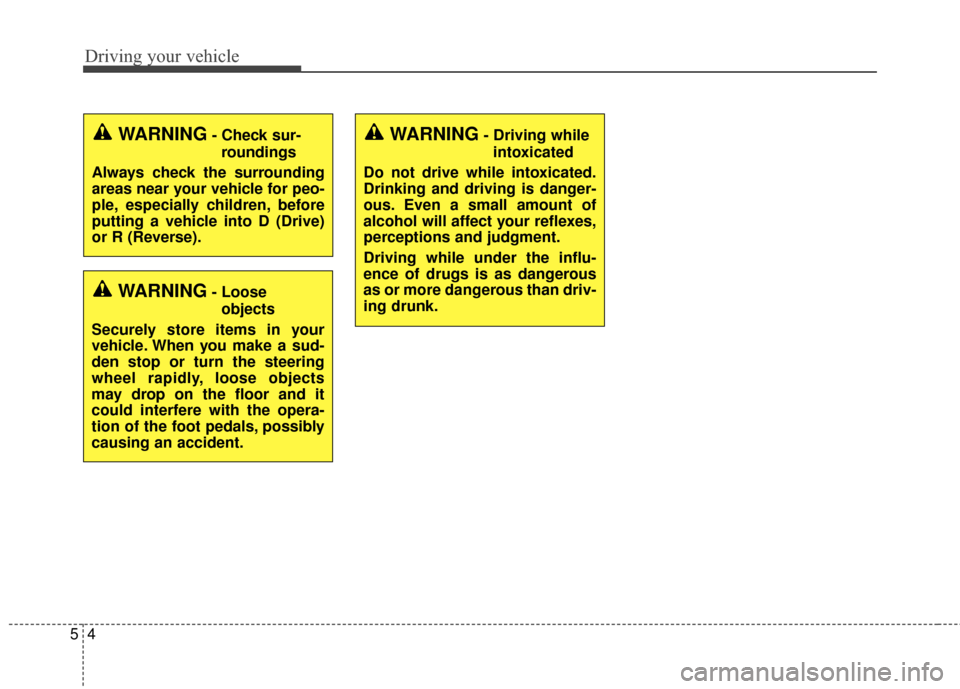
WARNING- Check sur-roundings
Always check the surrounding
areas near your vehicle for peo-
ple, especially children, before
putting a vehicle into D (Drive)
or R (Reverse).
WARNING- Loose objects
Securely store items in your
vehicle. When you make a sud-
den stop or turn the steering
wheel rapidly, loose objects
may drop on the floor and it
could interfere with the opera-
tion of the foot pedals, possibly
causing an accident.
WARNING- Driving while intoxicated
Do not drive while intoxicated.
Drinking and driving is danger-
ous. Even a small amount of
alcohol will affect your reflexes,
perceptions and judgment.
Driving while under the influ-
ence of drugs is as dangerous
as or more dangerous than driv-
ing drunk.
Page 350 of 524
Driving your vehicle
50
5
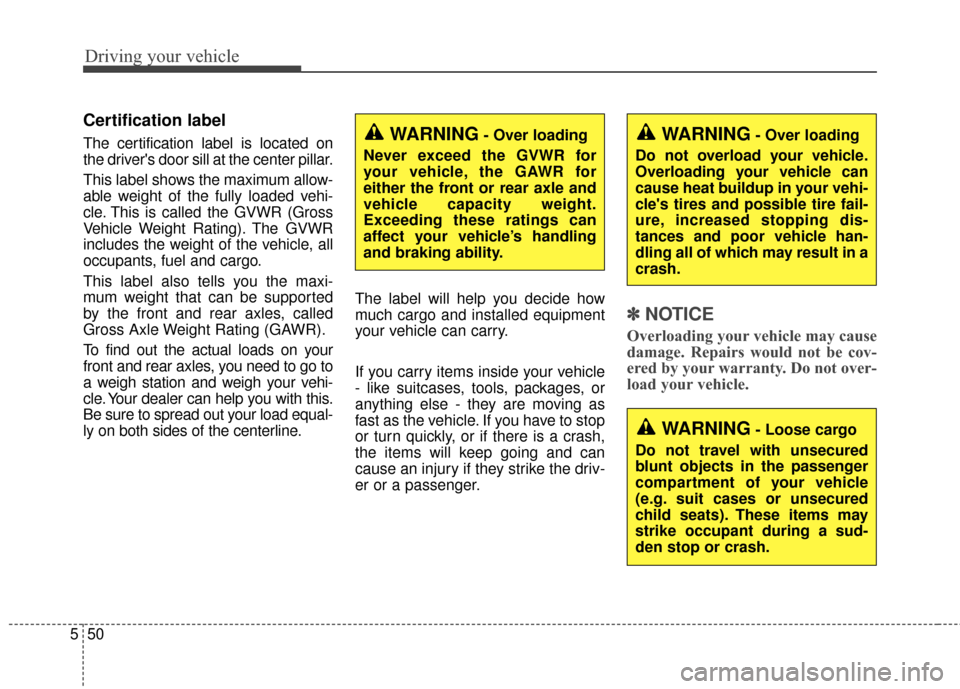
WARNING- Loose cargo
Do not travel with unsecured
blunt objects in the passenger
compartment of your vehicle
(e.g. suit cases or unsecured
child seats). These items may
strike occupant during a sud-
den stop or crash.
Certification label
The certification label is located on
the driver's door sill at the center pillar.
This label shows the maximum allow-
able weight of the fully loaded vehi-
cle. This is called the GVWR (Gross
Vehicle Weight Rating). The GVWR
includes the weight of the vehicle, all
occupants, fuel and cargo.
This label also tells you the maxi-
mum weight that can be supported
by the front and rear axles, called
Gross Axle Weight Rating (GAWR).
To find out the actual loads on your
front and rear axles, you need to go to
a weigh station and weigh your vehi-
cle. Your dealer can help you with this.
Be sure to spread out your load equal-
ly on both sides of the centerline. The label will help you decide how
much cargo and installed equipment
your vehicle can carry.
If you carry items inside your vehicle
- like suitcases, tools, packages, or
anything else - they are moving as
fast as the vehicle. If you have to stop
or turn quickly, or if there is a crash,
the items will keep going and can
cause an injury if they strike the driv-
er or a passenger.
✽ ✽
NOTICE
Overloading your vehicle may cause
damage. Repairs would not be cov-
ered by your warranty. Do not over-
load your vehicle.
WARNING- Over loading
Never exceed the GVWR for
your vehicle, the GAWR for
either the front or rear axle and
vehicle capacity weight.
Exceeding these ratings can
affect your vehicle’s handling
and braking ability.WARNING- Over loading
Do not overload your vehicle.
Overloading your vehicle can
cause heat buildup in your vehi-
cle's tires and possible tire fail-
ure, increased stopping dis-
tances and poor vehicle han-
dling all of which may result in a
crash.
Page 355 of 524
What to do in an emergency
46
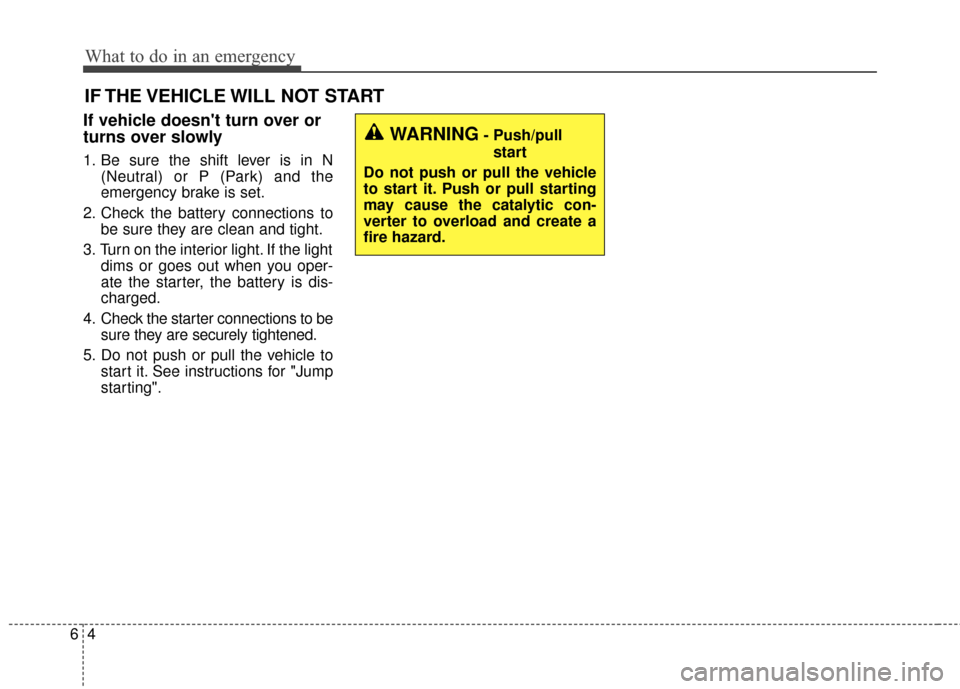
IF THE VEHICLE WILL NOT START
If vehicle doesn't turn over or
turns over slowly
1. Be sure the shift lever is in N(Neutral) or P (Park) and the
emergency brake is set.
2. Check the battery connections to be sure they are clean and tight.
3. Turn on the interior light. If the light dims or goes out when you oper-
ate the starter, the battery is dis-
charged.
4. Check the starter connections to be sure they are securely tightened.
5. Do not push or pull the vehicle to start it. See instructions for "Jump
starting".
WARNING- Push/pull
start
Do not push or pull the vehicle
to start it. Push or pull starting
may cause the catalytic con-
verter to overload and create a
fire hazard.
Page 372 of 524
621
What to do in an emergency
When towing your vehicle in an
emergency without wheel dollies :
1. Set the ignition switch in the ACCposition.
2. Place the transaxle shift lever in N (Neutral).
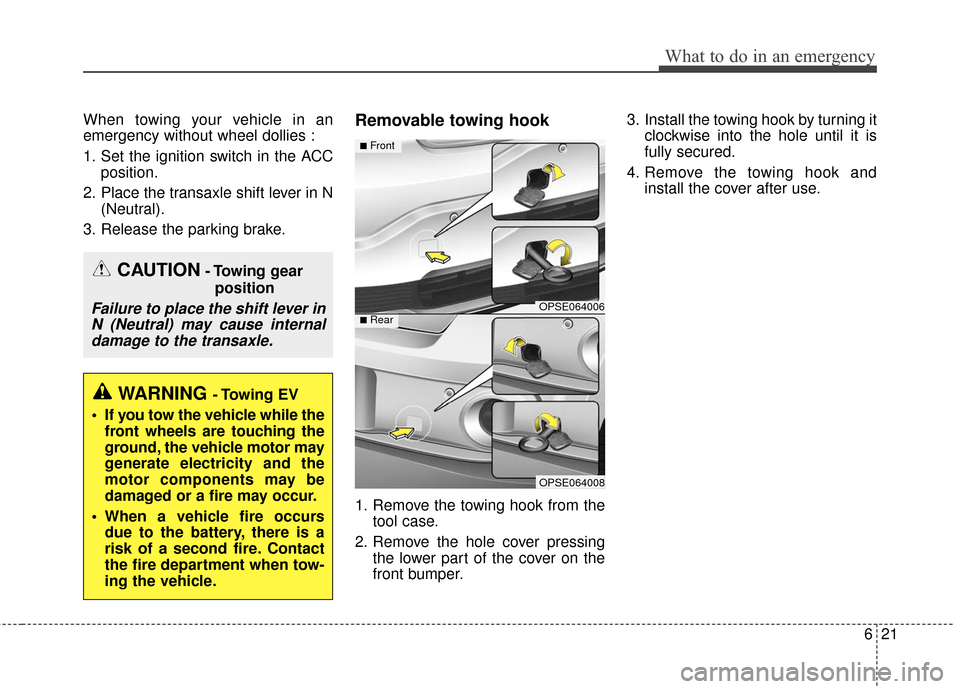
3. Release the parking brake.Removable towing hook
1. Remove the towing hook from the tool case.
2. Remove the hole cover pressing the lower part of the cover on the
front bumper. 3. Install the towing hook by turning it
clockwise into the hole until it is
fully secured.
4. Remove the towing hook and install the cover after use.
CAUTION- Towing gear
position
Failure to place the shift lever inN (Neutral) may cause internaldamage to the transaxle.
WARNING - Towing EV
If you tow the vehicle while the front wheels are touching the
ground, the vehicle motor may
generate electricity and the
motor components may be
damaged or a fire may occur.
When a vehicle fire occurs due to the battery, there is a
risk of a second fire. Contact
the fire department when tow-
ing the vehicle.
OPSE064006
OPSE064008
■Front
■Rear