charge KIA Soul EV 2017 2.G Owner's Guide
[x] Cancel search | Manufacturer: KIA, Model Year: 2017, Model line: Soul EV, Model: KIA Soul EV 2017 2.GPages: 470, PDF Size: 16.76 MB
Page 184 of 470
Features of your vehicle
114
4
AUTO DEFOGGING SYSTEM
Auto defogging reduces the possibil-
ity of fogging up the inside of the
windshield by automatically sensing
the moisture of inside the windshield.
The auto defogging system operates
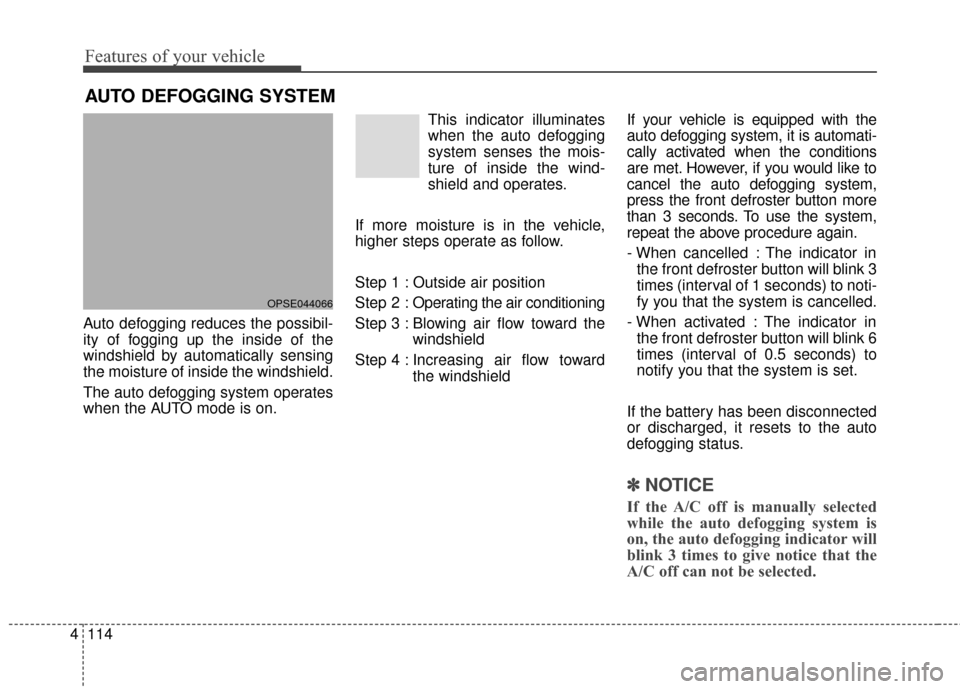
when the AUTO mode is on. This indicator illuminates
when the auto defogging
system senses the mois-
ture of inside the wind-
shield and operates.
If more moisture is in the vehicle,
higher steps operate as follow.
Step 1 : Outside air position
Step 2 : Operating the air conditioning
Step 3 : Blowing air flow toward the windshield
Step 4 : Increasing air flow toward the windshield If your vehicle is equipped with the
auto defogging system, it is automati-
cally activated when the conditions
are met. However, if you would like to
cancel the auto defogging system,
press the front defroster button more
than 3 seconds. To use the system,
repeat the above procedure again.
- When cancelled : The indicator in
the front defroster button will blink 3
times (interval of 1 seconds) to noti-
fy you that the system is cancelled.
- When activated : The indicator in the front defroster button will blink 6
times (interval of 0.5 seconds) to
notify you that the system is set.
If the battery has been disconnected
or discharged, it resets to the auto
defogging status.
✽ ✽ NOTICE
If the A/C off is manually selected
while the auto defogging system is
on, the auto defogging indicator will
blink 3 times to give notice that the
A/C off can not be selected.
OPSE044066
Page 188 of 470
Features of your vehicle
118
4
Sunvisor
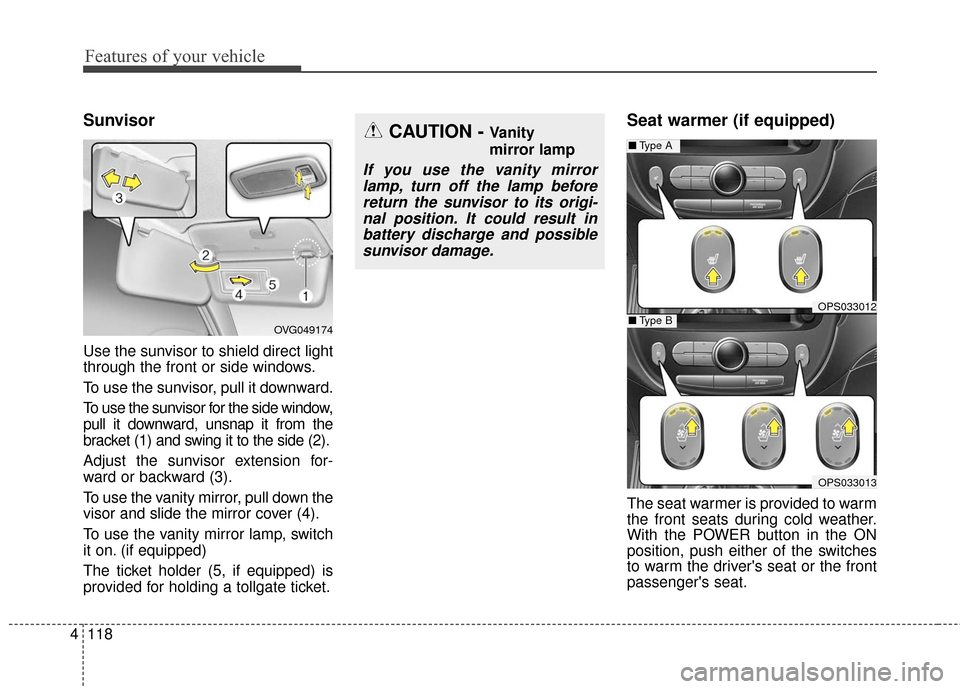
Use the sunvisor to shield direct light
through the front or side windows.
To use the sunvisor, pull it downward.
To use the sunvisor for the side window,
pull it downward, unsnap it from the
bracket (1) and swing it to the side (2).
Adjust the sunvisor extension for-
ward or backward (3).
To use the vanity mirror, pull down the
visor and slide the mirror cover (4).
To use the vanity mirror lamp, switch
it on. (if equipped)
The ticket holder (5, if equipped) is
provided for holding a tollgate ticket.
Seat warmer (if equipped)
The seat warmer is provided to warm
the front seats during cold weather.
With the POWER button in the ON
position, push either of the switches
to warm the driver's seat or the front
passenger's seat.
CAUTION - Vanity
mirror lamp
If you use the vanity mirror
lamp, turn off the lamp beforereturn the sunvisor to its origi-nal position. It could result inbattery discharge and possiblesunvisor damage.
OPS033012
■ Type A
OPS033013
■Type BOVG049174
Page 191 of 470
4121
Features of your vehicle
When pressing the switch for morethan 1.5 seconds with the seat
warmer operating, the seat warmer
will turn OFF.
The seat warmer defaults to the OFF position whenever the
POWER button is turned on.
✽ ✽ NOTICE
With the seat warmer switch in the
ON position, the heating system in
the seat turns off or on automatically
depending on the seat temperature.
Power outlet (if equipped)
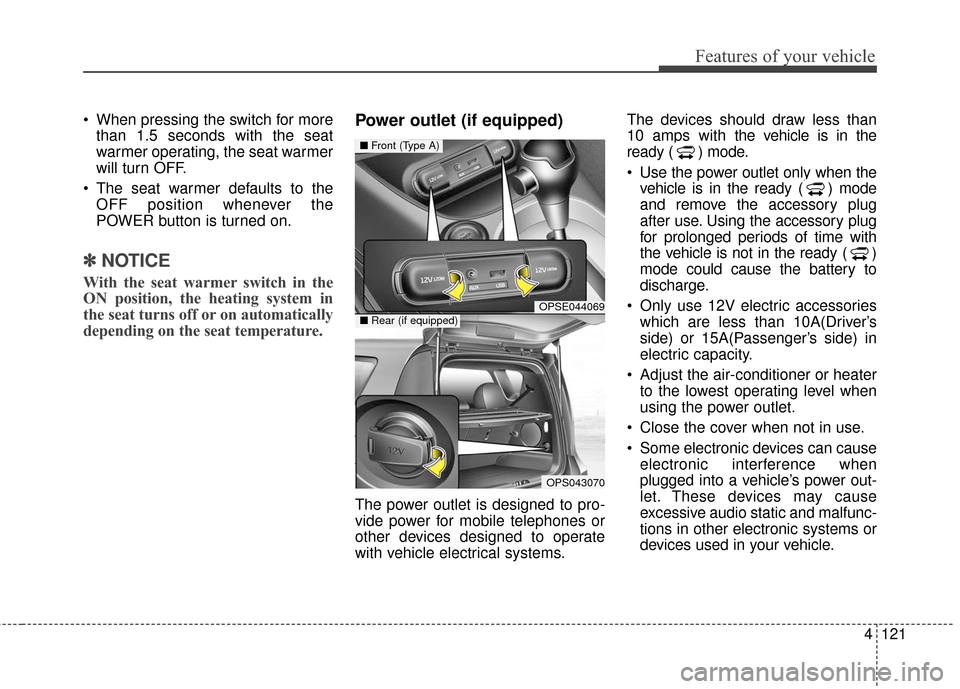
The power outlet is designed to pro-
vide power for mobile telephones or
other devices designed to operate
with vehicle electrical systems. The devices should draw less than
10 amps with the vehicle is in the
ready ( ) mode.
Use the power outlet only when the
vehicle is in the ready ( ) mode
and remove the accessory plug
after use. Using the accessory plug
for prolonged periods of time with
the vehicle is not in the ready ( )
mode could cause the battery to
discharge.
Only use 12V electric accessories which are less than 10A(Driver’s
side) or 15A(Passenger’s side) in
electric capacity.
Adjust the air-conditioner or heater to the lowest operating level when
using the power outlet.
Close the cover when not in use.
Some electronic devices can cause electronic interference when
plugged into a vehicle’s power out-
let. These devices may cause
excessive audio static and malfunc-
tions in other electronic systems or
devices used in your vehicle.
OPSE044069
OPS043070
■ Front (Type A)
■Rear (if equipped)
Page 198 of 470
Features of your vehicle
128
4
Speaker lights (if equipped)
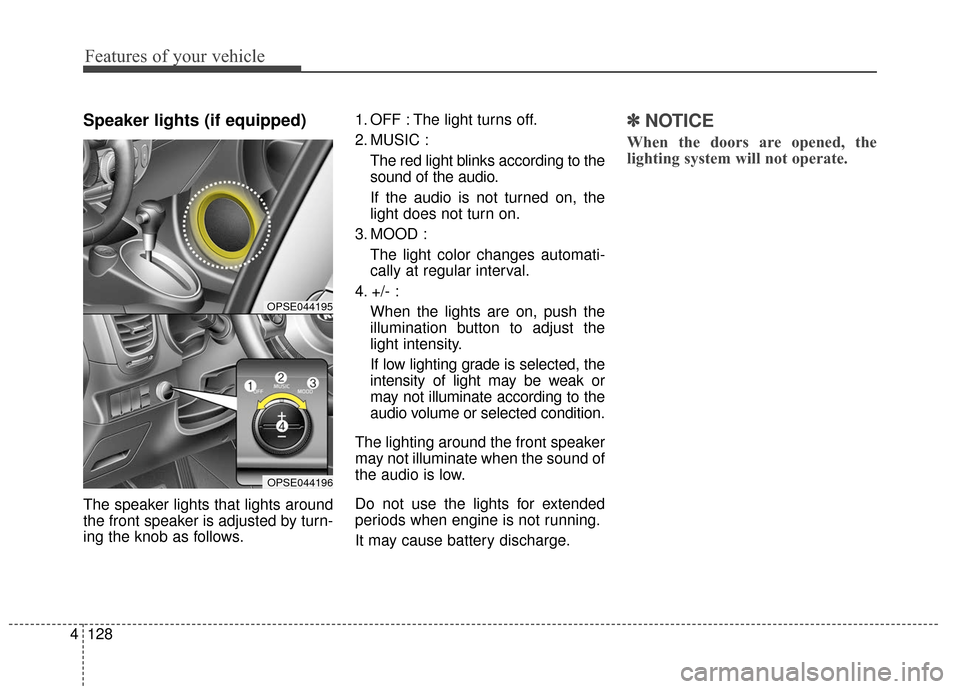
The speaker lights that lights around
the front speaker is adjusted by turn-
ing the knob as follows. 1. OFF : The light turns off.
2. MUSIC :
The red light blinks according to the
sound of the audio.
If the audio is not turned on, the
light does not turn on.
3. MOOD : The light color changes automati-
cally at regular interval.
4. +/- : When the lights are on, push the
illumination button to adjust the
light intensity.
If low lighting grade is selected, the
intensity of light may be weak or
may not illuminate according to the
audio volume or selected condition.
The lighting around the front speaker
may not illuminate when the sound of
the audio is low.
Do not use the lights for extended
periods when engine is not running.
It may cause battery discharge.
✽ ✽ NOTICE
When the doors are opened, the
lighting system will not operate.
OPSE044195
OPSE044196
Page 202 of 470
Features of your vehicle
132
4
Adjust the volume to levels that
allow the driver to hear sounds from
outside of the vehicle. Driving in a
state where external sounds cannot
be heard may lead to accidents. Pay attention to the volume setting
when turning the device on. A sud-
den output of extreme volume
upon turning the device on could
lead to hearing impairment. (Adjust
the volume to a suitable levels
before turning off the device.)
Turn on the car ignition before using the audio system. Do not
operate the audio system for long
periods of time with the ignition
turned off as such operations may
lead to battery discharge.
In case of product malfunction, please contact your place of pur-
chase or After Service center.
Placing the audio system within an electromagnetic environment may
result in noise interference.
CAUTION- LCD Monitor
Do not subject the device tosevere shock or impact. Directpressure onto the front side ofthe monitor may cause damageto the LCD or touch screen.
CAUTION
When cleaning the device, make sure to turn off theaudio system and use a dryand smooth cloth.
Never use tough materials, chemical cloths, or solvents(alcohol, benzene, thinners,etc.) as such materials maydamage the device panel orcause color/quality deteriora-tion.
Prevent caustic solutions such as perfume and cosmetic oilfrom contacting the dashboardbecause they may cause dam-age or discoloration.
WARNING- Distracted
Driving
Driving while distracted can
result in a loss of vehicle control
that may lead to an accident,
severe personal injury, and
death. The driver’s primary
responsibility is in the safe and
legal operation of a vehicle, and
use of any handheld devices,
other equipment, or vehicle sys-
tems which take the driver’s
eyes, attention and focus away
from the safe operation of a vehi-
cle or which are not permissible
by law should never be used dur-
ing operation of the vehicle.
Page 203 of 470
4133
Features of your vehicle
USING THE USB DEVICE
To use an external USB device,make sure the device is not con-
nected when starting up the
vehicle. Connect the device after
starting up.
If you start the engine when the USB device is connected, it may
damage the USB device. (USB
flashdrives are very sensitive to
electric shock.)
If the engine is started up or turned off while the external USB
device is connected, the external
USB device may not work.
The System may not play unau- thenticated MP3 or WMA files.
1) It can only play MP3 files with the compression rate
between 8Kbps ~ 320Kbps.
2) It can only play WMA music files with the compression
rate between 8Kbps ~
320Kbps.
Take precautions for static elec- tricity when connecting or discon-
necting the external USB device.
(Continued)(Continued)
An encrypted MP3 PLAYER is
not recognizable.
Depending on the condition of the external USB device, the
connected external USB device
can be unrecognizable.
When the formatted byte/sector setting of external USB device is
not either 512BYTE or
2048BYTE, then the device will
not be recognized.
Use only a USB device format- ted to FAT 12/16/32.
USB devices without USB I/F authentication may not be recog-
nizable.
Make sure the USB connection terminal does not come in con-
tact with the human body or
other objects.
If you repeatedly connect or dis- connect the USB device in a
short period of time, it may break
the device.
(Continued)(Continued)
You may hear a strange noise
when connecting or disconnect-
ing a USB device.
If you disconnect the external USB device during playback in
USB mode, the external USB
device can be damaged or may
malfunction. Therefore, discon-
nect the external USB device
when the audio is turned off or in
another mode. (e.g, Radio)
Depending on the type and capacity of the external USB
device or the type of the files
stored in the device, there is a
difference in the time for recogni-
tion the device.
Do not use the USB device for purposes other than playing
music files.
Playing videos through the USB is not supported.
Use of USB accessories such as rechargers or heaters using USB
I/F may lower performance or
cause trouble.
(Continued)
Page 214 of 470
Features of your vehicle
144
4
(Continued)
If you want to change the posi- tion of device installation,please inquire with your placeof purchase or service mainte-nance center. Technicalexpertise is required to installor disassemble the device.
Turn on the car ignition before using this device. Do not oper-ate the audio system for longperiods of time with the igni-tion turned off as such opera-tions may lead to battery dis-charge.
Do not subject the device to severe shock or impact. Directpressure onto the front side ofthe monitor may cause damageto the LCD or touch screen.
(Continued)(Continued) When cleaning the device, make sure to turn off thedevice and use a dry andsmooth cloth. Never usetough materials, chemicalcloths, or solvents (alcohol,benzene, thinners, etc.) assuch materials may damagethe device panel or causecolor/quality deterioration
Do not place beverages close to the audio system. Spillingbeverages may lead to systemmalfunction.
In case of product malfunc- tion, please contact your placeof purchase or After Servicecenter.
Placing the audio system with- in an electromagnetic environ-ment may result in noise inter-ference.
Page 217 of 470
Features of your vehicle
4147
✽ ✽NOTICE - SiriusXM®Satellite
Radio information
• Satellite Radio channels: Enjoy SiriusXM Satellite Radio
with a 3-month trial subscription
to the Sirius Select package. You’ll
get over variable channels, includ-
ing commercialfree music, plus all
your favorite sports, exclusive
talk, entertainment, and a selec-
tion of premium programming.
For more information and a com-
plete list of SiriusXM channels,
visit siriusxm.com in the United
States, siriusxm.ca in Canada, or
call SiriusXM at 1-888-539-7474.
• Satellite Radio reception factors: To receive the satellite signal, your
vehicle has been equipped with a
satellite radio antenna located on
the roof of your vehicle. The vehi-
cle roof provides the best location
for an unobstructed, open view of
the sky, a requirement of a satellite
radio system. Like AM/FM, there
are several factors that can affect
satellite radio reception perform-
ance: (Continued)(Continued)
- Antenna obstructions: For opti-mal reception performance, keep
the antenna clear of snow and
ice build-up and keep luggage
and other material as far away
from the antenna as possible.
• SiriusXM Satellite Radio service: SiriusXM is a subscription-based
satellite radio service that broad-
casts music, sports, news and
entertainment programming to
radio receivers, which are avail-
able for installation in motor vehi-
cles or factory installed, as well as
for the home, portable and wire-
less devices, and through an Internet
connection on a personal computer.
Vehicles that are equipped with a
factory installed SiriusXM Satellite
Radio system include:
- Hardware and an introductorytrial subscription term, which
begins on the date of sale or lease
of the vehicle.
- For a small upgrade fee, access to SiriusXM music channels, and
other select channels over the
Internet using any computer con-
nected to the Internet (U.S. cus-
tomers only).
(Continued)(Continued)
• SiriusXM services require a sub-
scription sold separately, or as a
package, by Sirius XM Radio Inc.
If you decide to continue service
after your trial, the subscription
plan you choose will automatically
renew thereafter and you will be
charged according to your chosen
payment method at then-current
rates. Fees and taxes apply. To
cancel you must call SiriusXM at
1-866-635-2349. See SiriusXM
Customer Agreement for complete
terms at www.siriusxm.com.
SiriusXM U.S. satellite and data
services are available only in the
48 contiguous states, DC and
Puerto Rico (with coverage limita-
tions). SiriusXM satellite service is
also available in Canada; see
www.siriusxm. ca. All fees and
programming subject to change.
Sirius, XM and all related marks
and logos are trademarks of Sirius
XM Radio Inc.
Page 222 of 470
Features of your vehicle
152
4
✽ ✽
NOTICE - Using the USB
Devices
• Starting the vehicle while a USB
device is connected can damage
the device. Please disconnect USB
devices before starting the vehicle.
• Starting the vehicle or stopping the engine while an external USB
device is connected can result in
failure of the external USB device
to operate.
• Be cautious of static electricity when connecting/disconnecting
external USB devices.
• An encrypted MP3 player is not recognized when connected as an
external device.
• External USB devices may not be recognized, depending on the state
of the external USB device.
• Only products with byte/sectors formatted at 4 KB or lower are
recognized.
• Only USB devices in FAT12/16/32 format are recognized; NTFS and
ExFAT file systems are not recog-
nized.
• Some USB devices are not recog- nized due to compatibility issues. (Continued)(Continued)
• Do not touch the USB connections.
• Connecting and disconnecting
USB devices rapidly over a short
period of time can cause equip-
ment failure.
• Abnormal sounds may be audible when the USB device is discon-
nected.
• Turn the audio off before connect- ing or disconnecting external USB
devices.
• Recognition may take longer depending on the type, capacity or
file format of the external USB
device. This is not a product mal-
function.
• Use of USB devices for purposes other than playing music files is
prohibited.
• Image display and video playback are not supported.
• Use of USB accessories, including charge and heat though the USB
I/F, can lead to reduced product
performance or malfunctions. Do
not use USB devices or accessories
for these purposes. (Continued)(Continued)
• Use of aftermarket USB hubs and
extension cables can result in the
vehicle’s audio system failing to
recognize your USB device.
Connect the USB device directly to
the multimedia port of your vehi-
cle.
• When using high-capacity USB devices with logical drive divi-
sions, only files saved on the high-
est level logical drive can be
played.
If applications are loaded on a
USB drive, file playback may fail.
• Some MP3 players, cell phones, digital cameras, etc. (USB devices
that are not recognized as mobile
storage) may not operate normally
when connected.
• USB charging may not be sup- ported by some mobile devices.
• Operation is guaranteed only for standard (Metal Cover Type) USB
Memory drives.
• Operation of HDD, CF, SD and memory stick devices is not guar-
anteed. (Continued)
Page 226 of 470
Features of your vehicle
156
4
✽ ✽
NOTICE - Using the iPod®
Devices
• To use the audio system’s iPod®
control function, use the dedicated
cable provided with your iPod®.
• Connecting the iPod®to the vehi-
cle during play may result in a
loud noise that lasts about one to
two seconds. Connect the iPod
®to
the vehicle after stopping or paus-
ing play.
• Connect the iPod
®with the vehicle
in the ACC ON state to begin
charging.
• When connecting the iPod
®cable,
be sure to fully push the cable into
the port.
• When EQ effects are enabled simultaneously on external
devices, such as iPod
®s and the
audio system, the EQ effects may
overlap, causing sound quality
deterioration or distortion.
Deactivate the EQ function for all
external devices, if possible.
• Noise may occur when your iPod
®
or the AUX port is connected.
Disconnect and store separately
when not in use. (Continued)(Continued)
• There may be noise if the audio
system is used with an iPod
®or
AUX external device connected to
the power jack. In these cases, dis-
connect the iPod
®or external
device from the power jack.
• Play may be interrupted, or device malfunctions may occur depend-
ing on the characteristics of your
iPod
®/iPhone®.
• Play may fail if your iPhone®is
connected through both
Bluetooth
®Wireless Technology
and USB. In this case, select Dock
connector or Bluetooth
®Wireless
Technology on your iPhone®to
change the sound output settings.
• If your software version does not support the communication proto-
col or your iPod
®is not recognized
due to device failure, anomalies or
defects, iPod
®mode cannot be
used.
• iPod
®nano (5th generation)
devices may not be recognized if
the battery is low. Charge suffi-
ciently before use. (Continued)(Continued)
• The search and song play order in
the iPod
®device may be different
from the search order in the audio
system.
• If the iPod
®has failed due to an
internal defect, please reset the
iPod
®(consult your iPod®manu-
al).
• Depending on the software ver- sion, the iPod
®may fail to sync
with the system. If the media is
removed or disconnected before
recognition, the previous mode
may not be restored (iPad
®cannot
be charged).
• Cables other than the 1-meter cable provided with iPod
®/iPhone®
products may not be recognized.
• When other music apps are used on your iPod
®, the system sync
function may fail due to malfunc-
tion of the iPod
®application.